Cloud Native Mobility Management Entity Overview

Feature Summary and Revision History

Summary Data

Table 1. Summary Data

Applicable Product(s) or Functional Area

MME

Applicable Platform(s)

SMI

Feature Default Setting

Not Applicable

Related Changes in this Release

Not Applicable

Related Documentation

Not Applicable

Revision History

Table 2. Revision History
Revision Details Release

First introduced.

Pre-2023.01.0

cnMME Overview

The cloud-native deployment and configuration of MME involves deploying the MME through the Subscriber Microservices Infrastructure (SMI) Cluster Deployer and configuring the settings or customizations through the MME Ops-Center. The Ops-Center is based on the ConfD CLI.

The containerized model deploys the entire software stack in a single container (Management layer, Application layer, and Fast Path layer). The orchestration is standardized in Kubernetes (K8s) environments.

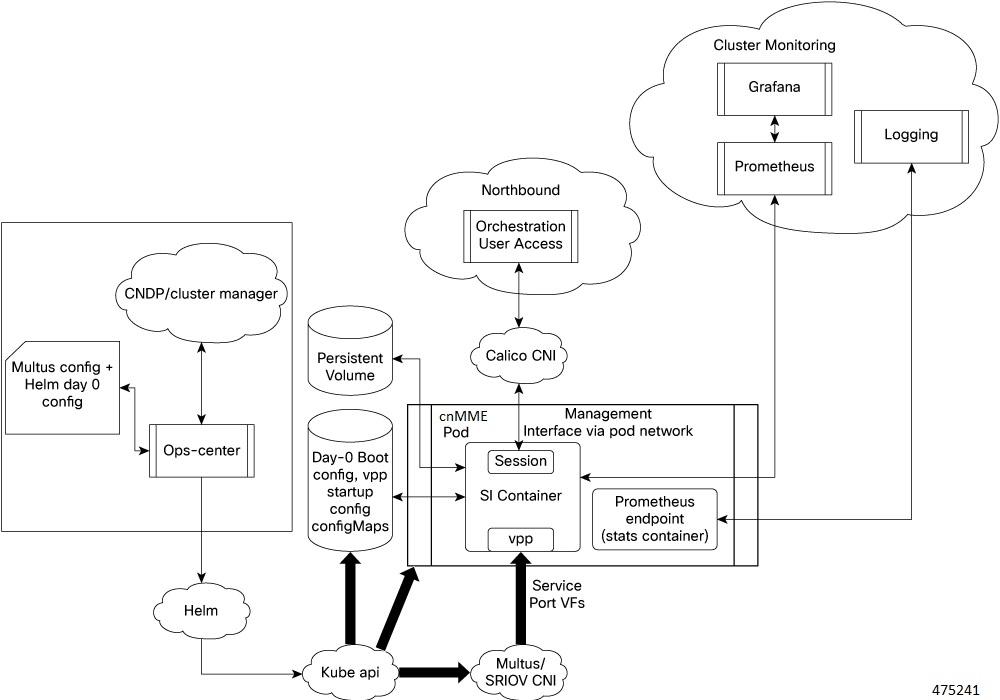
The following figure illustrates the containerized MME deployment:

Figure 1. cnMME Deployment

You can deploy the MME in all-in-one clusters (K8s master and worker tasks on the same node) and multinode clusters. Each MME instance is deployed in its own namespace within the cluster. K8s schedules the MMEs within the cluster.

cnMME consists of the following components:

  • Helm chart containing the MME Ops-center application

    The Ops-center application contains ConfD and an embedded YANG model, used with helm for the deployment of the main application. The YANG model consists of the day-0 configuration. The rest of the MME configuration remains in the CLI. There is one Ops-center per MME. The Ops-center application is required for CNDP clusters but is an optional component for all other MME deployments.

  • Helm chart for the MME application

    The main MME application is deployed as a single helm chart. The day-0 configuration is passed to the helm through the values.yaml configuration file. The helm takes the helm chart and values.yaml file, and renders the following K8s objects:

    • Configuration map containing day-0 configuration

    • Stateful set for the MME container

    • IAM configuration for CLI access

    • K8s secret for preconfigured chassis key (optional)

The Boxer CLI is the primary user interface for both VM and Container environments. For VM environments, you can access the CLI through VM serial ports and SSH. For Container environments, you can access the CLI access through SSH.

For more information, see the UCC SMI Deployment Guide and UCC SMI Operations Guide.

cnMME Architecture

The Cloud Native MME (cnMME) has a three-tier architecture consisting of Protocol, Service, and Session tiers. Each tier includes a set of microservices (pods) for a specific functionality. Within these tiers, there exists a Kubernetes Cluster comprising of Kubernetes (K8s) master, and worker nodes (including Operation and Management nodes).

For high availability and fault tolerance, a minimum of two K8s worker nodes are required for each tier. You can have multiple replicas for each worker node. Kubernetes orchestrates the pods using the StatefulSets controller. The pods require a minimum of two replicas for fault tolerance.

An MME K8s Cluster contains 12 nodes:

  • Three Master nodes.

  • Three Operations and Management (OAM) worker nodes.

    OAM worker nodes host the Ops Center pods for configuration management and metrics pods for statistics and Key Performance Indicators (KPIs).

  • Two Protocol worker nodes.

    Protocol worker nodes host the MME protocol-related pods for service-based interfaces (N11, N7, N10, N40, NRF), UDP-based protocol interfaces (N4, S5/S8, RADIUS) and TCP-based interfaces (Diameter - Gx, Gy).

  • Two Service worker nodes.

    Service worker nodes host the MME application-related pods that perform session management processing.

  • Two Session (data store) worker nodes.

    Session worker nodes host the database-related pods that store subscriber session data.

Example Configuration for Baremetal CNDP

The following is a sample deployment configuration running node 0 and pinning 4 VPP workers to CPUs 2, 3, 50, and 51.

deployment
 app-name       vpc-mme1
 model          small
 node           node0
 storage-size   4
 cli-access external-ip 127.0.0.1
 cli-access external-port 3022
 poll-cpus      2,3,50,51
 vpp-main       1
 dpdk-rx-queues 4
 dpdk-tx-queues 5
exit
accountinfo
 username username1
 password password1
exit

NOTES:

  • app-name: Application name, used as the hostname for MME.

  • model: Set to deployment model size as small, medium, large, default

  • node: If you are running in a Multus environment, set node[0-3] for placement of the workload and NIC selection.

  • storage-size: Persistent volume size in Gig (for /flash and /hd-raid usage).

  • cli-access: StarOS CLI service reachability.

    • external-ip: Set external IP of the container host to bind SSH service to.

    • external-port: Set the external port number of the container host to bind SSH service to.

  • poll-cpus: Comma separated list of CPUs to pin the VPP worker threads to.

  • vpp-main: Set the CPU number to pin the VPP main thread.

  • dpdk-rx-queues: Default number of queues received per interface.

  • dpdk-tx-queues: Default number of queues transmitted per interface.

  • username: Username for initial login to StarOS CLI.

  • password: Password for initial login to StarOS CLI.

Example Configuration for VMWare CNDP

The following is a sample deployment configuration running a single socket VM with two NICs attached to VPP through PCI addresses.

deployment
 app-name     mme
 model        small
 function     mme
 node         node0
 storage-size 4
 vf 0000:13:00.0
 exit
 vf 0000:1b:00.0
 exit
exit
accountinfo
 username username1
 password password1
exit

NOTES:

  • app-name: Application name, used as the hostname for MME

  • model: Set to deployment model size as small, medium, large, default

  • function: the Network function that the instance be configured to run as:

    • mme: operate as a MME

  • node: If you are running in a Multus environment, set node[0-3] for placement of the workload and NIC selection

  • vf: Non-multus environments

    • pci-address: PCI address of NIC (non-multus environements such as VMware developer environments)

  • username: Username for initial login to StarOS CLI

  • password: Password for initial login to StarOS CLI

Features and Functionalities

cnMME supports the following functionalities:

  • Multi PDN Data (upto 5000 sessions)

  • UE Initiated Attach - IMSI ( upto 2500)

  • UE/HSS/Network Initiated Detach (upto 2500)

  • Paging (DDN) and Service Request

  • TAU and Periodic TAU

  • Static configuration for selection of Gateways (GW) and other network nodes

  • Total UE reachability (4G)

  • IPv4-based routing and PDN connections/bearers (upto 250)

  • 5 eNodeBs, 25 GW (eGTPC), and 1 HSS (Diameter) peer is used

The following functionalities are not qualified for cnMME:

  • 2G, 3G, 5G NSA Emergency calls, Location based services, and SMS

  • Voice PDN and Dedicated Bearer

  • Combined Attach (EPC+MSC), CSFB, and SRVCC

  • Heuristic Paging

  • Inter RAT, TAU HO, s10, X2HO, IoT, S-GW relocation, Lawful Intercept (LI), and EIR

  • DNS-based Selection

  • IPv6 /Dual Stack

  • MME pooling and offload

Cluster Manager Install and Configuration

This section describes how to deploy and configure MME.

The SMI platform is responsible for deploying and managing the Cloud Native 5G SMF application and other network functions. For more information, see the SMI Deployment Guide.

Key Configurables for cnMME

The Cluster Manager Installation includes both the Master node and the Worker node configuration. The key configurable for cnMME includes:

  • Install python, Git Clone, and dpdk in the Worker node.

  • Install CEE and VPC in the Master node.

  • Apply node labels for workload placement.

    k8s node-labels vpc.cisco.com/node-type worker 
    exit
  • Enable the host profile with isolating CPUs and huge pages, enable tuning (required by CNDP), and disable CPU partition.

    host-profile hp1 
    os tuned enabled 
    addons cpu-partitioner disabled
  • Enable the Multus SRIOV plugin configuration.

    This binds the first two VFs on each PF to vfio-pci and configure Multus so that cnMME can use the VFs.

    configuration enable-multus true 
    os sriov-device-config resource-list-config-map resource-name 
    intel_sriov_dpdk_node0_phy0 
    pf-name enp94s0f0 
    bind-driver vfio-pci 
    vf-numbers [ 0 1 ] 
    exit
    os sriov-device-config resource-list-config-map resource-name 
    intel_sriov_dpdk_node0_phy1 
    pf-name enp94s0f1 
    bind-driver vfio-pci 
    vf-numbers [ 0 1 ] 
    exit
    os sriov-device-config resource-list-config-map resource-name 
    intel_sriov_dpdk_node1_phy0 
    pf-name enp216s0f0 
    bind-driver vfio-pci 
    vf-numbers [ 0 1 ] 
    exit
    os sriov-device-config resource-list-config-map resource-name 
    intel_sriov_dpdk_node1_phy1 
    pf-name enp216s0f1 
    bind-driver vfio-pci
    vf-numbers [ 0 1 ] 
    exit

Post Cluster Manager Installation

  1. Logon to the newly created virtual machine.

    ssh cloud-user@10.0.0.1
  2. Access the CLI using the pod IP address:

    $ kubectl get pods -l component=vpc -o wide
    NAME READY STATUS RESTARTS AGE IP NODE NOMINATED NODE READINESS GATES
    vpc-0 2/2 Running 0 4d 127.0.0.1 user-dev none none
    
    $ ssh admin@127.0.0.1
    Cisco Systems CONTAINER Intelligent Mobile Gateway
    staradmin@127.0.0.1's password:
    Last login: Wed Jan 11 08:41:51 -0600 2023 on pts/3.
    
    
    [local]app-mme#
  3. Configure the MME

    • Access the vpc-ops-center CLI:

      $ ops.sh vpc-1
    • Configure the following cli-access external-ip and cli-access external-port in the mme-ops-center configuration:

      • cli-access external-ip and cli-access external-port

      • cli-access external-port 3022

      Sample Configuration:

      config 
      k8s use-volume-claims true 
      deployment 
        app-name   mme 
        model      small 
        function   mme 
        node       node0 
        storage-size 4 
      exit 
      accountinfo 
        username username1 
        password password1 
      exit 
      system mode running 
      end
    • Configure the Helm repository with the Build URL configuration for upgrading the Build.

      Sample Configuration

      helm repository mmeurl https://engci-maven-master.cisco.com/artifactory/
      mobile-cnat-charts-release/releng-builds/2023.01.c0/
      cnvpc/2023.01.c0.i27/cnvpc.2023.01.c0.i27/

Rolling Software Update

Rolling Software Update Using SMI Cluster Manager

Rolling software upgrade is a process of upgrading or migrating the build from older to newer version or upgrading the patch for the prescribed deployment set of application pods.

The cnMME software update or in-service update procedure utilizes the K8s rolling strategy to update the pod images. In K8s rolling update strategy, the pods of a StatefulSet are updated sequentially to ensure that the ongoing process remains unaffected. Initially, a rolling update on a StatefulSet causes a single pod instance to terminate. A pod with an updated image replaces the terminated pod. This process continues until all the replicas of the StatefulSet are updated. The terminating pods exit gracefully after completing all the ongoing processes. Other in-service pods continue to receive and process the traffic to provide a seamless software update. You can control the software update process through the Ops Center CLI.


Warning


The cnMME upgrade process causes service disruption by stopping the current cnMME instance and restarting with the new software version. This process drops the active subscribers in the platform. You must upgrade the standby instances of cnMME with caution to avoid service loss.


Prerequisites

The prerequisites for upgrading MME are:

  • All the nodes including the pods are active.

  • A patch version of the MME software.


    Note


    Major versions does not support rolling upgrade.


    Important


    Trigger rolling update only when the CPU usage of the nodes is less than 50%.


MME Health Check

Before you perform health check, ensure that all the services are running and the nodes are in ready state.

To perform health check:

  • Log in to the Master node with Iuser userid. Other userids are staradmin or admin.

  • Use the following configuration:

    kubectl get pod --all-namespaces 
Preparing the Upgrade

This section describes the procedure for creating a backup configuration, logs, and deployment files. To backup the files:

  1. Log on to the SMI Cluster Manager Node as an ubuntu user.

  2. Create a new directory for deployment.

    Example:

    test@user1:~$ mkdir -p "temp_$(date +'%m%d%Y_T%H%M')" && cd "$_"
  3. Move all the working files into the newly created deployment directory.

  4. Enter the MME deployment file.

    Example:
    test@user1:~/temp_08072019_T1651$ tar -xzvf cnvpc.2023.02.cm0.il.SPA.tgz
    
  5. Verify the downloaded image.

    Example:

    test@user1:~/temp_08072019_T1651$ cat cnvpc.2023.02.cm0.il.tar.SPA.README

    Important


    Follow the procedure mentioned in the SPA.README file to verify the build before proceeding to the Back Up Ops Center Configuration section.


Backup Ops Center Configuration

This section describes the procedure for creating a backup of the Ops Center configurations.

To perform a backup of the Ops Center configurations, use the following steps:

  1. Log on to SMI Cluster Manager node as an ubuntu user.

  2. Run the following command to backup the SMI Ops Center configuration to /home/ubuntu/smiops.backup file.

    ssh -p  port_number admin@$(kubectl get svc -n smi | grep '.*netconf.*<port_number>' | awk '{ print $4 }') "show run | nomore" > smiops.backup_$(date +'%m%d%Y_T%H%M') 
  3. Run the following command to backup the CEE Ops Center configuration to /home/ubuntu/ceeops.backup file.

    ssh admin@<cee-vip> "show run | nomore" > ceeops.backup_$(date +'%m%d%Y_T%H%M') 
  4. Run the following command to backup the MME Ops Center configuration to /home/ubuntu/mmeops.backup file.

    ssh admin@<mme-vip> "show run | nomore" > mmeops.backup_$(date +'%m%d%Y_T%H%M') 
Back Up CEE and MME Ops Center Configuration

This section describes the procedure to create a backup of CEE and Ops Center configuration from the master node.

To perform a backup of CEE and Ops Center configuration, , use the following steps:

  1. Log in to the master node as an ubuntu user.

  2. Create a directory to backup the configuration files.

    mkdir backups_$(date +'%m%d%Y_T%H%M') && cd "$_"

  3. Backup the MME Ops Center configuration and verify the line count of the backup files.

    ssh -p port_number admin@$(kubectl get svc -n $(kubectl get namespaces | grep -oP 'vpc-(\d+|\w+)') | grep port_number | awk '{ print $3 }') "show run | nomore" > vpcops.backup_$(date +'%m%d%Y_T%H%M') && wc -l vpcops.backup_$(date +'%m%d%Y_T%H%M')

    Example:
    ubuntu@user1:~/backups_09182019_T2141$ ssh -p 2024 admin@$(kubectl get svc -n $(kubectl get namespaces | grep -oP 'mme-(\d+|\w+)') | grep <port_number> | awk '{ print $3 }') "show run | nomore" > vpcops.backup_$(date +'%m%d%Y_T%H%M') && wc -l vpcops.backup_$(date +'%m%d%Y_T%H%M')
    admin@<ipv4address>'s password: password1
    334 vpcops.backup
  4. Backup the CEE Ops Center configuration and verify the line count of the backup files.

    ssh -p port_number admin@$(kubectl get svc -n $(kubectl get namespaces | grep -oP 'cee-(\d+|\w+)') | grep port_number | awk '{ print $3 }') "show run | nomore" > ceeops.backup_$(date +'%m%d%Y_T%H%M') && wc -l ceeops.backup_$(date +'%m%d%Y_T%H%M')

    Example:
    ubuntu@user1:~/backups_09182019_T2141$ ssh -p <port_number> admin@$(kubectl get svc -n $(kubectl get namespaces | grep -oP 'cee-(\d+|\w+)') | grep <port_number> | awk '{ print $3 }') "show run | nomore" > ceeops.backup_$(date +'%m%d%Y_T%H%M') && wc -l ceeops.backup_$(date +'%m%d%Y_T%H%M')
    admin@<ipv4address>'s password: CEE-OPS-PASSWORD
    233 ceeops.backup
    
  5. Move the SMI Ops Center backup file from the SMI Cluster Manager to the backup directory.

    scp $(grep cm01 /etc/hosts | awk '{ print $1 }'):/home/ubuntu/smiops.backup_$(date +'%m%d%Y_T%H%M')

    Example:

    ubuntu@user1:~/backups_09182019_T2141$ scp $(grep cm01 /etc/hosts | awk '{ print $1 }'):/home/ubuntu/smiops.backup_$(date +'%m%d%Y_T%H%M') .
    ubuntu@<ipv4address>'s password: PASSWORD1
    smiops.backup                         100% 9346    22.3MB/s   00:00                                                                            
    
  6. Verify the line count of the backup files.

    Example:

    ubuntu@user1:~/backups_09182019_T2141$ wc -l *
      233 ceeops.backup
      334 vpcops.backup
      361 smiops.backup
      928 total
    
Staging a New MME Image

This section describes the procedure for staging a new MME image before initiating the upgrade.

To stage the new MME image:

  1. Download and verify the new MME image.

  2. Log in to the SMI Cluster Manager node as an ubuntu user.

  3. Copy the images to Uploads directory.

    sudo mv MME_new_image.tar /data/software/uploads 

    Note


    The SMI uses the new image available in the Uploads directory to upgrade.


  4. Verify whether the image is picked up by the SMI for processing from the Uploads directory.

    sleep 30; ls /data/software/uploads 

    Example:

    ubuntu@pomme-cm01:~/temp_08072019_T1651$ sleep 30; ls /data/software/uploads
    ubuntu@pomme-cm01:~/temp_08072019_T1651$
    
  5. Verify whether the images were successfully picked up and processed.

    Example:

    auser@unknown:$ sudo du -sh /data/software/packages/*
    1.6G	/data/software/packages/cee.2019.07
    5.3G	/data/software/packages/mme.2019.08-04
    16K	/data/software/packages/sample
    

    The SMI must extract the images into the packages directory to complete the staging.

Triggering the Rolling Software Upgrade

The MME utilizes the SMI Cluster Manager to perform a rolling software update.

To update MME using SMI Cluster Manager, use the following configurations:


Important


Before you begin, ensure that MME is up and running with the latest version of the software.


  1. Log in to SMI Cluster Manager Ops Center.

  2. Download the latest TAR ball from the URL using the software-packages download url command.

    NOTES:

    software-packages download url : Specify the software packages to be downloaded through HTTP or HTTPS.

  3. Verify whether the TAR balls are loaded.

    Example:

    SMI Cluster Manager# software-packages list 
    [ MME-2019-08-21 ] 
    [ sample ] 
    

    NOTES:

    software-packages list : Specify the list of available software packages.

  4. Update the product repository URL with the latest version of the product chart.


    Note


    If the repository URL contains multiple versions, the Ops Center automatically selects the latest version.


    configure
      cluster cluster_name
       ops-centers app_name MME_instance_name
            repository url
             exit
           exit 

    Example:

    SMI Cluster Manager# config 
    SMI Cluster Manager(config)# clusters test2 
    SMI Cluster Manager(config-clusters-test2)# ops-centers MME data 
    SMI Cluster Manager(config-ops-centers-upf/data)# repository <url> 
    SMI Cluster Manager(config-ops-centers-upf/data)# exit 
    SMI Cluster Manager(config-clusters-test2)# exit 
    

    NOTES:

    clusters cluster_name : Specify the information about the nodes to be deployed. cluster_name is the name of the cluster.

  5. Run the following command to update to the latest version of the product chart.

    clusters cluster_name actions sync run 

    Example:

    SMI Cluster Manager# clusters test2 actions sync run

NOTES:

  • ops-centers app_name instance_name : Specifies the product Ops Center and instance. app_name is the application name. instance_name is the name of the instance.

  • repository url : Specify the local registry URL for downloading the charts.

  • actions : Specify the actions performed on the cluster.

  • sync run : Trigger the cluster synchronization.


Important


  • The cluster synchronization updates the MME Ops Center, which in turn updates the application pods (through helm sync command) one at a time automatically.

  • When you trigger rolling upgrade on a specific pod, the MME avoids routing new calls to that pod.

  • The MME honors in-progress call by waiting for 30 seconds before restarting the pod where rolling upgrade is initiated. Also, the MME establishes all the in-progress calls completely within 30 seconds during the upgrade period (maximum call-setup time is 10 seconds).


MME Software Upgrade under Helm Repository

To perform the MME Software upgrade in the ops-centre, use the following configuration:


Note


Upgrade in the sytem shutdown mode.
vpc# system mode shutdown
step3: update the build link
vpc(config)# helm repository mme
vpc(config-repository-mme)# url https://engci-maven-master.cisco.com/artifactory/mobile-cnat-charts-release/releng-builds/2023.02.cm0/cnvpc/2023.02.cm0.i63/cnvpc.2023.02.c0.i71/
vpc(config-repository-mme)# commit
Commit complete.
vpc(config-repository-mme)# system mode running
vpc(config)# commit
Commit complete.
Monitoring the Upgrade

Use the following sample configuration to monitor the status of the upgrade through SMI Cluster Manager Ops Center:

config 
   clusters cluster_name actions sync run debug true 
   clusters cluster_name actions sync logs 
   monitor sync-logs cluster_name 
   clusters cluster_name actions sync status 
   exit 

NOTES:

  • clusters cluster_name : Specifies the information about the nodes to be deployed. cluster_name is the name of the cluster.

  • actions : Specifies the actions performed on the cluster.

  • sync run : Triggers the cluster synchronization.

  • sync logs : Shows the current cluster synchronization logs.

  • sync status : Shows the current status of the cluster synchronization. debug true : Enters the debug mode.

  • monitor sync logs : Monitors the cluster synchronization process.

Example:
SMI Cluster Manager# clusters test1 actions sync run
SMI Cluster Manager# clusters test1 actions sync run debug true
SMI Cluster Manager# clusters test1 actions sync logs
SMI Cluster Manager# monitor sync-logs test1
SMI Cluster Manager# clusters test1 actions sync status

Important


You can view the pod details after the upgrade through CEE Ops Center. For more information on pod details, see the Viewing the Pod Details section.


Viewing the POD Details

Use the following sample configuration to view the details of the current pods through CEE Ops Center in CEE Ops Center CLI:

cluster pods instance_name pod_name detail 

NOTES:

  • cluster pods – Specifies the current pods in the cluster.

  • instance_name – Specifies the name of the instance.

  • pod_name – Specifies the name of the pod.

  • detail – Displays the details of the specified pod.

The following example displays the details of the pod named alertmanager-0 in the mme-data instance.

Example:
cee# cluster pods mme-data alertmanager-0 detail
details apiVersion: "v1"
kind: "Pod"
metadata:
  annotations:
    alermanager.io/scrape: "true"
    cni.projectcalico.org/podIP: "<ipv4address/subnet>"
    config-hash: "5532425ef5fd02add051cb759730047390b1bce51da862d13597dbb38dfbde86"
  creationTimestamp: "2020-02-26T06:09:13Z"
  generateName: "alertmanager-"
  labels:
    component: "alertmanager"
    controller-revision-hash: "alertmanager-67cdb95f8b"
    statefulset.kubernetes.io/pod-name: "alertmanager-0"
  name: "alertmanager-0"
  namespace: "mme"
  ownerReferences:
  - apiVersion: "apps/v1"
    kind: "StatefulSet"
    blockOwnerDeletion: true
    controller: true
    name: "alertmanager"
    uid: "82a11da4-585e-11ea-bc06-0050569ca70e"
  resourceVersion: "1654031"
  selfLink: "/api/v1/namespaces/mme/pods/alertmanager-0"
  uid: "82aee5d0-585e-11ea-bc06-0050569ca70e"
spec:
  containers:
  - args:
    - "/alertmanager/alertmanager"
    - "--config.file=/etc/alertmanager/alertmanager.yml"
    - "--storage.path=/alertmanager/data"
    - "--cluster.advertise-address=$(POD_IP):6783"
    env:
    - name: "POD_IP"
      valueFrom:
        fieldRef:
          apiVersion: "v1"
          fieldPath: "status.podIP"
    image: "<path_to_docker_image>"
    imagePullPolicy: "IfNotPresent"
    name: "alertmanager"
    ports:
    - containerPort: 9093
      name: "web"
      protocol: "TCP"
    resources: {}
    terminationMessagePath: "/dev/termination-log"
    terminationMessagePolicy: "File"
    volumeMounts:
    - mountPath: "/etc/alertmanager/"
      name: "alertmanager-config"
    - mountPath: "/alertmanager/data/"
      name: "alertmanager-store"
    - mountPath: "/var/run/secrets/kubernetes.io/serviceaccount"
      name: "default-token-kbjnx"
      readOnly: true
  dnsPolicy: "ClusterFirst"
  enableServiceLinks: true
  hostname: "alertmanager-0"
  nodeName: "for-smi-cdl-1b-worker94d84de255"
  priority: 0
  restartPolicy: "Always"
  schedulerName: "default-scheduler"
  securityContext:
    fsGroup: 0
    runAsUser: 0
  serviceAccount: "default"
  serviceAccountName: "default"
  subdomain: "alertmanager-service"
  terminationGracePeriodSeconds: 30
  tolerations:
  - effect: "NoExecute"
    key: "node-role.kubernetes.io/oam"
    operator: "Equal"
    value: "true"
  - effect: "NoExecute"
    key: "node.kubernetes.io/not-ready"
    operator: "Exists"
    tolerationSeconds: 300
  - effect: "NoExecute"
    key: "node.kubernetes.io/unreachable"
    operator: "Exists"
    tolerationSeconds: 300
  volumes:
  - configMap:
      defaultMode: 420
      name: "alertmanager"
    name: "alertmanager-config"
  - emptyDir: {}
    name: "alertmanager-store"
  - name: "default-token-kbjnx"
    secret:
      defaultMode: 420
      secretName: "default-token-kbjnx"
status:
  conditions:
  - lastTransitionTime: "2020-02-26T06:09:02Z"
    status: "True"
    type: "Initialized"
  - lastTransitionTime: "2020-02-26T06:09:06Z"
    status: "True"
    type: "Ready"
  - lastTransitionTime: "2020-02-26T06:09:06Z"
    status: "True"
    type: "ContainersReady"
  - lastTransitionTime: "2020-02-26T06:09:13Z"
    status: "True"
    type: "PodScheduled"
  containerStatuses:
  - containerID: "docker://821ed1a272d37e3b4c4c9c1ec69b671a3c3fe6eb4b42108edf44709b9c698ccd"
    image: "<path_to_docker_image>"
    imageID: "docker-pullable://<path_to_docker_image>"
    lastState: {}
    name: "alertmanager"
    ready: true
    restartCount: 0
    state:
      running:
        startedAt: "2020-02-26T06:09:05Z"
  hostIP: "<host_ipv4address>"
  phase: "Running"
  podIP: "<pod_ipv4address>"
  qosClass: "BestEffort"
  startTime: "2020-02-26T06:09:02Z"
cee#