Maintenance Tools and Utilities

Telephony Aggregation

Service Fulfillment

Cisco Unified Communications Domain Manager

System Maintenance

Use the platform user login application command line to perform maintenance - either by SSH or from the VM console command line. The password is configured during installation, and can be changed using system password. If the password is lost, it must be reset. To do this, please contact Support.

A local home directory is available to the user and can be managed by the user with standard UNIX commands: ls, cp, mv, rm, less, grep and scp. The user is not permitted to view directories or run commands outside the home directory.

Typing help provides information on available commands. Entering the command without further parameters will provide additional information on that command. Refer to the output of the help command for more details.

The following brief command summary can be used to maintain the system.

Command

Description

health

Provides a short system summary indicative of system health.

app status

Checks that all applications are running correctly.

app start

Restarts all services.

diag

Lists the available diagnostic commands.

network <interface> <ip> <netmask> <gateway>

Reconfigures the network interface, for example: networketh0192.168.1.2255.255.255.0192.168.2.1

system restart

Reboots the system.

system mount

Mounts any ISO images copied to the system so that the applications within it are visible.

app list

Displays the available software installation packages.

app install <application>

Installs an application.

system provision

Re-provisions the system to ensure that the system components are configured to work together.

voss cleardown

Removes all database transactions and reinitializes the database. All current data is cleared.

cluster status

Displays the status of all nodes in the cluster (if a clustering topology is used).

The command cluster provision (and the standalone equivalent command system provision) needs to be carried out after the topology of the cluster is changed (for example, if nodes are added or deleted; or when network addresses are changed).


Note

Cisco HCM-F will deprecate the support of Cisco Unified Communications Domain Manager in the upcoming releases with limited support for existing integration, Cisco HCS partners and customers are advised to take necessary steps to align their requirements.


Overview of the Command Line Interface

Maintenance can be carried out from a platform user login application command line - either by SSH or from the VM console command line. The password is configured during installation, and can be changed using system password. On initial login, the system will display a banner indicating the general system health.

A local home directory is available to the user and must be managed by the user with standard UNIX commands: ls, cp, mv, rm, less, grep and scp. The user is not permitted to view directories or run commands outside the home directory.

During system maintenance, a specially configured rbash shell enables a set of commands to be executed.

The exact list of commands users can run is determined by their specific privileges and the specific setup of the machine. Different installed applications can add their own additional commands. The list of commands are displayed on login and can be redisplayed by typing the help command.

CLI Commands

Enter help to display the following screen:

platform@development:~$ help
host: AS01, role: webproxy,application,database, LOAD: 3.85
date: 2014-08-28 11:24:22 +00:00, up: 6 days, 3:03
network: 172.29.42.100, ntp: 196.26.5.10
HEALTH: NOT MONITORED
database: 20Gb 
 application: up
mail - local mail management keys - ssh/sftp credentials
 network - network management backup - manage backups
 voss - voss management tools log - manage system logs
database - database management notify - notifications control
schedule - scheduling commands diag - system diagnostic tools
system - system administration snmp - snmp configuration
 user - manage users cluster - cluster management
drives - manage disk drives web - web server management
 app - manage applications template - template pack creator

On web proxy nodes, the cluster command you can run is the cluster prepnode. The database commands are also not available on the web proxy nodes.

Entering the help command followed by any valid command name displays the usage parameters of that command.

The help system command display is shown below:
platform@development:~$ system
USAGE
system date - Display the system date and time
system download <url> - Download a specific URL to media directory
system history - Display a history of all executed UI commands
system keyboard <kbd-type> - Change the keyboard type (e.g. dvorak, us)
system mount - Mount all removable media
system password - Change the platform password
system provision - Provision all the applications
system reboot - Reboot the system
system root - Support administration via one-time-password
system shutdown - Halt the system
system unmount - Unmount all removable media

You can specify the nodes on a cluster using this command. Example: <where> clause: cluster run <where>. The clause accepts these values:

  • role - the role of the node: application, database, webproxy.

  • node name (or part of it) - you can specify a unique or shared part of the names in the cluster for filtering nodes.

  • IP (or part of it) - you can specify a unique or shared part of the IP addresses in the cluster for filtering nodes.

  • all - the entire cluster

  • notme - all nodes except the one the command is run on

    For example, cluster run with notme system shutdown issues the command to shut down all the nodes except the one the command is run on.

For details on security, refer to the latest release of the Cisco HCM-Core Platform Guide.


Note

Do not use the cluster run all command to reboot and shutdown the entire cluster rather run the command on each node.


Tab completion is available from the CLI for commands, parameters and partial filenames. For example:


$ log <Tab>
audit collect follow list merge purge send
˓→sendnewer view
$ log audit <Tab>
locallog remotelog ssl status
$ log view process/ngin <Tab>
$ log view process/nginx.proxy.log
Use the screen command to execute long-running commands (for example: when upgrading) in the background. The commands is then run in a screen session that can be reconnected. The available standard screen command parameters are:
  • screen - start a new session.

  • screen -ls - show sessions already available.

  • screen -r [screen PID] - reconnect to a disconnected session.

Database Commands

  • voss cleardown - the command reinitializes theCisco Unified CDM 10.x+ database. It is run on a fresh installation and care must be taken with its use, as it deletes all system data.

  • voss db_archive_transactions <date-time> - Create an archive file of transaction entries in the database that are older than or equal to the date and time specified. The command output shows the number of transactions that are archived, or that no transactions are found older than the given date.

    Use the transaction delete and archive commands to improve browsing performance of the user interface and to save disk space when the transaction collection grows beyond a certain size.

    This command is run on the secondary node and usually before the voss db_delete_transactions command is run (on the primary node) for the same date.

    • The date-time is UTC time, formatted: YYYY-MM-DD_hh:mm:ss, for example, 2016-04-01_12:00:00.

    • The archive file that is created is in the media directory and of the format:

      media/transaction_archive-<joined-date_joined-time>.gz

      For example, for a date-time input: 2016-04-01_12:00:00:

      media/transaction_archive-20160401_120000.gz

      If you rerun the command with the same date-time parameter, the existing file is overwritten.

  • voss db_collection_stats [collection]... - Display detailed statistics of all the Cisco Unified CDM 10.x+ databases, or only a list of collections.

    Refer to the example snippets below.

$ voss db_collection_stats


+---------------------------+-------+--------+----------+--------------+---------+------------+
| Collection                | Count | % Size |  DB Size | Avg Obj Size | Indexes | Index Size |
+---------------------------+-------+--------+----------+--------------+---------+------------+
| VOSS.DATA_ACCESSPROFILE   |     8 |   0.0% |   92.88K |       11.61K |    2    |     15.97K |
| VOSS.DATA_APIVERSIONMAP.. |     1 |   0.0% |  496.00b |      496.00b |    2    |     15.97K |
| VOSS.DATA_APPLICATION     |     1 |   0.0% |    1.98K |        1.98K |    2    |     15.97K |

...

| VOSS.WORKER_QUEUE         |  9508 |   9.4% |  117.76M |       12.68K |    9    |      4.34M |
+---------------------------+-------+--------+----------+--------------+---------+------------+
Total Documents: 144624
Total Data Size: 1.22G
Total Index Size: 73.31M
  • voss db_delete_transactions <date-time> - Delete the transaction entries from the database that are older than or equal to the date and time specified. The command output shows the number of transactions that are deleted, or that no transactions are found older than the given date.

    The transaction delete and archive command improves browsing performance of the user interface and to save disk space when the transaction collection grows beyond a certain size.

    This command is run on the primary node and usually after an archive of transactions has been created using the voss db_archive_transactions command (on the secondary node).

    • The date-time is UTC time, formatted: YYYY-MM-DD_hh:mm:ss, for example, 2016-04-01_12:00:00.

  • voss db_index_stats - Display detailed statistics of the Cisco Unified CDM 10.x+ database indices, including the five largest.

    Refer to the example below.

    $ voss db_index_stats
    
    Index Overview
    +----------------------+-----------------------------------------+--------+------------+
    | Collection           | Index                                   | % Size | Index Size |
    +----------------------+-----------------------------------------+--------+------------+
    | VOSS.CACHE           | _id_                                    |   1.9% |      1.38M |
    | VOSS.CACHE           | model_type_1_model.name_1_version_tag_1 |   5.4% |      3.88M |
    | VOSS.DATA_USER       | _id_                                    |   0.0% |      7.98K |
    
    ...
    
    | VOSS.WORKER_QUEUE    | top_level_transaction_pkid_1            |   1.1% |    838.36K |
    +----------------------+-----------------------------------------+--------+------------+
    
    Top 5 Largest Indexes
    +----------------------+--------------------------------------------+--------+------------+
    | Collection           | Index                                      | % Size | Index Size |
    +----------------------+--------------------------------------------+--------+------------+
    | VOSS.RESOURCE        | meta.model_type_1__search._i.k_1__search.. |  32.9% |     23.51M |
    | VOSS.TRANSACTION_LOG | _id_                                       |   8.3% |      5.94M |
    | VOSS.CACHE           | model_type_1_model.name_1_version_tag_1    |   5.4% |      3.88M |
    | VOSS.TRANSACTION_LOG | _id.t_id_1_time_1                          |   5.3% |      3.81M |
    | VOSS.TRANSACTION     | top_level_1                                |   5.2% |      3.75M |
    +----------------------+--------------------------------------------+--------+------------+
    
    Total Documents: 139857
    Total Data Size: 1.12G
    Total Index Size: 71.47M

Performance Commands

This section describes system overload control commands that determines the behaviour of the system under transient load spikes.

Note

The default settings are correct for most systems. Changing the default settings must only be done after consultation with Cisco TAC support. Incorrect settings could results in serious performance issues including non-responsiveness.


  • voss throttle-rates - A command with parameters to set, show, and disable the API request rate for an interface or for any user. The command may be used to manage API request overload.

    • throttle rates apply to each unified node in a cluster.

    • great care must be taken when adjusting throttle rates, as a change can have a significant impact on the system performance and behavior.

    The following throttle rates apply (per unified node):

    • administration: disabled

    • self-service: 300 req/min

    • per user: 20 req/sec


    Note

    For self-service, the rate of 300 req/min per Unified Node translates to a setting of 1200 req/min for a system with four Active Unified Nodes.


    If the throttle rates are exceeded, the API returns the HTTP status code and message:

    Error 429: Too Many Requests

    • To set throttling:

      voss throttle-rates type <administration|selfservice|user> requests <number of requests> unit <time unit>

      • The requests parameter is defined as an integer which is the number of requests per unit.

      • The time unit can be second (sec, s) or minute (min, m).

      • Command output shows the interface and configuration change and prompt for a service restart.

      For example:

      $ voss throttle-rates type administration requests 10 unit min
      Administration:
      Current Configuration: Disabled
      New Configuration: 10/min
      Self Service:
      Current Configuration: Disabled
      User:
      Current Configuration: Disabled
      An application restart is required for this change to take effect, e.g.:
      $ cluster run application app start voss-deviceapi:voss-wsgi
      $ voss throttle-rates type selfservice requests 20 unit sec
      Administration:
      Current Configuration: 10/min
      Current Rates: 0/min
      Self Service:
      Current Configuration: Disabled
      New Configuration: 20/sec
      User:
      Current Configuration: Disabled
      An application restart is required for this change to take effect, e.g.:
      $ cluster run application app start voss-deviceapi:voss-wsgi
      $ voss throttle-rates type user requests 30 unit min
      Administration:
      Current Configuration: 10/min
      Current Rates: 0/min
      Self Service:
      Current Configuration: 20/sec
      Current Rates: 0/sec
      User:
      Current Configuration: Disabled
      New Configuration: 30/min
      An application restart is required for this change to take effect, e.g.:
      $ cluster run application app start voss-deviceapi:voss-wsgi

      Note

      The user throttle rate can be limited by an interface throttle rate


    • To show current throttling continuously:

      voss throttle-rates list-refresh

      The current request values are updated until the command is canceled with Ctrl-C.

      The list-refresh is refreshed every second with the current rate.

      For example:

      $ voss throttle-rates list-refresh
      Administration:
      Current Configuration: 10/min
      Current Rates: 0/min
      Self Service:
      Current Configuration: 20/sec
      Current Rates: 0/sec
      User:
      Current Configuration: 30/min
      Refreshing Ctrl-C to exit..
    • To show current throttling and exit:

      voss throttle-rates list

      The current request values are updated and shown. The command then exits.

      For example, to list when enabled

      $ voss throttle-rates list
      Administration:
      Current Configuration: 10/min
      Current Rates: 0/min
      Self Service:
      Current Configuration: 20/sec
      Current Rates: 0/sec
      User:
      Current Configuration: 30/min

      For example, to list when throttling is disabled:

      $ voss throttle-rates list
      Administration:
      Current Configuration: Disabled
      Self Service:
      Current Configuration: Disabled
      User:
      Current Configuration: Disabled
    • To disable throttling:

      voss throttle-rates disable

      For example:

      voss throttle-rates disable
      Administration:
      Current Configuration: 10/min
      Current Rates: 0/min
      New Configuration: Disabled
      Self Service:
      Current Configuration: 20/sec
      Current Rates: 0/sec
      New Configuration: Disabled
      User:
      Current Configuration: 30/min
      New Configuration: Disabled
      An application restart is required for this change to take effect, e.g.:
      $ cluster run application app start voss-deviceapi:voss-wsgi 

    Running voss throttle-rates disable will disable all throttlles (administration, self-service and user). To restore any rates that were disabled, the throttle rates need to be set again individually.

  • voss session-limits - A command with parameters to set, show, and disable the number of sessions based on interface and customer. In other words, for each interface: Administration or Self-Service, a Global and a Per Customer Hierarchy session limit can be set. The number of concurrent login sessions per user is determined by the user’s Credential Policy. Highest level (above provider administrators) administrator logins do not affect and are not affected by session limits.

    The command line output of the command to adjust the limits show the current and new values and prompt to restart the voss-deviceapi:voss-wsgi service before the limit is changed. For clusters, the session limit is set per cluster, requiring a cluster-wide service restart.

    The following session limits are enforced by the system and cannot be changed. They can be disabled and re-enabled to these values., the following limits apply:
    • global administration: 200

    • global selfservice: 20000

    • per customer administration : 10

    • per customer selfservice : 1000

    The global session limit would always be set to a larger value than a customer hierarchy limit.

    A session is active until it expires or the user logs out. If the session limits are exceeded, the API returns the HTTP status code and message:

    Error 503: "Login is currently disabled due to a temporary overload.
    Please try again later.
    • To set session limits:

      voss session-limits type <customer|global> interface <administration|selfservice> limit <number>

      • The type is the hierarchy to which the limit applies: global or customer

      • The interface is the user interface to which the limit applies: Administration or Self-Service.

      • The limit number is an integer value for the number of sessions.

      Examples:

      $ voss session-limits type customer interface administration limit 100
      Administration:
      Global:
      Current Limit: 200
      Current Sessions: 1
      Per Customer Hierarchy:
      Current Limit: 10
      New Limit: 100
      Self Service:
      Global:
      Current Limit: 20000
      Current Sessions: 0
      Per Customer Hierarchy:
      Current Limit: 1000
      An application restart is required for this change to take effect, e.g.:
      $ cluster run application app start voss-deviceapi:voss-wsgi
    • To list session limits:

      voss session-limits <list|list-refresh>

      The current session values are shown. If the list-refresh option is used, the values are updated every second until the command is canceled with Ctrl-C.

      Examples for two customers “GenCorp” and “VS-Corp”:

      $ voss session-limits list-refresh
      Administration:
      Global:
      Current Limit: 200
      Current Sessions: 2
      Per Customer Hierarchy:
      Current Limit: 10
      GenCorp Current Sessions: 0
      VS-Corp Current Sessions: 1
      Self Service:
      Global:
      Current Limit: 20000
      Current Sessions: 0
      Per Customer Hierarchy:
      Current Limit: 1000
      GenCorp Current Sessions: 0
      VS-Corp Current Sessions: 0
      Refreshing, Ctrl-C to exit...
    • To disable session limits:

      voss session-limits disable

      • This setting removes all session limit settings.

        Note

        Session limits are provided to protect the system. They must not be disabled without consulting Cisco TAC support.
      • Recall that for the command to take effect, all nodes in the cluster need the service to be restarted.

      • To restore any settings that were disabled, they need to be set again.

      Example:

      $ voss session-limits disable
      Administration:
      Global:
      Current Limit: 200
      Current Sessions: 1
      New Limit: Disabled
      Per Customer Hierarchy:
      Current Limit: 10
      New Limit: Disabled
      Self Service:
      Global:
      Current Limit: 20000
      Current Sessions: 0
      New Limit: Disabled
      Per Customer Hierarchy:
      Current Limit: 1000
      New Limit: Disabled
      An application restart is required for this change to take effect, e.g.:
      $ cluster run application app start voss-deviceapi:voss-wsgi
  • voss workers - By default, 30 is the maximum number of parent transactions per unified node from the queue that is processed at once. Use the command voss workers <number> to modify this value.

    Note

    The number of voss workers must not be modified without consulting Cisco TAC support.

Transactions resulting from several system components are by default carried out with a low priority that is currently limited to 50% of the maximum allowed parent transactions to be processed at once (the default is 30 per unified node). The system components are:

  • Bulk loaders

  • Data Sync (CUCM, Unity, LDAP)

Since these transactions may place too much load on the system during business hours when users are using the system for other activities, commands are available to change the percentage of the maximum allowed number of transactions these low priority tasks can use at peak and off-peak times.

  • Percentage options are: 20%, 50% and 80%

  • Defaults are as follows:

    • Off-peak percentage is 50% of the maximum number of parent transactions per unified node from the queue that will be processed at once. This means if no off-peak percentage is set manually, this value will be the default.

    • Off-peak start and end times on weekdays (Mon - Fri) are 00:00 - 23:59

    • Off-peak start and end times on weekends (Sat - Sun) are 00:00 - 23:59

    In other words, the default is 50% for all hours of the week.

    The command that is available to change peak and off-peak times and percentages, is voss worker low_priority_schedule and takes several parameters.

    Without parameters, the command shows the current times and percentages, for example:

    $ voss worker low_priority_schedule
    Off-peak Time:
    Weekday:
    Start Time: 00:00
    End Time: 23:59
    Weekend:
    Start Time: 00:00
    End Time: 23:59
    Off-peak Percentage: 50
    Peak Percentage: 50
The following list shows command parameters to set times and percentages for the low priority schedule:

Note

If an end time is set to a value that falls into another schedule, the start time of the other schedule applies.


  • voss worker low_priority_schedule off_peak_time weekday [HH:MM HH:MM]

    • Set the weekday schedule off-peak start and end time. The command prompts for a queue service restart.

      The command supports nodes in different time zones. When times are set on a node in a cluster, the equivalent schedule times are set on nodes in other time zones.

  • voss worker low_priority_schedule off_peak_time weekend [HH:MM HH:MM]

    • Set the weekend schedule off-peak start and end time. The command prompts for a queue service restart.

      The command supports nodes in different time zones: when times are set on a node in a cluster, the equivalent schedule times are set on nodes in other time zones.

  • voss worker low_priority_schedule peak_percentage [20|50|80]

    • Set the percentage of maximum allowed workers for low priority tasks to either 20%, 50%, or 80% during the peak period - the period outside any defined off-peak periodvoss worker low_priority_schedule off_peak_percentaged. The command prompts for a queue service restart.

  • voss worker low_priority_schedule off_peak_percentage [20|50|80]

    • Set the percentage of maximum allowed workers for low priority tasks to either 20%, 50%, or 80% at the defined off-peak period. The command prompts for a queue service restart.

For example, the commands:

voss worker low_priority_schedule off_peak_time weekday 23:00 04:00
voss worker low_priority_schedule off_peak_time weekend 13:00 10:00
voss worker low_priority_schedule off_peak_percentage 80
voss worker low_priority_schedule peak_percentage 20

results in a low priority schedules that uses a higher percentage (80%) of the maximum workers on weekdays between 23:00 and 04:00 and on weekends between 13:00 and 10:00, and only 20% during the rest of the time - the peak time.

Cisco HCM-F Real-Time Monitoring Tool

Cisco Hosted Collaboration Mediation Fulfillment (Cisco HCM-F) Real-Time Monitoring Tool (RTMT) runs as a client-side application and uses HTTPS to monitor system performance. Real-Time Monitoring Tool can connect directly to a device through HTTPS to troubleshoot system problems. Tasks such as alarm and performance monitoring updates continue to run on the server in the background even when RTMT is not connected to the server.

The Cisco Hosted Collaboration Mediation Fulfillment installation consists of application server. While the Real-Time Monitoring Tool can provide troubleshooting support for more than one server, you can monitor only one server in each Real-Time Monitoring Tool session.


Note

It is possible to launch more than one Real-Time Monitoring Tool session, but it is not recommended.

Real-Time Monitoring Tool allows you to perform the following tasks:

  • Monitor a set of predefined management objects and performance counters that monitor the health of the server to which the Real-Time Monitoring Tool is connected.

  • View Alert status in Alert Central

    Configure and update alert settings for the management objects and performance counters (in the form of email messages). The Cisco Hosted Collaboration Mediation Fulfillment server monitors the alert conditions and generates alerts when values exceed the range that is defined by user-configured thresholds. The Real-Time Monitoring Tool does not need to run on your computer in order to generate alerts by the server. All generated alerts are kept in alert logs. Alerts are displayed in the Real-Time Monitoring Tool in the form of alert logs and in Alert Central.

  • Collect and download or view traces and logs.

  • View syslog messages in SysLog Viewer.

Launch RTMT

The RTMT application launches when you double-click the application icon or open the application, but does not work properly unless you log in on the proper type of server. In this case, a Cisco Hosted Collaboration Mediation Fulfillment (Cisco HCM-F) server.


Note

You can launch more than one RTMT session, with each session connecting to a different server (for example, one session connection to the HCM-F application server and another session connection to an HCM-F Web Services server). However, Cisco does not recommend multiple RTMT sessions.

For details on installing RTMT, see section Install HCM-F Real Time Monitoring Tool, in the Cisco Hosted Collaboration Mediation Fulfillment Install and Configure Guide.


Before you begin

Ensure that a Cisco CDM Database service is running on the Cisco HCM-F server to which you want to establish the RTMT connection.

Procedure

Step 1

To launch RTMT, perform one of the following tasks:

  • On the Windows desktop, double click the Real-Time Monitoring Tool icon.

    Alternatively, select Start > Programs > Cisco > HCS > Real-Time Monitoring Tool.

  • For Linux: If a shortcut does not appear on the desktop, you can use /opt/Cisco/HCS/JRtmt to start the RTMT.

The Real-Time Monitoring Tool Login dialog appears.

Step 2

In the Host IP Address field, enter either the IP address or the hostname of the Cisco HCM-F server.

Step 3

Enter the port that the application uses to listen to the server.

The default port is 8443.

Step 4

Check the Secure Connection check box.

Step 5

Click OK.

If the Add Certificate to Store dialog appears, click Accept to continue.

The Authentication Required dialog appears.

Step 6

In the User Name field, enter the Administrator username for the application.

Step 7

In the Password field, enter the password for the Administrator username.

If the authentication fails or if the server is unreachable, RTMT prompts you to reenter the server and authentication details, or you can click Cancel to exit the application.

If authentication succeeds, RTMT launches the monitoring module from local cache or from a remote server, if the local cache does not contain a monitoring module that matches the back-end version. The Cisco HCM-F Real-Time Monitoring Tool window and the Select Configuration dialog box appear.

Step 8

Select a profile, and then click OK.


Profiles

This section describes about how to add, restore, and delete the configuration profile.

Add Configuration Profile

With RTMT, you can customize your monitoring window by monitoring different performance counters and then create your own configuration profiles. You can restore these monitoring windows in a single step rather than opening each window again.

You can switch between different profiles during the same RTMT session or use the configuration profile in subsequent RTMT sessions.

Follow this procedure to create a profile.

Procedure

Step 1

Choose File > Profile.

The Preferences dialog box appears.

Step 2

Click Save.

The Save Current Configuration dialog box appears.

Step 3

In the Configuration name field, enter a name for this particular configuration profile.

Step 4

In the Configuration description field, enter a description of this particular configuration profile.

Note 

Profiles apply to all nodes within a cluster, but you cannot save and apply the profile to a different cluster.

The system creates the new configuration profile.


Restore Configuration Profile

Perform the following procedure to restore a profile that you configured:

Procedure

Step 1

Choose File > Profile.

The Preferences dialog box appears.

Step 2

Click the profile that you want to restore.

Step 3

Click Restore.

All windows with precanned settings or performance monitoring counters for the restored configuration open.


Delete Configuration Profile

Perform the following procedure to delete a profile that you configured:

Procedure

Step 1

Choose File > Profile.

The Preferences dialog box appears.

Step 2

Click the profile that you want to delete.

Step 3

Click Delete.

Step 4

Click Close.


Categories

Categories allow you to organize objects in RTMT, such as performance monitor counters and devices. For example, the default category, Perfmon Counters, allows you to monitor up to six performance monitor counters in a graph format. If you want to monitor more than six counters, you must create a new category and display the data in a table format.

Create Category
In RTMT, categories (groups of counters) can help you troubleshoot specific performance, system, or device problems. Category tabs are shown at the bottom of the Performance pane.

To create a category, perform the following procedure.

Procedure

Step 1

Perform one of the following tasks:

  • In the QuickLaunch Channel pane, choose Performance > Performance.
  • On the menu bar, choose System > Performance > Open Performance Monitoring.
Step 2

On the menu bar, choose Edit > New Category

Note 

You can also right-click an existing category tab and then on the menu, select New Category.

Step 3

Enter the name of the category.

Step 4

If you want to display counters on this tab in the table view (instead of the chart view), check the Present Data in Table View check-box.

Step 5

Click OK.

The category tab appears at the bottom of the Performance pane.

Step 6

To save the category tab for use in a future RTMT session, on the menu bar, choose File > Profile.

The Profile dialog box appears.

Step 7

Click Save.

The Save Current Configuration dialog box appears.

Step 8

Enter a name and description for this configuration and then click OK to close the Save Current Configuration dialog box.

Note 
You can modify an existing configuration profile by entering the name and description of the existing profile exactly as shown in the Profile dialog box. Then click OK.
Step 9

Click Close to close the Profile dialog box.

The new categories are saved in the RTMT profile. To view them in each future RTMT session, on the menu bar, choose File > Profile, choose the configuration, and then click Restore.


Rename Category

To rename a category, perform the following procedure:

Procedure

Step 1

Perform one of the following tasks:

  1. Right-click the category tab that you want to rename and choose Rename Category.

  2. Click the category tab that you want to rename and choose Edit > Rename Category.

Step 2

Enter the new name and click OK.

The renamed category displays at the bottom of the window.


Delete Category

To delete a category, perform one of the following tasks:

  • Right-click the category tab that you want to delete and choose Remove Category.

  • Click the category tab that you want to delete and choose Edit > Remove Category.

Service Inventory

General Settings for Service Inventory Setup

In the Service Inventory administrative interface, you manage credentials and configure general settings for Service Inventory on the Configuration page. The following table provides a list of settings that you configure on the Configuration page.


Tip

Service Inventory works with Cisco Unified Communications Domain Manager or UC Applications - Cisco Unified Communications Manager and Cisco Unity Connection. For Service Inventory to work, ensure that you configure Cisco Unified Communications Domain Manager or the supported UC Application in the Infrastructure Manager administrative interface.


Important

Service Inventory can generate reports only from a Cisco Unified Communications Manager and Cisco Unity Connection running UC Application Software Version 9.1.2(SU2) or later.


In the Service Inventory administrative interface, click Configuration. Enter the configuration for the settings in the following table; then click Save.

Table 1. Settings for Configuration Page in Service Inventory

Field

Description

Service Inventory Settings

Use this section to configure a Service Inventory server.

Hostname

Enter the hostname of the Service Inventory server. The Service Inventory hostname must be entered as an IP address or a fully qualified domain name.

Note 

If the Cisco Unified Communications Domain Manager server is not configured with DNS enabled, enter an IP address in the Hostname field.

Port

Enter the SFTP port number that is used by the Cisco Unified Communications Domain Manager server to send the requested SI billing data to this Service Inventory server. The default is 22.

Username

Cisco Unified Communications Domain Manager uses the username, adminsftp, to transfer data to the Service Inventory application. You cannot update this field.

Password

Enter the password for the adminsftp user account. This step is required as an identity confirmation for security purposes. This password is the same as the HCS administrator password that you set up during the Cisco HCM-F installation (or changed after installation).

Note 
If Service Inventory Page displays "Undefined" error on Save, see Cisco Hosted Collaboration Mediation Fulfillment Troubleshooting Guide

Service Provider SFTP and Remote Backup SFTP Settings

Use this section to configure and enable transfer of Service Inventory reports to remote SFTP servers. Remote SFTP servers configured on this page also serve as the destination of files when you initiate a transfer from the Backup page.

You must configure a primary remote SFTP server. If you want to do so, you may configure a secondary remote SFTP server. If you configure the secondary remote SFTP server, the generated report files get sent to the location for the secondary remote SFTP server in addition to the primary remote SFTP location.

Note 

The Backup page sends selected files to both primary and secondary SFTP servers.

Hostname

Enter the hostname of the primary remote SFTP server.

Port

Enter a port number for the primary remote SFTP server or use the default, which is 22.

Username

Enter a valid username to access the remote SFTP server.

Password

Enter the password to access the remote SFTP server.

Destination Path

Enter a path on the SFTP server where the billing files will be stored.

Retry Count

Set the number of times the Service Inventory service will attempt to transfer billing reports if the SFTP transfer does not succeed on the first try.

Tip 
The Retry Count and Maximum File Size that you specified under the Remote SFTP Server settings also apply to the Remote Backup SFTP Server settings.

Maximum File Size (MB)

Enter the maximum individual file size (in MB) for Service Inventory reports that are transferred to remote SFTP servers. The Service Inventory application splits and rename files to meet this size requirement before transfer. The maximum value you can enter is 2047 MB.

Local Settings

Use this section to configure the local settings for report backup retention, for log trace levels, to enable report customization and to set up the status notification email feature.

Local Backup Retention period (days)

Set the number of days that you want to retain backup copies of generated Service Inventory reports. Enter between 30 and 60, with 60 being the default.

Log Trace Level

Set the log trace level. Available trace levels are Fatal, Error, Warning, Informational, and Detailed.

Enable Report Customization

Check to enable additional customization of Service Inventory reports. Verify that an appropriate Cisco Advanced Services application plug-in is installed. Service Inventory application executes the plug-in to provide additional report customization after basic processing if this option is enabled and the plug-in is installed.

Status Notification

Service Inventory mails the status of report generation to the configured email address. This notification service is optional, but is used if configured.

Tip 
For email notification to work, you must use DNS.

SMTP Hostname

Enter the outbound SMTP hostname or use the default of local host.

SMTP Port

Enter the SMTP port number or use the default, which is 25.

Email Address (From)

Enter the outbound email address.

Email Address (To)

Enter the inbound email address.

Infrastructure Manager for Service Inventory Support Setup

Service Inventory can generate reports from Cisco Unified Communications Domain Manager. If you use Unified Communications Domain Manager with Service Inventory, verify that a managed Unified Communications Domain Manager application instance is configured within Infrastructure Manager.

Service Inventory can also generate reports directly from a supported UC Application, Cisco Unified Communications Manager, and Cisco Unity Connection application servers for customers that are provisioned in Cisco HCM-F that do not have a Unified Communications Domain Manager configured. If you do not have a Unified Communications Domain Manager configured, you need to add a Cisco Unified Communications Manager and Cisco Unity Connection application server manually to run a Service Inventory report.

Cisco Unified Communications Domain Manager should appear on the Management Network page in the Infrastructure Manager administrative interface (Application Management > Management Application). If you determine that an instance does not exist, configure the settings in the following table.

Table 2. Settings for Cisco Unified Communications Domain Manager in Infrastructure Manager (Management Application Page)

Field

Description

General Information

Application Type

From the drop-down list box, select CUCDM.

Name

Enter the name of the Cisco Unified Communications Domain Manager.

Description

Enter a description for the Cisco Unified Communications Domain Manager.

Auto Link to Virtual Machine

Check this check box to link to the virtual machine automatically.

Virtual Machine

Enter the location of the virtual machine where Cisco Unified Communications Domain Manager is installed.

Credentials

Credentials Type

From the drop-down list box, select ADMIN.

User ID

Enter the User ID that is used to access Cisco Unified Communications Domain Manager. Service Inventory uses the 'hcsadmin' user for querying Cisco Unified Communications Domain Manager.

Password and Reenter Password

Enter the password for the User ID. Reenter the same password for the User ID.

Access Type

Service Inventory requires Read Only, but you can select either option.

Network Addresses

Network Space

From the drop-down list box, select Service Provider Space.

IPv4 Address

If your Cisco Unified Communications Domain Manager platform uses IPv4, enter the IPv4 address for the Unified Communications Domain Manager platform.

IPv6 Address

Note 
IPv6 is not supported.

Hostname

If you use DNS, enter the hostname for the Cisco Unified Communications Domain Manager platform.

Domain

Enter the domain for the Cisco Unified Communications Domain Manager platform.

SRV Address

This setting does not apply to Service Inventory.

The Customer Management page in the Infrastructure Manager administrative interface allows users to configure both Cisco Unified Communications Manager and Cisco Unity Connection.

Report Generation for Service Inventory

At the time that is specified in the Service Inventory configuration, Service Inventory sends a real-time query request to Cisco Unified Communications Domain Manager and all Cisco HCM-F provisioned UC Applications that are assigned to customers that are not associated with a Cisco Unified Communications Domain Manager.

Cisco Unified Communications Domain Manager generates the necessary files and sends the files to Service Inventory through SFTP.

Service Inventory processes the files or messages, including but not limited to backing up the files for troubleshooting purposes, creating the report, and transferring the report to the SFTP servers that are configured in the Service Inventory administrative interface.

Service Inventory supports Partitioned Unity Connection.

Example

Customer A - Sharedent 1 and Customer B - Sharedent 2.

Customer A and B are sharing the partitioned unity connection application.

The generated report contains data for the previous 24 hours, up to and including the end time that you specify on the Overview page in the Service Inventory administrative interface.

Reports that are generated based on UCAPP contains data since the last successful UCAPP report.


Note

  • The first SI report (OnDemand or Scheduled) with Cisco Unified Communications Domain Manager does not have MACD reported. The subsequent reports have the MACD in the "si" report.

  • Based on the Choice of Report Source ( UCApp) and Report Version, SI displays one or multiple Jobs on the Jobs Summary Page. For example, separate jobs are created for UCApp report if all the reports are applicable.


SI Report Timing

In Cisco HCS environment with 200k subscribers and 300k devices, the approximate time that is required for Cisco HCM-F to generate SI reports is as follows:

  • SI reports with Unified CDM: Approximately 10 hours (Report source: Cisco Unified Communications Domain Manager Report Format Version: 10.6.3)

  • SI reports with UC Apps: Approximately 4 hours and 15 mins (Report source: UCAPP, Report Format Version: 9.1.2)


Note

Following limitations are observed during SI report generation:
  • Cisco Unified Communications Domain Manager (Report Format Version: 10.6.3) and UCAPP (Report Format Version: 9.1.2):

    If the device count of a specific device type is greater than 24K in a cluster, then the SI Report does not include license information for the users or phones of that cluster.


Generated Reports

In the Service Inventory administrative interface, the Backup page displays a list of generated report files. The report contains the filename, date, and file size. Filter the results by selecting drop-down list or by clicking one of the columns on the page.


Tip

Local Settings on the Configuration page show Local Backup Retention Period (Days). Enter days for which, the files that appear in the list on the Backup page. Service Inventory deletes the reports that are based on the configured value. For example, if you configure the setting as 35, and the report is 36 days old, then the report name does not appear in the list.


On-Demand Reporting

Following are the Service Inventory Reports :

  • On-Demand Reporting - These reports allow the administrator to generate reports at any time without changing the reporting schedule. A check box is available for Each Reseller & Customer and Generate XLS Report. Select Each Reseller & Customer to generate Aggregate reports for each customer and reseller in the system. Each Customer or Reseller generates a Summary, Detailed & MACD report and a Service Provider level Summary Report.

  • Location Reporting - These reports generate a report to indicate the number of devices and subscribers per location.


Note

Generate an inventory report (.si) before you can generate a location report. If you try to generate a location report first, you will receive an error.

Both Scheduled and On Demand reports require either Cisco Unified Communications Domain Manager or UCAPP to be chosen as the report source. The default is Cisco Unified Communications Domain Manager. Selecting Cisco Unified Communications Domain Manager as the source, it generates ".si" report. If UCAPP is chosen as the report source, ".ucsi" and ".simacd" reports are generated from a Cisco Unified Communication application. A Cisco Unified Communication application has been configured directly in Cisco Hosted Collaboration Mediation Fulfillment, without using Cisco Unified Communications Domain Manager. Choose Cisco Unified Communications Domain Manager as the report source for the Location report. The Cisco Unified Communications Domain Manager as the source generates "_LOC.CSV"report.

The following table describes the fields to configure On Demand Reporting.

Field Description
System Time Click the refresh button to acquire the system time.
Type of report to generate Generated report type (Location Report or Inventory Report).
Report Source Report Source is either Cisco Unified Communications Domain Manager, UCAPP, or Cisco Unified Communications Domain Manager & UCAPP
Report Format Version

Version report format (10.0.1, 10.1.2, 10.6.1, 10.6.3).

Report must include information up to (GMT) Report contains data up to a specified time period (listed in 15 minute intervals).
Create separate report files for: (check boxes)
Service Provider System-wide service providers' report (selected by default).
Each reseller and customer Report created for each reseller and customer.
Generate XLS Report Report created in XLS Format.

The below report format is common for the Service Inventory and the Location report generates with any source (Cisco Unified Communications Domain Manager or UCAPP).

Report generated Year-Month-Date followed by the time- GMT time zone.

Device Deployment Reporting

Note

The following concept is applicable only if you are using Cisco Hosted Collaboration Mediation Fulfillment 10.6(2) or later version.


Device deployment reporting provides device types', details of present customers, for different sites. It generates an Excel-based report dynamically, which contains details of each device type along with the device count details. Device Deployment report consolidates data from the multiple main service inventory reports, and creates a single report based on the available resellers for a given provider.

Following list gives the deployment models:

  • Reporting based on Cisco Unified Communications Domain Manager (Non-OPA Model)

  • Reporting based on direct Unified Communications Applications (OPA Model)

  • Reporting based on both, Cisco Unified Communications Domain Manager and Unified Communications Applications (Hybrid Model)

To generate Device Deployment Report, check the Generate Endpoint Report check box in Scheduled and On demand Report. Device Deployment Report can be generated for any report source.

Device Deployment report captures three different sheets for Provider, Reseller and Customer, in a single spread sheet.

Hierarchy

Description

Provider

It contains Provider Name, Device Type, and Device Count. It captures different Provider Names in a same Excel-sheet.

Reseller

It contains Customer Name, Reseller Name, Provider Name, Device Type, and Device Count. It captures different Reseller Names in different Excel-sheets.

Customer

It contains Site Name, Customer Name, Reseller Name, Provider Name, Device Type, and Device Count. It captures different Customer Names in a same Excel-sheet.

Location Reporting

Location Reporting provides internal hierarchy and locations details of each customer as modeled by Cisco Unified Communications Domain Manager. The report is executed on demand through the Service Inventory user interface or the Cisco Hosted Collaboration Mediation Fulfillment Northbound Interface and then transferred to the primary SFTP location of the service provider. A previously generated Service Inventory report file is used as the source file to generate the data in the Location report.


Note

Location reports require that at least one Inventory report request has been executed.
Customer and Reseller Reports

For both Scheduled and On Demand Service Inventory reports, a check box is available for Each Reseller & Customer. Select the check box to generate Aggregate reports for each customer and reseller in the system. Each Customer or Reseller generates Summary, Detailed, and MACD report and a service provider level Summary Report.

Detailed Reporting

Detailed Aggregate level reports complement existing service inventory (.si) reports by generating detailed information for both Cisco Unified Communications Domain Manager, and Cisco Unified Communication application-based configurations. Aggregate reporting at any level has detailed report data for its customers only.

The status of a generated report can be viewed in Infrastructure Manager > Administration > Jobs.


Note

Only customer level detailed reports are generated for Cisco UC application-based configurations.
Summary Reporting

Summary reporting gives the high-level information of Cisco HCS Service Inventory customers along with the subscribers and devices. When the aggregate level reporting is enabled in the Service Inventory configuration, summary reports along with other aggregate level reports are generated and saved to the Cisco Hosted Collaboration Mediation Fulfillment server. The Service Inventory configuration can also be completed through the Cisco Hosted Collaboration Mediation Fulfillment Northbound Interface.

Summary reports get generated at different aggregate levels for multiple providers, each reseller, and each customer present in Cisco Unified Communications Domain Manager and non-Cisco Unified Communications Domain Manager deployment (UC Deployment). In a Hybrid deployment model, Service Inventory pulls inventory data directly from the UC Applications that are created on Cisco Hosted Collaboration Mediation Fulfillment and puts them into a report. A message is sent to get an inventory report, which Service Inventory then takes and formats based on the version's format specification. This generates a single summary report using data from both Cisco Unified Communications Domain Manager and Unified Communication applications.

MACD (Move-Add-Change-Delete) Reporting

MACD reports are generated for both Cisco Unified Communications Domain Manager-based and Cisco Unified Communication Application-based configurations. However, Cisco Unified Communication Application-based reports are not generated at the reseller level.

UC Application Provisioning

Service Inventory report generation for UC Applications requires some additional steps after adding a cluster in Infrastructure Manager. After the cluster application is saved in Infrastructure Manager, perform the following steps:

Procedure

Step 1

Click Add New on the Credentials Tab.

Step 2

Select the Credential Type.

Note 

PLATFORM and ADMIN are required to run the UC Application Report Collection.

Step 3

Enter User ID, Password, and Reenter Password and click Save.

Step 4

Repeat the steps to add the next Credential Type.

To know the different credential types that are supported for the devices, see:

See HCM-F Credential Types topic in the HCM-F Install and configure guide, or refer to http://docwiki.cisco.com/wiki/Setting_up_Devices_for_Prime_Collaboration_Assurance to know the different credential (protocol) types for the supported devices.

Step 5

Click the Network Address Tab and Click Add New.

Step 6

Select the Network Space: Service Provider Space.

Note 

This is required for both Cisco Unified Communications Manager and Cisco Unity Connection cluster applications.

Step 7

Enter the IPv4 Address and click Save.

Note 

This is required for both Cisco Unified Communications Manager and Cisco Unity Connection cluster applications.

Step 8

Repeat all for the next cluster application.


Set Up Schedule for Daily Report Generation

The Overview page in the Service Inventory administrative interface displays the current HCM-F version details and brief introduction about Service Inventory.


Tip

If you do not configure the required options on the Configuration page in the Service Inventory administrative interface, the report generation fails.


If the Enable Schedule Reports check box is not checked, the report is not generated at the specified time. Keep the Enable Schedule Reports check box un-checked until you are ready to send the billing files. If the Configuration page is not configured correctly, the report generation fails.

To schedule the generation of daily reports, perform the following procedure.


Important

Service Inventory can generate reports only from a Cisco Unified Communications Manager and Cisco Unity Connection running UC Application Software Version 8.6(2) or later.


Note

Reports are generated differently, depending on your configuration:

  • If Unified Communications Domain Manager is not configured in HCM-F and customers exist in HCM-F that are not associated with Unified Communications Domain Manager but associated with UC application which is directly provisioned in HCM-F, only a UC Application-based report is generated.

  • If Unified Communications Domain Manager is configured and all customers are associated with Unified Communications Domain Manager in HCM-F, only a Unified Communications Domain Manager-based report is generated.

  • If Unified Communications Domain Manager is configured and any customers that exist in HCM-F are not associated with Unified Communications Domain Manager, both UC Application and Unified Communications Domain Manager reports are generated.


Procedure

Step 1

Check Enable Schedule Reports.

Step 2

Select Refresh to get the most up-to-date time on the server.

Step 3

Set a time to begin the report daily using the format HH:MM:SS (HH = hours, MM = minutes, SS = seconds).

Note 

You must enter the report times in GMT; however, you can hover over the information icon to see the GMT report time that is converted to local browser time.

Step 4

Set the time that you want the reporting period to end using the format HH:MM:SS. The generated report contains data from 24 hours before the set time up to and including the set time.

Step 5

Select the report format version that you want the SI application to deliver.

Service Inventory UC Application report
If a customer is provisioned in Unified Communications Domain Manager, that customer cannot be manually provisioned in Cisco HCM-F. Customers must be provisioned either in Unified Communications Domain Manager or in Cisco HCM-F. The UC Applications report is generated with report format version 9.1(1) or later.
Service Inventory 10.0.1 Report
If Unified Communications Domain Manager 10.x is configured, the report format version lists 10.0.1. Reports are generated in the 10.0.1 format.
Step 6

Click Save.


Transfer Report to Remote SFTP Server

You can transfer a report to the remote SFTP server that you configured on the Configuration page in the Service Inventory administrative interface. To transfer a report, perform the following procedure:

Procedure

Step 1

In the Service Inventory administrative interface, click Backup.

Step 2

The list of generated reports appear. Locate and select the files that you want to transfer to the remote SFTP server.

Step 3

Click Transfer Selected Files.

Step 4

To view the file backup job status in the Infrastructure Manager administrative interface, select Administration > Jobs.


HCM-F License Dashboard

The License Dashboard (Infrastructure Manager > License Dashboard) of HCM-F displays the license summary details at PLM, Customer, and User level. It also displays the license consumption summary details at VA (virtual account ) level if you are using VA to manage the UC cluster licenses. The license information is fetched from the service inventory report, therefore, we recommend triggering Service Inventory Jobs (scheduled or on-demand) for license information to be present in the License Dashboard. The license details that HCM-F admin can track are as follows:

  • Overall license details including all the license managers (PLMs and VAs)

  • License details at each PLM and Virtual Account level

  • License consumption details at each Customer level

  • License consumption details at user-level for a customer

  • License compliance status

For the License Dashboard to be available in HCM-F, ensure that:

  • Service Inventory service is running.

  • Service Inventory Daily Report is scheduled with versions.

Apart from the supported SI Report versions, the License Dashboard is not available.

For details on License Dashboard REST APIs, see Cisco Hosted Collaboration Mediation Fulfillment Developer Guide.

For more information on Smart Licensing, see Cisco Hosted Collaboration Solution Smart Licensing Guide.

View License Details at License Manager Level
There are two ways you can view the license summary details at LMlevel:
  • System level view: displays summary details of each type of licenses for all the PLMs and VAs.

  • PLM level view: displays summary details of each type of licenses for specific PLM.

  • VA level view: displays summary details of each type of licneses for specific VA.

Before you begin
  • Ensure that one SI report is generated daily (every 24 hours). The system displays the following note:


    Note

    Ensure to configure a daily schedule service inventory job.


  • Check the Last Sync time for UC Apps, Cisco Unified Communications Domain Manager in the License Dashboard. It provides details on when the data was collected. The last sync time must be less than 24 hours. We recommend triggering at least one Service Inventory Job (scheduled or on-demand) every 24 hours for License Dashboard to show the latest license information at PLM, VA (Virtual Account) or Customer level. You can also set up a schedule for report generation.


    Note

    Virtual Account is applicable only in HCS 12.5(x) and above. PLM can manages UC apps licenses only with version 11.5(x) and before. Configure and use Cisco Smart accounts and Virtual Accouts to manage the 12.5(x) and above UC app licenses. Only HCM-F 12.5(x) and above allows you to configure Smart accounts.


  • If the same PLM is present in both Unified CDM 10.x and later, and UC Apps, the License Dashboard shows the license report that is generated recently. For example, the License Dashboard shows license report from the UC Apps if the license report from UC Apps is the most recent one.

Procedure

Step 1

In HCM-F, navigate to Infrastructure Manager > License Dashboard > LM Summary.

Step 2

Select a PLM from the Select a LM drop-down list.

To see the license consumption for all the PLM and VA in the system, select All. For PLM level view, select the PLM.

Step 3

The license status of PLM appears as follows:

Entity

Description

License Type

Type of license (perpetual and subscription)

Product Type

Product name

Version

License version in use

Installed

Number of licenses installed (applicable for Flex licenses)

Consumed

Number of licenses consumed (applicable for Flex licenses)

Available

Number of licenses available (applicable for Flex licenses)

Subscriber ID

Customer subscription ID required to place additional order.

Expiry

License expiration date (applicable for Flex licenses)

Status

License Compliance Status - valid, invalid, violated, in compliance, or out of compliance

Note 

By default, the licenses show up in bold at the top if they are invalid, violated, in compliance, or out of compliance.


View License Details at Customer Level
There are two ways you can view the license summary details at customer level:
  • All Customer level view: displays summary details of each type of licenses for all the customers that are combined together.

  • Customer level view: displays summary details of each type of licenses per customer basis. The customer level view enables you to download and view user level data of a selected customer using the Download User Data option. It fetches the data from the latest SI file for the selected customer. This option is available for the SI report versions 10.6.1, 10.6.3, and applicable for Cisco Unified Communications Domain Manager, and UC Apps.


    Note

    • The Download User Data option does not retrieve the real time license data. It retrieves the data from the last generated SI file.

    • Check the Last Sync time for UC Apps, and Cisco Unified Communications Domain Manager in the License Dashboard. It provides details on how long ago the data was collected. The last sync time must be less than 24 hours. We recommend triggering at least one Service Inventory Job (scheduled or on-demand) every 24 hours for License Dashboard to show the latest license information at PLM or Customer level. You can also set up a schedule for report generation.


  • Customer level license summary with PLM split info: A customer might consume licenses from more than one PLM. For example, customer1 can consume overall 5000 license, and out of which 4000 licenses might be in one PLM and the remaining 1000 licenses might be in another PLM. To view the PLM level license split information per customer, use the information icon from the Consumed column in the HCM-F UI (Infrastructure Manager > License Dashboard > Customer Summary). The information icon shows the license breakdown per PLM (the PLM names and the number of licenses that are consumed from each PLM). You can also get this information from the HLM UI.

  • In a Coexistence deployment (where HCM-F is configured with UC applications), the License Dashboard shows the aggregated license report for all the customers.

  • The customer level license report contains the license consumption details from the VA if customer is also using VA.

Before you begin
Ensure at least once SI report is generated. The system displays a warning messages if SI report isn't generated within the period of 24 hours.
Procedure

Step 1

In HCM-F, navigate to Infrastructure Manager > License Dashboard > Customer Summary.

Step 2

Select a customer from the Select a Customer drop-down list.

  • To see the license consumption for all the customers, select All, and for a specific customer, select the customer.

  • The Download User Data option appears only when you select a specific customer from a Select a Customer drop-down box.

Step 3

The license status of customer appears as follows:

Entity

Description

License Type

Type of license

Product Type

Product name

Consumed

Number of licenses consumed

Note 

Hover your cursor on the information icon to know the number of licenses that are consumed from each PLM and License Manager (PLM or VA) that the customer is associated. The License Breakdown per LM pop-up appears displaying the LM names and the consumed licenses.

Step 4

To view user-level license details of a customer, click Download User Data. This downloads a .CSV file on your system which contains all the user-level license details for the customer. The CSV filename includes customer name and original SI filename which helps in identifying the detailed license consumption for specific customer and the source SI license file.

For details on Smart Licensing report, see Cisco Hosted Collaboration Solution Smart Licensing Guide.


User Maintenance

Unlock a Locked Out User

If a user is locked out because a credential policy violation, an administrator responsible for the user can unlock the user account.

Procedure

Step 1

Log in as provider, reseller, or customer admin.

Step 2

Select User Management > Users.

Step 3

Click the user whose account you want to unlock.

Step 4

Click the Account Information tab.

Step 5

Uncheck the Locked check-box.

Step 6

Click Save.


Unlock a Locked Out Administrator

If an administrator is locked out because a credential policy violation, an administrator at a hierarchy node above the locked out administrator can unlock the administrator account.

Procedure

Step 1

Log in as provider, reseller, or customer admin, depending on the location of the locked out administrator.

Step 2

Select User Management > Local Admins.

Step 3

Click the administrator whose account you want to unlock.

Step 4

Click the Account Information tab.

Step 5

Uncheck the Locked check box.

Step 6

Click Save.


Password Expiry and Password Change Criteria

Credential policy settings are used in conjunction with a system user’s account settings to determine:

  • When a password expires.

    A user password expires if the credential policy Password Expires (months) field is set to a value between 3 to 12 months and one of the following conditions is met:

    • the user has never changed their password.

    • the user last changed their password outside of the period configured in the credential policy Password Expires (months) field.

  • When (or if) a user must change their password.

    You can force a user to change their password by selecting the User Must Change Password on First Login check box or Change Password on Next Login check box. The user is redirected to the change password form when:

    • they have logged in before and their password has expired.

    • they have never logged in, their password has not expired, and the Credential Policy: User Must Change Password on First Login check box is checked.

    • the System Users: Account Information Change Password on Next Login check box is checked.

  • The number of characters a password should differ from a previous password.

    A user’s credential policy can specify that a changed password should differ from the previous password by a certain number of character changes (inserts, removals, or replacements). The number of character changes cannot be not greater than the configured minimum password length.

    Administrators can also change the passwords of administrator users below their hierarchy. However, the password validation rule in the user’s active credential policy for the number of characters that a password should differ from a previous password does not apply to changes made by administrators. Other password validation rules, such as complexity, reusability, and length do apply.

Password Complexity and Re-use

You can use a Credential Policy to manage user password complexity and reuse. The following rules apply to password complexity by default:

  • minimum password length is 8 characters

  • the password must contain:

    • at least one uppercase letter

    • at least one lowercase letter

    • at least one digit

    • one special character or symbol. Supported special characters and symbols are ‘ ~ ! @ # $ % ^ & * ( ) - _ = + [ { ] } | \ : ; ‘ ” , < . > / and ?

The following rules apply for password reuse by default:

  • a password cannot be reused within 15 days from the date of its creation

  • the number of character changes (insertions, removals, or replacements) that a password should have from a previous password is 0.

  • the number of days within which a user’s password cannot be changed is set to 0, which means that this re-use option is disabled. You can set the number of days from 1 to a maximum of 365, in 24 hour units from the activation time. This Minimum Password Age value applies only to users changing their own passwords; if an administrator resets or changes the user’s password, it is not affected by the value.

Priority for this management is given in the following order:

  1. Any settings in the user’s account information.

  2. The Credential Policy in the default hierarchy

    .
  3. The default Credential Policy for the system, which would include the settings described above.

Force User Password Change

You can use a credential policy to force users to change their passwords on initial login. However, an administrator can manually force a user password change on the next login attempt.
Procedure

Step 1

Log in as provider, reseller, or customer admin.

Step 2

Select User Management > Users.

Step 3

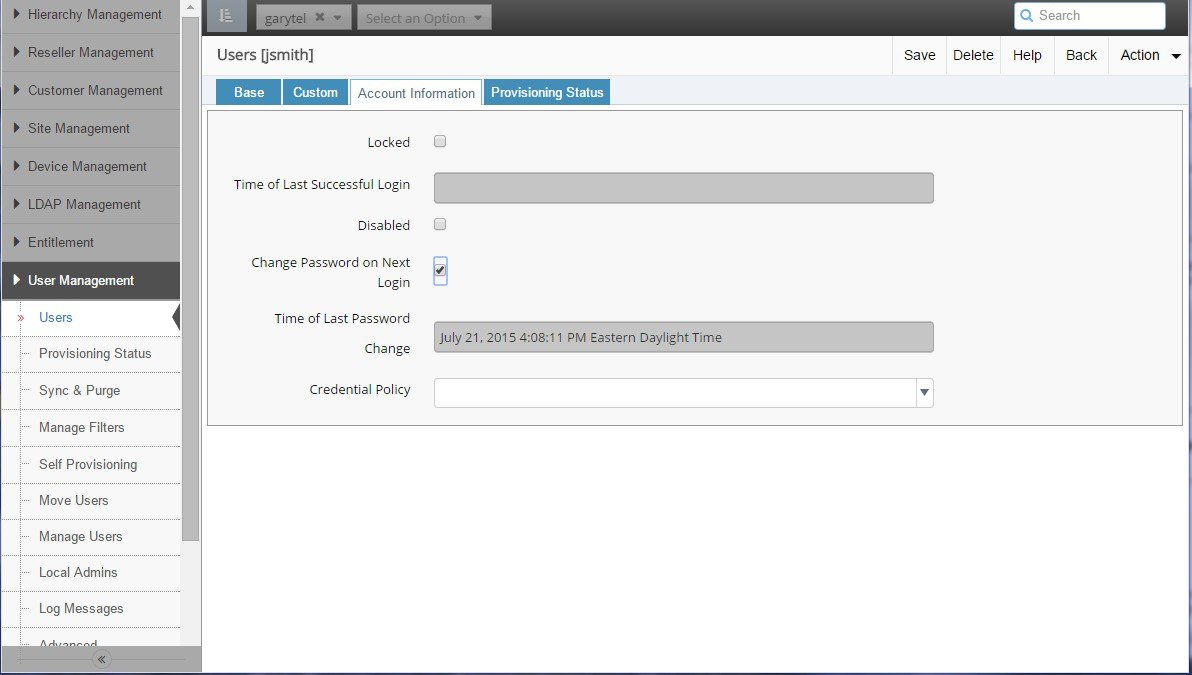
Click the user whose password you want to be changed on the next login attempt.

Step 4

Click the Account Information tab.


Step 5

Check the Change Password on Next Login check box.

Step 6

Click Save.


When the user next attempts to login, the user will be prompted to change the password. Once the password is changed the Change Password on Next Login check box is cleared.

Force Administrator Password Change

You can use a credential policy to force administrators to change their passwords on initial login. However, an administrator at a higher hierarchy level can manually force an administrator to change password on the next login attempt.

Procedure

Step 1

Log in as provider, reseller, or customer admin.

Step 2

Select User Management > Local Admins.

Step 3

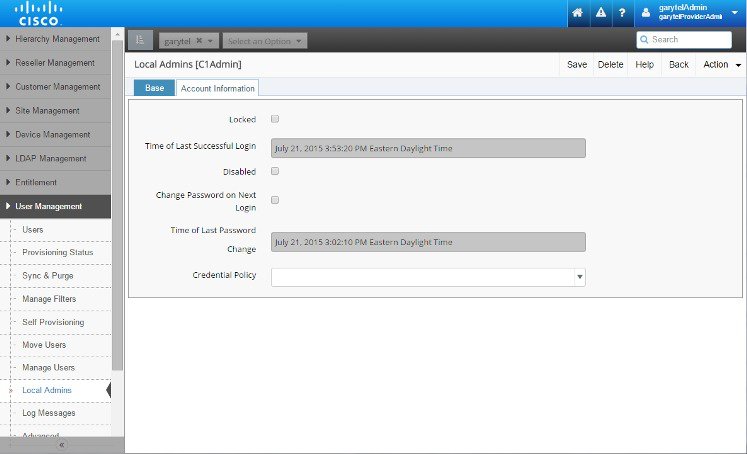
Click the administrator whose password you want to be changed on the next login attempt.

Step 4

Click the Account Information tab.

Step 5

Check the Change Password on Next Login check box.

Step 6

Click Save.


When the administrator next attempts to login, the administrator will be prompted to change the password. Once the password is changed the Change Password on Next Login check box is cleared.

Manually Disable User Account

Usually, a user account is disabled when the password has expired. However, an administrator can manually disable a user account at any time.

Note

Manually disabling a user is preferred to manually locking out a user as you can provide the reason for disabling.


Procedure

Step 1

Log in as provider, reseller, or customer admin.

Step 2

Select User Management > Users.

Step 3

Click the user whose account you want to disable.

Step 4

Click the Account Information tab.

Step 5

Check the Disabled check box.

Step 6

Enter the reason the account is disabled in the Reason for Disabled field. This reason will be displayed to the user when the next login attempt fails.

Step 7

Click Save.


Manually Disable Administrator Account

Usually, an administrator account is disabled when the password has expired. However, an administrator at a higher hierarchy level can manually disable an administrator account at any time.


Note

Manually disabling an administrator is preferred to manually locking out an administrator as you can provide the reason for disabling.


Procedure

Step 1

Log in as provider, reseller, or customer admin.

Step 2

Select User Management > Local Admins.

Step 3

Click the administrator whose account you want to disable.

Step 4

Click the Account Information tab.

Step 5

Check the Disabled check box.

Step 6

Enter the reason the account is disabled in the Reason for Disabled field. This reason will be displayed to the administrator when the next login attempt fails.

Step 7

Click Save.


Manage Your Own Account Password

Logged in users or administrators can manage their own account passwords.

Note

Users who are configured for Single Sign On or through LDAP do not manage their account passwords in Cisco Unified Communications Domain ManagerCisco HCM-Core.


Change Your Own Password

Follow this procedure to change your own password if required:

Procedure

Step 1

Log in to Cisco Unified Communications Domain ManagerCisco HCM-Core or later.

Step 2

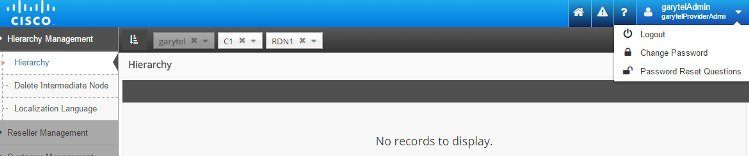
Click the arrow next to the logged in user at the top right-hand side of the screen.

Step 3

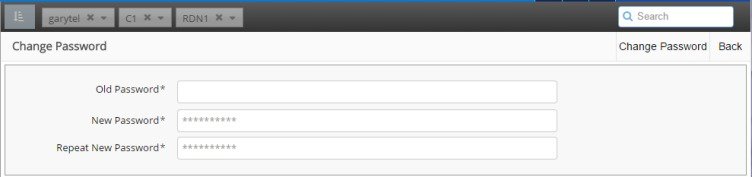
Choose the Change Password option from the drop-down menu. The Change Password screen is displayed.

Step 4

Enter your existing password in the Old Password field.

Step 5

Enter your new password in the New Password field. See also: "Password Complexity and Re-use" in the Troubleshooting User Access chapter of Cisco Unified Communications Domain Manager Troubleshooting Guide.

Step 6

Confirm your new password by re-entering it in the Repeat New Password field.

Step 7

Click Change Password in the button bar. Your password is changed.

Administrators can also change passwords of administrator users below their hierarchy through the menu.


Reset Your Own Password

Follow this procedure if you forget your password while attempting to log in to Cisco Unified Communications Domain ManagerCisco HCM-Core or later.

You can reset your password only if you have already provided answers to the security questions created by your administrator.

Procedure

Step 1

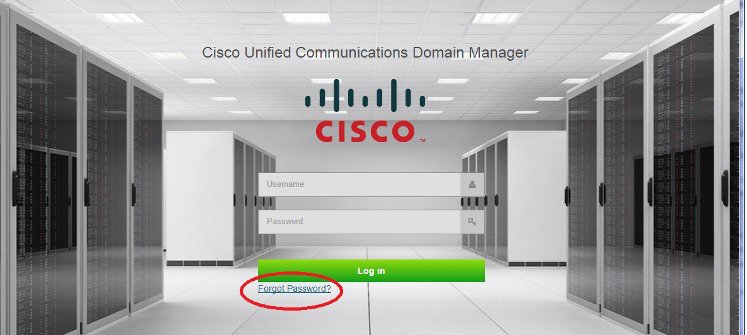
Enter your username in the Username field on the Log in screen.

Step 2

Click the Forgot Password? hyperlink located below the Log in button.

Step 3

Enter your username again.

Step 4

Click Reset my password.

Step 5

Click in each security question field and type the correct answer.

Step 6

Click in the New Password field and type your new password.

Step 7

Click in the Repeat Password field and re-type your new password.

Step 8

Click Reset my Password. Your password is changed.

Step 9

Click the Login hyperlink if you want to attempt to log in again.


Configure Your Own Password Reset Questions

Use this procedure to configure your password reset questions:


Note

Configuring your own password reset questions is available only if the credential policy applied to your user account has Number of Questions Asked During Password Reset set to > 0.


Procedure

Step 1

Log in to Cisco HCM-CoreCisco Unified Communications Domain Manager.

Step 2

Click the arrow next to the logged in user at the top right-hand side of the screen.

Step 3

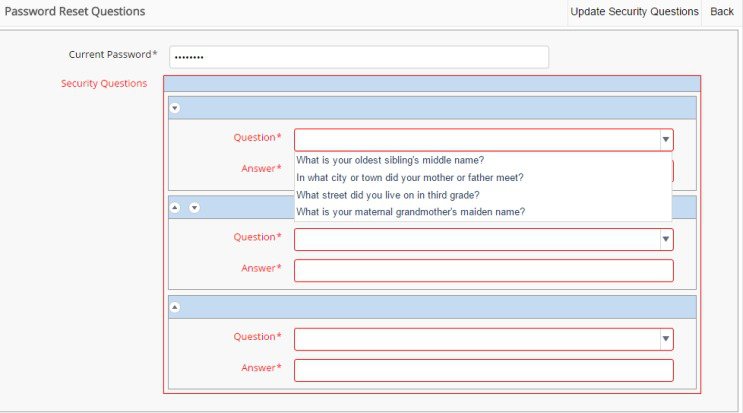
Choose the Password Reset Questions option from the drop-down menu. The Password Reset Questions screen is displayed.

Step 4

Type your password in the Current Password* field.

Step 5

Choose the required security question from the Question* drop-down list.

Ensure all answers differ from each other.

Step 6

Enter your answer to the above question in the Answer* field.

Step 7

Repeat steps 5 and 6 until you have configured the required amount of security questions (as determined by your administrator).

Step 8

Click the Update Security Questions button in the button bar when complete. Your security questions and answers are updated.


Infrastructure Manager

Infrastructure Manager allows you to provision and query the Cisco HCS Shared Data Repository. The Cisco HCS Shared Data Repository provides configuration information for HCM-Service Assurance. The Cisco HCS Shared Data Repository is a repository of data that represents the Cisco HCS configuration of Data Centers, customers, and management components in the service provider's network. This repository is then used by HCM-Service Assurance to provide more effective, detailed, and accurate operational alarms and events.

For more information on Infrastructure Manager, refer to the Cisco Hosted Collaboration Mediation Fulfillment Maintain and Operate Guide.

Jobs

The Jobs Summary page displays a list of the last 400 automatic and manual jobs that are added to your Cisco HCM-F and basic details about each one.


Note

A job list is deleted every 24 hours.


Jobs Field Descriptions

Field

Description

Job Type

Displays the job type.

Description

Displays the job description.

Job Entity

Displays the job entity.

Entity Name

Displays entity name.

Date/Time Initiated

Displays the initiated job date and time.

Status

Displays the job status. If the Job Status is In Progress or Fail, hover the cursor over the info circle and more information is given as well as recommended actions.

Actions

Displays the available job actions.

Failed or Cancelled Jobs

Checking the Job Status

To view the job status, navigate to Administration > Jobs in Infrastructure Manager in HCM-F GUI. The job status table is displayed and remains until deleted or automatically removed.

Additional status information and recommended actions for the job can be seen by hovering over the job details icon.


Note

Canceling a job is supported with no rollback support. If the job is already in progress, remaining tasks of the job are cancelled and you must manually delete any Virtual Machines that is created as part of provisioning the job.


Canceling the job

Click the Cancel button under the actions column for the job status page in the HCM-F GUI, to cancel queued or in-progress jobs. The job is immediately cancelled and marked as such after the GUI refreshes. No new vCenter tasks begin for that job, but any current operations in the vCenter continues, until they are completed or are cancelled by the user. The user must manually clean up any Virtual Machines from the job just as in the case of a failed job. Any queued jobs for the customer runs immediately. We recommend that the user cancels the queued jobs prior to canceling the active job if an entire customer's provisioning needs to be stopped.

Failed/cancelled jobs

If the job fails, the user must clean up any Virtual Machines from the job and resubmit the job. Failures in the preliminary validation phase do not leave behind any Virtual Machines. If the job fails or is cancelled during the identity process, the cloned Virtual Machines may still have the identity (hostname, IP address) of the template. You must power off or remove these Virtual Machines before attempting to clone again from the same template. Subsequent jobs will time out while waiting for the node to come online if there is a conflict.

Service Provider

The service provider page displays the details of the service provider in your Cisco HCS.

Service Provider Field Descriptions

Settings

The settings page provides thresholds for Cisco Prime Collaboration assignments that you can configure the maximum number of customers, and devices, each Cisco Prime Collaboration can service. The settings page also allows the administrator to specify warning thresholds.

When a maximum is reached, you can make no further assignments to that Cisco Prime Collaboration. When a warning threshold is reached, the Usage is highlighted on the Management Application page.

Settings Field Descriptions

Field

Description

Maximum number of customers

Displays the maximum number of customers.

Customer warning threshold (% of maximum)

Displays the warning threshold for the number of customers.

Maximum number of devices

Displays the maximum number of devices.

Device warning threshold (% of maximum)

Displays the warning threshold for the number of devices.

Diagnostics

Diagnostics allows you to get real time status and statistics from running services, run real time tests to ensure services are working properly and if not, indicate recommended actions for administrators.

These diagnostic reports can also be accessed from the command line interface. For more information on CLI diagnostic commands, see Cisco Hosted Collaboration Mediation Fulfillment Command Line Interface Reference Guide.

Table 3. Diagnostics Field Descriptions
Field Description

Diagnostic

Allows a selection of the type of diagnostics to run.

Request Diagnostics

Button to click to submit the diagnostic request.

Display Diagnostic Reports

This section provides information about the diagnostic reports.

utils diagnose hcs

This command enables you to diagnose problems for Cisco HCS services. The information is helpful for debugging purposes.

This command can be executed from any node in the cluster.

Command Syntax

utils diagnose hcs

caacer

caacucm

caaexpressway

caaimp

caaucxn

dmasa

fulfillment

hlm

nbi

si

sdrcnf

ucsmsync

vcentersync

Parameters
  • caacer displays the diagnostic information for the Cisco HCS CAA CER Service.

  • caacucm displays the diagnostics information for the Cisco HCS CAA CUCM Service.

  • caaexpressway displays the diagnostic information for the Cisco HCS CAA EXPRESSWAY Service.

  • caaimp displays the diagnostics information for the Cisco HCS CAA IMP Service.

  • caaucxn displays the diagnostic information for the Cisco HCS CAA UCXN Service.

  • dmaim displays the diagnostics information for the DMA-IM.

  • fulfillment displays the diagnostics information for the fulfillment Service.

  • hlm displays the diagnostics information for the HCS License Manager Service.

  • nbi displays the diagnostics information for the North Bound Interface Service.

  • sidisplays the diagnostics information for the Service Inventory Service.

  • sdrcnfdisplays the diagnostics information for the SDR Change Notification Service.

  • ucsmsync displays the diagnostics information for the UCSMSync Service.

  • vcentersyncdisplays the diagnostics information for the VCenterSync Service.

Requirements

Command privilege level: 0

Allowed during upgrade: No

Using Infrastructure Manager Administration GUI
Procedure

Step 1

From the Infrastructure Manager interface, select Administration > Diagnostics.

Step 2

Select the diagnostic you want from the pulldown menu, and click Request Diagnostics.


CAA Diagnostic Report
CAA Agent Properties

The following tables outline the diagnostic report for Cisco HCS CAA CUCM Service, Cisco HCS CAA IMP Service, Cisco HCS CAA UCXN Service, Cisco HCS CAA CER Service, and Cisco HCS CAA EXPRESSWAY Service .

Table 4. CAA AgentRouteBuilder Properties
Property Name Property Value Description
CAA AgentRouteBuilder Status Signifies the health of the agent; options are Red, Yellow, or Green.
Recommended Action Recommended action to correct last failure. If "Unknown", then no failures to report.
Configured CAA Agents The number of CAA Agents configured.
Table 5. CAA Agent Properties
Property Name Property Value Description
Agent Instance Id Internal Id of the agent.
Agent Status Signifies the health of the agent; options are Red, Yellow, or Green.
Creation Time Date and time the agent was created.
Total Success Total number of requests that are sent to application instances that were successful.
Total Failures Total number of requests that are sent to application instances that were un-successful.
Last Success Time Date and time the last successful request was made to an application instance.
Last Failure Time Date and time the last unsuccessful request was made to an application instance. If this time is equal to the agent's creation time, then no failures have occurred.
Last Failure App inst The last Application Instance that encountered a failure. If "Unknown", then no failures to report.
Last Failure Reason The reason for the last failure. If "Unknown", then no failures to report.
Last Failure (Recommended Action) Recommended action to correct last failure. If "Unknown", then no failures to report.
DMA-SA Diagnostic Report
DMA-SA (Domain Manager Adapter - Service Assurance)

The following table outlines the diagnostic reports for the DMA-SA service.

DMA-SA Diagnostic Properties

Property Name Property Value Description
Default No service-specific info available
Total devices The total number of devices
Devices Provisioned Successfully The total number of devices successfully provisioned
Devices Pending The total number of devices in the process of being provisioned
DmReceiver Queue The number of messages the dispatcher (an internal component of DMA-SA) has received and yet to process.
SDR CNF in service SDR CNF (Change Notification Framework) must be in service for this component to work. If the value is false, then something is wrong and new users cannot be added
Total Pushed Entities The total number of users
Provisioned Successfully The total number of users successfully provisioned
Pending The total number of users in the process of being provisioned
Receiver Queue The number of messages the dispatcher (an internal component of DMA-SA) has received and yet to process.
Devices The number of devices that are configured on the HCM-F which is monitored by the Prime Collab out of the maximum number of devices that are allowed to be monitored by a single Prime Collab
Customers The number of customers that are configured on the HCM-F with devices to be monitored by this Prime Collab out of the maximum number of customers that are allowed for a single Prime Collab
Subscribers is the number of registered end-user subscribers on all the call managers monitored by this Prime Collab out of the maximum allowed.
Items In Progress is the number of devices that are currently in the process being added to or removed from this Prime Collab.
Fulfillment Diagnostic Report
Fulfillment

The following tables outline the diagnostic report for the Cisco HCS Fulfillment service.

Table 6. Session Pool Manager
Property Name Property Value Description
Start Time Provides a timestamp of when the service was started.
Up Time The amount of time the web service has been running.
Session Name The name of the session created for this pool.
Min Sessions The minimum number of sessions for this pool.
Max Sessions The maximum number of sessions for this pool.
Allocated Sessions The number of sessions allocated for this pool.
Max Allocated Sessions The maximum number of allocated sessions allowed for this pool.
Periodic Time to test DB (ms) The time in milliseconds to retest the database connection.
Free Sessions The number of free sessions in the pool.
Used Sessions The number of used sessions in the pool.
Stale Sessions The number of stale sessions in the pool.
Rebuild Session Pool count The number of times the pool has been rebuilt.
Pool Starter last ran The time and date that the pool starter was last ran. This indicates when the pool noticed the database was down.
Stale Session Reader last ran The time and date that the stale session reader was last ran. This indicates when the pool noticed the database was down.
Table 7. Service Level Information
Property Name Property Value Description
Derby Status The current status of the Derby status seen by this agent.
SDR Status The status of SDR seen by this agent.
CHPA Status The status of the CHPA service seen by this agent.
DMAIM Status DMAIM status monitored by Fulfillment.
Expected Number of Agents The expected number of active agents in Fulfillment Service.
Number of active agents The actual number of active agents in Fulfillment Service.
Table 8. Fulfillment Diagnostics Status Count
Property Name Property Value Description
GREEN The number of agents whose status is GREEN (no issues).
YELLOW The number of agents whose status is YELLOW (minor issues encountered, but nothing alarming or show-stopping.
RED The number of agents whose status is RED (major issues have been encountered).
Total Count The total number of agents that exist in Fulfillment Service.
Table 9. Fulfillment Job Status Count
Property Name Property Value Description
<current job status; field entry will vary. Example: NO JOB> The number of agents whose job is in that state.
Total Count A count of all agents, with or without jobs.
Table 10. Fulfillment Diagnostics Status Agents List
Property Name Property Value Description
GREEN Names of agents whose status is GREEN.
YELLOW Names of agents whose status is YELLOW.
RED Names of agents whose status is RED.
Table 11. Fulfillment Job Status Agents List
Property Name Property Value Description
<current job status; field entry will vary. Example: NO JOB> The list of agents whose job is in that state.

The following tables outline the diagnostic report for Cisco HCS Fulfillment service SDR Link Agent Route Builder

Table 12. SDR Link Agent Route Builder Properties
Property Name Property Value Description
Status Status of the application.
Number of Agents Number of agents associated to the application.

The following table outlines the diagnostic report for the Cisco HCS Fulfillment application properties, for example the ESXi Host Blade, Customer or Application Instance Virtual Machine properties.

Table 13. Application Properties
Property Name Property Value Description
Audit List Size The number of links that the agent needs to retry.
Table 14. ApplicationInstanceVirtualMachine Auto Linked Status
Property Name Property Value Description
Application Configured for Manual VM Link The number of application instances and virtual machines that have been configured to be manually linked.
Application Configured for Auto-VM Link The number of application instances and virtual machines that have been configured to be auto linked.
Application Auto Linked to VM The number of application instances and virtual machines that have been auto linked.
Application NOT Auto Linked to VM The number of application instances and virtual machines that could not be auto linked.
List of Applications Configured for Manual VM Link The list of application instances and virtual machines that have been configured to be manually linked.
List of Applications Configured for Auto VM Link The list of application instances and virtual machines that have been configured to be auto linked.
List of Applications Auto Linked to VM The list of application instances and virtual machines that have been auto linked.
List of Applications NOT Auto Linked to VM The list of application instances and virtual machines that could not be auto linked.
HLM Diagnostic Report
Cisco HCS License Manager Service

The following tables outline the diagnostic report for the Cisco HCS License Manager service.

Table 15. HCS License Manager Properties
Property Name Property Value Description
Last Audit Performed Date and time that the last audit was performed.
Table 16. HLM Core Agent Specific Properties
Property Name Property Value Description
Default Deployment Mode

The deployment mode of PLMs.

Note 

The Cisco HCS Global Deployment Mode is changed to the Cisco HCS Default Deployment Mode. The Default Deployment Mode must be set before any HLM licensing operation is performed. It can be overwritten when adding a PLM. You can also add PLMs with different Deployment Mode.

# of License Managers The number of License Managers.
# of Assigned Clusters The number of assigned clusters.
NBI Diagnostic Report
Cisco HCS North Bound Interface Web Service

The following tables outline the diagnostic reports for the Cisco HCS North Bound Interface Web service.

Table 17. NBI Web Services Properties
Property Name Property Value Description
Start Time Provides a timestamp of when the service was started.
Up Time The amount of time the web service has been running.
Table 18. Session Pool Manager Properties
Property Name Property Value Description
Start Time Provides a timestamp of when the service was started.
Up Time The amount of time the web service has been running.
Session Name The name of the session that is created for this pool.
Min Sessions The minimum number of sessions for this pool.
Max Sessions The maximum number of sessions for this pool.
Allocated Sessions The number of sessions that are allocated for this pool.
Max Allocated Sessions The maximum number of sessions that are allowed to be allocated for this pool.
Periodic Time to test DB (ms) The time in milliseconds to retest the database connection.
Free Sessions The number of free sessions in pool.
Used Sessions The number of used sessions in pool.
Stale Sessions The number of stale sessions in pool.
Pool Starter last ran The time and date that the pool starter was last ran. This indicates when the pool noticed that the database was down.
Stale Session Reader last ran The time and date that the stale session reader was last ran. This indicates when the pool noticed that the database was down.
SDRCNF Diagnostic Report
SDRCNF AgentRouteBuilder Properties

The following tables outline the diagnostic reports for the Cisco HCS SDR Change Notification service

Table 19. Service Level Properties
Property Name Property Value Description
SDRCNF AgentRouteBuilder Status The current health of the service (Red, Yellow, or Green) based on its ability to produce and send notifications.
Recommended Action The action recommended to repair the service if the status is Yellow or Red. This is based on the results of service initialization, checking the SDR status, and automatically auditing the service.
Start Time Provides a timestamp of when the service was started.
Up Time The amount of time the service has been running.
Configured SDRCNF Agents The number of agents that are configured to handle incoming subscription requests.
Device AgentInstanceMap Size The number of SDRCNF agents in operation.
SDR Status The status of SDR. If not healthy, the service will not be able to produce notifications and is placed in the RED state.
Last Audit Time Provides a timestamp of when the last service audit was executed.
Last Audit Result Provides the result of the last audit (success or failure).
Last Audit Error Details the error if the last audit failed.
Table 20. Resource Properties
Property Name Property Value Description
Sessions The number of SDR sessions that are used to create subscriptions.
Subscriptions The number of independent subscriptions to change notifications.
Subscription Specifications The number of unique sets of subscriptions. Many subscriptions can share the same specification.
Triggers The number of database triggers currently active for the service.
Dynamic Topics The number of messaging topics that are created to send change notifications to the subscribers.
Table 21. Processor Properties
Property Name Property Value Description
Transaction Chunks The number of transaction chunks from the database waiting to be processed.
Ready Transactions The number of ready transactions waiting to be processed.
Ready Notifications The number of notifications waiting to be sent to subscribers.
Table 22. Agent Level Properties
Property Name Property Value Description
Agent Instance ID Internal Id of the agent.
Agent Status Signifies the health of the agent; options are Red, Yellow, or Green.
Creation Time Provides a timestamp of when the agent was configured.
Total Success The total number of successful subscription requests handled by this agent.
Total Failures The total number of failed subscription requests handled by this agent.
Last Success Time Date and time of the last failed subscription request.
Last Failure Time Date and time of the last failed subscription request.
Last Failure Reason The reason for the last failure subscription request.
Last Failure (Recommended Action) The recommended action to repair the last failed subscription request.
SI Diagnostic Report
Cisco HCS Service Inventory

The following tables outline the diagnostic report for the Cisco HCS Service Inventory services.

Table 23. SI Status
Property Name Property Value Description
Date of Last Report The day and time of the last report. Also shows if the report has not been run yet.
Status of Last Report Whether the report succeeded or failed.
Alarm Code The type of failure or alarm if the report failed.
Table 24. SI Agent Route Builder Properties
Property Name Property Value Description
Start Time The day and time that the SI Agent Route Builder started.
Up Time The total time (hh:mm:ss) that SI Agent Route Builder has been up.
Table 25. SI General Agent Properties
Property Name Property Value Description
Agent Status Agent Status options are Green or Red.
Start Time The day and time that the SI General Agent started.
Up Time The total time (hh:mm:ss) that SI General Agent has been up.
Table 26. SI Scheduler Properties
Property Name Property Value Description
Scheduler Enabled Whether or not the scheduler is enabled.
Current State The current state may be Idle or Active.
Report Execution Time The time the report ran (24-hour mode).
Report End Time SI reports on provisioning up until this time.
Report Version The software version for which the report is run.
Table 27. SI General Properties
Property Name Property Value Description
Number of Backup Days The number of days for which Backup occurs.
Custom Report Enabled Whether or not Custom Report is enabled.
Backup File Count The number of backup files created.
Table 28. SI Host Properties
Property Name Property Value Description
SI Host The name of the SI Host.
SI Port The number of the SI port in use.
SI User The name of the SI user.
Table 29. SI SFTP Host Properties
Property Name Property Value Description
SFTP Host The name of the SFTP Host.
SFTP Port The number of the SFTP port in use.
SFTP User The name of the SFTP user.
SFTP Destination Path The SFTP Destination Path.
SFTP Max File Size The maximum SFTP file size allowed.
SFTP Retry Count A count of the number of SFTP retries.
Table 30. SI UC App Data Collection Manager Properties
Property Name Property Value Description
Total Customers to Process The total number of UC Customers the UCDCM is processing.
Number Message Managers The number of Message Managers available for processing.
Number Messages per Manager The number of messages a Message Manager can handle at a time.
UCPA Diagnostic Report
UCPA Agent Properties

The following tables outline the diagnostic report for the Cisco HCS Unity Connection Provisioning Adapter service.

Table 31. UCPA AgentRouteBuilder Properties:
Property Name Property Value Description
ucpa AgentRouteBuilder Status Signifies the health of the agent; options are Red, Yellow, or Green.
Recommended Action Recommended action to correct last failure. If Unknown, then no failures to report.
Configured ucpa Agents The number of UCPA Agents configured.
Device AgentInstanceMap Size The number of application instances managed.
Table 32. UCPA Agent Properties:
Property Name Property Value Description
Agent Instance Id Internal Id of the agent.
Agent Status Signifies the health of the agent; options are Red, Yellow, or Green.
Creation Time Date and time the agent was created.
Total Success Total number of requests that are sent to application instances that were successful.
Total Failures Total number of requests that are sent to application instances that were unsuccessful.
Last Success Time Date and time the last successful request was made to an application instance.
Last Failure Time Date and time the last unsuccessful request was made to an application instance. If this time is equal to the agent's creation time, then no failures have occurred.
Last Failure Reason The reason for the last failure. If Unknown, then no failures to report.
Last Failure (Recommended Action) Recommended action to correct last failure. If Unknown, then no failures to report.
UCSMSync Diagnostic Report
Cisco HCS UCSMSync

The following table outlines the diagnostic report for the Cisco HCS UCSMSync service.

Table 33. UCSManager Sync Agent Properties
Property Name Property Value Description
Name The name of the Cisco Unified Communications Manager.
Autosync Signifies if the status of Cisco Unified Communications Manager autosync, options are Enabled or Disabled.
Overall Status Signifies the health of the UCSMSync, options are Red, Yellow, or Green.
Status Info Job status information for the UCSMSync, field is empty if no job has started for this application.
Recommended Action Job recommended action for the UCSMSync, field is empty if no job has started for this application.
Status Details Displays any status details, field is empty if no job has started for this application.
FSM State Displays the state of the FSM.
Retry timer Displays the state of the retry timer.
ConnectionCheck timer Displays the state of the connection check timer.
UCSManager Connection The URL used to connect to the UCS manager.
SDR Connection The URL used to connect to the database.
Messages received Number of messages received.
Diag Level The diag level for the report.
VcenterSync Diagnostic Report
Cisco HCS VCenterSync

The following table outlines the diagnostic report for the Cisco HCS VCenterSync service.

Table 34. VCenter Sync Agent Properties
Property Name Property Value Description
Name The name of the vCenter.
Autosync Signifies if the status of vCenter autosync, options are Enabled or Disabled.
Overall Status Signifies the health of the VCenterSync, options are Red, Yellow, or Green.
Status Info Job status info for the VCenterSync field is empty, if no job has started for this application.
Recommended Action Job recommended action for the VCenter Sync field is empty, if no job has started for this application.
Status Details Displays any status details, field is empty if no job has started for this application.
FSM State Displays the state of the FSM.
Retry timer Displays the state of the retry timer.
ConnectionCheck timer Displays the state of the connection check timer.
VCenter Connection The URL used to connect to the vCenter.
SDR Connection The URL used to connect to the database.
Messages received Number of messages received.
Diag Level The diag level for the report.

Prime Collaboration Deployment for UC Applications

Cisco Prime Collaboration Deployment helps you to manage Unified Communications (UC) applications. Its functions are to:

  • Migrate a cluster of UC servers to a new cluster (such as MCS to virtual, or virtual to virtual).


    Tip

    Cisco Prime Collaboration Deployment does not delete the source cluster VMs after migration is complete. You can fail over to the source VMs if there is a problem with the new VMs. When you are satisfied with the migration, you can manually delete the source VMs.


  • Perform operations on clusters, such as:

    • Upgrade

    • Switch version

    • Restart

  • Fresh install a new release UC cluster

  • Change IP addresses or hostnames in clusters (for a network migration).

    Cisco Prime Collaboration Deployment supports simple migration and network migration. Changing IP addresses or hostnames is not required for a simple migration. For more information, see the Prime Collaboration Deployment Guide.

The functions that are supported by the Cisco Prime Collaboration Deployment can be found in the Prime Collaboration Deployment Administration Guide.

Use the Cluster Discovery feature to find application clusters on which to perform fresh installs, migration, and upgrade functions. Perform this discovery on a blade-by-blade basis.

For more information about features, installation, configuration and administration, best practices, and troubleshooting, see the following documents:

Platform Manager

This is a web-based application that provides backup management client for Cisco Unified Communications Manager, Cisco Unified Communications Manager IM and Presence Service and Cisco Unity Connection (CUC). It allows users to back up one or more servers across one or more clusters. You can also create groups of servers to help manage multiple clients and applications and create backup tasks to perform DRS backups on groups of servers.

For more information on Platform Manager tasks, refer to the Perform Routine Maintenance chapter of the Cisco Hosted Collaboration Mediation Fulfillment Maintain and Operate Guide.

Platform Manager Assists in Backup Task Management

This section describes how Platform Manager assists in the backup of your Cisco Unified Presence, Cisco Unified Communications Manager, and Cisco Unity Connection products.

Platform Manager function

Platform Manager is the catalyst for backup tasks. It allows you to streamline backup activities but does not replace any existing processes you have in place. Prepare to perform your usual installation and upgrade procedures and use Platform Manager to execute those tasks from one central location.

Platform Manager organizes servers into server groups.Server groups are user defined and consist of servers from multiple clusters. All of the servers in a particular group, however, must have the same product. For example, users cannot mix Cisco Unified Communications Manager and other Unified Communication nodes in the same server group.


Note

You must create servers groups to successfully execute a task. A server group can have one or more servers. If you have an instance where you want to create a task for only one server, create a server group and include only that server.


Limitations and restrictions

The following list describes the current limitations for Platform Manager.

  • Platform Manager is not a diagnostic tool. An error message does appear on the task list page if a task fails; however, you should use your usual set of tools and procedures to diagnose and correct the problem.

  • The SOAP services do not replace the existing OS Administration and CLI upgrade processes.

Servers functionality classification

Platform Manager offers a wide range of different user-defined servers types to accommodate the management of potentially thousands of servers. You can tag servers with one or more roles such as publisher, subscriber, TFTP, music on hold, secondary TFTP, secondary music on hold to help classify the different servers in your system. You can then tag your servers with one or more server roles for easier identification. Server roles allow you to classify each server in your Platform Manager, making your task creation and viewing more efficient.

Server roles include:

  • Call Processing

  • Backup Call Processing

  • Music on Hold

  • TFTP

  • Backup TFTP

  • Primary Presence

  • Secondary Presence

  • Primary Voicemail

  • Secondary Voicemail


Note

Server roles are labels to help users identify a server. Setting a server role does not activate any services. Mislabeling a server does not cause any service outages.


Server group usage

Server groups allow you to logically join together different servers that you want to perform tasks on as a group. You have the flexibility to group servers to accommodate the varied requests for installation, backup, upgrades and restart tasks.


Note

A task is applied to all servers under the same server group. If you do not want to lose a service, do not put your Active Call Control server in the same server group as its backup when you run a switch version or reboot task.


Server groups allow you to logically combine various servers; for example, you can create server groups for the following areas:

  • Server Group by Role - Create call processing server groups and a backup processing server group.

  • Server Group by Product - Create product A and product B groups.

  • Server Group by Customer and Product - Create customer A-product A and customer A-product B groups.


Note

You can have as many servers as you like in a group; however, all servers must be of the same product type. A server can be a member of more than one group.


Limitation in server groups

The following limitations apply when you create server groups:

  • You cannot have multiple products in the same server group. For example, if you have a customer that has Cisco Unified Communications Manager and Cisco Unified Communications Manager IM and Presence Service, you must create two groups for this customer.

  • You cannot have publisher servers in the same group as subscriber servers if you want to run upgrade or switch version tasks on the group. For example, if you want to upgrade all of a customer’s services, you must create at least two groups: a publisher server group and at least one subscriber server group to execute the task on the publisher servers before the subscriber servers. This does not apply to restart server tasks. Publishers and subscribers can be in the same group if that group is used for restart server task.

Task creation

Tasks are the main function of Platform Manager. For example, you may want your publisher servers to back up your subscriber servers within a certain application group. The create tasks pages can help you with this.

The Backup Schedule task feature provides a central location to schedule and monitor backups while reusing of the existing backup infrastructure-the Disaster Recovery System. This feature also enables backup load balancing.

Data filtering

Platform Manager has a powerful filtering capabilities to allow you to view specific information. The following pages have filter options available:

  • Servers

  • Server Groups

  • Task List

Field

Description

Quick Filter

View the data by any column on the page. For example, if you want to only see a specific customer servers, you can filter on a customer name. If you want to see all of your Unified Communications Manager servers, you can filter on product and only your Unified Communications Manager servers appear.

Advanced Filter

View data by multiple columns and multiple terms in the same column. For example, perhaps you want to see all the Unified Communications Manager and Cisco Unified Presence server groups for customer A and customer B. Add all of the details in the search boxes and your results appear.

Set Default Filter

Set a default view for your content. For example, you may want the Quick Filter screen to be the default view on the servers page to it does not have to load all of servers every time to you go the page.

Best practices

The following are recommendations for configuring your systems as suggested by Cisco development and testing teams.

  • Use the SDR Synchronization, the Server Import functionality, or the VCenter Sync operation to populate the servers in your system if possible.

    • You can perform the VCenter Sync operation through a manual sync request from the Administration menu, or by enabling vCenter Sync from the Data Center Management menu.


      Note

      Ensure that the cluster applications are associated with the correct VMs in the Cluster Applications page of Application Management menu. For more information, see the Configure HCMF section in Cisco Hosted Collaboration Mediation Fulfillment Install and Configure Guide

      .
  • Create groups with multiple servers that you perform similar tasks on.

  • When you name groups, keep the terminology simple and use easy-to-recognize names.

  • Use the sequencing feature in a task when you want a second group of servers to wait until the first group is done before performing that task.

  • Use the Backup Schedule task for a more efficient and powerful way to run backups. It helps to control multiple servers that are backed up at the same time and enables load balancing. SFTP servers for DRS backup are configured in Disaster Recovery System (DRS). All the first nodes that use the same SFTP server should be assigned to the same server group for backup, or should be scheduled for backups on different days of the week.

For more information, refer to the HCS Maintain and Operate Guide at http://www.cisco.com/c/en/us/support/unified-communications/hosted-collaboration-solution-hcs/tsd-products-support-series-home.html.

License Management

For more information about License Managers and Licensing tasks, see the Cisco Hosted Collaboration Mediation Fulfillment Maintain and Operate Guide.

Prime License Manager (PLM)

Each Prime License Manager server supports up to 1000 Unified Communications application clusters. If you have more than 1000 Unified Communications application clusters, you must install and set up another Prime License Manager server.

You may assign more than one customer to the same Prime License Manager server. If a customer has multiple clusters, you can either assign all the clusters for the customer to the same Prime License Manager server or each cluster for the customer to different Prime License manager server. The total number of clusters for all customers assigned to the same Prime License Manager server cannot exceed 1000.

It is required that you install Prime License Manager in the service provider space or in the same management network as HCM-F so that Prime License Manager can access all Unified Communications application clusters. Prime License Manager periodically connects to the clusters to update license counts and to grant licenses.

Prime License Manager supports NAT and can be in a NAT environment with its own private address.

Prime License Manager is a management application that runs on the same ISO as Unified Communications Manager in vCenter. Virtual machine specifications are defined in the pre-built OVA that is provided by Cisco.

Prime License Manager provides licenses to UC apps in an HCS environment. A separate OVA is available to deploy this application in vCenter. Prime License Manager virtual machine specifications are defined in the pre-built OVA that is provided by Cisco. Prime License Manager must be installed as a dedicated standalone server to support HCS licensing.

Dial Plan Analysis

The Cisco Unified Communications Manager Dialed Number Analyzer runs as a Cisco Unified Communications Manager feature service that can be accessed from a remote server. The tool allows you to test a Cisco Unified Communications Manager dial plan configuration prior to deploying it. You can also use the tool to analyze dial plans after the dial plan is deployed.

Because a dial plan can be complex, involving multiple devices, translation patterns, route patterns, route lists, route groups, calling and called party transformations, and device level transformations, a dial plan may contain errors. You can use the Dialed Number Analyzer to test a dial plan by providing dialed digits as input. The tool analyzes dialed digits and shows complete details of the calls, including call patterns and calling and called party transformation that are applied to the dialed digits. You can use the results to diagnose the dial plans, identify problems, if any, and fix the dial plan before or after it is deployed.

For more information on the Dialed Number Analyzer, see http://www.cisco.com/c/en/us/support/unified-communications/unified-communications-manager-callmanager/products-maintenance-guides-list.html.

Service Assurance

For Prime Collaboration Assurance 11.x purge policies, refer to Cisco Prime Collaboration Assurance Guide - Advanced at http://www.cisco.com/c/en/us/support/cloud-systems-management/prime-collaboration/tsd-products-support-series-home.html. This functionality is not available in Prime Collaboration Assurance 10.5.

Prime Collaboration Assurance

This section covers Prime Collaboration Assurance features supported in MSP mode. For additional information on Prime Collaboration Assurance see the http://www.cisco.com/c/en/us/support/cloud-systems-management/prime-collaboration/products-user-guide-list.html.


Note

Cisco HCS 11.5 and onwards supports Cisco Prime Collaboration Assurance and Analytics.


Cisco Prime Collaboration Assurance - Advanced Features

This section provides list of Cisco Prime Collaboration Assurance features available in MSP mode.

For additional information on Cisco Prime Collaboration Assurance and Cisco Prime Collaboration Assurance and Analytics, see the http://www.cisco.com/c/en/us/support/cloud-systems-management/prime-collaboration/tsd-products-support-series-home.html.

Voice and Video Unified Dashboard

It enables end-to-end monitoring of your voice and video collaboration network. They provide quick summaries on Call Quality, Alarm, Performance, and Contact Center Topology.

Feature Description

Call Quality

The Call Quality dashboard helps you identify the most impacted TelePresence endpoints with call quality alarms, poor call quality locations, sessions with alarms, and call failure locations.

It contains the following dashlets:
  • Top five Poor Voice Call Quality Locations

  • Top five Call Failure Locations

  • Top ten TelePresence Endpoints with Call Quality Alarms

  • Conference with Alarms

Alarm

The Alarms tab displays the information for each alarm in the Alarm browser such as Severity, Status, Alarm Name, Customer, Device Name, Device IP, Component Name, Last Updated, Device type, Owner, Description, Category, Endpoint Name, and Model.

The Alarm Summary provides a summary of the alarms for each device such as Severity, Last 15 Minutes, Device Name, Device IP, Type, Severity Columns, Last Update Time, Endpoint Name, and Private IP Address.

Performance

The Performance tab displays predefined dashboards based on the Unified CM publisher node you select in the Ops View. You can't select any other cluster node from the Cluster or Device drop-down list. It also allows you to create custom performance dashboards.

Contact Center Topology

Provides information about the Contact Center components such as CUIC, Cisco Finesse, MediaSense, CVP, and Unified CCE.

Device Inventory and Inventory Management

You can discover and manage all endpoints that are registered to Cisco Unified Communications Manager (phones and TelePresence), Cisco Expressway (TelePresence), and Cisco TMS (TelePresence). In addition to managing the endpoints, you can also manage multipoint switches, application managers, call processors, routers, and switches that are part of your voice and video collaboration network.

As part of the discovery, the device interface and peripheral details are also retrieved and stored in the Cisco Prime Collaboration Assurance database.


Attention

The CSF<devicename> will not display in the PCA Inventory reports. The Endpoint nameis mapped to the Description field, which helps to identify the CSF devices.


After the discovery is complete, you can perform the following device management tasks:

  • Group devices into user-defined groups.

  • Edit visibility settings for managed devices.

  • Customize event settings for devices.

  • Rediscover devices.

  • Update inventory for managed devices.

  • Suspend and resume the management of a managed device.

  • Add or remove devices from a group.

  • Manage device credentials.

  • Export device details.

Voice and Video Endpoint Monitoring

Cisco Prime Collaboration provides a detailed analysis of the end-to-end media path, including specifics about endpoints, service infrastructure, and network-related issues.

For video endpoints, Cisco Prime Collaboration enables you to monitor all Point-to-point, MultiSite, and Multipoint video collaboration conferences. These conferences can be ad hoc, static, or scheduled with one of the following statuses: In-progress, Scheduled, Completed, and No Show.

Diagnostics

Cisco Prime Collaboration Assurance enables you to collect call logs to identify faults in the calls for Cisco Voice Portal (CVP), Unified Contact Center Enterprise (Unified CCE), Cisco Unified Communications Manager (Unified CM), and IOS Gateways. This feature enables you to troubleshoot issues in the calls. You can use the SIP Call Flow Analyzer feature to further zoom in on the collected calls and isolate faults in the messages. It also helps you to recreate the issue as you can view the call ladder diagram that indicates faults in the call messages and provides the root cause and recommendations.

Fault Management

Cisco Prime Collaboration ensures near real-time quick and accurate fault detection. After identifying an event, Cisco Prime Collaboration groups it with related events and performs fault analysis to determine the root cause of the fault.

Cisco Prime Collaboration generates traps for alarms and events and sends notifications to the trap receiver. These traps are based on events and alarms that are generated by the Cisco Prime Collaboration server. The traps are converted into SNMPv2c notifications and are formatted according to the CISCO-EPM-NOTIFICATION-MIB.

Reports

Cisco Prime Collaboration Assurance provides the following predefined reports and customizable reports:

  • Administrative Reports — Provides System Status Report, Who Is Logged On Report, and Process Status.

  • CDR & CMR Reports — Provides call details such as call category type, call class, call duration, termination type, call release code, and so on

  • Conference Reports — Provides the All Conference Summary Report and Conference Detail Report.

  • TelePresence Endpoint Reports — Provides details on completed and in-progress conference, endpoint utilization, and No Show endpoints. TelePresence reports also provide a list of conferencing devices and their average and peak utilization in your network.

  • Launch CUCM Reports — Enables you to cross launch to the reporting pages for the Cisco Unified Communications Manager clusters.

  • Miscellaneous Reports — Provides Other Reports, UCM/CME Phone Activity Reports, and Voice Call Quality Event History Reports.

  • Scheduled Reports — Provides utilization and inventory reports. You can generate the reports on the spot or enable scheduling to generate them on predefined days.

Analytics

Identifies the traffic trend, technology adoption trend, over-and-under-utilized resources, and device resource usages in your network.

Features Description

Traffic Analysis

The Traffic Analysis dashboard displays the technology usage by various users, departments, or business units in the organization. It helps you to plan and allocate business costs across various organizational units or departments.

It helps in finding the top N directory numbers sorted by the most number of calls placed or by total duration of all calls placed. Provides the trend of various types of calls between sites, locations, endpoints, clusters, or device pools. Identifies locations with most number of calls placed or received.

UC System Performance

This dashboard helps you analyze system performance, based on CPU and Memory for the UC applications. You can use these trends to determine UC applications that are consuming high CPU/memory consistently over a time.

Service Experience (Call Performance)

This dashboard helps you to analyze the service quality distribution and traffic trends based on number of calls, location, or call duration in your organization.

Configure vCenter

Perform the following procedure to configure SNMP, and triggers and alarms in vCenter.

Procedure

Step 1

Configure SNMP in vCenter

  1. Log in to vCenter by using vSphere and navigate to Administration > vCenter Server Settings

  2. Select SNMP menu on the left of the page to configure the SNMP settings.

Step 2

Configure the triggers and alarms in vCenter

  1. Select a virtual machine and navigate to Alarms > Definition.

  2. Click the vCenter name and select the alarm to configure the settings.

  3. Navigate to Triggers tab and select the trigger as described in the section "Triggers for Alarms of VMware vCenter Server" in the following link:

  4. Select the state as "Alert" and click OK.

  5. Click Actions and then select Repeat for all the following cases: "Normal->Warning", "Warning->Error", "Error->Warning", and "Warning->Normal".

  6. Click OK.


Prime Collaboration Settings for Infrastructure Manager

From the Infrastructure Manager->Administration->Settings side menu for Cisco Hosted Collaboration Mediation Fulfillment, you can manage per instance settings for Cisco Prime Collaboration. The following table provides a list of settings that you configure:

Field Description
Customer
Maximum number of customers Displays the maximum customers for each Cisco Unified Operations Manager.
Customer warning threshold (% of maximum) Displays the warning threshold of customers for each Cisco Unified Operations Manager.
Device
Maximum number of devices Displays the maximum monitored devices for each Cisco Unified Operations Manager.
Device warning threshold (% of maximum) Displays the warning threshold of monitored devices for each Cisco Unified Operations Manager.

Unified Communications Applications

Cisco Unified Real-Time Monitoring Tool

The Cisco Unified Real-Time Monitoring Tool, which runs as a client-side application, monitors the real-time behavior of your system components. Unified RTMT uses Hypertext Transfer Protocol Secure (HTTPS) and Transmission Control Protocol (TCP) to monitor the following:

  • System performance

  • Device status

  • Device discovery

  • Computer Telephony Integration (CTI) applications

Unified RTMT can connect directly to devices through HTTPS to troubleshoot system problems.


Note

Even when Unified RTMT is not running as an application on your desktop, tasks such as alarm and performance monitoring updates continue to take place on the server in the background.


Unified RTMT allows you to perform the following tasks:

  • Monitor a set of predefined management objects that monitor the health of the system.

  • Generate various alerts, in the form of email messages, for objects when values go above or below user-configured thresholds.

  • Collect and view traces in various default viewers that exist in Unified RTMT.

  • View syslog messages in SysLog Viewer.

  • Work with performance-monitoring counters.

  • Cisco Unified Communications Manager only: Translate Q931 messages.

A single copy of Unified RTMT that is installed on your computer lets you monitor more than one server or more than one cluster at a time. For example, you can monitor all of the following entities:

  • A Unified Communications Manager product on one server.

  • Cisco Intercompany Media Engine (Cisco IME) product on one server.

  • Cisco Unified Communications Manager IM and Presence Service (IM and Presence Service) product on one server.

  • A server on a cluster (to monitor the health of the cluster).

To monitor a product on a different server, you must use a new instance of Unified RTMT.

Install and Configure Unified RTMT

Install Unified RTMT

Note

For information about installing Unified RTMT on a Cisco Intercompany Media Engine server, see the Cisco Intercompany Media Engine Installation and Configuration Guide.


Before you begin

Before you install Unified RTMT, consider the following:

  • Unified RTMT requires at least 128 MB in memory to run on a Windows OS platform; the tool requires at least 300 MB of disk space to run on a Windows/Linux OS platform.


    Note

    The Linux Unified RTMT plugin CcmServRtmtPlugin.bin can be installed on RHEL 5, RHEL 6, or higher Linux machines. If you want to install it on a RHEL 4 machine, ensure that the glibc (OS library) version is 2.4.x or higher. If the glibc version is 2.3.x or earlier, the underlying JRE install fails.


  • The current Unified RTMT download supports earlier releases of Cisco Unified Communications Manager or Cisco Unity Connection. Some releases of Unified Communications Manager may require different versions of Unified RTMT to be installed on your computer (one version per Unified Communications Manager release). Verify that the Unified RTMT version that you install is compatible with the product that you are monitoring. If the Unified RTMT version that you are using is not compatible with the server that you want to monitor, the system prompts you to download the compatible version.
  • Your computer stores the user preferences, such as the IP address and Unified RTMT frame size, based on the last instance of Unified RTMT that you run.
  • There are two types of Single Sign-On (SSO): OpenAM SSO and Security Assertion Markup Language (SAML) SSO. To enable either type of SSO for Unified Communications Manager, see the corresponding chapter in the Cisco Unified Communications Manager Features and Services Guide; To enable SAML SSO for the IM and Presence Service, see the Cisco Unified Communications Manager Features and Services Guide; To enable OpenAM SSO for the IM and Presence Service, see the Deployment Guide for IM and Presence Service on Cisco Unified Communications Manager.

    Note

    Unified RTMT supports OpenAM SSO only; it does not support SAML SSO.
  • To enable the OpenAM SSO feature on Unified RTMT, modify the Windows registry as follows:
    HKEY_LOCAL_MACHINE\System\CurrentControlSet\Control\Lsa\Kerberos\Value Name: allowtgtsessionkey
    Value Type: REG_DWORD
    Value: 0x01
  • Windows 7 and above: To use OpenAM SSO, right-click Unified RTMT and select Run as administrator.


Note

Only the administrators with Standard Audit Users and Standard CCM Super Users privileges have access to Unified RTMT features. If an application user without these privileges logs into Unified RTMT, some of the features such as Call Control Discovery (CCD) and Service Advertisement Framework (SAF) will not work as expected.


Note

On a Linux workstation, run RTMT with root access. Otherwise, when you initially install RTMT, the application will not start.


Procedure

Step 1

Go to the Plug-ins window of the administration interface for your configuration:

Interface

How to access

Cisco Unified Communications Manager

From Cisco Unified Communications Manager Administration, choose Application > Plugins.

Cisco Unified Communications Manager IM and Presence Service

From Cisco Unified Communications Manager IM and Presence Administration, choose Application > Plugins.

Cisco Unity Connection

From Cisco Unity Connection Administration, choose System Settings > Plugins.

Step 2

Click Find.

Step 3

To install Unified RTMT on a client that is running the Microsoft Windows operating system, click the Download link for the Real-Time Monitoring Tool - Windows.

To install Unified RTMT on a client that is running the Linux operating system, click the Download link for the Real-Time Monitoring Tool - Linux.

Tip 

When you install Unified RTMT on Windows 7 or later, ensure that you perform the installation as an administrator.

Step 4

Download the executable to the preferred location on your client.

Step 5

To install the Windows version, double-click the Unified RTMT icon that appears on the desktop or locate the directory where you downloaded the file and run the Unified RTMT installation file.

The extraction process begins.

Step 6

To install the Linux version, ensure that the file has execute privileges; for example, enter the following command, which is case sensitive: chmod +x CcmServRtmtPlugin.bin

Step 7

After the Unified RTMT welcome window appears, click Next.

Step 8

To accept the license agreement, click I accept the terms of the license agreement; then, click Next.

Step 9

Choose the location where you want to install Unified RTMT. If you do not want to use the default location, click Browse and navigate to a different location. Click Next.

Default installation paths are:

  1. Windows: C:\Program Files\Cisco\Unified Rtmt\JRtmt

  2. Linux: /opt/Cisco/Unified-Rtmt/JRtmt

Step 10

To begin the installation, click Next.

The Setup Status window appears.

Step 11

To complete the installation, click Finish.


Launch Unified RTMT

Caution

You must configure a second node as the failover collector in the administration interface, so Unified RTMT can continue to retrieve information if the primary collector fails. Otherwise, Unified RTMT cannot retrieve information if the primary collector fails.


Note

When you use Unified RTMT on a Windows Vista or 7 machine, you will a see the following User Account Control popup message: "An unidentified program wants to access your computer." Click Allow to continue working with Unified RTMT.


Before you begin

For single sign-on in Windows XP, Vista, or 7, run Unified RTMT as an administrator.

Procedure

Step 1

After you install the plug-in, open Unified RTMT.

If you have a Windows XP, Vista, or 7 client and you want to use the single sign-on feature, right click the Unified RTMT shortcut on your desktop or start menu and click Run as Administrator.

Important 

Before launching RTMT on Windows 7 or Vista, ensure that User Account Control (UAC) feature is disabled. For more information on UAC feature, refer http://msdn.microsoft.com/en-us/library/aa511445.aspx.

Step 2

In the Host IP Address field, enter either the IP address or hostname of the node or (if applicable) the node in a cluster.

Step 3

Enter the port that the application will use to listen to the node.

Note 

The default setting is 8443 for secure connections. If firewall is disabled, specify the port as 443.

Note 

The Trace and Log Central tool in Unified RTMT uses the port number that you specify to communicate with all the nodes in a cluster. If your system uses port mapping and all nodes do not map to the same port number, then some Unified RTMT tools cannot connect to those nodes. The tools that will fail to connect include Trace and Log Central, Job Status, SyslogViewer, Perfmon Log Viewer, and FTP/SFTP Configuration.

Step 4

Check the Secure Connection check box.

Note 

If you uncheck the Secure Connection check box, you must manually change the port to 80.

Step 5

Click OK.

  • If the single sign-on feature is enabled, Unified RTMT does not prompt for the username and password; proceed to step 8.
  • If the single sign-on is not enabled, Unified RTMT displays another window prompting for username and password. Enter the details as given in the following steps.
Step 6

In the User Name field, enter the Administrator username for the application.

Step 7

In the Password field, enter the Administrator user password that you established for the username.

Note 

If the authentication fails or if the node is unreachable, the tool prompts you to reenter the node and authentication details, or you can click the Cancel button to exit the application. After the authentication succeeds, Unified RTMT launches the monitoring module from local cache or from a remote node, when the local cache does not contain a monitoring module that matches the back-end version.

Step 8

When prompted, add the certificate store by clicking Yes.

Unified RTMT starts.

Note 

If you sign in using the single sign-on feature, Unified RTMT prompts once for a username and password after you click any one of the following menus:

  • System > Performance > Performance log viewer

  • System > Tools > Trace and Log Central

  • System > Tools > Job status

  • System > Tools > Syslog Viewer

  • Voice/Video > CallProcess > Session Trace

  • Voice/Video > CallProcess > Called Party Tracing

  • Voice/Video > Report > Learned Pattern

  • Voice/Video > Report > SAF forwarders

  • Analysis Manager


What to do next

You can create a user with a profile that is limited only to Unified RTMT usage. The user will have full access to Unified RTMT but will not have permission to administer a node.

You can create a Unified RTMT user by adding a new application user in the administration interface and adding the user to the predefined Standard RealtimeAndTraceCollection group.

For complete instructions for adding users and user groups, see the Administration Guide for Cisco Unified Communications Manager and System Configuration Guide for Cisco Unified Communications Manager .

Run as Administrator

Follow this procedure to run a program as an administrator in Windows XP, Vista, or 7.


Note

To use the single sign-on feature on the preceding Windows clients, run Unified RTMT as an administrator.


Procedure

Step 1

Locate the program shortcut.

Step 2

Right-click the shortcut.

Step 3

Perform one of the following actions:

  • Right-click the shortcut and select Run as administrator.
    1. Right-click the shortcut.

    2. Select Properties.

    3. Under the shortcut tab, click Advanced.

    4. Check the Run as administrator check box.


HCS for Contact Center

Monitor and Perform Diagnostics using Cisco Prime Collaboration Assurance

Cisco Prime Collaboration Assurance is a comprehensive video and voice assurance and management system with a set of monitoring, troubleshooting, and reporting capabilities that help ensure end users receive a consistent, high-quality video and voice collaboration experience

You can use Cisco Prime Collaboration Assurance to monitor and perform diagnostics on the HCS for Contact Center components.

You must add and configure the device credentials on Cisco Prime Collaboration Assurance for all the devices that Cisco Prime Collaboration Assurance manages. Cisco Prime Collaboration Assurance uses the device credentials to discover and manage all of the HCS for Contact Center components that are part of your network.

Before you can manage the HCS for Contact Center components using Prime Collaboration, you must discover the devices in your network.

Perform discovery to:
  • Add devices to the Prime Collaboration database.
  • Update or change the IP addresses of devices managed by Prime Collaboration.
Any discovery involves three phases:
  • Access-level discovery
  • Inventory discovery
  • Path trace discovery

Add Device Credentials


Note

When you add device credentials in Prime Collaboration Assurance 10.5, use the Operate > Device Work Center menu path.

When you add device credentials in Prime Collaboration Assurance 11.0, use the Device Inventory > Inventory Management menu path.


Procedure

Step 1

Sign in to the Cisco Prime Collaboration Portal (http://{hostname}).

Step 2

Choose Operate > Device Work Center.

Step 3

In the Device Work Center page, click Manage Credentials.

Step 4

In the Credentials Profile window, click Add and enter the necessary information.

Profile Name

UCCE

CUCM

CVP

FINESSE

Voice Gateways

Device Type

Contact Center Enterprise

Cisco Unified Communications Manager

Customer Voice Portal

FINESSE

Router

IP Version

v4

v4

v4

v4

v4

IP Address Pattern

10.10.10. (* for example)

10.10.10.*

10.10.10.*

10.10.10.*

10.10.10.*

SNMP Timeout

10

10

10

10

10

SNMP Retries

2

2

2

2

2

SNMP V2

2c

2c

2c

2c

2c

SNMP Read Community String

See Installing and Configuring Cisco HCS for Contact Center.

See Installing and Configuring Cisco HCS for Contact Center.

See Installing and Configuring Cisco HCS for Contact Center.

See Installing and Configuring Cisco HCS for Contact Center.

See Installing and Configuring Cisco HCS for Contact Center.

Others

Provide HTTP(s) and JTAPI Credentials

Provide CLI login Credentials

Step 5

Click Save.


Discover Devices


Note

For Prime Collaboration 10.5.1, use the Operate > Device Work Center > Manage Credentials menu path.

For Prime Collaboration Assurance 11.0, use the Device Inventory > Inventory Management > Manage Credentials menu path.


Procedure

Step 1

Sign in to the Cisco Prime Collaboration Portal: (http://{hostname}).

Step 2

Choose Operate > Device Work Center > Manage Credentials.

Step 3

On the Manage Credentials page, select the Profile Name and click Next.

Step 4

On the Device Discovery page, enter the IP Address of the device and click Run Now.

Step 5

To monitor the progress, click the Assurance Inventory Summary tab in the Alarm browser toolbar at the bottom of the page.

The device appears in the inventory table with the device state as Managed.

Collect System Diagnostic Information Using Unified System CLI

When a Unified Contact Center operation issue arises, you can use the Unified System CLI tool to collect data for Cisco engineers to review.

For example, you can use the System CLI if you suspect a call is not handled correctly. In this case you use the show tech-support system command to collect data and send the data to Cisco support.

The Unified System CLI includes the following features:

  • Installs automatically on all Unified CCE and Unified CVP servers
  • Retrieves your entire solution topology automatically from the Unified CCDM/OAMP server.
  • Uses a consistent command across multiple products and servers.
  • Executes as a Windows scheduled job.

The following figure shows the devices and Cisco Unified products that the Unified System CLI interacts with.

Figure 1. Unified System CLI Commands