Configure HCM-F

Services Required by Cisco HCM-F Features

The following table lists services required for Cisco HCM-F features.

Table 2. Services Required by Cisco HCM-F Features

Feature

Required services

Configure devices and users to Cisco Prime Collaboration Assurance

Cisco HCS DMA-SA Service

Cisco HCS Fulfillment Service

Cisco HCS CAA CUCM Service

Cisco CDM Database

Cisco HCS SDR Change Notification Service

Data share between domain manager and HCM-F

Cisco HCS NBI REST SDR Web Service

Cisco CDM Database

Cisco HCS SDR Change Notification Service

License Reports

Cisco HCS License Manager Service

Cisco CDM Database

Link service / link devices

Cisco HCS Fulfillment Service

Cisco CDM Database

North bound interface

Cisco CDM Database

Cisco HCS VCenterSync Service

Cisco HCS License Manager Service

Cisco HCS Service Inventory

Cisco HCS North Bound Interface Web Service

Platform Manager - Platform Admin Web Service

Cisco Platform Manager service

RTMT

Cisco AMC Service

Cisco Audit Event Service

Cisco RIS Data Collector

Cisco RTMT Web Service

Cisco Tomcat

Service Inventory for billing/reporting

Cisco HCS Service Inventory

Cisco CDM Database

Cisco Tomcat

Cisco HCS SI UI

Cisco HCS North Bound Interface Web Service

Cisco HCS Fulfillment Service

Cisco HCS CAA CUCM Service

Cisco HCS CAA IMP Service

Cisco HCS CAA UCXN Service

Synchronize Cisco Unified Computing System Manager Data

Cisco HCS UCSMSync Service

Synchronize Cisco Unified Communications Domain Manager data

Cisco Tomcat

Cisco HCS Admin UI service

Synchronize vCenter data

Cisco HCS VCenterSync Service

User interface applications

Cisco HCS SI UI

Cisco HCS North Bound Interface Web Service


Note

The following services are collectively referred as CAA services:

  • Cisco HCS CAA CUCM Service

  • Cisco HCS CAA IMP Service

  • Cisco HCS CAA UCXN Service

  • Cisco HCS CAA CER Service

  • Cisco HCS CAA EXPRESSWAY Service


Working with Services

To start, stop, activate, or restart services or to configure service parameters for services on the Cisco HCM-F platform, you must use the Command Line Interface (CLI). You can start, stop, activate, or refresh only one service at a time. When a service stops, you cannot start it until the service is stopped. Likewise, when a service starts, you cannot stop it until the service is started.

The following table shows the commands that you need to work with services on the Cisco HCM-F platform:

Table 3. Service CLI Commands

Task

Command

Display a list of services and service status

utils service list

Activate a service

utils service activate servicename

Stop a service

utils service stop servicename

Start a service

utils service start servicename

Restart a service

utils service restart servicename

Show service parameters

show hcs servicetype ?

Set service parameters

set hcs servicetype serviceparametername?

Select a value from the displayed values.

HCM-F Credential Types

This section details all of the credentials used by the management layer of Hosted Collaboration Solution (HCS). There are a variety of credentials required to perform fulfillment and assurance tasks within HCS because management layer components performing those tasks must be able to access the APIs of various other components within HCS at both the management and UC application layers. The management components include Cisco Unified Communications Domain Manager, Hosted Collaboration Mediation - Fulfillment (HCM-F), and Prime Collaboration Assurance (PCA).


Note

Cisco HCM-F will deprecate the support of Cisco Unified Communications Domain Manager in the upcoming releases with limited support for existing integration, Cisco HCS partners and customers are advised to take necessary steps to align their requirements.


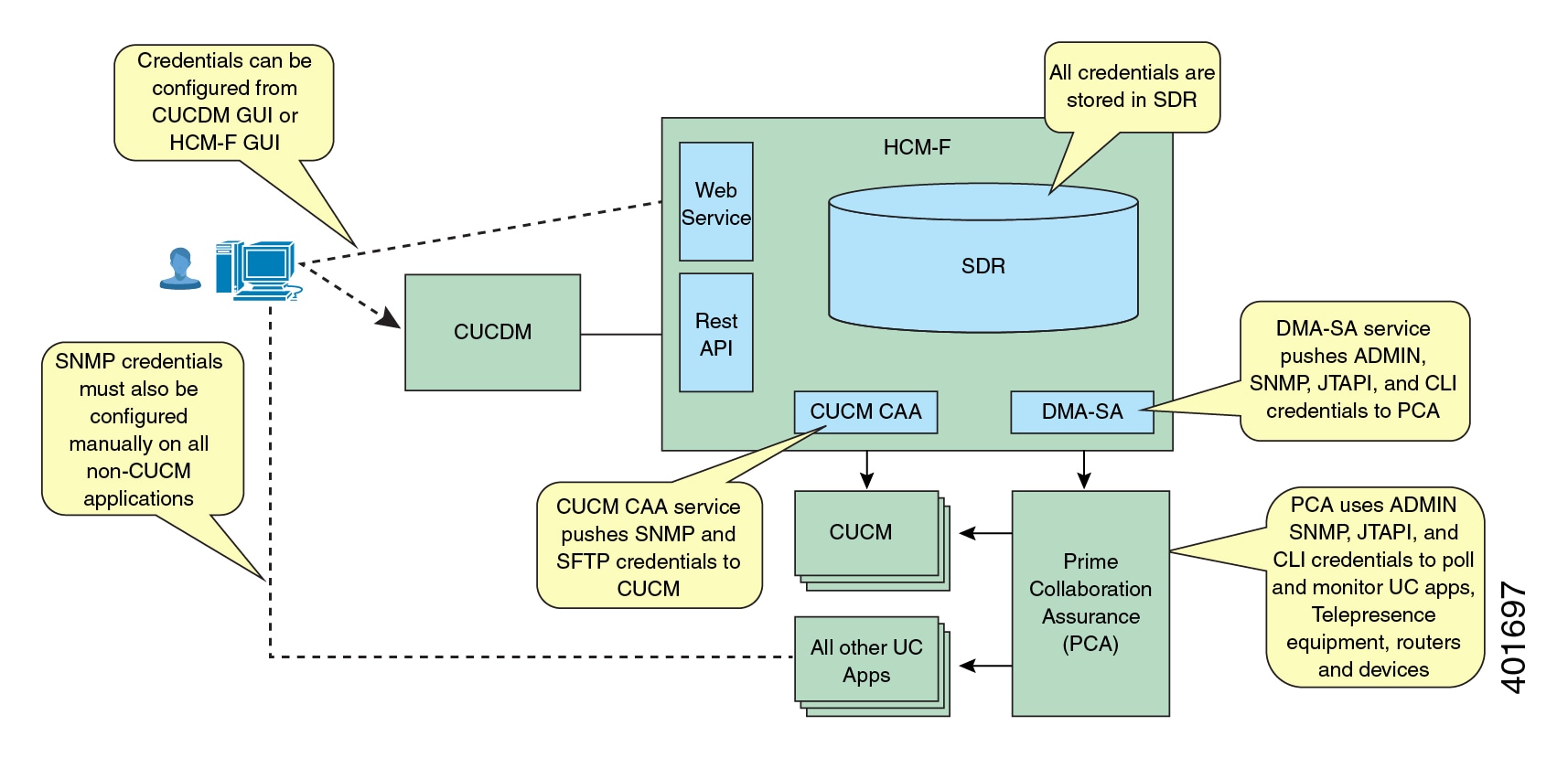
All credentials are stored in the Shared Data Repository (SDR) database in HCM-F and are assigned both a Credential Type (e.g. Admin) and an Device Type (e.g. CUCM). The combination of one credential type paired with one equipment type defines the meaning and usage of that credential. Not all credential types are used for each device type. The tables below list which credentials are used for each device type, and how each of those credentials are used.

The following diagram shows a high-level view of the components which use credentials, where they are configured and where they are stored.
Figure 1. Credential Usage
Diagram shows credentials used by hcm-f, cucdm, pca, and uc apps.

Credential Types for Management Components

This section contains credential requirements for each device type that can be configured in the Shared Data Repository (SDR). The following are "management" device types, which are used to manage the "applications" listed in the next table.

Device Type SDR Type Required Credentials Optional Credentials Notes

Cisco Unified Contact Center Domain Manager

CCDM

SNMP

-

-

Cisco Unified Communications Domain Manager

CUCDM

ADMIN

-

ADMIN credentials are used by Service Inventory to read provisioning information

  • Service Inventory to read provisioning information from CUCDM 10.x and generate SI reports with this data.

Cisco Unified Service Monitor

CUSM

SNMP

-

-

Cisco Unified Operations Manager

CUOM

SNMP

-

-

Data Center Network Manager_LAN

DCNM_LAN

SNMP

-

-

Data Center Network Manager_SAN

DCNM_SAN

SNMP

-

-

Data Center Network Manager_DB

DCNM_DB

SNMP

-

-

Cisco Prime Central

Prime Central

SNMP

-

-

Prime Collaboration Assurance PCA ADMIN SFTP
  • ADMIN credential is the administrator credential used to access the PCA API to push devices into PCA. This is typically "globaladmin" user ID.

  • SFTP credential is used to upload billing data from CUCM to PCA. This credential is pushed to CUCM's Billing Application Server (BAS) which can be found in Cisco Unified Serviceability > Tools > CDR Management.

    Note 

    The default SFTP credentials in PCA is smuser/smuser.

Prime License Manager PLM ADMIN

-

ADMIN credentials are used by the HCS License Manager (HLM) service on HCM-F to retrieve PLM version information and push cluster configuration data.
VCenter VCenter ADMIN

-

ADMIN credentials are used by VCenterSync service to read VMWare configuration and configure the SDR database with virtual machine data.
UCS Manager UCSManager ADMIN

-

ADMIN credentials are used by the UCS Manager Sync Service on HCM-F to read chassis and blade configuration and configure the SDR database with this data.

Cisco Virtual Packet Data Network Gateway

Virtual Packet Data Network Gateway

SNMP

-

-

Credential Types for Application Components

The following are "application" device types, which are devices providing service to a customer. The following table shows the SDR Type, Required Credentials, and Optional Credentials for device types.

PCA requires SNMP credentials to monitor Cisco Unified Communications Manager. These credentials are pushed to both Cisco Unified Communications Manager and PCA in order to avoid configuration in Cisco Unified Communications Manager first.


Note

SNMP credentials refer to SNMPv1, SNMPv2, or SNMPv3.


Cisco Unified Communications Domain Manager and HCM-F (Cisco HCS CAA CUCM Service) use ADMIN credentials to access the Cisco Unified Communications Manager AXL interface for provisioning synchronization.

The following HCM-F services use PLATFORM credentials :

  • HLM service to set the deployment mode and restart the publisher.

  • Cisco HCS CAA CUCM Service to restart the SNMP Master Agent after updating SNMP credential information.

HCM-F (Cisco HCS CAA CUCM service) service require HTTP credentials to configure the Billing Application Server in Cisco Unified Communications Manager.

CLI credentials are used to access the device through CLI to discover media path for troubleshooting.

PCA uses JTAPI credentials to retrieve the session status information from the Cisco Unified CM. These credentials must be manually configured on Cisco Unified Communications Manager.

Refer to Setting up Devices for Cisco Prime Collaboration Assurance to know how to enable different credential types.

Device Type SDR Type Required Credentials Optional Credentials

Notes

Cisco Unified CM

Cisco Unified Communications Manager

SNMP

HTTP

ADMIN

PLATFORM

JTAPI

-

Cisco Prime Collaboration supports Cisco Unified CM clusters. Ensure that cluster IDs are unique.

To verify a cluster ID, navigate to the Enterprise Parameters Configuration page through System > Enterprise Parameters for every cluster on the Cisco Unified CM publisher.

Create same credentials for all devices in the cluster while clustering.

JTAPI users need the following roles or accessibility:

  • Standard AXL API access

  • Cloud Collaboration Management admin users

  • Serviceability Administration

  • CTI enabled

  • CTI allow call monitoring

The session monitoring feature is supported by Cisco Unified CM.

Cisco Unity Connection

CUCXN

SNMP

HTTP

ADMIN

PLATFORM

-

Cisco Unified Presence

CUP

SNMP

HTTP

-

Cisco Unified Intelligence Center

CUIC

SNMP

HTTP

ADMIN

Cisco Unified Contact Center Management Portal

CCMP

SNMP

-

Cisco Expressway - Core

Expressway Core

SNMP

HTTP

-

Cisco Expressway - Edge

Expressway Edge

SNMP

HTTP

-

Cisco Unified Contact Center Enterprise

UCCE

SNMP

HTTP

-

Enter the HTTP credentials in the following format when you add Unified CCE in the Cisco Prime Collaboration Assurance user interface: domain\administrator. For example, hcsdc2\administrator.

Cisco Unified Customer Voice Portal

CVP

SNMP

HTTP

-

Enter the HTTP credentials for Cisco Unified Customer Voice Portal (CVP) with the ServiceabilityAdministrationUserRole privileges. The default username (wsmadmin) has this privilege.

Cisco Virtual Voice Browser

VoiceBrowser

SNMP

HTTP, ADMIN

Cisco Finesse

Finesse

SNMP

HTTP

-

Cisco MediaSense

MediaSense

SNMP

HTTP

-

Cisco Unified Email / Web Interaction Manager

EIMorWIM

SNMP

-

Cisco TelePresence Video Communication Server Control

VCS_C

SNMP

HTTP

ADMIN

-

HTTP users need administrator privileges.

Cisco TelePresence Video Communication Server Expressway

VCS_E

SNMP

HTTP

ADMIN

-

HTTP users need administrator privileges.

Cisco Unified Attendant Console (Virtual)

CUxAC_Virtual

SNMP

-

Cisco Unified Attendant Console (Hardware)

CUxAC_Hardware

SNMP

-

Cisco Emergency Responder (Virtual)

CER_Virtual

SNMP

-

Cisco Emergency Responder (Hardware)

CER_Hardware

SNMP

-

Cisco TelePresence Multipoint Switch

CTMS

SNMP

HTTP

-

HTTP user accounts require both Meeting Manager and Diagnostic Technician roles.

Cisco TelePresence Server (Virtual)

TS_Virtual

HTTP

-

HTTP users need API access privileges.

Cisco TelePresence Server (Hardware)

TS_Hardware

HTTP

-

HTTP users need API access privileges.

Cisco TelePresence MSE Supervisor

TS_Supervisor

SNMP

HTTP

-

HTTP users need administrator privileges.

Cisco TelePresence Management Suite

TMS

SNMP

HTTP

-

Requires booking API license (TMS software version 13.1 or below).

Generate HTTP users for Cisco Prime Collaboration through Booking API on the Cisco TMS windows server.

Cisco Prime Collaboration supports only the default email template for the Booking Confirm email in Cisco TMS. The session import feature does not work if the default email template is not used.

Cisco Virtual PGW Softswitch

VPGW

SNMP

-

Cisco Hosted Collaboration Mediation Fulfillment

HCM_F

SNMP

-

Cisco Unified Border Element (Enterprise Edition)

CUBE_ENT

SNMP

-

Routers, Switches, Gateways

CustomerEquipment

SNMP

CLI

CDP

-

Enable CDP for the video troubleshooting workflow.

The telnet or SSH access is required for Cisco medianet features, which is a part of the video troubleshooting workflow.

Cisco TelePresence Multipoint Control Unit

MCU

SNMP

HTTP

ADMIN

-

HTTP users need administrator privileges.

Cisco TelePresence Video Endpoint

TP_VideoEndpoint

SNMP

HTTP

CLI

-

Configure Account Locking

The account locking feature triggers locking of your account after few consecutive failed sign-in attempts. By default, this feature is disabled. Hence, ensure that you enable the account locking feature for extra security.

Procedure


Step 1

Log in to the Cisco HCM-F CLI as an administrator.

Step 2

Enter the show accountlocking command to view the account locking status.

Step 3

If the account locking status is disabled, enter the set accountlocking enable command to enable the account locking feature.

Note 

If account locking is re-enabled, the system automatically reverts to default configuration values.

Step 4

Enter the set accountlocking count attempts to configure the number of consecutive failed sign-in attempts before the system locks the account.

Note 
  • attempts represents the number of consecutive sign-in attempts before the system locks the account.

  • The default value of the account locking count is 3.

  • The accepted range of the consecutive failed sign-in attempts is 2-5.

The system displays the following message during the last login attempt:

Account will be locked if you try with a wrong password another time.
Step 5

Enter the set accountlocking unlocktime seconds to configure the unlock time.

Note 
  • seconds specifies the unlock time in seconds.

  • The default value of the account locking unlock time is 300.

  • The accepted range of the unlock time is 30-3600.

The system displays the following message when the account is locked:

Account has been locked, Please try after some time.
Note 

The account gets automatically unlocked only after the configured unlock time.


Infrastructure Manager Configuration

Table 4. Infrastructure Manager Configuration Workflow
Step Task For More Information Restrictions
1. Import the vSphere certificate to Cisco HCS server.

See Import the vSphere certificate to Cisco HCS server.

Do this only if vCenterSync is enabled and your vCenter server has only HTTPS enabled.
2. Configure HTTPS on HCM-F for the Cisco UCS Manager Sync service.

See Configure HTTPS for UCS Manager Sync.

Do this only if UCSMSync is enabled and your UCS Manager has only HTTPS enabled.
Data Center Management
3. Update VMWare tools. See Update VMWare Tools

Configure and use the Automatic Tools Upgrade option to check the tools version.

4.

Upgrade VM hardware

See Upgrade VM hardware

Upgrade the VM hardware required for ESXi 7.0 version.

5.

Add Data Centers.

See Add Data Center.

6. Add UCS Managers.

See Add UCS Manager.

7. Add blades.

See Add Blade.

Do this only if UCSMSync is not enabled.
8. Add chassis.

See Add Chassis.

Do this only if UCSMSync is not enabled.
9. Add vCenters.

See Add vCenter.

10. Add VMware data centers.

See Add VMware Data Center.

Do this only if vCenterSync is not enabled.
11. Add VMware clusters.

See Add VMware Cluster.

Do this only if vCenterSync is not enabled.
12. Add virtual machines.

See Add Virtual Machine.

Do this only if vCenterSync is not enabled.
13. Add ESXi hosts.

See Add ESXi Host.

Do this only if vCenterSync is not enabled.
14. Associate ESXi host to blade.

See Associate ESXi Hosts to Blades.

Do this only if vCenterSync is not enabled.
Aggregation

15.

(Optional) Add Session Border Controller

Note 
Aggregation configuration is necessary only if there is an external client that requires access to this information.
Customer Management
16. Add customers.

See Add Customer.

17. Add customer locations. Add Customer Location
18. Add customer equipment.

See Add Customer Equipment.

Cluster Management
19. Add clusters. Add Cluster
20. Add cluster applications.

See Add Cluster Application.

21. Add SIP trunks.

See Add SIP Trunk.

Application Management
22. Add Management Applications. Add Management Application
23. Configure Other Applications.

See Add Other Application.

Administration
24. Add default credentials.

See Add Default Credentials.

Device Management
25. Add cluster hardware device.

See Add Cluster Device.

26. Add non-clustered device.

See Add a Non-Clustered Device.

License Management
27. Set the deployment mode.

See Set Default Deployment Mode.

28. Manually install the HCS License into the License Manager. See the Cisco Prime License Manager User Guide.
29. Add License Managers. See Add a License Manager.
30. Assign clusters to License Managers. See Assign a Cluster to a License Manager.
Synchronization
31. Perform a manual sync. Perform Manual Sync

Certificate Monitoring and Management

32.

Monitor certificates and configure email ID for receiving certificate summary (scheduled or on-demand collection).

Upgrade Checks

33.

Perform upgrade checks on the supported UC applications before and after upgrade.

See Perform Upgrade Checks.

Upgrade Comparison

34.

Perform upgrade comparison for validating the check results obtained before and after upgrade.

See Post Upgrade Comparison.

Phone Compatibility Check

35.

Understand the phones that are supported and deprecated in Cisco Unified Communications Manager before upgrading.

See Phone Compatibility Check.

Data Center Management

Data Center Management configuration is necessary only if there is an external client that requires access to this information.

Upgrade VM Hardware

When you upgrade virtual hardware, no downtime is required for vCenter Server or ESXi/ESX hosts. For virtual machines, the only significant downtime is the time to shut down and restart the guest operating systems.

Note

For ESXi 7.0 version, you must upgrade the VM hardware version. To see supported versions, see https://kb.vmware.com/s/article/1010675 for details.


For information about upgrading Virtual Machine Hardware (VMHW), see knowledge base article 1010675, Upgrading a virtual machine to the latest hardware version (multiple versions): http://kb.vmware.com/selfservice/microsites/microsite.do.

Import the vSphere Certificate to Cisco HCS Server

Import the certificate trust store if certificate validation is enabled.


Note

Use this procedure only if your vCenter server has only HTTPS enabled. If HTTP, or both HTTP and HTTPS, are enabled, this procedure is unnecessary.


Procedure

Step 1

Using Firefox, browse to the vSphere server at https://<your-vsphere-server>:8443. Select Firefox > Tools > Options.

Step 2

Click Advanced.

Step 3

Click the Encryption tab.

Step 4

Click View Certificates.

Step 5

Select the server.

Step 6

Click Export. Save the PEM file to a file.

Step 7

Import the vSphere certificate to the Cisco HCM-F platform:

  1. From the CLI on the Cisco HCM-F platform, enter the command set cert import with the following parameters:

    • type: mandatory cert type, which is normally set to trust.

    • name: mandatory unit name, which is set to tomcat.

    • caCert: optional name of the caCert, which is set to the certificate name.

    For example, you may enter set cert import trust tomcat <name of your certificate> .

  2. After you run the command, the CLI prompts you to paste in the certificate. Using any text editor, open the .crt file you saved. Copy and paste the entire contents of the file at the CLI prompt.

  3. After you upload the certificate, restart the Cisco HCS VCenterSync Service through the CLI.


Configure HTTPS for UCS Manager Sync

Configure HTTPS on Cisco HCM-F for the Cisco UCS Manager Sync service.


Note

Use this procedure only if your UCS Manager server has only HTTPS enabled. If HTTP, or both HTTP and HTTPS, are enabled, this procedure is unnecessary.


Before you begin

Include the IP address for the UCS Manager in the Subject Alternative Name field of the UCS Manager security certificate.

Procedure

Step 1

Using Firefox, browse to the UCS Manager server at https://<your-ucs_manager-server>. Select Firefox > Tools > Options.

Step 2

Click Advanced.

Step 3

Click the Encryption tab.

Step 4

Click View Certificates.

Step 5

Select the server.

Step 6

Click Export. Save the PEM file to a file.

The extension for the PEM file is .crt.

Step 7

Import the UCS Manager certificate to the Cisco HCM-F platform:

  1. From the CLI on the Cisco HCM-F platform, enter the command set cert import with the following parameters:

    • type: mandatory cert type, which is normally set to trust.

    • name: mandatory unit name, which is set to tomcat.

    • caCert: optional name of the caCert, which is set to the certificate name.

    For example, enter set cert import trust tomcat <name of your certificate> .

  2. After you run the command, the CLI prompts you to paste in the certificate. Use any text editor to open the .crt file that you saved. Copy and paste the entire contents of the file at the CLI prompt.

Step 8

Enable secure authentication to the UCS Manager. From the CLI on the Cisco HCM-F platform, enter set hcs ucsmsync require-ucsm-certificate enable.

Step 9

Restart the Cisco HCS UCSMSync Service.


Add Data Center

Follow this procedure to add a Data Center.

Procedure

Step 1

From the side menu, select Data Center Management > Data Center.

Step 2

Click Add New.

Step 3

Enter the following information:

Field Description
Name

Enter the name of the Data Center. This is a mandatory field.

Service Provider

This is a pre-populated field with the service provider name. This is a mandatory field.

Customer

Enter the customer name. This is an optional field.

Step 4

Click Save.

Step 5

Click Data Center Address.

Step 6

Enter the optional information for the Address 1, Address 2, City, State, Country, and Zip Code fields.

Step 7

Click DCNM Monitoring only if using DCNM in your deployment.

Step 8

Select the appropriate DCNM monitoring. This is an optional step.

Step 9

Click Save.


Add UCS Manager

Follow this procedure to add a UCS Manager to Infrastructure Manager.

Procedure

Step 1

From the side menu, select Data Center Management > Data Center > UCS Manager.

Step 2

Click Add New.

Step 3

Enter the following information:

Option Description
Name

Enter the name of the UCS Manager. The name must match the certificate name (CN) in the security certificate for the UCS Manager. This is a mandatory field.

Data Center

Select a Data Center. This is a mandatory field.

IPv4 Address

Enter the IPv4 address of the UCS Manager.

Port Number

Enter the port number of the UCS Manager. This is an optional field. The port number is required if access to the UCS Manager is through a NAT that requires a port number.

Sync Enabled

Check to enable UCS Manager sync.

Sync Interval (Minutes)

Enter the time in minutes that you want the system to perform a UCS Manager sync. The default is 15.

Step 4

Click Fabric Interconnects.

Step 5

Enter the optional information for the fields Interconnect A IPv4 Address and Interconnect B IPv4 Address.

Step 6

Click Save.

Step 7

Click Credentials.

Step 8

Click Add New.

Step 9

Enter the following information:

Field Description
Credential Type

Select the Admin credential type. This is a mandatory field.

User ID

Enter the user ID. This is a mandatory field.

Password

Enter the password for the user ID. This is a mandatory field.

Re-enter Password

Enter the password for the user ID. This is a mandatory field.

Step 10

Click Save.


Add Blade

Follow this procedure to add a Blade to Infrastructure Manager.


Note

If UCS Manager sync is enabled and successful, Blades are added, edited, and deleted through UCS Manager sync. You should make any configuration changes through UCS Manager.


Procedure

Step 1

From the side menu, select Data Center Management > Data Center > UCS Manager > Blade.

Step 2

Click Add New.

Step 3

Enter the following information:

Option Description
Name

Enter the name, which must be the same as the Associated Server field in UCS Manager. This is a mandatory field.

Product Name

Enter the product name. This is an optional field.

Chassis ID

Select the chassis ID. You can have multiple blades associated with a chassis. This is a mandatory field.

Slot

Select the slot number from the available slots numbers. The slot number must be the same as the Slot ID field in UCS Manager. This is a mandatory field.

Step 4

Click Save.


Add Chassis

Follow this procedure to add a chassis to Infrastructure Manager.


Note

If UCS Manager sync is enabled and successful, Chassis are added, edited, and deleted through UCS Manager sync. You should make any configuration changes through UCS Manager.


Procedure

Step 1

From the side menu, select Data Center Management > Data Center > UCS Manager > Chassis.

Step 2

Click Add New.

Step 3

Enter the following information:

Field Description
Chassis ID

Enter the chassis ID, which must be the same as the Chassis ID field in UCS Manager. This is a mandatory field.

Distinguished Name

Enter the distinguished name, which must be the same as the Associated Server field in UCS Manager. This is an optional field.

UCS Manager

Select the UCS Manager. You can have multiple chassis associated with a UCS Manager. This is a mandatory field.

Product Name

Enter the product name. This is an optional field.

Step 4

Click Save.


Add vCenter

You should configure a vCenter for each vCenter server deployed in the Data Center. If the vCenter is managing VMware infrastructure that spans multiple Data Centers, configure the vCenter in the Data Center in which the vCenter server itself is deployed.


Note

Data Center configuration is optional. It is required only if an external client accesses the information from the Shared Data Repository.


Note

For vCenter Sync to function, you must add at least one vCenter, vCenter credentials, and vCenter network address information.


Procedure

Step 1

From the side menu, select Data Center Management > Data Center > vCenter.

Step 2

Click Add New.

Step 3

Enter the following information:

Field Description
Name

Enter the name of the vCenter. This is a mandatory field.

Description

Enter a description for the vCenter. This is an optional field.

Data Center

Select a Data Center. This is a mandatory field.

Virtual Machine

Select a virtual machine. This is an optional field.

Sync Enabled

Select to enable vCenter Sync.

Step 4

Click Save.

Step 5

Click Credentials.

Step 6

Click Add New.

Step 7

Enter the following information:

Field Description
Credential Type

Select the Admin credential type. This is a mandatory field.

User ID

Enter the user ID. This is a mandatory field.

Password

Enter the password for the user ID. This is a mandatory field.

Re-enter Password

Enter the password for the user ID. This is a mandatory field.

Step 8

Click Save.

Step 9

Click Network Address.

Step 10

Click Add New.

Step 11

Enter the following information:

Field Description
Network Space

Select the network space. This is a mandatory field. APPLICATION_SPACE indicates the address is in application space. SERVICE_PROVIDER_SPACE indicates the address is in the management network. CUSTOMER_SPACE indicates a double NAT is deployed.

IPV4 Address

Enter the IP address if applicable.

IPV6 Address

IPV6 is not supported by HCMF.

Hostname

Enter the hostname. This is an optional field.

Domain

Enter the domain address. This is an optional field that is normally configured when there is no hostname or IP address.

SRV Address

Select if the address is a SRV.

Step 12

Click Save.


Add VMware Data Center

Follow this procedure to add a VMware Data Center to Infrastructure Manager.


Note

If vCenter sync is enabled, and successful, VMware Data Centers are added, edited, and deleted through the vCenter sync. You should make any configuration changes to VMware Data Centers from the vCenter user interface.


Procedure

Step 1

From the side menu, select Data Center Management > Data Center > vCenter > VMware Data Center.

Step 2

Click Add New.

Step 3

Enter the following information:

Field Description
Name

Enter the name of the VMware Data Center. This is a mandatory field.

vCenter

Select the vCenter associated with the VMware Data Center. This is a mandatory field.

Step 4

Click Save.


Add VMware Cluster

Follow this procedure to add a VMware cluster.

Configure one Data Center for each physical Data Center that hosts equipment in the Cisco HCS deployment. The Data Center may be owned by the service provider or by a customer.


Note

Data Center configuration is optional. It is required only if an external client accesses the information from the Shared Data Repository.


Note

If vCenter sync is enabled, and successful, VMware Data Centers are added, edited, and deleted through the vCenter sync. You should make any configuration changes to VMware Data Centers from the vCenter user interface.


Procedure

Step 1

From the side menu, select Data Center Management > Data Center > vCenter > VMware Cluster.

Step 2

Click Add New.

Step 3

Enter the following information:

Field Description
Name

Enter the name of the VMware cluster. This is a mandatory field.

VMware Data Center

Select the VMware Data Center associated with the VMware cluster. This is a mandatory field.

Step 4

Click Save.


Add Virtual Machine

Follow this procedure to add a Virtual Machine.


Note

If vCenter sync is enabled and successful, Virtual Machines are added, edited, and deleted through the vCenter sync. You should make any configuration changes to Virtual Machines from the vCenter user interface.


Procedure

Step 1

From the side menu, select Data Center Management > Data Center > vCenter > Virtual Machine.

Step 2

Click Add New.

Step 3

Enter the following information:

Field Description
Name

Enter the name of the Virtual Machine. This is a mandatory field.

VMware cluster

Select the VMware cluster associated with the Virtual Machine. This is a mandatory field.

Hostname

Enter the hostname of the Virtual Machine. This is an optional field.

Domain Name

Enter the domain name of the Virtual Machine. This is an optional field.

ESXi Host

Select the related ESXi host.

Step 4

Click Save.

Step 5

Click Network Interfaces.

Step 6

Click Add New.

Step 7

Enter the following information:

Field Description
MAC Address

Enter the MAC address of the network interface. This is a mandatory field. Examples of acceptable formats include: 01-23-45-67-89-ab or 01:23:45:67:89:ab.

Hostname

Enter the hostname. This is an optional field.

Domain

Enter the domain address. This is an optional field that is normally configured when there is no hostname or IP address.

IP Type

Select the IP type.

IP Address

Enter the IP address. Click the > to address. Repeat for each IP address required.

Step 8

Click Save.


Add ESXi Host

Follow this procedure to add an ESXi Host.


Note

If vCenter sync is enabled and successful, ESXi Hosts are added, edited, and deleted through the vCenter sync. With the exception of the Blade linkage, you should make any configuration changes to ESXi Hosts from the vCenter user interface. After the ESXi Host information is automatically synced, you must manually configure the Blade association.


Procedure

Step 1

From the side menu, select Data Center Management > Data Center > vCenter > ESXi Host.

Step 2

Click Add New.

Step 3

Enter the following information:

Field Description
Name

Enter the name of the ESXi Host. This is a mandatory field.

IPV4/IPV6 Address

Enter the appropriate IP address. This is an optional field.

Note 

IPV6 is not supported by HCMF

VMware Cluster

Select the associated VMware cluster. This is a mandatory field.

Auto Link to Blade

Check this field to have the Cisco HCS Fulfillment Service make the association between the ESXi Host and Blade.

Blade

Select the associated Blade. This is an optional field.

Step 4

Click Save.


Associate ESXi Hosts to Blades

Follow this procedure to associate an ESXi host to a blade in Infrastructure Manager.


Note

Data Center configuration is optional. It is required only if an external client accesses the information from the Shared Data Repository.


Note

If vCenter sync is enabled and successful, ESXi Hosts are added, edited, and deleted through the vCenter sync. With the exception of the Blade linkage, you should make any configuration changes to ESXi Hosts from the vCenter user interface. After the ESXi Host information is automatically synced, you must manually configure the Blade association.


Procedure

Step 1

From the side menu, select Data Center Management > Data Center > vCenter > ESXi Host

Step 2

Click the name of the ESXi host you want to associate to a blade.

Step 3

Select the blade.

Step 4

Click Save.


Add Session Border Controller

Follow this procedure to add a Session Border Controller.


Note

If the correct Session Border Controller is selected in the General Information first, you can also add Northbound Adjacencies and Southbound Adjacencies on the Session Border Controller edit page.


Procedure


Step 1

From the side menu, select Aggregation > Session Border Controller.

Step 2

Click Add New.

Step 3

Enter the following information:

Field Description
Name

Enter the name of the Session Border Controller. This is a mandatory field.

Description

Enter a description for the Session Border Controller. This is an optional field.

Step 4

Click Save.

Step 5

Click Northbound Adjacencies.

Step 6

Click Add New.

Step 7

Enter the following information:

Field Description
Name

Enter the name of the Northbound Adjacency. This is a mandatory field.

Description

Enter a description for the Northbound Adjacency. This is an optional field.

Local IPV4 Address

Enter the local IPV4 address. This is an optional field.

Peer IPV4 Address

Enter the peer IPV4 address. This is an optional field.

Step 8

Check the Assign customers after save box.

Step 9

Click Save.

Step 10

Select a customer from the list and click Assign.

Step 11

Click Save.

Step 12

Click Southbound Adjacencies.

Step 13

Click Add New.

Step 14

Enter the following information:

Field Description
Name

Enter the name of the Southbound Adjacency. This is a mandatory field.

Description

Enter a description for the Southbound Adjacency. This is an optional field

Local IPV4 Address

Enter the local IPV4 address. This is an optional field

Peer IP4V Address

Enter the peer IPV4 address. This is an optional field

SIP Trunk

Select the associated SIP Trunk.

Step 15

Click Save.


Prime Collaboration Deployment for UC Applications

Cisco Prime Collaboration Deployment helps you to manage Unified Communications (UC) applications. Its functions are to:

  • Migrate a cluster of UC servers to a new cluster (such as MCS to virtual, or virtual to virtual).


    Tip

    Cisco Prime Collaboration Deployment does not delete the source cluster VMs after migration is complete. You can fail over to the source VMs if there is a problem with the new VMs. When you are satisfied with the migration, you can manually delete the source VMs.


  • Perform operations on clusters, such as:

    • Upgrade

    • Switch version

    • Restart

  • Fresh install a new release UC cluster

  • Change IP addresses or hostnames in clusters (for a network migration).

    Cisco Prime Collaboration Deployment supports simple migration and network migration. Changing IP addresses or hostnames is not required for a simple migration. For more information, see the Prime Collaboration Deployment Guide.

The functions that are supported by the Cisco Prime Collaboration Deployment can be found in the Prime Collaboration Deployment Administration Guide.

Use the Cluster Discovery feature to find application clusters on which to perform fresh installs, migration, and upgrade functions. Perform this discovery on a blade-by-blade basis.

For more information about features, installation, configuration and administration, best practices, and troubleshooting, see the following documents:

Customer Management

Customer Management configuration option allows you to add customers, the customer location and equipment.

Add Customer

Procedure

Step 1

From the side menu, select Customer Management > Customer.

Step 2

Click Add New.

Field Description
Name

Enter the name of the customer. This is a mandatory field.

Extended Customer Name

Enter an extended customer name if desired. This field is optional for dedicated customers, and mandatory for shared and partitioned customers.

External Customer ID

Enter the external customer ID. This is an optional field.

Application Monitoring this Customer

Select the application that is monitoring this customer. This is an optional field, but customer devices aren't monitored unless a monitoring application is assigned at the customer or cluster level.

Export Control

Select this option for customers with a smart account from the cluster level settings, where Export Restrictions apply. This feature allows the user to request a regulatory Export License that is granted in the Cisco Smart Software Manager or the satellite On-prem and enable the export restricted feature.

The hierarchy of export control is in this order:

  1. Cluster

  2. Customer

  3. Service Provider

The available options under each hierarchy are:

  • Enabled- export control enabled

  • Disabled- export control disabled

  • None- export control is enabled from the hierarchy below the current level.

Customer CUCDM

Unified CDM name from where the customer is synced to HCM-F. This field is disabled if you create customers directly in HCM-F.

Step 3

Click License Models, and select customer license from the License Model dropdown.

The available license models are: Enterprise Agreement, Named User, Named User + Perpetual, and Perpetual.

Note 

We recommend using Subscription Mapper to select Subscription ID and License Models. For Perpetual, select the license models from the Add Customer page.

Step 4

Click Contact Information.

Enter the contact information. This is optional information.

Step 5

Click Deal Information.

Enter the Subscription ID orDeal ID for this customer. This is optional information.

You can select the Subscription ID from the Subscription Mapper window. Navigate to Infrastructure Manager > Smart Licensing > Subscription Mapper, and select the Subscription ID and map it with a customer. Once the mapping is complete, the Deal Information in the Edit Customer window is updated with the Subscription ID.

For more information about Subscription IDs, see Subscription Mapper section in Hosted Collaboration Solution Smart Licensing Guide.

If you mentioned the Subscription ID for a customer, the generated Flex license usage report for the customer displays the Subscription ID details.

Step 6

Click Proxy Settings to set the proxy parameters of a customer.

Set the proxy parameters to register the clusters to Cisco Smart Software Manager (CSSM).

Field

Description

Proxy Hostname

Enter the proxy FQDN value.

Proxy Port

Enter the proxy port.

Select the Enable Proxy Authentication option, if the UC applications uses a proxy with authentication to register to CSSM.

Field

Description

Proxy Username

Enter the proxy username.

Proxy Password

Enter the proxy password.

Note 
  • The proxy with authentication is available for UC applications with versions 14 and 12.5 SU4 and later.

  • If the proxy with authentication is enabled at a customer level, ensure that the cluster level configuration is configured to override the proxy settings for UC applications below 12.5 SU4 version.

  • Updating the proxy will not update the proxy settings for the UC applications, if it is already registered. To update the proxy settings for UC applications that are configured with proxy information, you must assign the cluster and then reassign the cluster to have the updated configuration. See Assign/Unassign a cluster to a Virtual Account for details. If the cluster is shared among multiple customers proxy, set the proxy authentication from the cluster level.

Step 7

Click Northbound Adjacencies to view the Session Border Controller element settings. For more information, see Add Session Border Controller topic.

Step 8

Click Save.


Add Customer Location

Follow this procedure to add a customer location.

Procedure

Step 1

From the side menu, select Customer Management > Customer > Customer Location.

Step 2

Click Add New.

Step 3

Enter the following information:

Field Description
Name

Enter the name of the customer location. This is a mandatory field.

Customer

Select the customer associated with the customer location or add a new customer. This is a mandatory field.

Description

Enter a description for the customer location. This is an optional field.

Note 

The length of the description must not exceed 128 characters.

External ID

Enter the account number to use in external accounting systems. This is an optional field.

Extended Name

Enter a more detailed and descriptive location name. This is an optional field.

Note 

The length of the extended name must not exceed 128 characters.

Site Location Code

Enter the dial prefix to use before internal direct dialed numbers. This is an optional field.

Step 4

Click Contact Information.

Step 5

Enter the customer contact information.

Step 6

Click Save.


Add Customer Equipment

Procedure

Step 1

From the side menu, select Customer Management > Customer > Customer Location > Customer Equipment.

Step 2

Click Add New.

Step 3

Enter the following information:

Field Description
Name

Enter the name of the customer equipment. This is a mandatory field

Customer

Select the customer associated with the customer equipment or add a new customer. This is a mandatory field.

Location

Select the location associated with the customer equipment. This is a mandatory field.

The GUI displays only the locations assigned to the selected customer.

Equipment Roles

Select the customer equipment role. This is an optional field.

Application Monitoring this Customer Equipment

Select the application that is monitoring this equipment. This is an optional field.

Step 4

Click Save.

Step 5

Click Credentials.

Step 6

Click Add New.

Step 7

Enter the following information:

Field Description
Credential Type

Select the credential type. This is a mandatory field.

User ID

Enter the user ID. Depending on the credential type selected, this may be a mandatory field.

Password

Enter the password for the user ID. Depending on the credential type selected, this may be a mandatory field.

Re-enter Password

Enter the password for the user ID. Depending on the credential type selected, this may be a mandatory field.

Community String

Enter the community string. Depending on the credential type selected, this may be a mandatory field.

Re-enter Community String

Re-enter the community string. Depending on the credential type selected, this may be a mandatory field.

Access Type

Select the access type. This is the access type a HCM-F service should have when using the credential to access the UC application.

Step 8

Click Save.

Step 9

Click Network Address.

Step 10

Click Add New.

Step 11

Enter the following information:

Field Description
Network Space

Select the network space. This is a mandatory field. APPLICATION_SPACE indicates that the address is in application space. SERVICE PROVIDER_SPACE indicates that the address is in the management network. CUSTOMER_SPACE indicates that a double NAT is deployed.

IPV4 Address

Enter the IP address if applicable.

IPV6 Address

IPV6 is not supported by HCMF

Hostname

Enter the hostname. This is an optional field.

Domain

Enter the domain address. This is an optional field that is normally configured when there is no hostname or IP address.

SRV Address

Select if the address is a SRV.

Step 12

Click Save.


Cluster Management

Cluster Management configuration option allows you to add clusters, cluster applications and SIP trunks.

Cluster Field Descriptions

Field

Description

Name

Displays the cluster name.

Customer

Displays the number of related customers.

Monitoring Application

Displays the name of the monitoring application that is monitoring this cluster.

Applications

Displays the number of related applications.

Devices

Displays the number of related devices.

Version

Displays the version of corresponding clusters.

Connectivity

Allows selecting Cisco Unity Connection, and Cisco Unified CM clusters. It also displays the status of clusters connectivity with HCM-F, and test information with the reason for failure.

Add Cluster

Procedure

Step 1

From the side menu, select Cluster Management > Cluster.

Step 2

Click Add New.

Field

Description

Name

Enter the name of the cluster. This is a mandatory field.

Customer

Select the customer.

Description

Enter a description for the cluster.

CPID

Enter the Call Processing ID.

Cluster Type

Select the cluster type. This is a mandatory field.

Cluster Application Version

Select the cluster application version. This is a mandatory field. From HCM-F 12.5(1) SU2 version and later, this field displays the cluster application version for Expressway clusters.

Note 

For Smart Licensing, only UC applications version 12.5 and later and Expressway version X12.6 and above cluster application versions are applicable.

Manual Mode

Check to indicate that the cluster is not managed by Cisco Unified Communications Domain Manager.

Note 
This field applies to clusters that are synced from Cisco Unified Communications Domain Manager.

Application Monitoring this Cluster

Select the Cisco application that is monitoring this cluster. This is an optional field, but customer devices is not monitored unless a monitoring application is assigned at the customer or cluster level.

Export Control

Select this option from cluster level settings. This export control feature is a solution for customers with a smart account, where Export Restrictions apply. This feature allows the user to request a regulatory Export License that is granted in the Cisco Smart Software Manager or the satellite On-prem and enable the export restricted feature.

The hierarchy of export control is in this order:

  1. Cluster

  2. Customer

  3. Service Provider

The available options under each hierarchy are:

  • Enabled- export control enabled

  • Disabled- export control disabled

  • None- export control is enabled from the hierarchy below the current level.

License Type

Select the license type that applies to the cluster.

For Unified Communication Application clusters Version 12.5 and later, by default it is Smart Licensing. For Expressway clusters version X12.6 and later, you must manually select the license mode. The available options for Expressway clusters are:

  • PAK

  • Smart Licensing

NOTE: HCM-F supports registration to CSSM only for Expressway clusters that are in Smart Licensing mode.

Caution 

When you change the license mode for an Expressway cluster from Smart licensing to PAK mode, use the box and this change requires a factory reset.

Step 3

Click Contact Information.

Field Description
Email

Enter the email address for the cluster.

Country Code

Enter the country code for the cluster.

Step 4

Click Proxy Settings to set the proxy parameters of a cluster.

Note 

Set the proxy parameters to register the clusters to the CSSM.

The Expressway E clusters use direct mode unless the proxy settings are selected at a cluster level.

Field

Description

Proxy Hostname

Enter the proxy FQDN value.

Proxy Port

Enter the proxy port.

Configure proxy as follows:

If...

Then...

The proxy is configured in the cluster.

The cluster is assigned to a virtual account with proxy mode and proxy settings of the cluster.

The proxy is not configured in the Cluster.

The proxy of the Customer is used for UC applications and Expressway-C.

The proxy is not configured in the Cluster and Customer.

The UC applications, Expressway- C and Expressway- E cluster registration happens in direct mode.

Note 

For the Shared cluster, if the registration to CSSM must happen through proxy, then it is mandatory to specify the proxy in the cluster.

CER cluster assignment with Smart Account works with port 8443, as port 3128 is not open in Cisco Emergency Responder. For other UC clusters, port 3128 is still valid.

Select the Enable Proxy Authentication option, if the UC applications uses a proxy with authentication to register to CSSM.

Field

Description

Proxy Username

Enter the proxy username.

Proxy Password

Enter the proxy password.

Note 
  • The proxy with authentication is available for UC applications with versions 14 and 12.5 SU4 and later.

  • If the proxy with authentication is enabled at a customer level, ensure that the cluster level configuration is configured to override the proxy settings for UC applications below 12.5 SU4 version.

  • Updating the proxy will not update the proxy settings for the UC applications, if it is already registered. To update the proxy settings for UC applications that are configured with proxy information, you must assign the cluster and then reassign the cluster to have the updated configuration. See Assign/Unassign a cluster to a Virtual Account for details. If the cluster is shared among multiple customers proxy, set the proxy authentication from the cluster level.

Step 5

Click Save.


Test Cluster Connection

The test cluster connectivity feature allows testing the connectivity of Cisco Unity Connection, and Cisco Unified CM clusters from Cisco HCM-F. It tries to connect the publisher application node associated with the cluster, and validates the following entities:

  • Network connectivity between the Cisco HCM-F and the corresponding cluster

  • ADMIN credentials of the publisher node of the cluster

  • Verifies that Cisco HCS CAA CUCM Service and Cisco HCS CAA UCXN Service are active and running

Follow this procedure for testing the connectivity of Cisco Unity Connection, and Cisco Unified CM clusters with Cisco HCM-F.

Procedure

Step 1

From the side menu, select Cluster Management > Cluster.

Step 2

Under the Connectivity column, select the clusters required for testing connectivity.

Step 3

Click Test Connection.

  • The system displays the status of cluster connectivity under the corresponding Connectivity column as either In-Progress, PASS, or FAIL.

  • The system displays the cluster version under the Cluster Version column.

  • Hover your cursor on the information icon under the Connectivity column to view the following information in the popped up Connection Status window:

    • Cluster version

    • Last success date, and time

    • Last execution date, and time

    • Status

      If a cluster connectivity failed, the Status field displays the cause of connectivity failure.


Add Cluster Application

Follow this procedure to configure a cluster application through Infrastructure Manager.


Note

Cisco recommends that you do not configure Cisco Unity Connection, Cisco Unified Communications Manager, and Cisco Emergency Responder cluster applications manually in Cisco HCM-F. You must manually add Cisco Unified Presence to Cisco HCM-F.


Procedure

Step 1

From the side menu, select Application Management > Cluster Application.

Step 2

Click Add New.

Step 3

Enter the following information:

Field Description
Application Type

Select the application type. This is a mandatory field.

Server Type

Select the server type for the cluster application.

This field is present only when Cisco Unified Communications Manager is selected as the Application Type, and is mandatory when present.

Name

Enter the name of the cluster application. This is a mandatory field.

Description

Enter a description for the cluster application. This is an optional field.

Node Type

Select the node type, either Publisher or Subscriber.

This field is present only when one of the following is selected as the Application Type:

  • Cisco Unified Communications Manager

  • Cisco Unity Connection

  • Cisco Unified Communications Manager IM and Presence Service

  • Cisco Emergency Responder

This field is mandatory when present.

Cluster

Select the cluster for the cluster application. This is a mandatory field.

Auto Link to Virtual Machine

Check to automate the link to the Virtual Machine.

Virtual Machine

Select the Virtual Machine. This is an optional field.

Routing ID

Enter a unique identifier based on information already within your provisioning system instead of the default hierarchical name-based routing based on the infrastructure configuration in SDR.

This field is present only when one of the following is selected as the Application Type:

  • Cisco Unified Communications Manager IM and Presence Service

  • Cisco Unity Connection

  • Cisco Unified Communications Manager

This field is optional when present.

  1. If you select CUCM as the application type, click CUCM Service Activation.

  2. Check the services to be activated. To deactivate unselect.

Step 4

Click Save.

Step 5

Click Credentials.

Step 6

Click Add New.

Step 7

Enter the following information:

Field Description
Credential Type

Select the credential type. This is a mandatory field.

User ID

Enter the user ID for the cluster application. Depending on the credential type selected, this may be a mandatory field.

Password

Enter the password for the user ID. Depending on the credential type selected, this may be a mandatory field.

Re-enter Password

Enter the password for the user ID. Depending on the credential type selected, this may be a mandatory field.

Community String

Enter the community string for the cluster application. Depending on the credential type selected, this may be a mandatory field.

Re-enter Community String

Re-enter the community string for the cluster application. Depending on the credential type selected, this may be a mandatory field.

Access Type

Select the credential type. This is the credential type a Cisco HCM-F service must have when using the credential to access the UC application.

Note 

ADMIN is required for Service Inventory to generate reports for UC applications.

PLATFORM and SNMP VERSIONS are required for Cisco Prime Collaboration Assurance monitoring.

HTTP is required for Cisco Unified Communications Manager.

Step 8

Click Save.

Step 9

Click Network Address.

Step 10

Click Add New.

Step 11

Enter the following information:

Field Description
Network Space

Select the network space. This is a mandatory field. APPLICATION_SPACE indicates that the address is in application space. SERVICE PROVIDER_SPACE indicates that the address is in the management network. CUSTOMER_SPACE indicates that a double NAT is deployed.

Note 
SERVICE_PROVIDER_SPACE is required for Service Inventory to generate reports for Cisco Unified Communications Manager and Cisco Unity Connection cluster applications.
IPv4 Address

Enter the IP address if applicable.

Note 
IPv4 address is required for Service Inventory to generate reports for Cisco Unified Communications Manager and Cisco Unity Connection cluster applications.
IPv6 Address

HCM-F does not support IPv6.

Hostname

Enter the hostname. This is an optional field.

Domain

Enter the domain address. This is an optional field that is normally configured when there is no hostname or IP address.

SRV Address

Select if the address is an SRV.

Step 12

Click Save.


Add SIP Trunk


Note

SIP Trunk configuration is optional. It is only required if an external client accesses this information from the Shared Data Repository.
Procedure

Step 1

From the side menu, select Cluster Management > Cluster > SIP Trunk.

Step 2

Click Add New.

Step 3

Enter the following information:

Field Description
Name

Enter the name of the SIP trunk. This is a mandatory field.

Description

Enter a description of the SIP trunk. This is an optional field.

CUCM Cluster

Select the associated Cisco Unified Communications Manager cluster. This is a mandatory field.

Southbound Adjacency

Select the associated Southbound Adjacency. This is an optional field.

Step 4

Click Save.

Step 5

Click Assign CUCM Applications.

Step 6

Check the appropriate Cisco Unified Communications Manager application to associate it with the SIP Trunk.

Step 7

Click Save.


Management Application

The Management Application Summary page displays a list of the management applications in your Cisco HCS as well as basic details about each one.

The following Management Applications are supported:

  • Cisco Unfiled Operations Manager

  • Cisco Unified Service Monitor

  • DCNM_LAN

  • DCNM_SAN

  • DCNM_DB

  • Cisco Communications Domain Manager

  • Prime Central

  • Prime Collaboration

  • Cisco TelePresence Exchange

  • Cisco TelePresence Multipoint Switch

  • Virtual Packet Data Network Gateway

Management Application Field Descriptions

Field

Description

Name

Displays the management application name.

Type

Displays the management application type.

Usage

Displays the usage, in percent, of the management application. Usage applies to Cisco Prime Unified Operations Manager applications.

Virtual Machine

Displays the related Virtual Machine hosting the management application.

Billing Server

Displays the related billing server. Billing server applies to Cisco Prime Unified Operations Manager applications.

Launch Application

Displays the link to the related Contact Center Domain Manager, if applicable.

Connectivity

Displays the connectivity status of Cisco Hosted Mediation and Fulfillment (HCM-F) with Cisco Unified CDM, Prime License Manager (PLM), and Prime Collaboration Assurance (PCA).

Test Management Application Connection
Procedure

Step 1

From the side menu, select Application Management > Management Application.

Step 2

Under the Connectivity column, select the management application required for testing connectivity.

Step 3

Click the Test Connection button.

The system displays the following information:

  • The status of management application connectivity under the corresponding Connectivity column as either In-Progress, PASS, or FAIL

  • The management application version under the Version column

  • Hover your cursor on the information icon under the Connectivity column to view the following information in the popped up Connection Status window:

    • Last success date, and time

      This field displays the timestamp of the last successful connection between the management application, and Cisco HCM-F.

    • Last execution date, and time

      This field displays the timestamp of the last connectivity test between the management application, and Cisco HCM-F.

    • Status

      If a management application connectivity failed, the Status field displays the cause of connectivity failure.


Application Management

Application Management configuration option allows you to add management applications and configure other applications.

Add Management Application

The following configurations needs to be done in Insfrastructure Manager.

Procedure

Step 1

From the side menu, select Application Management > Management Application.

Step 2

Click Add New.

Step 3

Enter the applicable information, referenced below.

Field Description
Application Type

Select the type of application manager. This is a mandatory field and applies to all application types.

Name

Enter the hostname of the applicable management application. This is a mandatory field and applies to all application types.

CTX Type

Select the CTX type, the options are Admin, Engine, or DB. This is a mandatory field and applies to the Cisco TelePresence Exchange application type. Only one Cisco Telepresence Exchange application is allowed .

API Version

Select the API version of Cisco Unified Communications Domain Manager.

Port

Enter the port number for the Cisco Unified Communications Domain Manager.

Description

Enter a description for the application. This is an optional field and applies to all application types.

Auto Link to Virtual Machine

Check to automate linking to the virtual machine. This is an optional field and applies to all application types.

Virtual Machine

Select the virtual machine for the application. This is an optional field and applies to all application types.

Host ID

Enter the Host ID for the Cisco Unified Communications Domain Manager.

Routing ID

Enter a unique routing ID for the application type.

Billing Server

Select the billing server related to the application. This is an optional field and applies only to the Prime Collaboration application type.

Customer

Enter the customer name associated with the application. This is an optional field and applies to the application types Cisco TelePresence Exchange, Cisco TelePresence Multipoint Switch, and Virtual Packet Data Network Gateway.

Application Monitoring this Application

Select the application monitoring this application. This is an optional field and applies to the application types Cisco TelePresence Exchange, Cisco TelePresence Multipoint Switch, and Virtual Packet Data Network Gateway.

Step 4

Click Save.

Step 5

Click Credentials.

Step 6

Click Add New.

Step 7

Enter the following information:

Field Description
Credential Type

Select the credential type ADMIN. This is a mandatory field.

User ID

Enter the user ID. This is a mandatory field.

Password

Enter the password for the user ID. This is a mandatory field.

Re-enter Password

Enter the password for the user ID. This is a mandatory field.

Step 8

Click Save.

Step 9

Click Network Address.

Step 10

Click Add New.

Step 11

Enter the following information:

Field Description
Network Space

Select Service Provider Space. This is a mandatory field.

IPV4 Address

Enter the IP address if applicable.

Hostname

Enter the hostname. This is an optional field.

Domain

Enter the domain address. This is an optional field that is normally configured when there is no hostname or IP address.

SRV Address

Select if the address is a SRV.

Step 12

Click Save.


Add Other Application

Use this procedure to configure other applications, such as Telepresence Management Suite.

Procedure

Step 1

From the side menu, select Application Management > Other Application.

Step 2

Click Add New.

Step 3

Enter the following information:

Field Description
Application Type Select the application type. This is a mandatory field.
Name Enter the hostname of the application. This is a mandatory field.
Description Enter a description for the application. This is an optional field.
Auto Link to Virtual Machine Check to automate linking to the virtual machine.
Virtual Machine Select the virtual machine for the application. This is an optional field.
Customer Select the customer for the application. This is an optional field.
Application Monitoring this Application Select the application that is monitoring the application. This is an optional field.
Step 4

Click Save.

Step 5

Click Credentials.

Step 6

Click Add New.

Step 7

Enter the following information:

Field Description
Credential Type

Select the credential type ADMIN. This is a mandatory field.

User ID

Enter the user ID. This is a mandatory field.

Password

Enter the password for the user ID. This is a mandatory field.

Re-enter Password

Enter the password for the user ID. This is a mandatory field.

Step 8

Click Save.

Step 9

Click Network Address.

Step 10

Click Add New.

Step 11

Enter the following information:

Field Description
Network Space

Select Application Space. This is a mandatory field.

IPV4 Address

Enter the IP address if applicable.

IPV6 Address

IPV6 is not supported by HCMF.

Hostname

Enter the hostname. This is an optional field.

Domain

Enter the domain address. This is an optional field that is normally configured when there is no hostname or IP address.

SRV Address

Select if the address is a SRV.

Step 12

Click Save.


Add Default Credentials

Use default credentials for accessing applications through the WEB, CLI, or SNMP. The appropriate credentials are assigned to each equipment type manually or by syncing with a domain manager.

Configure default credentials for each User ID or community string common across all equipment of a certain type.

Procedure


Step 1

From the side menu, select Administration > Default Credentials.

Step 2

Click Add New.

Step 3

Enter the following information:

Field Description
Owner is Service Provider

Click to indicate that the owner of the equipment type is the Service Provider. This is the default.

Owner

Indicate the owner of the equipment type. If "Owner is Service Provider" is not checked, click the magnifying glass icon to select a customer. This is a mandatory field.

Equipment Type

Select the equipment type for the credential. This is a mandatory field.

Credential Type

Select the credential type. This is a mandatory field.

Access Type

Select the access type. This is the access type a HCM-F service should have when using the credential to access the UC application.

User ID

Enter the user ID. Depending on the credential type selected, this may be a mandatory field.

Password

Enter the password for the user ID. Depending on the credential type selected, this may be a mandatory field.

Re-enter Password

Enter the password for the user ID. Depending on the credential type selected, this may be a mandatory field.

Community String

Enter the community string. Depending on the credential type selected, this may be a mandatory field.

Re-enter Community String

Re-enter the community string. Depending on the credential type selected, this may be a mandatory field.

Step 4

Click Save.


Device Management

Device Management allows you to add cluster and non-clustered hardware devices.

Add Cluster Device

Procedure

Step 1

From the side menu, select Device Management > Cluster Device.

Step 2

Click Add New.

Step 3

Enter the following information:

Field Description
Device Type

Select the device type. This is a mandatory field.

Name

Enter a name for the cluster device. This is a mandatory field.

Node Type

Select the node type, either Publisher or Subscriber. The Node Type field does not appear for all Device Types. If it does appear, it is a mandatory field.

Cluster

Select the associated cluster. This is a mandatory field.

Step 4

Click Save.

Step 5

Click Credentials.

Step 6

Click Add New.

Step 7

Enter the following information:

Field Description
Credential Type

Select the credential type. This is a mandatory field.

User ID

Enter the user ID for the cluster application. Depending on the credential type selected, this may be a mandatory field.

Password

Enter the password for the user ID. Depending on the credential type selected, this may be a mandatory field.

Re-enter Password

Enter the password for the user ID. Depending on the credential type selected, this may be a mandatory field.

Community String

Enter the community string for the cluster application. Depending on the credential type selected, this may be a mandatory field.

Re-enter Community String

Re-enter the community string for the cluster application. Depending on the credential type selected, this may be a mandatory field.

Access Type
Select the access type. This is the access type a Cisco HCM-F service should have when using the credential to access the UC application.
Note 

PLATFORM and ADMIN are required for Service Inventory to generate reports for UC applications.

Step 8

Click Save.

Step 9

Click Network Address.

Step 10

Click Add New.

Step 11

Enter the following information:

Field Description
Network Space
Select the network space. This is a mandatory field. APPLICATION_SPACE indicates the address is in application space. SERVICE PROVIDER_SPACE indicates the address is in the management network. CUSTOMER_SPACE indicates a double NAT is deployed.
Note 
SERVICE_PROVIDER_SPACE is required for Service Inventory to generate reports for Cisco Unified Communications Manager and Cisco Unity Connection cluster applications.
IPV4 Address
Enter the IP address if applicable.
Note 
IPV4 address is require for Service Inventory to generate reports for Cisco Unified Communications Manager and Cisco Unity Connection cluster applications.
IPV6 Address

IPV6 is not supported by HCMF

Hostname

Enter the hostname. This is an optional field.

Domain

Enter the domain address. This is an optional field that is normally configured when there is no hostname or IP address.

SRV Address

Select if the address is a SRV.

Step 12

Click Save.


Add a Non-Clustered Device

Procedure

Step 1

From the side menu, select Device Management > Non-Clustered Device.

Step 2

Click Add New.

Step 3

Enter the following information:

Field Description
Device Type

Select the device type. This is a mandatory field.

Name

Enter a name for the cluster device. This is a mandatory field.

Customer

Select the associated customer. This is an optional field.

Application Monitoring this Device

Select the application to monitor this device. This is an optional field.

Step 4

Click Save.

Step 5

Click Credentials.

Step 6

Click Add New.

Step 7

Enter the following information:

Field Description
Credential Type

Select the credential type. This is a mandatory field.

User ID

Enter the user ID for the cluster application. Depending on the credential type selected, this may be a mandatory field.

Password

Enter the password for the user ID. Depending on the credential type selected, this may be a mandatory field.

Re-enter Password

Enter the password for the user ID. Depending on the credential type selected, this may be a mandatory field.

Community String

Enter the community string for the cluster application. Depending on the credential type selected, this may be a mandatory field.

Re-enter Community String

Re-enter the community string for the cluster application. Depending on the credential type selected, this may be a mandatory field.

Access Type
Select the access type. This is the access type a Cisco HCM-F service should have when using the credential to access the UC application.
Note 

PLATFORM and ADMIN are required for Service Inventory to generate reports for UC applications.

Step 8

Click Save.

Step 9

Click Network Address.

Step 10

Click Add New.

Step 11

Enter the following information:

Field Description
Network Space
Select the network space. This is a mandatory field. APPLICATION_SPACE indicates the address is in application space. SERVICE PROVIDER_SPACE indicates the address is in the management network. CUSTOMER_SPACE indicates a double NAT is deployed.
Note 
SERVICE_PROVIDER_SPACE is required for Service Inventory to generate reports for Cisco Unified Communications Manager and Cisco Unity Connection cluster applications.
IPV4 Address
Enter the IP address if applicable.
Note 
IPV4 address is require for Service Inventory to generate reports for Cisco Unified Communications Manager and Cisco Unity Connection cluster applications.
Hostname

Enter the hostname. This is an optional field.

Domain

Enter the domain address. This is an optional field that is normally configured when there is no hostname or IP address.

SRV Address

Select if the address is a SRV.

Step 12

Click Save.


License Management

License Management configuration option allows you to manage HCS licenses. You can perform the following tasks using License Management:

  • Set the Deployment Mode

  • Install HCS license on the License Manager

  • Add License Managers

  • Assign clusters to the License Manager

Set Default Deployment Mode

With Hosted Collaboration Management Fulfillment, Global Deployment Mode is renamed to Default Deployment Mode. License Managers can have other modes than the Default Deployment Mode. With Global Deployment Mode, a License Manager cannot have different deployment modes.

Follow this procedure to enforce the Default Deployment Mode for Cisco Hosted Collaboration Solution License Management.

Procedure

Step 1

From the side menu, select License Management > Settings.

Step 2

Select the deployment mode from the Default Deployment Mode drop-down list.

This field is required before you add any License Manager instance.

Step 3

Click Save.


Add a License Manager

Procedure

Step 1

From the side menu, select License Management > License Manager Summary.

Step 2

Click Add New.

Step 3

Enter the following information:

Field Description
Name

The name of the License Manager instance.

Hostname

The hostname/IP Address of the License Manager instance. If hostname is specified, then it must be a fully qualified domain name. If IP address is specified, then ensure that the IP address specified is the NAT IP Address of License Manager.

Note 

If the License Manager is in Application Space, ensure that the Hostname field has the NAT IP Address of License Manager specified.

License Manager Cluster Capacity

The License Manager Cluster Capacity is set at 1000 and cannot be edited.

User ID

The OS administrator user ID associated with the License Manager.

Password

The password associated with the user ID.

Re-enter Password

Re-enter the password associated with the user ID.

Deployment Mode

Select the required Deployment Mode from the drop-down list.

Note 

Licenses of Cisco Collaboration Flex Plan work only in HCS mode.

Network Space

In the drop-down list, select the Network Space in which your Prime License Manager is located: Service Provider Space, or Application Space.

  • If Standalone PLM located in Service Provider space, use Service Provider Space.

  • If Coresident PLM is located in Application space, use Application Space.

A Prime License Manager located in the application space can either be a stand-alone Prime License Manager or a coresident Prime License Manager with CUCM. When Prime License Manager is located in application space, it can only serve applications located in the same application space.

If the Prime License Manager is coresident with Cisco Unified CM, then make sure to start the following services:

  • Cisco Prime LM Resource API

  • Cisco Prime LM Resource Legacy API

For assistance on verifying the status of services, see Working with Services.

Step 4

Click Save.

Note 

For detailed assistance on HCS Collaboration Flex Plan licensing, see Cisco Hosted Collaboration Solution License Management.


Assign a Cluster to a License Manager

Procedure

Step 1

From the side menu, select License Manager > License Manager Summary .

Step 2

Click a license manager from the table.

Step 3

Click the Clusters Managed By menu to see a list of Clusters currently assigned to this License Manager.

Note 
  • Each Cluster can only be assigned to one License Manager.

  • Ensure that whatever the Network Space, you have specified while adding license manager, that network space information must have provided while creating the cluster applications. If not the cluster assignment fails. For example, If a Prime License Manager has 'Application space" as the value for network space then ensure CUCM assigned to this cluster has "Application space" IP address is configured.

  • If a License Manager is in Application space, only the clusters belonging to the same Application Space must added to that License Manager. Since, given each customer has different Application Space, a License Manager belong to Application Space can serve only one customer.

Step 4

Click Assign to show a list of all eligible Clusters available to the License Manager.

Step 5

Check the box for the Cluster you want to add and click Assign.


Cluster assignment takes some time as it involves the change of deployment mode and a restart of the cluster application. Once complete it shows the list of cluster applications assigned in the cluster table.

Flex Usage Report

The Flex Usage Reports feature generates a monthly and quarterly aggregated license consumption report of all customers in csv format using HCM-F at a partner level. The Flex license is managed at the partner level even though the flex subscription is at the customer level. The report provides the Flex license usage data. Based on the report the partner is supposed to keep their subscriptions up to date on quarterly basis. It sends a report to Cisco and Partner to identify the license usage details for all the customers. The Flex Usage Report generates the summary of license usage data in terms of Knowledge workers, Common area, TelePresence device, Access, Professional, Enhanced, Voice Mail and CER definition in Flex Hosted Calling. HCM-F collects order info, true forwarding and compliance status from the report. The report also provides perpetual license details, such as, order details, consumption, and compliance for the partner.The report is generated based on flex definition. It fetches data from Unified CM, Unity Connection, and Emergency Responder.

HCS License Manager (HLM) service manages the Flex Usage Report generation in HCM-F.

The Flex Usage Reports generates monthly reports for the Dedicated and Shared Architecture customers. The reports are used for easy CCW update and Flex license usage audit.


Note

The Flex Usage quarterly report is only for the Cisco audit purpose. HCM-F automatically generates a report on 15th of every quarter (March 15, June 15, Sep 15, and Dec 15), and sends it to Cisco via email.


Knowledge Worker
  • A user with a desk phone and a personal phone number in an Enterprise directory profile that is configured within the installed software or an enterprise directory service (Voice mail may or may not be provided).

  • Any user with up to ten devices assigned or has DN, SNR, EM, and Voicemail configured.

  • A user without a specific phone device but using an extension mobility (or similar) and an enterprise directory profile that is configured within the installed software or an enterprise directory service (Voice mail may or may not be provided).

  • A user with a smartphone or tablet whose phone number or contact details are in an enterprise directory profile and configured on UC applications.

TelePresence
Any TelePresence device configured on the system consumes the TP (TelePresence) licenses.
CER
Any device configured for CER consumes the emergency user license.
Common Area (CA)
Hard endpoint not associated to any user including Analog Devices. Conference room, corridor and common area devices are considered as Common Area space devices and consume CA licenses (even if they have published phone numbers).
Named User (NU) Professional
The full-featured tier for employees and contractors who use multiple communication devices, including Webex and consume NU Professional license. This tier includes voicemail.
Named User (NU) Enhanced
The per-user subscription optimized for task-based workers who use a single device without the need to voicemail consume NU Enhanced license.
Named User (NU) Access
The per-user subscription for a dial-tone and basic calling capabilities on basic devices consume NU Access license.

Note

Devices are either computing or communication devices that are capable of running the software or browser plug-ins associated with the software. For examples, Desk phone, Mobile phone, Laptop/Desktop, Tablet, and Video device (EX/DX/MX/WebEx Board/WebEx Room or competitor systems)


Supported Flex License Models based on License Types for Flex 2.0 and Flex 3.0 are as below:

Table 5. Flex 2.0

Knowledge Worker

Common Area

TelePresence

Enterprise Agreement

X

X

X

Named User

X

X

X

Table 6. Flex 3.0

Knowledge Worker

Common Area

TelePresence

Professional

Enhanced

Access

Enterprise Agreement

X

X

X

NA

NA

X

Named User

NA

NA

X

X

X

X

The following points summarize the Flex license usage report in HCS:

  1. Partner orders X flex licenses for a customer through CCW.

  2. Cisco provides Operational licenses to the partner’s Smart Account/Virtual Account through CSSM/PLM. Operational license count can be more than the number of flex licenses partner orders. For example, it's up to Cisco to decide whether to give 2X operational licenses or 1.5X.

  3. Using HCM-F UI, partners agree the EURA (End User Reporting Agreement) with Cisco to share/audit usage report periodically. Post agreement, the Flex Usage Reports page shows the EURA date. If the EURA is not signed, partners cannot generate or view the usage report.


    Note

    An email notification about EURA acceptance by partners is sent to Cisco Audit, Cisco HCS Licensing team, and Partner's procurement team after partners configure the email notification in the Flex Usage Configurations page.


    Note

    Apart from the EURA email notification, there is other scenarios when email notification is sent to Cisco and partner:

    • When the summary report is generated successfully.

    • When the summary report generation fails.

    • When the on-demand report is generated.

    • When the on-demand report generation fails.

    • When there are any issues in any of the clusters (for example, CHPA or UCPA (for HCM-F 12.5SU1) and Cisco HCS CAA CUCM or Cisco HCS CAA UCXN or Cisco HCS CAA CER (for HCM-F 12.5 SU2 and above) services are down, IP address is incorrect, credentials are invalid).


  4. Partner generates scheduled or On-demand report periodically and shares it with Cisco through mail.

  5. Cisco audits the Flex license usage report. If any additional license consumption is found, then partner orders additional licenses through CCW.

Configure Flex Usage Report

Before you begin
Configure your customers for License Model (Infrastructure Manager > Customer Management) if you need the license model information in the Flex Usage Report. The license models are:
  • Flex 2.0 Enterprise Agreement

  • Flex 2.0 Named User

  • Flex 2.0 Named User + Perpetual

  • Flex 3.0 Enterprise Agreement

  • Flex 3.0 Named User

  • Flex 3.0 Named User + Perpetual

  • Perpetual

Enter the Subscription ID or Deal ID for the customer from Infrastructure Manager > Customer Management > Customer.

You have to map the Subscription ID with the customer, once the smart accounts are configured in HCM-F. Navigate to Infrastructure Manager > Smart Licensing > Subscription Mapper. Once the Subscription ID is mapped with the customer, the Deal ID in the Edit Customer window is automatically updated with the Subscription ID.

Procedure

Step 1

In HCM-F UI, navigate to Infrastructure Manager > License Management > Flex Usage Reports > Flex Usage Configurations. The Flex Usage Configurations page appears.

The System Time field shows the time in Pacific Daylight Time (PDT) time zone. Click Refresh to the view the current time.

Step 2

Complete the following fields in the General Configuration task pane:

Field

Description

Provider Name

Display the provider name which is taken from the Service Provider page. Ensure that the provider name is accurate as Cisco uses this field to identify the HCS partner.

To update the provider name, click Change. You are navigated to the Edit Service Provider page (Administration > Service Provider).

This field is mandatory.

HCMF Instance name

HCM-F instance name used to generate the flex usage report.

Specify a unique name if you have deployed more than one HCMF instance. This field accepts alphanumeric values.

HCMF UUID

Universally unique identifier of HCM-F. Each HCM-F application has a UUID. It's a non-editable field and is autogenerated.

Retention Period (Days)

Retention period (in days) of the report. Value must be between 31 to 180 days.

This field is mandatory.

Step 3

Complete the following fields in the Schedule Configuration task pane:

Field

Description

Frequency Of Reports

By default, it's monthly.

This field is mandatory.

Reporting Date

Date when the report will be generated.

This field is mandatory.

Reporting Time

Time to start the report generation.

This field is mandatory.

Quarterly Report Dates

Specifies the date when the quarterly reports are sent to CISCO for audit. The Quarterly Report Dates are 15-MAR, 15-JUN, 15-SEP, and 15-DEC.

This is a non-editable field.

Step 4

Complete the following fields in the Email Notification task pane:

Field

Description

SMTP Hostname

Hostname of SMTP server

SMTP Port

Port number of SMTP server

Email Address (From)

Email address of the Partner

This field is mandatory.

Email Address (To)

Email address of the Partner's procurement team

Cisco Email Address (To)

Email address of Cisco Audit team and HCS Licensing team

This field is non-editable.

Additional Email Address (To)

Additional Email address if any

Step 5

Configure the SFTP server for the report backup. Complete the following fields in the SFTP Configuration task pane:

Note 
  • All fields are mandatory.

  • You can only upload Flex Usage Summary report to SFTP. The Flex Usage Summary reports are saved for one year if the SFTP server is not configured. The SFTP server configuration does not have any backup retention period.

Field

Description

Enable SFTP configuration

Check the checkbox to allow SFTP configuration.

SFTP Host

Hostname of SFTP server

SFTP Port

Port number of SFTP server

Upload Path

Enter the directory path for report backup.

Username

Enter username.

Password

Email password.

Step 6

Click Save.


What to do next
In the Unified Communication application, enter these configuration:
  • Customer Name: Specify the customer name based on the cluster type as follows:

    1. For the cluster versions less than 12.5 version, the Customer Name is marked with an asterisk (*).

    2. For Customers who do not share any cluster (Dedicated Customer):

      Enter Customer Name with Extended Customer Name.

    3. For Customers who share at least one cluster with another customer (Shared Customer):

      Enter Customer Name with Extended Customer Name.


      Note

      The extended customer name should match with the customer domain name.


      The Flex Usage report shows the consumption of all subscribers with their associated devices for each shared customer in a separate row, provided you follow these configuration guidelines:

      1. Specify Customer's domain as Customer Extended Name in the HCM-F User Interface.

      2. Save Subscribers with userID or mailID to contain the Customer's domain name used in Cisco Unified CM. For Cisco Unity Connection, save user alias in customer domain name.

      3. Associate the Lobby Devices with the DevicePoolName. Ensure the name contains the domain name of the customer that is used in Cisco Unified CM or Cisco Unity Connection.

      4. For shared Cisco Unity Connection, configure the partition with the domain name of the customer.

        Configure all the subscribers in the partition specific to the customer.


      Note

      When customers share the same cluster but either Subscribers or Devices are not configured as per the guidelines, then the report displays the consumption of all subscribers and the associated devices for each of the shared customers in a single row.


Note

After upgrading to Cisco HCM-F SU3, it is required to update the license model for the customers migrating from Flex 2.0 to Flex 3.0 before you generate the monthly Flex Usage Report. This cleans-up the old data and replaces it with the new data for the usage report.


Request or Download Flex Usage Report

Procedure

Step 1

In HCM-F UI, navigate to Infrastructure Manager > License Management > Flex Usage Reports. Flex Usage Reports page appears with the End-User Reporting Agreement (EURA).

Step 2

To use the functionality of Flex Usage Report, click Agree.

The (End-User Reporting Agreement) page shows the EURA accept date and time after partners agree with EURA. Once you accept the EURA, it is not displayed in the HCM-F user interface.

Step 3

Navigate to Flex Usage Reports.

Step 4

To download a Flex Usage report, check the check box against a report, and then click Download CSV Format.

Note 

Use Filters to narrow down your search from the report list.

Step 5

To request a new Flex usage report, click Request New Usage Report. This action creates an on-demand report. A job with the Job Entity License Usage Report for creating a new usage report is generated (Administration > Jobs). You can view the job details by hovering over the information icon.


Flex Usage Report

The Flex Usage report provides the following information:

Field Name

Description

Partner Name

Name of the Partner

Report Version

Version of the Flex Usage report

Business Report Version

Version of the report

Report Generation Date and Time

Date and time when the report was generated

Report Start Date

Date from when the data collection for report started

Report End Date

Date from when the data collection for report ended

Product Name

Name of the product (HCM-F)

Product UUID

It is a non-editable field

Product Version

Version of the product (HCM-F)

Smart Account Domain

Displays the domain name of the Smart Account.

Order Retrieval Date

Displays the HCM-F sync date with the ordered virtual account.

Ordered Virtual Account

Stores the licenses that the partner has ordered in the virtual account in CSSM. Generates the value only if the user opts for operational license for autoregistration of the clusters.

Operational Virtual Account

The virtual account in CSSM, where the Cisco licenses are stored. This value is generated only if the user opts for operational license for autoregistration of the clusters.

Operational Licenses Count

Displays the count of licenses that are installed on the Virtual Account.

Customer Name

Displays the name of the customer based on the following cluster configuration

  1. For the cluster versions less than 12.5 version, the Customer Name is marked with an asterisk (*).

  2. For Customers that do not share any cluster (Dedicated Customer), the Usage report displays the Customer Name as the Extended Customer Name. The consumption report shows the actual consumption of licenses for all subscribers & devices present in the cluster.

  3. For Customers who share any cluster with another customer (Shared Customer), the Usage report displays the Customer Name as the Extended Customer Name.

    The Flex Usage report shows the consumption of all subscribers with their associated devices for each shared customer in a separate row, provided you follow these configuration guidelines:

    1. Specify Customer's domain as Customer Extended Name in the HCM-F User Interface.

    2. Save Subscribers with userID or mailID to contain the Customer's domain name used in Cisco Unified CM. For Cisco Unity Connection, save user alias in customer domain name.

    3. Associate the Devices with the DevicePoolName. Ensure the name contains the domain name of the customer that is used in Cisco Unified CM or Cisco Unity Connection.

    4. For shared Cisco Unity Connection, configure the partition with the domain name of the customer.

      Configure all the subscribers in the partition specific to the customer.


    Note

    When customers share the same cluster but either Subscribers or Devices are not configured as per the guidelines, then the report displays the consumption of all subscribers and the associated devices for each of the shared customers in a single row.


    Field Name

    Description

    UC application version

    Displays the version of the UC cluster that is associated to the customer

    Site Name

    Location of the customer. This option is not available for HCMF.

    Subscription ID

    Deal ID configured per customer while creating a customer (Infrastructure Manager > Customer Management > Customer)

    You can also map the Subscription ID with the customer, once the smart accounts are configured in HCM-F. Navigate to Infrastructure Manager > Smart Licensing > Subscription Mapper. Once the Subscription ID is mapped with the customer, the Deal ID in the Edit Customer window is automatically updated with the Subscription ID.

    In case of Shared Architecture, the Flex Usage report shows all the shared customer's Deal IDs separated by semi-colon (for example, deal123xxxx;deal12xxxxxx)

    Subscription Start Date

    Displays the license subscription start date.

    Subscription End Date

    Displays the license subscription end date.

    Flex

    Displays the Flex license version of the customer. The supported Flex versions are Flex 2.0 and Flex 3.0.

    License Model

    Displays the selected License Model type. The supported license models are: Enterprise Agreement, Named User, Named User + Perpetual, and Perpetual.

    License Type

    Type of licenses such as Common Area (CA), Knowledge worker (KW), Telepresence (TP), Access, Enhanced, Professional, Voice Mail and CER.

    Ordered Type

    Displays the type of license package ordered from CCW. The supported ordered types are: Base and Add-On. Refer to License Model Clasiffication based on the Order Type for Flex 2.0 and Flex 3.0for details.

    Ordered Quantity

    Displays the quantity of licensed that are ordered from Cisco Commerce (CCW).

    Entitled Quantity

    Displays the quantity of licenses that are installed in CSSM.

    Consumption on date

    Units of licenses that are consumed on the date and time when the report is generated.

    Note 

    The date for the fields Report Generation Date and Time and Consumption on date is same.

    Average Units Consumed

    Average units of licenses that the customer has consumed.

    Max Units Consumed

    Maximum units of licenses that are consumed by customer

    Estimated True Forwarding (Entitled Average Units Consumed)

    Displays the value that is calculated using the Entitled Quantity - Average Units Consumed.

    Note 

    Subscription ID to customer mapping is required to enable Flex license reconciliation. The estimated true forward and compliance calculation is done only if the subscription ID mapping is performed as a one time configuration.

    Compliance Status

    Displays the compliance status of the license. The values are:

    • In Compliance

    • Out of Compliance

    Table 7. License Model Classification based on the Order Type for Flex 2.0

    Common Area

    Knowledge Worker

    TelePresence

    Voice Mail

    CER

    Named User

    Add-on

    Base

    Add-on

    Base

    Add-on

    Enterprise Agreement

    Add-on

    Base

    Base

    Base

    Base

    Named User + Perpetual

    Add-on

    Base

    Add-on

    Base

    Add-on

    Table 8. License Model Classification based on the Order Type for Flex 3.0

    Common Area

    Knowledge Worker

    TelePresence

    Voice Mail

    Access

    Professional

    Enhanced

    CER

    Named User

    -

    -

    Add-on

    Add-on

    Base

    Base

    Base

    Base

    Enterprise Agreement

    Add-on

    Base

    Add-on

    Add-on

    Add-on

    -

    -

    Base

    Named User + Perpetual

    -

    -

    Add-on

    Add-on

    Base

    Base

    Base

    Base

    The perpetual license data in the Flex Usage Report is helpful for users who want to migrate from perpetual license to flex license.

    The estimated true forwarding, entitled quantity, ordered type, ordered quantity and compliance columns apply only for 12.5 and above cluster version. If a user has a combination of versions 11.5 and above clusters, the estimated true forwarding, entitled quantity, ordered type, ordered quantity, estimated true forwarding, and compliance columns may be inaccurate. However, the consumption data in the report is accurate even for a user with a combination of versions 11.5 and above clusters.

Configuration Errors

In the following scenarios for Dedicated or Shared Architecture deployments, the Flex Usage Report displays 'Config Changed' in the 'Compliance Status' column and 'NA' in the 'UC App Versions' column for a customer if:

  • the customer is deleted

  • the customer is renamed

  • all clusters for the customer are either deleted or moved to a different customer


    Note

    In this scenario, the entry for the customers isn't present in the Flex Usage Report from the next month.

    If a customer isn't associated to Prime License manager (PLM) or Cisco Smart Software Manager (CSSM), '*' symbol is suffixed to the customer name in the 'Customer Name' column of the Flex Usage Report.


In the following scenarios 'Config Error' is displayed in the 'Compliance Status' column of the Flex Usage Report:

Licence Model configured for the customer

Customer Extended Name (Domain Name) is specified in HCMF

Type of Cluster Instance

Subscriber mailID or userID matches customer Domain name

Subscriber devices with Device Pool Name that matches the customer Domain name

Lobby Devices have Pool Name that matches with the customer Domain name

Details

Resolution

No

Does not matter

Does not matter

Does not matter

Does not matter

Does not matter

The license consumption will be reported as per Flex 2.0 Enterprise Agreement (EA) license types.

Configure license model for the customer. For information, see Configure Flex Usage Report

Not Present

Shared

Does not matter

Does not matter

Does not matter

Does not fetch any details for this shared cluster for the given customer. However all data associated to this customer is displayed in Config Error Shared Customer semicolon (;) delimited row

Configure Extended Name for the customer as the customer's domain name from Customer Management > Customer

Present

Shared

No

Yes

Yes

Fetches Lobby Devices for this cluster and the associated customer. Also generates a daily_ consumption report. The undisting- uishable subscribers and their associated devices are under Config Error

Configure the Subscriber mailID or UserID for all users to match with the domain name of the customer from Cisco Unified Communi- cations Manager (CUCM) or Cisco Unified Communi- cations Domain Manager (CUCDM)

Present

Shared

For few subscribers and few subscribers are not yet configured

NA

For few subscribers and few subscribers are not yet configured

Fetches all subscriber data with their associated Devices and Lobby Devices for this cluster and Customer. Generates a daily_ consumption report. The undisting- uishable Subscribers and their associated and Lobby devices fall under Config Error

Configure the Subscriber mailID or UserID for the mis -configured users to match with the domain name of the customer and configure the lobby devices to associate with the device pool that matches the customer domain name from Cisco Unified Communi- cations Manager (CUCM) or Cisco Unified Communi- cations Domain Manager (CUCDM)

Perform Manual Sync

Follow this procedure to perform a manual sync.

Procedure


Step 1

From the side menu, select Administration > Sync Request.

Step 2

Select the Job Entity.

  • Service Provider: All Data Centers and customers in the system are synced.
  • Customer: Only the selected customers are synced.
  • Data Center: All vCenters in the Data Center are synced.
  • vCenter: Only the selected vCenters are synced.
  • UCS Manager: Only the selected UCS Managers are synced.
  • Smart Account: Only the selected Smart Accounts, and local accounts are synced to CSSM and Satellite.
    Note 

    The Smart Account sync should sync all the smart accounts, local accounts, and virtual accounts to smart account mappings from HCM-F to CSSM and Satellite.

    When a cluster is reassigned from one Virtual Account to another, run the Smart Account sync (auto or onDemand) to complete the reassignment of the cluster to the new Virtual Account.

Step 3

Check the check box next to the name of the element you want to sync.

Step 4

Click Sync Request > Sync.


Certificate Monitoring and Management

Service Providers can monitor certificates for the UC applications and take timely action if there are any certificates that are about to expire or already expired. Consolidated status of all certificates is sent to the configured email ID or IDs when certificate collection is scheduled on a weekly basis, or collected on-demand.

For Certificate Monitoring, email notification is sent to the configured email IDs as per the status of the certificates:

  • Daily: Certificates that are about to expire in less than 14 days

  • Alternate days: Certificates that are about to expire in less than 30 days

  • Weekly: Certificates that are about to expire in less than 60 days

The following table provides information about the supported applications and certificates that can be monitored using the Certificate Monitoring dashboard:

Table 9. Supported Applications and Certificates

Unified Communication Applications

Unified Communication Applications Versions

Supported Certificates (Self Signed and CA Signed certificate)

Supported From Release in HCM-F

Cisco Unified Communications Manager (CUCM)

10.5

  • Tomcat

  • Call Manager

  • Certificate Authority Proxy Function (CAPF)

  • IPSec

  • Trust Verification Service (TVS)

  • ITL Recovery

11.5(4)

11.5 and 12.5

  • Tomcat

  • Call Manager

  • Call Manager - ECDSA

  • Certificate Authority Proxy Function (CAPF)

  • IPSec

  • Trust Verification Service (TVS)

  • Tomcat-ECDSA

  • Authz

  • ITL Recovery

Cisco Unified IM and Presence Service (CUP)

10.5

  • Tomcat

  • CUP

  • CUP-XMPP

  • CUP-XMPP-S2S

  • IPSec

11.5(4)

11.5 and 12.5

  • Tomcat

  • CUP

  • CUP - ECDSA

  • CUP-XMPP-ECDSA

  • CUP-XMPP

  • CUP-XMPP-S2S

  • CUP-XMPP-S2S-ECDSA

  • ITL Recovery

  • IPSec

  • Tomcat-ECDSA

Cisco Unity Connection (CUC)

10.5

  • Tomcat

  • IPSec

11.5(4)

11.5

  • Tomcat

  • IPSec

  • Tomcat-ECDSA

12.5

  • Tomcat

  • IPSec

  • Tomcat-ECDSA

  • ITL Recovery

  • Authz

Cisco Emergency Repsonder (CER)

10.5

  • Tomcat

  • IPSec

11.5(4) SU1

11.5

  • Tomcat

  • IPSec

  • Tomcat-ECDSA

12.5

  • Tomcat

  • IPSec

  • Tomcat-ECDSA

  • ITL Recovery

  • Authz

Expressway-C

8.10, 8.11, and 12.5

Server certificate

11.5(4)

Expressway-E

For information about API, see Cisco Hosted Collaboration Mediation Fulfillment Developer Guide.

Limitations

Following are the limitations:

  • Trust certificates are not included in the certificate collection.

  • Only one certificate collection job can be completed at a time. If any other certificate collection is initiated, the job fails and an email notification is sent to the configured email IDs.

Certificate Monitoring Prerequisites

Ensure to configure the following for monitoring and collecting the certificate information for the first time:

Configuration

Details

1

Activate the required services to start the certificate monitoring. To verify if the required services are started, do any one of the following:

  • In HCM-F, select Infrastructure Manager > Service Provider Toolkit > Certificate Management.

  • Enter the following command in CLI:

    utils service list

UC Monitor

utils service activate Cisco HCS UC Monitor Service

Cisco HCS CAA CUCM Service

utils service activate Cisco HCS CAA CUCM Service

Cisco HCS CAA IMP Service

utils service activate Cisco HCS CAA IMP Service

Cisco HCS CAA UCXN Service

utils service activate Cisco HCS CAA UCXN Service

Cisco HCS CAA CER Service

utils service activate Cisco HCS CAA CER Service

Cisco HCS CAA EXPRESSWAY Service

utils service activate Cisco HCS CAA EXPRESSWAY Service

2

Schedule collection

Scheduled collection must be enabled for collecting the certificate status on a weekly basis during the set day and time.

For configuration, see Schedule Configuration.

3

Email

Email ID or IDs must be configured for receiving consolidated certificate status when the certificate collection is triggered through scheduled or on-demand collection.

For configuration, see Configure Email Address.

After the scheduled certificate collection is enabled and if any of the following scenarios occur, ensure to check configuration tasks:

Scenario

Configuration Tasks

New customer or cluster is added

  • To get the latest report and sync the certificate collection, perform the on-demand certificate collection. For information, see Collect Certificates OnDemand.

  • To get the status of the certificates, download the certificate status report. For information, see Download Certificate Status.

New certificates are added or existing certificates are deleted in the UC application

New cluster is added

Do the following while adding new clusters for the following applications:

  • Cisco Unified Communications Manager, Cisco Unity Connection, IM and P: Select the Access Type as Platform and Admin.

  • Expressway: Select the Access Type as Admin

Path for selecting Access Type: Infrastructure Management > Application Management > Cluster Application > Add New > Credentials. For configuration, see Add Cluster.

Job failure

At a time, only one certificate collection job can be completed. If any other certificate collection is initiated, it will fail and email notification is sent to the configured email IDs.

Job Status: In Progress for more than 6 hours

If a job is In Progress for a long time, restart the Cisco HCS UC Monitor Service.

View Certificate Status at Service Provider Level

Displays certificate status summary of all customers and allows you to collect their individual certificate status any time (on-demand).

You can also view the following information:

  • Certificate status summary of all clusters for a selected customer.

  • Individual status of all the certificates for the selected cluster.

  • Certificate collection of all customers or selected customers on-demand (manual sync). See Collect Certificates OnDemand.

Before you begin

Certificate Monitoring Prerequisites

Procedure

Step 1

From the side menu, choose Service Provider Toolkit > Certificate Management > UC Applications.

The aggregated status of the certificates owned by all the customers appear.

Column Name

Description

Name

Specifies the customer name.

Certificate Status

Specifies the consolidated status of all the certificates for a customer.

The certificates status are as follows:

  • If the certificates are valid, then a tick mark appears.

  • If the certificates are about to expire, then a warning sign appears.

  • If there is one expired certificate, then a cross-mark appears.

Note 

The consolidated status of the certificate appears with cross-mark during the following scenarios:

  • Existing Expressway cluster is deleted or powered-off.

  • No application clusters.

  • New customer or cluster is added and is not synced.

  • Cluster is not reachable or unavailable.

Check the certificate status of cluster to understand the error and take appropriate action. See View Certificate Status of Customers.

Download Certificate Status

Allows you to download the certificate status report for the customers across all nodes and clusters. See Download Certificate Status for details.

Step 2

Click Refresh to refresh the details.

Note 

This option does not perform manual or auto sync. It retrieves data from local storage.


Collect Certificates OnDemand
Collect certificate information:
  • For all customers or clusters, or a particular customer or a cluster.

  • When a new cluster or customer is added or deleted.

  • When Expressway-E collection is enabled.

The certificate details are sent to the configured email. This task can be performed any time because it manually syncs applications and clusters to get up-to-date information.
Before you begin

Certificate Monitoring Prerequisites

Procedure

Step 1

From the side menu, choose Service Provider Toolkit > Certificate Managment > UC Applications.

Step 2

Select the customer or cluster, or customers or clusters using the check box on the Customers or the Clusters window.

Step 3

Click the Collect Certificates button to collect certificates of all customers or selected customers, or all clusters or selected clusters.

The certificate status is sent to the configured email ID or IDs depending on the Email Notification configuration (service provider or customer level notification).
Step 4

Verify the job status in the HCM-F interface, Infrastructure Manager > Administration > Jobs and see the Certificate Management in the Job Entity column.

Note 

At a time only one certificate collection job can be executed. If certificate collection (scheduled or on-demand) is in progress and if another certificate collection job is initiated, it fails. If the certificate collection fails, notification is sent to the configured email with the failure details.

Note 

From HCM-F 12.5(x), if the collection of certificates fail for the clusters or the customers, the job status shows the list of the customers or the clusters that failed. The job status can show a maximum of 1000 characters. You can see email notification for more details on the job failure.


View Certificate Status of Customers

Displays the status of certificates in a cluster for the selected customer.
Procedure

Step 1

From the side menu, choose Service Provider Toolkit > Certificate Management > UC Applications and then, from the Name column, click on the customer name.

The clusters for the selected customer appear.

Column Name

Description

Name

Specifies the cluster name.

Type

Specifies the certificate type.

No.Of Certs

Specifies the number of certificates available in a cluster.

Certificate Status

Specifies the consolidated certificate status. The certificates status are as follows:

  • If the certificates are valid, then a tick mark appears.

  • If the certificates are about to expire, then a warning sign appears.

  • If there is one expired certificate, then a cross-mark appears.

To view the certificate status details, click on i (information) button. The following status appear:

  • Status: Displays the status of the certificate details collection. Following status are displayed:

    • Valid: Indicates if all the certificates are valid.

    • Invalid: Indicates if there are any invalid certificates.

    • Unavailable: Indicates there are no application clusters.

  • Last Success Date/Time: Displays time and date when the certificate detail was collected successfully.

  • Last Execution Date/Time: Displays time and date when the certificate detail was collected.

Step 2

Click on the cluster name to view the available certificates.


What to do next
View Status of All the Certificates

View Status of All the Certificates

Displays the cluster level certificate status of the selected customer.
Procedure

Step 1

From the left navigation menu, choose Service Provider Toolkit > Certificate Management > UC Applications. Then, from the Name column, click the customer name.

Step 2

From the clusters, click the cluster name to view the available certificates.

The certificates for the selected cluster appear.

Column Name

Description

Name

Specifies the collected certificate names from the cluster.

Host Name

Specifies the HCS hostname.

Valid From

Specifies the date from when the certificate is valid.

Valid Till

Specifies the date until when the certificate is valid.

Expires in (days)

Specifies the number of days that is left for the certificate to expire.

Issued By

Specifies the certificate signing authority.

Status

Specifies if a certificate is valid, invalid, or about to expire.

Click Manage to manage the certificate of a particular cluster.

Note 

Among valid, about to expire, and invalid certificates, invalid certificates take the priority. Similarly, for valid, and about to expire certificates, about to expire certificates are preceded over valid certificates, and so on.


Download Certificate Status

The Download Certificate Status option allows you to download the certificate status report of all the certificates for the customers across all nodes and clusters. The certificate details are downloaded as Provider_Certificates_Report_DateTime Stamp (in GMT).csv in the .csv file format.

Note

The certificate download option is available only at the provider level. However, the downloaded report includes details about all the nodes and certificates in the HCM-F inventory for that provider.


Before you begin

Ensure that the DAM service and UC Monitor services are active before you download the certificate status. See Certificate Monitoring Prerequisites.

Procedure

Step 1

From the side menu, choose Service Provider Toolkit > Certificate Management > UC Applications.

The Customers window appears with the list of customers.
Step 2

Click Download Certificate Status.

The certificate status report is downloaded as .csv file. The report includes the following certificate details from the Data Access Manager (DAM):
  • Time—The time displayed as Day, Date (Mon DD, YYYY format), Time (hh:mm:ss tt format) GMT

  • Customer—The name of the customer

  • Cluster—The name of the cluster

  • Host Name—The DNS name of the cluster

  • Cert Name—The name of the certificate

  • Cert Type—The type of the certificate

  • Valid From—The date from which the certificate (Mon DD YYYY GMT format)

  • Valid Till—The date when the certicate expires

  • Expires (Days)—The number of days left for certificate expiry

  • Issue By—The issuer of the certificate

  • Status—The validity of the certificate

Note 
  1. The certificate status report contains only the collected information. To retrieve the data about the clusters that are not collected, you must perform an on-demand collection.

  2. If DAM or UC Monitor services are inactive, the following message is displayed when you try to download the certificate status:

    Failed : Verify UC Mon Service or DAM Service

  3. An empty status report in generated in the following cases:

    • Customers are not configured

    • Clusters are not configured

    • Clusters are configured without application nodes

    • DAM data unavailable

    • DAM issues


Configuring Certificate Monitoring

Complete the following tasks to monitor and collect certificates for the supported applications:
Before you begin
See Certificate Monitoring Prerequisites.
Procedure

Step 1

(Optional) General Configuration

Enable certificate collection for Expressway-E.

Step 2

Schedule Configuration

Schedule weekly certificate collection.

Step 3

Configure Email Address

Configure email ID or email IDs for sending emails during:

  • Collection: Scheduled or on-demand.

  • Notification: Job failure.

Note 

Option is available to send email at the customer level.

Step 4

Collect Certificates OnDemand

Collect certificate information for all customers or selected customers and receive their consolidated status to the configured email IDs.

Note 

Use this option when a new customer or cluster is added.

Step 5

View the certificate details:

Step 6

(Optional)Download Certificate Status.

Note 

The certificate status is downloaded in .csv format.

Step 7

Verify the job status in the HCM-F interface, Infrastructure Manager > Administration > Jobs and see the Certificate Management in the Job Entity column.

Note 

At a time only one certificate collection job can be executed. If certificate collection (scheduled or on-demand) is in progress and if another certificate collection job is initiated, it fails. If the certificate collection fails, notification is sent to the configured email with the failure details.

Step 8

(Optional) Add Cluster

Note 

Perform this activity only while adding new clusters.

For collecting Expressway clusters in HCM-F UI, select Access Type as Platform.

For other UC Applications, select Access Type as Platform and Admin.


Certificate Configuration

The service provider must configure the scheduler and email settings. To collect Expressway-E certificates, certificate collection for Expressway-E must be enabled.


Note

This is one time configuration and can be modified when required.


Before you begin

Certificate Monitoring Prerequisites

Procedure

Step 1

From the Infrastructure Manager, choose Service Provider Toolkit > Certificate Management > Configuration.

The Certificate Management Configuration window appears.
Step 2

Check the system time that is displayed in the System Time field.

Step 3

If there is a difference in system time, click the Refresh button to refresh the system time.

Step 4

Do all or any of the following:


General Configuration
Collects certificates for Expressway-E. By default, the collection is disabled.
Before you begin
Ensure to check the following for collecting Expressway-E certificates.
  • All the Expressway-E are reachable from HCM-F.

  • Enable port number 443.

Procedure

Step 1

From the General Configuration section, select Enable Expressway E Collection check-box to collect certificates from Expressway-E or deselect the check-box to disable the certificate collection from Expressway-E.

If the certificate collection from Expressway-E is disabled, then the following information is not collected:

  • Certificate details are not collected in NBI and HCM-F.

  • Certificate details are not included in dashboard, certificate collection and notifications.

  • Certificate details collected earlier are not shown.

Step 2

Click Save to save the configuration.

Step 3

Do any one of the following:

Step 4

Verify the job status in the HCM-F interface, Infrastructure Manager > Administration > Jobs and see the Certificate Management in the Job Entity column.

Note 

At a time only one certificate collection job can be executed. When a certificate collection is in progress and if another certificate collection is initiated, it will fail and the failure notification is sent to the configured email. Notification is sent for scheduled and on-demand certificate collection failure.


Schedule Configuration

When the scheduled collection is enabled, the certificate status summary of all customers is collected at the scheduled time and stored locally. It is recommended to choose off peak time for scheduling the certificate collection.


Note

For OPA mode, you can add or delete clusters directly from HCM-F.

If Unified CDM is the source of information, when a cluster is deleted and scheduled polling is configured, the information about the cluster will be available only after the next Unified CDM sync. It is suggested to collect certificate status from the following path to get an up-to-date report when a cluster is deleted or added to Unified CDM:

Service Provider Toolkit > Certificate Management > UC Applications and then, click Collect Certificates.


Procedure

Step 1

From the Schedule Configuration section, select the Enable Scheduled Collection (weekly) check box to enable weekly certificate collection.

Step 2

From the Select Week Day drop-down list, choose the day.

By default, it is Sunday.

Step 3

From the Begin Execution Time drop-down list, choose the time.

By default, it is 3:00:00.

Step 4

Click Save to save the configuration.


Configure Email Address
Before you begin
To send customer-level notification, ensure to configure email address in the Contact Information of the customer. Select Infrastructure Manager > Customer Management > Customer for configuring email ID for a customer.

Note

When customer-level Emails are sent, service provider is copied (CC) on the Email. The Email address configured in To address is used.


Procedure

Step 1

(Optional) To configure Email notification, select Infrastructure Manager > Service Provider Toolkit > Certificate Management > Configuration. In the Email Notification section of the Certificate Management Configuration window, select Enable Customer level Email Notification check-box, to send emails at customer-level.

Note 

Email is sent to the email ID(s) as configured in the Contact Information of the customer (Infrastructure Manager > Customer Management > Customer).

Step 2

In the Email Address (From) field, enter a valid email address.

The maximum length of email address is 255. This email address appears in the notification mail as From address. For example, email address format is username@domain-name.

Step 3

In the Email Address (To) field, enter valid email address or addresses separated with commas.

The maximum length of email address is 255 or 10 email IDs. For example, email address format is username@domain-name.

Step 4

Click Save to save the configuration.


Email Notification for Certificate Monitoring

Configure the email ID or IDs for receiving the consolidated certificate status for scheduled (weekly basis) or on-demand collection at customer or service provider level or both.


Note

Emails to service provider contain consolidated details of all the customers (depending on the collection) and the customer level email contains details related only to that customer.


The Email is marked important and the format is HTML. Following is the Email content:

Table 10. Email Content sent to Service Provider or Customer Level

Email Content

Supported on:

Service Provider

Customer level

Email Subject

Y

HCM-F ALERT! HCS Certificate Status Notification

Y

HCS ALERT [Certificate Monitoring] :: Customer Name

Execution Time

Y

Y

HCM-F Details

Y

N

Certificate Collection Summary

Summary of: Certificates About to Expire, Invalid Certificates, and Failed Collection.

Y

N

Certificates About to Expire(60 Days)

Contains the following information: Cluster Name, Type, HostName, Certificate Name, Expiry Date, and No of Days.

Y

Contains certificate details of all the customers.

Y

Contains certificate details for that customer.

Certificate Invalid Details (expired certificates)

Contains the following information: Cluster Name, Type, HostName, Certificate Name, Expiry Date, No of Days, and Failure Details.

Y

Y

Certificate Failed Collection

Cluster Name, Type, Hostname, and Failure Details.

Y

N

Email Notification for Certificate Status

For Certificate Monitoring, email notification is sent to the customer and service provider as per the status of the certificates. The notification email is scheduled as follows:

  • Daily: Certificates that are expired and about to expire in less than 14 days

  • Alternate days: Certificates that are about to expire in less than 30 days

  • Weekly: Certificates that are about to expire in less than 60 days

Following is the email content:

Table 11. Email Content sent to Service Provider or Customer Level

Email Content

Supported on:

Service Provider

Customer level

Email Subject (Daily)

Y

HCS ALERT[Daily] HCS Certificate Status Notification

Y

HCS ALERT [Certificate Monitoring:Daily] :: Customer Name

Email Subject (Alternate Days)

HCS ALERT [Alternate Day] HCS Certificate Status Notification

HCS ALERT [Certificate Monitoring:Alternate Day] :: Customer Name

Email Subject (Weekly)

HCS ALERT [Weekly] HCS Certificate Status Notification

HCS ALERT [Certificate Monitoring:Weekly] :: Customer Name

Certificates About to Expire (14 Days)

Summary of: Certificates About to Expire, and Invalid Certificates

Y

Y

Certificates About to Expire (30 Days)

Summary of: Certificates About to Expire in 30 days, and Invalid Certificates

Y

Y

Certificates About to Expire (60 Days)

Summary of: Certificates About to Expire in 60 days, and Invalid Certificates

Y

N

Email Notification for Certificate Management

For Certificate Management, email notification is sent to the customer and service provider when you select the different actions to manage a certificate.

Email Content for Certificate Management

Email notification is supported for all actions, except Download CSR.

Subject
Email Subject for the following actions is:
  • Certificate Regenerate

  • Generate CSR

  • Email CSR

  • Upload Trust

  • Upload Certificate

If

Then

Successful

HCS ALERT [Certificate Management] :: <Action performed> Successful

Failed

HCS ALERT [Certificate Management] ::<Action performed> Failed

Job Status
The following is the job status details for the different actions performed:
  • Regenerate Certificate: contains Job Status, Certificate Regeneration, Services Restarted, and Certificate Rediscovery.

  • Generate CSR: contains Job Status, Generate CSR Status, and Get CSR Status (For attachment)

  • Upload Trust: contains Job Status, and Trust Certificate Upload status.

  • Upload Certificate: contains Job Status, Certificate Upload, Services Restarted, and Certificate Rediscovery.

Certificate Details
The following is the certificate details for the different actions performed:
  • Regenerate Certificate: contains Customer Name, Cluster Name, Cluster Type, Hostname, Certificate, and issued By.

  • Upload Trust: contains Customer Name, Cluster Name, Cluster Type, Hostname, Certificate, File Name, Common Name, and issued By.

  • Upload Certificate: contains Customer Name, Cluster Name, Cluster Type, Hostname, Certificate, and Issued By.

CSR Deatils
The following is the CSR details for the actions performed:
  • Generate CSR: contains Customer Name, Cluster Name, Cluster Type, and Hostname.

  • Email CSR: For Failed action, contains Customer Name, Cluster Name, Cluster Type, Hostname, and Certificate.

Manage Certificate

Certificate Management manages the workflow for CA signed and self-signed certificates.The Manage Certificate page displays the certificate summary and certificate regeneration of a node.

Note

Certificate Management does not support Expressway X8.9 and below releases.


The following table provides information about the supported applications and certificates that can be managed using the Certificate Management dashboard:

Unified Communication Applications

Unified Communication Applications Versions

Supported Certificates (Self Signed and CA Signed certificate)

Supported Trust Certificate

Cisco Unified Communications Manager (CUCM)

11.5 and 12.5

tomcat tomcat
tomcat-ECDSA
Call Manager Call Manager
CallManager-ECDSA
Certificate Authority Proxy Function (CAPF) CAPF
ipsec ipsec
Trust Verification Service (TVS) TVS
Authz (only Self Signed) NA
ITL Recovery (only Self Signed) NA
tomcat-ECSDA
ipsec ipsec
cup cup
cup-ECDSA
cup-xmpp cup-xmpp
cup-xmpp-ECDSA
cup-xmpp-s2s
cup-xmpp-s2s-ECDSA
ITL Recovery (only Self Signed) NA

Cisco Unity Connection (CUC)

11.5

tomcat tomcat
tomcat-ECDSA
ipsec ipsec

12.5

tomcat tomcat
tomcat-ECDSA
ipsec ipsec
ITL Recovery (only Self Signed) NA
Authz (only Self Signed) NA
tomcat-ECDSA
ipsec ipsec
12.5 tomcat tomcat
tomcat-ECDSA
ipsec ipsec
ITL Recovery (only Self Signed) NA
Authz (only Self Signed) NA

Expressway-C

8.10, 8.11, and 12.5

Server certificate

Trust Certificate

Expressway-E

Procedure


Step 1

From the left navigation menu, choose Service Provider Toolkit > Certificate Management > UC Applications. Then, from the Name column, click the customer name.

Step 2

From the clusters, click the cluster name to view the available certificates.

The certificates for the selected cluster appear.
Step 3

Click Manage to manage the certificates of a particular cluster.

The Manage Certificate window appears.

The Certificate Summary displays the certificate details.

Name

Description

Customer Name

Specifies the customer name.

Cluster Name

Specifies the cluster name of the particular customer.

Cluster Type

Specifies the type of the cluster.

Host name

Specifies the application hostname.

Certificate

Specifies the certificate name.

Issued By

Specifies the certificate signing authority.

Status

Specifies the status of the certificate. For example, valid, expired, or about to expire.

The Certificate Regeneration allows you to regenerate the certificate either through Self-Signed or CA Signed.

Regenerate Self-Signed Certificate
This option enables the user to generate a self-signed certificate.
Note 

A message is displayed to confirm the regeneration of the certificate, restart dependent services, and rediscover the certificate status. This option is available only for UC applications.

Regenerate CA Signed Certificate
This option enables the user to generate a CA signed certificate.
Note 

For ITL Recovery and Authz certificates, CA signed certificate regeneration is not supported.

Click Reset to switch between the Self-Signed Certificate and CA Signed Certificate regeneration option.


A table appears that displays the different actions that can be performed while generating a CA signed certificate.

Name

Description

Action

Specifies the actions that the user can perform while generating a CA signed certificate.

Perform the following actions:

Refresh
Click Refresh to refresh the table after performing the actions.

Description

Specifies the details about each action once it is completed. For example, if a CSR is generated, a message is displayed as CSR generation successful.

Time Stamp

Specifies the specific time when the action is performed.

Status

Specifies the status of each action. If Successful, then a check mark appears, and if Fails, then a cross mark appears.

The information icon displays a message with recommended action and the status of the certificate generation process.

Click Back to go back to the Certificates page that displays the list of certificates for a cluster.

What to do next

For each action a job is generated. You can verify the job status in the HCM-F interface, Infrastructure Manager > Administration > Jobs and see the Certificate Management in the Job Entity column.

You can see if the job is In Progress, Succeeded, or Failed in the Status column. Click the i icon to view more details about the job. The Job Details window provides details about the action performed, Certificate Type, and Hostname. It provides details about the status information, for example, if the job is In Progress, it shows the different actions that are running to make the job Successful. If the job fails, see Recommended Action for more details. For more information on Email notification, see Email Notification for Certificate Management

Generate CSR

Use Generate CSR to generate a Certificate Signing Request (CSR).

When you click Generate CSR, the Generate CSR window appears. The fields are auto-populated from existing certificate content.


Note

For UC applications, the Generate CSR button is disabled. You cannot generate the CSR from HCM-F. To generate the CSR, go to the specific UC App link provided in the UI.


For Expressway, you can edit the following fields and Generate CSR.

Customer Information

Provide the customer information to regenerate a certificate.

Country
Select the organization country.
Province or State
Enter the name of the state or province.
Locality (Town Name)
Enter the name of the organization location.
Organization
Enter the name of the organization. For example, Cisco.
Organizational Unit
Enter the organizational unit for the organization. For Expressway, only one Organizational Unit is allowed.
Email Address
Specifies the email address to be included in the certificate.
Key Length
Select the number of bits to use for public and private key encryption.
Digest Algorithm
Select the Digest algorithm to use for the signature.
Additional FQDNS
Enter additional hostnames in the form of a list that has to be included in the certificate.

You can enter multiple values in separate lines for Expressway.

If you want to overwrite an existing CSR and create a new CSR, click the check-box Delete CSR if already exists.

If the check-box is unchecked and a CSR already exists, CSR generation fails on Expressway.


Note

When you are upgrading HCM-F to 12.5 SU1, perform collection ondemand or scheduled collection to view the fields in Generate CSR window.


Email CSR

Click Email CSR to get the CSR as an attachment. The email notification is sent to the configured email address(s) that are already populated in the Email ID(s) field. You can also add muliple email addresses, separated by comma.


Note

It is mandatory to provide Email ID(s) before performing Email CSR operation.


Download CSR

Click Download CSR to download the CSR. Once the download completes, the CSR is saved in the local machine. The Download CSR button is disabled when the download is in progress.

For some browsers, a pop-up window displays to save the downloaded CSR in your local system.

Upload Trust

Trust certificates allow to upload the root and intermediate CA certificates so that the application node knows it can trust any certificate signed by the root CA or intermediate CA server.

When you click Upload Trust button, the Upload Trust Certificate window appears. Browse the trust certificate in your local system and click Upload to upload the trust certificate.


Note

The system accepts certificates in Privacy Enhanced Mail (PEM) encoding formats. The supported file types are .pem, .crt, and .cer. The file type .ca-bundle is supported only for Expressway.


Upload Trust does not perform any additional operations other than uploading the trust certificates, Upload Certificate performs the other recommended operations. For more information on the operations performed by Upload Certificate, see Upload Certificate.

The trust certificate is common for some certificates. For example, the Upload Trust button is disabled for tomcat-ECDSA. To upload the trust certificate for tomcat-ECDSA, you have to upload the trust certificate from tomcat certificate. For more information on the common trust certificates, see Manage Certificate.

Upload Certificate

When you click the Upload Certificate button, Upload CA Signed Certificate window is displayed. Browse the certificate in your local system and click Upload to upload the CA signed certificate.

When you click Upload Certificate, the following actions are performed:

  • Certificate Upload

  • Restart Services for the corresponding certificate type


    Note

    For more information on the services that are restarted, see Manage Certificate.

    Re-discover certificate status


Note

The supported file types are .pem, .crt, .cer.


Task Flow Post Uploading Certificates for UC Applications
Certificates Uploaded for Cisco Unified Communications Manager Versions 10.5/11.5/12.5

Once the certificate is uploaded, you have to perform certain operations. Few operations are automatically performed by HCM-F, and few of them have to be executed manually by the user. The following table provides information about the actions that are performed after a certificate is uploaded.


Note

HCM-F certificate management does not support MultiSan certificate in UC applications and Expressway.


Supported Certificates

Supported Version

Post Upload Actions performed by HCM-F

Post Upload Actions to be performed Manually

tomcat

10.5, 11.5, and 12.5

11.5, 12.5, and 14.0

The following services are restarted:

  • Cisco Tomcat

  • Cisco Tftp

No action required.

tomcat-ECDSA

11.5, and 12.5

The following services are restarted:

  • Cisco Tomcat

  • Cisco Tftp

No action required.

CallManager

10.5, 11.5, and 12.5

The following services are restarted:

  • Cisco CallManager

  • Cisco Tftp

  • Cisco CTIManager

  1. If CUCM is in mixed-mode, then manually update the CTL file and restart CallManager and Tftp service in all nodes.

  2. Restart all phones

For more information about CAPF certificate regenration, see Install/Update LSC on Phone in CUCM Certificate Regeneration/Renewal Process.

CallManager-ECDSA

11.5, and 12.5

The following services are restarted:

  • Cisco CallManager

  • Cisco Tftp

  • Cisco CTIManager

Certificate Authority Proxy Function (CAPF)

10.5, 11.5, and 12.5

The following service is restarted:

  • Cisco Certificate Authority Proxy Function

  1. Install/Update LSC on Phone thorugh CUCM

  2. If CUCM is in mixed-mode, then manually update the CTL file

  3. Restart all phones

ipsec

10.5, 11.5, and 12.5

The following services are restarted:

  • Cisco DRF Master

  • Cisco DRF Local

No action required

Trust Verification Service (TVS)

10.5, 11.5, and 12.5

The following service is restarted:

  • Cisco Trust Verification Service

No action required

Certificates Uploaded for Cisco Unified IM and Presence Service Versions 10.5/11.5/12.5

Once the certificate is uploaded, you have to perform certain operations. Few operations are automatically performed by HCM-F, and few of them have to be executed manually by the user. The following table provides information about the actions that are performed after a certificate is uploaded.

Supported Certificates

Supported Version

Post Upload Actions performed by HCM-F

Post Upload Actions to be performed Manually

tomcat

10.5, 11.5, and 12.5

The following service is restarted:

  • Cisco Tomcat

Accept the certificate on Jabber endpoint

tomcat-ECDSA

11.5, and 12.5

The following service is restarted:

  • Cisco Tomcat

Accept the certificate on Jabber endpoint

ipsec

10.5, 11.5, and 12.5

The following service is restarted:

  • Cisco DRF Local

No action required.

cup

10.5, 11.5, and 12.5

The following services are restarted:

  • Cisco SIP Proxy

  • Cisco Presence Engine

Accept the certificate on Jabber endpoint

cup-ECDSA

11.5, and 12.5

The following services are restarted:

  • Cisco SIP Proxy

  • Cisco Presence Engine

Accept the certificate on Jabber endpoint

cup-xmpp

10.5, 11.5, and 12.5

The following service is restarted:

  • Cisco XCP Router

Accept the certificate on Jabber endpoint

cup-xmpp-ECDSA

11.5, and 12.5

The following service is restarted:

  • Cisco XCP Router

Accept the certificate on Jabber endpoint

cup-xmpp-s2s

10.5, 11.5, and 12.5

The following service is restarted:

  • Cisco XCP Router

Accept the certificate on Jabber endpoint

cup-xmpp-s2s-ECDSA

11.5, and 12.5

The following service is restarted:

  • Cisco XCP Router

Accept the certificate on Jabber endpoint

Certificates Uploaded for Cisco Unity Connection Versions 10.5/11.5/12.5

Once the certificate is uploaded, you have to perform certain operations. Few operations are automatically performed by HCM-F, and few of them have to be executed manually by the user. The following table provides information about the actions that are performed after a certificate is uploaded.

Supported Certificates

Supported Version

Post Upload Actions performed by HCM-F

Post Upload Actions to be performed Manually

tomcat

10.5, 11.5, and 12.5

The following service is restarted:

  • Cisco Tomcat

No action required.

tomcat-ECDSA

11.5, and 12.5

The following service is restarted:

  • Cisco Tomcat

No action required.

ipsec

10.5, 11.5, and 12.5

The following services are restarted:

  • Cisco DRF Master

  • Cisco DRF Local

No action required.

Certificates Uploaded for Cisco Emergency Repsonder Versions 10.5/11.5/12.5

Once the certificate is uploaded, you have to perform certain operations. Few operations are automatically performed by HCM-F, and few of them have to be executed manually by the user. The following table provides information about the actions that are performed after a certificate is uploaded.

Supported Certificates

Supported Version

Post Upload Actions performed by HCM-F

Post Upload Actions to be performed Manually

tomcat

10.5, 11.5, and 12.5

The following service is restarted:

  • Cisco Tomcat

No action required.

tomcat-ECDSA

11.5, and 12.5

The following service is restarted:

  • Cisco Tomcat

No action required.

ipsec

10.5, 11.5, and 12.5

The following services are restarted:

  • Cisco DRF Master

  • Cisco DRF Local

No action required.

Upgrade Toolkit Overview

The Upgrade Checks for UC applications using HCM-F 11.5(4) SU1 and later enables partners to perform a quick and hassle free:

  • Checks before and after upgrade.

  • Use the results obtained from upgrade checks (before and after) to validate upgrade.

  • Understand the deprecated phones in the network.

HCM-F has information of the UC applications and various other devices in partner network. This information is used along with the information available from compatibility matrices to build a rich source of data useful for partners.

For information about API, see Cisco Hosted Collaboration Mediation Fulfillment Developer Guide.

Limitations

There are limitations for the following scenarios:

Scenario

Tasks or Error Message

Upgrading Cisco Unified IM and Presence from Release 11.5(x) to 12.5(x)

While upgrading from 11.5(x), keep the Cisco Unified Communications Manager IM and P and Cisco Unified Communications Manager clusters separate until the Upgrade Comparison is complete. After completing and verifying the comparison results, delete the Unified CM I and P cluster and add it to Cisco Unified Communications Manager.

Upgrade Check - Cluster Version Information

When Cisco Unified Communications Manager IM and P is a separate cluster in Release 11.5(x)/12.5(x), node count fails with node count as 0.

Upgrade Check - Phone Count and CTI Device Count

Phone count does not appear for phones with status None.

Upgrade Toolkit Prerequisites

The following prerequisites are required to perform upgrade checks, upgrade comparison and phone compatibility check:


Note

Ensure to upgrade HCM-F version to 11.5(4)SU1 or later to use the upgrade checks.


S.No

Checks

Path/Reference

1

Activate the following services to perform upgrade checks and comparison post upgrade:

To verify if the services are started, do any one of the following:

  • In HCM-F, select Infrastructure Manager > Service Provider Toolkit.

  • Enter the following command in CLI:

    utils service list

UC Monitor

utils service activate Cisco HCS UC Monitor Service

Cisco HCS CAA CUCM Service

utils service activate Cisco HCS CAA CUCM Service

Cisco HCS CAA IMP Service

utils service activate Cisco HCS CAA IMP Service

Data Access Manager (DAM)

Note 

This service is active by default.

utils service activate Cisco HCS Data Access Manager Service

Cisco HCS CAA UCXN Service

utils service activate Cisco HCS CAA UCXN Service

Cisco HCS CAA CER Service

utils service activate Cisco HCS CAA CER Service

Cisco HCS UCSM Sync Service

utils service activate Cisco HCS UCSMSync Service

Cisco HCS VCenter Sync

utils service activate Cisco HCS VCenterSync Service

2

Certificate scheduling and email notification must be configured or collect the certificates on-demand. For configuration, see Certificate Configuration in Cisco Hosted Collaboration Solution Upgrade and Migration Guide.

3

Check if all customers and their clusters for the UC applications are added. Supported UC applications: Cisco Unified CM, Cisco Unity Connection and Cisco UCM IM and P.

To test the cluster connection, see Test Cluster Connection procedure in Cisco Hosted Collaboration Mediation Fulfillment Install and Configure Guide.

4

While adding new clusters for the UC applications, ensure to select the Access Type as Platform and Admin

Path: Infrastructure Management > Application Management > Cluster Application > Add New > Credentials

5

Check if vCenter is configured for each vCenter server deployed in the Data Center and VCenter sync is enabled.

Path: Infrastructure Management > Data Center Management > Data Center > vCenter.

For configuration information, see Add vCenter procedure in Cisco Hosted Collaboration Mediation Fulfillment Install and Configure Guide.

Upgrade Toolkit Workflow

Complete the following tasks to perform the upgrade.
Before you begin
Upgrade Toolkit Prerequisites
Procedure

Step 1

Perform Upgrade Checks

Perform upgrade checks on the UC application clusters before the upgrade. Ensure all checks pass.

Step 2

Verify the job status in the HCM-F interface.

Check the Status column for the Job Entity, UC Monitor in the path: Infrastructure Manager > Administration > Jobs.

Note 

If the job fails, go to Upgrade Checks and check the Status column for failures and Recommended Action.

Step 3

Click Save for Compare to save the check result after executing all the checks before upgrade.

Step 4

Perform the Phone Compatibility Check to understand the deprecated phone models.

Step 5

Remove the deprecated phone models.

To remove the deprecated phone models, see Delete Phones procedure in Cisco Hosted Collaboration Solution End-User Provisioning Guide.

Step 6

Perform the steps mentioned in Prepare-Pre Upgrade Actions, Upgrade UC Applications, and Restore-Post Upgrade Actions procdures to upgrade the UC Applications.

To understand end-to-end UC upgrade workflow, see Cisco Hosted Collaboration Solution Upgrade and Migration Guide.

Step 7

Perform Upgrade Checks

Perform upgrade check on the UC application clusters after the upgrade.

Step 8

Click Submit after executing the checks post upgrade.

Step 9

Post Upgrade Comparison

Compares and displays the check results obtained before and after upgrade.


Perform Upgrade Checks

Perform upgrade checks on the UC application clusters and vCenter.

Before you begin
Upgrade Toolkit Prerequisites
Procedure

Step 1

From the side menu, choose Service Provider Toolkit > Upgrade Toolkit > Upgrade Checks.

Step 2

From Select a Customer drop down, select the customer name for performing the checks.

Step 3
Note 

If upgrade checks are performed for the first time, Not Executed appears in the Status column. If a check is already performed, then the status of the check appears (tick or cross-mark).

Step 4

By default, all the checks are selected. To perform a particular check, uncheck the check box from the table header and select the individual checks using the check box.

Note 

Ensure to perform all the checks.

Step 5

Click Submit to perform the selected checks.

Step 6

(Optional) Check the job status.

Select Infrastructure Manager > Administration > Jobs. Check for Job Entity, UC Monitor Checks.

Note 

You can run the upgrade check on different clusters for the same customer at the same time. But, if another upgrade check for the same cluster associated with the same customer is initiated, then the initiation fails. Also, a message appears that the job is in progress.

Step 7

In the Status column, the tick-mark appears if the check is successful and cross-mark appears if the check fails. Click the cross-mark in the Status column to understand the recommended action for the entire check as well as the individual check result:

  • Status: Indicates the check failed.

  • Last Execution Date/Time: Indicates the time when the check was last executed.

  • Recommended Action: Indicates the recommended action for the check failure.

To understand the details of the check, click the arrow button to expand the check in the Check column. The tick-mark appears if the collection is successful. Cross-mark appears if the HCM-F is unable to collect the details from all the clusters during the check. It can be due to any of the following reasons:

  • Node not reachable

  • Check was not complete.

Note 

On the table header, click Checks to sort the table alphabetically or click Status to sort the table based on the execution status.

Manually perform and verify the skipped checks.

Step 8

Complete these steps to save the check result and use it for comparison depending on when the Upgrade Check is performed:

  1. Before Upgrade: Click Save for Compare.

  2. After Upgrade: Click Submit.

Note 

Use Save for Compare only to save the Check Result before upgrade. If it is selected after upgrade, the check result saved before the upgrade is overwritten.

Perform this step only after performing all the checks before upgrade.

  1. (Optional) Click Download to download (present) check results.

  2. (Optional) Click Download Saved Reports to download the last saved results.

  3. (Optional) Select Open File to view the spreadsheet without saving or select Save File to save it to a location and click OK.


Upgrade Checks

The following checks involve checking all or some nodes (Subscriber and Publisher) in the UC application cluster for the selected customer.

Even if one node fails while executing a check, the entire check fails and cross-mark appears in the Status column. See the Recommended Action and perform the recommended action if there is a failure and execute the check again.

Available Common Partition Space

Checks for the availability of minimum 25 GB of common partition space.

Check

Displays the available space in the cluster.

Check Result

These are the results for the check:

  • Application Name: Specifies the node name.

  • Available Space: Specifies the available space in the common partition.

  • Used Space: Specifies the used space in the common partition.

  • Status:

    • Pass: Indicates that the available common partition space is atleast 25 GB.

    • Fail: Indicates that the available common partition space is less than 25 GB.

Status and Recommended Action

If the check fails, clear the space so that the minimum available partition space is 25 GB.

Run the show diskusage common command to check the amount of used space.

CLI Diagnostics

Runs multiple tests to verify the disk status, Tomcat process status, and NTP status and so on. Log into HCM-F interface and run the utils diagnose test command on all nodes within the cluster with the admin credentials.

Check

Displays result of the tests run by the utils diagnose test command.

Check Result

The results of the check are:

  • Application Name: Specifies the node name.

  • Test Name: Specifies the test run by utils diagnose test command.

  • Result: Indicates if the test passed or failed.

  • Status:

    • Pass: Indicates that the tests run as part of utils diagnose test command passed or skipped in the cluster.

    • Fail: Indicates that the test executed as part of utils diagnose test command failed in the cluster.

Status and Recommended Action

If the check fails, check the node connectivity.

CTI Device Count

Records the total number of CTI devices, which includes CTI ports and Route Points.

Use this information for comparison post upgrade.

Check

Displays the CTI device count.

Check Result

The results of the check are:

  • Application Name: Specifies the node name.

  • CTI Device Status: Collects CTI device count for the following status:

    • Registered

    • Partially Registered

    • Unregistered

    • Rejected

  • CTI Device Count: Specifies the CTI device count for the preceding status.

  • Status:

    • Pass: Indicates that the collection of CTI device count was successful.

    • Fail: Indicates one of the following:

      • HCM-F is unable to fetch the device count data from Cisco Unified Communications Manager.

      • Using Invalid network configurations for the nodes.

      • Using Invalid credentials in HCM-F.

Status and Recommended Action

If the status fails, check cluster reachability and the credentials using the Cisco Unified CM user interface.

CTI Route Point Status

Displays the CTI route point status and the IP address of the third-party application to which the route point is registered.

Use this information for comparison post upgrade.

Check

Displays the CTI Route point name, Route point status and IP address of the application to which the route point is registered.

Check Result

The results of the check are:

  • Application Name: Specifies the route point name.

  • CTI Route Status: Displays the CTI route point status:

    • Pass: Indicates that the collection of CTI route point status was successful.

    • Fail: Indicates that the collection of CTI route point status was unsuccessful.

  • IP Address: Specifies the IP address of the third-party application that is registered.

Status and Recommended Action

If the status fails, check cluster reachability and the credentials using the Cisco Unified CM user interface.

Certificate Status Information

Displays the Certificate information that is collected from the Certificate Monitor, and verifies the certificate status information. Certificates are sorted based on the number of days to expire.

Check

Displays the certificate status.

Check Result

  • Certificate Name: Specifies the certificate name.

  • Expiry Date: Specifies the certificate expiry date. The table is sorted based on the certificate expiry date.

  • Status:

    • Pass: Indicates that all the certificates are valid.

    • Fail: Indicates that one or more certificates on any of the cluster’s node is not valid.

Status and Recommended Action

If the certificates that are collected by certificate monitor is older than seven days, then the overall status fails. Check the certificate validity and Recommended Actions.

  • Run the show cert list own command to get the list of all the certificates on all nodes.

  • Run the show cert own <cert_name> command to check the status of a certificate.

Check Cluster Status

Checks if the publisher server has Primary status and subscriber server has Secondary status. This check is applicable only for Cisco Unity Connection.

Check

Displays the publisher and subscriber server name and status.

Result

Following are the result details:

  • Application Name: Specifies the node name. It is applicable only for publisher.

  • Server Name: Specifies the publisher and subscriber server name.

  • Server State: Specifies that one server node has publisher (Primary status) and the other has subscriber (Secondary status).

  • Internal State: Specifies if the server is active or inactive.

  • Status:

    • Pass: Indicates that one node of the cluster is in Primary role and the other node is in secondary role. Also, both the nodes are online.

    • Fail: Indicates failure for the following server states:

      • Both nodes are in Primary.

      • Both nodes are in Secondary.

Status and Recommended Action

Check the Recommended Action for failure.

Run the show cuc cluster status command, to view the cluster status.

Cluster Version Information

Checks if all the applications for the selected cluster are available.

Check

Displays the application version and cluster node count.

Check Result

Following are the result details:

  • Application Name: Specifies the node name.

  • Application Version: Specifies the UC application version installed on the node.

  • Cluster Nodes Count: Specifies the number of nodes in the cluster. This entry is available only for publisher node.

  • Status:

    • Pass: Indicates that these conditions passed:

      • All the nodes of the cluster are reachable.

      • All nodes of the cluster have same software version (including the build number) installed.

      • Configuration in HCM-F aligns with the cluster configuration.

    • Fail: Indicates that one or all of these conditions failed:

      • Cannot retrieve version data due to invalid network configuration or credentials.

      • Versions installed on all the nodes of the cluster do not match.

      • Version configured in the HCM-F for the cluster does not match the actual active versions available on the cluster nodes.

      • The number of nodes configured in the HCM-F does not match with the actual number of cluster nodes.

Status and Recommended Action

If the check fails, check node connectivity and credentials. Add the missing applications for the cluster.

Run the show version active command, to view the version information and run the show network cluster command to get details of the cluster.

DB Consistency State

Checks the consistency of tables and validates indexes for the unitydirdb, unitydyndb, unitymbxdb1, and unityrptdb database in Unity Connection. This check runs on all nodes in the cluster.

Use this information from the check for comparison post upgrade.

Check

Checks the consistency of tables and validates indexes for the database in Unity Connection. Run the show cuc dbconsistency <dbname> command on each database using the HCM-F admin credentials.

Check Result

These are result for the check:

  • Database name: Specifies the names of the Unity Connection database.

  • Result:

    • Checks for the table consistency.

    • Index validation.

Status and Recommended Action

If the check fails, check the table for inconsistencies, disabled indexes or invalid index entries.

Run these commands to check for inconsistencies:

  • show cuc dbconsistency unitydirdb

  • show cuc dbconsistency unitydyndb

  • show cuc dbconsistency unityrptdb

  • show cuc dbconsistency unitymbxdb1

Disaster Recovery System Backup

Checks if Disaster Recovery System (DRS) is configured and backup is complete.

Check

Displays the feature considered for backup with their status.

Check Result

These are the results for the check:

  • Application name: Specifies the node name.

  • Backup Filename: Specifies the backup filename with file extension as .tar.

  • Features: Lists the backup features separated by comma.

  • Backup Status: Specifies backup status with the percentage completed. Displays the percentage of backup completed, if the backup is in progress.

  • Status:

    • Pass: Indicates that the backup is complete.

    • Fail: Indicates one of these reasons for failure:

      • The last backup has failed.

      • Backup is still in progress.

      • Cancelled the last backup.

      • No backup status is available.

Status and Recommended Action

If the status fails, check if DRS is configured and run the scheduled or manual backup on all features.

Run the utils disaster_recovery status backup command to check the backup status.

Enterprise Service Parameters

Displays all the enterprise service parameters for Unified Communications Manager and IM and P.

Check

Collects the service parameter values.

Check Result

These are the results for the check:

  • Application Name: Specifies the node name.

  • Service Parameter: Specifies the service parameter name and the service name separated by PIPE (|||). Format of the output is <Service Parameter Name>||| <Service Name>.

  • Value: Specifies present value of the service parameter.

  • Status:

    • Pass: Indicates that the service parameter collection was successful from all nodes in the cluster.

    • Fail: Indicates one of these reasons:

      • The service parameter collection was unsuccessful

      • Invalid network configurations are used for the nodes.

      • Invalid credentials are used in HCM-F.

Status and Recommended Action

If the status fails, then check if the nodes in the selected cluster are reachable from HCM-F.

Run the show tech params enterprise command, to view the service parameters that are configured for each of the services.

Health of Network Within the Cluster

Checks the network reachability among nodes in the selected cluster.

Check

Displays the node name and its reachability status.

Check Result

These are the results for the check:

  • Application Name: Specifies the node name.

  • Network Connectivity: Specifies if all the nodes are reachable or not.

  • Status:

    • Pass: Indicates that all the cluster nodes are reachable to each other.

    • Fail: Indicates that some or all the nodes are not reachable.

Status and Recommended Action

If the check fails, check the node connectivity and credentials.

Log into each cluster node and run the utils network ping <node-host-name> command to check the network connectivity with the other nodes.

Installed COP Files

Checks if the required COP files are available for the upgrade.

The required COP file while upgrading from Cisco Unity Connection Release 10(x)/11(x) to 12.5(x) is ciscocm.cuc_upgrade_12_0_v1.2.k3.cop.

Check

Displays the COP files available in the cluster.

Check Result

These are the results for the check:

  • Application Name: Specifies the node name.

  • Installed COP Files: Specifies the list of COP files installed.

  • Status:

    • Pass: Indicates the required COP files are available for the upgrade.

    • Fail: Indicates the required COP files are not available for the upgrade.

Status and Recommended Action

If the check fails, install the required COP files for upgrading Cisco Unified Communications Manager. Run the show version active command to check the version of the COP file.

LDAP Details

Checks the last sync status of all LDAPs and their network connectivity.

Check

Displays LDAPs network connectivity and last sync status.

Check Result

These are the results for the check:

  • Application Name: Specifies the node name.

  • LDAP Server: Specifies the LDAP server name.

  • LDAP Status: Specifies the sync status and connectivity of all the LDAPs.

  • Status:

    • Pass: Indicates that the LDAP sync and connectivity are available.

      Note 

      The status appears as Pass even if LDAP is not configured.

    • Fail: Indicates that the LDAP is not synchronized or the LDAP server is not reachable.

Status and Recommended Action

If LDAP sync fails, update the LDAP credentials and rerun the sync. If LDAP is not in network, add LDAP to the network. Log into Cisco Unified CM Admin page and check the LDAP configuration and its network connectivity.

List of Services

Checks and displays the status all the services.

Check

Displays the status all the services.

Check Result

These are the results for the check:

  • Application Name: Specifies the node name.

  • Service Name: Lists the services available in the cluster.

  • Service Status: Specifies if the service is started or if it is stopped.

  • Status:

    • Pass: Indicates the cluster was reachable for the collection.

    • Fail: Indicates one of these reasons:

      • Clusters were not reachable for the collection.

      • Invalid network configuration for the nodes.

      • Invalid credentials are used in HCMF.

Status and Recommended Action

Network Connectivity (DNS, SMTP, and NTP)

Note

The check ignores the status, if DNS, SMTP or NTP protocols are not configured.


Check

Check Result

Following are the result details for the check:

  • Application Name: Specifies the node name.

  • DNS Reachability: Specifies the DNS configuration and reachability status. Only if DNS is configured, Primary and Secondary DNS reachability status are displayed.

  • SMTP Reachability: Specifies the SMTP configuration and reachability status.

  • Status:

    • Pass: DNS or SMTP configured on the nodes are reachable and UC application is synchronized with the NTP server.

    • Fail: Indicates one of these reasons

      • DNS, NTP or SMTP configured on the nodes are not reachable

      • UC application is not synchronized with the NTP server.

Status and Recommended Action

  • Run the show network eth0 command to view details on the configured DNS server and run the utils network host <node-host-name> command to check the connectivity with the DNS.

  • Run the show smtp command to view details of the configured SMTP server.

  • Run the utils ntp status command to view details of the configured NTP server.

Phone Count

Displays the phone count with status.

Use this information for comparison post upgrade.

Check

Displays the phone count with status.

Check Result

Following are the result details for the check:

  • Application Name: Specifies the node name.

  • Phone Status: Collects phone count for the following phone status:

    • Registered

    • Partially Registered

    • Rejected

    • UnRegistered

  • Phone Count: Specifies the phone count for the preceding status.

  • Status

    • Pass: Indicates that clusters were reachable for collecting the phone count.

    • Fail: Indicates one of the following:

      • Clusters are not reachable for collecting the phone count.

      • Invalid network configuration is used for the nodes.

      • Invalid credentials are used in HCM-F.

Status and Recommended Action

If the status fails, check if the node is reachable from HCM-F and run the check again.

Run Pre-Upgrade Test

Performs the pre-upgrade checks and displays the result. This check is applicable only for Cisco Unity Connection.

Check

Performs the pre-upgrade checks and displays the result.

Result

  • Application Name: Specifies the node name.

  • Test name: Lists the executed tests:

    • Locales Installation Test

    • Connection DB Test

    • DRS Backup History Test

    • Cluster State Test

    • Critical Services Test

    • COP File Installation Test

  • Result: Specifies the status of the tests that is listed in the Test Name.

  • Status:

    • Pass: Indicates that all the tests passed.

    • Fail: Indicates that one or more pre-upgrade test has failed.

Status and Recommended Action

Check the Recommended Actions to understand the failure reason.

Run the run cuc preupgrade test command to execute the pre-upgrade check.

State of Database Replication

Checks the status of the database replication between publisher and subscriber nodes for Cisco Unified Communications Manager and IM and Presence.

Check

Displays the status of the database replication between publisher and subscriber nodes for Cisco Unified Communications Manager and IM and P.

Check Result

These are the details of the check:

  • Application Name: Specifies the node name.

  • Database Replication Status: Specifies the node replication status.

  • Status:

    • Pass: Indicates that cluster nodes are reachable and data replication values are collected successfully.

    • Fail: Indicates that the cluster nodes are not reachable or the data replication failed for the cluster nodes.

Status and Recommended Action

If the status fails, check the connectivity between publisher and subscriber nodes in the cluster. Also, check the reachability of cluster from HCM-F.

  • To trigger the database replication, run the utils dbreplication status command.

  • To check the status of the triggered database replication, run the utils dbreplication runtimestate command.

Ensure that the output displays “(2) Setup Completed” status for all the cluster nodes.

SIP Trunk Information

Checks if the configured SIP Trunks are in service, and the destination is reachable.

Use this information for comparison post upgrade.

Check

Records the total number of SIP trunks that are configured in the network.

Check Result

These are the result of the check:

  • Trunk Name: Specifies the trunk name.

  • Destination Detail: Specifies the IPV6/IPV4 address of the destination, if it is configured.

    Note 

    The Destination Detail displays the SIP Trunk Service type name for these trunk types: Call Control Discovery, Extension Mobility Cross Cluster, and Cisco Intercompany Media Engine instead of the destination address.

  • Trunk Status:

    • Pass: Indicates one of these reasons for success:

      • OPTIONS ping enabled SIP Trunks are in Full Service.

      • Destination address is reachable.

    • Fail: Indicates one of these reasons for failure:

      • Trunk is out of service.

      • Destination is not reachable.

Status and Recommended Action

If the check fails, see the Verify & Troubleshoot section in these guides:


Note

The report contains SIP Security Profile Properties, SIP Profile Properties, and Recording enabled information along with the SIP Trunk Name, Status, and Destination details.


Syslog Information

Checks if the Syslog Configuration parameters are configured, and the remote servers are reachable.

Use this information for comparison post upgrade.

Check

Displays the Syslog parameters that are configured in the Cisco Unified CM Administrator user interface for message logging.

Check Result

The results of the check are:

  • Application Name: Specifies the publisher name of the Cisco Unified CM application.

  • Syslog Configuration: Specifies these parameter configurations:

    • Servers: Specifies the IP address of the configured servers.

    • Severity Level: You can limit messages that are displayed for the selected device by specifying the severity level of the message.

    • Unreachable Servers: Displays the IP address of the servers that could not be reached.

    • Status: Specifies if the check passed or failed.

    • Service Status: Specifies the status for the Cisco Syslog Agent service for the Cisco Unified CM.

Status and Recommended Action

If the status fails, run these commands from the Cisco Unified CM CLI interface:

  • utlis service list command to check if syslog service is started

  • utils network ping <server address> command to check if the servers are reachable.

VCenter and ESXi and UCS Details

Collects the information about ESXi (host configuration) for understanding the supported and unsupported versions of vCenter, ESXi and VM hardware.

Check

Use this information to understand the supported and unsupported versions.

Check Result

Following are the result details:

  • Application Name: Specifies the node name.

  • ESXi/Host Configuration: Displays the following information:

    • VCenter version

    • ESXi version

    • VM hardware version

    • Blade model

    • VM Tools running

  • Pass: Indicates that the node was reachable for collection.

  • Fail: Indicates that the node was not reachable for collection.

Status and Recommended Action

If the check fails, check the node connectivity and credentials.

VM Configurations

Checks the VM configuration and verifies if the OVA is compatible with the target upgrade version for each of the UC applications.

Check

Use this information to understand if the VM configuration meets the target upgrade requirements.

Check Result

Following are the result details:

  • Application Name: Specifies the node name.

  • VM Configuration: Displays the following information:

    • Users—Displays the number of licensed users and the maximum number of supported users for the VM configurations when the publisher node is Unified CM. For all other nodes, it displays the maximum number of supported users related to the VM configuration.

    • Actual—Displays the current VM configuration information such as Number of CPU, Memory in GB, Hard Disk Size in GB.

    • Required—Displays the required VM configuration information such as Number of CPU, Memory in GB, Hard Disk Size in GB.

  • Pass: Indicates that the node meets the requirements.

  • Fail: Indicates that the node does not meet the requirement and must be re-configured before you trigger an upgrade.

Note 

The OVA check compares the current ova type (small,medium,large) in the HCS environment with the corresponding ova type in the targeted upgrade version.

Status and Recommended Action

If the check fails, check the VM requirement for each UC application using these links:

Post Upgrade Comparison

Perform upgrade comparison to validate the results obtained before and after upgrade.

Before you begin
Ensure to do the following:
Procedure

Step 1

From the side menu, choose Service Provider Toolkit > Upgrade Toolkit > Upgrade Comparison.

Step 2

From Select a Customer drop down, select the same customer name on which you performed Upgrade Checks before and after upgrade.

Step 3

From Select a Cluster drop down, select the the same UC application cluster on which you performed Upgrade Checks before and after upgrade..

The comparison check results (tick or cross-mark) for the selected UC application cluster appear in the Status column.

Step 4

Click the tick or cross-mark in the Status column to understand the result details.


Upgrade Comparison

The checks in Upgrade Comparison use the results obtained from the Upgrade Checks before and after upgrade for comparison. The following table lists the checks that are supported on different UC applications.

Table 12. Upgrade Comparison

Upgrade Comparison

Is Upgrade Comparison Supported on UC Application?

Unified CM

Unity Connection

IM and P

Installed COP Files

Y

N

Y

LDAP Details

Y

N

N

CTI Device Count

Y

N

N

List of Services

Y

N

Y

Phone Count

Y

N

N

CLI Diagnostics

Y

N

Y

Enterprise Service Parameters

Y

N

Y

Cluster Version Information

Y

Y

Y

Check Cluster Status

N

Y

N

Phone Compatibility Check

Perform this check to know the phone details with the list of supported and unsupported phones along with the Jabber devices.
Before you begin
Upgrade Toolkit Prerequisites

Note

Before performing the compatibility check, ensure Cisco HCS CAA CUCM Service, Cisco HCS CAA IMP Service, and Cisco HCS UC Monitor Service are active by using utils service activate Cisco HCS CAA CUCM Service, utils service activate Cisco HCS CAA IMP Service and utils service activate Cisco HCS UC Monitor Service commands respectively.


Procedure

Step 1

From the side menu, choose Service Provider Toolkit > Upgrade Toolkit > Phone Compatibility Check.

Step 2

From Select a Customer drop-down, select the customer name for performing the checks.

Step 3

From Select a Cluster drop-down choose a UC application cluster, or choose All to perform the compatibility check on all clusters of a customer.

Date and time when the last phone compatibility check for the cluster was performed appears, if the compatibility check for the same customer and the same UC application cluster is initiated. The compatibility check result is downloaded using Download.

Step 4

From Target Version drop-down choose a UC application version.

Step 5

Select the option Include Jabber Devices to include the Jabber device details in the report.

Step 6

Click Submit to perform the compatibility check.

The job initiation status appears.

Step 7

Check the job status.

Select Infrastructure Manager > Administration > Jobs. Check for Job Entity, UC Monitor Checks.

Note 

You can run the check on different clusters for the same customer at the same time. But, if a check for a customer cluster is in progress and if another check is initiated for the same cluster, the initiation fails.

Step 8

Click Download to download the .csv file.

  • Supported or unsupported status for the phone models in the Hardware Support Status column.

  • Displays the associated software version for the Jabber endpoints and the Phone firmware version for phones in the Version column.

Note 

Jabber⁠—The Version column for Jabber users does not display information, if the soft-phone is not registered since the last restart of the Cisco Unified CM application. The Jabber versions of all the soft phones are displayed in the version column irrespective of whether the version is supported or not supported in the targeted upgrade version.

Hard phones⁠—The Hardware Support Status column applies only for the hard phones. The firmware version of all the hard phones are displayed in the version column irrespective of whether the phone model is supported or not supported in the targeted upgrade version.


Platform Manager Configuration

Platform Manager is a web-based application in Cisco HCM-F administrative interface that serves as a UC application platform management client for Cisco Unified Communications Manager, Cisco Unified Communications Manager IM and Presence Service, and Cisco Unity Connection. It allows users to back up one or more servers across one or more clusters. You can also create groups of servers to create backup tasks to perform DRS backups on groups of servers.

Step Task For More Information
1. Add, sync, or import servers. Add Server, Sync Servers from SDR, and Import the Servers
2. Add server groups. Add Server Group
4. Add tasks. Tasks

Add Server

To add a server, complete the following steps.

Procedure


Step 1

From the Platform Manager menu, select Inventory > Servers.

Step 2

Click the Add Server button.

Step 3

In the Add Server, window complete the following fields:

  1. In the Hostname/IP Address field, enter a valid hostname or IP address for the server that you want to add.

  2. Enter the current OS Admin username defined on the server in the OS Admin Username field.

    Note 

    The username must be no more than 50 characters and begin with an alphanumeric character.

  3. Enter the current OS Admin password defined on the server in the OS Admin Password field.

    Note 

    The password must be between 4 and 32 characters.

  4. Click Next.

  5. Enter a description of the customer for the server in the Customer field.

  6. If a publisher field appears, choose the FQDN of the first node for this server. If your Cisco Unified Communications Manager is version 8.6(2)ES1 or higher, this field is auto-populated.

  7. Check the role that will be associated with the server from the Server Roles checklist.

    Note 

    Server roles are labels to help users identify a server. Setting a server role does not activate any services. Mislabeling a server will not cause any service outages.

Step 4

Click Save.


Sync Servers from SDR

Servers can be synchronized into Platform Manager from the Cisco Hosted Collaboration Solution Shared Data Repository (SDR).

Before you begin

  1. Perfom vCenter Sync operation using one of the following methods:

    • Add the vCenter by selecting the Sync Enabled option. See Add vCenter.

    • Synchronize the vCenter manually. See Manual Sync .

  2. Ensure the cluster applications are associated with the correct virtual machines:

    1. From the Infrastructure Manager tab, select Application Management > Cluster Applications, and then click Add New to add new cluster applications.

    2. From the Virtual Machine drop-down list, select the correct virtual machine.

Procedure


Step 1

From the Platform Manager interface, select Administration > SDR Synchronization.

Step 2

To schedule a synchronization, set the Start Time and Frequency and click Save. To synchronize right now, click Sync Now.


Server Import

Use the Import Servers feature located at Administration > Import Servers to import multiple servers from a .csv file. Each line of an import file defines a single Unified Communications server with six comma-separated values: IP address, OS Administrator username, OS Administrator password, Customer name, server roles and FQDN of the first node. For servers with 8.6(2)ES1 or later, you do not need to add FQDN of the first node.

Upload the .csv Import File

Procedure

Step 1

SFTP to the Platform Manager server using the adminsftp account and the OS Administration password with any SFTP client.

Step 2

Change directories to the import directory, and upload the import file.


Import the Servers

Before you begin

Follow the steps in the Upload the .csv Import File.

Procedure

Step 1

From the Platform Manager menu, select Administration > Import Servers.

Step 2

Select the import file that you uploaded from the Import File drop-down list.

Step 3

Check the Overwrite a server if it already exists check box if you want to overwrite existing server information that is in the import file.

Step 4

Click Start Import.

Note 

Import files must be uploaded to the /common/adminsftp/import directory using SFTP before they can be imported. An import file will be removed automatically after it has been imported.


Add Server Group

To add a server group, complete the following steps.

Procedure


Step 1

From the Platform Manager menu, select Inventory > Server Groups.

Step 2

Click the Add Server Group button.

Step 3

In the Add Server Group window complete the following fields:

  1. In the Server Group Details section, enter a name for the group and select a product type from the drop-down list. When you select a product type, only servers with the specified type are available to be added to the group.

  2. In the Add Servers to the Group section, check the check box next to the available servers that you want to include in the group and click the right arrow to select the servers.

Step 4

Click Save.


Tasks

Tasks are used to back upservers. You can create various tasks to perform on server groups in your Platform Manager.

Create a Backup Schedule Task

Create a new backup schedule task to automatically run DRS backups on one or more server groups. You can have different backup schedule tasks for different server groups. You can also set specific dates and times for the backups as well as define the length of time you want to run the backups.


Note

  • To restore a system, you must use DRS directly on the system that you want to restore. You must perform a full installation, and then use DRS to restore the system settings.

  • To trigger the backup on UC app node, you must configure the all-maint-activities scheduler in the UC app.


Platform Manager allows you to choose from a range of options for a backup schedule task. See the following table for more details.

Table 13. Backup Schedule Task Options

Schedule Type

Detail

Weekly

Select the day of the week to run the recurring backup.

Monthly

Enter the day of the month to run the recurring backup.

Last day of every month

Select the check box to run the recurring backup on the last day of every month.

Note 

You cannot choose multiple days of the month and the last day of the month options for the same task. Create two separate backup tasks if you want to run a backup on multiple days of the month as well as the last day of the month.

One Time

Enter the day and time you want the backup for a one-time-only future date.

On multiple days in one week

Check the days of the week to run the recurring backup.

Note 

To run a backup every day, select all days of the week.

On multiple days in one month

Enter the days of the month, separated by commas, that you want to run the recurring backup.


Note

You can choose a specific time on these days for the backup to run. These options are available to you when you create a backup schedule task.


Follow this procedure to create a backup schedule task.

Procedure

Step 1

From the Platform Manager menu, select Tasks > Create a Backup Task

Step 2

Enter a backup schedule name and click Next.

Step 3

Select one or more of the server groups from the list of available groups in the left pane and click the arrow buttons to move them to the Selected Server Groups list. Click Next.

Note 

DRS backups run on the first node of the cluster, which backs up all the subscriber nodes for that cluster. You need to include only the first node in the cluster in the server group. If a backup task includes a server group that has a publisher and subscribers, the DRS backup runs on the publisher node, which backs up the subscriber nodes for its cluster.

Step 4

Select the Schedule Type - Weekly, Monthly or One Time.

To set a weekly schedule:

  1. Select Weekly.

  2. Choose the day or days you want the backups to run.

Note 

The start date is valid only for one-time backups. The next backup is on the next specified day of the week.

To set a monthly schedule:

  1. Select Monthly

  2. Enter the days of the month, separated by commas, you want the backups to run.

Note 

The start date is valid only for one-time backups. The next run time of the backup is the next specified day or days of the month.

To run one-time backup:

  1. Select One Time

  2. Enter the start time and date now or in the future for the backup to run.

Note 

A server group can include one or more servers. In these groups, the system performs and completes a backup on the first server in the group, and then proceeds to the next server in the group and performs a backup on that server. This continues, sequentially, for each server until all the servers in the group are backed up. Each time a new backup is initiated, the system first checks to be sure the current time is within the Backup Duration. If time is outside the Backup Duration, no more backups are run for this task.

Step 5

Enter the Timeout time, if applicable.

Note 

Timeout defines the length of time it should take to back up a single server. For example, you have five servers in a server group and want the backup to take five hours. You want to control the length of time each server has to perform the backup. Set the Timeout to "1" and each server is backed up only for a maximum of one hour. The default value is one hour. If the timeout value is reached, the system marks the backup task as Failed and schedules the backup of the next server in the server group. Be aware that even though the backup task is marked as Failed on the Backup Task page, the full backup task does not stop running. The timeout allows the system to move to the next server without having to wait for the backup on one server to complete. To determine the actual backup status, connect to DRS directly and verify whether the backup really failed or succeeded.

Step 6

Enter the Start Time.

Note 

The backup task always runs at this time.

Step 7

Enter the Backup Duration time, if applicable.

Note 

Backup Duration time defines the length of time backups are run. For example, if you want to run a backup at 7:00 a.m. (0700) Monday morning but want to stop this activity before users need the system again at 9:00 a.m. (0900), you can set the backup duration time to 120 minutes so no backups on clusters are started after 120 minutes. Backups are still run on any servers within a cluster that start before the end of the Backup Duration.

Step 8

Click Next.

Step 9

Use the Review and Schedule The Task section to verify the details of the task you created.

Step 10

Click Finish to schedule the backup and review the Backup Task List page.


Set up a Disabled DRS Backup Schedule on the Cisco Unified Communications Manager

The backup schedule task in Cisco HCM-F uses the Disaster Recovery System (DRS) capabilities of the application server to indicate what components are backed up, and on which device. For the backup feature to successfully complete a backup task on Cisco Unified Communications Manager, Cisco Unified Communications Manager IM and Presence Service, or Unity Connection servers, you must first configure DRS on the GUI of the first node of each cluster. To create a backup for Unified Communications Manager servers, you need to take a few extra steps.

Procedure

Step 1

Navigate to the DRS GUI page for the first node of the server.

Step 2

Go to Backup > Scheduler and Add a New Schedule. Name this schedule all-maint-activities.

Step 3

Select the backup device.

Step 4

Select all components that should be backed up in the schedule.

Step 5

Disable the schedule.

Note 

The DRS does not need to run the schedule because it is run by the Platform Manager Backup scheduler.


Version Report

The Version Report feature provides details on number of UC applications and Expressway clusters, their types and versions at provider, customer, and cluster level as Summary and Detailed reports that service providers can use for their reporting, upgrade planning, and inventory. Service providers can use this feature to see the UC applications and Expressway cluster information in various ways based on:

  • The number of UC applications that are deployed under each customer and their versions

  • Whether the Publishers and Subscribers are in different version

  • The Application Version information, which can be filtered by, the customer name, the cluster name, and the application version; and grouped by, the customer, the cluster, and so on.

  • The supported applications, namely Cisco Unified Communications Manager (CUCM), Cisco Unity Connection (CUCxN), Cisco IM and Presence, Cisco Emergency Responder (CER), and Cisco Expressway Series, Expressway-E and Expressway-C.

  • The version information categorized as pre-9.x, 9.x, 10.x, 11.x, and 12.x.


    Note

    • The supported versions UC Appications clusters are 9.x and later; all other cluster versions are grouped under pre-9.x column.

    • The supported Expressway cluster versions are x8.7 and later versions.


Provider admin can download the version summary reports. The Summary Report provides list of UC and Expressway clusters with the version information that is pulled from the applications of each cluster. The Detailed Report provides the list of customer, cluster type, cluster name, node type, application name, host name, version, and IP address.


Note

  • The Version Sync does not have scheduling option. It can only be triggered manually.

  • The details displayed in Version Report or the downloded file is based on last synced data.

  • The resources used to collect the data from CUCM, CUCxN, CER and Expressway are shared across different HCMF services. Therefore, we recommend not to run Version Sync, Service Inventory, or Certificate Monitoring jobs simultaneously. Also, ensure that these jobs do not overlap each other.


For details on APIs to fetch the reports at various levels, refer Cisco Hosted Collaboration Mediation Fulfillment Developer Guide.

The status of mandatory services required for Version Report are:

  • Cisco HCS CAA CUCM

  • Cisco HCS CAA IMP

  • Cisco HCS CAA UCXN

  • Cisco HCS CAA CER

  • Cisco HCS CAA EXPRESSWAY

  • Cisco HCS UC Monitor

Summary Report

The Summary Report page provides the version details at the cluster level by using the publisher or the primary peer version of the cluster. The Summary Report page enables you to:

  • Sync the cluster version.

  • View the last sync time of all the cluster versions.

  • View the number of available UC Applications and Expressway cluster types with their version.


    Note

    If a cluster is counted under a specific version, it means the publisher or the primary peer of that cluster is under one of the minor versions. For example:

    • If a UC application cluster is counted under 11.X, the publisher would be under one of the minor versions of 11, such as 11.1, or 11.2.

    • If an Expressway cluster is counted under X12.x, the primary peer of the cluster is under one of the minor versions of X12.


  • Download the version report that consists of the summary and detailed information.

The supported UC Applications and Expressway cluster types are Unified Communiations Manager, Unity Connection, IM and Presence, Cisco Emergency Responder, Expressway-C, and Expressway-E.

  • The supported UC Applications cluster versions are 9.x and later versions. Other cluster versions are grouped under pre-9.X column.

  • The supported Expressway cluster versions are x8.7 and later versions.

Before you begin

  • Ensure that the following services are up and running:

    • Cisco HCS UC Monitor Service

    • Cisco HCS CAA CUCM Service

    • Cisco HCS CAA IMP Service

    • Cisco HCS CAA UCXN Service

    • Cisco HCS CAA CER Service

    • Cisco HCS CAA EXPRESSWAY Service

    • Cisco HCS Data Access Manager Service

  • Check the Last Sync time for UC Applications and Expressway clusters in the Summary Report page. It provides details on how long ago the data was collected.

Procedure


Step 1

In HCM-F UI, do the following:

  1. Navigate to Infrastructure Manager > Service Provider Toolkit > Version Report > Summary Report. Summary Report page displays UCApp cluster and Expressway cluster count tables.

    Note 
    • The Summary Report shows the cluster count in Unknown column for any UC application that is configured as a subscriber. In this scenario, the cluster count for that UC application in Summary Report and Detailed Report differs.

    • The Cluster Type is listed under the Unknown column in one of the following cases:

      • The sync operation failed or version sync did not run for the cluster.

      • The publisher or primary peer is not added for the cluster .

      • The expressway clusters are added by configuring subordinate peers without their primary peers.

      • The added applications in the cluster are unreachable.

      • If the publisher applications are not added to HCMF.

  2. To get the detailed report of the cluster types, from the Summary Report page, click on any of the values in the table columns. The Detailed Report page with the filter that is set is displayed.

  3. To sync the cluster version, click Version Sync.

Note 
  • Version Sync collects version information of UC and Expressway apps from all the customers and clusters.

  • Check the job status in the Jobs (Administration > Jobs) page with the VersionSync as Job Entity.

Step 2

To download the Version Summary Report (.xlsx), click Download. The Version Summary Report sheet provides:

  • Summary Report with the number of clusters installed under each version

  • Detailed Report with details of the cluster applications and their installed version

Note 

The sample of UC applications and Expressway clusters summary report in xlsx format are located at https://www.cisco.com/c/dam/en/us/td/docs/voice_ip_comm/hcs/12_5/HCMF_12_5_1/VersionSummaryReport.xlsx.

The report consists of two sheets: the Summary sheet and the Detailed sheet.

The Summary sheet provides the following information:

Entity

Description

UC Clusters With Version Info

Provide list of UC cluster with its version present in the HCM-F

Expressway Clusters With Version Info

Provide list of Expressway cluster with its version present in the HCM-F

The Detailed sheet provides the following information:

Entity

Description

Customer

The name of the customer the cluster belongs to

Cluster Type

Type of clusters, for example, Unified CM, Unity Connection, Expressway Edge, and Expressway Core.

Cluster Name

Cluster name provided while adding a cluster in HCM-F

Node Type

Publisher or subscriber (for UC clusters), and Primary or Subordinate peer (for Expressway clusters).

Application Name

Application name provided while adding a cluster application in HCM-F

Host Name

DNS name of the application.

Application Version

Installed version of the application

IP Address

IP address of the application


Detailed Report

The Detailed Report page allows you to view the UC applications and Expressway cluster information in detail. The detailed information is grouped customer-wise in the Version Detailed Report sheet.

Note

For Cisco HCM-F SU2 and later, filters applied on Version Detailed page appears on other GUI pages. It is recommended to refresh the UI to remove the filters applied in the Detailed Report page.


Procedure


In HCM-F UI, navigate to Infrastructure Manager > Service Provider Toolkit > Version Report > Detailed Report. Detailed Report page appears with the following information on UC apps and Expressway clusters:

Field

Description

Customer Name

Customer name that a cluster belongs to

Cluster Type

Type of cluster, for example, Unified CM, Unity Connection, Expressway Edge, and Expressway Core.

Cluster Name

Cluster name provided while adding a cluster in HCM-F

Node Type

The node types differs based on the selected cluster type:

  • For CUCM, Unity Connection, CER: Publisher and Subscriber

  • For CUCM (IM and Presence): Publisher (IM and Presence)

  • ForExpressway: Primary Peer and Subordinate Peer

Application Name

Application name provided while adding a cluster application in HCM-F

Host Name

DNS name of the application.

Application Version

Installed version of the application

IP Address

IP address of the cluster

Note 

Each column header has an associated filter text box. For exact match, search by selecting the value from the search drop-down list. For a partial match, perform a content-based search and enter a value or keyword (content) in the textbox within the drop-down list. The entries in the drop-down list are limited to 20 entries. To load more entries, click More Choices.


Service Inventory Configuration

This section provides information about the configuration checklist for Service Inventory, and how to update the configuration settings for Service Inventory.

Configuration Checklist for Service Inventory

The following table lists the steps that you must perform to get Service Inventory up and running. Service Inventory uses configuration data from Cisco Unified Communications Domain Manager, so this section assumes that you have configured the data in Cisco Unified Communications Domain Manager.

If you want, you can use the Cisco HCM-F NBI to configure Service Inventory, instead of the Service Inventory administrative interface.

For UC Application Service Inventory reports, make sure you configure your UC Application before you complete the tasks in this checklist. Also make sure to provision Customers, Cluster and UC Application Servers prior to scheduling the report.


Note

If Cisco Unified Communications Domain Manager 10.x is configured, the customers are directly added to Cisco Hosted Configuration Mediation Fulfillment as and when added in Cisco Unified Communications Domain Manager.


Table 14. Configuration Checklist for Service Inventory

Task

Step 1

If you have not already done so, install or upgrade the Cisco HCM-F platform, which installs Service Inventory.

Step 2

Verify that you have added a Cisco Unified Communications Domain Manager application instance in the Infrastructure Manager administrative interface (Management Network > Management Application).

Important Points

Select CUCDM for configuring Cisco Unified Communications Domain Manager.

If you are deploying a multi-node Cisco Unified Communications Domain manager, add Web-Proxy node under Network Addresses, and select the network space as Service Provider Space.

While adding credentials, select hcsadminand select ADMIN as the credential type.

Note 

Ensure the username is hcsadmin and not hcsadmin@sys.hcs.

Step 3

If you have not already done so, enter utils service activate Cisco HCS Inventory Service through the CLI on the Cisco HCM-F platform.

If you have not already done so, enter utils service list through the CLI on the Cisco HCM-F platform to verify that the following services are running:

  • Cisco CDM Database

  • Cisco Tomcat

  • Cisco HCS SI UI —Use this service if you plan on configuring Service Inventory through the Service Inventory administrative interface.

  • Cisco HCS North Bound Interface Web Service—Use this service if you plan on configuring Service Inventory through the Cisco HCM-F NBI.

  • Cisco HCS CAA CUCM Service

  • Cisco HCS CAA IMP Service

  • Cisco HCS CAA UCXN Service

Step 4

Configure general settings for Service Inventory. In the Service Inventory administrative interface, click Configuration.

Step 5

Set up the schedule to generate daily reports. In the Service Inventory administrative interface, click Reporting > Scheduled Reports.

Step 6

If you want to do so, transfer a backup report to the remote SFTP server. In the Service Inventory administrative interface, click Backup.

Step 7

Interpret the data in the report.

Update Service Inventory Configuration Settings

Procedure


Step 1

From the Service Inventory interface, click Configuration.

Step 2

Configure the settings shown in the following table:

Table 15. Settings for Configuration Page in Service Inventory

Field

Description

Service Inventory Settings

Use this section to configure a Service Inventory server.

Hostname

Enter the hostname of the Service Inventory server. The Service Inventory hostname must be entered as an IP address or a fully qualified domain name.

Note 

If the Service Inventory server is not configured with DNS enabled, enter an IP address in the Hostname field.

Port

Enter the SFTP port number that is used by the domain manager server to send the requested SI billing data to this Service Inventory server. The default is 22.

Username

Cisco Unified Communications Domain Manager uses the username, adminsftp, to transfer data to the Service Inventory application. You cannot update this field.

Password

Enter the password for the adminsftp user account. This step is required as an identity confirmation for security purposes.

Note 

This password is the same as the Cisco Hosted Collaboration Solution administrator password that you set up during the Cisco HCM-F installation (or changed after installation).

Service Provider SFTP and Remote Backup SFTP Settings

Use this section to configure and enable transfer of Service Inventory reports to remote SFTP servers. Remote SFTP servers configured on this page also serve as the destination of files when you initiate a transfer from the Backup page.

You must configure a primary remote SFTP server. If you want to do so, you may configure a secondary remote SFTP server. If you configure the secondary remote SFTP server, the generated report files get sent to the location for the secondary remote SFTP server in addition to the primary remote SFTP location.

Note 

The Backup page sends selected files to both primary and secondary SFTP servers.

Hostname

Enter the hostname or IP address of the primary remote SFTP server.

Port

Enter a port number for the primary remote SFTP server or use the default, which is 22.

Username

Enter a valid username to access the remote SFTP server.

Password

Enter the password to access the remote SFTP server.

Destination Path

Enter a path on the SFTP server where the billing files will be stored.

Retry Count

Set the number of times the Service Inventory service will attempt to transfer billing reports if the SFTP transfer does not succeed on the first try.

Tip 
The Retry Count and Maximum File Size that you specified under the Remote SFTP Server settings also apply to the Remote Backup SFTP Server settings.

Maximum File Size (MB)

Enter the maximum individual file size (in MB) for Service Inventory reports that are transferred to remote SFTP servers. The Service Inventory application will split and rename files to meet this size requirement before transfer. The maximum value you can enter is 2047 MB.

Local Settings

Use this section to configure the local settings for report backup retention, for log trace levels, to enable report customization and to set up the status notification email feature.

Local Backup Retention period (days)

Set the number of days that you want to retain backup copies of generated Service Inventory reports. Enter between 30 and 60, with 60 being the default.

Note 

If the customer enables 'Generate XLS Report' during setting-up the schedule to generate daily reports, it is recommened to set 30 days for 'Local Backup Retention period'.

Log Trace Level

Set the log trace level. Available trace levels are Fatal, Error, Warning, Informational, and Detailed.

Enable Report Customization

Check to enable additional customization of Service Inventory reports. Verify that an appropriate Cisco Advanced Services application plug-in is installed. Service Inventory application executes the plug-in to provide additional report customization after basic processing if this option is enabled and the plug-in is installed.

Status Notification

Service Inventory mails the status of report generation to the configured email address. This notification service is optional, but is used if configured.

Tip 
For email notification to work, you must use DNS.

SMTP Hostname

Enter the outbound SMTP hostname or use the default of local host.

SMTP Port

Enter the SMTP port number or use the default, which is 25.

Email Address (From)

Enter the outbound email address.

Email Address (To)

Enter the inbound email address.

Step 3

Click Save.