Product Overview

The Catalyst 6840-X switch family consists of four fixed-aggregation switches supporting redundant power supplies. The chassis has 16/24/32/40 fixed 10-Gigabit SFP+, 1-Gigabit SFP, or 100BASE-FX SFP ports and also 40-Gigabit uplink ports on selected switch models.

Switch Models

Table 1. Switch Models

Switch Model

Description

Catalyst 6816-X-LE

16 10-Gigabit SFP+ ports and two power supply slots

Catalyst 6832-X-LE

32 10-Gigabit SFP+ ports and two power supply slots

Catalyst 6824-X-LE-40G

24 10-Gigabit SFP+ports and two 40-Gigabit QSFP+ uplink ports, and two power supply slots

Catalyst 6840-X-LE-40G

40 10-Gigabit SFP+ and two 40-Gigabit QSFP+ uplink ports, and two power supply slots

Front Panel Components

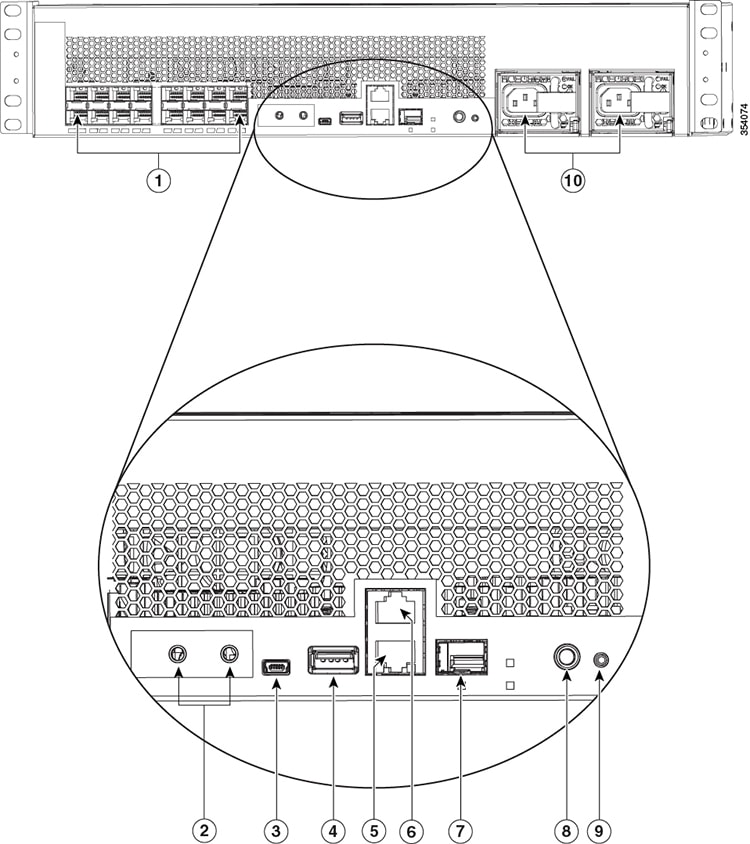
Figure 1. Catalyst 6816-X-LE


1

16 10G SFP+ ports or 100 MB or 1G SFP fiber-optic ports

6

Console port (RJ-45 Serial)

2

Grounding pad

7

Ethernet management SFP port

3

USB mini Type B console port

8

System ID (blue beacon LED)

4

USB Type A host port

9

Reset button

5

Ethernet management RJ-45 port

10

Two power supply slots

1
1 Power supplies that are ordered are installed in the switch. If the second power supply is not ordered, a blank panel is installed.
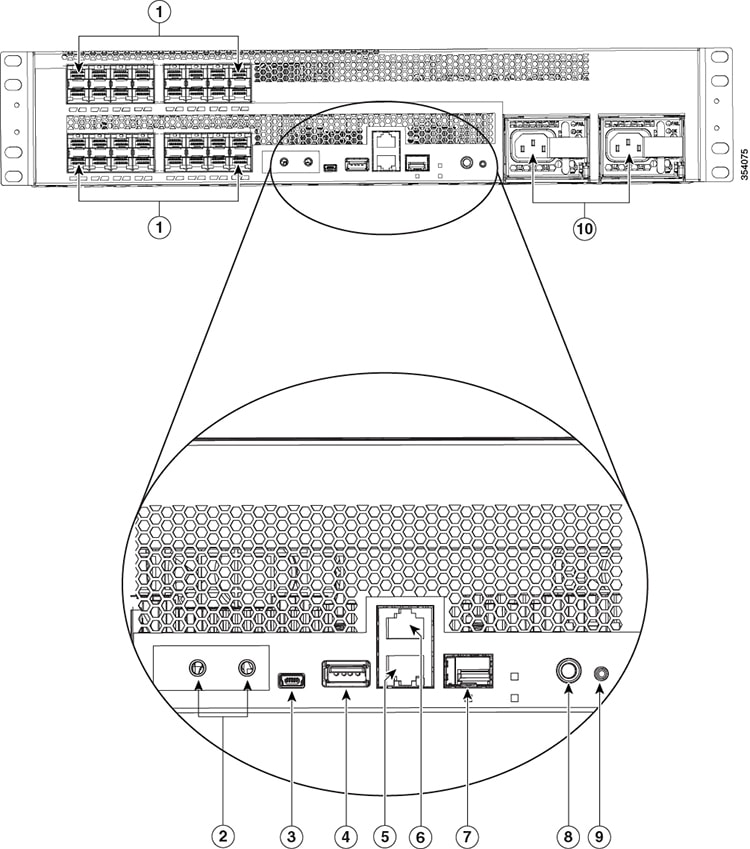
Figure 2. Catalyst 6832-X-LE


1

32 10G SFP+ ports or 100 MB or 1G SFP fiber-optic ports

6

Console port (RJ-45 Serial)

2

Grounding pad

7

Ethernet management SFP port

3

USB mini Type B console port

8

System ID (blue beacon LED)

4

USB Type A host port

9

Reset button

5

Ethernet management RJ-45 port

10

Two power supply slots

2
2 Power supplies that are ordered are installed in the switch. If the second power supply is not ordered, a blank panel is installed.
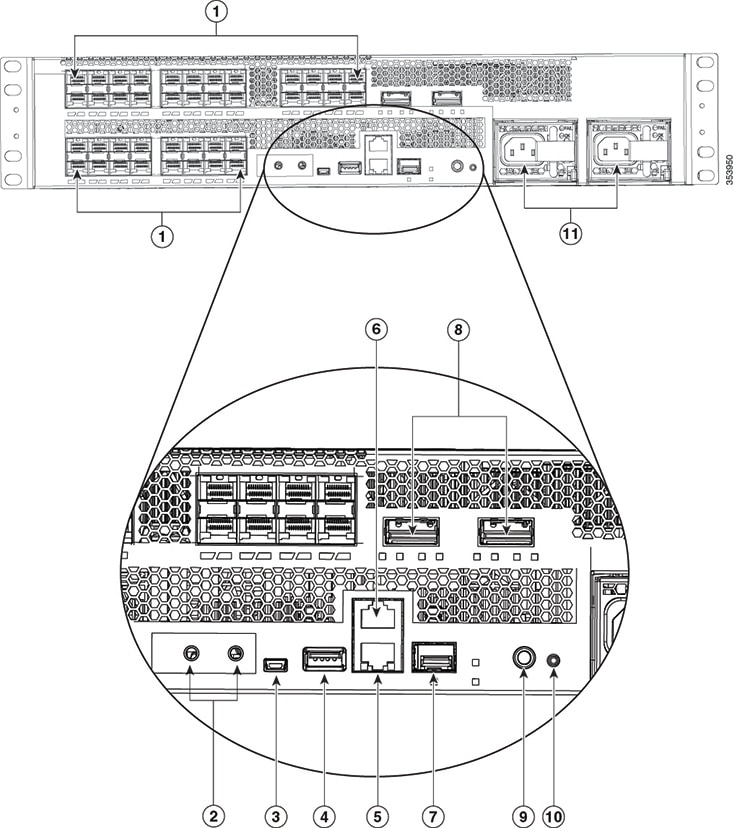
Figure 3. Catalyst 6824-X-LE-40G


1

24 10G SFP+ ports or 100 MB or 1G SFP fiber-optic ports

7

Ethernet management SFP port

2

Grounding pad

8

Two 40G QSFP+ uplink ports

3

USB mini Type B console port

9

System ID (blue beacon LED)

4

USB Type A host port

10

Reset button

5

Ethernet management RJ-45 port

11

Two power supply slots

3

6

Console port (RJ-45 Serial)

3 Power supplies that are ordered are installed in the switch. If the second power supply is not ordered, a blank panel is installed.
Figure 4. Catalyst 6840-X-LE-40G


1

40 10G SFP+ ports or 100 MB or 1G SFP fiber-optic ports

7

Two 40G QSFP+ uplink ports

2

Grounding pad

8

Ethernet management SFP port

3

USB mini Type B console port

9

System ID (blue beacon LED)

4

USB Type A host port

10

Reset button

5

Ethernet management RJ-45 port

11

Two power supply slots

4

6

Console port (RJ-45 Serial)

4 Power supplies that are ordered are installed in the switch. If the second power supply is not ordered, a blank panel is installed.

SFP and SFP+ Transceiver Module Ports

The chassis contains 16/24/32/40 ports of 10-Gigabit Ethernet SFP+ or 100BASE-FX fiber-optic transceiver modules. All ports support 1-Gigabit SFP, 10-Gigabit SFP+, or 100BASE-FX fiber-optic SFP modules with two 40-Gigabit uplink ports on selected switch models.

The ports also support Cisco Trust Security (CTS) and virtual switch link (VSL) and can operate as an Instant Access (IA) Parent in both 1-Gigabit, 10-Gigabit modes and 40-Gigabit modes.

The SFP and SFP+ transceiver modules provide copper or fiber-optic connections to other devices. These transceiver modules are field-replaceable and provide the uplink interfaces when installed in an SFP module slot. The SFP transceiver modules have LC connectors for fiber-optic connections or RJ-45 connectors for copper connections.

For a list of supported SFP and SFP+ modules, see the switch data sheet: http://www.cisco.com/c/en/us/products/collateral/switches/catalyst-6800-series-switches/datasheet-c78-734470.html.

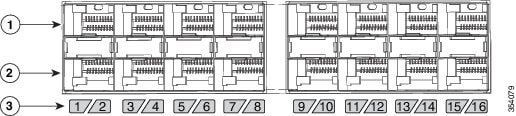
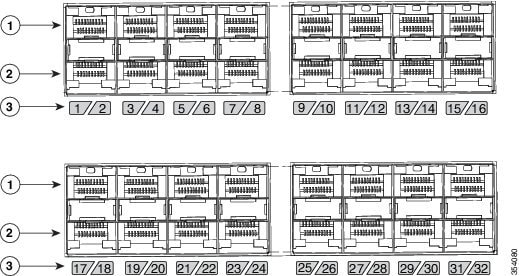
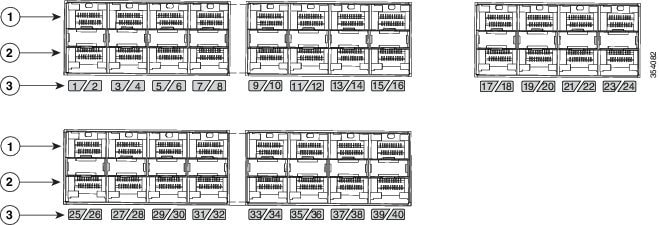
The odd-numbered ports are on the upper row and the even-numbered ports on the lower row. The following figures show how the ports and the LEDs are numbered on different switch models. This section also explains the port mapping between 10-Gigabit and 40-Gigabit ports.

Catalyst 6816-X-LE

Figure 5. 10G native port numbering


Table 2. Port mapping for Catalyst 6816-X-LE

10-Gigabit ports

Configurable 40-Gigabit ports5

1, 2, 3, and 4

17

5, 6, 7, and 8

18

9, 10, 11, and 12

19

13, 14, 15, and 16

20

5 To configure 10G ports to function as 40G ports, you need to use adapter cables that connect four 10G SFP+ ports of the switch on one end to a 40G QSFP port of the switch on the other end.

Catalyst 6832-X-LE

Figure 6. 10G native port numbering


Table 3. Port mapping for Catalyst 6832-X-LE

10-Gigabit ports

Configurable 40-Gigabit ports 6

1, 2, 3, and 4

33

5, 6, 7, and 8

34

9, 10, 11, and 12

35

13, 14, 15, and 16

36

17, 18, 19, and 20

37

21, 22, 23, and 24

38

25, 26, 27, and 28

39

29, 30, 31, and 32

40

6 To configure 10G ports to function as 40G ports, you need to use adapter cables that connect four 10G SFP+ ports of the switch on one end to a 40G QSFP port of the switch on the other end.

Catalyst 6824-X-LE-40G

Figure 7. 10G native port numbering


Table 4. Port mapping for Catalyst 6824-X-LE

10-Gigabit ports

Configurable 40-Gigabit ports 7

1, 2, 3, and 4

35

5, 6, 7, and 8

36

9, 10, 11, and 12

37

13, 14, 15, and 16

38

17, 18, 19, and 20

39

21, 22, 23, and 24

40

40-Gigabit native ports

Configurable 10-Gigabit ports 8

25

27, 28, 29, and 30

26

31, 32, 33, and 34

7 To configure 10G ports to function as 40G ports, you need to use adapter cables that connect four 10G SFP+ ports of the switch on one end to a 40G QSFP port of the switch on the other end.
8 To configure 40G ports to function as 10G ports, you need to use Cisco QSFP to four SFP+ Active Optical Breakout Cables that connect a 40G QSFP port of the switch on one end to four 10G SFP+ ports of the switch on the other end.

Catalyst 6840-X-LE-40G

Figure 8. 10G native port numbering


Table 5. Port mapping for Catalyst 6840-X-LE

10-Gigabit ports

Configurable 40-Gigabit ports 9

1, 2, 3, and 4

51

5, 6, 7, and 8

52

9, 10, 11, and 12

53

13, 14, 15, and 16

54

17, 18, 19, and 20

55

21, 22, 23, and 24

56

25, 26, 27, and 28

57

29, 30, 31, and 32

58

33, 34, 35, and 36

59

37, 38, 39, and 40

60

40-Gigabit native ports

Configurable 10-Gigabit ports10

41

43, 44, 45,, and 46

42

47, 48, 49, and 50

9 To configure 10G ports to function as 40G ports, you need to use adapter cables that connect four 10G SFP+ ports of the switch on one end to a 40G QSFP port of the switch on the other end.
10 To configure 40G ports to function as 10G ports, you need to use Cisco QSFP to four SFP+ Active Optical Breakout Cables that connect a 40G QSFP port of the switch on one end to four 10G SFP+ ports of the switch on the other end.

Power Supply Slots

The chassis has two power supply slots that accept either AC-input or DC-input power supplies, or one of each. The chassis is delivered with power supplies pre-installed in the power supply slots. If only one power supply is ordered, then a blank cover is installed in the empty power supply slot, which must remain installed if a power supply is not installed.

Table 6. Power supplies supported by the switches

Switch

Power Supply

Catalyst 6816-X-LE

750W and 1100W

Catalyst 6832-X-LE

750W and 1100W

Catalyst 6824-X-LE-40G

750W and 1100W

Catalyst 6840-X-LE-40G

1100W

Note 

If you insert a 750W power supply in to the power supply slot of a Catalyst 6840-X-LE-40G switch, the switch fails to boot.

Management Port

The management port is a 10/100/1000 copper Ethernet port directly connected to the route processor. The switch also has a fibre port that can be used as the Ethernet Management port. It supports TFTP image downloading, network management, SNMP, Telnet, and SSH connections. Flexible NetFlow export is not supported on the management port. The management port is isolated from other ports in the system in a dedicated management VRF; it is not part of the EARL forwarding logic. The management port provides direct access to the CPU, even when the system is heavily loaded.

The management port is a Layer 3 port in host mode, and only accepts traffic that terminates on the router. This port does not route packets between itself and other ports. The port processes only the following packet types and properly enqueues them:

  • Address Resolution Protocol (ARP)

  • IPv4 unicast

  • IPv6 unicast

  • Cisco Discovery Protocol (CDP)

  • Link Layer Discovery Protocol (LLDP)

Mini USB Type B Console Port

The Mini USB 2.0 Type B console port functions as a second console connection to the route processor. The USB console port connection uses a Mini USB 2.0 cable. The USB console interface speed is same as the RJ-45 console interface speed.

Windows computers require a driver for the USB port. Before using the USB port, you must download the required driver to your computer from https://software.cisco.com/download/release.html?mdfid=282979369&softwareid=282855122&release=3.1

By default, USB-prefer mode is enabled for the port; but it can be overridden using the command-line interface (CLI). When this port is in the USB-prefer mode, the RJ-45 console port will be disabled, if both the ports are connected. For more information on using the CLI to configure the USB console interface, see the Catalyst 6500 Software Configuration Guide.

USB Type A Port

The USB 2.0 Type A port (disk0) is the only external storage interface for this switch. The port is connected to the route processor, which allows the Cisco IOS software to access the port. The port supports Cisco USB flash drives with capacities from 128 MB to 8 GB (USB devices with port densities of 128 MB, 256 MB, 1 GB, 4 GB, and 8 GB are supported). Cisco IOS software provides standard file system access to the flash device: read, write, erase, and copy. The software also provides the ability to format the flash device with a FAT file system (FAT32 and FAT16).

Console Port

The console port is an RJ-45 port that provides universal asynchronous receiver/transmitter (UART) support to access the route processor with a serial console running at 9600 baud rate with 8 bits for data, no parity bit, and 1 stop bit.

System Reset Button

This recessed access button is used to reset the system. Pressing the button brings down the route processor.

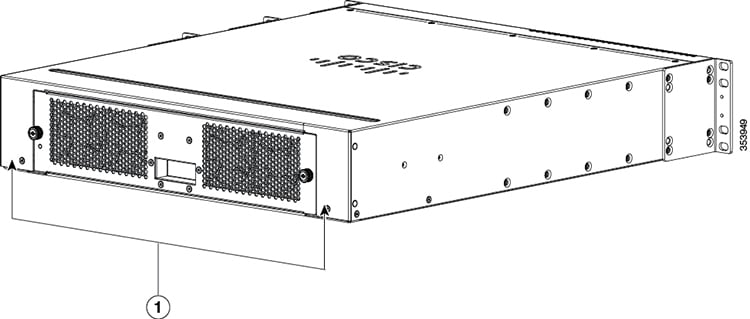
Fan Tray

The fan tray is responsible for cooling the entire chassis and interfacing with environmental monitors to trigger alarms when conditions exceed thresholds. The fan tray supports Online Insertion and Removal (OIR).

The fan tray contains four high-efficiency fans with variable speed settings and thermal sensors. If one fan fails, the speed of the others is increased and a minor alarm is triggered. If a major fan tray failure occurs, the system is shut down. The individual fans are not field replaceable; the entire fan tray must be replaced in the event of a major fan tray failure. See Removing the Fan Tray for additional information about the fan.

LED Indicators

You can use the switch LEDs to monitor switch activity and performance. You can also monitor the status of the fan tray assembly, and the power supplies.

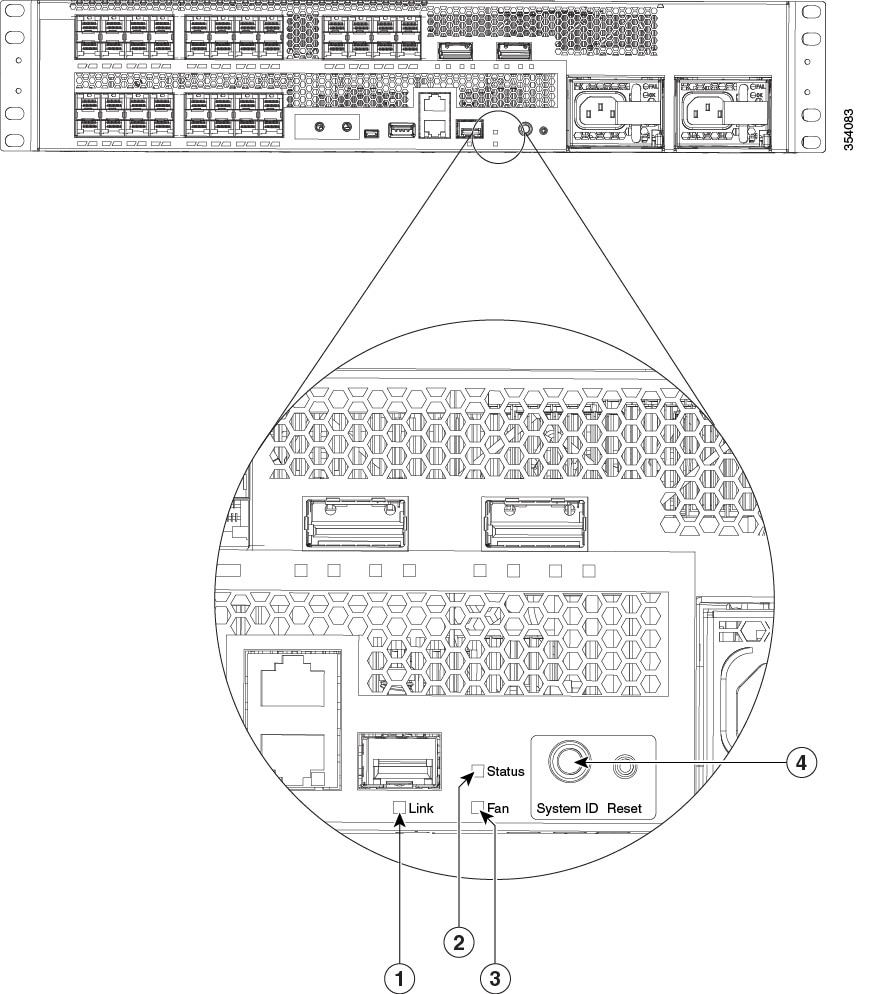
Figure 9. Status, Fan, and System ID LEDs


Status LED

The status LED indicates the status of the system.

Table 7. Status LED Indicator

Color/State

Description

Off

System is not operational.

Green

System is operating normally without alarms.

Amber

System has triggered a minor environmental alarm.

Red

System has triggered a major environmental alarm.

System ID LED

The System ID (blue beacon) LED can be provisioned by the operator to indicate that the switch needs attention.

Table 8. System ID LED Indicator

Color/State

Description

Blinking blue

The system needs attention.

Management Port LED

This table describes the management port LEDs.

Table 9. Management Port LED Indicator

Color/State

Description

Off

Port is not provisioned.

Amber

Port is provisioned, but administratively not operational.

Green

Port is linked up.

Alternating green and amber

A port fault is detected, or the port beacon has been provisioned by the operator.

Fan Tray LED

The Fan LED is located on the front panel of the switch. The following image depicts the Fan LED, the system status LED, and the blue beacon LED on the front panel of the switch.

Table 10. Fan LED Indicator

Color/State

Description

Off

The fan tray is not receiving power; the fans have stopped.

Green

All fans are operating normally.

Amber

The fan tray has a failure.

Power Supply LEDs

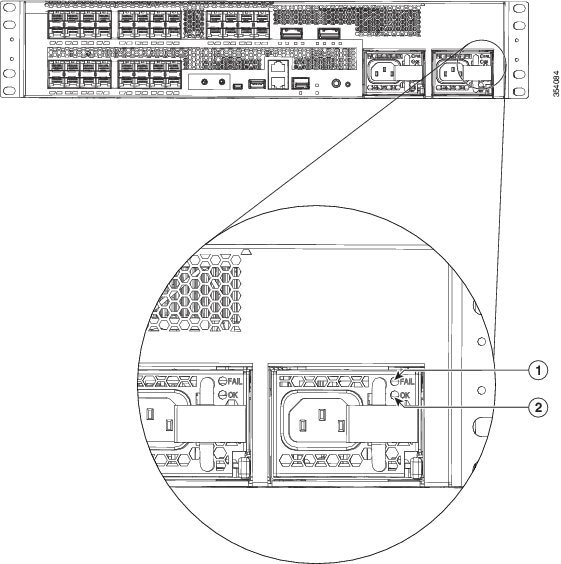
The power supply includes LEDs on the front of the module. The different states of the LEDs are described in the following table.

Figure 10. Power Supply LED

AC-input Power Supply LED Locations
Table 11. Power Supply LED Indicators

AC Power Supply Condition

OK LED (Green)

FAIL LED (Amber)

No AC power to the power supplies.

Off

Off

Power supply failure, including over voltage, over current, over temperature, and fan failure conditions.

Off

ON

Power supply needs attention, activated for events like high temperature, high power or slow fan.

Off

Blinking

Input AC is present, 3.3 voltage standby (VSB) is on and the power supply unit is switched off.

Blinking

Off

Power supply is on and operates normally.

On

Off

Rear Panel

Figure 11. Rear Panel


1

Fan trays