- Preface
- Using the Command-Line Interface
- Using the Web Graphical User Interface
-
- Configuring the Switch for Access Point Discovery
- Configuring Data Encryption
- Configuring Retransmission Interval and Retry Count
- Configuring Adaptive Wireless Intrusion Prevention System
- Configuring Authentication for Access Points
- Converting Autonomous Access Points to Lightweight Mode
- Using Cisco Workgroup Bridges
- Configuring Probe Request Forwarding
- Optimizing RFID Tracking
- Configuring Country Codes
- Configuring Link Latency
- Configuring Power over Ethernet
-
- Preventing Unauthorized Access
- Controlling Switch Access with Passwords and Privilege Levels
- Configuring TACACS+
- Configuring RADIUS
- Configuring Kerberos
- Configuring Local Authentication and Authorization
- Configuring Secure Shell (SSH)
- Configuring Secure Socket Layer HTTP
- Configuring IPv4 ACLs
- Configuring IPv6 ACLs
- Configuring DHCP
- Configuring IP Source Guard
- Configuring Dynamic ARP Inspection
- Configuring IEEE 802.1x Port-Based Authentication
- Configuring Web-Based Authentication
- Configuring Port-Based Traffic Control
- Configuring IPv6 First Hop Security
- Configuring Cisco TrustSec
- Configuring Wireless Guest Access
- Managing Rogue Devices
- Classifying Rogue Access Points
- Configuring wIPS
- Configuring Intrusion Detection System
-
- Administering the System
- Performing Switch Setup Configuration
- Configuring Right-To-Use Licenses
- Configuring Administrator Usernames and Passwords
- Configuring 802.11 parameters and Band Selection
- Configuring Aggressive Load Balancing
- Configuring Client Roaming
- Configuring Application Visibility and Control
- Configuring Voice and Video Parameters
- Configuring RFID Tag Tracking
- Configuring Location Settings
- Monitoring Flow Control
- Configuring SDM Templates
- Configuring System Message Logs
- Configuring Online Diagnostics
- Managing Configuration Files
- Configuration Replace and Configuration Rollback
- Working with the Flash File System
- Working with Cisco IOS XE Software Bundles
- Troubleshooting the Software Configuration
- Index
- Finding Feature Information
- Information About Web-Based Authentication
- Default Web-Based Authentication Configuration
- Web-Based Authentication Configuration Guidelines and Restrictions
- Configuring the Authentication Rule and Interfaces
- Configuring AAA Authentication
- Configuring Switch-to-RADIUS-Server Communication
- Configuring the HTTP Server
- Configuring the Web-Based Authentication Parameters
- Configuring a Web Authentication Local Banner
- Removing Web-Based Authentication Cache Entries
Configuring Web-Based Authentication
This chapter describes how to configure web-based authentication on the switch. It contains these sections:
- Finding Feature Information
- Information About Web-Based Authentication
- How to Configure Web-Based Authentication
- Monitoring Web-Based Authentication Status
Finding Feature Information
Your software release may not support all the features documented in this module. For the latest feature information and caveats, see the release notes for your platform and software release.
Use Cisco Feature Navigator to find information about platform support and Cisco software image support. To access Cisco Feature Navigator, go to http://www.cisco.com/go/cfn. An account on Cisco.com is not required.
Information About Web-Based Authentication
Use the web-based authentication feature, known as web authentication proxy, to authenticate end users on host systems that do not run the IEEE 802.1x supplicant.
 Note | You can configure web-based authentication on Layer 2 and Layer 3 interfaces. |
When you initiate an HTTP session, web-based authentication intercepts ingress HTTP packets from the host and sends an HTML login page to the users. The users enter their credentials, which the web-based authentication feature sends to the authentication, authorization, and accounting (AAA) server for authentication.
If authentication succeeds, web-based authentication sends a Login-Successful HTML page to the host and applies the access policies returned by the AAA server.
If authentication fails, web-based authentication forwards a Login-Fail HTML page to the user, prompting the user to retry the login. If the user exceeds the maximum number of attempts, web-based authentication forwards a Login-Expired HTML page to the host, and the user is placed on a watch list for a waiting period.
These sections describe the role of web-based authentication as part of AAA:
- Device Roles
- Host Detection
- Session Creation
- Authentication Process
- Local Web Authentication Banner
- Web Authentication Customizable Web Pages
- Web-based Authentication Interactions with Other Features
Device Roles
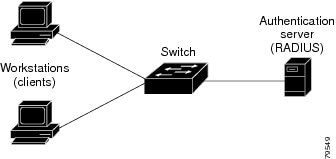
With web-based authentication, the devices in the network have these specific roles:
Client—The device (workstation) that requests access to the LAN and the services and responds to requests from the switch. The workstation must be running an HTML browser with Java Script enabled.
Authentication server—Authenticates the client. The authentication server validates the identity of the client and notifies the switch that the client is authorized to access the LAN and the switch services or that the client is denied.
Switch—Controls the physical access to the network based on the authentication status of the client. The switch acts as an intermediary (proxy) between the client and the authentication server, requesting identity information from the client, verifying that information with the authentication server, and relaying a response to the client.
Host Detection
The switch maintains an IP device tracking table to store information about detected hosts.
Note | By default, the IP device tracking feature is disabled on a switch. You must enable the IP device tracking feature to use web-based authentication. |
For Layer 2 interfaces, web-based authentication detects IP hosts by using these mechanisms:
Session Creation
When web-based authentication detects a new host, it creates a session as follows:
-
If the host IP is included in the exception list, the policy from the exception list entry is applied, and the session is established.
Reviews for authorization bypass
If the host IP is not on the exception list, web-based authentication sends a nonresponsive-host (NRH) request to the server.
If the server response is access accepted, authorization is bypassed for this host. The session is established.
Sets up the HTTP intercept ACL
If the server response to the NRH request is access rejected, the HTTP intercept ACL is activated, and the session waits for HTTP traffic from the host.
Authentication Process
When you enable web-based authentication, these events occur:
The HTTP traffic is intercepted, and authorization is initiated. The switch sends the login page to the user. The user enters a username and password, and the switch sends the entries to the authentication server.
If the authentication succeeds, the switch downloads and activates the user’s access policy from the authentication server. The login success page is sent to the user.
If the authentication fails, the switch sends the login fail page. The user retries the login. If the maximum number of attempts fails, the switch sends the login expired page, and the host is placed in a watch list. After the watch list times out, the user can retry the authentication process.
If the authentication server does not respond to the switch, and if an AAA fail policy is configured, the switch applies the failure access policy to the host. The login success page is sent to the user.
The switch reauthenticates a client when the host does not respond to an ARP probe on a Layer 2 interface, or when the host does not send any traffic within the idle timeout on a Layer 3 interface.
The feature applies the downloaded timeout or the locally configured session timeout.
If the terminate action is RADIUS, the feature sends a nonresponsive host (NRH) request to the server. The terminate action is included in the response from the server.
If the terminate action is default, the session is dismantled, and the applied policy is removed.
Local Web Authentication Banner
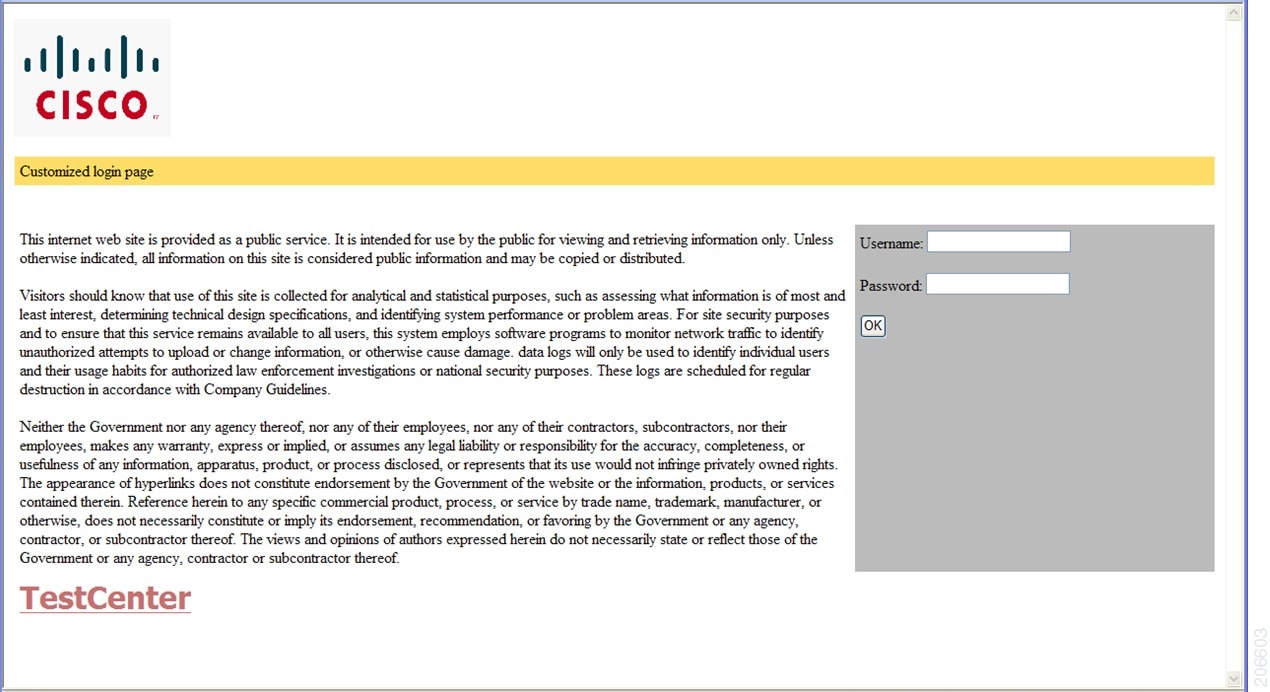
With Web Authentication, you can create a default and customized web-browser banners that appears when you log in to a switch.
The banner appears on both the login page and the authentication-result pop-up pages. The default banner messages are as follows:
The Local Web Authentication Banner can be configured in legacy and new-style (Session-aware) CLIs as follows:
Legacy mode—Use the ip admission auth-proxy-banner http global configuration command.
New-style mode—Use the parameter-map type webauth global bannerglobal configuration command.
The default banner Cisco Systems and Switch host-name Authentication appear on the Login Page. Cisco Systems appears on the authentication result pop-up page.
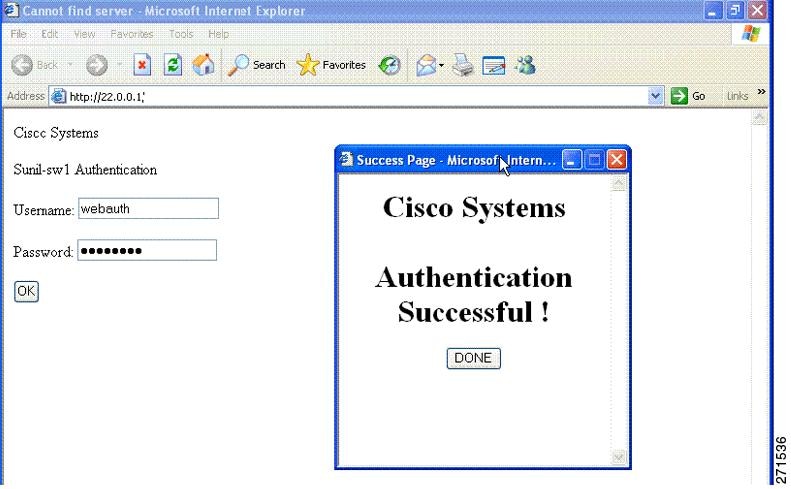
The banner can be customized as follows:
Add a message, such as switch, router, or company name to the banner:
Add a logo or text file to the banner : Figure 3. Customized Web Banner 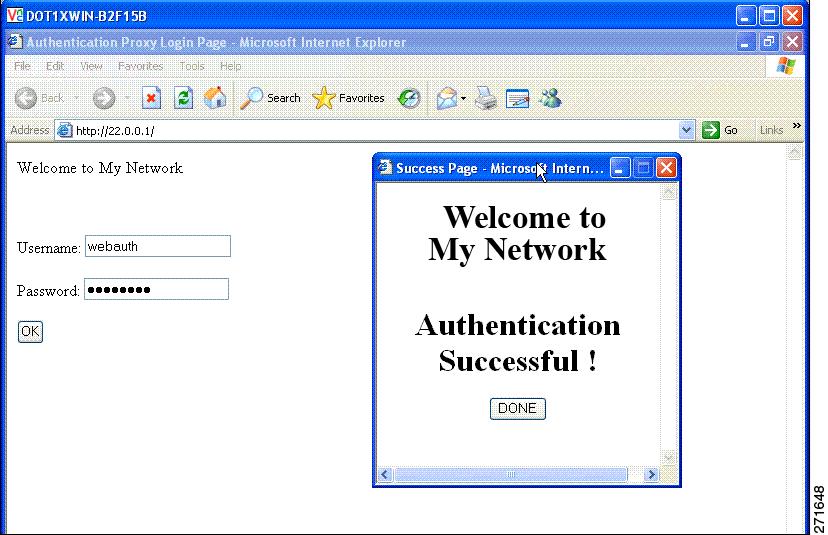
If you do not enable a banner, only the username and password dialog boxes appear in the web authentication login screen, and no banner appears when you log into the switch.
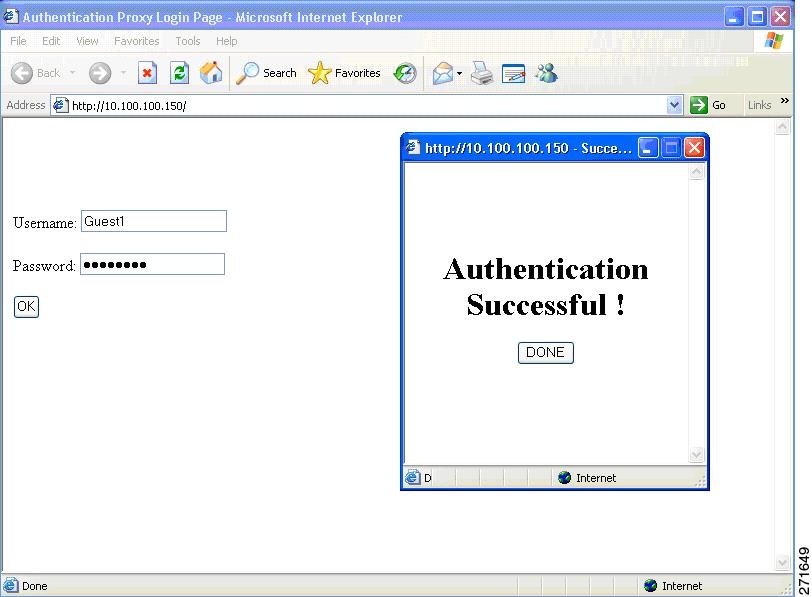
For more information, see the Session Aware Networking Configuration Guide, Cisco IOS XE Release 3SE (Catalyst 3850 Switches) Session Aware Networking Configuration Guide, Cisco IOS XE Release 3SE (Catalyst 3850 Switches) and the Web Authentication Enhancements - Customizing Authentication Proxy Web Pages.
Web Authentication Customizable Web Pages
During the web-based authentication process, the switch internal HTTP server hosts four HTML pages to deliver to an authenticating client. The server uses these pages to notify you of these four-authentication process states:
Guidelines
You can substitute your own HTML pages for the default internal HTML pages.
You can use a logo or specify text in the login, success, failure, and expire web pages.
You must include an HTML redirect command in the success page to access a specific URL.
The URL string must be a valid URL (for example, http://www.cisco.com). An incomplete URL might cause page not found or similar errors on a web browser.
If you configure web pages for HTTP authentication, they must include the appropriate HTML commands (for example, to set the page time out, to set a hidden password, or to confirm that the same page is not submitted twice).
The CLI command to redirect users to a specific URL is not available when the configured login form is enabled. The administrator should ensure that the redirection is configured in the web page.
If the CLI command redirecting users to specific URL after authentication occurs is entered and then the command configuring web pages is entered, the CLI command redirecting users to a specific URL does not take effect.
Configured web pages can be copied to the switch boot flash or flash.
On stackable switches, configured pages can be accessed from the flash on the stack master or members.
The login page can be on one flash, and the success and failure pages can be another flash (for example, the flash on the stack master or a member).
The banner page has no effect if it is configured with the web page.
All of the logo files (image, flash, audio, video, and so on) that are stored in the system directory (for example, flash, disk0, or disk) and that must be displayed on the login page must use web_auth_<filename> as the file name.
The configured authentication proxy feature supports both HTTP and SSL.
You can substitute your HTML pages for the default internal HTML pages. You can also specify a URL to which users are redirected after authentication occurs, which replaces the internal Success page.
Authentication Proxy Web Page Guidelines
When configuring customized authentication proxy web pages, follow these guidelines:
-
To enable the custom web pages feature, specify all four custom HTML files. If you specify fewer than four files, the internal default HTML pages are used.
-
The four custom HTML files must be present on the flash memory of the switch. The maximum size of each HTML file is 8 KB.
-
Any images on the custom pages must be on an accessible HTTP server. Configure an intercept ACL within the admission rule.
-
Any external link from a custom page requires configuration of an intercept ACL within the admission rule.
-
To access a valid DNS server, any name resolution required for external links or images requires configuration of an intercept ACL within the admission rule.
-
If the custom web pages feature is enabled, a configured auth-proxy-banner is not used.
-
If the custom web pages feature is enabled, the redirection URL for successful login feature is not available.
-
To remove the specification of a custom file, use the no form of the command.
Because the custom login page is a public web form, consider these guidelines for the page:
Redirection URL for Successful Login Guidelines
When configuring a redirection URL for successful login, consider these guidelines:
-
If the custom authentication proxy web pages feature is enabled, the redirection URL feature is disabled and is not available in the CLI. You can perform redirection in the custom-login success page.
-
If the redirection URL feature is enabled, a configured auth-proxy-banner is not used.
-
To remove the specification of a redirection URL, use the no form of the command.
-
If the redirection URL is required after the web-based authentication client is successfully authenticated, then the URL string must start with a valid URL (for example, http://) followed by the URL information. If only the URL is given without http://, then the redirection URL on successful authentication might cause page not found or similar errors on a web browser.
Web-based Authentication Interactions with Other Features
Port Security
You can configure web-based authentication and port security on the same port. Web-based authentication authenticates the port, and port security manages network access for all MAC addresses, including that of the client. You can then limit the number or group of clients that can access the network through the port.
For more information about enabling port security, see the .
LAN Port IP
You can configure LAN port IP (LPIP) and Layer 2 web-based authentication on the same port. The host is authenticated by using web-based authentication first, followed by LPIP posture validation. The LPIP host policy overrides the web-based authentication host policy.
If the web-based authentication idle timer expires, the NAC policy is removed. The host is authenticated, and posture is validated again.
Gateway IP
You cannot configure Gateway IP (GWIP) on a Layer 3 VLAN interface if web-based authentication is configured on any of the switch ports in the VLAN.
You can configure web-based authentication on the same Layer 3 interface as Gateway IP. The host policies for both features are applied in software. The GWIP policy overrides the web-based authentication host policy.
ACLs
If you configure a VLAN ACL or a Cisco IOS ACL on an interface, the ACL is applied to the host traffic only after the web-based authentication host policy is applied.
For Layer 2 web-based authentication, it is more secure, though not required, to configure a port ACL (PACL) as the default access policy for ingress traffic from hosts connected to the port. After authentication, the web-based authentication host policy overrides the PACL. The Policy ACL is applied to the session even if there is no ACL configured on the port.
You cannot configure a MAC ACL and web-based authentication on the same interface.
You cannot configure web-based authentication on a port whose access VLAN is configured for VACL capture.
Context-Based Access Control
Web-based authentication cannot be configured on a Layer 2 port if context-based access control (CBAC) is configured on the Layer 3 VLAN interface of the port VLAN.
EtherChannel
You can configure web-based authentication on a Layer 2 EtherChannel interface. The web-based authentication configuration applies to all member channels.
How to Configure Web-Based Authentication
Default Web-Based Authentication Configuration
|
|
|
Web-Based Authentication Configuration Guidelines and Restrictions
-
You can configure web-based authentication only on access ports. Web-based authentication is not supported on trunk ports, EtherChannel member ports, or dynamic trunk ports.
-
You cannot authenticate hosts on Layer 2 interfaces with static ARP cache assignment. These hosts are not detected by the web-based authentication feature because they do not send ARP messages.
-
By default, the IP device tracking feature is disabled on a switch. You must enable the IP device tracking feature to use web-based authentication.
-
You must configure at least one IP address to run the switch HTTP server. You must also configure routes to reach each host IP address. The HTTP server sends the HTTP login page to the host.
-
Hosts that are more than one hop away might experience traffic disruption if an STP topology change results in the host traffic arriving on a different port. This occurs because the ARP and DHCP updates might not be sent after a Layer 2 (STP) topology change.
-
Web-based authentication does not support VLAN assignment as a downloadable-host policy.
-
Web-based authentication supports IPv6 in Session-aware policy mode. IPv6 Web-authentication requires at least one IPv6 address configured on the switch and IPv6 Snooping configured on the switchport.
-
Web-based authentication and Network Edge Access Topology (NEAT) are mutually exclusive. You cannot use web-based authentication when NEAT is enabled on an interface, and you cannot use NEAT when web-based authentication is running on an interface.
-
Only the Password Authentication Protocol (PAP) is supported for web-based RADIUS authentication on controllers. The Challenge Handshake Authentication Protocol (CHAP) is not supported for web-based RADIUS authentication on controllers.
Configuring the Authentication Rule and Interfaces
Examples in this section are legacy-style configurations. For new-style configurations, see the Session Aware Networking Configuration Guide, Cisco IOS XE Release 3SE (Catalyst 3850 Switches)
This example shows how to verify the configuration:
Switch# show ip admission status
IP admission status:
  Enabled interfaces            0
  Total sessions                0
  Init sessions                 0     Max init sessions allowed     100
    Limit reached               0     Hi watermark                  0
  TCP half-open connections     0     Hi watermark                  0
  TCP new connections           0     Hi watermark                  0
  TCP half-open + new           0     Hi watermark                  0
  HTTPD1 Contexts               0     Hi watermark                  0

  Parameter Map: Global
    Custom Pages
      Custom pages not configured
    Banner
      Banner not configured
Beginning in privileged EXEC mode, follow these steps to configure the authentication rule and interfaces:
DETAILED STEPS
Configuring AAA Authentication
Beginning in privileged EXEC mode, follow these steps to configure AAA authentication:
3.
aaa authentication login default group {tacacs+ | radius}
4.
aaa authorization auth-proxy default group {tacacs+ | radius}
5.
tacacs-server host {hostname | ip_address}
DETAILED STEPS
Configuring Switch-to-RADIUS-Server Communication
Beginning in privileged EXEC mode, follow these steps to configure the RADIUS server parameters:
Identify the following RADIUS security server settings that will be used in theses instructions:
The combination of the IP address and UDP port number creates a unique identifier, that enables RADIUS requests to be sent to multiple UDP ports on a server at the same IP address. If two different host entries on the same RADIUS server are configured for the same service (for example, authentication) the second host entry that is configured functions as the failover backup to the first one. The RADIUS host entries are chosen in the order that they were configured.
2.
ip radius source-interface vlan vlan interface number
3.
radius-server host {hostname | ip-address} test username username
DETAILED STEPS
Configuring the HTTP Server
To use web-based authentication, you must enable the HTTP server within the switch. You can enable the server for either HTTP or HTTPS.
Beginning in privileged EXEC mode, follow these steps to enable the server for either HTTP or HTTPS:
DETAILED STEPS
| Command or Action | Purpose | |||
|---|---|---|---|---|
| Step 1 | configure terminal Example: Switch# configure terminal | |||
| Step 2 | ip http server Example: Switch(config)# ip http server | Enables the HTTP server. The web-based authentication feature uses the HTTP server to communicate with the hosts for user authentication. | ||
| Step 3 | ip http secure-server Example: Switch(config)# ip http secure-server |
You can configure custom authentication proxy web pages or specify a redirection URL for successful login.
| ||
| Step 4 | end Example: Switch(config)# end |
Customizing the Authentication Proxy Web Pages
You can configure web authentication to display four substitute HTML pages to the user in place of the switch default HTML pages during web-based authentication.
For the equivalent Session Aware Networking configuration example for this feature, see the section "Configuring a Parameter Map for Web-Based Authentication" in the chapter, "Configuring Identity Control Policies." of the book, "Session Aware Networking Configuration Guide, Cisco IOS XE Release 3SE (Catalyst 3850 Switches)."
Beginning in privileged EXEC mode, follow these steps to specify the use of your custom authentication proxy web pages:
Store your custom HTML files on the switch flash memory.
2.
ip admission proxy http login page file device:login-filename
3.
ip admission proxy http success page file device:success-filename
4.
ip admission proxy http failure page file device:fail-filename
5.
ip admission proxy http login expired page file device:expired-filename
DETAILED STEPS
| Command or Action | Purpose | |
|---|---|---|
| Step 1 | configure terminal Example: Switch# configure terminal | |
| Step 2 | ip admission proxy http login page file device:login-filename Example: Switch(config)# ip admission proxy http login page file disk1:login.htm | Specifies the location in the switch memory file system of the custom HTML file to use in place of the default login page. The device: is flash memory. |
| Step 3 | ip admission proxy http success page file device:success-filename Example: Switch(config)# ip admission proxy http success page file disk1:success.htm | Specifies the location of the custom HTML file to use in place of the default login success page. |
| Step 4 | ip admission proxy http failure page file device:fail-filename Example: Switch(config)# ip admission proxy http fail page file disk1:fail.htm | Specifies the location of the custom HTML file to use in place of the default login failure page. |
| Step 5 | ip admission proxy http login expired page file device:expired-filename Example:
Switch(config)# ip admission proxy http login expired page file disk1:expired.htm
| Specifies the location of the custom HTML file to use in place of the default login expired page. |
| Step 6 | end Example: Switch(config)# end |
Verifying Custom Authentication Proxy Web Pages
This example shows how to verify the configuration of a custom authentication proxy web page:
Switch# show ip admission status
IP admission status:
  Enabled interfaces            0
  Total sessions                0
  Init sessions                 0     Max init sessions allowed     100
    Limit reached               0     Hi watermark                  0
  TCP half-open connections     0     Hi watermark                  0
  TCP new connections           0     Hi watermark                  0
  TCP half-open + new           0     Hi watermark                  0
  HTTPD1 Contexts               0     Hi watermark                  0

  Parameter Map: Global
    Custom Pages
      Custom pages not configured
    Banner
      Banner not configured
Specifying a Redirection URL for Successful Login
Beginning in privileged EXEC mode, follow these steps to specify a URL to which the user is redirected after authentication, effectively replacing the internal Success HTML page:
DETAILED STEPS
| Command or Action | Purpose | |
|---|---|---|
| Step 1 | configure terminal Example: Switch# configure terminal | |
| Step 2 | ip admission proxy http success redirect url-string Example: Switch(config)# ip admission proxy http success redirect www.example.com | Specifies a URL for redirection of the user in place of the default login success page. |
| Step 3 | end Example: Switch(config)# end |
Verifying Redirection URL for Successful Login
Switch# show ip admission status
 Enabled interfaces            0
 Total sessions                0
 Init sessions                 0     Max init sessions allowed     100
   Limit reached               0     Hi watermark                  0
 TCP half-open connections     0     Hi watermark                  0
 TCP new connections           0     Hi watermark                  0
 TCP half-open + new           0     Hi watermark                  0
 HTTPD1 Contexts               0     Hi watermark                  0

 Parameter Map: Global
   Custom Pages
     Custom pages not configured
   Banner
     Banner not configured
Configuring the Web-Based Authentication Parameters
Beginning in privileged EXEC mode, follow these steps to configure the maximum number of failed login attempts before the client is placed in a watch list for a waiting period:
DETAILED STEPS
| Command or Action | Purpose | |
|---|---|---|
| Step 1 | configure terminal Example: Switch# configure terminal | |
| Step 2 | ip admission max-login-attempts number Example: Switch(config)# ip admission max-login-attempts 10 | Set sthe maximum number of failed login attempts. The range is 1 to 2147483647 attempts. The default is 5. |
| Step 3 | end Example: Switch(config)# end |
Configuring a Web Authentication Local Banner
Beginning in privileged EXEC mode, follow these steps to configure a local banner on a switch that has web authentication configured.
DETAILED STEPS
| Command or Action | Purpose | |
|---|---|---|
| Step 1 | configure terminal Example: Switch# configure terminal | |
| Step 2 | ip admission auth-proxy-banner http [banner-text | file-path] Example: Switch(config)# ip admission auth-proxy-banner http C My Switch C |
(Optional) Create a custom banner by entering C banner-text C (where C is a delimiting character), or file-path that indicates a file (for example, a logo or text file) that appears in the banner. |
| Step 3 | end Example: Switch(config)# end |
Removing Web-Based Authentication Cache Entries
Beginning in privileged EXEC mode, follow these steps to remove web-based authentication cache entries:
DETAILED STEPS
| Command or Action | Purpose | |
|---|---|---|
| Step 1 | clear ip auth-proxy cache {* | host ip address} Example: Switch# clear ip auth-proxy cache 192.168.4.5 | Delete authentication proxy entries. Use an asterisk to delete all cache entries. Enter a specific IP address to delete the entry for a single host. |
| Step 2 | clear ip admission cache {* | host ip address} Example: Switch# clear ip admission cache 192.168.4.5 | Delete authentication proxy entries. Use an asterisk to delete all cache entries. Enter a specific IP address to delete the entry for a single host. |
Monitoring Web-Based Authentication Status
Use the commands in this topic to display the web-based authentication settings for all interfaces or for specific ports.
|
Command |
Purpose |
|---|---|
|
Displays the web-based authentication settings for all interfaces for fastethernet, gigabitethernet, or tengigabitethernet |
|
|
show authentication sessions interface type slot/port[details] |
Displays the web-based authentication settings for the specified interface for fastethernet, gigabitethernet, or tengigabitethernet. In Session Aware Networking mode, use the show access-session interface command. |
 Feedback