- Index
- New and Changed Information
- Preface
- Overview
- Configuring AAA
- Configuring RADIUS
- Configuring TACACS+
- Configuring SSH and Telnet
- Configuring User Accounts and RBAC
- Configuring 802.1X
- Configuring NAC
- Configuring Cisco TrustSec
- Configuring IP ACLs
- Configuring MAC ACLs
- Configuring VLAN ACLs
- Configuring Port Security
- Configuring DHCP Snooping
- Configuring Dynamic ARP Inspection
- Configuring IP Source Guard
- Configuring Keychain Management
- Configuring Traffic Storm Control
- Configuring Unicast RPF
- Configuring Contol Plane Policing
- Configuring Rate Limits
- Information About RADIUS
- Licensing Requirements for RADIUS
- Prerequisites for RADIUS
- Guidelines and Limitations
- Configuring RADIUS Servers
- RADIUS Server Configuration Process
- Configuring RADIUS Server Hosts
- Configuring Global Preshared Keys
- Configuring RADIUS Server Preshared Keys
- Configuring RADIUS Server Groups
- Allowing Users to Specify a RADIUS Server at Login
- Configuring the Global RADIUS Transmission Retry Count and Timeout Interval
- Configuring the RADIUS Transmission Retry Count and Timeout Interval for a Server
- Configuring Accounting and Authentication Attributes for RADIUS Servers
- Configuring Periodic RADIUS Server Monitoring
- Configuring the Dead-Time Interval
- Manually Monitoring RADIUS Servers or Groups
- Verifying RADIUS Configuration
- Displaying RADIUS Server Statistics
- Example RADIUS Configuration
- Where to Go Next
- Default Settings
- Additional References
Configuring RADIUS
This chapter describes how to configure Remote Access Dial-In User Service (RADIUS) protocol on NX-OS devices.
This chapter includes the following sections:
• Licensing Requirements for RADIUS
•Verifying RADIUS Configuration
•Displaying RADIUS Server Statistics
Information About RADIUS
The RADIUS distributed client/server system allows you to secure networks against unauthorized access. In the Cisco implementation, RADIUS clients run on Cisco NX-OS devices and send authentication and accounting requests to a central RADIUS server that contains all user authentication and network service access information.
This section includes the following topics:
RADIUS Network Environments
RADIUS can be implemented in a variety of network environments that require high levels of security while maintaining network access for remote users.
You can use RADIUS in the following network environments that require access security:
•Networks with multiple-vendor network devices, each supporting RADIUS. For example, network devices from several vendors can use a single RADIUS server-based security database.
•Networks already using RADIUS. You can add a Cisco NX-OS device with RADIUS to the network. This action might be the first step when you make a transition to a AAA server.
•Networks that require resource accounting. You can use RADIUS accounting independent of RADIUS authentication or authorization. The RADIUS accounting functions allow data to be sent at the start and end of services, indicating the amount of resources (such as time, packets, bytes, and so on) used during the session. An Internet service provider (ISP) might use a freeware-based version of the RADIUS access control and accounting software to meet special security and billing needs.
•Networks that support authentication profiles. Using the RADIUS server in your network, you can configure AAA authentication and set up per-user profiles. Per-user profiles enable the NX-OS device to better manage ports using their existing RADIUS solutions and to efficiently manage shared resources to offer different service-level agreements.
RADIUS Operation
When a user attempts to log in and authenticate to an NX-OS device using RADIUS, the following process occurs:
1. The user is prompted for and enters a username and password.
2. The username and encrypted password are sent over the network to the RADIUS server.
3. The user receives one of the following responses from the RADIUS server:
–ACCEPT—The user is authenticated.
–REJECT—The user is not authenticated and is prompted to reenter the username and password, or access is denied.
–CHALLENGE—A challenge is issued by the RADIUS server. The challenge collects additional data from the user.
–CHANGE PASSWORD—A request is issued by the RADIUS server, asking the user to select a new password.
The ACCEPT or REJECT response is bundled with additional data that is used for EXEC or network authorization. You must first complete RADIUS authentication before using RADIUS authorization. The additional data included with the ACCEPT or REJECT packets consists of the following:
•Services that the user can access, including Telnet, rlogin, or local-area transport (LAT) connections, and Point-to-Point Protocol (PPP), Serial Line Internet Protocol (SLIP), or EXEC services.
•Connection parameters, including the host or client IPv4 or IPv6 address, access list, and user timeouts.
RADIUS Server Monitoring
An unresponsive RADIUS server can cause a delay in processing AAA requests. You can configure the NX-OS device to periodically monitor a RADIUS server to check whether it is responding (or alive) to save time in processing AAA requests. The NX-OS device marks unresponsive RADIUS servers as dead and does not send AAA requests to any dead RADIUS servers. The NX-OS device periodically monitors the dead RADIUS servers and brings them to the alive state once they respond. This monitoring process verifies that a RADIUS server is in a working state before real AAA requests are sent its way. Whenever a RADIUS server changes to the dead or alive state, a Simple Network Management Protocol (SNMP) trap is generated and the NX-OS device displays an error message that a failure is taking place. See Figure 3-1.
Figure 3-1 RADIUS Server States
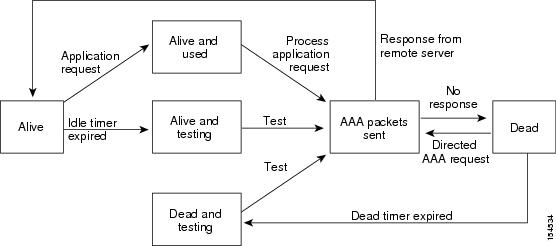

Note The monitoring interval for alive servers and dead servers are different and can be configured by the user. The RADIUS server monitoring is performed by sending a test authentication request to the RADIUS server.
Vendor-Specific Attributes
The Internet Engineering Task Force (IETF) draft standard specifies a method for communicating VSAs between the network access server and the RADIUS server. The IETF uses attribute 26. VSAs allow vendors to support their own extended attributes that are not suitable for general use. The Cisco RADIUS implementation supports one vendor-specific option using the format recommended in the specification. The Cisco vendor ID is 9, and the supported option is vendor type 1, which is named cisco-av-pair. The value is a string with the following format:
protocol : attribute separator value *
The protocol is a Cisco attribute for a particular type of authorization, separator is = (equal sign) for mandatory attributes, and * (asterisk) indicates optional attributes.
When you use RADIUS servers for authentication on a Cisco NX-OS device, the RADIUS protocol directs the RADIUS server to return user attributes, such as authorization information, along with authentication results. This authorization information is specified through VSAs.
The following VSA protocol options are supported by the Cisco NX-OS software:
•Shell—Protocol used in access-accept packets to provide user profile information.
•Accounting—Protocol used in accounting-request packets. If a value contains any white spaces, you should enclose the value within double quotation marks.
The Cisco NX-OS software supports the following attributes:
•roles—Lists all the roles to which the user belongs. The value field is a string that lists the role names delimited by white space. For example, if the user belongs to roles network-operator and vdc-admin, the value field would be "network-operator vdc-admin." This subattribute, which the RADIUS server sends in the VSA portion of the Access-Accept frames, can only be used with the shell protocol value. The following examples show the roles attribute as supported by Cisco ACS:
shell:roles="network-operator vdc-admin"
shell:roles*"network-operator vdc-admin"
The following examples show the roles attribute as supported by FreeRADIUS:
Cisco-AVPair = "shell:roles=\"network-operator vdc-admin\""
Cisco-AVPair = "shell:roles*\"network-operator vdc-admin\""
Note When you specify a VSA as shell:roles*"network-operator vdc-admin" or "shell:roles*\"network-operator vdc-admin\"", this VSA is flagged as an optional attribute and other Cisco devices ignore this attribute.
•accountinginfo—Stores accounting information in addition to the attributes covered by a standard RADIUS accounting protocol. This attribute is sent only in the VSA portion of the Account-Request frames from the RADIUS client on the switch. It can be used only with the accounting protocol data units (PDUs).
Virtualization Support
RADIUS configuration and operation are local to the virtual device context (VDC). For more information on VDCs, see the Cisco Nexus 7000 Series NX-OS Virtual Device Context Configuration Guide, Release 4.0.
The NX-OS device uses virtual routing and forwarding instances (VRFs) to access the RADIUS servers. For more information on VRFs, see the Cisco Nexus 7000 Series NX-OS Unicast Routing Configuration Guide, Release 4.0.
Licensing Requirements for RADIUS
The following table shows the licensing requirements for this feature:
Prerequisites for RADIUS
RADIUS has the following prerequisites:
•Obtain IPv4 or IPv6 addresses or hostnames for the RADIUS servers.
•Obtain preshared keys from the RADIUS servers.
•Ensure that the NX-OS device is configured as a RADIUS client of the AAA servers.
Guidelines and Limitations
RADIUS has the following guidelines and limitations:
•You can configure a maximum of 64 RADIUS servers on the NX-OS device.
•If you have a user account configured on the local Cisco NX-OS device that has the same name as a remote user account on an AAA server, the Cisco NX-OS software applies the user roles for the local user account to the remote user, not the user roles configured on the AAA server.
Configuring RADIUS Servers
This section includes the following topics:
•RADIUS Server Configuration Process
•Configuring RADIUS Server Hosts
•Configuring Global Preshared Keys
•Configuring RADIUS Server Preshared Keys
•Configuring RADIUS Server Groups
•Allowing Users to Specify a RADIUS Server at Login
•Configuring the Global RADIUS Transmission Retry Count and Timeout Interval
•Configuring the RADIUS Transmission Retry Count and Timeout Interval for a Server
•Configuring Accounting and Authentication Attributes for RADIUS Servers
•Configuring Periodic RADIUS Server Monitoring
•Configuring the Dead-Time Interval
•Manually Monitoring RADIUS Servers or Groups
Note If you are familiar with the Cisco IOS CLI, be aware that the Cisco NX-OS commands for this feature might differ from the Cisco IOS commands that you would use.
RADIUS Server Configuration Process
Follow these steps to configure RADIUS servers:
Step 1 Establish the RADIUS server connections to the NX-OS device (see the "Configuring RADIUS Server Hosts" section).
Step 2 Configure the preshared secret keys for the RADIUS servers (see the "Configuring Global Preshared Keys" section).
Step 3 If needed, configure RADIUS server groups with subsets of the RADIUS servers for AAA authentication methods (see the "Allowing Users to Specify a RADIUS Server at Login" section and the "Configuring AAA" section on page 2-7).
Step 4 If needed, configure any of the following optional parameters:
•Dead-time interval (see the "Configuring the Dead-Time Interval" section.
•Allow specification of a RADIUS server at login (see the "Allowing Users to Specify a RADIUS Server at Login" section).
•Transmission retry count and timeout interval (see the "Configuring the Global RADIUS Transmission Retry Count and Timeout Interval" section).
•Accounting and authentication attributes (see the "Configuring Accounting and Authentication Attributes for RADIUS Servers" section).
Step 5 If needed, configure periodic RADIUS server monitoring (see the "Configuring Periodic RADIUS Server Monitoring" section).
Configuring RADIUS Server Hosts
You must configure the IPv4 or IPv6 address or the hostname for each RADIUS server that you want to use for authentication. All RADIUS server hosts are added to the default RADIUS server group. You can configure up to 64 RADIUS servers.
BEFORE YOU BEGIN
Ensure that you are in the correct VDC (or use the switchto vdc command).
SUMMARY STEPS
1. config t
2. radius-server host {ipv4-address | ipv6-address | host-name}
3. exit
4. show radius-server
5. copy running-config startup-config
DETAILED STEPS
Configuring Global Preshared Keys
You can configure preshared keys at the global level for all servers used by the NX-OS device. A preshared key is a shared secret text string between the NX-OS device and the RADIUS server hosts.
BEFORE YOU BEGIN
Ensure that you are in the correct VDC (or use the switchto vdc command).
Obtain the preshared key values for the remote RADIUS servers.
SUMMARY STEPS
1. config t
2. radius-server key [0 | 7] key-value
3. exit
4. show radius-server
5. copy running-config startup-config
DETAILED STEPS
Configuring RADIUS Server Preshared Keys
You can configure preshared keys for a RADIUS server. A preshared key is a shared secret text string between the NX-OS device and the RADIUS server host.
BEFORE YOU BEGIN
Ensure that you are in the correct VDC (or use the switchto vdc command).
Obtain the preshared key values for the remote RADIUS servers.
SUMMARY STEPS
1. config t
2. radius-server host {ipv4-address | ipv6-address | host-name} key key-value
3. exit
4. show radius-server
5. copy running-config startup-config
DETAILED STEPS
Configuring RADIUS Server Groups
You can specify one or more remote AAA servers for authentication using server groups. All members of a group must belong to the RADIUS protocol. The servers are tried in the same order in which you configure them. You can configure up to 100 server groups in a VDC.
You can configure these server groups at any time but they only take effect when you apply them to an AAA service. For information on AAA services, see the "Remote AAA Services" section on page 2-3.
BEFORE YOU BEGIN
Ensure that you are in the correct VDC (or use the switchto vdc command).
SUMMARY STEPS
1. config t
2. aaa group server radius group-name
3. server {ipv4-address | ipv6-address | server-name}
4. deadtime minutes
5. use-vrf vrf-name
6. exit
7. show radius-server groups [group-name]
8. copy running-config startup-config
DETAILED STEPS
|
|
|
|
|---|---|---|
Step 1 |
config t Example: switch# config t switch(config)# |
Enters configuration mode. |
Step 2 |
aaa group server radius group-name Example: switch(config)# aaa group server radius RadServer switch(config-radius)# |
Creates a RADIUS server group and enters the RADIUS server group configuration submode for that group. The group-name argument is a case-sensitive alphanumeric string with a maximum length of 127 characters. |
Step 3 |
server {ipv4-address | ipv6-address | server-name} Example: switch(config-radius)# server 10.10.1.1 |
Configures the RADIUS server as a member of the RADIUS server group. If the specified RADIUS server is not found, configure it using the
radius-server host command and retry this command.
|
Step 4 |
deadtime minutes Example: switch(config-radius)# deadtime 30 |
(Optional) Configures the monitoring dead time. The default is 0 minutes. The range is from 1 through 1440. Note |
Step 5 |
use-vrf vrf-name Example: switch(config-radius)# use-vrf vrf1 |
(Optional) Specifies the VRF to use to contact the servers in the server group. |
Step 6 |
exit Example: switch(config-radius)# exit switch(config)# |
Exits configuration mode. |
Step 7 |
show radius-server groups [group-name] Example: switch(config)# show radius-server group |
(Optional) Displays the RADIUS server group configuration. |
Step 8 |
copy running-config startup-config Example: switch(config)# copy running-config startup-config |
(Optional) Copies the running configuration to the startup configuration. |
Allowing Users to Specify a RADIUS Server at Login
By default, the NX-OS device forwards an authentication request based on the default AAA authentication method. You can configure the NX-OS device to allow the user to specify a VRF and RADIUS server to send the authenticate request by enabling the directed-request option. If you enable this option, the user can log in as username@vrfname:hostname, where vrfname is the VRF to use and hostname is the name of a configured RADIUS server.
Note If you enable the directed-request option, the NX-OS device uses only the RADIUS method for authentication and not the default local method.
Note User-specified logins are supported only for Telnet sessions.
BEFORE YOU BEGIN
Ensure that you are in the correct VDC (or use the switchto vdc command).
SUMMARY STEPS
1. config t
2. radius-server directed-request
3. exit
4. show radius-server directed-request
5. copy running-config startup-config
DETAILED STEPS
Configuring the Global RADIUS Transmission Retry Count and Timeout Interval
You can configure a global retransmission retry count and timeout interval for all RADIUS servers. By default, a switch retries transmission to a RADIUS server only once before reverting to local authentication. You can increase this number up to a maximum of five retries per server. The timeout interval determines how long the NX-OS device waits for responses from RADIUS servers before declaring a timeout failure.
BEFORE YOU BEGIN
Ensure that you are in the correct VDC (or use the switchto vdc command).
SUMMARY STEPS
1. config t
2. radius-server retransmission count
3. radius-server timeout seconds
4. exit
5. show radius-server
6. copy running-config startup-config
DETAILED STEPS
Configuring the RADIUS Transmission Retry Count and Timeout Interval for a Server
By default, an NX-OS device retries a transmission to a RADIUS server only once before reverting to local authentication. You can increase this number up to a maximum of five retries per server. You can also set a timeout interval that the NX-OS device waits for responses from RADIUS servers before declaring a timeout failure.
BEFORE YOU BEGIN
Ensure that you are in the correct VDC (or use the switchto vdc command).
SUMMARY STEPS
1. config t
2. radius-server host {ipv4-address | ipv6-address | host-name} retransmit count
3. radius-server host {ipv4-address | ipv6-address | host-name} timeout seconds
4. exit
5. show radius-server
6. copy running-config startup-config
DETAILED STEPS
|
|
|
|
|---|---|---|
Step 1 |
config t Example: switch# config t switch(config)# |
Enters configuration mode. |
Step 2 |
switch(config)# radius-server host {ipv4-address |ipv6-address | host-name} retransmit count Example: switch(config)# radius-server host server1 retransmit 3 |
Specifies the retransmission count for a specific server. The default is the global value. Note |
Step 3 |
switch(config)# radius-server host {ipv4-address |ipv6-address | host-name} timeout seconds Example: switch(config)# radius-server host server1 timeout 10 |
Specifies the transmission timeout interval for a specific server. The default is the global value. Note |
Step 4 |
exit Example: switch(config)# exit switch# |
Exits configuration mode. |
Step 5 |
show radius-server Example: switch# show radius-server |
(Optional) Displays the RADIUS server configuration. |
Step 6 |
copy running-config startup-config Example: switch# copy running-config startup-config |
(Optional) Copies the running configuration to the startup configuration. |
Configuring Accounting and Authentication Attributes for RADIUS Servers
You can specify that a RADIUS server is to be used only for accounting purposes or only for authentication purposes. By default, RADIUS servers are used for both accounting and authentication. You can also specify the destination UDP port numbers where RADIUS accounting and authentication messages should be sent if there is a conflict with the default port.
BEFORE YOU BEGIN
Ensure that you are in the correct VDC (or use the switchto vdc command).
SUMMARY STEPS
1. config t
2. radius-server host {ipv4-address | ipv6-address | host-name} acct-port udp-port
3. radius-server host {ipv4-address | ipv6-address | host-name} accounting
4. radius-server host {ipv4-address | ipv6-address | host-name} auth-port udp-port
5. radius-server host {ipv4-address | ipv6-address | host-name} authentication
6. exit
7. show radius-server
8. copy running-config startup-config
DETAILED STEPS
Configuring Periodic RADIUS Server Monitoring
You can monitor the availability of RADIUS servers. These parameters include the username and password to use for the server and an idle timer. The idle timer specifies the interval during which a RADIUS server receives no requests before the NX-OS device sends out a test packet. You can configure this option to test servers periodically.
Note For security reasons, we recommend that you do not configure a test username that is the same as an existing user in the RADIUS database.
The test idle timer specifies the interval during which a RADIUS server receives no requests before the NX-OS device sends out a test packet.
Note The default idle timer value is 0 minutes. When the idle time interval is 0 minutes, the NX-OS device does not perform periodic RADIUS server monitoring.
BEFORE YOU BEGIN
Ensure that you are in the correct VDC (or use the switchto vdc command).
SUMMARY STEPS
1. config t
2. radius-server host {ipv4-address | ipv6-address | host-name} test {idle-time minutes | password password [idle-time minutes] | username name [password password [idle-time minutes]]}
3. radius-server dead-time minutes
4. exit
5. show radius-server
6. copy running-config startup-config
DETAILED STEPS
Configuring the Dead-Time Interval
You can configure the dead-time interval for all RADIUS servers. The dead-time interval specifies the time that the NX-OS device waits after declaring a RADIUS server is dead, before sending out a test packet to determine if the server is now alive. The default value is 0 minutes.
Note When the dead-time interval is 0 minutes, RADIUS servers are not marked as dead even if they are not responding. You can configure the dead-time interval for a RADIUS server group (see the "Configuring RADIUS Server Groups" section).
BEFORE YOU BEGIN
Ensure that you are in the correct VDC (or use the switchto vdc command).
SUMMARY STEPS
1. config t
2. radius-server deadtime minutes
3. exit
4. show radius-server
5. copy running-config startup-config
DETAILED STEPS
Manually Monitoring RADIUS Servers or Groups
You can manually issue a test message to a RADIUS server or to a server group.
BEFORE YOU BEGIN
Ensure that you are in the correct VDC (or use the switchto vdc command).
SUMMARY STEPS
1. test aaa server radius {ipv4-address | ipv6-address | host-name} [vrf vrf-name] username password
2. test aaa group group-name username password
DETAILED STEPS
Verifying RADIUS Configuration
To display RADIUS configuration information, perform one of the following tasks:
For detailed information about the fields in the output from this command, see the Cisco Nexus 7000 Series NX-OS Security Command Reference, Release 4.0.
Displaying RADIUS Server Statistics
You can display the statistics that the NX-OS device maintains for RADIUS server activity.
BEFORE YOU BEGIN
Ensure that you are in the correct VDC (or use the switchto vdc command).
SUMMARY STEPS
1. show radius-server statistics {hostname | ipv4-address | ipv6-address}
DETAILED STEPS
|
|
|
|
|---|---|---|
Step 1 |
switch# show radius-server statistics {hostname | ipv4-address | ipv6-address} Example: switch# show radius-server statistics 10.10.1.1 |
Displays the RADIUS statistics. |
For detailed information about the fields in the output from this command, see the Cisco Nexus 7000 Series NX-OS Security Command Reference, Release 4.0.
Example RADIUS Configuration
The following example shows how to configure RADIUS:
radius-server key 7 "ToIkLhPpG"
radius-server host 10.10.1.1 key 7 "ShMoMhTl" authentication accounting
aaa group server radius RadServer
server 10.10.1.1
Where to Go Next
You can now configure AAA authentication methods to include the RADIUS server groups (see Chapter 2, "Configuring AAA").
Default Settings
Table 3-1 lists the default settings for RADIUS parameters.
Additional References
For additional information related to implementing RADIUS, see the following sections:
•MIBs
Related Documents
Standards
|
|
|
|---|---|
No new or modified standards are supported by this feature, and support for existing standards has not been modified by this feature. |
— |
MIBs
|
|
|
|---|---|
• • |
To locate and download MIBs, go to the following URL: http://www.cisco.com/public/sw-center/netmgmt/cmtk/mibs.shtml |
 Feedback