Installing the Chassis

Safety

Before you install, operate, or service the switch, see the Regulatory, Compliance, and Safety Information for the Cisco Nexus 9000 Series content for important Safety Information.


Warning


Statement 1071—Warning Definition

IMPORTANT SAFETY INSTRUCTIONS

Before you work on any equipment, be aware of the hazards involved with electrical circuitry and be familiar with standard practices for preventing accidents. Read the installation instructions before using, installing, or connecting the system to the power source. Use the statement number provided at the end of each warning statement to locate its translation in the translated safety warnings for this device.

SAVE THESE INSTRUCTIONS


Warning


Statement 1089—Instructed and Skilled Person Definitions

An instructed person is someone who has been instructed and trained by a skilled person and takes the necessary precautions when working with equipment.

A skilled person or qualified personnel is someone who has training or experience in the equipment technology and understands potential hazards when working with equipment.

There are no serviceable parts inside. To avoid risk of electric shock, do not open.


Warning


Statement 1074—Comply with Local and National Electrical Codes

To reduce risk of electric shock or fire, installation of the equipment must comply with local and national electrical codes.


Note


Statement 407—Japanese Safety Instruction

You are strongly advised to read the safety instruction before using the product.

https://www.cisco.com/web/JP/techdoc/pldoc/pldoc.html

When installing the product, use the provided or designated connection cables/power cables/AC adapters.


Warning


Statement 1017—Restricted Area

This unit is intended for installation in restricted access areas. Only skilled, instructed, or qualified personnel can access a restricted access area.


Warning


Statement 1091—Installation by an Instructed Person

Only an instructed person or skilled person should be allowed to install, replace, or service this equipment. See statement 1089 for the definition of an instructed or skilled person.

There are no serviceable parts inside. To avoid risk of electric shock, do not open.


Warning


Statement 1028—More Than One Power Supply

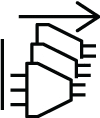
This unit might have more than one power supply connection. To reduce risk of electric shock, remove all connections to de-energize the unit.


Warning


Statement 1003—Power Disconnection

To reduce risk of electric shock or personal injury, disconnect power before removing or replacing components or performing upgrades.


Warning


Statement 1046—Installing or Replacing the Unit

To reduce risk of electric shock, when installing or replacing the unit, the ground connection must always be made first and disconnected last.

If your unit has modules, secure them with the provided screws.


Warning


Statement 1022—Disconnect Device

To reduce the risk of electric shock and fire, a readily accessible disconnect device must be incorporated in the fixed wiring.


Warning


Statement 1033—Safety Extra-Low Voltage (SELV)—IEC 60950/ES1–IEC 62368 DC Power Supply

To reduce the risk of electric shock, connect the unit only to a DC power source that complies with the SELV requirements in the IEC 60950-based safety standards or the ES1 requirements in the IEC 62368-based safety standards.


Warning


Statement 1024—Ground Conductor

This equipment must be grounded. To reduce the risk of electric shock, never defeat the ground conductor or operate the equipment in the absence of a suitably installed ground conductor. Contact the appropriate electrical inspection authority or an electrician if you are uncertain that suitable grounding is available.


Warning


Statement 1032—Lifting the Chassis

To prevent personal injury or damage to the chassis, never attempt to lift or tilt the chassis using the handles on modules, such as power supplies, fans, or cards. These types of handles are not designed to support the weight of the unit.


Warning


Statement 1006—Chassis Warning for Rack-Mounting and Servicing

To prevent bodily injury when mounting or servicing this unit in a rack, you must take special precautions to ensure that the system remains stable. The following guidelines are provided to ensure your safety:

  • This unit should be mounted at the bottom of the rack if it is the only unit in the rack.

  • When mounting this unit in a partially filled rack, load the rack from the bottom to the top with the heaviest component at the bottom of the rack.

  • If the rack is provided with stabilizing devices, install the stabilizers before mounting or servicing the unit in the rack.


Caution


To prevent loss of input power, ensure the total maximum loads on the circuits supplying power to the switch are within the current ratings for the wiring and breakers.


Note


For AC input application, please refer to the statement below:


Warning


Statement 1005—Circuit Breaker

This product relies on the building's installation for short-circuit (overcurrent) protection. Ensure that the protective devices is rated not greater than 20A (North America), 16A (Europe), and 13A (UK).


Warning


Statement 1055—Class 1/1M Laser

Invisible laser radiation is present. Do not expose to users of telescopic optics. This applies to Class 1/1M laser products.


Installation Options with Rack-Mount Kits

The rack-mount kit enables you to install the switch into racks of varying depths. Position the switch with easy access to either the port connections or the fan and power supply modules.

Install the switch using these rack-mount options.

For four-post racks:

  • 8K-2RU-KIT-S or 8K-2RU-KIT-L

The rack or cabinet that you use must meet the requirements listed the in General Requirements for Cabinets and Racks section.


Note


You are responsible for verifying that your rack and rack-mount hardware comply with the guidelines that are described in this document.


Install a Rack

Before you install the switch, you must install a standard four-post, 19-inch EIA data center rack (or a cabinet that contains such a rack) that meets the requirements listed in Overview of Racks.

Procedure


Step 1

Bolt the rack to the concrete subfloor before moving the chassis onto it.

Warning


Statement 1048—Rack Stabilization

The rack stabilizing mechanism must be in place, or the rack must be bolted to the floor before installation or servicing. Failure to stabilize the rack can cause bodily injury.

Step 2

If the rack has bonded construction, connect it to the earth ground. This action enables you to easily ground the switch and its components and to ground your electrostatic discharge (ESD) wrist strap to prevent damaging discharges when you handle ungrounded components before installing them.

Step 3

Include one or two power sources at the rack. For AC power, provide a power receptacle.

Step 4

Include one or two power sources at the rack. For DC power, provide a circuit breaker with terminals for connecting power cables.

Warning


Statement 1018—Supply Circuit

To reduce risk of electric shock and fire, take care when connecting units to the supply circuit so that wiring is not overloaded.

Note


If you are not using power redundancy or are using n+1 redundancy, you need only one power source. If you are using n+n redundancy, you need two power sources.


Unpacking and Inspecting a New Switch

Before you install a new chassis, unpack and inspect it to be sure that you have all the items that you ordered. Verify that the switch was not damaged during shipment. If anything is damaged or missing, contact your customer representative immediately.


Caution


When you handle the chassis or its components, follow ESD protocol at all times to prevent ESD damage. This protocol includes but is not limited to wearing an ESD wrist strap that you connect to the earth ground.


Tip


Do not discard the shipping container when you unpack the switch. Flatten the shipping cartons and store them. If you need to move or ship the system in the future, you will need this container.


Procedure


Step 1

Compare the shipment to the equipment list that is provided by your customer service representative. Verify that you have received all of the ordered items.

The shipment should include:

  • Switch chassis

  • Switch accessory kit

Step 2

Check the contents of the shipping box for damage.

Step 3

If you notice any discrepancies or damage, send this information to your customer service representative by email:

  • Invoice number of the shipper (see packing slip)

  • Model and serial number of the missing or damaged unit

  • Description of the problem and how it affects the installation


Procure Tools and Equipment

Obtain these necessary tools and equipment for installing the chassis:

  • Number 1 and number 2 Phillips screwdrivers with torque capability to rack-mount the chassis.

  • 3/16-inch flat-blade screwdriver.

  • Tape measure and level.

  • ESD wrist strap or other grounding device.

  • Antistatic mat or antistatic foam.

  • Crimping tool for lug.

  • Wire-stripping tool.

  • M4 screws to fix brackets (16).

  • M4 screws to fix a ground lug (2).

Switch Accessory Kit

This table contains the switch accessory kit product identifications (PIDs). The switch accessory kit contains the rack mount kit and the ground lug kit. The rack mount kit present in the accessory kit contains the screws and brackets required for installation.

Switch

Accessory Kit

Items in Accessory Kit and Rack Depth Range

Cisco Nexus N9364E-SG2-Q

8K-2RU-KIT-S

2RU chassis rail kit

8K-2RU-KIT-L

2RU chassis rail kit

Planning How to Position the Chassis in the Rack

The switch is designed so that you can have coolant air flow through the switch in one direction: port-side intake airflow. Enter the port side and exhaust out the power supply side (port-side intake airflow).

For port-side intake airflow, the switch must have port-side intake fan and AC power supply modules with one or more of these colorings:

  • Red coloring on fan modules and AC power supplies

Plan the positioning of the switch so that its ports are located close to ports on connected devices or so that the fan and power supply modules are conveniently located in a maintenance aisle. Order the modules that move coolant air in the appropriate direction from the cold aisle to the hot aisle.


Note


All fan and power supply modules in the same switch must operate with the same direction of airflow. The air intake portion of the switch must be located in a cold aisle.


Installing the Chassis in a Four-Post Rack

Before you install the chassis, be sure that the rack is fully secured to the data center floor.

The table lists the items contained in the rack-mount kit.

Quantity

Part Description

2

Rack-mount brackets

18

M4 x 6 mm Phillips flat-head screws

2

M4 x 6 mm Phillips pan-head screws

2

Rack-mount guides

2

Rack-mount guide rails, 2 lengths for different 4-post depths

1

Grounding lug and screws


Note


This switch does not support port-side exhaust configuration.


Rack-Mount the Chassis in a 4-Post Rack

Slide the chassis onto the bottom-support rails so that the power supply end locks onto the chassis stops at the end of the rails and so that the front-mount brackets on the chassis come into contact with the front-mount rails on the rack.


Warning


Statement 1074—Comply with Local and National Electrical Codes

To reduce risk of electric shock or fire, installation of the equipment must comply with local and national electrical codes.


Warning


Statement 1032—Lifting the Chassis

To prevent personal injury or damage to the chassis, never attempt to lift or tilt the chassis using the handles on modules (such as power supplies, fans, or cards); these types of handles are not designed to support the weight of the unit.


Before you begin


Warning


Statement 1006—Chassis Warning for Rack-Mounting and Servicing

To prevent bodily injury when mounting or servicing this unit in a rack, take special precautions to ensure that the system remains stable. Follow these guidelines to ensure your safety:

  • Mount this unit at the bottom of the rack if it is the only unit in the rack.

  • Load the rack from the bottom to the top, with the heaviest component at the bottom of the rack.

  • If the rack is provided with stabilizing devices, install the stabilizers before mounting or servicing the unit in the rack.


Procedure


Step 1

Install the rack-mount brackets to the switch.

  1. Determine which end of the chassis is to be located in the cold aisle.

    • If the switch has port-side intake modules (fan modules and power modules with burgundy coloring), position the switch so that the ports are in the cold aisle.

  2. Position a rack-mount bracket on the side of the chassis with its four holes that are aligned to four of the screw holes on the side of the chassis. Use four M4 flat-head screws with 13.25 in lbs (1.5 N m) torque value to attach the bracket to the chassis.

    Note

     
    Align four holes in the rack-mount bracket to four screw holes on the front side of chassis or four screw holes on the rear side of the chassis. The holes that you use depend on which end of your chassis is located in the cold aisle.
  3. Repeat Step 1b with the other rack-mount bracket on the other side of the switch.

Step 2

Install the two rack-mount guides on the chassis.

  1. Position a rack-mount guides on the side of the chassis with its two holes aligned to the two screw holes on the side of the chassis, and use two M4 flat-head screws to attach the guides to the chassis. Tighten the screws to a torque of 13.25 in-lb (1.5 N m).

  2. Repeat with the other rack-mount guides on the other side of the switch.

Step 3

Install the guide rails to the rack.

  1. Position the guide rails at the desired levels on the back side of the rack. Use four 12-24 screws or four 10-32 screws, depending on the rack thread type, to attach the rails to the rack.

    Note

     
    For racks with square holes, you may need to position a 12-24 or 10-32 cage nut behind each mounting hole in a guide rail before using a 12-24 or 10-32 screw.
  2. Repeat with the other guide rail on the other side of the rack.

  3. Use a tape measure and level to verify that the rails are at the same height and horizontal.

Step 4

Insert the switch into the rack and attach.

  1. Use both hands to position the back of the switch between the front posts of the rack.

  2. Align the two rack-mount guides on either side of the switch with the guide rails installed in the rack. Slide the rack-mount guides onto the guide rails. Gently slide the switch all the way into the rack.

    Note

     
    If the switch does not slide easily, try realigning the rack-mount guides on the guide rails.
  3. Holding the chassis level, insert two screws (12-24 or 10-32, depending on the rack type) through the holes in each of the rack-mount brackets and into the cage nuts or threaded holes in the rack-mounting rail.

  4. Tighten the 10-32 screws to 20 in-lb (2.26 N m) or tighten the 12-24 screws to 30 in-lb (3.39 N m).


Grounding the Chassis

The switch chassis is automatically grounded when you properly install the switch in a grounded rack with metal-to-metal connections between the switch and rack.


Note


Provide an electrical conducting path between the product chassis and the metal surface of the enclosure or rack in which it is mounted or to a grounding conductor. To ensure electrical continuity, use thread-forming type mounting screws that remove any paint or non-conductive coatings and establish a metal-to-metal contact. Remove any paint or other non-conductive coatings on the surfaces between the mounting hardware and the enclosure or rack. Clean the surfaces and apply an antioxidant before installation.


Ground the rack if using LVDC power supplies. If using AC or HVDC power supplies, the power cord for the AC power supplies provides grounding for the chassis. For supplemental grounding or bonding, attach a customer-supplied grounding cable to the chassis ground pad.

Ground the chassis. If you are using a 2-post rack, attach a customer-supplied grounding cable. Attach the cable to the chassis grounding pad and the facility ground. If you are using a 4-post rack, ensure that your chassis is grounded through the rack mount system or the power cable (AC or HVDC).


Warning


Statement 1024—Ground Conductor

This equipment must be grounded. To reduce the risk of electric shock, never defeat the ground conductor or operate the equipment in the absence of a suitably installed ground conductor. Contact the appropriate electrical inspection authority or an electrician if you are uncertain that suitable grounding is available.


Warning


Statement 1046—Installing or Replacing the Unit

To reduce risk of electric shock, when installing or replacing the unit, the ground connection must always be made first and disconnected last.


Before you begin

Before you can ground the chassis, verify the earth ground contact has a solid connection to the data center building.

Procedure


Step 1

Use a wire-stripping tool to remove approximately 0.75 inch (19 mm) of the covering from the end of the grounding wire. We recommend 6-AWG wire for the U.S. installations.

Step 2

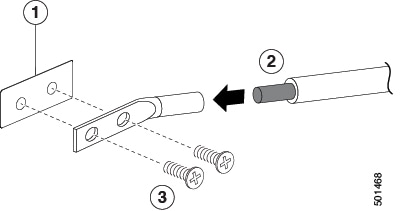
Insert the stripped end of the grounding wire into the open end of the grounding lug. Use a crimping tool to crimp the lug to the wire. See the figure. Verify that the ground wire is securely attached to the grounding lug by attempting to pull the wire out of the crimped lug (tug test).

1

Chassis grounding pad

3

2 M4 screws are used to secure the grounding lug to the chassis

2

Grounding cable, with 0.75 in. (19 mm) of insulation that is stripped from one end, which is inserted into the grounding lug and crimped in place

Step 3

Secure the grounding lug to the chassis grounding pad with two M4 screws, see figure 1. Tighten the screws to 11 to 15 in-lb (1.24 to 1.69 N m) of torque.

Step 4

Prepare the other end of the grounding wire and connect it to the facility ground.


Starting the Switch

Start the switch by connecting it to its dedicated power source. If you need n+n redundancy, connect each power supply in a switch to a different power source.


Note


This equipment is designed to boot up in less than 30 minutes, dependent on its neighboring devices being fully up and running.


Table 1. Electrical Ratings

AC Power Supply Unit PIDs

Supported Switches

Input Voltage

Input Current (Max)

Input Frequency

Output Power

PSU3KW-HVPI

Cisco Nexus 9364E-SG2-Q

200-277V

16A

50-60Hz

3000W

Before you begin

  • The switch must be installed and secured to a rack or cabinet.

  • The switch must be adequately grounded.

  • The rack must be close enough to the dedicated power source so that you can connect the switch to the power source by using the designated power cables.

  • You have the designated power cables for the power supplies that you are connecting to the dedicated power sources.


    Note


    Depending on the outlet receptacle on your AC power distribution unit, you might need an optional jumper power cord to connect the switch to your outlet receptacle.


  • The switch is not connected to the network (this includes any management or interface connections).

  • The fan and power supply modules are fully secured in their chassis slots.

Procedure


Step 1

For the AC power supply, do this:

  1. Using the recommended AC power cable for your country or region, connect one end to the AC power supply.

  2. Connect the other end of the power cable to the AC power source.

Step 2

Verify that the power supply LED is on and green.

Note


When one PSU is connected, the STATUS LED color is amber. With two PSUs connected, the STATUS LED color is green.

Step 3

Listen for the fans; they should begin operating when the power supply is powered.

Step 4

After the switch boots, verify that these LEDs are lit:

  • On the fan modules, the Status (STA or STS) LED is green.

    If a fan module Status LED is not green, try reinstalling the fan module.

  • After initialization, the switch chassis Status (labeled as STA or STS) LED is green.

Step 5

Verify that the system software has booted and the switch has initialized without error messages.

A setup utility automatically launches the first time that you access the switch and guides you through the basic configuration. For instructions on how to configure the switch and check module connectivity, see the appropriate Cisco Nexus 9000 Series Configuration Guides.