IP SLAs

This chapter contains the following sections:

About ACI IP SLAs

Many companies conduct most of their business online and any loss of service can affect their profitability. Internet service providers (ISPs) and even internal IT departments now offer a defined level of service, a service level agreement (SLA), to provide their customers with a degree of predictability.

IP SLA tracking is a common requirement in networks. IP SLA tracking allows a network administrator to collect information about network performance in real time. With the Cisco ACI IP SLA, you can track an IP address using ICMP and TCP probes. Tracking configurations can influence route tables, allowing for routes to be removed when tracking results come in negative and returning the route to the table when the results become positive again.

ACI IP SLAs are available for the following:

  • Static routes:

    • New in ACI 4.1

    • Automatically remove or add a static route from/to a route table

    • Track the route using ICMP and TCP probes

  • Policy-based redirect (PBR) tracking:

    • Available since ACI 3.1

    • Automatically remove or add a next -hop

    • Track the next-hop IP address using ICMP and TCP probes, or a combination using L2Ping

    • Redirect traffic to the PBR node based on the reachability of the next-hop

For more information about PBR tracking, see Configuring Policy-Based Redirect in the Cisco APIC Layer 4 to Layer 7 Services Deployment Guide.


Note


For either feature, you can perform a network action based on the results of the probes, including configuration, using APIs, or running scripts.


ACI IP SLA Supported Topologies

The following ACI fabric topologies support IP SLA:

  • Single Fabric: IP SLA tracking is supported for IP address reachable through both L3out and EPG/BD

  • Multi-Pod

    • You can define a single object tracking policy across different Pods.

    • A workload can move from one Pod to another. The IP SLA policy continues to check accessibility information and detects if an endpoint has moved.

    • If an endpoint moves to another Pod, IP SLA tracking is moved to the other Pod as well, so that tracking information is not passed through the IP network.

  • Remote Leaf

    • You can define single object tracking policies across ACI main data center and the remote leaf switch.

    • IP SLA probes on remote leaf switches track IP addresses locally without using the IP network.

    • A workload can move from one local leaf to a remote leaf. The IP SLA policy continues to check accessibility information and detects if an endpoint has moved.

    • IP SLA policies move to the remote leaf switches or ACI main data center, based on the endpoint location, for local tracking, so that tracking traffic is not passed through the IP network.


Note


Currently, ACI does not support IP SLA for static route in vPC topology.


Cisco ACI IP SLA Operation

A Cisco ACI IP SLA provides monitoring capabilities on the ACI fabric allowing the SLA probing to occur across the data center network and out to the external network. This is accomplished by configuring an IP SLA monitoring policy which defines the probe type used during monitoring. The monitoring policy is then associated with monitoring probe profiles known as "track members". Once configured, track members define an endpoint or next-hop by IP address, the associated monitoring policy, and the scope (bridge domain or L3Out). One or more track members can be assigned to a "track list". Track lists configure thresholds that, if exceeded, determine if a track list is available (up) or unavailable (down).

The following four examples show the supported use cases for ACI IP SLAs in static routes.

Example 1: Static Route Availability by Tracking the Next-Hop

The following figure shows the network topology and the operation for tracking the static route availability of a router.
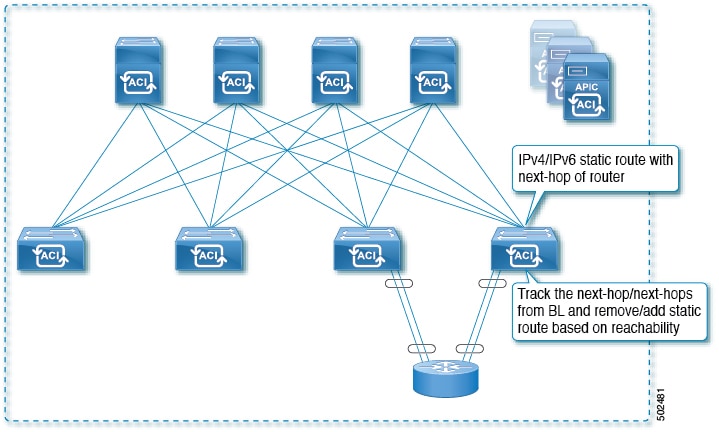
Figure 1. Static Route Availability by Tracking the Next-Hop

For this use case:

  • The next-hop can be direct or indirect meaning that the next-hop can be a loopback IP address of the router.

  • The next-hop can be accessed through a physical interface, sub-interface, port channel (PC), PC sub-interface, or switch virtual interface (SVI).

  • The static route is configured under the L3out external network and can be removed or added from/to the route table based on the accessibility of the next-hop .

Example 2: Static Route Availability by Tracking an IP Address Through L3Out

The following figure shows the network topology and the operation for tracking the static route availability of a server through an L3Out external route.
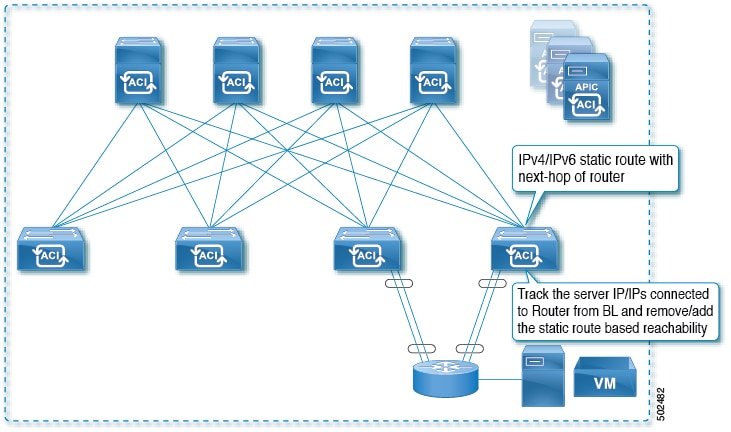
Figure 2. Static Route Availability by Tracking an IP Address Through L3Out

For this use case:

  • Track the server IP address connected to the router from the ACI fabric (border leaf) and remove or add the static route based on accessibility of the server.

  • The L3Out can be through a port channel (PC), PC sub-interface, switch virtual interface (SVI), L3 interface, or an L3 sub-interface.

  • The static route is configured under L3Out and is removed or added based on the accessibility of the IP address.

Example 3: Static Route Removal by Tracking an IP Address Through L3Out

The following figure shows the network topology and the operation for tracking the static route availability of a server through an L3Out external route. The route is removed if it is not accessible through the L3Out/VRF.
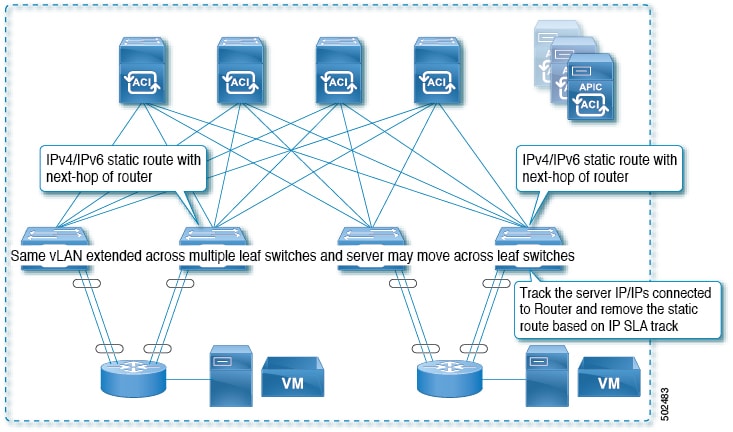
Figure 3. Static Route Removal by Tracking an IP Address Through L3Out

For this use case:

  • The L3Out is configured over VLAN/SVI, and that SVI is extended across multiple leaves.

  • The server IP address that is accessible through the L3Out can move across leaves.

  • Track the server IP address(es) and if they are not accessible through the L3Out/VRF, then remove the static route from the route table.

  • The static route is added back to the route table when server is accessible again.

Example 4: Static Route Removal by Tracking an IP Address in the ACI Fabric

Although, as shown in the previous examples, the probe IP of IP SLA for routes is typically the next-hop of the route or an external IP address that should be reachable via the route, you can also use an endpoint IP address in the ACI BD as the probe IP, even if the endpoint does not reside behind the route targeted by the IP SLA. This might be helpful when the static route is to be used solely by certain specific endpoints inside ACI. If such endpoints don’t exist, there is no use for the route.

The following figure shows the network topology and the operation for tracking an IP address in the ACI fabric.
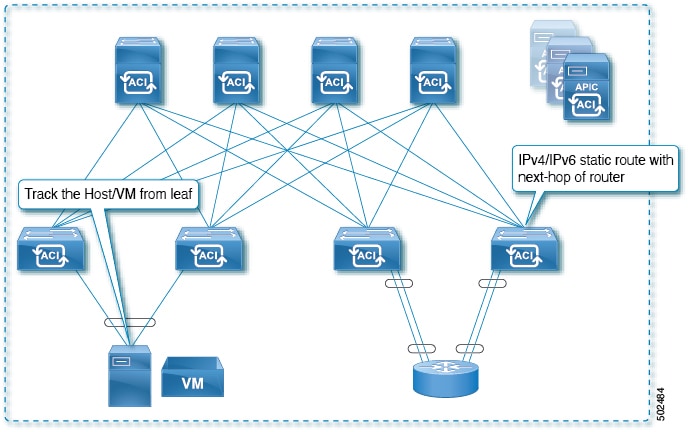
Figure 4. Static Route Availability by Tracking an IP Address in the ACI Fabric

For this use case:

  • Track the IP reachability of the endpoints that are connected through the EPG/BD.

  • Based on the accessibility of the endpoints, the static route will be removed or added in the L3Out.

  • Even if the endpoint moves from one location to another within the fabric, as long as there is the IP reachability to the endpoint from the same BD, IP SLA monitoring considers it accessible and there will be no impact to the validity of the static route.

IP SLA Monitoring Policy

IP Service Level Agreements (SLAs) use active traffic monitoring to generate traffic in a continuous, reliable, and predictable manner, and analyze it to measure the network performance. Measurement statistics that are provided by the IP SLA monitoring policy operations can be used for troubleshooting, problem analysis, and designing network topologies.

With Cisco ACI, the IP SLA monitoring policy is associated with:

  • Service Redirect Policies: All the destinations under a service redirect policy are monitored based on the configurations and parameters that are set in the monitoring policy.

  • Static Routes: Adding an IP SLA monitoring policy to a track list or track member and associated it with a static route provides the mechanism for monitoring the availability of the next hop segments of the route.

An IP SLA monitoring policy identifies the probe frequency and the type of probe.

ACI IP SLA Monitoring Operation Probe Types

Using ACI IP SLAs, you can monitor the performance between any area in the network: core, distribution, and edge. Monitoring can be done anytime, anywhere, without deploying a physical probe. ACI IP SLAs use generated traffic to measure network performance between two networking devices such as switches. The types of IP SLA operations include:

  • ICMP: Echo Probes

  • TCP: Connect Probes

TCP Connect Operation

The IP SLAs TCP connect operation measures the response time that is taken to perform a TCP probe between a Cisco switch and an IP device. TCP is a transport layer (Layer 4) Internet Protocol that provides reliable full-duplex data transmission. The destination device can be any device using IP.

In the following figure, Switch B is configured as the source IP SLA device based on the configured static route. A TCP connect operation is configured in the IP SLA monitoring policy (associated with the static route) with the destination device as IP Host 1.
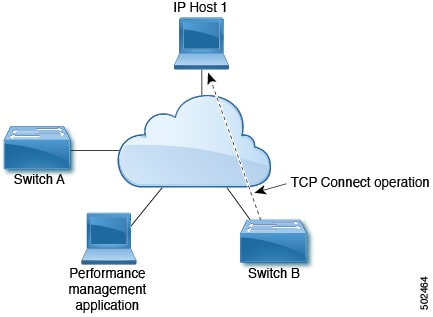
Figure 5. TCP Connection Operation Example

The connection response time is computed by measuring the time that is taken between sending a TCP request message from Switch B to IP Host 1 and receiving a reply from IP Host 1.

ICMP Echo Operation

The Internet Control Message Protocol (ICMP) Echo operation measures the end-to-end response time between two devices that use IPv4 or IPv6. The response time is computed by measuring the time that is taken between sending an ICMP Echo request message to the destination and receiving a reply. An ICMP Echo is useful for troubleshooting network connectivity issues. The results of the ICMP Echo operation can be displayed and analyzed to determine how the network IP connections are performing.

In the following figure, the ICMP Echo operation uses a ping-based probe to measure the response time between the source IP SLAs device and the destination IP device. Many customers use IP SLA ICMP-based operations, in-house ping testing, or ping-based dedicated probes for response time measurements.
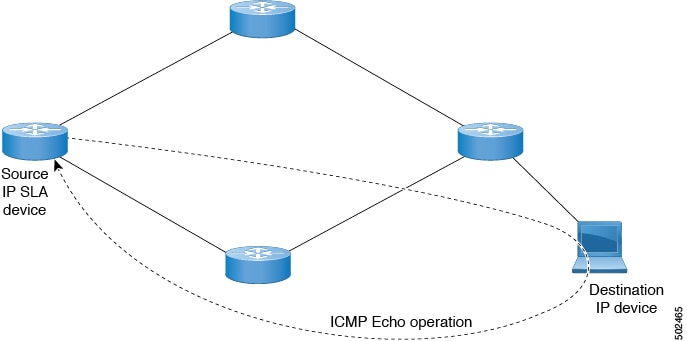
Figure 6. ICMP Echo Operation Example

The IP SLA ICMP Echo operation conforms to the same IETF specifications for ICMP ping testing and the two methods result in the same response times.

IP SLA Track Members

An IP SLA track member identifies the:

  • IP address to be tracked

  • IP SLA monitoring policy (probe frequency and type)

  • Scope (bridge domain or L3Out)

IP SLA Track Lists

An IP SLA track list aggregates one or more IP SLA track members representing a network segment to be monitored. The track list determines what percentage or weight of track members must be up or down for the static route to be considered available or unavailable. If the track list is up, based on the threshold percentage or weight, then the static route remains in routing table. If the track list is down, then the static route is removed from the routing table until the track list recovers.

The following is an example of configuring four track members in a track list using the threshold percentage option.

Threshold configuration:

  • Set the Percentage Up parameter to 100 (percent)

  • Set the Percentage Down parameter to 50 (percent)

In this track list, each of the four track members is assigned 25%. For the track list to become unreachable (down), two of the four track members must be unreachable (50%). For the track list to return to reachable (up), all four track members must be reachable (100%).


Note


When a track list is associated with a static route and the track list becomes unreachable (down), the static route is removed from the routing table until the track list becomes reachable again.


Example IP SLA Configuration Component Associations

ACI IP SLAs rely on track members and track lists to identify the types of probes to send and where to send them. Planning the configuration will help make the task easy and fast. This section uses an example to explain how to set up the IP SLA.

Cisco ACI IP SLA L3Out Example

The following figure shows a Cisco ACI IP SLA providing monitoring/probing of a specific configured static route within the ACI fabric and including an external endpoint.
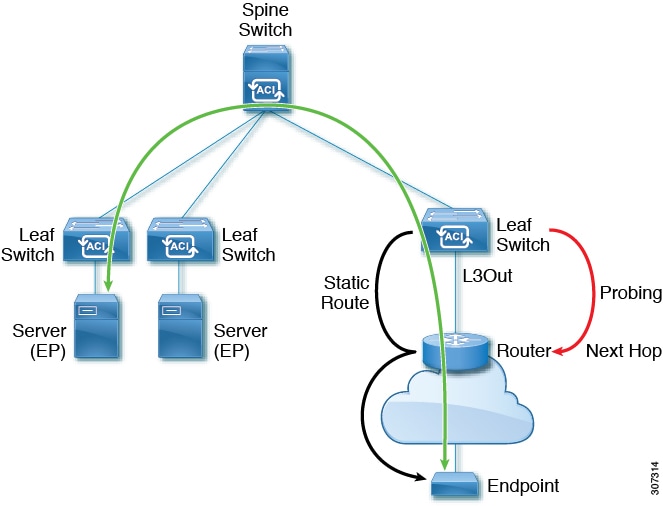
Figure 7. Example ACI L3Out IP SLA

The following image shows a static route for the endpoint prefix of 192.168.13.1/24. It also shows a pair of routers in a static route between an L3Out leaf switch and a consumer endpoint.
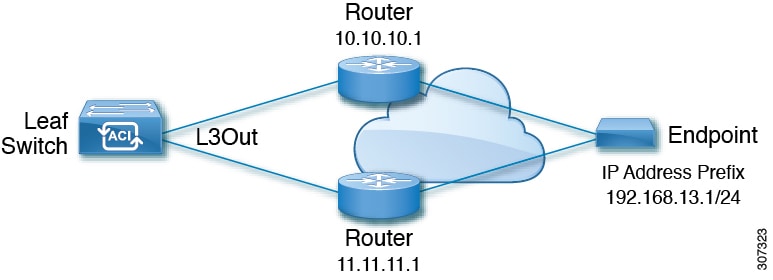
Figure 8. Example Static Route

To configure an ACI IP SLA based on the figure above, the router must be monitored to ensure connectivity to the consumer endpoint. This is accomplished by creating a static route, track members, and track lists:

  • Static route for 192.168.13.1/24 with next hops of 10.10.10.1 and 11.11.11.1

  • Track Member 1 (TM-1) includes the router IP address 10.10.10.1 (this is the next hop probe)

  • Track Member 2 (TM-2) includes the router IP address 11.11.11.1 (this is the next hop probe)

  • Track List 1 (TL-1) with TM-1 and TM-2 included (track list associated with a static route. The track list contains list of next hops through which configured prefix end points can be reached. Thresholds determining if the track list is reachable or unreachable are also configured.)

  • Track List 2 (TL-2) with TM-1 included (associated with a next hop entry included in a static route)

  • Track List 3 (TL-3) with TM-2 included (associated with a next hop entry included in a static route)

For a generic static route, you can associate TL-1 with the static route, associate TL-2 with the 10.10.10.1 next hop, and associate TL-3 with the 11.11.11.1 next hop. For a pair of specific static routes (both 192.168.13.1/24), you can associate TL-2 on one and TL-3 on the other. Both should also have TL-2 and TL-3 associated with the router next hops.

These options allow for one router to fail while providing a back-up route in case of the failure. See the following sections to learn more about track members and track lists.

Guidelines and Limitations for IP SLA

Consider the following guidelines and limitations when planning and configuring IP Service Level Agreements:

  • IP SLA supports both IPv4 and IPv6 addresses

  • IP SLA is supported in all Cisco Nexus second generation switches, which includes the -EX and -FX chassis.

  • Beginning in Cisco Application Policy Infrastructure Controller (APIC) release 4.1(1), the IP SLA monitor policy validates the IP SLA port value. Because of the validation, when TCP is configured as the IP SLA type, Cisco APIC no longer accepts an IP SLA port value of 0, which was allowed in previous releases. An IP SLA monitor policy from a previous release that has an IP SLA port value of 0 becomes invalid if the Cisco APIC is upgraded to release 4.1(1) or later. This results in a failure for the configuration import or snapshot rollback.

    The workaround is to configure a non-zero IP SLA port value before upgrading the Cisco APIC, and use the snapshot and configuration export that was taken after the IP SLA port change.

  • You must enable global GIPo if you are supporting remote leaf switches in an IP SLA:

    1. On the menu bar, click System > System Settings.

    2. In the System Settings navigation pane, click System Global GIPo.

    3. In the System Global GIPo Policy work pane, click Enabled.

    4. In the Policy Usage Warning dialog, review the nodes and policies that may be using the GIPo policy and, if appropriate, click Submit Changes.

  • Statistics viewed through Fabric > Inventory > Pod number > Leaf Node name > Protocols > IP SLA > ICMP Echo Operations or TCP Connect Operations can only be gathered in five minute intervals. The interval default is 15 Minute, but this must be set to 5 Minute.

  • IP SLA policy is not supported for endpoints connected through vPod.

  • IP SLA is supported for single pods, Cisco ACI Multi-Pod, and remote leaf switches.

  • IP SLA is not supported when the destination IP address to be tracked is connected across Cisco ACI Multi-Site.

  • If a border leaf switch has a static route that is redistributed in MP-BGP (Multiprotocol Border Gateway Protocol) for the VRF, the MP-BGP route has the same administrative distance as the static route as shown below:
    leaf102# show ip route 10.10.10.10/32 vrf test:VRF-1
    IP Route Table for VRF "test:VRF-1"
    '*' denotes best ucast next-hop
    '**' denotes best mcast next-hop
    '[x/y]' denotes [preference/metric]
    '%<string>' in via output denotes VRF <string>
    
    10.10.10.10/32, ubest/mbest: 1/0
    *via 102.0.0.2, vlan45, [1/0], 01w00d, static
    
    This route will be injected into the fabric MP-BGP routes for the VRF and are discovered by other remote leaf switches as an iBGP route as shown below:
    leaf103# show ip route 10.10.10.10/32 vrf test:VRF-1
    IP Route Table for VRF "test:VRF-1"
    '*' denotes best ucast next-hop
    '**' denotes best mcast next-hop
    '[x/y]' denotes [preference/metric]
    '%<string>' in via output denotes VRF <string>
    
    10.10.10.10/32, ubest/mbest: 1/0
    *via 10.0.200.64%overlay-1, [1/0], 01w00d, bgp-65310, internal, tag 65310
    recursive next hop: 10.0.200.64/32%overlay-1
    

    However, the adminstrative distance of iBGP route is the same as the adminstrative distance of the static route instead of the adminstrative distance of iBGP AD.

    This observed in both APIC release 4.1(1) and APIC release 5.0(1).

For information on verified IP SLA numbers, refer to the appropriate Verified Scalability Guide for Cisco APIC on the Cisco APIC documentation page.

Configuring and Associating ACI IP SLAs for Static Routes

This section describes the tasks that are required to configure and associate the following IP SLA policies and profiles:

  • IP SLA Monitoring Policies

  • IP SLA Track Members

  • IP SLA Track Lists

The previous components are applied to either static routes or next hop profiles.

Configuring IP SLA Monitoring Policy Using the GUI

To enable Cisco APIC to send monitoring probes for a specific SLA type using the APIC GUI, perform the following steps:

Procedure


Step 1

On the menu bar, click Tenant > tenant_name. In the navigation pane, click Policies > Protocol > IP SLA.

Step 2

Right-click IP SLA Monitoring Policies, and click Create IP SLA Monitoring Policy.

Step 3

In the Create IP SLA Monitoring Policy dialog box, perform the following actions:

  1. In the Name field, enter a unique name for the IP SLA Monitoring policy.

  2. In the SLA Frequency field, enter a value, in seconds, to determine the configured frequency to track a packet.

    The range is from 1 to 65535. The default value is 60.

  3. In the Detect Multiplier field, enter a value for the number of missed probes in a row that shows that a failure is detected or a track is down.

    By default, failures are detected when three probes are missed in a row. Changing the value in the Detect Multiplier field changes the number of missed probes in a row that will determine when failures are detected or when a track is considered to be down.

    Used in conjunction with the entry in the SLA Frequency, you can determine when a failure will be detected. For example, assume you have the following entries in these fields:

    • SLA Frequency (sec): 5

    • Detect Multiplier: 30

    A failure would be detected in roughly 150 seconds in this example scenario (5 seconds x 30).

  4. In the SLA Type field, choose the SLA type.

    The SLA type can be TCP, ICMP, or L2Ping. ICMP is the default value.

    Note


    L2Ping is supported only for L1/L2 PBR tracking.

  5. If you chose TCP, enter a port number in the Destination Port field.

  6. Click Submit.

The IP SLA Monitoring Policy is configured.

Configuring an IP SLA Monitoring Policy Using the NX-OS-Style CLI

To configure Cisco Application Policy Infrastructure Controller (APIC) to send monitoring probes for a specific SLA type using the NX-OS-style CLI, perform the following steps:

Before you begin

Make sure a tenant is configured.

Procedure


Step 1

Enter the configuration mode.

Example:

apic1# configure

Step 2

Create a tenant and enter tenant configuration mode, or enter tenant configuration mode for an existing tenant.

Example:

apic1(config)# tenant t1

Step 3

Create an IP SLA monitoring policy and enter IP SLA policy configuration mode.

Example:

apic1(config-tenant)# ipsla-pol ipsla-policy-3

Step 4

Configure the monitoring frequency in seconds, which is the interval between sending probes.

Example:

apic1(config-ipsla-pol)# sla-frequency 40

Step 5

Configure the monitoring probe type.

The possible values for the type are:

  • icmp

  • l2ping

  • tcp sla-port number

Only ICMP and TCP are valid for IP SLA in static routes.

Example:

apic1(config-ipsla-pol)# sla-type tcp sla-port 90

What to do next

To view the IP SLA monitoring policy you just created, enter:

show running-config all tenant tenant-name ipsla-pol

The following output appears:

# Command: show running-config all tenant 99 ipsla-pol
# Time: Tue Mar 19 19:01:06 2019
  tenant t1
    ipsla-pol ipsla-policy-3
      sla-detectmultiplier 3
      sla-frequency 40
      sla-type tcp sla-port 90
        sla-port 90
        exit
      exit
    exit

Configuring an IP SLA Monitoring Policy Using the REST API

To enable Cisco APIC to send monitoring probes for a specific SLA type using REST API, perform the following steps:

Procedure


Configure an IP SLA monitoring policy.

Example:

<?xml version="1.0" encoding="utf-8"?>
<imdata totalCount="1">
                <fvIPSLAMonitoringPol annotation="" descr="" dn="uni/tn-t8/ipslaMonitoringPol-ICMP-Probe"
                 name="ICMP-Probe" nameAlias="" ownerKey="" ownerTag="" slaDetectMultiplier="3" slaFrequency="5"
                 slaPort="0" slaType="icmp"/>
</imdata>

Configuring IP-SLA Track Members Using the GUI

Use this task to create an IP SLA track member which is one of a number added to an IP SLA track list. Track lists are applied to static routes to monitor performance from one defined next hop to another.

Before you begin

You must have created an IP SLA monitoring policy and know the destination IP address for the next hop this track member represents in a static route.

To configure an IP SLA track member using the APIC GUI, perform the following steps:

Procedure


Step 1

On the menu bar, click Tenants > tenant-name .

Step 2

In the Navigation pane, expand Policies and then expand Protocol.

Step 3

Expand IP SLA, right-click Track Members and choose Create Track Member.

Step 4

Configure the following parameters:

  1. In the Name field, enter a unique name for the track member.

  2. In the Destination IP field, enter the IP address of the next hop this configuration represents.

  3. In the Scope of Track Member drop-down list, choose an existing bridge domain or external network to which this track member belongs.

  4. In the IP SLA Policy field, select an existing or create a new IP SLA monitoring policy that defines the probe that is used during monitoring.

Step 5

Click Submit.


What to do next

Repeat the preceding steps to create the required number of track members for the static route to be monitored. Once all track members are configured, create a track list and add them to it.

Configuring an IP-SLA Track Member Using the NX-OS Style CLI

To configure an IP SLA track member using the NX-OS style CLI, perform the following steps:

Before you begin

Make sure a tenant and an IP SLA monitoring policy under the tenant is configured.

Procedure


Step 1

configure

Enters configuration mode.

Example:

apic1# configure

Step 2

tenant tenant-name

Creates a tenant or enters tenant configuration mode.

Example:

apic1(config)# tenant t1

Step 3

track-member name dst-IpAddr ipv4-or-ipv6-address l3-out name

Creates a track member with a destination IP address and enters track member configuration mode.

Example:

apic1(config-tenant)# )# track-member tm-1 dst-IpAddr 10.10.10.1 l3-out ext-l3-1

Step 4

ipsla-monpol name

Assigns an IP SLA monitoring policy to the track member.

Example:

apic1(config-track-member)# ipsla-monpol ipsla-policy-3

Example

The following example shows the commands to configure an IP SLA track member.

apic1# configure
      apic1(config)# tenant t1
      apic1(config-tenant)# )# track-member tm-1 dst-IpAddr 10.10.10.1 l3-out ext-l3-1
      apic1(config-track-member)# ipsla-monpol ipsla-policy-3

What to do next

To view the track member configuration you just created, enter:


show running-config all tenant tenant-name track-member name
 

The following output appears:

# Command: show running-config all tenant 99 track-member tm-1
# Time: Tue Mar 19 19:01:06 2019
  tenant t1
    track-member tm-1 10.10.10.1 l3-out ext-l3-1
      ipsla-monpol slaICMPProbe
      exit
    exit

Configuring an IP-SLA Track Member Using the REST API

To configure an IP SLA track member using REST API, perform the following steps:

Procedure


Configure an IP SLA track member.

Example:

<?xml version="1.0" encoding="utf-8"?>
<imdata totalCount="1">
                <fvTrackMember annotation="" descr="" dn="uni/tn-t8/trackmember-TM_pc_sub" 
                dstIpAddr="52.52.52.1" name="TM_pc_sub" nameAlias="" ownerKey="" ownerTag="" 
                scopeDn="uni/tn-t8/out-t8_l3">
                        <fvRsIpslaMonPol annotation="" tDn="uni/tn-t8/ipslaMonitoringPol-TCP-Telnet"/>
                </fvTrackMember>
</imdata>

Configuring an IP-SLA Track List Using the GUI

Use this task to create an IP SLA track list which defines a group of track members representing the next hops in a static route. Track lists are applied to static routes to monitor performance from one defined next hop to another.

Before you begin

You must have created one or more IP SLA track members.

To configure an IP SLA track list using the APIC GUI, perform the following steps:

Procedure


Step 1

On the menu bar, click Tenants > tenant-name .

Step 2

In the Navigation pane, expand Policies and then expand Protocol.

Step 3

Expand IP SLA, right-click Track Lists and choose Create Track List.

The Create Track List dialog appears.

Step 4

Configure the following parameters:

  1. In the Name field, enter a unique name for the track list.

  2. In the Type of Track List field, choose Threshold percentage if you want the route availability to be based on the percentage of track members that are up or down. Choose Threshold weight if the route availability is based on a weight value that is assigned to each track member.

  3. In the Track list to track member relation table, click the + icon in the table head to add a track member to the list. Choose an existing track member and, if the Type of Track List is Threshold weight, assign a weight value.

Step 5

Click Submit.


What to do next

Associate the track list with a static route or next hop IP address.

Configuring an IP-SLA Track List Using the NX-OS Style CLI

To configure an IP SLA track list using the NX-OS style CLI, perform the following steps:

Before you begin

Make sure a tenant, an IP SLA monitoring policy, and at least one track member under the tenant is configured.

Procedure


Step 1

configure

Enters configuration mode.

Example:

apic1# configure

Step 2

tenant tenant-name

Creates a tenant or enters tenant configuration mode.

Example:

apic1(config)# tenant t1

Step 3

track-list name { percentage [ percentage-down | percentage-up ] number | weight [ weight-down | weight-up number }

Creates a track list with percentage or weight threshold settings and enters track list configuration mode.

Example:

apic1(config-tenant)# )# track-list tl-1 percentage percentage-down 50 percentage-up 100

Step 4

track-member name

Assigns an existing track member to the track list.

Example:

apic1(config-track-list)# track-member tm-1

Example

The following example shows the commands to configure an IP SLA track list.

apic1# configure
      apic1(config)# tenant t1
      apic1(config-tenant)# )# track-list tl-1 percentage percentage-down 50 percentage-up 100
      apic1(config-track-list)# track-member tm1

What to do next

To view the track member configuration you just created, enter:


show running-config all tenant tenant-name track-member name
 

The following output appears:

# Command: show running-config all tenant 99 track-list tl-1
# Time: Tue Mar 19 19:01:06 2019
  tenant t1
    track-list tl-1 percentage percentage-down 50 percentage-up 100
      track-member tm-1 weight 10
      exit
    exit

Configuring an IP-SLA Track List Using the REST API

To configure an IP SLA track list using REST API, perform the following steps:

Procedure


Configure an IP SLA track list.

Example:

<?xml version="1.0" encoding="utf-8"?>
<imdata totalCount="1">
                <fvTrackList annotation="" descr="" dn="uni/tn-t8/tracklist-T8_pc_sub1" 
                name="T8_pc_sub1" nameAlias="" ownerKey="" ownerTag="" percentageDown="0" 
                percentageUp="1" type="weight" weightDown="5" weightUp="10">
                         <fvRsOtmListMember annotation="" tDn="uni/tn-t8/trackmember-TM_pc_sub" 
                         weight="10"/>
                </fvTrackList>
</imdata>

Associating a Track List with a Static Route Using the GUI

Use this task to associate a track list with a configured static route allowing the system to monitor the performance of a series of next hops.


Note


The following task assumes that a next hop configuration already exists for the static route.


Before you begin

A configured routed network with a static route must be available. A configured track list must also be available.

To associate an IP SLA track list with a static route using the APIC GUI, perform the following steps:

Procedure


Step 1

On the menu bar, click Tenants > tenant-name .

Step 2

In the Navigation pane, expand Networking and then expand External Routed Networks.

Step 3

Expand the configured routed network (name), Logical Node Profiles, a configured logical node profile (name), and Configured Nodes.

Step 4

Click a configured node (name).

The Node Association work pane appears.

Step 5

In the Static Routes table, double-click the route entry to which you want to add the track list.

The Static Route dialog appears.

Step 6

In the Track Policy drop-down list, choose or create an IP SLA track list to associate with this static route.

Step 7

Click Submit.

Step 8

The Policy Usage Warning dialog appears.

Step 9

Verify that this change will not impact other nodes or policies using this static route and click Submit Changes.


Associating a Track List with a Static Route Using the NX-OS Style CLI

To associate an IP SLA track list with a static route using the NX-OS style CLI, perform the following steps:

Before you begin

Make sure a tenant, a VRF, and a track list under the tenant is configured.

Procedure


Step 1

configure

Enters configuration mode.

Example:

apic1# configure

Step 2

leaf id or leaf-name

Selects a leaf switch and enter the leaf switch configuration mode.

Example:

apic1(config)# leaf 102

Step 3

vrf context tenant name vrf name

Selects a VRF context and enters the VRF configuration mode.

Example:

apic1(config-leaf)# )# vrf context tenant 99 vrf default

Step 4

ip route ip-address next-hop-ip-address route-prefix bfd ip-trackList name

Assigns an existing track list to the static route.

Example:

apic1(config-leaf-vrf)# ip route 10.10.10.1/4 20.20.20.8 10 bfd ip-trackList tl-1

Example

The following example shows the commands to associate an IP SLA track list with a static route.

apic1# configure
      apic1(config)# leaf 102
      apic1(config-leaf)# )# vrf context tenant 99 vrf default
      apic1(config-leaf-vrf)# ip route 10.10.10.1/4 20.20.20.8 10 bfd ip-trackList tl-1

Associating a Track List with a Static Route Using the REST API

To associate an IP SLA track list with a static route using REST API, perform the following steps:

Procedure


Associate an IP SLA track list with a static route.

Example:

<?xml version="1.0" encoding="utf-8"?>
<imdata totalCount="1">
                <ipRouteP aggregate="no" annotation="" descr="" 
                dn="uni/tn-t8/out-t8_l3/lnodep-t8_l3_vpc1/rsnodeL3OutAtt-[topology/pod-2/node-108]/rt-[88.88.88.2/24]" 
                ip="88.88.88.2/24" name="" nameAlias="" pref="1" rtCtrl="">
                         <ipRsRouteTrack annotation="" tDn="uni/tn-t8/tracklist-T8_TL1_Static"/>
                         <ipNexthopP annotation="" descr="" name="" nameAlias="" nhAddr="23.23.2.3" 
                         pref="1" type="prefix"/>
                </ipRouteP>
</imdata>

Associating a Track List with a Next Hop Profile Using the GUI

Use this task to associate a track list with a configured next hop profile in a static route allowing the system to monitor the next hop performance.

Before you begin

A configured routed network with a static route and next hop profile must be available.

To associate an IP SLA track list with a next hop profile using the APIC GUI, perform the following steps:

Procedure


Step 1

On the menu bar, click Tenants > tenant-name .

Step 2

In the Navigation pane, expand Networking and then expand External Routed Networks.

Step 3

Expand the configured routed network (name), Logical Node Profiles, a configured logical node profile (name), and Configured Nodes.

Step 4

Click a configured node (name).

The Node Association work pane appears.

Step 5

In the Static Routes table, double-click the route entry to which you want to add the track list.

The Static Route dialog appears.

Step 6

In the Next Hop Addresses table, double-click the next hop entry to which you want to add the track list.

The Next Hop Profile dialog appears.

Step 7

In the Track Policy drop-down list, choose or create an IP SLA track list to associate with this static route.

Note


If you add an IP SLA Policy to the next hop profile, a track member and track list is automatically created and associated with the profile.

Step 8

Click Submit.

Step 9

The Policy Usage Warning dialog appears.

Step 10

Verify that this change will not impact other nodes or policies using this static route and click Submit Changes.


Associating a Track List with a Next Hop Profile Using the NX-OS Style CLI

To associate an IP SLA track list with a next hop profile using the NX-OS style CLI, perform the following steps:

Before you begin

Make sure a tenant, a VRF, and a track list under the tenant is configured.

Procedure


Step 1

configure

Enters configuration mode.

Example:

apic1# configure

Step 2

leaf id or leaf-name

Selects a leaf switch and enter the leaf switch configuration mode.

Example:

apic1(config)# leaf 102

Step 3

vrf context tenant name vrf name

Selects a VRF context and enters the VRF configuration mode.

Example:

apic1(config-leaf)# )# vrf context tenant 99 vrf default

Step 4

ip route ip-address next-hop-ip-address route-prefix bfd nh-ip-trackList name

Assigns an existing track list to the next hop.

Example:

apic1(config-leaf-vrf)# ip route 10.10.10.1/4 20.20.20.8 10 bfd nh-trackList tl-1

Example

The following example shows the commands to associate an IP SLA track list with a next hop profile.

apic1# configure
      apic1(config)# leaf 102
      apic1(config-leaf)# )# vrf context tenant 99 vrf default
      apic1(config-leaf-vrf)# ip route 10.10.10.1/4 20.20.20.8 10 bfd nh-ip-trackList tl-1

Associating a Track List with a Next Hop Profile Using the REST API

To associate an IP SLA track list with a next hop profile using REST API, perform the following steps:

Procedure


Associate an IP SLA track list with a next hop profile.

Example:

<?xml version="1.0" encoding="utf-8"?>
<imdata totalCount="1">
                <ipRouteP aggregate="no" annotation="" descr="" 
                dn="uni/tn-t8/out-t8_l3/lnodep-t8_l3_vpc1/rsnodeL3OutAtt-[topology/pod-2/node-109]/rt-[86.86.86.2/24]" 
                ip="86.86.86.2/24" name="" nameAlias="" pref="1" rtCtrl="">
                        <ipNexthopP annotation="" descr="" name="" nameAlias="" nhAddr="25.25.25.3" pref="1" type="prefix">
                               <ipRsNexthopRouteTrack annotation="" tDn="uni/tn-t8/tracklist-ctx0_25.25.25.3"/>
                               <ipRsNHTrackMember annotation="" tDn="uni/tn-t8/trackmember-ctx0_25.25.25.3"/>
                        </ipNexthopP>
                </ipRouteP>
</imdata>

Viewing ACI IP SLA Monitoring Information

This section describes the tasks that are required to view IP SLA statistics, track lists, track members, and associated static routes:

  • Viewing ACI IP SLA Probe Statistics Using the GUI

  • Viewing Track List and Track Member Status Using the CLI

Viewing IP SLA Probe Statistics Using the GUI

ACI IP SLAs generate the following real-time statistics:

ICMP

  • ICMP Echo Round Trip Time (milliseconds)

  • Number of Failed ICMP Echo Probes (packets)

  • Number of Successful ICMP Echo Probes (packets)

  • Number of Transmitted ICMP Echo Probes (packets)

TCP

  • Number of Failed TCP Connect Probes (packets)

  • Number of Successful TCP Connect Probes (packets)

  • Number of Transmitted TCP Connect Probes (packets)

  • TCP Connect Round Trip Time (milliseconds)

Use this task to view statistics for an IP SLA track list or member currently monitoring a static route or next hop.

Before you begin

You must have created an IP SLA track list and associated it with a static route before viewing statistics.

Procedure


Step 1

On the menu bar, click Tenants > tenant-name .

Step 2

In the Navigation section, expand Policies and then expand Protocol.

Step 3

Expand IP SLA and expand either Track Members or Track Lists.

Step 4

Click an existing track member or track list you want to view.

Step 5

Click the Stats tab.

Step 6

Click the Select Stats icon to choose the probe statistic types you want to view.

Step 7

Choose a probe statistic type (chosen statistic types are highlighted in blue) and move it from Available to Selected with the arrow icon. You can move a probe statistics type from Selected back to Available with the opposite arrow icon.

Step 8

When finished selecting the probe statistic type(s) you want to view, click Submit.


What to do next

The statistics chosen in this task are labeled in the legend above the graph. Lines representing the selected probe statistic types should begin to appear on the graph as the counters begin to accumulate.

Viewing Track List and Track Member Status Using the CLI

You can display IP SLA track list and track member status.

Procedure

Command or Action Purpose

show track brief

Example:

switch# show track brief

Displays the status of all track lists and track members.

Example

switch# show track brief
TrackId  Type     Instance    Parameter        State    Last Change
97       IP SLA   2034        reachability     up       2019-03-20T14:08:34.127-07:00
98       IP SLA   2160        reachability     up       2019-03-20T14:08:34.252-07:00
99       List     ---         percentage       up       2019-03-20T14:08:45.494-07:00
100      List     ---         percentage       down     2019-03-20T14:08:45.039-07:00
101      List     ---         percentage       down     2019-03-20T14:08:45.040-07:00
102      List     ---         percentage       up       2019-03-20T14:08:45.495-07:00
103      IP SLA   2040        reachability     up       2019-03-20T14:08:45.493-07:00
104      IP SLA   2887        reachability     down     2019-03-20T14:08:45.104-07:00
105      IP SLA   2821        reachability     up       2019-03-20T14:08:45.494-07:00
1        List     ---         percentage       up       2019-03-20T14:08:39.224-07:00
2        List     ---         weight           down     2019-03-20T14:08:33.521-07:00
3        IP SLA   2412        reachability     up       2019-03-20T14:08:33.983-07:00
26       IP SLA   2320        reachability     up       2019-03-20T14:08:33.988-07:00
27       IP SLA   2567        reachability     up       2019-03-20T14:08:33.987-07:00
28       IP SLA   2598        reachability     up       2019-03-20T14:08:33.990-07:00
29       IP SLA   2940        reachability     up       2019-03-20T14:08:33.986-07:00
30       IP SLA   2505        reachability     up       2019-03-20T14:08:38.915-07:00
31       IP SLA   2908        reachability     up       2019-03-20T14:08:33.990-07:00
32       IP SLA   2722        reachability     up       2019-03-20T14:08:33.992-07:00
33       IP SLA   2753        reachability     up       2019-03-20T14:08:38.941-07:00
34       IP SLA   2257        reachability     up       2019-03-20T14:08:33.993-07:00

Viewing Track List and Track Member Detail Using the CLI

You can display IP SLA track list and track member detail.

Procedure

Command or Action Purpose

show track [ number ] | more

Example:

switch# show track | more

Displays the detail of all track lists and track members.

Example

switch# show track | more
Track 4
    IP SLA 2758
    reachability is down
    1 changes, last change 2019-03-12T21:41:34.729+00:00
    Tracked by:
        Track List 3
        Track List 5

Track 3
    List Threshold percentage
    Threshold percentage is down
    1 changes, last change 2019-03-12T21:41:34.700+00:00
    Threshold percentage up 1% down 0%
    Tracked List Members:
        Object 4 (50)% down
        Object 6 (50)% down
    Attached to:
        Route prefix 172.16.13.0/24

Track 5
    List Threshold percentage
    Threshold percentage is down
    1 changes, last change 2019-03-12T21:41:34.710+00:00
    Threshold percentage up 1% down 0%
    Tracked List Members:
        Object 4 (100)% down
    Attached to:
        Nexthop Addr 12.12.12.2/32

Track 6
    IP SLA 2788
    reachability is down
    1 changes, last change 2019-03-14T21:34:26.398+00:00
    Tracked by:
        Track List 3
        Track List 7

Track 20
    List Threshold percentage
    Threshold percentage is up
    4 changes, last change 2019-02-21T14:04:21.920-08:00
    Threshold percentage up 100% down 32%
    Tracked List Members:
    Object 4 (20)% up
    Object 5 (20)% up
    Object 6 (20)% up
    Object 3 (20)% up
    Object 9 (20)% up
    Attached to:
    Route prefix 88.88.88.0/24
    Route prefix 5000:8:1:14::/64
    Route prefix 5000:8:1:2::/64
    Route prefix 5000:8:1:1::/64

In this example, Track 4 is a track member identified by the IP SLA ID and by the track lists in the Tracked by: field.

Track 3 is a track list identified by the threshold information and the track member in the Track List Members field.

Track 20 is a track list that is currently reachable (up) and shows the static routes to which it is associated.