Layer 3 Routed and Sub-Interface Port Channels

About Layer 3 Port Channels

Previously, Cisco APIC supported only Layer 2 port channels. Starting with release 3.2(1), Cisco APIC now supports Layer 3 port channels.
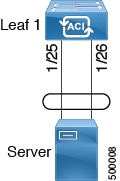
Figure 1. Switch Port Channel Configuration


Note


Layer 3 routed and sub-interface port channels on border leaf switches are supported only on new generation switches, which are switch models with "EX", "FX" or "FX2" at the end of the switch name.


Configuring Port Channels Using the GUI

You must first configure port channels using these procedures before you can configure a Layer 3 route to the port channels using the GUI in subsequent procedures.

The procedure below uses a Quick Start wizard.

Before you begin


Note


The procedures in this section are meant specifically for configuring port channels as a prerequisite to the procedures for configuring a Layer 3 routed or sub-interface port channel. For general instructions on configuring leaf switch port channels, refer to the Cisco APIC Basic Configuration Guide.


  • The ACI fabric is installed, APIC controllers are online, and the APIC cluster is formed and healthy.

  • An APIC fabric administrator account is available that will enable creating the necessary fabric infrastructure configurations.

  • The target leaf switches are registered in the ACI fabric and available.

Procedure


Step 1

On the APIC menu bar, navigate to Fabric > External Access Policies > Quick Start, and click Configure Interface, PC, and VPC.

Step 2

In the Configure Interface, PC, and VPC work area, click the large + to select switches to configure.

Step 3

In the Switches section, select a switch ID from the drop-down list of available switch IDs.

Step 4

Click the large + to configure switch interfaces.

Step 5

In the Interface Type field, specify PC as the interface type to use.

Step 6

In the Interfaces field, specify the interface IDs to use.

Step 7

(Optional) In the Interface Selector Name field, enter a unique interface selector name, if desired.

Step 8

In the Interface Policy Group area, specify the interface policies to use. For example, click the Port Channel Policy drop-down arrow to choose an existing port channel policy or to create a new port channel policy.

Note

 
  • Choosing to create a port channel policy displays the Create Port Channel Policy dialog box where you can specify the policy details and enable features such as symmetric hashing. Also note that choosing the Symmetric hashing option displays the Load Balance Hashing field, which enables you to configure hash tuple. However, only one customized hashing option can be applied on the same leaf switch.

  • Symmetric hashing is not supported on the following switches:

    • Cisco Nexus 93128TX

    • Cisco Nexus 9372PX

    • Cisco Nexus 9372PX-E

    • Cisco Nexus 9372TX

    • Cisco Nexus 9372TX-E

    • Cisco Nexus 9396PX

    • Cisco Nexus 9396TX

Step 9

In the Attached Device Type field, select the External Routed Devices option.

Step 10

In the Domain field, create a domain or choose one to assign to the interface.

Step 11

If you choose to create a domain, in the VLAN field, select from existing VLAN pools or create a new VLAN range to assign to the interface.

Step 12

Click Save to update the policy details, then click Submit to submit the switch profile to the APIC.

The APIC creates the switch profile, along with the interface, selector, and attached device type policies.

What to do next

Configure a Layer 3 routed port channel or a Layer 3 sub-interface port channel using the GUI.

Configuring a Layer 3 Routed Port-Channel Using the GUI

This procedure configures a Layer 3 route to the port channels that you created previously.

Before you begin

  • The ACI fabric is installed, APIC controllers are online, and the APIC cluster is formed and healthy.

  • An APIC fabric administrator account is available that will enable creating the necessary fabric infrastructure configurations.

  • The target leaf switches are registered in the ACI fabric and available.

  • Port channels are configured using the procedures in "Configuring Port Channels Using the GUI".

Procedure


Step 1

On the APIC menu bar, navigate to Tenants > Tenant > Networking > External Routed Networks > L3Out > Logical Node Profiles > node > Logical Interface Profiles.

Step 2

Select the interface that you want to configure. The Logical Interface Profile page for that interface opens.

Step 3

Click on Routed Interfaces. The Properties page opens.

Step 4

Click on the Create (+) button to configure the Layer 3 routed port-channel. The Select Routed Interface page opens.

Step 5

In the Path Type field, select Direct Port Channel.

Step 6

In the Path field, select the port channel that you created previously from the drop-down list. This is the path to the port channel end points for the interface profile.

Step 7

In the Description field, enter a description of the routed interface.

Step 8

In the IPv4 Primary / IPv6 Preferred Address field, enter the primary IP addresses of the path attached to the Layer 3 outside profile.

Step 9

In the IPv6 DAD field, select disabled or enabled.

See "Configuring IPv6 Neighbor Discovery Duplicate Address Detection" for more information for this field.

Step 10

In the IPv4 Secondary / IPv6 Additional Addresses field, enter the secondary IP addresses of the path attached to the Layer 3 outside profile.

See "Configuring IPv6 Neighbor Discovery Duplicate Address Detection" for more information for the IPv6 DAD field in the Create Secondary IP Address screen.

Step 11

Check the ND RA Prefix box if you wish to enable a Neighbor Discovery Router Advertisement prefix for the interface. The ND RA Prefix Policy option appears.

When this is enabled, the routed interface is available for auto configuration and the prefix is sent to the host for auto-configuration.

While ND RA Interface policies are deployed under BDs and/or Layer 3 Outs, ND prefix policies are deployed for individual subnets. The ND prefix policy is on a subnet level.

The ND RA Prefix applies only to IPv6 addresses.

Step 12

If you checked the ND RA Prefix box, select the ND RA Prefix policy that you want to use. You can select the default policy or you can choose to create your own ND RA prefix policy. If you choose to create your own policy, the Create ND RA Prefix Policy screen appears:

  1. In the Name field, enter the Router Advertisement (RA) name for the prefix policy.

  2. In the Description field, enter a description of the prefix policy.

  3. In the Controller State field, check the desired check boxes for the controller administrative state. More than one can be specified. The default is Auto Configuration and On link.

  4. In the Valid Prefix Lifetime field, choose the desired value for the length of time that you want the prefix to be valid. The range is from 0 to 4294967295 milliseconds. The default is 2592000.

  5. In the Preferred Prefix Lifetime field, choose the desired value for the preferred lifetime of the prefix. The range is from 0 to 4294967295 milliseconds. The default is 604800.

  6. Click Submit.

Step 13

In the MAC Address field, enter the MAC address of the path attached to the Layer 3 outside profile.

Step 14

In the MTU (bytes) field, set the maximum transmit unit of the external network. The range is 576 to 9216. To inherit the value, enter inherit in the field.

Step 15

In the Target DSCP field, select the target differentiated services code point (DSCP) of the path attached to the Layer 3 outside profile from the drop-down list.

Step 16

In the Link-local Address field, enter an IPv6 link-local address. This is the override of the system-generated IPv6 link-local address.

Step 17

Click Submit.

Step 18

Determine if you want to configure Layer 3 Multicast for this port channel.

To configure Layer 3 Multicast for this port channel:

  1. On the APIC menu bar, navigate to the Layer 3 Out that you selected for this port channel (Tenants > Tenant > Networking > External Routed Networks > L3Out).

  2. Click on the Policy tab to access the Properties screen for the Layer 3 Out.

  3. In the Properties screen for the Layer 3 Out, scroll down to the PIM field, then click the check box next to that field to enable PIM.

    This enables PIM on all interfaces under the Layer 3 Out, including this port channel.

  4. Configure PIM on the external router.

    You have to have a PIM session from the external router to the port channel. Refer to the documentation that you received with the external router for instructions on configuring PIM on your external router.

  5. Map the port channel L3 Out to a VRF that has Multicast enabled.

    See Tenant Routed Multicast for those instructions. Note the following:

    • You will select a specific VRF that has Multicast enabled as part of this port channel L3 Out to VRF mapping process. In the Multicast screen for that VRF, if you do not see the L3 Out for this port channel when you try to select an L3 Out in the Interfaces area, go back to the L3 Out for this port channel, go to the Policy tab, select the appropriate VRF, then click Submit and Submit Changes. The L3 Out for this port channel should now be available in the Multicast screen for that VRF.

    • You have to configure a Rendezvous Point (RP) for Multicast, an IP address that is external to the fabric. You can specify static RP, auto RP, fabric RP, or bootstrap router for the RP. For example, if you choose static RP, the IP address would be present on the external router, and APIC will learn this IP address through the L3 Out. See Tenant Routed Multicast for more information.


Configuring a Layer 3 Sub-Interface Port-Channel Using the GUI

This procedure configures a Layer 3 sub-interface route to the port channels that you created previously.

Before you begin

  • The ACI fabric is installed, APIC controllers are online, and the APIC cluster is formed and healthy.

  • An APIC fabric administrator account is available that will enable creating the necessary fabric infrastructure configurations.

  • The target leaf switches are registered in the ACI fabric and available.

  • Port channels are configured using the procedures in "Configuring Port Channels Using the GUI".

Procedure


Step 1

On the APIC menu bar, navigate to Tenants > Tenant > Networking > External Routed Networks > L3Out > Logical Node Profiles > node > Logical Interface Profiles.

Step 2

Select the interface that you want to configure. The Logical Interface Profile page for that interface opens.

Step 3

Click on Routed Sub-interfaces. The Properties page opens.

Step 4

Click on the Create (+) button to configure the Layer 3 routed sub-interface port-channel. The Select Routed Sub-Interface page opens.

Step 5

In the Path Type field, select Direct Port Channel.

Step 6

In the Path field, select the port channel that you created previously from the drop-down list. This is the path to the port channel end points for the interface profile.

Step 7

In the Description field, enter a description of the routed interface.

Step 8

In the Encap field, select VLAN from the drop-down menu. This is the encapsulation of the path attached to the Layer 3 outside profile. Enter an integer value for this entry.

Step 9

In the IPv4 Primary / IPv6 Preferred Address field, enter the primary IP addresses of the path attached to the Layer 3 outside profile.

Step 10

In the IPv6 DAD field, select disabled or enabled.

See "Configuring IPv6 Neighbor Discovery Duplicate Address Detection" for more information for this field.

Step 11

In the IPv4 Secondary / IPv6 Additional Addresses field, enter the secondary IP addresses of the path attached to the Layer 3 outside profile.

See "Configuring IPv6 Neighbor Discovery Duplicate Address Detection" for more information for the IPv6 DAD field in the Create Secondary IP Address screen.

Step 12

Check the ND RA Prefix box if you wish to enable a Neighbor Discovery Router Advertisement prefix for the interface. The ND RA Prefix Policy option appears.

When this is enabled, the routed interface is available for auto configuration and the prefix is sent to the host for auto-configuration.

While ND RA Interface policies are deployed under BDs and/or Layer 3 Outs, ND prefix policies are deployed for individual subnets. The ND prefix policy is on a subnet level.

The ND RA Prefix applies only to IPv6 addresses.

Step 13

If you checked the ND RA Prefix box, select the ND RA Prefix policy that you want to use. You can select the default policy or you can choose to create your own ND RA prefix policy. If you choose to create your own policy, the Create ND RA Prefix Policy screen appears:

  1. In the Name field, enter the Router Advertisement (RA) name for the prefix policy.

  2. In the Description field, enter a description of the prefix policy.

  3. In the Controller State field, check the desired check boxes for the controller administrative state. More than one can be specified. The default is Auto Configuration and On link.

  4. In the Valid Prefix Lifetime field, choose the desired value for the length of time that you want the prefix to be valid. The range is from 0 to 4294967295 milliseconds. The default is 2592000.

  5. In the Preferred Prefix Lifetime field, choose the desired value for the preferred lifetime of the prefix. The range is from 0 to 4294967295 milliseconds. The default is 604800.

  6. Click Submit.

Step 14

In the MAC Address field, enter the MAC address of the path attached to the Layer 3 outside profile.

Step 15

In the MTU (bytes) field, set the maximum transmit unit of the external network. The range is 576 to 9216. To inherit the value, enter inherit in the field.

Step 16

In the Link-local Address field, enter an IPv6 link-local address. This is the override of the system-generated IPv6 link-local address.

Verification: Use the CLI show int command on the leaf switches where the external switch is attached to verify that the vpc is configured accordingly.

Step 17

Click Submit.


Configuring a Layer 3 Routed Port-Channel Using the NX-OS CLI

This procedure configures a Layer 3 routed port channel.

Procedure

  Command or Action Purpose

Step 1

configure

Example:

apic1# configure

Enters global configuration mode.

Step 2

leaf node-id

Example:

apic1(config)# leaf 101

Specifies the leaf switch or leaf switches to be configured. The node-id can be a single node ID or a range of IDs, in the form node-id1-node-id2, to which the configuration will be applied.

Step 3

interface port-channel channel-name

Example:

apic1(config-leaf)# interface port-channel po1

Enters the interface configuration mode for the specified port channel.

Step 4

no switchport

Example:

apic1(config-leaf-if)# no switchport

Makes the interface Layer 3 capable.

Step 5

vrf member vrf-name tenant tenant-name

Example:

apic1(config-leaf-if)# vrf member v1 tenant t1

Associates this port channel to this virtual routing and forwarding (VRF) instance and L3 outside policy, where:

  • vrf-name is the VRF name. The name can be any case-sensitive, alphanumeric string up to 32 characters.

  • tenant-name is the tenant name. The name can be any case-sensitive, alphanumeric string up to 32 characters.

Step 6

vlan-domain member vlan-domain-name

Example:

apic1(config-leaf-if)# vlan-domain member dom1

Associates the port channel template with the previously configured VLAN domain.

Step 7

ip address ip-address/subnet-mask

Example:

 apic1(config-leaf-if)# ip address 10.1.1.1/24

Sets the IP address and subnet mask for the specified interface.

Step 8

ipv6 address sub-bits/prefix-length preferred

Example:

 apic1(config-leaf-if)# ipv6 address 2001::1/64 preferred

Configures an IPv6 address based on an IPv6 general prefix and enables IPv6 processing on an interface, where:

  • sub-bits is the subprefix bits and host bits of the address to be concatenated with the prefixes provided by the general prefix specified with the prefix-name argument. The sub-bits argument must be in the form documented in RFC 2373 where the address is specified in hexadecimal using 16-bit values between colons.

  • prefix-length is the length of the IPv6 prefix. A decimal value that indicates how many of the high-order contiguous bits of the address comprise the prefix (the network portion of the address). A slash mark must precede the decimal value.

Step 9

ipv6 link-local ipv6-link-local-address

Example:

 apic1(config-leaf-if)# ipv6 link-local fe80::1

Configures an IPv6 link-local address for an interface.

Step 10

mac-address mac-address

Example:

 apic1(config-leaf-if)# mac-address 00:44:55:66:55::01

Manually sets the interface MAC address.

Step 11

mtu mtu-value

Example:

 apic1(config-leaf-if)# mtu 1500

Sets the MTU for this class of service.

Example

This example shows how to configure a basic Layer 3 port channel.


apic1# configure
apic1(config)# leaf 101
apic1(config-leaf)# interface port-channel po1
apic1(config-leaf-if)# no switchport
apic1(config-leaf-if)# vrf member v1 tenant t1
apic1(config-leaf-if)# vlan-domain member dom1
apic1(config-leaf-if)# ip address 10.1.1.1/24
apic1(config-leaf-if)# ipv6 address 2001::1/64 preferred
apic1(config-leaf-if)# ipv6 link-local fe80::1
apic1(config-leaf-if)# mac-address 00:44:55:66:55::01
apic1(config-leaf-if)# mtu 1500


Configuring a Layer 3 Sub-Interface Port-Channel Using the NX-OS CLI

This procedure configures a Layer 3 sub-interface port channel.

Procedure

  Command or Action Purpose

Step 1

configure

Example:

apic1# configure

Enters global configuration mode.

Step 2

leaf node-id

Example:

apic1(config)# leaf 101

Specifies the leaf switch or leaf switches to be configured. The node-id can be a single node ID or a range of IDs, in the form node-id1-node-id2, to which the configuration will be applied.

Step 3

vrf member vrf-name tenant tenant-name

Example:

apic1(config-leaf-if)# vrf member v1 tenant t1

Associates this port channel to this virtual routing and forwarding (VRF) instance and L3 outside policy, where:, where:

  • vrf-name is the VRF name. The name can be any case-sensitive, alphanumeric string up to 32 characters.

  • tenant-name is the tenant name. The name can be any case-sensitive, alphanumeric string up to 32 characters.

Step 4

vlan-domain member vlan-domain-name

Example:

apic1(config-leaf-if)# vlan-domain member dom1

Associates the port channel template with the previously configured VLAN domain.

Step 5

ip address ip-address / subnet-mask

Example:

 apic1(config-leaf-if)# ip address 10.1.1.1/24

Sets the IP address and subnet mask for the specified interface.

Step 6

ipv6 address sub-bits / prefix-length preferred

Example:

 apic1(config-leaf-if)# ipv6 address 2001::1/64 preferred

Configures an IPv6 address based on an IPv6 general prefix and enables IPv6 processing on an interface, where:

  • sub-bits is the subprefix bits and host bits of the address to be concatenated with the prefixes provided by the general prefix specified with the prefix-name argument. The sub-bits argument must be in the form documented in RFC 2373 where the address is specified in hexadecimal using 16-bit values between colons.

  • prefix-length is the length of the IPv6 prefix. A decimal value that indicates how many of the high-order contiguous bits of the address comprise the prefix (the network portion of the address). A slash mark must precede the decimal value.

Step 7

ipv6 link-local ipv6-link-local-address

Example:

 apic1(config-leaf-if)# ipv6 link-local fe80::1

Configures an IPv6 link-local address for an interface.

Step 8

mac-address mac-address

Example:

 apic1(config-leaf-if)# mac-address 00:44:55:66:55::01

Manually sets the interface MAC address.

Step 9

mtu mtu-value

Example:

 apic1(config-leaf-if)# mtu 1500

Sets the MTU for this class of service.

Step 10

exit

Example:

 apic1(config-leaf-if)# exit

Returns to configure mode.

Step 11

interface port-channel channel-name

Example:

apic1(config-leaf)# interface port-channel po1

Enters the interface configuration mode for the specified port channel.

Step 12

vlan-domain member vlan-domain-name

Example:

apic1(config-leaf-if)# vlan-domain member dom1

Associates the port channel template with the previously configured VLAN domain.

Step 13

exit

Example:

 apic1(config-leaf-if)# exit

Returns to configure mode.

Step 14

interface port-channel channel-name.number

Example:

apic1(config-leaf)# interface port-channel po1.2001

Enters the interface configuration mode for the specified sub-interface port channel.

Step 15

vrf member vrf-name tenant tenant-name

Example:

apic1(config-leaf-if)# vrf member v1 tenant t1

Associates this port channel to this virtual routing and forwarding (VRF) instance and L3 outside policy, where:, where:

  • vrf-name is the VRF name. The name can be any case-sensitive, alphanumeric string up to 32 characters.

  • tenant-name is the tenant name. The name can be any case-sensitive, alphanumeric string up to 32 characters.

Step 16

exit

Example:

 apic1(config-leaf-if)# exit

Returns to configure mode.

Example

This example shows how to configure a basic Layer 3 sub-interface port-channel.


apic1# configure
apic1(config)# leaf 101
apic1(config-leaf)# interface vlan 2001
apic1(config-leaf-if)# no switchport
apic1(config-leaf-if)# vrf member v1 tenant t1
apic1(config-leaf-if)# vlan-domain member dom1
apic1(config-leaf-if)# ip address 10.1.1.1/24
apic1(config-leaf-if)# ipv6 address 2001::1/64 preferred
apic1(config-leaf-if)# ipv6 link-local fe80::1
apic1(config-leaf-if)# mac-address 00:44:55:66:55::01
apic1(config-leaf-if)# mtu 1500
apic1(config-leaf-if)# exit
apic1(config-leaf)# interface port-channel po1
apic1(config-leaf-if)# vlan-domain member dom1
apic1(config-leaf-if)# exit
apic1(config-leaf)# interface port-channel po1.2001
apic1(config-leaf-if)# vrf member v1 tenant t1
apic1(config-leaf-if)# exit


Adding Ports to the Layer 3 Port-Channel Using the NX-OS CLI

This procedure adds ports to a Layer 3 port channel that you configured previously.

Procedure

  Command or Action Purpose

Step 1

configure

Example:

apic1# configure

Enters global configuration mode.

Step 2

leaf node-id

Example:

apic1(config)# leaf 101

Specifies the leaf switch or leaf switches to be configured. The node-id can be a single node ID or a range of IDs, in the form node-id1-node-id2, to which the configuration will be applied.

Step 3

interface Ethernet slot/port

Example:

apic1(config-leaf)# interface Ethernet 1/1-2

Enters interface configuration mode for the interface you want to configure.

Step 4

channel-group channel-name

Example:

apic1(config-leaf-if)# channel-group p01

Configures the port in a channel group.

Example

This example shows how to add ports to a Layer 3 port-channel.


apic1# configure
apic1(config)# leaf 101
apic1(config-leaf)# interface Ethernet 1/1-2
apic1(config-leaf-if)# channel-group p01


Configuring Port Channels Using the REST API

Before you begin


Note


The procedures in this section are meant specifically for configuring port channels as a prerequisite to the procedures for configuring a Layer 3 routed or sub-interface port channel. For general instructions on configuring leaf switch port channels, refer to the Cisco APIC Basic Configuration Guide or Cisco APIC Layer 2 Networking Configuration Guide.


  • The ACI fabric is installed, APIC controllers are online, and the APIC cluster is formed and healthy.

  • An APIC fabric administrator account is available that will enable creating the necessary fabric infrastructure configurations.

  • The target leaf switches are registered in the ACI fabric and available.


Note


In the following REST API example, long single lines of text are broken up with the \ character to improve readability.


Procedure


To configure a port channel using the REST API, send a post with XML such as the following:

Example:

<polUni>
<infraInfra dn="uni/infra">
        <infraNodeP name="test1">
             <infraLeafS name="leafs" type="range">
                  <infraNodeBlk name="nblk" from_="101" to_="101"/>
            </infraLeafS>
            <infraRsAccPortP tDn="uni/infra/accportprof-test1"/>	
       </infraNodeP>
        <infraAccPortP name="test1">
             <infraHPortS name="pselc" type="range">
                   <infraPortBlk name="blk1" fromCard="1" toCard="1" fromPort="18" \ 
                    toPort="19"/>
                	  <infraRsAccBaseGrp tDn="uni/infra/funcprof/accbundle-po17_PolGrp"/>
             </infraHPortS>
        </infraAccPortP>

        <infraFuncP>
             <infraAccBndlGrp name="po17_PolGrp" lagT="link">
                  <infraRsHIfPol  tnFabricHIfPolName="default"/>
                  <infraRsCdpIfPol tnCdpIfPolName="default"/>
                  <infraRsLacpPol tnLacpLagPolName="default"/>
             </infraAccBndlGrp>
        </infraFuncP>

</infraInfra>
</polUni>

What to do next

Configure a Layer 3 routed port channel or sub-interface port channel using the REST API.

Configuring a Layer 3 Routed Port Channel Using the REST API

Before you begin

  • The ACI fabric is installed, APIC controllers are online, and the APIC cluster is formed and healthy.

  • An APIC fabric administrator account is available that will enable creating the necessary fabric infrastructure configurations.

  • The target leaf switches are registered in the ACI fabric and available.

  • Port channels are configured using the procedures in "Configuring Port Channels Using the REST API".


Note


In the following REST API example, long single lines of text are broken up with the \ character to improve readability.


Procedure


To configure a Layer 3 route to the port channels that you created previously using the REST API, send a post with XML such as the following:

Example:

<polUni>
<fvTenant name=pep9>
    <l3extOut descr="" dn="uni/tn-pep9/out-routAccounting" enforceRtctrl="export" \
     name="routAccounting" nameAlias="" ownerKey="" ownerTag="" \
     targetDscp="unspecified">
        <l3extRsL3DomAtt tDn="uni/l3dom-Dom1"/>
        <l3extRsEctx tnFvCtxName="ctx9"/>
        <l3extLNodeP configIssues="" descr="" name="node101" nameAlias="" ownerKey="" \
         ownerTag="" tag="yellow-green" targetDscp="unspecified">
            <l3extRsNodeL3OutAtt rtrId="10.1.0.101" rtrIdLoopBack="yes" \
             tDn="topology/pod-1/node-101">
                <l3extInfraNodeP descr="" fabricExtCtrlPeering="no" \
                 fabricExtIntersiteCtrlPeering="no" name="" nameAlias="" spineRole=""/>
            </l3extRsNodeL3OutAtt>
            <l3extLIfP descr="" name="lifp17" nameAlias="" ownerKey="" ownerTag="" \
             tag="yellow-green">
                <ospfIfP authKeyId="1" authType="none" descr="" name="" nameAlias="">
                    <ospfRsIfPol tnOspfIfPolName=""/>
                </ospfIfP>
                <l3extRsPathL3OutAtt addr="10.1.5.3/24" autostate="disabled" descr="" \
                 encap="unknown" encapScope="local" ifInstT="l3-port" llAddr="::" \
                 mac="00:22:BD:F8:19:FF" mode="regular" mtu="inherit" \
                 tDn="topology/pod-1/paths-101/pathep-[po17_PolGrp]" \
                 targetDscp="unspecified"/>
                <l3extRsNdIfPol tnNdIfPolName=""/>
                <l3extRsIngressQosDppPol tnQosDppPolName=""/>
                <l3extRsEgressQosDppPol tnQosDppPolName=""/>
            </l3extLIfP>
        </l3extLNodeP>
        <l3extInstP descr="" floodOnEncap="disabled" matchT="AtleastOne" \
         name="accountingInst" nameAlias="" prefGrMemb="exclude" prio="unspecified" \
         targetDscp="unspecified">
            <fvRsProv matchT="AtleastOne" prio="unspecified" tnVzBrCPName="webCtrct"/>
            <l3extSubnet aggregate="export-rtctrl,import-rtctrl" descr="" ip="0.0.0.0/0" \
             name="" nameAlias="" scope="export-rtctrl,import-rtctrl,import-security"/>
            <l3extSubnet aggregate="export-rtctrl,import-rtctrl" descr="" ip="::/0" \
             name="" nameAlias="" scope="export-rtctrl,import-rtctrl,import-security"/>
            <fvRsCustQosPol tnQosCustomPolName=""/>
        </l3extInstP>
        <l3extConsLbl descr="" name="golf" nameAlias="" owner="infra" ownerKey="" \
         ownerTag="" tag="yellow-green"/>
    </l3extOut> 
</fvTenant> 
</polUni>

Configuring a Layer 3 Sub-Interface Port Channel Using the REST API

Before you begin

  • The ACI fabric is installed, APIC controllers are online, and the APIC cluster is formed and healthy.

  • An APIC fabric administrator account is available that will enable creating the necessary fabric infrastructure configurations.

  • The target leaf switches are registered in the ACI fabric and available.

  • Port channels are configured using the procedures in "Configuring Port Channels Using the REST API".


Note


In the following REST API example, long single lines of text are broken up with the \ character to improve readability.


Procedure


To configure a Layer 3 sub-interface route to the port channels that you created previously using the REST API, send a post with XML such as the following:

Example:

<polUni>
<fvTenant name=pep9>
    <l3extOut descr="" dn="uni/tn-pep9/out-routAccounting" enforceRtctrl="export" \
     name="routAccounting" nameAlias="" ownerKey="" ownerTag="" targetDscp="unspecified">
        <l3extRsL3DomAtt tDn="uni/l3dom-Dom1"/>
        <l3extRsEctx tnFvCtxName="ctx9"/>
        <l3extLNodeP configIssues="" descr="" name="node101" nameAlias="" ownerKey="" \
         ownerTag="" tag="yellow-green" targetDscp="unspecified">
            <l3extRsNodeL3OutAtt rtrId="10.1.0.101" rtrIdLoopBack="yes" \
             tDn="topology/pod-1/node-101">
                <l3extInfraNodeP descr="" fabricExtCtrlPeering="no" \
                 fabricExtIntersiteCtrlPeering="no" name="" nameAlias="" spineRole=""/>
            </l3extRsNodeL3OutAtt>
            <l3extLIfP descr="" name="lifp27" nameAlias="" ownerKey="" ownerTag="" \
             tag="yellow-green">
                <ospfIfP authKeyId="1" authType="none" descr="" name="" nameAlias="">
                    <ospfRsIfPol tnOspfIfPolName=""/>
                </ospfIfP>
                <l3extRsPathL3OutAtt addr="11.1.5.3/24" autostate="disabled" descr="" \
                 encap="vlan-2001" encapScope="local" ifInstT="sub-interface" \
                 llAddr="::" mac="00:22:BD:F8:19:FF" mode="regular" mtu="inherit" \
                 tDn="topology/pod-1/paths-101/pathep-[po27_PolGrp]" \
                 targetDscp="unspecified"/>
                <l3extRsNdIfPol tnNdIfPolName=""/>
                <l3extRsIngressQosDppPol tnQosDppPolName=""/>
                <l3extRsEgressQosDppPol tnQosDppPolName=""/>
            </l3extLIfP>
        </l3extLNodeP>
        <l3extInstP descr="" floodOnEncap="disabled" matchT="AtleastOne" \
         name="accountingInst" nameAlias="" prefGrMemb="exclude" prio="unspecified" \
         targetDscp="unspecified">
            <fvRsProv matchT="AtleastOne" prio="unspecified" tnVzBrCPName="webCtrct"/>
            <l3extSubnet aggregate="export-rtctrl,import-rtctrl" descr="" ip="0.0.0.0/0" \
             name="" nameAlias="" scope="export-rtctrl,import-rtctrl,import-security"/>
            <l3extSubnet aggregate="export-rtctrl,import-rtctrl" descr="" ip="::/0" \
             name="" nameAlias="" scope="export-rtctrl,import-rtctrl,import-security"/>
            <fvRsCustQosPol tnQosCustomPolName=""/>
        </l3extInstP>
        <l3extConsLbl descr="" name="golf" nameAlias="" owner="infra" ownerKey="" \
         ownerTag="" tag="yellow-green"/>
    </l3extOut> 
</fvTenant> 
</polUni>