Overview
This guide provides essential best practices to ensure a smooth, secure, and efficient transfer of settings and policies from a source to a target firewall, minimizing disruption and optimizing security posture post-migration.
Best Practices Before Migration
Thorough preparation is crucial for successful firewall migration. Adhere to the following best practices:
-
Identify Devices and Software Versions: Clearly identify both your source and target firewall devices and their respective software versions. For more information, see Cisco Secure Firewall Migration Tool Compatibility Guide.
-
Define Migration Scope: Determine precisely what you intend to migrate: a full configuration, partial settings, or specific policies.
-
Engage Stakeholders: Involve all relevant stakeholders, such as Network, Security, and Chain Management teams, to align on migration goals and timelines.
-
Document Network Topology: Create a comprehensive map of your current network architecture. This will help you understand dependencies and plan the migration effectively.
-
Confirm Maintenance Window: Secure a tentative or fixed maintenance window to minimize any potential disruption to services.
-
Backup Everything: Perform a full configuration backup of the source firewall. This must include certificates, VPN keys, and any connect packages.
-
Validate Access and Licenses: Ensure you have SSH, HTTPS, or console access to both the source and destination firewalls. Additionally, validate that all necessary licenses are active on the target device.
-
Perform Health Checks: Conduct health checks on all devices involved in the migration to confirm their readiness.
-
Prepare Target Firewall: If required, perform a factory reset or clear existing configurations on the target firewall. Confirm that its software version matches your migration plan.
Best Practices During Migration
After the preparations are complete, follow these best practices while actively using the Secure Firewall Migration Tool:
-
Install the Latest Firewall Migration Tool: Download and install the most current version of the Firewall Migration Tool from Software Download page. Then, validate the tool's functionality before starting any migration.
-
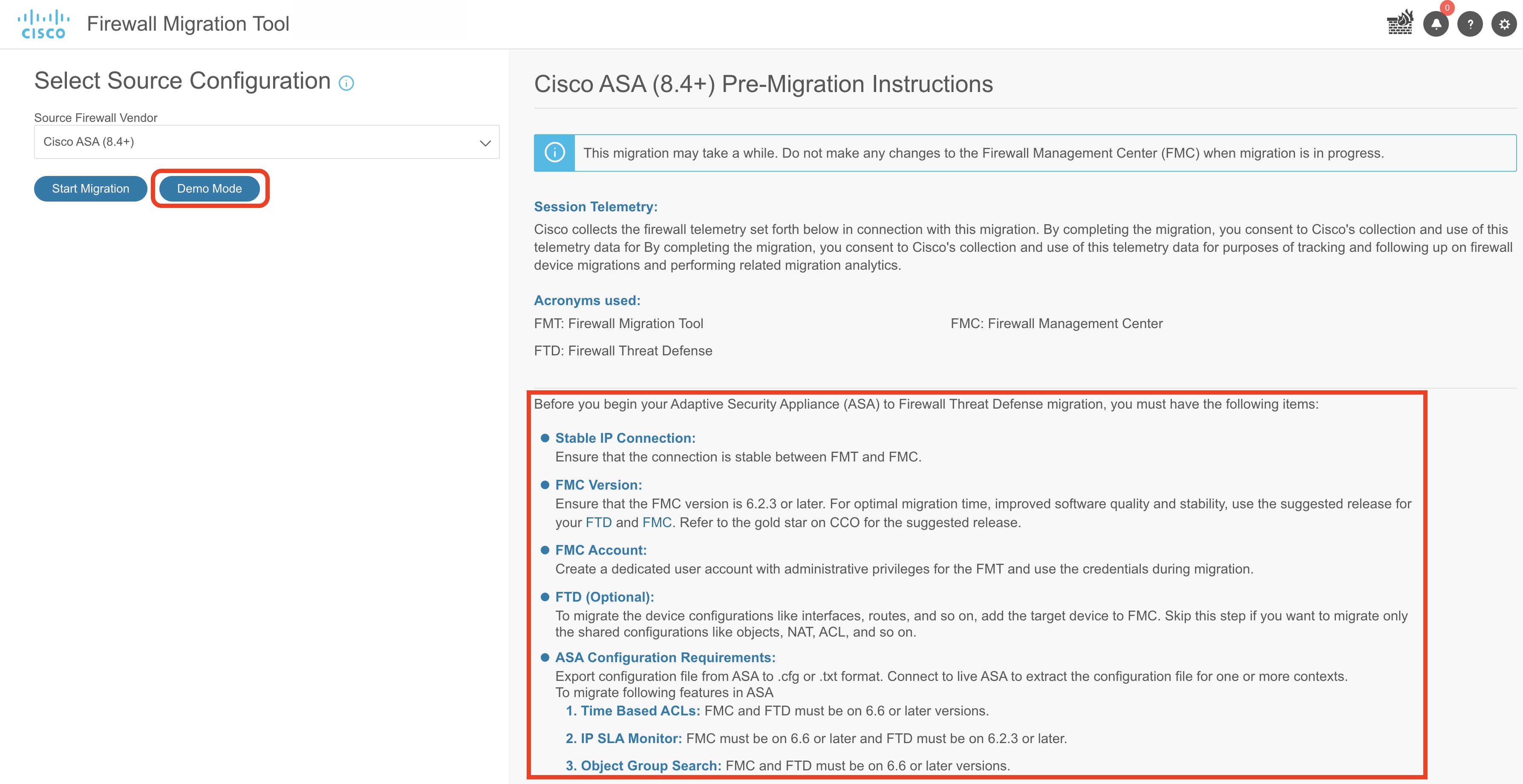
Perform Dry Run or Test: Execute a dry-run migration. Test the process in a lab environment, or use the demo mode in the Firewall Migration Tool. These actions help identify and resolve potential issues in advance. Review the pre-migration instructions available on the Firewall Migration Tool homepage.
-
Freeze Configuration Changes: Do not make any configuration changes on the source firewall during the migration process. If any changes must occur, ensure they are applied to the target firewall after migration.
-
Push Configuration: Ensure that all prior steps are completed and the system is ready. Then, use the Firewall Migration Tool to push the configuration to the target firewall.
Best Practices After Migration
Post-migration verification and optimization are critical to ensure a successful and secure transition:
-
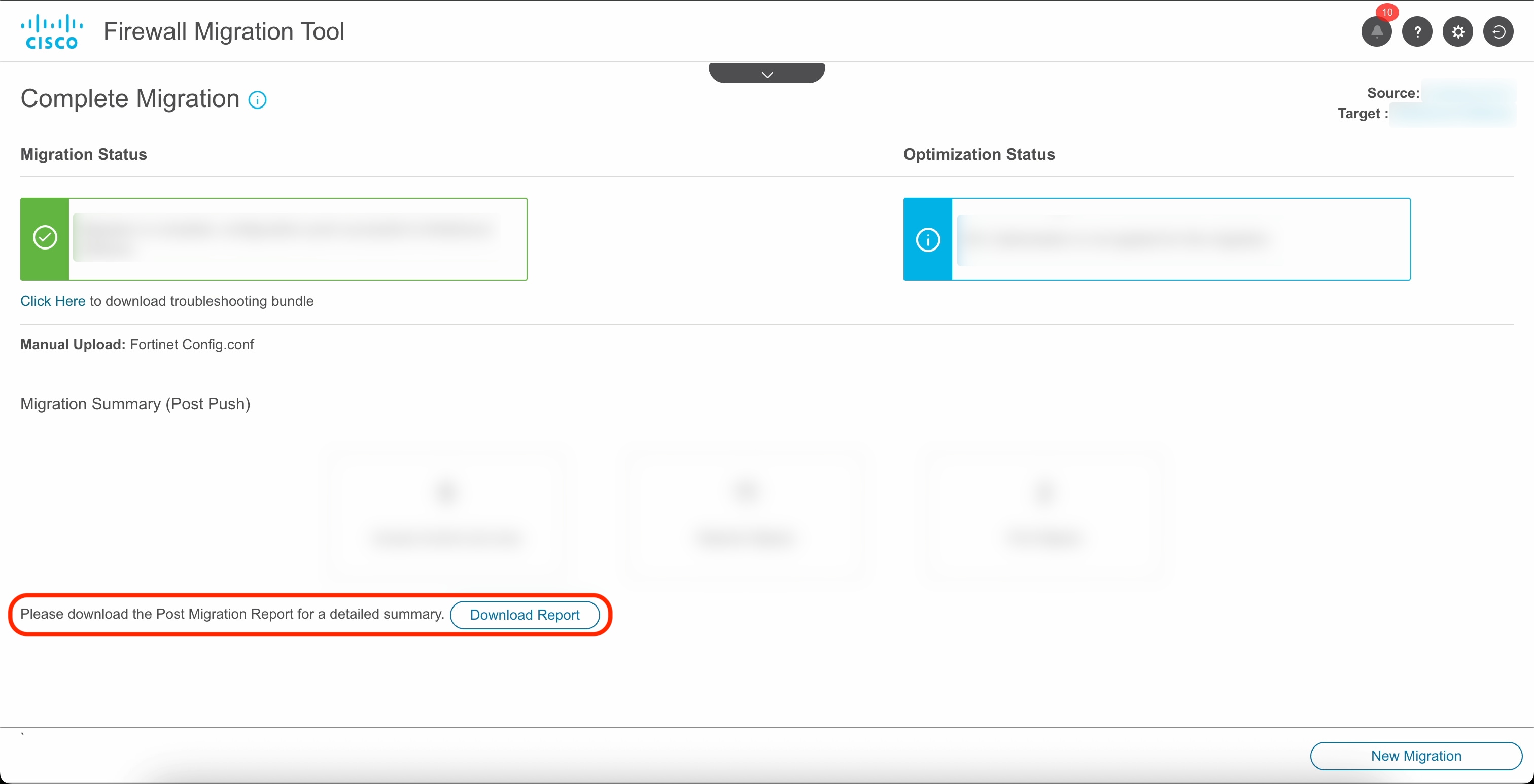
Download Post-Migration Report: Always download the post-migration report generated by FMT. In case of any failures or issues, contact TAC (Technical Assistance Center) immediately.
-
Verify Connectivity: Test network connectivity by using ping or traceroute tools on key IP addresses in your environment.
-
Test VPNs and Rules: Validate the functionality of Site-to-Site and remote access VPNs, access rules, NAT functionality, and logging.
-
Review Integrations: Check that all integrated services, such as syslog, SNMP, NTP, DNS, and monitoring tools, are running as expected.
-
Optimize Policies: After confirming connectivity, use the policy analyzer and policy optimizer in Security Cloud Control to refine your access policies.
Troubleshooting for Firewall Migration Tool
This section describes troubleshooting steps and resources for the Firewall Migration Tool.
Migration failures often occur during the upload of the source configuration file or during the push of the migrated configuration to the Firewall Management Center.
Common causes include:
-
Invalid or unexpected files in the source configuration archive.
-
Missing or incomplete configuration elements.
-
Unsupported file formats or compression types.
-
Parsing errors due to unrecognized or malformed configuration lines.
-
Network connectivity issues during migration.
Firewall Migration Tool Support Bundle
The Firewall Migration Tool provides a support bundle that contains valuable troubleshooting information such as log files, DB, and configuration files. To download the support bundle:
-
On the Complete Migration screen, click the Support button.
-
Check the Support Bundle check box and then select the configuration files to download.

Note
The Log and DB files are selected for download by default.
-
Click Download.
The support bundle downloads as a zip file to your local path. Extract the zip file to view the log, database, and configuration files.
-
Click Email us to email the failure details to the technical team.
You can also attach the downloaded support files to your email.
-
Click Visit TAC page to create a Cisco Technical Assistance Center (TAC) case for this failure.
Note
You can open a TAC case, at any time during the migration, from the support page.
Logs and Other Files Used for Troubleshooting
The table lists the names and locations of files used for identifying and troubleshooting issues.
|
File |
Location |
|---|---|
|
log file |
<migration_tool_folder>\logs |
|
pre-migration report |
<migration_tool_folder>\resources |
|
post-migration report |
<migration_tool_folder>\resources |
|
unparsed file |
<migration_tool_folder>\resources |
Error Messages with Workaround
This section lists errors reported in the Firewall Migration Tool and their recommended actions.
Error: Error While Pushing Network Groups: No Data
| Explanation | Recommended Action |
|---|---|
|
This error occurs in the source configuration file, when there is an object that has no IP Address or port value defined to it. |
Check the verbose logs on the Firewall Migration Tool to identify the file that has the error. Extract the configuration file again using the Web Visualization Tool. This problem occurs because of an export issue in Check Point. If the issue persists, contact TAC to create a case for this failure and provide the support bundle downloaded from the Firewall Migration Tool. For information on how to download support bundle, see Firewall Migration Tool Support Bundle. |
Error: VLAN Interface Type is Not Supported on This Device Model
| Explanation | Recommended Action |
|---|---|
| This error occurs if you are using an older version of the Firewall Migration Tool. | Download the latest version of the Firewall Migration Tool to proceed with the migration. |
Error: Access-list in bulk [1 - 1000] Another operation by another user prevented this operation. Please retry.
| Explanation | Recommended Action |
|---|---|
| This error occurs when multiple users try to connect to the management center as the Firewall Migration Tool during the migration. |
Avoid multiple connections to the management center when the Firewall Migration Tool is migrating a configuration. |
Error: Another operation by another user prevented this operation. Please retry after sometime.
| Explanation | Recommended Action |
|---|---|
| This error occurs when multiple users try to connect to the management center as the Firewall Migration Tool during the migration. | Avoid multiple connections to the management center when the Firewall Migration Tool is migrating a configuration. |
Error: Object deletion restricted for Outside. Remove object from the following: Device - AUMEL DHCP Relay Se
| Explanation | Recommended Action |
|---|---|
| This error occurs when the management center has several existing configurations and the Firewall Migration Tool is unable to clear the attributes of the device-specific configurations during the Push Phase. | Clear the existing configurations on the management center and proceed with the migration. If the issue persists, contact Cisco TAC to create a TAC case for this failure and provide the support bundle downloaded from the Firewall Migration Tool. |
Error: Invalid logical name used by Ethernet1/2. The name is being used in policies that are not supported by the Migration Tool. We recommend that you use a clean device for migration
| Explanation | Recommended Action |
|---|---|
| This error occurs when the management center has several existing configurations and the Firewall Migration Tool is unable to clear the attributes of the device-specific configurations during the Push Phase. | Clear the existing configurations on the management center and proceed with the migration. If the issue persists, contact Cisco TAC to create a TAC case for this failure and provide them with the support bundle downloaded from the Firewall Migration Tool. |
Error: System experienced internal issues, please check the logs
| Explanation | Recommended Action |
|---|---|
| This error occurs when the management center has several existing configurations and the Firewall Migration Tool is unable to clear the attributes of the device-specific configurations during the Push Phase. | Clear the existing configurations on the management center and proceed with the migration. If the issue persists, contact Cisco TAC to create a TAC case for this failure and provide them with the support bundle downloaded from the Firewall Migration Tool. |
Error: [PushException(PushException(Exception('Cannot modify the interface which is a member of EtherChannel interface.',),),), 'interfaces']
| Explanation | Recommended Action |
|---|---|
| This error occurs when the management center has several existing configurations and the Firewall Migration Tool is unable to clear the attributes of the device-specific configurations during the Push Phase. | Clear the existing configurations on the management center and proceed with the migration. If the issue persists, contact Cisco TAC to create a TAC case for this failure and provide them with the support bundle downloaded from the Firewall Migration Tool. |
Error: Management Center Connection Issue
| Explanation | Recommended Action |
|---|---|
| This error occurs when the Firewall Migration Tool loses connectivity to the management center. | Check the network connectivity. |
Error: Invalid URL
| Explanation | Recommended Action |
|---|---|
| This error occurs when the Firewall Migration Tool supports the migration of a particular feature. For example, ACE Category Migration. The management center or the threat defense is not of the version that has the API support for the feature. | Refer to the Firewall Migration Tool User Guide and upgrade the management center or threat defense to the required version. |
Error: No Resource Found
| Explanation | Recommended Action |
|---|---|
| This error occurs when the Firewall Migration Tool supports the migration of a particular feature. For example, ACE Category Migration. The management center or the threat defense is not of the version that has the API support for the feature. | Refer to the Firewall Migration Tool user guide, and upgrade the management center or threat defense to the required version. |
Error: network objects of type [host] bulk on [1-50] - {"error":{"category":"FRAMEWORK","messages":[{"description":"Invalid object ? is not allowed as the last character in an object description Please remove or replace ? and retry"}],"severity":"ERROR"}}
| Explanation | Recommended Action |
|---|---|
| This error occurs when there are special characters in the Object description parameter of an object. | Check the verbose logs to identify the source configuration and the object that include special characters, that management center does not support. Correct the source configuration, then upload and migrate the configuration again by using the Firewall Migration Tool. |
Error: Object with the same name already exists
| Explanation | Recommended Action |
|---|---|
| This error occurs when Firewall Migration Tool is unable to validate the parsed configuration against the configuration elements available on the management center such as objects. This can be caused by any one of several reasons such as loss of connectivity. | Resume the migration, revalidate, and push the configuration by selecting . |
 Feedback