Allow or Bypass Traffic using URL Filtering
You can allow or bypass traffic to and from your cloud account using URL Filtering in Multicloud Defense.
Is this Guide for You
This guide is intended for :
-
Users of platforms such as AWS, Azure, GCP, OCI who are looking at protecting their assets over the cloud.
-
Cloud Service providers.
-
Administrators – Customer administration teams and administrators both external and internal to Cisco.
Overview of URL Filtering to Allow or Deny Traffic
You can employ different multicloud strategies to secure your accounts over the cloud to allow or deny specific traffic. There can be several reasons to protect or bypass traffic from certain websites. Some of these reasons could be:
-
Block traffic from malicious sites to prevent potential threats.
-
Allow trusted sites to bypass security checks to ensure smooth access.
-
Protect the traffic to prioritize bandwidth for key services.
-
Regulatory requirements: Businesses can specify traffic regulation and routing as protective measures to comply with regulatory standards.
-
Internal policies within organizations govern the management of traffic across specific sites.
Workflow for URL Filtering
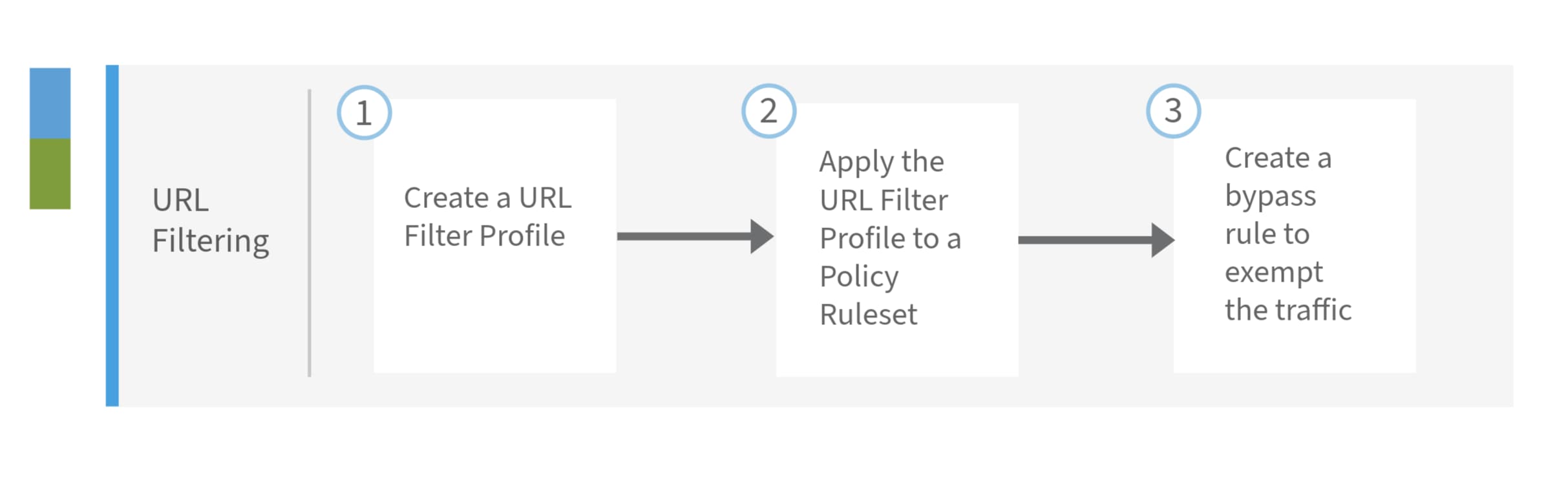
The following workflow illustrates the activities involved in filtering URLs to allow or bypass traffic for specific websites.
|
Number |
Workspace |
Steps |
|
1. |
URL Filtering |
Create a URL Filter Profile. For details, see Create a URL Filtering Profile. |
|
2. |
URL Filtering |
Apply the URL Filter Profile to a Policy Rule Set. For details, see Apply Filter Profile to Policy Rule Set. |
|
3. |
URL Filtering |
Create a rule to bypass inspection or filtering of traffic. |
URL Filtering to Allow or Bypass Traffic
To configure Multicloud Defense to allow traffic from one site to another, (for example, allow and bypass traffic from microsoft.com) using URL-based filtering, follow these steps:
Before you begin
-
Your account is active on Multicloud Defense and is secured through policies.
-
Your network setting is configured to use the proxy that examines the traffic. For details, see Handling HTTP Traffic.
Procedure
|
Step 1 |
Create a URL Filter Profile. A URL filtering profile evaluates HTTP requests and determines whether to allow or deny traffic based on specified URL patterns. For details, see Create a URL Filtering Profile
|
||
|
Step 2 |
Apply the URL Filter Profile to a Policy Rule Set. Associate the URL Filtering Profile with a policy rule set to enforce the filtering profile. For more information, see Apply Filter Profile to Policy Rule Set.
|
||
|
Step 3 |
Bypass inspection or filtering. If you need to bypass inspection or filtering for traffic destined to a specific site (microsoft.com), you can create a rule that exempts this traffic. You can create a rule within the URL filter profile or create it separately under Policies. |
What to do next
Multicloud Defense implements these configurations and will allow traffic from example.com to microsoft.com and will also bypass inspection for traffic destined to microsoft.com, as required.
Troubleshooting for URL Filtering
For any assistance on troubleshooting for URL Filtering, contact Cisco Support. Here are related references and additional resources:
 Feedback