Release Notes for Cisco Secure Firewall ASDM, 7.24(x)
This document contains release information for ASDM version 7.24(x) for the Secure Firewall ASA.
Important Notes
-
ASDM 7.24(1) requires Java 11—ASDM 7.24(1) now requires Java 11. For the Oracle version, which is the version bundled with the ASA image, you will need to install Oracle JDK 11: https://www.oracle.com/java/technologies/javase/jdk11-archive-downloads.html. Later versions are not compatible. To minimize risk and ensure better compatibility and stability with Java, we are taking a phased approach to moving off of Java 8, starting with this move to Java 11. If you upgrade to the ASDM Launcher 1.9(10) or later that comes with 7.24(1), you can still launch earlier versions of ASDM.
For the OpenJRE version, you do not need to install Java; it is built-in.
-
ASA Virtual cannot be downgraded from 9.24(1)—After upgrading to 9.24(1), which includes a new Grub bootloader, you cannot downgrade to an earlier version. To upgrade to later versions, you will first have to upgrade to 9.24(1).
-
For ASA Virtual on OCI, Arm instances may experience reduced throughput on legacy hypervisors (especially with SR-IOV enabled)—See https://docs.oracle.com/en-us/iaas/Content/Compute/known-issues.htm for more information. Contact OCI for support.
-
ASDM Launcher in FIPS mode can take a long time to start—It can take longer than three minutes to start the ASDM Launcher in FIPS mode due to a reverse DNS lookup failure. This delay occurs when your DNS server does not return a valid PTR record for a reverse DNS lookup, so ASDM falls back to the NetBIOS Name Service, which can add several minutes to the startup time.
-
During a software upgrade of ASA cluster, the VPN load-balancing cluster does not form if members run different ASA versions. You must perform one of the following operations:
-
Upgrade all members to the same version. The VPN load-balancing cluster re-forms automatically after all members run the same version. VPN load balancing is unavailable during the mixed-version window.
-
For a hitless upgrade, temporarily remove the cluster keys from all members. Keep the interval without cluster keys as short as possible. Upgrade all members and then reconfigure the cluster keys on all members. VPN load balancing remains available during the upgrade. When you perform this operation, syslog 718089 is logged:
%ASA-1-718089: VPN LB cluster is running without authentication. Configure cluster key to secure the cluster.
-
System Requirements
ASDM requires a computer with a CPU with at least 4 cores. Fewer cores can result in high memory usage.
ASDM Java Requirements
You can install ASDM using Oracle JDK 11 (asdm-version.bin) or OpenJRE 11 (asdm-openjre-version.bin) or ARM64 (asdm-openjre-arm64-version.bin). For the Oracle version, you will need to install Oracle JDK 11: https://www.oracle.com/java/technologies/javase/jdk11-archive-downloads.html. Later versions are not compatible. You will have to use Java 8 for earlier versions of ASDM. For the OpenJRE version, you do not need to install Java; it is built-in.
The Oracle version of ASDM is included in the ASA package; if you want to use the OpenJRE version, you will need to copy it to the ASA and configure the ASA to use that version of ASDM.
 Note |
ASDM is not supported on Linux. |
|
Operating System |
Browser |
Oracle JDK |
OpenJRE |
OpenJRE ARM64 |
||||||
|---|---|---|---|---|---|---|---|---|---|---|
|
Firefox |
Safari |
Chrome |
||||||||
|
MacOS 11 and later on Apple silicon (ARM64/M-series) Macs |
Yes |
Yes |
||||||||
|
Microsoft Windows (English and Japanese):
|
Yes |
No support |
Yes |
11 |
11
|
|||||
|
Apple OS X 10.4 and later |
Yes |
Yes |
Yes (64-bit version only) |
11 |
11 |
|||||
ASDM Compatibility Notes
The following table lists compatibility caveats for ASDM.
|
Conditions |
Notes |
||
|---|---|---|---|
|
MacOS 11 and later on Apple silicon (ARM64/M-series) Macs |
The ARM64-compatible OpenJRE image, asdm-openjre-arm64-version.bin, is provided for Apple silicon Macs, including M1, M2, M3, and M4 systems. When ASDM is launched using an Intel-based component on an Apple silicon Mac, macOS displays a warning indicating that support for Intel-based applications may end in a future macOS release: 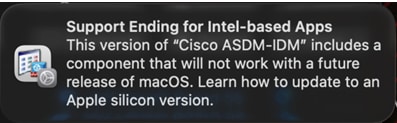 You should update to the Apple silicon version to run ASDM natively without Rosetta 2 and improve compatibility with future macOS releases. For information on the compatible versions, refer to the Apple's Rosetta support announcement. |
||
|
ASDM Launcher compatibility with ASDM version |
"Unable to Launch Device Manager" error message. If you upgrade to a new ASDM version and then get this error, you may need to re-install the latest Launcher.
|
||
|
Self-signed certificate not valid due to a time and date mismatch with ASA |
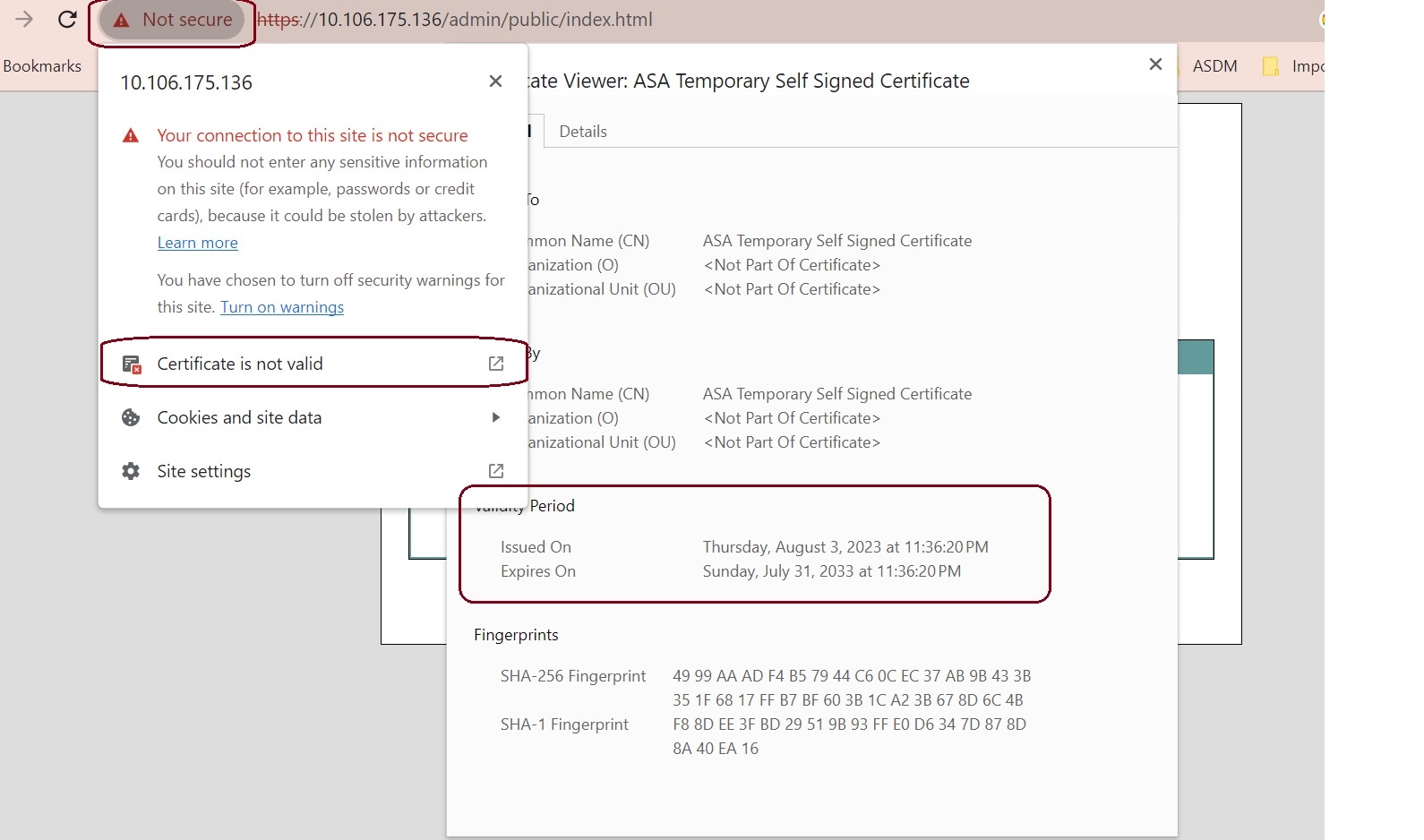
ASDM validates the self-signed SSL certificate, and if the ASA's date is not within the certificate's Issued On and Expires On date, ASDM will not launch. If there is a time and date mismatch, you will see the following error: 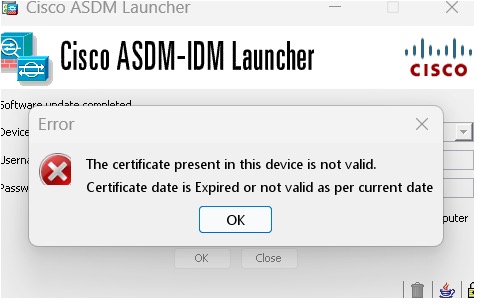
To fix the issue: Set the correct time on the ASA and reload. To check the certificate dates, (example shown is Chrome):
|
||
|
Windows Active Directory directory access |
In some cases, Active Directory settings for Windows users may restrict access to program file locations needed to successfully launch ASDM on Windows. Access is needed to the following directories:
If your Active Directory is restricting directory access, you need to request access from your Active Directory administrator. |
||
|
Windows 10 |
"This app can't run on your PC" error message. When you install the ASDM Launcher, Windows 10 might replace the ASDM shortcut target with the Windows Scripting Host path, which causes this error. To fix the shortcut target:
|
||
|
OS X |
On OS X, you may be prompted to install Java the first time you run ASDM; follow the prompts as necessary. ASDM will launch after the installation completes. |
||
|
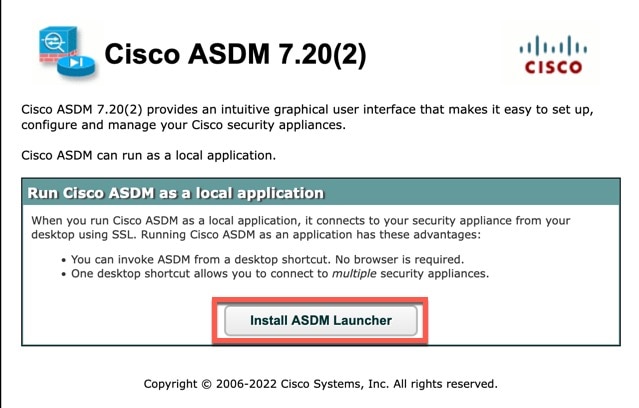
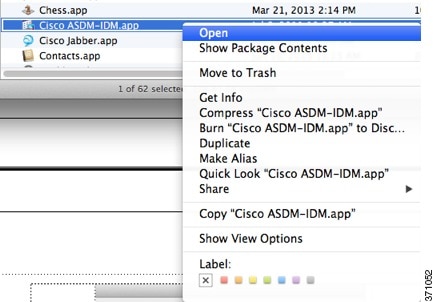
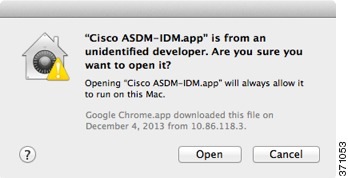
OS X 10.8 and later |
You need to allow ASDM to run because it is not signed with an Apple Developer ID. If you do not change your security preferences, you see an error screen. 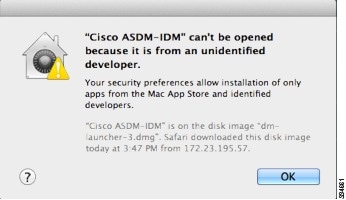
|
||
|
(ASA 5500 and ISA 3000) Requires Strong Encryption license (3DES/AES) on ASA
|
ASDM requires an SSL connection to the ASA. You can request a 3DES PAK license from Cisco:
|
||
|
When the ASA uses a self-signed certificate or an untrusted certificate, Firefox and Safari are unable to add security exceptions when browsing using HTTPS over IPv6. See https://bugzilla.mozilla.org/show_bug.cgi?id=633001. This caveat affects all SSL connections originating from Firefox or Safari to the ASA (including ASDM connections). To avoid this caveat, configure a proper certificate for the ASA that is issued by a trusted certificate authority. |
||
|
If you change the SSL encryption on the ASA to exclude both RC4-MD5 and RC4-SHA1 algorithms (these algorithms are enabled by default), then Chrome cannot launch ASDM due to the Chrome “SSL false start” feature. We suggest re-enabling one of these algorithms (see the pane); or you can disable SSL false start in Chrome using the --disable-ssl-false-start flag according to Run Chromium with flags. |
Install an Identity Certificate for ASDM
When using Java 7 update 51 and later, the ASDM Launcher requires a trusted certificate. An easy approach to fulfill the certificate requirements is to install a self-signed identity certificate.
See Install an Identity Certificate for ASDM to install a self-signed identity certificate on the ASA for use with ASDM, and to register the certificate with Java.
Increase the ASDM Configuration Memory
ASDM supports a maximum configuration size of 512 KB. If you exceed this amount you may experience performance issues. For example, when you load the configuration, the status dialog box shows the percentage of the configuration that is complete, yet with large configurations it stops incrementing and appears to suspend operation, even though ASDM might still be processing the configuration. If this situation occurs, we recommend that you consider increasing the ASDM system heap memory. To confirm that you are experiencing memory exhaustion, monitor the Java console for the "java.lang.OutOfMemoryError" message.
In addition, we recommend reducing your configuration size if possible, for example, by removing unused objects.
Increase the ASDM Configuration Memory in Windows
To increase the ASDM heap memory size, edit the run.bat file by performing the following procedure.
Procedure
|
Step 1 |
Go to the ASDM installation directory, for example C:\Program Files (x86)\Cisco Systems\ASDM. |
|
Step 2 |
Edit the run.bat file with any text editor. |
|
Step 3 |
In the line that starts with “start javaw.exe”, change the argument prefixed with “-Xmx” to specify your desired heap size. For example, change it to -Xmx768M for 768 MB or -Xmx1G for 1 GB. For very large configurations, you may need to specify a heap size up to 2 GB. |
|
Step 4 |
Save the run.bat file. |
Increase the ASDM Configuration Memory in Mac OS
To increase the ASDM heap memory size, edit the Info.plist file by performing the following procedure.
Procedure
|
Step 1 |
Right-click the Cisco ASDM-IDM icon, and choose Show Package Contents. |
|
Step 2 |
In the Contents folder, double-click the Info.plist file. If you have Developer tools installed, it opens in the Property List Editor. Otherwise, it opens in TextEdit. |
|
Step 3 |
Under , change the string prefixed with “-Xmx” to specify your desired heap size. For example, change it to -Xmx768M for 768 MB or -Xmx1G for 1 GB. 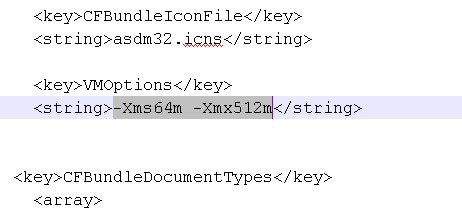 For very large configurations, you may need to specify a heap size up to 2 GB. |
|
Step 4 |
If this file is locked, you see an error such as the following: 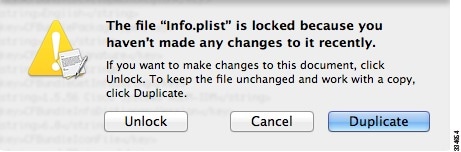 |
|
Step 5 |
Click Unlock and save the file. If you do not see the Unlock dialog box, exit the editor, right-click the Cisco ASDM-IDM icon, choose Copy Cisco ASDM-IDM, and paste it to a location where you have write permissions, such as the Desktop. Then change the heap size from this copy. |
ASA and ASDM Compatibility
For information about ASA/ASDM software and hardware requirements and compatibility, including module compatibility, see Cisco Secure Firewall ASA Compatibility.
VPN Compatibility
For VPN compatibility, see Supported VPN Platforms, Cisco ASA 5500 Series.
New Features
This section lists new features for each release.
Note |
New, changed, and deprecated syslog messages are listed in the syslog message guide. |
New Features in ASA 9.24(10)/ASDM 7.24(10)
Released: September 21, 2026
|
Feature |
Description |
|---|---|
|
Firewall Features |
|
|
Removed support for HTTP cut through proxy. HTTPS cut through proxy remains available. |
You can no longer configure cut-through proxy using the HTTP protocol. You must use the secure HTTPS protocol if you use this feature. Cut-through proxy will always use TLS authentication. On , the Enable Secure HTTP option does not work on 9.24(10) systems. In the Interactive Authentication table, configure rules for HTTPS only. |
|
High Availability and Scalability Features |
|
|
Cluster redirect: flow offload support for the Secure Firewall 6100 asymmetric cluster traffic |
For asymmetric flows, cluster redirect lets the forwarding node offload flows to hardware. This feature is enabled by default. When traffic for an existing flow is sent to a different node, then that traffic is redirected to the owner node over the cluster control link. Because asymmetric flows can create a lot of traffic on the cluster control link, letting the forwarder offload these flows can improve performance. |
|
Interface Features |
|
|
Support for configuring multiple DHCPv6 relay link-addresses per interface |
ASA DHCPv6 relay agent can now use multiple configured IPv6 interface addresses as relay link-address values in DHCPv6 RELAY-FORWARD messages. This support provides the flexibility for the DHCPv6 server to choose the appropriate address pool by matching the client's prefix. New/modified screens:
|
|
License Features |
|
|
Unlimited performance tier (ASAvU) for AWS |
ASA Virtual for AWS now supports an unlimited performance tier (ASAvU). Supported vCPU and memory configuration:
|
|
VPN Features |
|
|
Distributed site-to-site VPN with inter-site clustering |
Distributed VPN support for inter-site clustering enables seamless site-to-site VPN session continuity across geographically dispersed sites. This feature enhances high availability by maintaining both local and remote backups for IKEv2/IPsec traffic during member or site failures. |
|
IPsec flow offload for traffic on the cluster control link on the Secure Firewall 6100 in distributed site-to-site VPN mode |
For asymmetric flows in distributed site-to-site VPN mode, IPsec flow offload now lets the flow owner decrypt IPsec traffic in hardware that was forwarded over the cluster control link. This feature is not configurable and is always available when you enable IPsec flow offload. |
New Features in ASA 9.24(1)/ASDM 7.24(1)
Released: December 3, 2025
|
Feature |
Description |
||
|---|---|---|---|
|
Platform Features |
|||
|
Secure Firewall 220 |
The Secure Firewall 220 is an affordable security appliance for branch offices and remote locations, balancing cost and features. |
||
|
Secure Firewall 6160, 6170 |
The Secure Firewall 6160 and 6170 are ultra-high-end firewalls for demanding data center and telecom networks. It has exceptional price-to-performance, modular capability, and high throughput. |
||
|
ASA VirtualGrub bootloader upgraded with UEFI firmware and secure boot. |
With the Grub bootloader upgrade from Grub 0.94 to Grub 2.12, we now support UEFI firmware with or without secure boot functionality, along with legacy BIOS mode. Secure boot functionality gives boot-level malware protection. New deployments also use GPT-partitioned images instead of MS-DOS-partitioned disks. If you upgrade, you cannot change to UEFI and secure boot; only new deployments can use the new options.
|
||
|
ASA Virtual AWS dual-arm clustering |
In dual-arm mode, after inspection, the ASA Virtual will NAT and forward outbound traffic from its outside interface directly to the internet via the Internet Gateway. Since outbound traffic is directly forwarded to the internet after inspection without making a round trip through the GWLB and the GWLB endpoint, the number of traffic hops is reduced by 2. This reduction is especially useful in providing a common egress path for a multi-VPC deployment.For dual-arm deployments, only egress traffic is supported. |
||
|
ASA Virtual GCP clustering with autoscale |
GCP clustering with autoscale is now supported for ASAv30, ASAv50, and ASAv100. |
||
|
ASA VirtualOCI Ampere A1 ARM compute shape support |
New shapes for OCI.
|
||
|
ASA VirtualKVM flow offload |
Flow offload is now supported on the DPU for KVM. |
||
|
ASA Virtual Nutanix support for AOS 6.8 |
Nutanix AOS 6.8 supports VPCs, similar toVPCs in public clouds. |
||
|
ASA Virtual OpenStack support for Caracal |
ASA Virtual deployment is supported on the Caracal release of OpenStack. |
||
|
ASA Virtual MANA NIC Support |
ASA Virtual supports MANA NIC hardware on Microsoft Azure for the following instances:
|
||
|
ASA Virtual on VMware ESXi support |
ESXi versions 8.0, 9.0, and 9.1 are supported on ASA Virtual 9.24(1) and later versions. |
||
|
Firewall Features |
|||
|
Application Visibility and Control for the Secure Firewall 6100 |
Application Visibility and Control (AVC) makes it possible for you to write access control rules based on applications rather than just IP addresses and ports. AVC downloads the Vulnerability Database (VDB), which creates network-service objects and groups that you can use in access control rules. The objects define various applications, and the groups define application categories, so you can easily block applications or entire classes of connections without specifying IP address and port. We introduced the following screens: , , , , , , Supported platforms: Secure Firewall 6100 |
||
|
High Availability and Scalability Features |
|||
|
No reboot required for changing the VPN mode |
When changing the VPN mode between distributed and centralized, a reboot is no longer required. However, you now need to disable clustering on all nodes before changing the mode. |
||
|
Data nodes can join the cluster concurrently |
Formerly, the control node only allowed one data node to join the cluster at a time. If the configuration sync takes a long time, data nodes can take a long time to join. Concurrent join is enabled by default. If you have NAT and VPN distributed mode enabled, you cannot use concurrent join. Added/modified screens: |
||
|
MTU ping test on cluster node join provides more information by trying smaller MTUs |
When a node joins the cluster, it checks MTU compatibility by sending a ping to the control node with a packet size matching the cluster control link MTU. If the ping fails, it tries the MTU divided by 2 and keeps dividing by 2 until an MTU ping is successful. The successful ping value is shown in show cluster info trace so you can fix the MTU to a working value and try again. Even if the ping fails, the node is allowed to join the cluster. In this case, you need to resolve the MTU mismatch as soon as possible. We recommend increasing the switch MTU size to the recommended value, but if you can't change the switch configuration, a working value for the cluster control link will let you form the cluster. Added/modified screens: |
||
|
Improved cluster control link health check with high CPU |
When a cluster node CPU usage is high, the health check will be suspended, and the node will not be marked as unhealthy. You can configure at what CPU use threshold to suspend the health check. Added/modified screens: |
||
|
Clustering on the Secure Firewall 6100 |
You can cluster up to 4 Secure Firewall 6100 nodes in Spanned EtherChannel or Individual interface mode. |
||
|
Block depletion monitoring in clustering |
When block depletion occurs, the ASA collects troubleshooting logs and sends out a syslog. For clustering, the node will leave the cluster so that the other nodes can handle the traffic. The ASA can also force a crash and reload to recover from depletion. |
||
|
Dynamic PAT support for distributed site-to-site VPN mode |
Distributed mode now supports dynamic PAT. However, interface PAT is still not supported. |
||
|
SNMP enhancements |
This release includes SNMP enhancements to improve the polling experience for ENTITY-MIB and IF-MIB. These improvements are specific to the Secure Firewall 4200 and Secure Firewall 6100 series platforms. |
||
|
Interface Features |
|||
|
Recursive DNS Server (RDNSS) and DNS Search List (DNSSL) options to advertise a list of DNS servers and domains to IPv6 clients |
You can now configure Recursive DNS Server (RDNSS) and DNS Search List (DNSSL) options to provide DNS servers and domains to SLAAC clients using router advertisements. New/modified screens:
|
||
|
Administrative, Monitoring, and Troubleshooting Features |
|||
|
SSH X.509 certificate authentication |
You can now use an X.509v3 certificate to authenticate a user for SSH (RFC 6187). New/Modified screens: Also in 9.20(4), 9.22(3). |
||
|
AES-256-GCM SSH cipher |
The ASA supports the AES-256-GCM cipher for SSH. It is enabled by default for all and high encryption levels. New/Modified screens: Also in 9.20(4), 9.22(3). |
||
|
Message-of-the-day (motd) banner shows the failover state and the last failover time |
When using failover, if you configure the message-of-the-day (motd) banner, then the banner shows information about the failover state and the last failover time of the unit you are logging into. This information is useful if you are performing actions at the CLI, such as troubleshooting, and a failover occurs between sessions. New or modified screens: Also in 9.22(3). |
||
|
Display of UDP's initiator and responder values in connection status output |
For UDP traffic flows, the ASA displays the initiator and responder field values in the connection detail status. These field values indicate the direction of communication, which helps in troubleshooting network connectivity issues. Also in 9.20(1). |
||
|
Linux kernel crash dump |
The Linux kernel crash dump feature lets you debug kernel crash events and find the root cause. This feature is enabled by default. New/Modified commands: show kernel crash-dump , kernel crash-dump , crashinfoforce kernel-dump |
||
|
Root Shell Access Support Using Consent Token on ASA Virtual |
ASA Virtual supports a new Consent Token mechanism that allows authorized users to obtain one-time access to the Linux root shell for troubleshooting or diagnostic purposes — without requiring the administrator password. New/Modified commands: consent-token generate-challenge shell-access , consent-token accept-response shell-access |
||
|
ASDM Features |
|||
|
ASDM 7.24 now requires Java 11 |
ASDM 7.24 now requires Java 11. For the Oracle version, which is the version bundled with the ASA image, you will need to install Oracle JDK 11: https://www.oracle.com/java/technologies/javase/jdk11-archive-downloads.html. Later versions are not compatible. To minimize risk and ensure better compatibility and stability with Java, we are taking a phased approach to moving off of Java 8, starting with this move to Java 11. If you upgrade to the ASDM Launcher 1.9(10) or later that comes with 7.24, you can still launch earlier versions of ASDM. For the OpenJRE version, you do not need to install Java; it is built-in. |
||
|
ASDM certificate authentication |
ASDM Launcher 1.9(10), which comes with ASDM 7.24, now supports user certificate authentication. Previously, this feature was only supported with Java Web Start (discontinued in 7.18). Because the ASA commands were not deprecated in 9.18, you can configure earlier ASA versions to use certificate authentication when using any ASDM version with ASDM Launcher 1.9(10). New/Modified screens:
|
||
|
ASDM FIPS compliance |
By default, ASDM starts in non-FIPS mode. To enable FIPS mode:
FIPS mode is only supported with ASDM 7.24 and later.
New/Modified screens: ASDM Launcher login window. |
||
|
New authentication method for the Upgrade Software from Cisco.com Wizard |
The Cisco.com Authentication dialog box was replaced by the Cisco.com Device Activation dialog box using a newer authentication method for Cisco.com. New/Modified screens: |
||
|
VPN Features |
|||
|
SGT over VTI |
VTI tunnels now support Cisco TrustSec SGT tags. New/Modified screens: |
||
|
ECMP and BFD fault detection support for VTIs |
One or more dynamic VTI interfaces can be part of an Equal-Cost Multi-Path (ECMP) zone. Using zones, traffic towards the spoke can be load-balanced. Bidirectional Forwarding Detection (BFD) link detection is faster, detecting faulty VTI links in few milliseconds or microseconds. New/Modified commands: bfd template , vtemplate-bfd , vtemplate-zone-member , show zone , show conn all , show route New/Modified screens for ECMP. There is no ASDM support for BFD on VTIs. |
||
|
Loopback interface support for distributed site-to-site VPN |
You can now create site-to-site VPN tunnels using loopback interfaces in distributed site-to-site mode. Unlike outside addresses that are tied to a location network, the loopback interfaces are not. This independence means you can move the address to another cluster and use routing protocols to propagate the new location to the upstream routers. The peer’s traffic would then be sent to the new location. |
||
|
IPsec flow offload and DTLS crypto accelerator for the Secure Firewall 6100 |
Secure Firewall 6100 supports AES-GCM-128 and AES-GCM-256 ciphers only. |
||
|
IPsec flow offload for the ASA Virtual on KVM |
IPsec flow offload is now supported on the DPU for KVM. |
||
Upgrade the Software
This section provides the upgrade path information and a link to complete your upgrade.
Upgrade Link
To complete your upgrade, see the ASA upgrade guide.
Upgrade Path: ASA Appliances
What Version Should I Upgrade To?
On the Cisco Support & Download site, the suggested release is marked with a gold star. For example:

View Your Current Version
To view your current version and model, use one of the following methods:
-
ASDM: Choose .
-
CLI: Use the show version command.
Upgrade Guidelines
Be sure to check the upgrade guidelines for each release between your starting version and your ending version. You may need to change your configuration before upgrading in some cases, or else you could experience an outage.
For guidance on security issues on the ASA, and which releases contain fixes for each issue, see the ASA Security Advisories.
Upgrade Paths
This table provides upgrade paths for ASA.
Note |
ASA 9.20 was the final version for the Firepower 2100. ASA 9.18 was the final version for the Firepower 4110, 4120, 4140, 4150, and Security Modules SM-24, SM-36, and SM-44 for the Firepower 9300. ASA 9.16 was the final version for the ASA 5506-X, 5508-X, and 5516-X. ASA 9.14 was the final version for the ASA 5525-X, 5545-X, and 5555-X. ASA 9.12 was the final version for the ASA 5512-X, 5515-X, 5585-X, and ASASM. ASA 9.2 was the final version for the ASA 5505. ASA 9.1 was the final version for the ASA 5510, 5520, 5540, 5550, and 5580. |
|
Current Version |
Interim Upgrade Version |
Target Version |
|---|---|---|
|
9.23 |
— |
Any of the following: → 9.24 |
|
9.22 |
— |
Any of the following: → 9.24 → 9.23 |
|
9.20 |
— |
Any of the following: → 9.24 → 9.23 → 9.22 |
|
9.19 |
— |
Any of the following: → 9.24 → 9.23 → 9.22 → 9.20 |
|
9.18 |
— |
Any of the following: → 9.24 → 9.23 → 9.22 → 9.20 → 9.19 |
|
9.17 |
— |
Any of the following: → 9.24 → 9.22 → 9.20 → 9.19 → 9.18 |
|
9.16 |
— |
Any of the following: → 9.24 → 9.23 → 9.22 → 9.20 → 9.19 → 9.18 → 9.17 |
|
9.15 |
— |
Any of the following: → 9.24 → 9.23 → 9.22 → 9.20 → 9.19 → 9.18 → 9.17 → 9.16 |
|
9.14 |
— |
Any of the following: → 9.24 → 9.23 → 9.22 → 9.20 → 9.19 → 9.18 → 9.17 → 9.16 |
|
9.13 |
— |
Any of the following: → 9.24 → 9.23 → 9.22 → 9.20 → 9.19 → 9.18 → 9.17 → 9.16 |
|
9.12 |
— |
Any of the following: → 9.24 → 9.23 → 9.22 → 9.20 → 9.19 → 9.18 → 9.17 → 9.16 |
|
9.10 |
— |
Any of the following: → 9.24 → 9.23 → 9.22 → 9.20 → 9.19 → 9.18 → 9.17 → 9.16 |
|
9.9 |
— |
Any of the following: → 9.24 → 9.23 → 9.22 → 9.20 → 9.19 → 9.18 → 9.17 → 9.16 |
|
9.8 |
— |
Any of the following: → 9.24 → 9.23 → 9.22 → 9.20 → 9.19 → 9.18 → 9.17 → 9.16 |
|
9.7 |
— |
Any of the following: → 9.24 → 9.23 → 9.22 → 9.20 → 9.19 → 9.18 → 9.17 → 9.16 |
|
9.6 |
— |
Any of the following: → 9.24 → 9.23 → 9.22 → 9.20 → 9.19 → 9.18 → 9.17 → 9.16 |
|
9.5 |
— |
Any of the following: → 9.24 → 9.23 → 9.22 → 9.20 → 9.19 → 9.18 → 9.17 → 9.16 |
|
9.4 |
— |
Any of the following: → 9.24 → 9.23 → 9.22 → 9.20 → 9.19 → 9.18 → 9.17 → 9.16 |
|
9.3 |
— |
Any of the following: → 9.24 → 9.23 → 9.22 → 9.20 → 9.19 → 9.18 → 9.17 → 9.16 |
|
9.2 |
— |
Any of the following: → 9.24 → 9.23 → 9.22 → 9.20 → 9.19 → 9.18 → 9.17 → 9.16 |
Upgrade Path: ASA Logical Devices for the Firepower 4100/9300
-
FXOS: From FXOS 2.2.2 and later, you can upgrade directly to any higher version. (FXOS 2.0.1–2.2.1 can upgrade as far as 2.8.1. For versions earlier than 2.0.1, you need to upgrade to each intermediate version.) Note that you cannot upgrade FXOS to a version that does not support your current logical device version. You will need to upgrade in steps: upgrade FXOS to the highest version that supports your current logical device; then upgrade your logical device to the highest version supported with that FXOS version. For example, if you want to upgrade from FXOS 2.2/ASA 9.8 to FXOS 2.13/ASA 9.19, you would have to perform the following upgrades:
-
FXOS 2.2 → FXOS 2.11 (the highest version that supports 9.8)
-
ASA 9.8 → ASA 9.17 (the highest version supported by 2.11)
-
FXOS 2.11 → FXOS 2.13
-
ASA 9.17 → ASA 9.19
-
-
Firewall Threat Defense: Interim upgrades may be required for Firewall Threat Defense, in addition to the FXOS requirements above. For the exact upgrade path, refer to the Firewall Management Center upgrade guide for your version.
-
ASA: ASA lets you upgrade directly from your current version to any higher version, noting the FXOS requirements above.
|
FXOS Version |
Model |
ASA Version |
Firewall Threat Defense Version |
||||
|---|---|---|---|---|---|---|---|
|
2.18.10 |
Firepower 4112 |
9.2.4.10 (recommended) 9.24.1 9.23 9.22 9.20 9.19 |
10.1 (recommended) 10.0 7.7 7.6 7.4 7.3 |
||||
|
Firepower 4145 Firepower 4125 Firepower 4115 |
9.2.4.10 (recommended) 9.24.1 9.23 9.22 9.20 9.19 |
10.1 (recommended) 10.0 7.7 7.6 7.4 7.3 |
|||||
|
Firepower 9300 SM-56 Firepower 9300 SM-48 Firepower 9300 SM-40 |
|||||||
|
2.18.0 |
Firepower 4112 |
9.24.1 (recommended) 9.23 9.22 9.20 9.19 |
10.0 (recommended) 7.7 7.6 7.4 7.3 |
||||
|
Firepower 4145 Firepower 4125 Firepower 4115 |
9.24.1 (recommended) 9.23 9.22 9.20 9.19 |
10.0 (recommended) 7.7 7.6 7.4 7.3 |
|||||
|
Firepower 9300 SM-56 Firepower 9300 SM-48 Firepower 9300 SM-40 |
|||||||
|
2.17 |
Firepower 4112 |
9.23 (recommended) 9.22 9.20 9.19 9.18 |
7.7 (recommended) 7.6 7.4 7.3 7.2 |
||||
|
Firepower 4145 Firepower 4125 Firepower 4115 |
9.23 (recommended) 9.22 9.20 9.19 9.18 |
7.7 (recommended) 7.6 7.4 7.3 7.2 |
|||||
|
Firepower 9300 SM-56 Firepower 9300 SM-48 Firepower 9300 SM-40 |
|||||||
|
2.16 |
Firepower 4112 |
9.22 (recommended) 9.20 9.19 9.18 9.17 |
7.6 (recommended) 7.4 7.3 7.2 7.1 |
||||
|
Firepower 4145 Firepower 4125 Firepower 4115 |
9.22 (recommended) 9.20 9.19 9.18 9.17 |
7.6 (recommended) 7.4 7.3 7.2 7.1 |
|||||
|
Firepower 9300 SM-56 Firepower 9300 SM-48 Firepower 9300 SM-40 |
|||||||
|
2.14(1) |
Firepower 4112 |
9.20 (recommended) 9.19 9.18 9.17 9.16 9.14 |
7.4 (recommended) 7.3 7.2 7.1 7.0 6.6 |
||||
|
Firepower 4145 Firepower 4125 Firepower 4115 |
9.20 (recommended) 9.19 9.18 9.17 9.16 9.14 |
7.4 (recommended) 7.3 7.2 7.1 7.0 6.6 |
|||||
|
Firepower 9300 SM-56 Firepower 9300 SM-48 Firepower 9300 SM-40 |
|||||||
|
2.13 |
Firepower 4112 |
9.19 (recommended) 9.18 9.17 9.16 9.14 |
7.3 (recommended) 7.2 7.1 7.0 6.6 |
||||
|
Firepower 4145 Firepower 4125 Firepower 4115 |
9.19 (recommended) 9.18 9.17 9.16 9.14 |
7.3 (recommended) 7.2 7.1 7.0 6.6 |
|||||
|
Firepower 9300 SM-56 Firepower 9300 SM-48 Firepower 9300 SM-40 |
|||||||
|
2.12 |
Firepower 4112 |
9.18 (recommended) 9.17 9.16 9.14 |
7.2 (recommended) 7.1 7.0 6.6 |
||||
|
Firepower 4145 Firepower 4125 Firepower 4115 |
9.18 (recommended) 9.17 9.16 9.14 9.12 |
7.2 (recommended) 7.1 7.0 6.6 6.4 |
|||||
|
Firepower 9300 SM-56 Firepower 9300 SM-48 Firepower 9300 SM-40 |
|||||||
|
Firepower 4150 Firepower 4140 Firepower 4120 Firepower 4110 |
9.18 (recommended) 9.17 9.16 9.14 9.12 |
7.2 (recommended) 7.1 7.0 6.6 6.4 |
|||||
|
Firepower 9300 SM-44 Firepower 9300 SM-36 Firepower 9300 SM-24 |
|||||||
|
2.11 |
Firepower 4112 |
9.17 (recommended) 9.16 9.14 |
7.1 (recommended) 7.0 6.6 |
||||
|
Firepower 4145 Firepower 4125 Firepower 4115 |
9.17 (recommended) 9.16 9.14 9.12 |
7.1 (recommended) 7.0 6.6 6.4 |
|||||
|
Firepower 9300 SM-56 Firepower 9300 SM-48 Firepower 9300 SM-40 |
|||||||
|
Firepower 4150 Firepower 4140 Firepower 4120 Firepower 4110 |
9.17 (recommended) 9.16 9.14 9.12 9.8 |
7.1 (recommended) 7.0 6.6 6.4 |
|||||
|
Firepower 9300 SM-44 Firepower 9300 SM-36 Firepower 9300 SM-24 |
|||||||
|
2.10
|
Firepower 4112 |
9.16 (recommended) 9.14 |
7.0 (recommended) 6.6 |
||||
|
Firepower 4145 Firepower 4125 Firepower 4115 |
9.16 (recommended) 9.14 9.12 |
7.0 (recommended) 6.6 6.4 |
|||||
|
Firepower 9300 SM-56 Firepower 9300 SM-48 Firepower 9300 SM-40 |
|||||||
|
Firepower 4150 Firepower 4140 Firepower 4120 Firepower 4110 |
9.16 (recommended) 9.14 9.12 9.8 |
7.0 (recommended) 6.6 6.4 |
|||||
|
Firepower 9300 SM-44 Firepower 9300 SM-36 Firepower 9300 SM-24 |
|||||||
|
2.9 |
Firepower 4112 |
9.14 |
6.6 |
||||
|
Firepower 4145 Firepower 4125 Firepower 4115 |
9.14 9.12 |
6.6 6.4 |
|||||
|
Firepower 9300 SM-56 Firepower 9300 SM-48 Firepower 9300 SM-40 |
|||||||
|
Firepower 4150 Firepower 4140 Firepower 4120 Firepower 4110 |
9.14 9.12 9.8 |
6.6 6.4 |
|||||
|
Firepower 9300 SM-44 Firepower 9300 SM-36 Firepower 9300 SM-24 |
|||||||
|
2.8 |
Firepower 4112 |
9.14 |
6.6
|
||||
|
Firepower 4145 Firepower 4125 Firepower 4115 |
9.14 (recommended) 9.12
|
6.6 (recommended)
6.4 |
|||||
|
Firepower 9300 SM-56 Firepower 9300 SM-48 Firepower 9300 SM-40 |
|||||||
|
Firepower 4150 Firepower 4140 Firepower 4120 Firepower 4110 |
9.14 (recommended) 9.12 9.8 |
6.6 (recommended)
6.4 6.2.3 |
|||||
|
Firepower 9300 SM-44 Firepower 9300 SM-36 Firepower 9300 SM-24 |
|||||||
|
2.6(1.157)
|
Firepower 4145 Firepower 4125 Firepower 4115 |
9.12
|
6.4 |
||||
|
Firepower 9300 SM-56 Firepower 9300 SM-48 Firepower 9300 SM-40 |
|||||||
|
Firepower 4150 Firepower 4140 Firepower 4120 Firepower 4110 |
9.12 (recommended) 9.8 |
6.4 (recommended) 6.2.3 |
|||||
|
Firepower 9300 SM-44 Firepower 9300 SM-36 Firepower 9300 SM-24 |
|||||||
|
2.6(1.131) |
Firepower 9300 SM-48 Firepower 9300 SM-40 |
9.12 |
Not supported |
||||
|
Firepower 4150 Firepower 4140 Firepower 4120 Firepower 4110 |
9.12 (recommended) 9.8 |
||||||
|
Firepower 9300 SM-44 Firepower 9300 SM-36 Firepower 9300 SM-24 |
|||||||
|
2.3(1.73) |
Firepower 4150 Firepower 4140 Firepower 4120 Firepower 4110 |
9.8
|
6.2.3 (recommended)
|
||||
|
Firepower 9300 SM-44 Firepower 9300 SM-36 Firepower 9300 SM-24 |
|||||||
|
2.3(1.66) 2.3(1.58) |
Firepower 4150 Firepower 4140 Firepower 4120 Firepower 4110 |
9.8
|
|||||
|
Firepower 9300 SM-44 Firepower 9300 SM-36 Firepower 9300 SM-24 |
|||||||
|
2.2 |
Firepower 4150 Firepower 4140 Firepower 4120 Firepower 4110 |
9.8 |
Firewall Threat Defense versions are EoL |
||||
|
Firepower 9300 SM-44 Firepower 9300 SM-36 Firepower 9300 SM-24 |
Note on Downgrades
Downgrade of FXOS images is not officially supported. The only Cisco-supported method of downgrading an image version of FXOS is to perform a complete re-image of the device.
Open and Resolved Bugs
The open and resolved bugs for this release are accessible through the Cisco Bug Search Tool. This web-based tool provides you with access to the Cisco bug tracking system, which maintains information about bugs and vulnerabilities in this product and other Cisco hardware and software products.
Note |
You must have a Cisco.com account to log in and access the Cisco Bug Search Tool. If you do not have one, you can register for an account. If you do not have a Cisco support contract, you can only look up bugs by ID; you cannot run searches. |
For more information about the Cisco Bug Search Tool, see the Bug Search Tool Help & FAQ.
Open Bugs
This section lists open bugs in each version.
Open Bugs in Version 7.24(10)
There are no open bugs in this release.
Open Bugs in Version 7.24(1)
There are no open bugs in this release.
Resolved Bugs
This section lists resolved bugs per release.
Resolved Bugs in Version 7.24(10)
The following table lists select resolved bugs at the time of this Release Note publication.
|
Identifier |
Headline |
|---|---|
|
ASDM launch fails on all versions if ASA version starts with 89.x |
|
|
ASA: ASDM login fails on multi-context devices using TACACS because the management client omits the username. |
|
|
Packet capture wizard - ACL configurations are not being generated as CLI for ingress interface |
|
|
Add Button for AAA Server Group in ASDM Greyed Out |
|
|
SAML IdP Commands Incorrectly Flagged as Ignored |
|
|
Delete option on against access-list entries does not taking appropriate action |
|
|
ASDM GUI not reflecting changes related to cipher security level for integrity after saving |
|
|
Smart transport support feature on ASDM for ASA 9.20.4.X |
Resolved Bugs in Version 7.24(1)
The following table lists select resolved bugs at the time of this Release Note publication.
|
Identifier |
Headline |
|---|---|
|
ASDM hangs on MAC after upgrade to Java 8 |
|
|
ENH : ASDM does not accept VTI Interface for routes, CLI works |
|
|
Secure firewall posture image is not available in the ASA device backup when generated from ASDM |
|
|
Schema Validation Error Encountered While Editing AnyConnect/Secure Client Profiles |
|
|
Need to remove compatibility popup added by CSCut04399 on ASDM |
|
|
ASDM: Using the Secure Client VPN Wizard results in an incomplete configuration |
|
|
ASDM fails to connect via ipv6 due to https hostname wrong error |
Cisco General Terms
The Cisco General Terms (including other related terms) govern the use of Cisco software. You can request a physical copy from Cisco Systems, Inc., P.O. Box 641387, San Jose, CA 95164-1387. Non-Cisco software purchased from Cisco is subject to applicable vendor license terms. See also: https://cisco.com/go/generalterms.
Related Documentation
For additional information on the ASA, see Navigating the Cisco Secure Firewall ASA Series Documentation.
 Feedback