Install Internal Components and Field Replaceable Units

This document describes how to install internal components and field replaceable units (FRUs) in the Cisco Catalyst 8300 Series Edge Platforms. The installation information is contained in these sections:

Safety Warnings


Warning


High touch/leakage current – Permanently connected protective earth ground is essential before connecting to telecommunication network.


Warning


Class 1 laser product. Statement 1008


Warning


To reduce the risk of electric shock, the chassis of this equipment needs to be connected to permanent earth ground during normal use. Statement 0445

Warning


To reduce risk of electric shock and fire, a readily accessible two-poled disconnect device must be incorporated in the fixed wiring. Statement 1022

Warning


Only trained and qualified personnel should be allowed to install, replace, or service this equipment. Statement 1030

Warning


Invisible laser radiation may be emitted from disconnected fibers or connectors. Do not stare into beams or view directly with optical instruments. Statement 1051


Warning


Invisible laser radiation may be emitted from the end of the unterminated fiber cable or connector. Do not view directly with optical instruments. Viewing the laser output with certain optical instruments (for example, eye loupes, magnifiers, and microscopes) within a distance of 100 mm may pose an eye hazard. Statement 1056


Warning


Only instructed person or skilled person should be allowed to install, replace, or service this equipment. Refer to statement 1089 for description of skilled person.


Warning


Only instructed person or skilled person should be allowed to install, replace, or service this equipment. Refer to statement 1089 for description of skilled person. Statement 1090


Warning


Only instructed person or skilled person should be allowed to install, replace, or service this equipment. Refer to statement 1089 for description of skilled person. Statement 1091


Warning


Pluggable optical modules comply with IEC 60825-1 Ed. 3 and 21 CFR 1040.10 and 1040.11 with or without exception for conformance with IEC 60825-1 Ed. 3 as described in Laser Notice No. 56, dated May 8, 2019.. Statement 1255


Locate and Access Internal Components

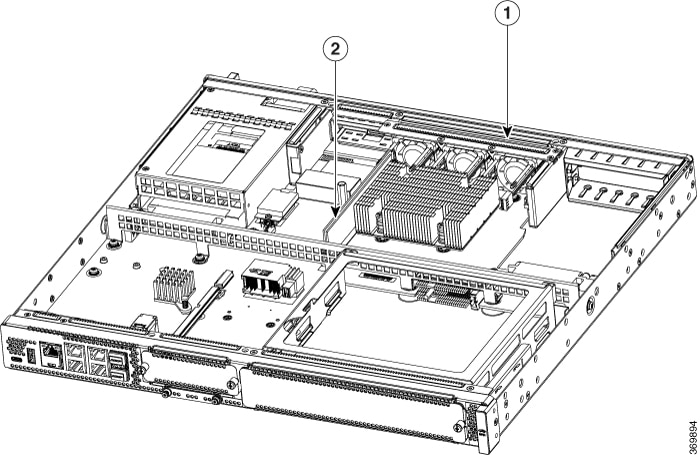
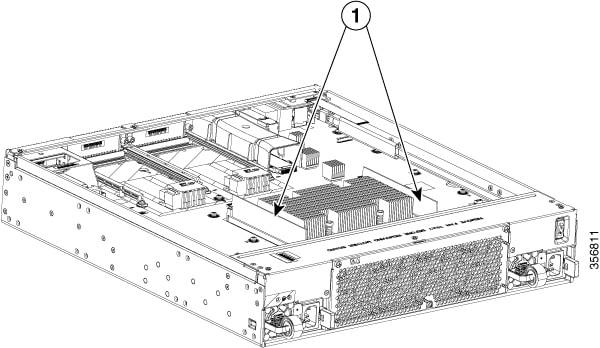
The figures below show the locations of internal components on the motherboard. Internal modules include DIMMs on Cisco Catalyst 8300 Series Edge Platforms.

To access the internal components on the device, you must first remove the chassis cover. For instructions on how to remove and replace the chassis cover on the device, see the sections on Install and Remove Chassis Covers.

Figure 1. Internal Component Locations in the C8300-1N1S-4T2X|6T

Sl. No

Modules

1

Fan tray

2

DIMM

Figure 2. Internal Component Locations in the C8300-2N2S-4T2X|6T

Sl. No

Module

1

DIMMs

Remove and Replace the Chassis Cover

The Cisco Catalyst 8300 Series Edge Platforms have removable covers. Before removing the cover, do these steps:

  • Do not run the device with the cover off. Doing so can cause the chassis to overheat very quickly.

  • Before opening the unit, disconnect the telephone-network cables to avoid contact with telephone-network voltages. Statement 1041.

  • Disconnect all power cables.

  • Remove the device from the rack

Use a number-2 Phillips screwdriver to perform the following tasks.

Remove the Chassis Cover

To remove the cover, perform the following steps.

Procedure

Step 1

Read the Safety Warnings and disconnect the power supply before you perform any module replacement.

Step 2

Confirm the device is turned off and disconnected from the power supply or power supplies. If a redundant power is used, disconnect from the redundant power supply.

Step 3

Place the chassis on a flat surface.

Step 4

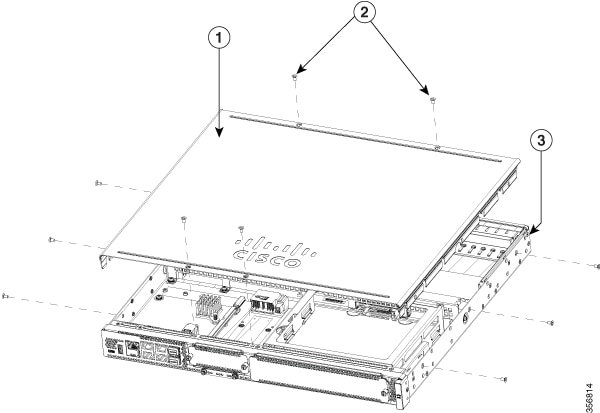
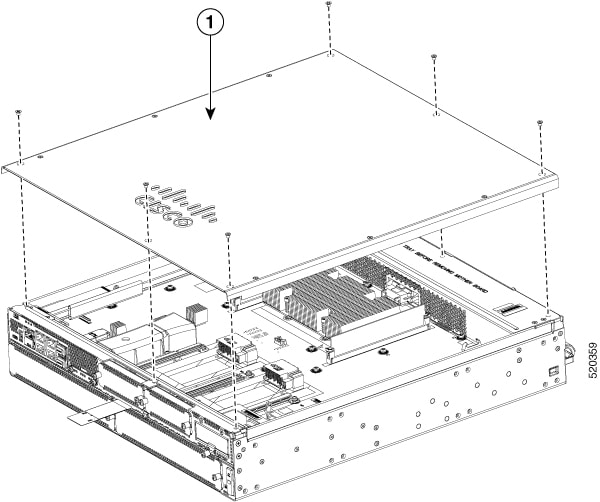
For C8300-1N1S-4T2X|6T, remove the 11 cover screws. For C8300-2N2S-4T2X|6T, remove the 6 cover screws.

Step 5

Lift the cover straight up.


Replace the Cover

To replace the cover, perform the following steps.

Procedure

Step 1

Place the chassis on a flat surface.

Step 2

Drop the cover straight down and ensure that the side flanges insert into the chassis. Care should be taken to not damage the EMC Gaskets.

Step 3

For C8300-1N1S-4T2X|6T install the 11 cover screws. For C8300-2N2S-4T2X|6T install the 6 cover screws.

Figure 3. Install the Cover on the C8300-1N1S-4T2X|6T

1

Chassis cover

2

Screws

3

Chassis

Figure 4. Install the Cover on the C8300-2N2S-4T2X|6T

1

Chassis cover

2

Screws

3

Chassis


Remove and Replace DDR DIMMs

To access the DIMMs, you must remove the chassis cover as described in the Access and Install Modules section.


Caution


Always wear an ESD-preventive wrist strap and ensure that it makes good contact with your skin when you remove or install DIMMs. Connect the equipment end of the wrist strap to the metal part of the chassis.


Caution


Handle DIMMs by the edges only. DIMMs are ESD-sensitive components and can be damaged by mishandling.


Locate and Orient DIMM

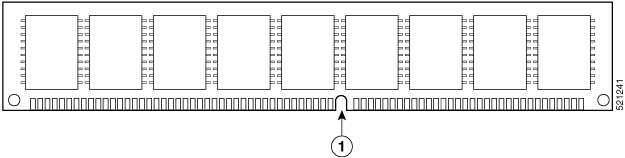
DIMMs have a polarization notch on the mating edge to prevent incorrect insertion. The following image shows the polarization notch on a DIMM.

Figure 5. DIMM Showing Polarization Notch

1

Polarization notch

Remove a DIMM

Follow these steps to remove a DIMM:

Procedure


Step 1

Read the Safety Warnings section and disconnect the power supply before you perform any module replacement.

Step 2

If the cover is not already removed, remove the chassis cover.

Step 3

Locate the DIMM module to find the DIMM sockets on the chassis.

Step 4

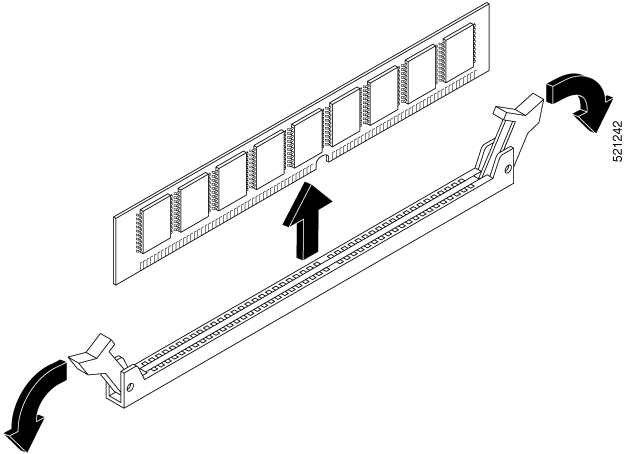
Rotate DIMM connector handles downwards to extract the DIMM module.

Figure 6. Remove a DIMM

Install a DIMM

Follow these steps to install a DIMM on the Cisco Catalyst 8300 Series Edge devices.

Procedure


Step 1

Read the Safety Warnings section and disconnect the power supply before you perform any DIMM replacement.

Step 2

If the cover is not already removed, remove the chassis cover.

Step 3

Locate the DIMM module to find the DIMM sockets on the device.

Step 4

Ensure that both latches on the DIMM connector are in the open position.

Step 5

Orient the DIMM so that the polarization notch lines up with the polarization key on the connector.

Figure 7. DIMM Showing Polarization Notch

Step 6

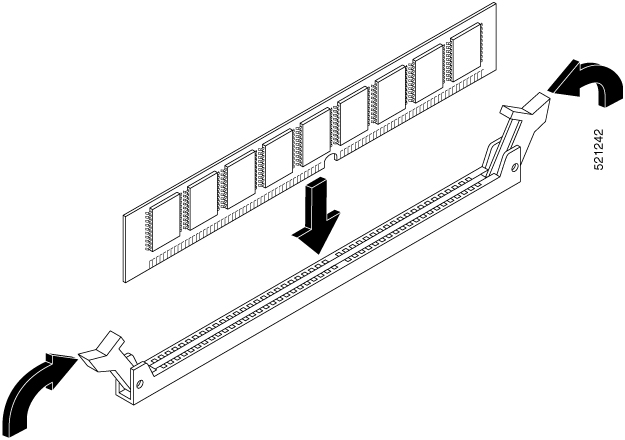
Insert the DIMM into the connector one side at a time.

Step 7

Rotate the connector handles upward and click into place.

Step 8

Reinstall the chassis cover.

Figure 8. Install a DIMM

Step 9

Replace the chassis cover.


Remove and Replace the Power Supplies


Warning


Blank faceplates and cover panels serve three important functions: they prevent exposure to hazardous voltages and currents inside the chassis; they contain electromagnetic interference (EMI) that might disrupt other equipment; and they direct the flow of cooling air through the chassis. Do not operate the system unless all cards, faceplates, front covers, and rear covers are in place. Statement 1029

Warning


This unit might have more than one power supply connection. All connections must be removed to de-energize the unit. Statement 1028

Warning


Care should be taken while removing the power supplies (especially in boost mode of operation). If the total power consumption is higher than can be supported by one power supply alone and in this condition a power supply is removed, the hardware can be damaged. This may then result in the system being unstable or unusable.

AC Power Supplies

The C8300-1N1S-4T2X|6T devices have two different AC power supply types and they are the same physical size. The C8300-2N2S-4T2X|6Tdevices also have two AC power supply types and they are of the same physical size but they are not the same size as those in the C8300-1N1S-4T2X|6T. The power supplies cannot be interchanged.

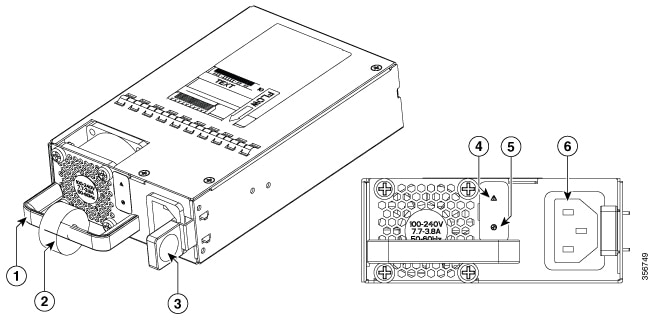
Overview of the AC Power Supply

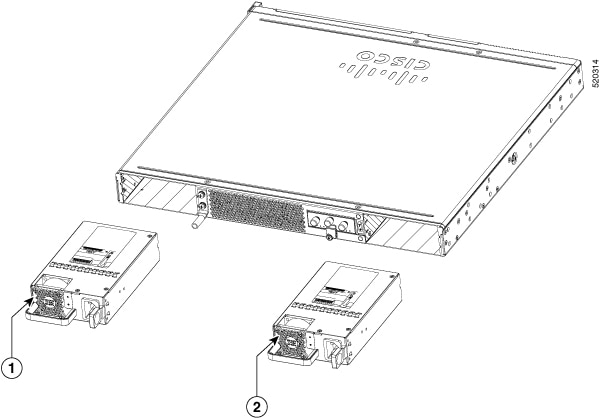
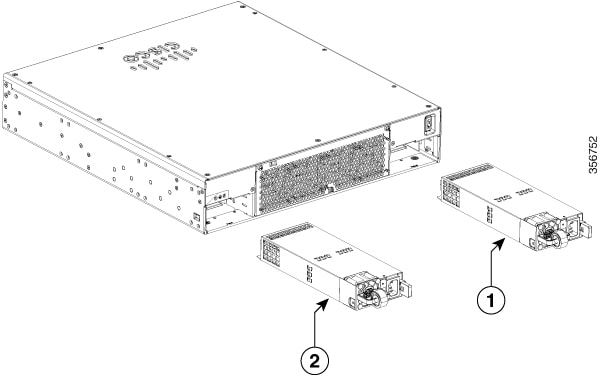
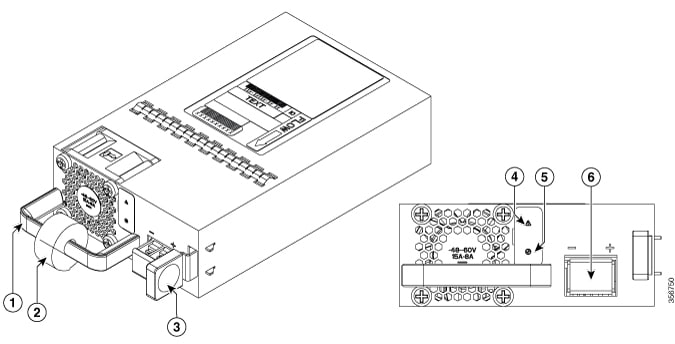
The AC power supplies for C8300-1N1S-4T2X|6T devices are as follows. The two supplies are physically similar and a diagram is shown in the figure below.

  • PWR-CC1-250WAC

  • PWR-CC1-500WAC

Figure 9. 250W/500W AC Power Supply for C8300-1N1S-4T2X|6T

Sl. No

Module

1

PSU1

2

PSU0

Figure 10. 250W/500W AC Power Supply for C8300-1N1S-4T2X|6T

1

Handle

2

Strain relief

3

Latch

4

Fail LED

5

Status LED

6

Power socket

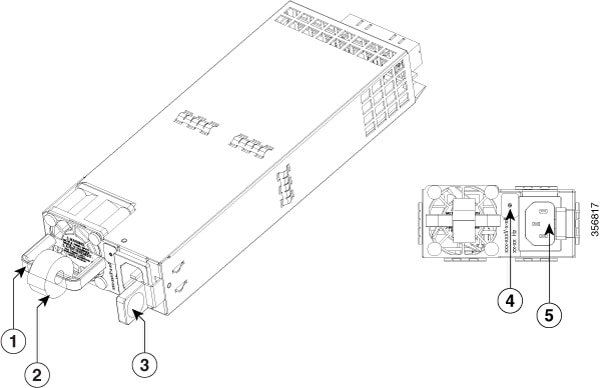
The AC power supplies for C8300-2N2S-4T2X|6T devices are as follows. The two supplies are physically similar and a diagram is shown in the figure below.

  • PWR-CC1-650WAC

  • PWR-CC1-1000WAC

Figure 11. 650WAC/1000WAC Power Supply for C8300-2N2S-4T2X|6T

Sl. No

Module

1

PSU0

2

PSU1

Figure 12. 650W/1000W AC Power Supply for C8300-2N2S-4T2X|6T
Table 1. 650W/1000W AC Power Supply for C8300-2N2S-4T2X|6T

1

Handle

2

Strain relief

3

Latch

4

Status LED

5

Power socket

Remove and Replace the AC and HVDC Power Supply (C8300-1N1S-4T2X|6T)

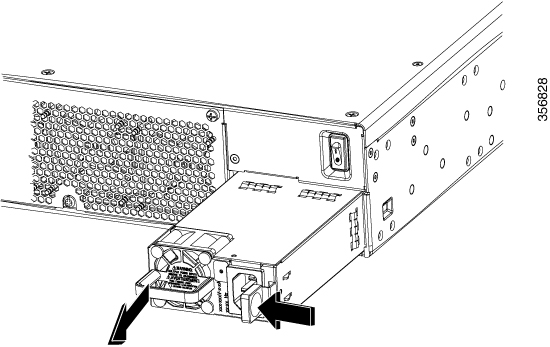
To remove an AC power supply from the C8300-1N1S-4T2X|6T, perform these steps:

Procedure


Step 1

Read the safety warnings section of this document.

Step 2

If there is only one power supply in the system, shut down the device before removing the power supply.

Step 3

If there are redundant power supplies in use the device does not have to be shut down prior to replacing the power supply. The power supply may be replaced while the device is in service.

Step 4

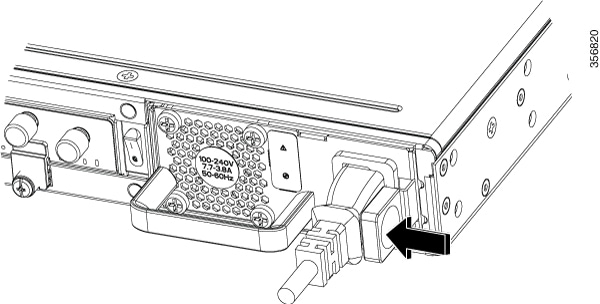
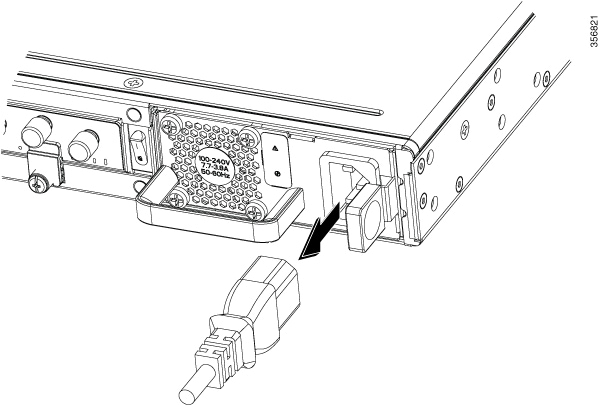
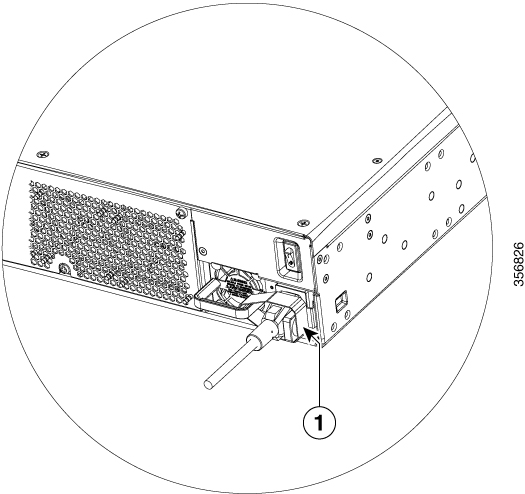
If in use, remove the strain relief securing the power supply cable to the power supply latch.

Step 5

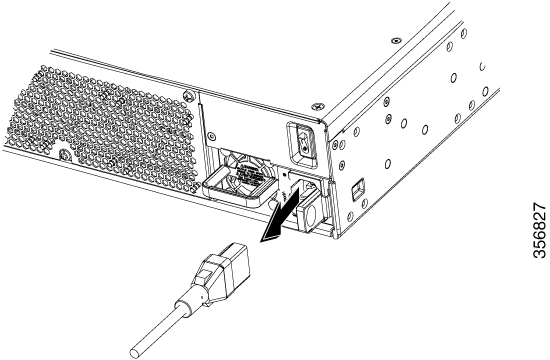
Remove the AC power cord from the power socket.

Step 6

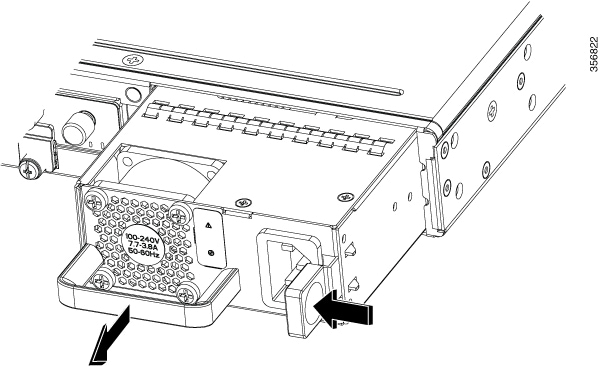
Depress the power supply latch and use the handle to pull the supply out of the device.

Figure 13. Step 4

Figure 14. Step 5

Figure 15. Step 6

To replace or install an AC power supply into the C8300-1N1S-4T2X|6T device, perform these steps:

Procedure

Step 1

Use the handle to push the power supply into the router. The power supply latch should provide an audible click when the supply is fully seated.

Step 2

Install the AC power cord into the power socket on the power supply.

Step 3

If used, reapply the strain relief strap around the power cord and the power supply latch.

Step 4

If the device was turned off, turn the power back on to the device.


Remove and Replace the AC Power Supply (C8300-2N2S-4T2X|6T)

To remove an AC power supply from a C8300-2N2SS-4T2X|6T device, perform these steps:

Procedure


Step 1

Read the safety warnings section of this document.

Step 2

If there is only one power supply in the system, shut down the device before removing the power supply.

Step 3

If there are redundant power supplies in use the device does not have to be shut down prior to replacing the power supply. The power supply may be replaced while the device is in service.

Step 4

If in use, remove the strain relief securing the power supply cable to the power supply latch.

Step 5

Remove the AC power cord from the power socket.

Step 6

Depress the power supply latch and use the handle to pull the supply out of the router.

Figure 16. Remove an AC Power Supply from the C8300-2N2S-4T2X|6T

Figure 17. Step 5

Figure 18. Step 6

To replace or install an AC power supply into a C8300-2N2S-4T2X|6T device, perform these steps:

Procedure

Step 1

Use the handle to push the power supply into the device. The power supply latch should provide an audible click when the supply is fully seated.

Step 2

Install the AC power cord into the power socket on the power supply.

Step 3

If used, reapply the strain relief strap around the power cord and the power supply latch.

Step 4

If the device was turned off, turn the power back on to the device.


DC Power Supplies

The C8300-1N1S-4T2X|6T devices have one DC power supply type. The C8300 2N2S-4T2X|6T devices also have one DC power supply type. As with the AC power supplies, the DC power supplies are not of the same size and cannot be interchanged.

Overview of the DC Power Supplies

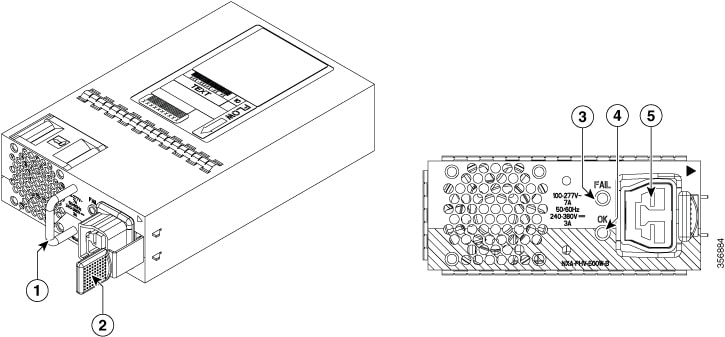
The DC power supply for C8300-1N1S-4T2X|6T devices is shown in the figure below:

  • PWR-CC1-400WDC

  • PWR-CC1-400WHV

Figure 19. 400WDC Power Supply for C8300-1N1S-4T2X|6T

1

Handle

2

Strain relief

3

Latch

4

Fail LED

5

Status LED

6

Terminal block

Figure 20. 400WHV Power Supply for C8300-1N1S-4T2X|6T

1

Power socket

2

Fail LED

3

Status LED

4

Handle

5

Latch

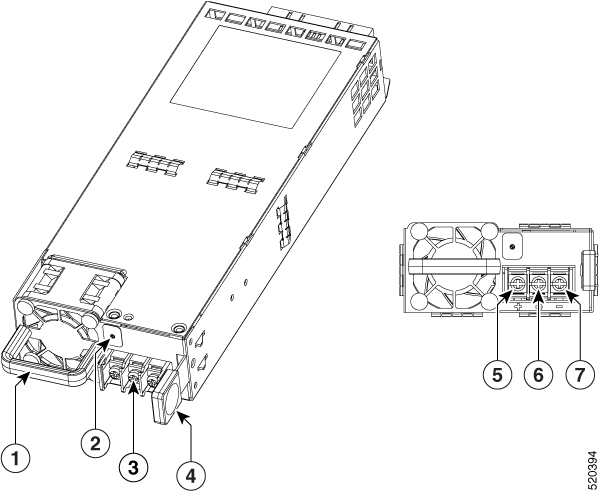
The DC power supply for C8300-2N2S-4T2X|6T devices is shown in the figure below:

Figure 21. 650WDC Power Supply for C8300-2N2S-4T2X|6T

1

Handle

2

Status LED

3

Ground lead wire

4

Latch

5

Positive (+) lead wire

6

Ground lead wire

7

Negative (-) lead wire

Remove and Replace the DC Power Supply (C8300-1N1S-4T2X|6T)

To remove a DC power supply from a C8300-1N1S-4T2X|6T, perform these steps:

Procedure


Step 1

Read the safety warnings section of this document.

Step 2

If there is only one power supply in the system, shut down the device before removing the power supply.

Step 3

If there are redundant power supplies in use the device does not have to be shut down prior to replacing the power supply. The power supply may be replaced while the device is in service.

Step 4

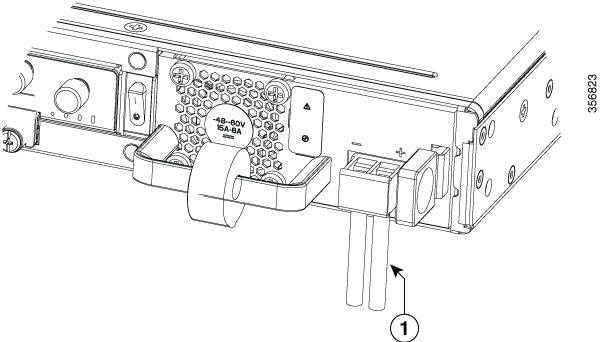
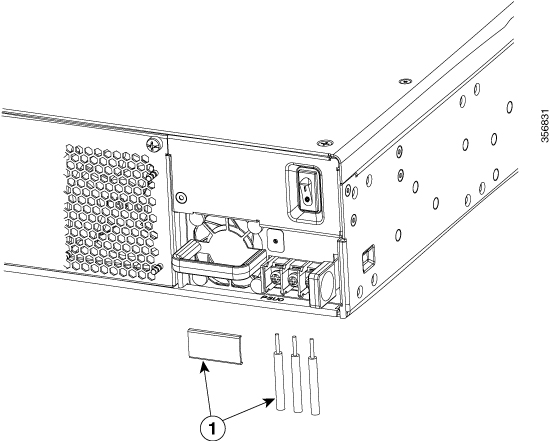
At the power distribution panel or at the local circuit breaker, remove the power from the DC power leads (label 1)attached to the power supply to be replaced.

Step 5

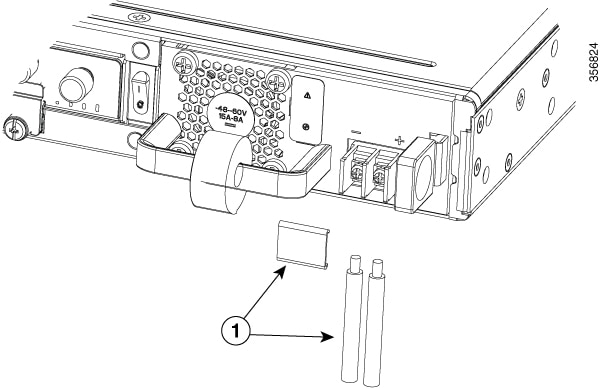
Remove the terminal block cover and loosen the terminal screws (label 1) securing the power cabling. Remove the power cabling from the terminal block.

Step 6

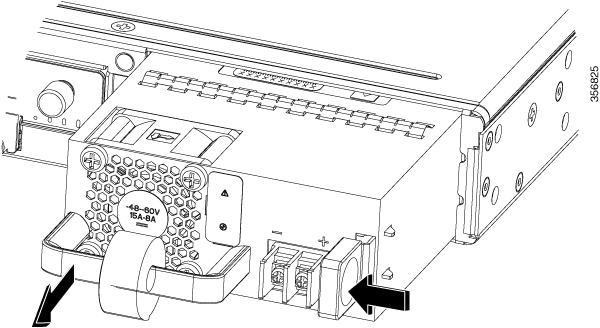
Depress the power supply latch and use the handle to pull the supply out of the device.

Figure 22. Remove a DC Power Supply from the C8300-1N1S-4T2X|6T

Figure 23. Step 5

Figure 24. Step 6

To replace or install a DC power supply from a C8300-1N1S-4T2X|6T, perform these steps:

Procedure

Step 1

Use the handle to push the power supply into the router. The power supply latch should provide an audible click when the supply is fully seated.

Step 2

If this is an initial installation, please see the section on preparing the DC power leads below.

Step 3

Install the DC power leads into the terminal block and tighten the terminal block screws to secure the cables. For the PWR-CC1-400WDC power supply the negative lead installs into the left terminal position and the positive lead installs into the right terminal position. The polarity is marked on the faceplate of the power supply.

Caution


Do not over torque the terminal block captive screws. Ensure that the connection is snug, but the wire is not crushed. Verify by tugging lightly on each wire to ensure that they do not move.

Step 4

Reinstall the terminal block cover.

Step 5

If the device was turned off, turn the power back on to the device.


Remove and Replace the DC Power Supply (C8300-2N2S-4T2X|6T)

To remove a DC power supply from the C8300-2N2SS-4T2X|6T, perform these steps:

Procedure


Step 1

Read the safety warnings section of this document.

Step 2

If there is only one power supply in the system, shut down the device before proceeding.

Step 3

If there are redundant power supplies in use the router does not have to be shut down prior to replacing the power supply. The power supply may be replaced while the router is in service.

Step 4

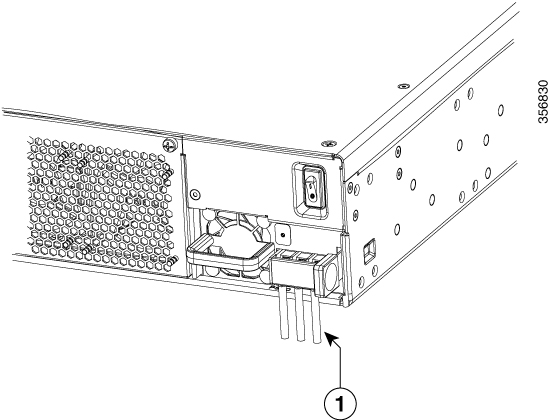
At the power distribution panel or at the local circuit breaker, remove the power from the DC power leads (label 1) attached to the power supply to be replaced.

Step 5

Remove the terminal block cover and loosen the terminal screws (label 1) securing the power cabling. Remove the power cabling from the terminal block.

Step 6

Depress the power supply latch and use the handle to pull the supply out of the device.

Figure 25. Remove a DC Power Supply from the C8300-2N2S-4T2X|6T

Figure 26. Step 5

Figure 27. Step 6


To replace or install a DC power supply from the C8300-2N2SS-4T2X|6T, perform these steps:

Procedure

Step 1

Use the handle to push the power supply into the router. The power supply latch should provide an audible click when the supply is fully seated.

Step 2

If this is an initial installation, please see the section on preparing the DC power leads below.

Step 3

Install the DC power leads into the terminal block and tighten the terminal block screws to secure the cables. For the PWR-CC1-650WDC(R) power supply, the negative lead installs into the right terminal position and the positive lead installs into the left terminal position, and the ground lead installs into the middle terminal position. The polarity is marked on the faceplate of the power supply.

Caution


Do not over torque the terminal block captive screws. Ensure that the connection is snug, but the wire is not crushed. Verify by tugging lightly on each wire to ensure that they do not move.

Step 4

Reinstall the terminal block cover.

Step 5

If the device was turned off, turn the power back on to the device.


Install the DC Input Power

This section describes how to install the DC power supply input power leads to the C8300-1N1S-4T2X|6T and C8300-2N2S-4T2X|6T DC input power supply. Before you begin, read these important notices:

  • The color coding of the DC input power supply leads depends on the color coding of the DC power source at your site. Ensure that the lead color coding you choose for the DC input power supply matches the lead color coding used at the DC power source and verify that the power source is connected to the negative (–) terminal and to the positive (+) terminal on the power supply.

  • Ensure that the chassis ground is connected on the chassis before you begin installing the DC power supply. Follow the steps provided in the Chassis Grounding .


Warning


Before performing any of the following procedures, ensure that power is removed from the DC circuit. Statement 1003

Warning


Only trained and qualified personnel should be allowed to install, replace, or service this equipment. Statement 1030

Prepare the Wire for Connecting to the DC Power Supply

In the C8300-1N1S-4T2X|6T and C8300-2N2S-4T2X|6T platforms, the DC power supply has a terminal block that is installed into the power supply terminal block header.

Use the following steps to prepare the wire for connection to the terminal source:

Procedure


Step 1

Turn off the circuit breaker from the power source to be connected to the power source. Ensure the wires to be attached to the power supply are not energized.

Step 2

The wires connecting to the power supply can be stripped back and terminated directly to the power supply terminal block. Alternately a crimp style spade terminal lug can be attached to the end of the wire. If using a terminal lug, follow the manufacturer's instructions for terminating the lug to the wire. If terminating directly to the terminal block using bare wire, following the directions shown below.

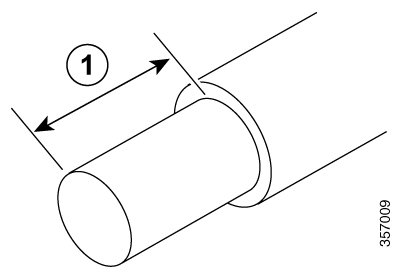
Use a wire-stripping tool to strip each of the two wires coming from the DC input power source to approximately 0.39 inch (10 mm) +/- 0.02 inch (0.5 mm). It is recommended that 14 AWG insulated wire be used. Do not strip more than the recommended length of wire because doing so could leave the wire exposed from the terminal block and shows a stripped DC input power source wire.

Figure 28. Stripped DC Input Power Source Wire

1

0.39 inch (10 mm) is the recommended wire-strip length for the terminal block.

Warning


An exposed wire lead from a DC input power source can conduct harmful levels of electricity. Be sure that no exposed portion of the DC input power source wire extends from the terminal block. Statement 122

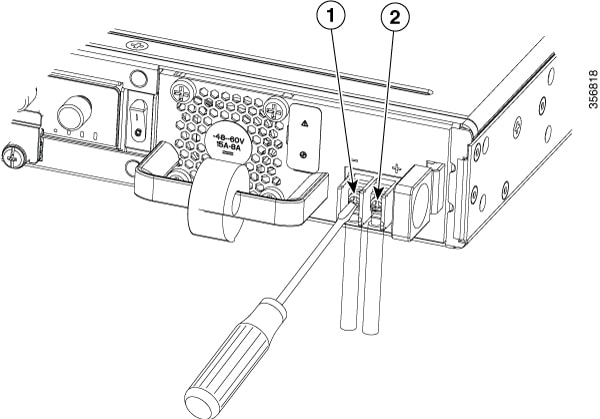
Identify the positive and negative feed positions for the terminal block connection of C8300-1N1S-4T2X|6T:

  1. Positive (+) lead wire (right)

  2. Negative (–) lead wire (left)

Figure 29. DC Power Supply with Lead Wires
Table 2.

1

Negative (-) lead wire

2

Positive (+) lead wire

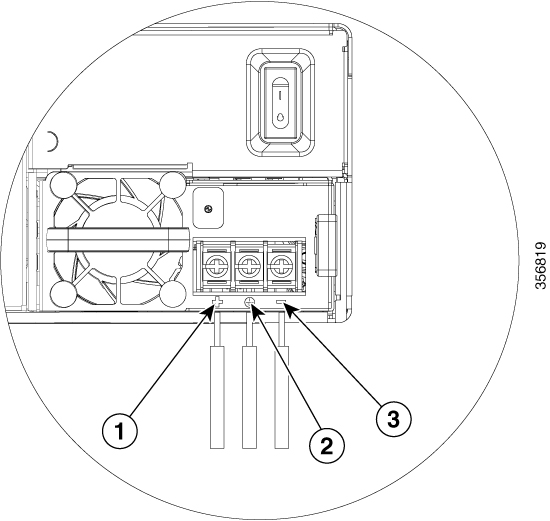
Identify the positive, ground, and negative feed positions for the terminal block connection of C8300-2N2S-4T2X|6T:

  • Positive (+) lead wire(left)

  • Ground Lead wire (middle)

  • Negative (–) lead wire(right)

Figure 30. DC Power Supply with Lead Wires

1

Positive (+) lead wire

2

Ground lead wire

3

Negative (-) lead wire


Remove and Install PoE Converter Power Supply Unit

The PoE converter power supply supports only online insertion feature, it does not support online removal.


Note


Remove and Install PoE Converter Power Supply Unit in a C8300-2N2S-4T2X|6T

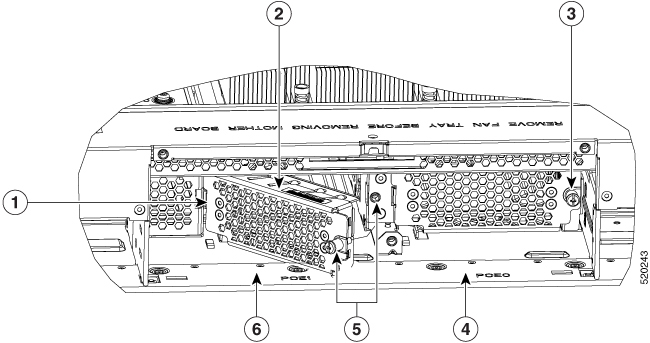
The optional PoE converter PSU slots come with factory-installed fillers. You must remove them to install the PoE converter power supplies. If you are using only one PoE converter power supply, you must install the PoE converter power supply in PoE slot 0.

This section shows the location of the PoE converter power supply slots located behind fan tray.

Remove the PoE Power Supply Slot Filler

To remove a PoE power supply filler, perform these steps:

Procedure

Step 1

Loosen the screws securing the fan tray in the chassis.

Step 2

Remove the fan tray from the device.

Step 3

Loosen the screw securing the filler panel in the device.

Step 4

Pull on the screw and rotate the filler panel out of the slot.

Figure 31. Remove PoE Power Supply Slot Fillers

1

Install tab slot on the chassis

2

POE filler being installed in PoE slot 1

3

PoE filler shown installed in PoE slot 0

4

PoE slot 0

5

Rotate to secure screw into securing nut in chassis

6

PoE slot 1


Install the PoE Power Supply Slot Filler

To install a PoE power supply slot filler, perform these steps:

Procedure

Step 1

Install the tab on the left side of the filler panel into the slot in the chassis.

Step 2

Tighten the screw to secure the filler panel in the chassis.

Step 3

Install the fan tray from the device.

Step 4

Tighten the screws securing the fan tray in the chassis.


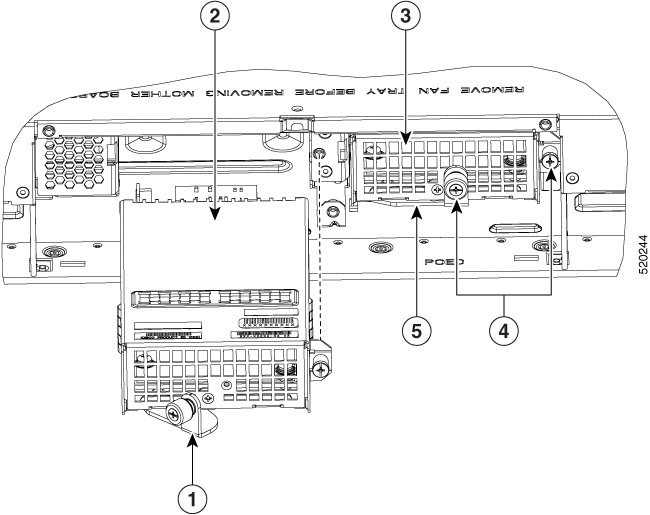
Remove the PoE Converter Power Supply

To remove the PoE converter power supply, follow these steps:

Procedure

Step 1

Remove the fan tray from the device.

Step 2

Loosen the screws securing the fan tray in the chassis.

Step 3

Remove the fantray from the device.

Step 4

Loosen the two screws securing the POE supply in the device.

Step 5

Rotate the PoE latch and pull the supply out of the slot.

Figure 32. Remove the PoE Converter Power Supply

1

Latch to secure module (shown open).

2

PoE converter module being installed in PoE slot 1

3

PoE converter module installed in PoE slot 0

4

Screws to secure PoE module to the chassis.

5

Latch to secure PoE converter module (shown closed).


Install the PoE Converter Power Supply

To install the PoE converter power supply, perform these steps:

Procedure

Step 1

Push the POE power supply into the slot, continue until the supply is fully seated. The power supply latch should rotate until it touches the faceplate of the supply.

Step 2

Tighten the screw to secure the filler panel in the chassis.

Step 3

Tighten the two screws securing the POE supply in the device.

Step 4

Install the fan tray from the device.

Step 5

Tighten the screws securing the fan tray in the chassis.

Figure 33. Install the PoE Converter Power Supply

1

Latch to secure module (shown open).

2

PoE converter module being installed in PoE slot 1

3

PoE converter module installed in PoE slot 0

4

Screws to secure PoE module to the chassis.

5

Latch to secure PoE converter module (shown closed).

The following messages are expected behavior when you try to reload or insert a PoE supply in a device with Ethernet Switch Network Module:

Example:

*Jul 21 22:35:23.868: %IOSXE_PEM-6-INSPEM_FM: PEM/FM slot POE0 inserted
Upon PoE converter power supply insertion, inline power supply restores automatically in the router. After the insertion, resets are needed for the switch modules in the router for the PoE supply to work properly.
If there are two PoE supplies, the power supplies can operate in a boost mode or redundant mode. In a boost mode, the total power supplied is a sum of the two power supplies capacity. In a redundant mode, if one of the PoE supply fails, the other PoE will supply power.

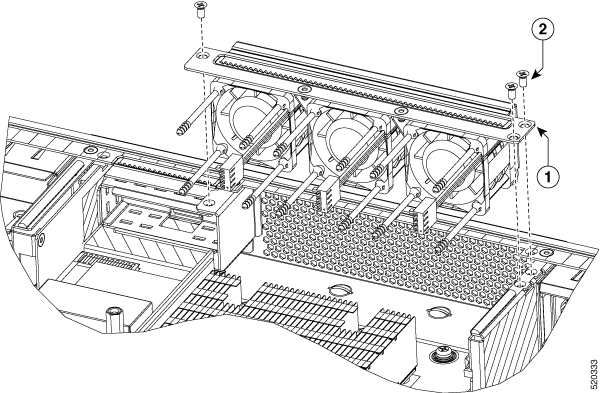
Replace a Fan Tray for Cisco Catalyst 8300 Series Edge Platforms

In the Cisco Catalyst 8300 Series Edge Platforms, we have fan trays that are field replaceable units (FRUs). The fan tray includes all the fans in one assembly. If a fan fails, replace the tray using a #1 Phillips screwdriver.

Before Replacing a Fan Tray

Read the safety precautions below and have the required tools available before replacing a fan tray:

Replace a Fan Tray in a C8300-2N2S-4T2X|6T

The C8300-2N2S-4T2X|6T supports forward air flow (standard version).

To replace the fan tray, complete the following steps:


Note


If you are hot-swapping the fan tray, it is recommended to complete the operation within two minutes to ensure that the device remains within operating temperature.


Procedure


Step 1

Loosen the three captive fan tray screws.

Step 2

Pull the fan tray out.

Step 3

Insert the replacement fan tray and tighten the three captive screws.

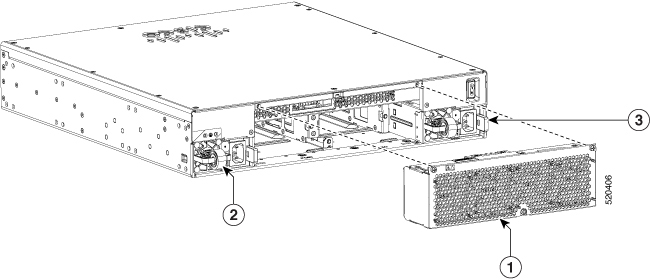
Figure 34. Fan Tray of a C8300-2N2S-4T2X|6T

1

Fan tray

2

PSU 1

3

PSU 0


Remove the Fan Tray Air Filter from a C8300-2N2S-4T2X|6T

To insert the fan tray, complete the following steps:

Procedure

Step 1

Loosen the middle captive air filter screws.

Step 2

Pull the old air filter out.

Step 3

Insert the replacement fan tray and tighten the captive screws.

Figure 35. Reinstall the Fan Tray Air Filter (Cisco 8300-2N2S-4T2X|6T)

1

Air filter cover

2

Captive screw for air filter

3

Air filter

Note

 
  • First inspection of the air filter must be performed six months after the first installation of the air filter.

  • Air filters must be inspected every three months after the initial six month inspection and replaced if found to be dirty.

  • Air filters cannot be cleaned and reused. Replace with a new air filter. It is recommended to have spare air filters in stock.


Remove the Fan Tray from a C8300-1N1S-4T2X|6T

The C8300-1N1S-4T2X|6T supports forward air flow (standard version).

To replace the fan tray, perform these steps:

Procedure

Step 1

Power off the device

Step 2

Remove all cables from the chassis

Step 3

Remove unit from the equipment rack if it is installed in a rack

Step 4

Remove the top cover

Step 5

Remove the three screws from the fantray

Step 6

Disconnect fan cables from the motherboard

Step 7

Remove the fan tray

Note


The estimated time for replacing the fan tray on C8300-1N1S-4T2X|6T by a skilled technician within 60 Minutes.

1

Fan tray

2

Screws


Install the Fan Tray into a C8300-1N1S-4T2X|6T

The C8300-INIS-4T2X|6T supports forward air flow (standard version).

To replace the fan tray, perform these steps:

Procedure

Step 1

Install the fan tray

Step 2

Install the three fan tray mounting screws

Step 3

Connect the fan cables to the motherboard

Step 4

Install the top cover

Step 5

If appropriate, re-install the unit back in an equipment rack

Step 6

Reinstall all cables from the chassis

Step 7

Power on the unit

1

Fan tray

2

Screws


Install and Remove SFP and SFP+ Modules

Before you begin

See the Cisco Catalyst 8300 Series Edge Platforms's datasheet on cisco.com for a list of supported SFP and SFP+ modules. Use only supported SFP/SFP+ modules on the platform.


Warning


Class 1 laser product. Statement 1008

Note


We recommend that you wait 30 seconds between removal and insertion of an SFP on an interface module. This time is recommend to alllow the transceiver software to initilize and synchronise with the standby RSP. Chaning an SFP more quickly could result in transceiver initialization issues that disable the SFP


  • Do not remove the dust plugs from the SFP and SFP+ modules or the rubber caps from the fiber-optic cable until you are ready to connect the cable. The plugs and caps protect the module ports and cables from contamination and ambient light.

  • Removing and installing an SFP and SFP+ module can shorten its useful life. Do not remove and insert any SFP/SFP+ module more often than is necessary.

  • To prevent ESD damage, follow your normal board and component handling procedures when connecting cables to the switch and other devices.

  • When you insert several SFP and SFP+ modules in multiple ports, wait for 5 seconds between inserting each SFP/SFP+. This will prevent the ports from going into error disabled mode. Similarly, when you remove an SFP and SFP+ from a port, wait for 5 seconds before reinserting it.

Procedure


Step 1

Attach an ESD-preventive wrist strap to your wrist and to an earth ground surface.

Step 2

Find the send (TX) and receive (RX) markings that identify the top of the SFP/SFP+ module.

On some SFP/SFP+ modules, the send and receive (TX and RX) markings might be shown by arrows that show the direction of the connection.

Step 3

If the SFP/SFP+ module has a bale-clasp latch, move it to the open, unlocked position.

Step 4

Align the module in front of the slot opening, and push until you feel the connector snap into place.

Step 5

If the module has a bale-clasp latch, close it to lock the SFP/SFP+ module in place.

Step 6

Remove the SFP and SFP+ dust plugs and save.

Step 7

Connect the SFP and SFP+ cables.


Laser Safety Guidelines

Optical Small-Form Pluggable (SFPs) use a small laser to generate the fiber-optic signal. Keep the optical transmit and receive ports covered whenever a cable is not connected to the port.


Warning


Invisible laser radiation may be emitted from disconnected fibers or connectors. Do not stare into beams or view directly with optical instruments. Statement 1051

Warning


Ultimate disposal of this product should be handled according to all national laws and regulations. Statement 1040

Warning


Pluggable optical modules comply with IEC 60825-1 Ed. 3 and 21 CFR 1040.10 and 1040.11 with or without exception for conformance with IEC 60825-1 Ed. 3 as described in Laser Notice No. 56, dated May 8, 2019. Statement 1255.

To install an SFP module in your device, perform these steps:

Procedure


Step 1

Read the Safety Warnings section and disconnect the power supply before you perform any module replacement.

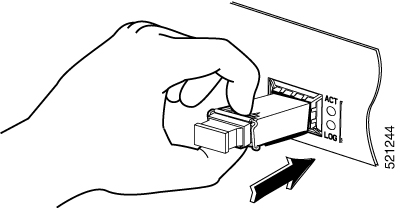
Step 2

Slide the SFP into the device connector until it locks into position

Tip


If the SFP uses a bale-clasp latch (see Laser Safety Guidelines section, the handle should be on top of the SFP module.

Figure 36. Install a Small-Form Pluggable Module

Caution


Do not remove the optical port plugs from the SFP until you are ready to connect cabling.

Step 3

Connect the network cable to the SFP module.


Remove Small Form Pluggable Modules

Follow these steps to remove a Small Form Pluggable (SFP) from the device:

Procedure


Step 1

Read the Safety Warnings section and disconnect the power supply before you perform any module replacement.

Step 2

Disconnect all cables from the SFP.

Warning


Invisible laser radiation may be emitted from disconnected fibers or connectors. Do not stare into beams or view directly with optical instruments.

Caution

 
The latching mechanism used on many SFPs locks the SFP into place when cables are connected. Do not pull on the cabling in an attempt to remove the SFP.

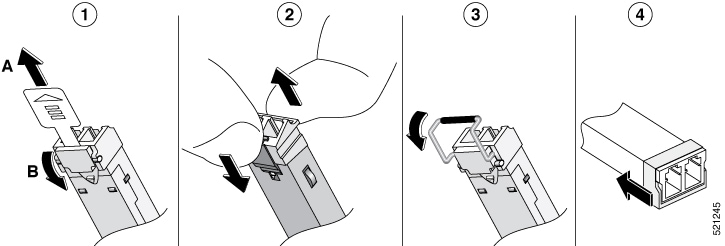
Step 3

Disconnect the SFP latch.

Note

 
SFP modules use various latch designs to secure the module in the SFP port. Latch designs are not linked to SFP model or technology type. For information on the SFP technology type and model, see the label on the side of the SFP.
Figure 37. Disconnecting SFP Latch Mechanisms

1

Sliding latch

3

Bale-clasp latch

2

Swing and slide latch

4

Plastic collar latch

Tip


Use a pen, screwdriver, or other small straight tool to gently release a bale-clasp handle if you cannot reach it with your fingers.

Step 4

Grasp the SFP on both sides and remove it from the device.


Remove and Replace the USB Flash Token Memory Stick

The Cisco Catalyst 8300 Series Edge Platforms contain ports for a USB memory stick to store Cisco configurations or Cisco IOS XE consolidated packages.


Caution


Do not remove a USB Flash memory module when issuing some file access command or a read/write operation to the Flash memory module when it is processing. The router might reload or the USB Flash memory module can be damaged. You can check to see if the USB activity LED on the router front panel is flashing, prior to the removal of the USB device


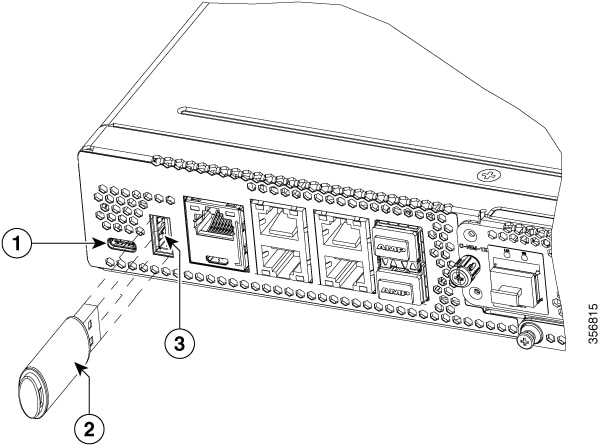
To install, remove a USB memory stick from the device, follow these steps:

Procedure


Step 1

Place the USB stick into the USB port.

Step 2

Type-C memory sticks are supported on USB port 1 and type-C memory can be inserted in any direction. Type-A memory sticks are supported on USB port 0 and it must be oriented correctly to allow for proper insertion.

Note

 
A sample of how the memory stick is inserted into the port.
Figure 38. USB Memory Stick

Note

 
You can insert or remove the memory stick whether the device is powered on or not.

1

USB Type C (3.0) (USB 1)

2

USB stick

3

USB Type A (3.0) (USB 0)


What to do next

This completes the USB Flash memory installation procedure.

Remove and Install an M.2 USB|NVMe Module

This section describes installing and replacing an M.2 USB|NVMe module on the Cisco Catalyst 8300 Series Edge Platforms.

Prevent Electrostatic Discharge Damage

The M.2 module is sensitive to electrostatic discharge (ESD) damage, which can occur when electronic cards or components are handled improperly. ESD results in complete or intermittent failures.

To prevent ESD damage, follow these guidelines:

  • Always use an ESD wrist or ankle strap and ensure that it makes good skin contact.

  • Connect the equipment end of the strap to an unfinished chassis surface.

  • Place the M.2 storage devices on an anti-static surface or in a static shielding bag. If you have to return the device to the factory, immediately place it in a static shielding bag.

  • Avoid contact between the device and clothing. The wrist strap protects the device from ESD voltages on the body only; ESD voltages on clothing can still cause damage.

  • Do not remove the wrist strap until the installation is complete.


Caution


For safety, periodically check the resistance value of the anti static strap. The measurement should be between 1 and 10 megohms (Mohms).

Remove the M.2 USB|NVMe Module

To remove a M.2 USB|NVMe module, perform these steps:


Note


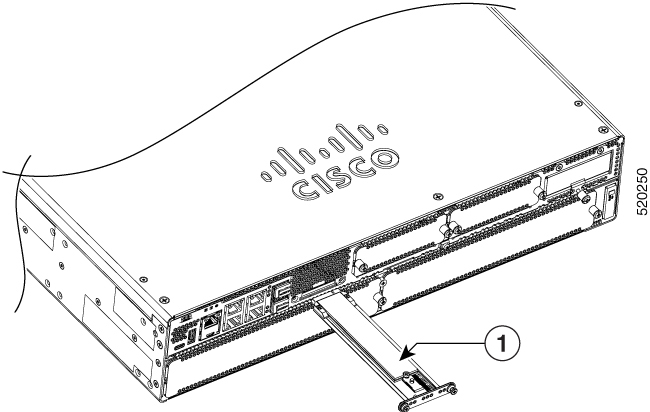
The M.2 USB|NVMe module installation for C8300 1N1S-4T2X|6T and C8300 2N2S-4T2X|6T are different.

The M.2 USB|NVMe modules are flipped upside down.


Procedure


Step 1

The device should be powered down and the power supply disconnected before you perform any module replacement.

Step 2

Loosen 2 mounting screws using a #1 Philips screwdriver.

Step 3

Gently pull the M.2 USB|NVMe module out and remove it from the device.

Figure 39. Remove the M.2 USB|NVMe Module (C8300-2N2S-4T2X|6T)

1

M.2 USB|NVMe module


Install the M.2 USB|NVMe Module


Note


The installation of M.2 USB|NVMe module for C8300-1N1S-4T2X|6T and C8300-2N2S-4T2X|6T are different.

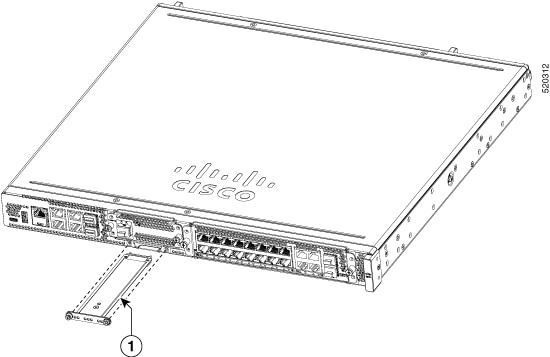
The M.2 USB|NVMe module's orientations are flipped. For the C8300-1N1S-4T2X|6T, the PCB faces down, whereas, for the C8300-2N2S-4T2X|6T, the PCB faces upwards.


To install the M.2 USB|NVMe module, perform the following steps:

Procedure


Step 1

Read all Safety Warnings, ensure that the C8300-1N1S-4T2X|6T is not powered on.

Step 2

Insert the M.2 USB|NVMe module into the slot of the device (as shown in the figure). The slide should engage the internal card guides.

Step 3

Gently slide the M.2 USB|NVMe module all the way in until the faceplate is flush with the device.

Step 4

Screw down and tighten the two Philips head screws. Torque it to 4-6 in lbs.

Step 5

The device can now be powered on.

Figure 40. Install the M.2 USB|NVMe (C8300-1N1S-4T2X|6T)

1

M.2 USB|NVMe


Managing Self Encrypting Drives

Cisco Catalyst 8300 Series Edge Platforms Series support self-encrypting drives (SED), which helps to enhance the security of data that are stored on these platforms. SEDs are locked using a security key. The security key, which is also known as Key-Encryption Key or an authentication passphrase is used to encrypt the media encryption key. If the disk is not locked, no key is required to retrieve the data. To enable the security lock, use the hw-module harddisk security-lock enable to enable the command. To disable the security lock, use the no hw-module harddisk security-lock enable command.

Also, you can perform the following actions:

  • To check the security status, use the show hw-module harddisk security-lock status command.

  • To perform factory reset on the SED when the security-lock is enabled, use the factory-reset sed

  • To perform factory reset on the SED without checkig the status of the security-lock, use the factory-reset sed PSID command. The PSID (Physical Secure ID) is a 32 character ASCII string read from the label attached to the SED drive.