- Preface
- Scheduler Concepts
- Understanding Offset Concepts
- Creating Your First Job
- Setting Up a Unix Job Dependency
- Scheduling Jobs in a Group
- Creating a Unix File Dependency
- Detecting Job Event Conditions
- Creating Variable Dependencies
- Managing Jobs in the Production Schedule
- Managing Command Parameters
- Setting Up Queues
- Using Scheduler Agents
- Using Scheduler Calendars
Overview
Enteprise Scheduler lets you organize your jobs into job groups to make it easier to manage and control jobs, and to make it more efficient to set job attributes. Jobs can inherit characteristics such as dependencies and calendars from their associated job group, eliminating the need to specify common job details for each job.
When a job group is added to the schedule manually, all of its member jobs (called child jobs) are added as well, saving you additional work and reducing the potential for mistakes. A job group can be configured the way a single job can be to depend on another job or job group.
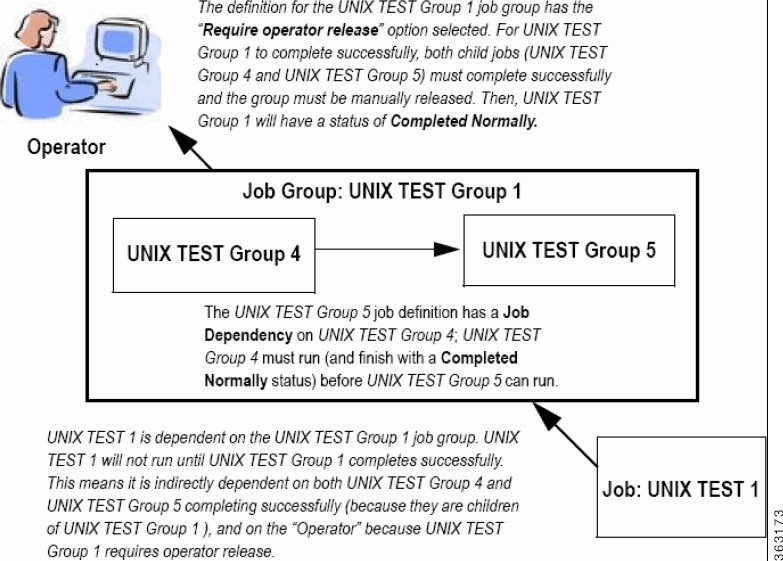
In this exercise, we will create a job group called Unix Test Group 1. Unix Test Group 1 will consist of two jobs, Unix Test Group 4 and Unix Test Group 5 . We will make the Unix Test Group 5 job dependent on the Unix Test Group 4 job completing successfully. Once the Unix Test Group 1 job group has completed normally, a Unix Test 1 job will run.
Figure 5-1 Interdependency of Unix Test 1, Unix Test Group 1, Unix Test Group 4 and Unix Test Group 5
This chapter describes how to:
- Define a job group
- Create jobs that belong to the group
- Schedule the job group
- Create a job that depends on a group
- Release the job group

Caution To complete the exercises in this tutorial, you need to:
Install Enteprise Scheduler in the default directory Scheduler (or the examples in this tutorial will not work properly)
Select the Super User option in your User Definition
Configure a default agent
Create and have available the work day calendar
Install Enteprise Scheduler in the default directory Scheduler (or the examples in this tutorial will not work properly)
Select the Super User option in your User Definition
Configure a default agent
Create and have available the work day calendar
Job Group Hierarchy
A job group is represented with a colored background. All of a group’s child jobs are indented underneath the group name. Each job group can include jobs and other job groups, which in turn can include other jobs and job groups. The window helps you visualize and navigate through the hierarchy of job groups. When you click the symbol to the left of a job group name, the display expands to show all of the jobs and job groups within the selected job group.
Job Group Scheduling
In this chapter we will develop a set of jobs under a job group, then schedule the jobs by submitting the job group only. We will do this by initially setting up the job group and its jobs as unscheduled (without an assigned calendar). This will prevent the jobs from entering the schedule before all the definitions are complete. We will then give the job group a calendar. We will set the child jobs to inherit the calendar so that all the jobs in the job group will be scheduled in one step.
Adding a Job Group
Step 1 From the
Navigator
pane, select
Definitions>Jobs
to display the
Jobs
pane.
From the
Navigator
pane, select
Definitions>Jobs
to display the
Jobs
pane.
Step 2 Right-click in the
Jobs
pane of the console and select
Add Job
Group
from the context menu.
The Job Group Definition dialog displays.
The Job Group Definition dialog is similar, but not the same, as the Job Definition dialog. The Job Group Definition dialog does not have a field for specifying the command to execute, because a job group is a container for jobs.
Step 3 In the
Job Group Name
field, enter
Unix Test Group 1
.
Step 4 Click the
Run
tab and from the
Runtime Users
list, select a user that can access the Unix agent. This runtime user will now be inherited by default by all of the child jobs within the job group. If needed you can always change the default runtime user in individual job definitions.
Step 5 Click the
Options
tab, and select the
Require operator release
option. This causes the group to wait for a manual release before it will launch.
Step 7 Click
Yes
. The
Unix Test Group 1
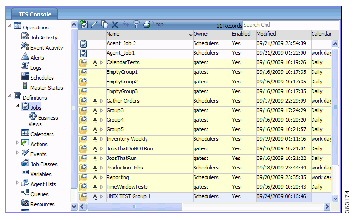
job group is added to the
Jobs
pane.
Creating Jobs that Belong to a Job Group
Now, you will add child jobs within the job group that you just created. Because you are adding jobs within the job group, inheritable properties will be set for the jobs from the job group, such as the agent that the jobs will run on.
Creating the Unix Test 4 Child Job
To create the Unix Test 4 child job belonging to the Unix Test Group 1 job group:
Step 1 From the
Navigator
pane, select
Definitions>Jobs
to display the
Jobs
pane.
Step 2 Select the
Unix Test Group 1
job group.
Step 3 Click the
Add Job
button on the Enteprise Scheduler toolbar or right-click the
Jobs
pane and select
Add Job
from the context menu to display the
Job Definition
dialog.
Step 4 Enter
Unix Test 4
in the
Job Name
field.
Step 5 Notice that the
Unix Test Group 1
job group is displayed in the
Parent Group
field. You can also specify
Unix Test Group 1
as the job group by selecting
\Unix Test Group 1
from the
Parent Group
list.
Step 6 In the
Command
field, enter the full path to the file:
/UNIX_TEST_4.sh
Now, when the
Unix Test Group 1
job group is displayed in the
Jobs
pane, it will have a  icon to the left of it. This icon indicates there are jobs and/or more job groups underneath it that are not currently visible. Clicking the
  icon expands the selected job group, showing the child jobs and/or job groups belong to it. Clicking the
  icon again collapses the job group.
Jobs do not have the  icon next to them because a job is singular and cannot have child jobs.

Note Unix Test 4 is identified as a Level 2 job, meaning it is nested on the next level below Unix Test Group 1. The indentation of the job name also serves as a visual cue of the hierarchy. Unix Test Group 1 is at Level 1 (or root) level.
Creating the Unix Test 5 Child Job with a Dependency
Now, we will create the Unix Test 5 child job that depends on the Unix Test 4 job. This job also belongs to the Unix Test Group 1 job group.
To create the Unix Test 5 child job with a dependency:
Step 1 From the
Navigator
pane, select
Definitions>Jobs
to display the
Jobs
pane.
Step 2 Select the
Unix Test Group 1
job group.
Step 3 Click the
Add Job
button on the Enteprise Scheduler toolbar or right-click the
Jobs
pane and select
Add Job
from the context menu to display the
Job Definition
dialog.
Step 4 In the
Job Name
field, enter the job name
Unix Test 5
. The
Unix Test Group 1
job group should be displayed in the
Parent Group
field. If it does not appear, select
\Unix Test Group 1
from the
Parent Group
list.
Step 5 In the
Command
field, enter the full path to the file:
/UNIX_TEST_5.sh
Step 6 Click the
Dependencies
tab.
Step 7 Click
Add
and select
Add Job Dependency
to display the
Job Dependency Definition
dialog.
Step 8 Click the down-arrow button in the
Job/Group
list and select the
Unix Test 4
job.
Unix Test 4 is now displayed on the Dependencies tab of the Job Definition dialog. Notice that the Type of dependency is identified as JOB .
The Confirm dialog displays, reminding you that a calendar has not been specified.
Step 11 Click
Yes
to accept the job definition without assigning it a calendar.
The Unix Test 5 job displays along with Unix Test 4 in the hierarchy under the Unix Test Group 1 job group.
Scheduling the Job Group
We have created two child jobs under the job group called Unix Test Group 1 , but no jobs have been scheduled. We will now assign a calendar to the job group, and when closed, the job group and all its child jobs will enter the schedule to run based on the calendar.
Step 1 Double-click the
Unix Test Group 1
job group to open its definition.
Step 2 In the
Calendar Name
list, select the
Daily
calendar.
Since child jobs default to inheriting the parent group’s attributes, by setting this option for the group, you are effectively assigning a Daily calendar to each child job.
Step 3 Click
OK
. The
Effective Date
dialog displays.
Step 4 Accept the defaults and click
OK
.
The job group and jobs are submitted and displayed in the Job Activity pane.
Scheduling a Job that Depends on a Group
One of the benefits of using job groups is that you can work with multiple jobs as though they were one big job. You can schedule jobs that depend on the status of the job group. You don’t have to determine the order in which the jobs will complete, or set a dependency on each individual job.
The status of the job group is determined by its child jobs. For example, a job group cannot reach completed status until every job in the job group has completed.
To schedule a job that depends o a group:
Step 1 From the
Navigator
pane, select
Definitions>Jobs
to display the
Jobs
pane.
Step 2 Verify that no job group (such as
Unix Test Group 1
) is highlighted, click the
Add
button on the Enteprise Scheduler toolbar or right-click in the
Jobs
pane and select
Add Job
from the context menu.
The Job Definition dialog displays.
Step 3 In the
Job Name
field, enter
UNIX_TEST_1
.
Leave the Parent Group field empty.
Step 4 In the
Command
field, enter the full path to the file:
/UNIX_TEST1.sh
Step 5 Click the
Schedule
tab.
Step 6 Select the
Daily
calendar from the
Calendar Name
list.
Step 7 Click the
Run
tab and from the
Runtime Users
list, select a user that can access the Unix agent. (Since this job is not part of a job group it does not inherit the agent it will run on.
Adding a Job Group Dependency
Now, you can add the dependency that causes job Unix_Test_1 to wait until the Unix Test Group 1 job group completes normally.
To add a job group dependency:
Step 1 Click the
Dependencies
tab in the
Job Definition
dialog.
Step 2 Click
Add
, and select
Add Job Dependency
to display the
Job Dependency
dialog.
Step 3 Go to the
Job/Group
field, and click the down-arrow button.
Step 4 Select the
Unix Test Group 1
job group.
The dependency will be met when the Unix Test Group 1 job group reaches Completed Normally status. Each job in the group must complete normally for Unix Test Group 1 to complete normally.
Step 5 Click
OK
to return to the
Job Definition
dialog.
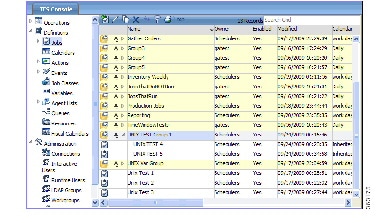
Notice that, to the right of Unix Test Group 1 , the Type of dependency is identified as JOB .
Step 6 Click
OK
, then click
OK
again in the
Effective Date
dialog to accept the current production schedule.
Releasing a Job Group
Step 1 From the
Navigator
pane, select
Operations>Job Activity
to display the
Job Activity
pane.
The Unix Test Group 1 job group and the Unix_Test_1 job are now in the production schedule. Unix Test Group 1 is Waiting on Operator , and the Unix_Test_1 job is waiting for the normal completion of all the jobs in the Unix Test Group 1 group.
Step 2 Highlight and then right-click the
Unix Test Group 1
job group to display the context menu.
Step 3 Select the
Job Control
option, then select the
Release/Resume
option to release the job group.
The Information dialog displays.
Step 5 Click
OK
in the
Information
dialog.
Unix Test Group 1 will enter Active status. Then, the Unix Test 4 job runs, and Unix Test 5 follows after Unix Test 4 completes normally. When Unix Test 5 completes, the Unix Test Group 1 job group shows a Completed Normally status. Then the Unix Test Group 1 job runs. The total process should take a few minutes.
 Feedback