- Preface
- Overview
- Preinstallation
- Installing the Cisco Video Assurance Management Solution
- Uninstalling Cisco Video Management Solution 2.0
- Configuring the Components of Cisco Video Management Solution 2.0
- Troubleshooting with Cisco Video Management Solution 2.0
- Trap Definitions
- End User License Agreement Supplement
- Glossary
- Index
- Using the VAMS Dashboards
- Monitoring ANA, CMM, and Video Probe Events with TBSM
- Monitoring ANA, CMM, and Video Probe Events with Netcool/Webtop
- Monitoring ROSA NMS Events with TBSM
- Advanced Troubleshooting with CMM and TBSM
Troubleshooting with Cisco Video Assurance Management Solution 2.0
This chapter contains the following sections:
• Monitoring ANA, CMM, and Video Probe Events with TBSM
•Monitoring ANA, CMM, and Video Probe Events with Netcool/Webtop
•Monitoring ROSA NMS Events with TBSM
•Advanced Troubleshooting with CMM and TBSM
•Monitoring and Troubleshooting in the Wireline Network
•Monitoring and Troubleshooting in the Cable Network
•Troubleshooting with Cisco ANA
Using the VAMS Dashboards
The components provide operational dashboards that give you a top-down view of video network events. Cisco VAMS 2.0 provides:
•The TBSM dashboard
•The Cisco Info Center dashboard
•Cisco Multicast Manager
•The ROSA NMS
•Cisco ANA
TBSM Dashboard
The high-level interface for VAMS 2.0 is the Tivoli Business Service Manager (TBSM). TBSM provides a view of all of the video services in your network that includes a:
•Service explorer that lists video services and associated devices
•Service tree that shows a network map of the devices for the selected service
•Service event list that shows the events for the selected service
The TBSM event list shows Cisco Info Center events that combine events received from all of the components of VAMS 2.0 and present them in a consolidated event based on processing rules specified in Cisco Info Center rules files.
You can launch the CMM home page from any event with a right-click. You can also launch a CMM flow trace with a right-click from any event that includes a Multicast Group Address and a Source IP address. Currently, Digital Content Manager (DCM) events do not contain a Source IP address, so only CMM cross-launch is available for DCM events.
Figure 6-2 shows the TBSM dashboard. For information on how to use TBSM to view VAMS video events, see:
•Monitoring ANA, CMM, and Video Probe Events with TBSM
•Monitoring ROSA NMS Events with TBSM
•Advanced Troubleshooting with CMM and TBSM
Cisco Info Center Dashboard
Cisco Info Center also provides an event list. This event list is viewable on UNIX devices, using the UNIX event list and on Netcool Webtop, using a web-based browser.
For information on using the Cisco Info Center Event list, see the Netcool/OMNIbus 7.2 User's Guide, viewable online at:
For information on using the Netcool/Webtop event list, see the Netcool Webtop 2.1 Administration Guide, viewable online at:
Cisco Multicast Manager
Cisco Multicast Manager provides a monitoring interface that allows you to monitor and manage video devices. For information on the Cisco Multicast Manager interface, see the User Guide for Cisco Multicast Manager 2.5, viewable online at:
http://www.cisco.com/en/US/products/ps6337/products_user_guide_list.html
ROSA NMS
The ROSA NMS provides a user interface for monitoring and configuring the Digital Content Manager (DCM) and associated video headend devices. For information on using the ROSA NMS, see the ROSA Network Management System User's Guide, Version 3.0 Build 18. This document is provided in PDF format on CD 1 of the ROSA NMS installation media.
Cisco ANA
Cisco Active Network Abstraction provides several applications for viewing network topology and events. For information on the Cisco ANA components, see the user guides for Cisco ANA, viewable online at:
http://www.cisco.com/en/US/products/ps6776/products_user_guide_list.html
Monitoring ANA, CMM, and Video Probe Events with TBSM
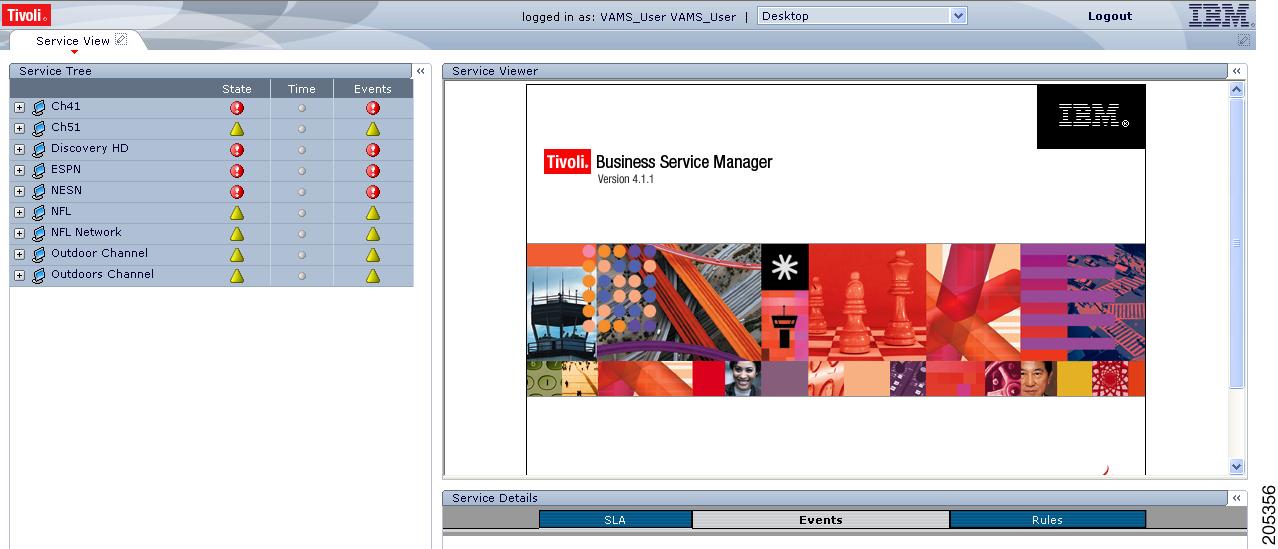
Step 1 Log in to IBM Tivoli Business and Services Manager (TBSM).
The main TBSM page appears, as shown in Figure 6-4.
The highest severity alarm status is shown in the Service Tree at the left of the page.
Figure 6-1 TBSM Main Window
Step 2 From the service tree directory browser at the left of the page, click on a service.
The service tree for the selected service appears.

Note You can sort the service tree by clicking on either the State or Events column head.
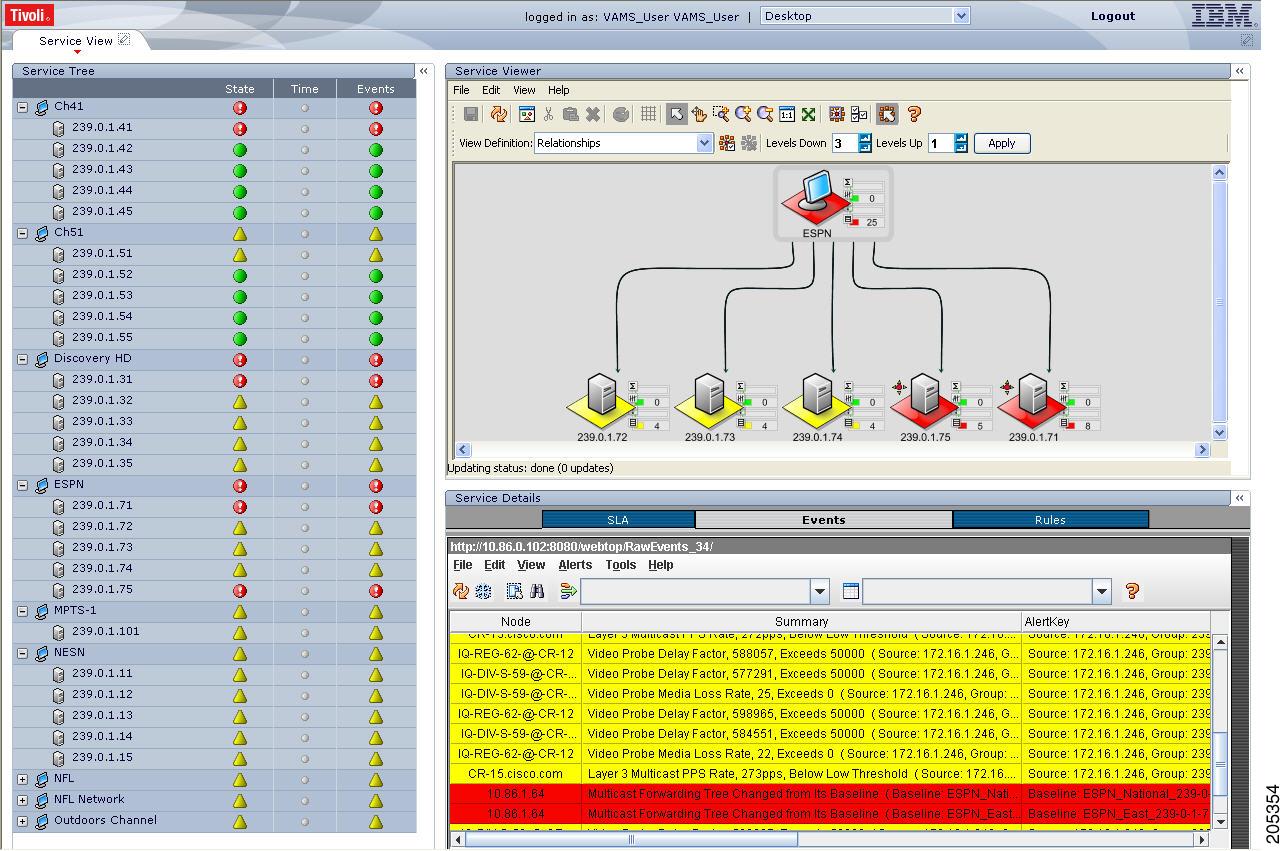
Step 3 Click on a specific device address.
The Service Viewer displays the service relationships and the Service Details window shows an event list for the service, as shown in Figure 6-2.
Figure 6-2 Service Viewer and Service Details Window
Step 4 To view the details of an event, double-click on the row for the event.
A table giving detailed field information for the event appears.
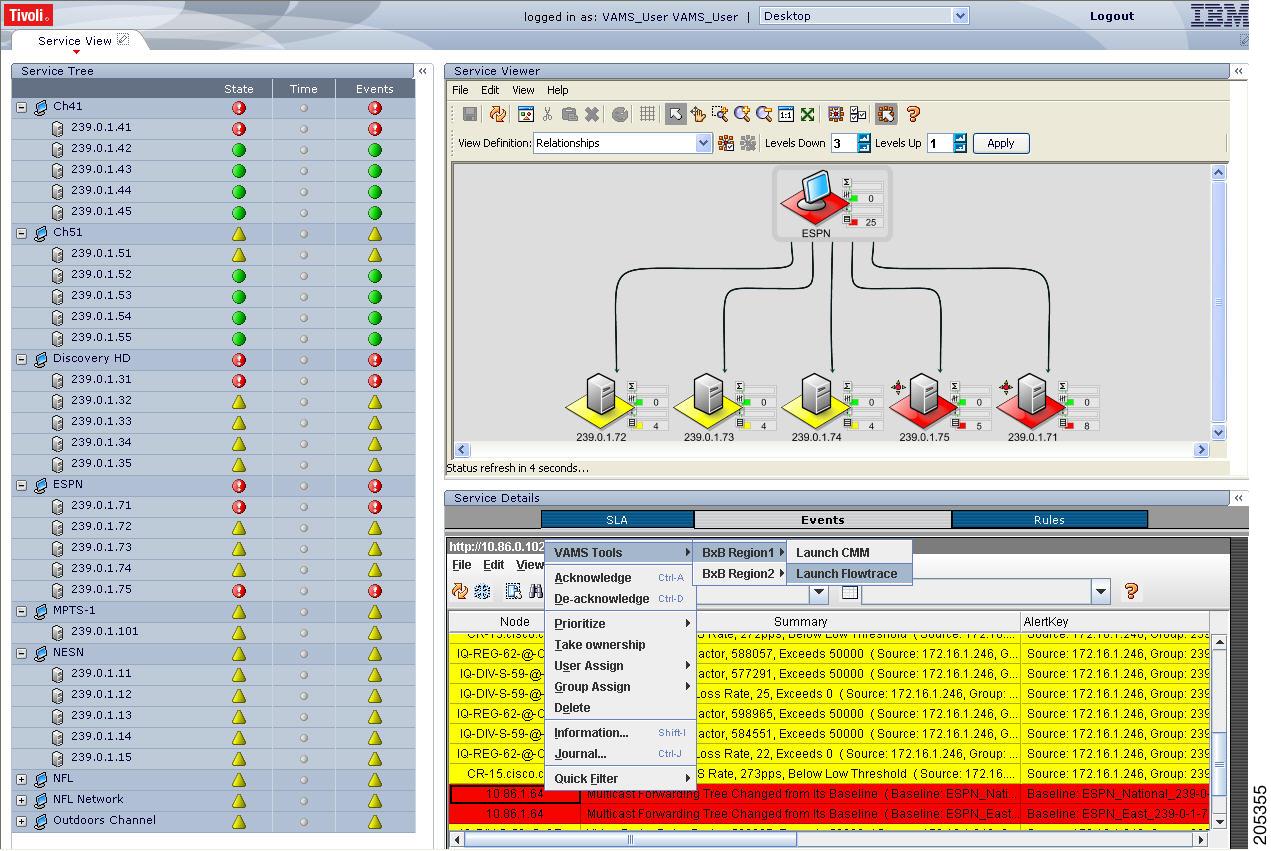
Step 5 To launch the CMM application, first left-click on an event to select it, then right-click the event, and from the Alerts Menu, choose VAMS Tools > Region Name > Launch CMM.
Note The Region Name value is configurable from TBSM. For general information on configuring the Region Name, see the IBM Tivoli TBSM documentation at the following URL:
http://publib.boulder.ibm.com/infocenter/tivihelp/v3r1/topic/com.ibm.tivoli.itbsm.doc/tbsm42custom.p
For information on configuring the TBSM menus for Cisco VAMS, see Adding CMM Menu and Tool Items, page 5-36.
Note You can launch a real-time CMM flow trace or launch the CMM Latest Events page for further troubleshooting. it is possible to have one or more CMM servers available to launch to. The example in Figure 6-3 shows two regional CMM servers reporting events to a single Cisco Info Center server.
Figure 6-3 shows the menu selections for starting CMM.
Figure 6-3 Launching CMM from a TBSM Event List
The CMM application starts.
For additional information on the Tivoli TBSM application, and information on how to adjust and customize the TBSM window, see the IBM Tivoli TBSM documentation at the following URL:
Monitoring ANA, CMM, and Video Probe Events with Netcool/Webtop
Step 1 Log in to IBM Tivoli Business Service Manager (TBSM).
The main TBSM window appears, as shown in Figure 6-4.
Figure 6-4 TBSM Main Window
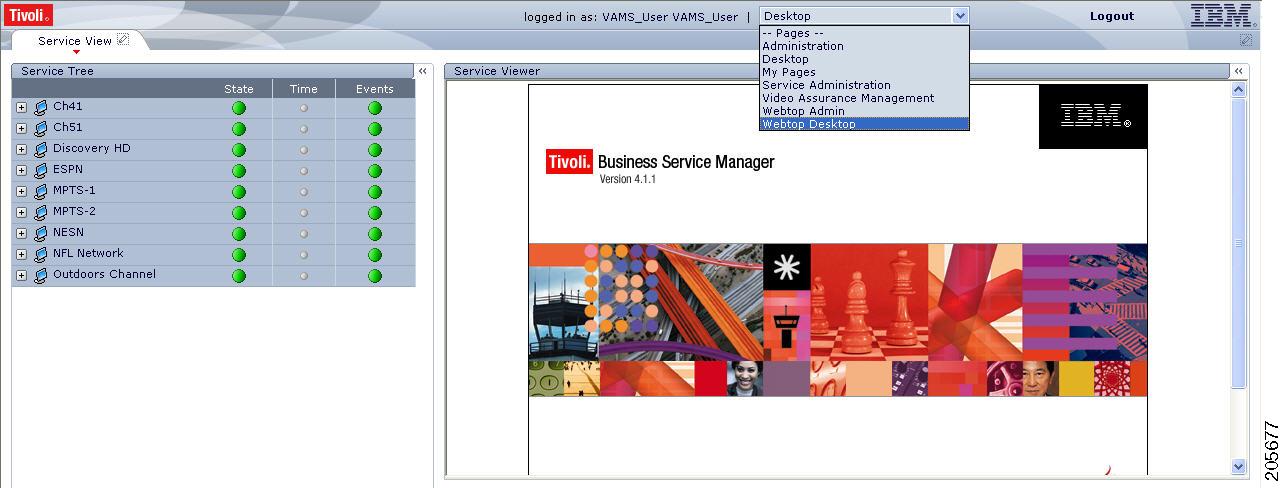
Step 2 From the pull-down menu at the top of the TBSM start page, select Webtop Desktop.
The Webtop Desktop User page appears.
Step 3 Click the Event Lists tab.
The Active Event List appears, as shown in Figure 6-5.
Figure 6-5 Webtop Active Event List
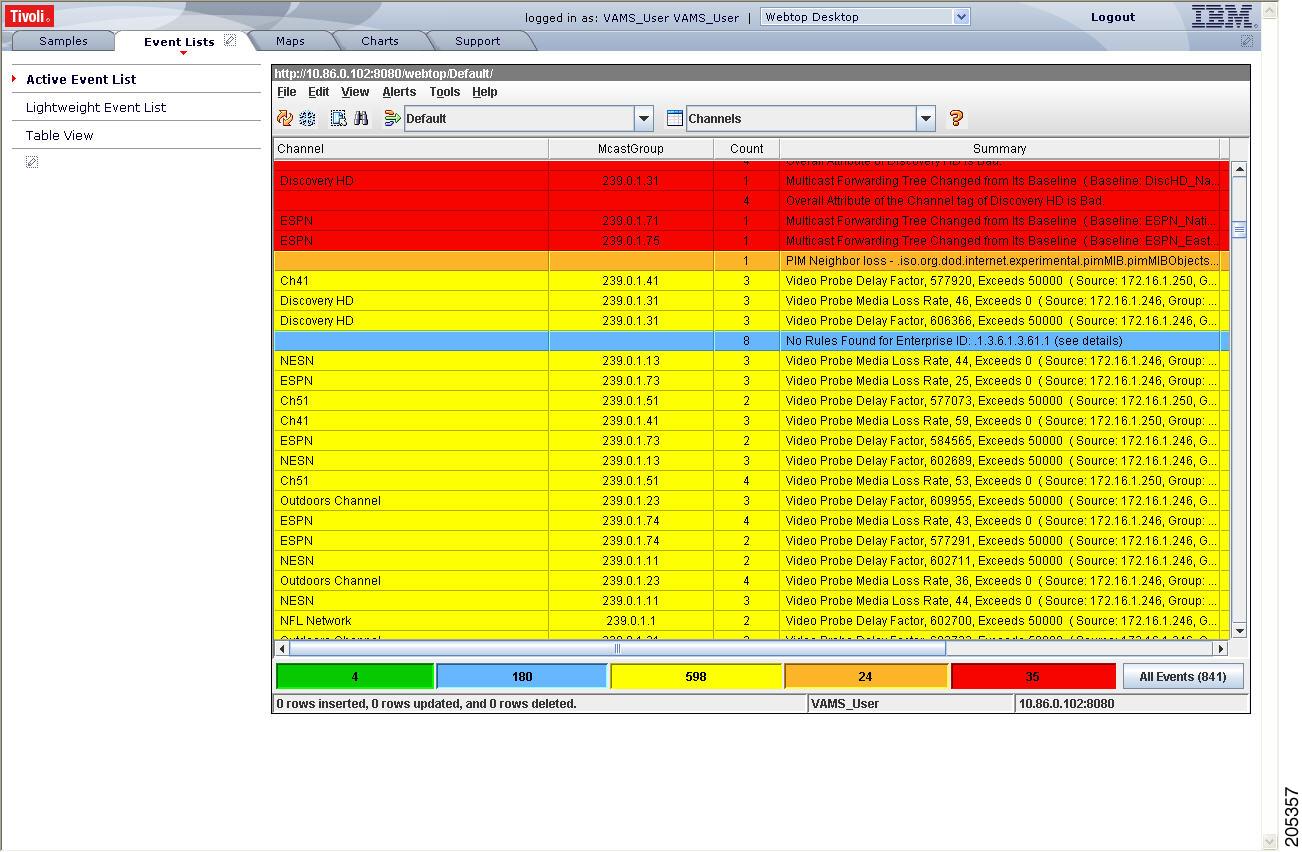
The Active Event List shows ANA events and CMM events. These events are sent from the CMM video probes by means of the MTTrapd probe. The Active Event List also shows events from the IneoQuest, Bridge Tech, Mixed Signals, and Pixelmetrix video probes.
Step 4 To view the details of an event, double-click on the row for the event.
A table giving detailed field information for the event appears.
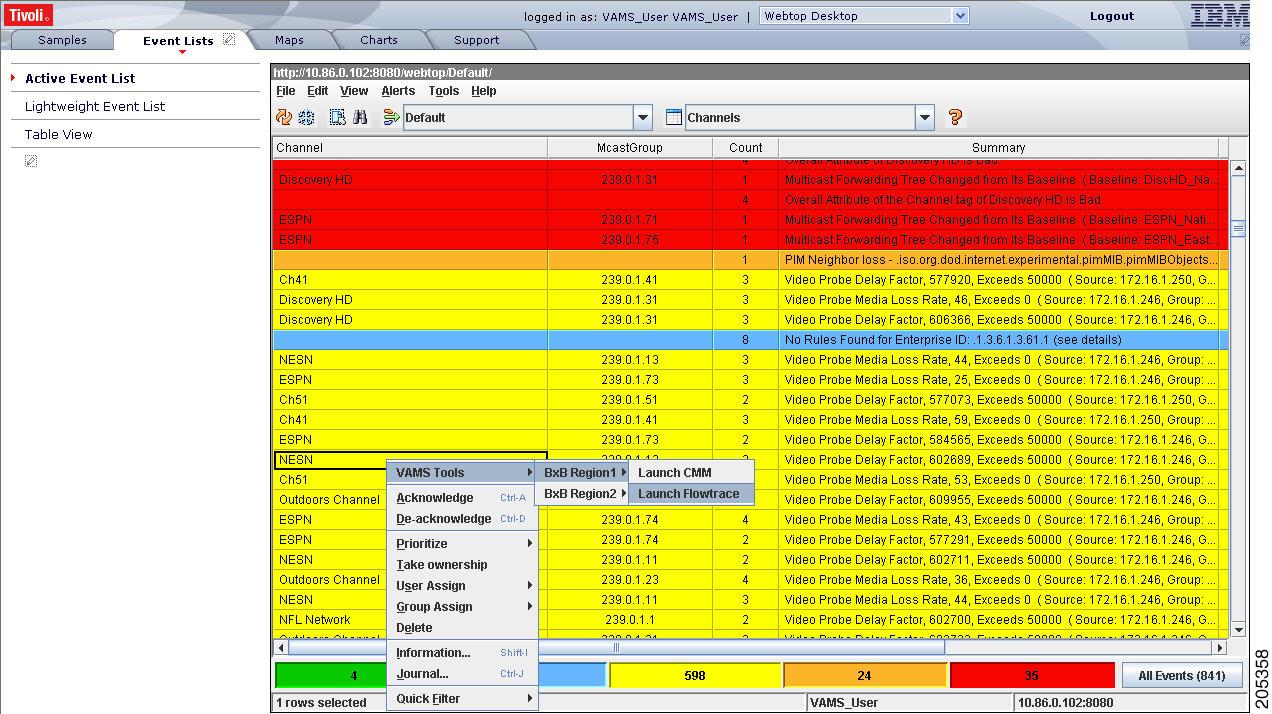
Step 5 To launch the CMM application, first left-click an event to select it, then right-click the event, and from the Alerts Menu, choose VAMS Tools > Region Name > Launch CMM.
Note You can launch a real-time CMM flow trace or you can launch the CMM Latest Events page for further troubleshooting.
Note The Region Name value is configurable. For information on configuring the Region Name in TBSM, see the IBM Tivoli TBSM documentation at the following URL:
http://publib.boulder.ibm.com/infocenter/tivihelp/v3r1/topic/com.ibm.tivoli.itbsm.doc/tbsm42custom.pdf
Note It is possible to have one or more CMM servers available to launch to. The example in Figure 6-6 shows two regional CMM servers reporting events to a single Cisco Info Center server.
Figure 6-6 shows the menu selections for starting CMM.
Figure 6-6 Launching CMM from Webtop
For detailed information on the Netcool/Webtop tool, see the following IBM Netcool/Webtop documents on the IBM Tivoli Netcool website:
•IBM Tivoli Netcool/Webtop QuickStart Guide
•IBM Tivoli Netcool/Webtop Administration Guide
Monitoring ROSA NMS Events with TBSM
VAMS 2.0 and TBSM allow you to monitor a variety of events from components in the video headend. These events are collected by the ROSA NMS and forwarded to Cisco Info Center. Cisco Info Center correlates the events with additional alerts received from the video network and consolidates the information into one alert.
You can view the following categories of alerts in TBSM:
•Service Alerts—Indicate that a service loss has occurred, a service backup has occurred, or a transport stream has been lost. For a complete list, see Viewing Service Alerts.
•ETR-290 First Priority Alarms—Indicate various fault conditions, such as TS Sync Loss, CC Error, Sync Byte Error, PAT Error, PMT Error, or PID Error. For a complete list, see ETR-290 First Priority Alarms, page 1-18.
•Video Transport Events—Indicate errors in video transport, such as UDP Stream Loss, Bandwidth Exceeded, or Destination IP Unresolved. For a complete list, see Video Transport Events, page 1-19.
•Additional Video Quality Measurements—Includes additional events that measure video quality, such as Unreferenced PID Error, PMT Section Exceeds 1K, Missing FEC Stream, or Payload Bit Rate Too Low. For a complete list, see Additional Video Quality Measurements, page 1-19.
Viewing Service Alerts
Service alerts indicate the loss of a video service. Cisco VAMS reports four types of service alert:
•Service Loss—For each incoming service, one or more alarms can be defined to trigger a Service Loss alarm. A Transport Stream Loss alarm is triggered when a Service Loss alarm occurs.
•Service in Backup (Service Loss)—This alarm is generated when a service is in backup state triggered by a Service Loss alarm.
•Service Loss at Output—This alarm is generated for an outgoing service for which the corresponding incoming service and incoming backup services are in Service Loss state.
•Service in Backup (TS Loss)—This alarm is generated when a service is in backup state triggered by a TS Loss alarm.
Viewing a Service Loss Event
To monitor Service Loss events with Cisco Info Center, bring up a Webtop event list using Cisco Info Center/TBSM:
Step 1 Log in to TBSM.
The main TBSM window appears, shown in Figure 6-7.
Figure 6-7 TBSM Main Window
Step 2 From the service tree directory browser at the left of the TBSM main window, click on a service.
The service tree for the selected service appears.
Step 3 Click on a specific device address.
The Service Viewer displays the network topology an the Service Details window shows an event list for the service.
Figure 6-8 shows a Cisco Info Center/TBSM display that includes a Service Loss event.
Figure 6-8 Viewing a Service Loss Event
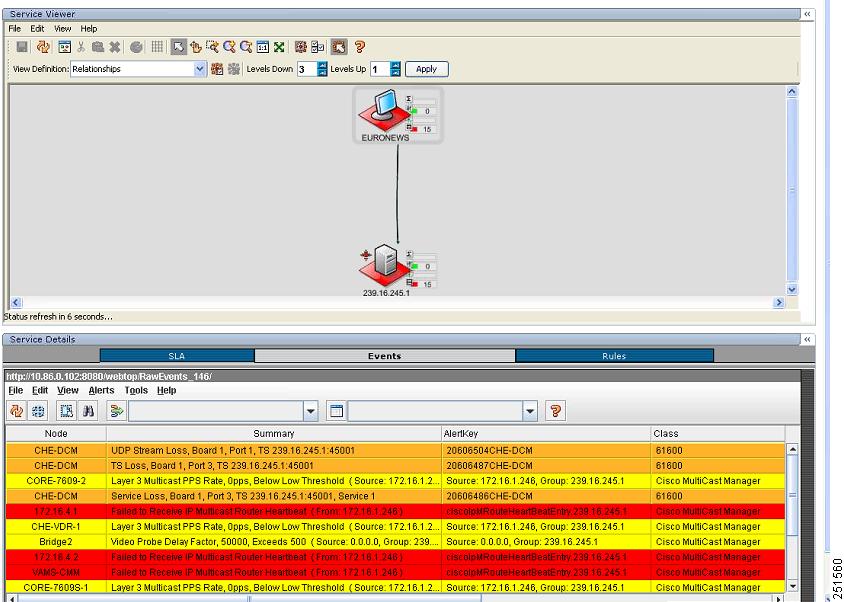
The Service Loss Event summary indicates:
•Board Number—The board on which the service loss occurred on the indicated device.
•Port Number—The port number on which the video stream was transmitted.
•TS—A number identifying the Transport Stream affected by the service loss.
•IP Address—The IP address of the port.
Additional Events Related to the Service Loss
The TBSM event list shown in Figure 6-8 indicates several additional events related to the service lost.
•Layer 3 Multicast Rate PPS Rate Below Threshold—Indicates that the multicast PPS rate on the router used to receive the video service feed from the Digital Content Manager (DCM) is below the configured threshold.
•TS Loss—Indicates a ROSA NMS event that identifies a Transport Stream (TS) from the DCM.
•UDP Stream Loss—Indicates that the UDP port on the router communicating with the DCM no longer detects a TS from the DCM.
When a service loss occurs, you might see additional ETR-290 First Priority events related to the service loss; for example, you might see a CC error event indicating a discontinuity error in the MPEG TS structure for a program transmitted in the TS.
Step 4 To launch Cisco Multicast Manager to view additional monitoring information related to the service loss event:
a. Right-click on the event in the event list.
b. From the pull-down menu, choose VAMS Tools > Region_Name > Launch CMM, where Region_Name is the name of a region or entity that you have set up in your network.
Figure 6-9 shows how to launch CMM to view additional monitoring information for service events.
Figure 6-9 Launching CMM to View Service Loss Information
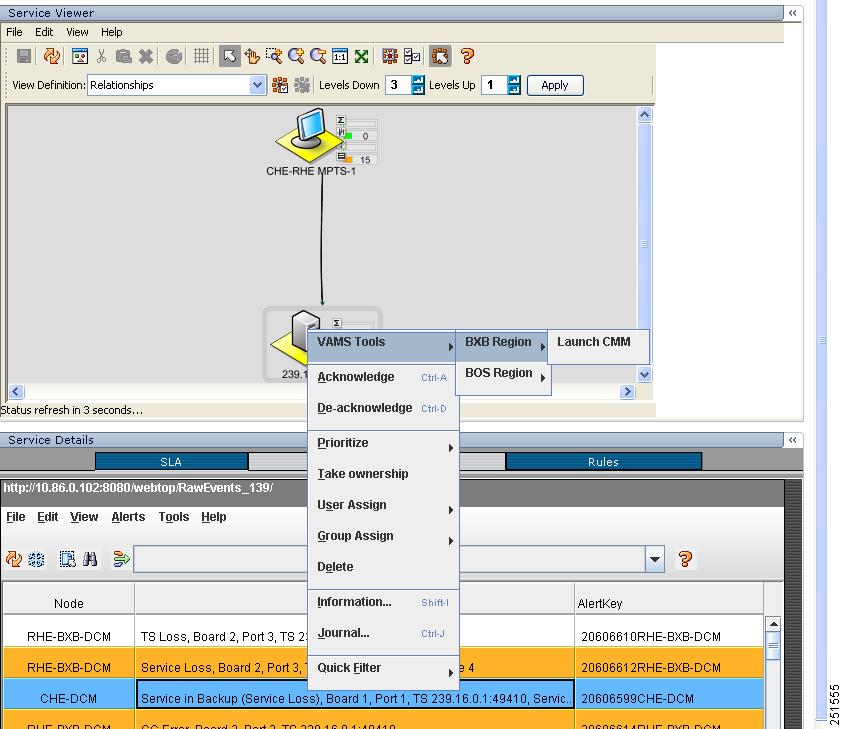
Note In this example, the event highlighted in blue has been right-clicked to bring up the cross-launch menu. The cross-launch is based on the information in the event that has been selected above, which is highlighted in white.
Viewing Service Loss on Backup Events
Typically, video content is sourced from the central headend (CHE) to regional headends (RHEs), where local ads are inserted into the video stream. Regional and local content is also inserted into the video stream the resulting streams are sent out to divisions in the multicast network. Each content stream designated for a division is transmitted in a different multicast group.
Using the ROSA NMS, you can set up the DCM to fail over from the primary video source to a backup video source. For example, if the video transmission from a terrestrial antenna is interrupted, you can program the DCM to automatically switch to a secondary video source, for example, a satellite receiver dish.
When a service backup occurs, the ROSA NMS receives alerts from the DCM at the CHE and generates a Service Loss event, a Service Loss on Backup, and additional events, such as a TS Loss event.
Downstream, the RHE DCM detects ETR-290 alerts on the CHE and also reports a temporary Service Loss on Output event due to the CHE service cutover.
To view Service Loss on Backup Events.
Step 1 From the TBSM main window, click on a service that has a high priority (red) alert.
TBSM displays the service tree for the event and the associated Cisco Info Center event list. Figure 6-10 shows a service tree and event list for the BBC Three service:
Figure 6-10 Viewing a Service Loss Event Resulting from a Service Backup

The service tree shown in Figure 6-10 shows that the primary video signal has been lost by highlighting it in red and indicates that the secondary video signal is active by highlighting it in green.
The event list in Figure 6-10 shows the following events:
•Below Low Threshold Event—This is received from CMM, indicating that the Layer 3 Multicast Rate is under the configured threshold value.
•Failed to Receive IP Multicast Router Heartbeat—This event is received from the router connected the DCM at the CHE, indicating that the multicast heartbeat is no longer detected.
•UDP Stream Loss—Indicates that the UDP port on the router communicating with the DCM no longer detects a TS from the DCM.
Step 2 To view the Service Loss in Backup event and associated events, in the service directory at the left of the TBSM display, click on the service that shows an alert.
TBSM displays a service tree and event list for the selected device, as shown in Figure 6-11
Figure 6-11 Viewing a Service Loss in Backup Event

The event list in Figure 6-11 correlates the events on the CHE DCM that was receiving the TS from the primary video source to the events indicating the error conditions on the Multiple Program Transport Stream (MPTS) generated at the CHE. The event list includes:
•Service Loss—A service loss event from the DCM at the RHE indicates the loss of the primary video stream from the CHE.
•Service in Backup (Service Loss)—A service in backup event from the DCM at the CHE indicates that a service backup has occurred: the primary video source has been replaced by the secondary video source.
•ETR-290 Alerts—The DCM at the RHE reports:
–PID Error—Occurs when components referenced in the Program Map Table (PMT) are not found within a specified time interval.
–CC Error—Indicates a discontinuity error in the MPEG TS structure for a program transmitted in the TS.
–Video Probe Media Loss Rate Error—A video probe in the core transport network reports a Media Delivery Index/Media Loss Rate (MDI/MDR) event from CMM that indicates a MLR above the configured threshold.
You can also view Service Loss at Output events at the CHE and at the RHE downstream from the CHE that is affected by the video service loss and backup.
Step 3 To view the Service Loss at Output and Related events at the CHE, in the service directory at the left of the TBSM display, click the icon for the CHE service that has a moderate (yellow) alert condition.
TBSM displays the service tree and event list for the CHE device, as shown in Figure 6-12:
Figure 6-12 Viewing a Service Loss at Output Event and Related Events at the CHE

Figure 6-12 shows the following CHE and related events:
•Service Loss at Output—Indicates the Service Loss at Output condition at the CHE DCM.
•Service Loss—Indicates the service loss event at the RHE affected by the service loss.
•ETR-290 Alerts—The DCM at the RHE reports:
–PID Error—Occurs when components referenced in the Program Map Table (PMT) are not found within a specified time interval.
–TS Loss—The first byte of a Transport Stream packet header is the synchronization byte (0x47). A TS Loss error occurs when the synchronization byte in a sequence of at least two Transport Stream packets are not detected.
Step 4 To view the Service Loss at Output event and related events at the RHE downstream from the CHE, in the service directory, click the icon for the RHE service that has a moderate (yellow) alert condition.
TBSM displays the service tree and event list for the selected RHE device, as shown in Figure 6-13:
Figure 6-13 Viewing a Service Loss at Output Event at the RHE
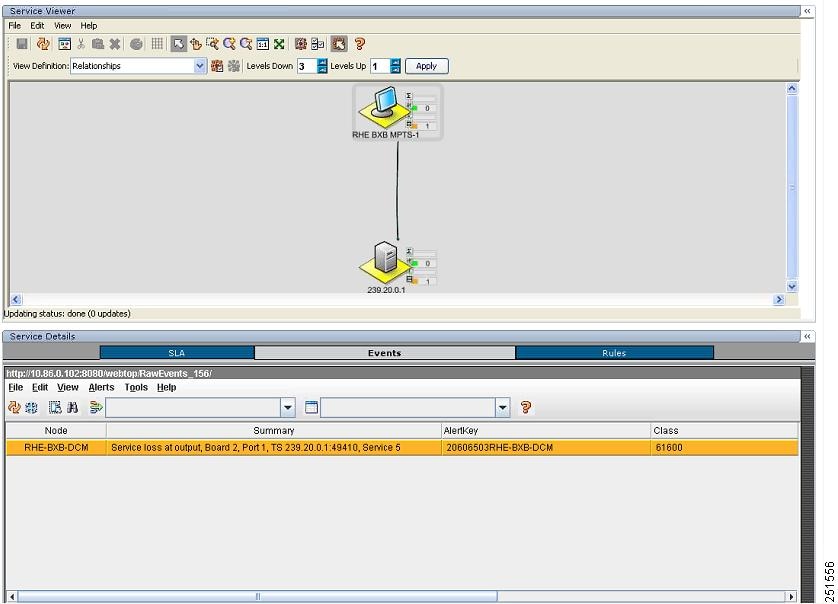
The event list in Figure 6-13 shows the Service Loss at Output event reported by the DCM at the RHE.
Step 5 To launch Cisco Multicast Manager to view additional monitoring information related to the service loss event:
a. Left-click on the event in the event list and then right-click to bring up the cross-launch menu.
b. From the pull-down menu, choose VAMS Tools > Region_Name > Launch CMM, where Region_Name is the name of a region or entity that you have set up in your network.
Figure 6-14 shows how to launch CMM to view additional monitoring information for service events.
Figure 6-14 Launching CMM to View Service Loss Information
Note In this example, the event highlighted in blue has been right-clicked to bring up the cross-launch menu. This cross-launch is based on the information in the selected event above, which is highlighted in white.
Viewing ETR-290 First Priority Alarms and Additional Events Related to a Service Loss
By selecting the services and devices associated with service loss events, you can view Video Transport Events and Additional Video Quality Measurement Events associated with the service loss events.
For examples of the TS Loss, PID Error, CC Error, and UDP Stream loss events, see Viewing a Service Loss Event and Viewing Service Loss on Backup Events.
Advanced Troubleshooting with CMM and TBSM
CMM provides a diagnostics tool that gives you a multicast global view and a router-specific view of your network. Webtop events that you can view using TBSM allow you to see additional details about the network.
Table 6-1 lists important areas of the CMM that you can use to troubleshoot a multicast video distribution network using Cisco VAMS:
|
|
|
|---|---|
Viewing network status |
View the status of all devices in the current multicast domain. See: |
Viewing RP status |
View all routers in the database, their RPs, and the active groups. See: http://www.cisco.com/en/US/docs/net_mgmt/cisco_multicast_manager/2.5/user/guide/cmm_dt.html#wp1130983 |
IGMP diagnostics |
View the interfaces that have joined a particular group. See: |
Layer 2 switches |
View Layer 2 multicast information and host IPs. The table shows, from a Layer 2 perspective, which multicast groups are being forwarded out which interfaces. See: |
Cisco 6500/7600 troubleshooting |
Gather accurate packet-forwarding statistics and other information. See: http://www.cisco.com/en/US/docs/net_mgmt/cisco_multicast_manager/2.5/user/guide/cmm_dt.html#wp1131042 |
Top-20 video flows |
View the top-20 video flows. The top-20 video flows are dynamically updated at every polling interval. See: |
Video probe status1 |
View diagnostic information about video probes and the flows that they are monitoring. See: |
Video Flow Tracing |
Video flows can be traced through the network. All routers participating in the transport of the multicast flow are listed. A graphical representation of the flow path is provided which includes IneoQuest probes and their status for a given flow. |
PPS/BPS Threshold Monitoring |
PPS/BPS threshold monitoring allows you to set and monitor thresholds on Cisco routers and switches for high or low BPS or PPS rates on a per flow basis. See Monitoring Multicast Tree Changes (Tree Polling) for details on PPS/BPS threshold monitoring. |
Monitoring Multicast Tree Changes (Tree Polling) |
View changes to multicast trees, which might affect video quality immediately, or at some time in the future. Tree polling allows you to monitor the multicast distribution tree of a video service and receive an alert when changes to the distribution tree occur. See: • • http://www.cisco.com/en/US/docs/net_mgmt/cisco_multicast_manager/2.5/user/guide/cmm_mon.html |
Health Checks |
You can perform health checks to check and report on the critical components of your network. For example, you can check on the status of Rendezvous Points (RPs), Multicast Source Discovery Protocol (MSDP) peering, the presence of sources and groups, and the status of multicast trees. See: • http://www.cisco.com/en/US/docs/net_mgmt/cisco_multicast_manager/2.5/user/guide/cmm_dt.html |
Monitoring IP Multicast Heartbeat |
You can configure IP multicast heartbeat monitoring on Cisco routers and switches to verify that data is flowing on the monitored multicast flow(s). See Monitoring IP Multicast Heartbeat. |
1 Cisco Multicast Manager 2.5.4 supports only the IneoQuest video probe. |
Monitoring Multicast Tree Changes (Tree Polling)
You can monitor multicast tree changes with Cisco Multicast Manager and receive the alert in Cisco Info Center. From Cisco Info Center you can then launch CMM for advanced troubleshooting of the tree changes.
Monitoring Multicast Tree Changes with Cisco Info Center
To monitor multicast tree changes with Cisco Info Center, bring up a Webtop event list using Cisco Info Center/TBSM:
Step 1 From the service tree directory browser at the left of the Cisco Info Center/TBSM display, click on a service.
The service tree for the selected service appears.
Step 2 Click on a specific device address.
The Service Viewer displays the network topology an the Service Details window shows an event list for the service.
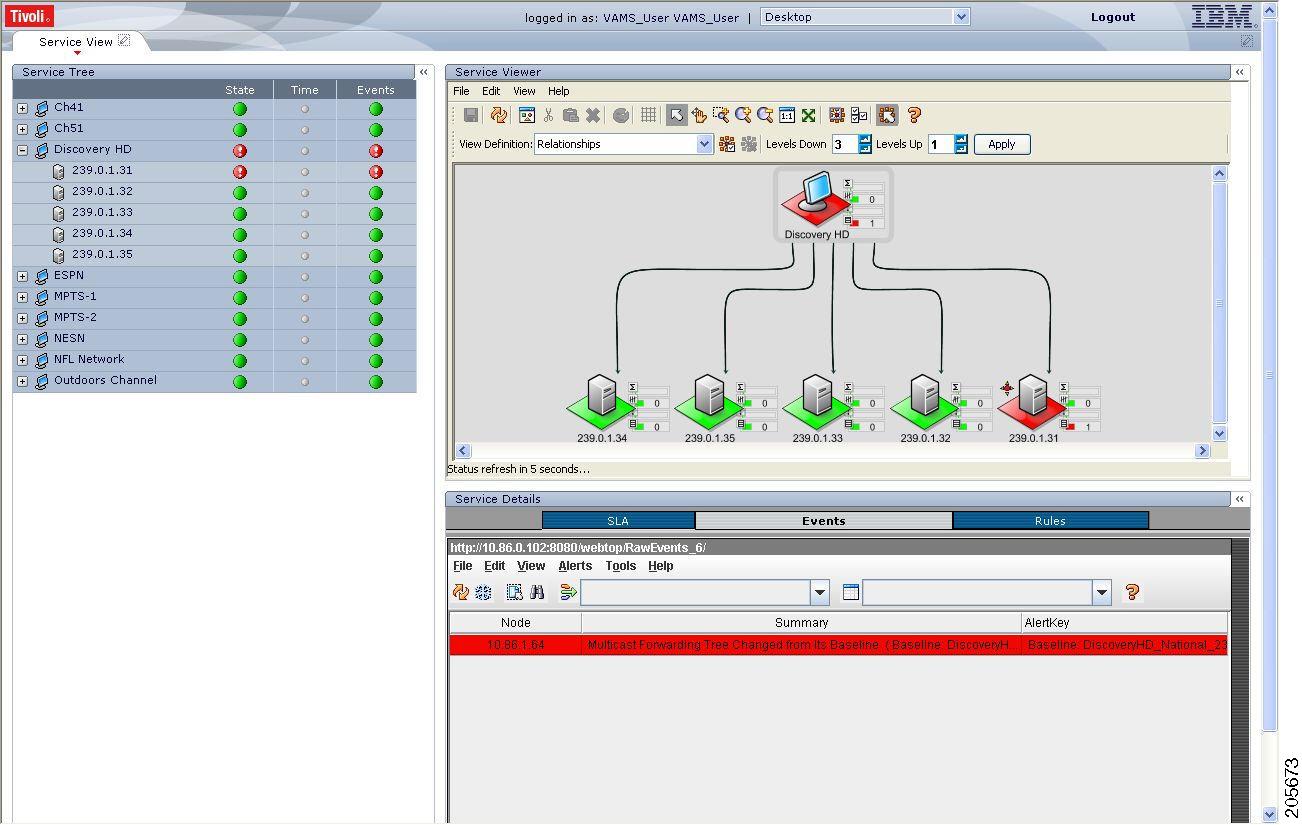
Figure 6-15 shows a Cisco Info Center/TBSM display and a Webtop event indicating that a Multicast Forwarding Tree has changed from its baseline.
Figure 6-15 Viewing a Tree Change Event in TBSM/Webtop
Step 3 To view the details of an event, double-click on the row for the event.
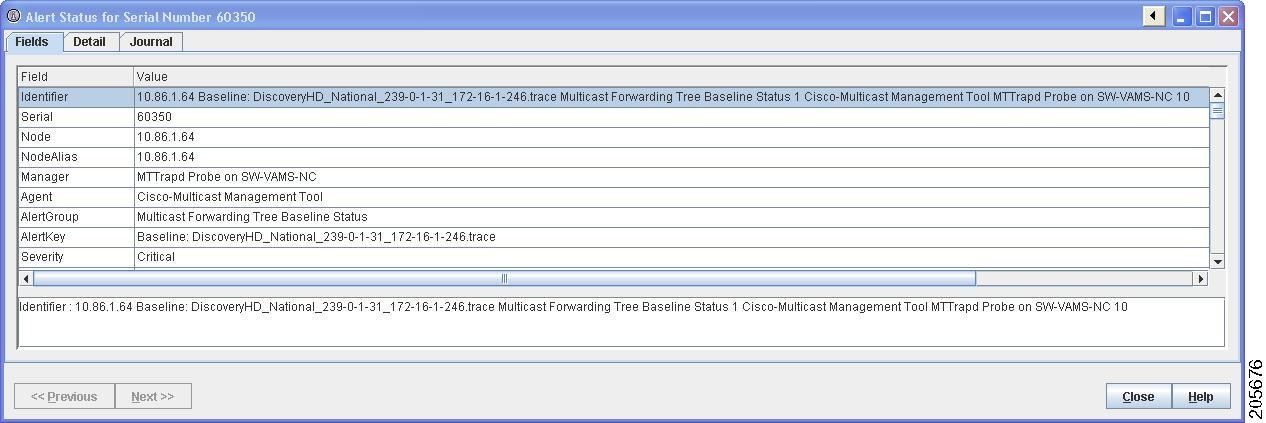
A table giving detailed field information for the tree change event appears. Figure 6-16 shows a sample Alerts Status page with tree change event details.
Figure 6-16 Detailed Tree Change Event Information
Step 4 To launch the CMM application and monitor additional information about the tree change event, highlight an event, and then from the Alerts Menu, choose VAMS Tools > Region Name > Launch CMM.
Step 5 Go to the Monitoring Multicast Tree Changes with CMM for information on monitoring tree change events with CMM.
Monitoring Multicast Tree Changes with CMM
Using CMM, you can:
•View the latest tree change events.
•View a Tree Changed Report that shows details about the changes in the tree
When you launch CMM from TBSM/Cisco Info Center, the CMM Latest Events list appears. Figure 6-17 shows a Latest Events list from CMM that includes tree change events.
Figure 6-17 CMM Tree Change Events

The event list in the figure shows two events:
•The first event to come in is a Tree Changed event indicating that a tree has been changed.
The Tree Changed event indicates the name of the trace file that was used as the baseline to compare the current distribution tree against. The format of the trace filename shown in the event is the same format that you use to specify the trace filename when during Tree Polling configuration for the domain.
The trace filename has this format:
<channel name>_<ad zone>_<Mcast-Group>_<source-IP>
where channel_name is the name of the channel, ad_zone is the name of the Ad zone, Mcast-Group is the address of the multicast group, and source-IP is the IP address of the source. For example:
PBS_National_232-0-1-32_12-101-2-18
•The second event to come in is a Tree Reverted event that indicates that the tree reverted back to its previous state. This trap has the same format as the Tree Changed event (indicates the filename of the trace file was used as the baseline to compare against).
Viewing a Tree Changed Report
To view a Tree Changed Report:
Step 1 If you are in the TBSM/Cisco Info Center interface, highlight an event, and then from the Alerts Menu, choose VAMS Tools > Region Name > Launch CMM.
The CMM Latest Events page appears.
Step 2 From the CMM Home Page, select Reporting > Tree Report.
The Multicast Tree Report page appears, as shown in Figure 6-18.
Figure 6-18 Selecting a Tree Change Report
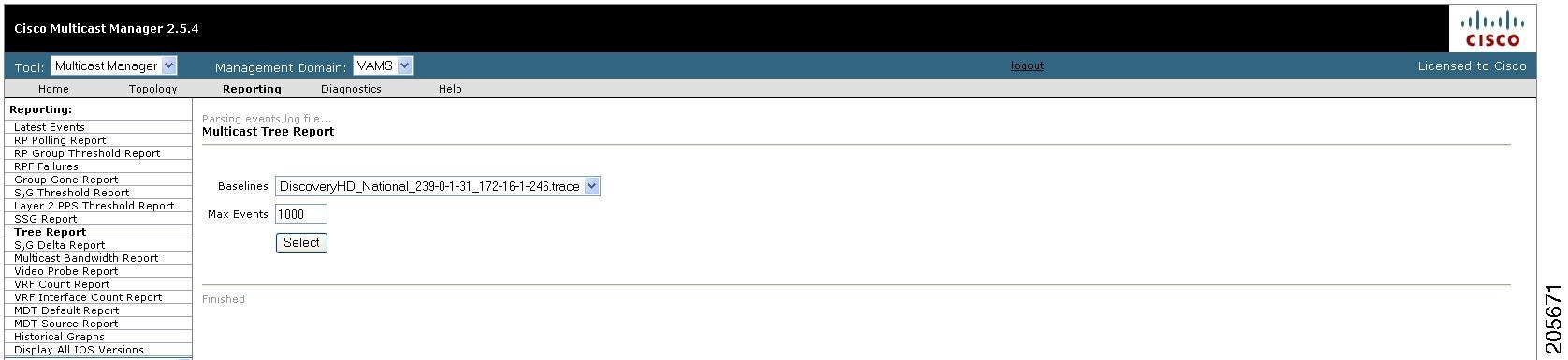
Step 3 Select the baseline trace file that matches the Tree Changed event.
A list of Multicast Tree Change reports for the baseline appears, as shown in Figure 6-19.
Figure 6-19 Multicast Tree Change Report
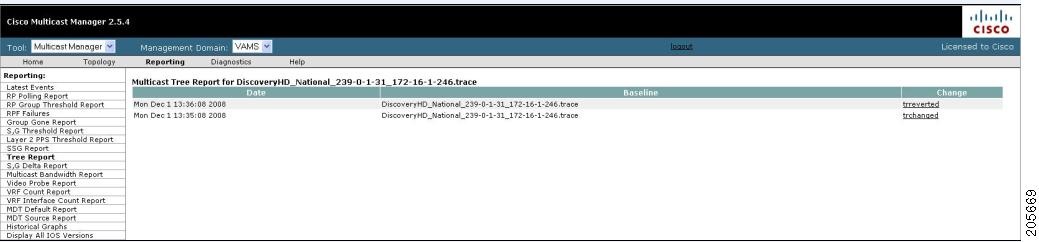
Step 4 Click the trchange link to view the Tree Changed Report.
The selected Tree Changed Report appears. The report shows:
•A table containing detailed information about the routers and interfaces in the tree
•The baseline tree.
•The current tree (changed tree).
Routers and interfaces that are no longer part of the multicast tree are highlighted in red. Routers and interfaces that have been added to the distribution tree are highlighted in green.
Step 5 If you want to view a Tree Reverted report, click the trreverted link next to a report name.
A Tree Reverted report shows the baseline distribution tree in tabular and in graphical format.
Figure 6-20 shows a sample Tree Changed Report.
Figure 6-20 Tree Changed Report

Monitoring IP Multicast Heartbeat
You can monitor the multicast data plane of multicast video flows on Cisco routers and switches that utilize the IP Multicast Heartbeat feature to confirm that the routers and switches are receiving the monitored multicast video flows. You can view heartbeat events with Cisco Info Center, and from Cisco Info Center, launch CMM for advanced troubleshooting of the heartbeat events.
Monitoring Heartbeat Events with Cisco Info Center/TBSM
To view heartbeat events in TBSM/Webtop:
Step 1 From the service tree directory browser at the left of the TBSM display, click on a service.
The service tree for the selected service appears.
Step 2 Click on a specific device address.
The Service Viewer displays the network topology and the Service Details window shows an event list for the service.
Figure 6-21 shows a Webtop/TBSM display with a heartbeat event indicating that a heartbeat threshold has been violated on a router.
Figure 6-21 Viewing a Heartbeat Event in TBSM/Webtop
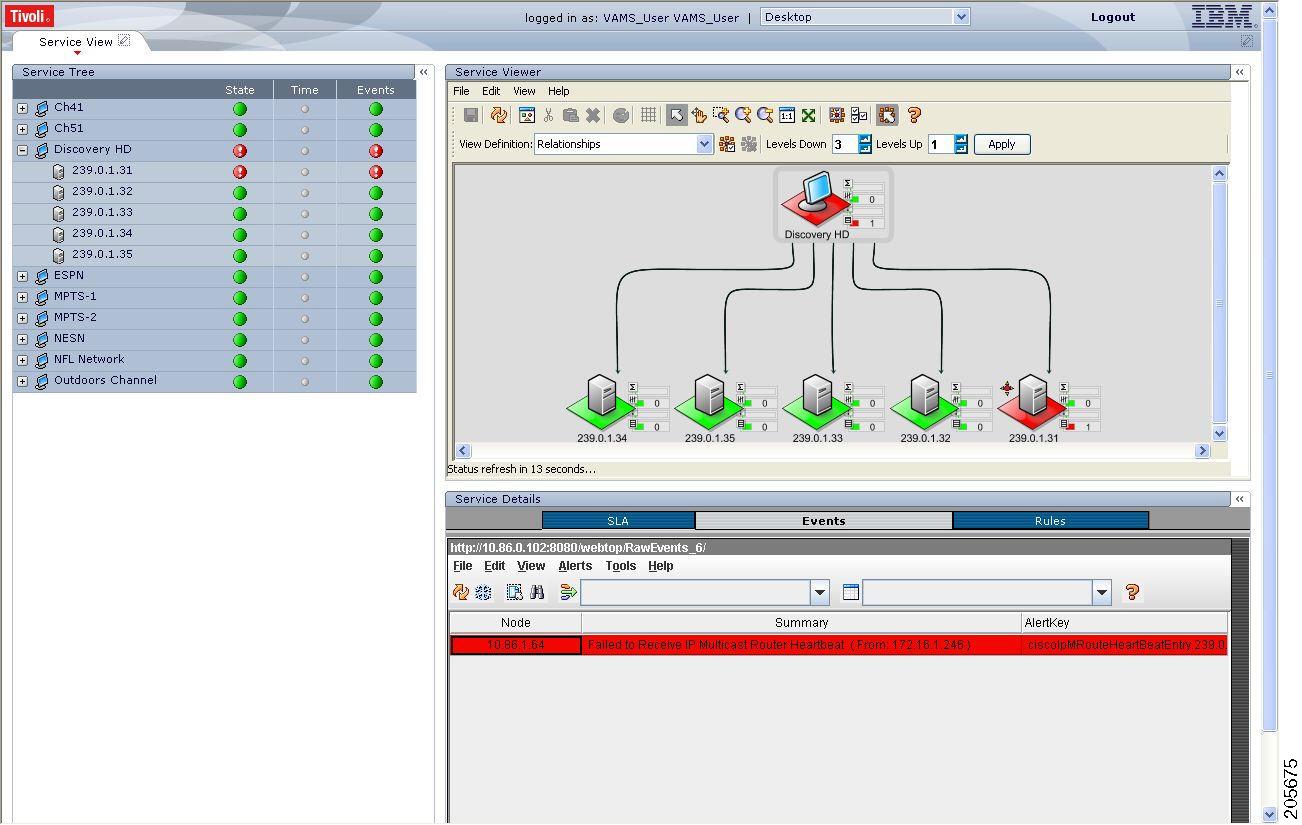
The Summary column shows the IP address of the CMM server. To identify the router that generated the heartbeat event, cross-launch CMM.
Step 3 To view additional details about the event, double click on the event in the Webtop display.
Figure 6-22 shows a sample Alerts Status page with heartbeat event details.
Figure 6-22 TBSM/Webtop: Viewing Heartbeat Event Details
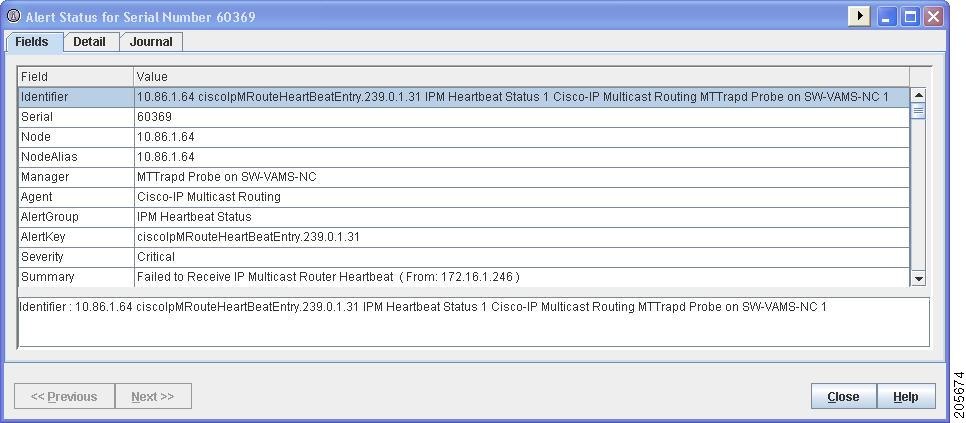
The event summary for the service details includes the baseline trace filename, which includes the Service Name, Ad Zone, Multicast Group, and Source Address.
Step 4 To launch the CMM application and monitor additional information about the heartbeat event, left-click an event to select it, then right-click the event, and from the Alerts Menu, choose VAMS Tools > Region Name > Launch CMM.
Step 5 Go to Monitoring Heartbeat Events with CMM for information on monitoring heartbeat events with CMM.
Monitoring Heartbeat Events with CMM
To view IP Multicast heartbeat events with CMM:
Step 1 If you are in the TBSM/Cisco Info Center interface, highlight an event, and then from the Alerts Menu, choose VAMS Tools > Region Name > Launch CMM.
The CMM home page shows the Latest Events list, which includes any heartbeat events that have come in.
Figure 6-23 shows a Latest Events list with a heartbeat event.
Figure 6-23 Viewing a Heartbeat Event in CMM

The heartbeat event includes the name of the SNMP MIB used to forward the event and the name of the event; however, CMM 2.5.4 does not indicate the name of the Multicast Group or the Channel Name on the Latest Events page for heartbeat events.
Step 2 To view additional information about the heartbeat event click the URL link in the Details column.
A Trap Details list appears for the heartbeat event, as shown in Figure 6-24.
Figure 6-24 Trap Details List for a Heartbeat Event

The Trap Details list displays the full description of the heartbeat event, the SNMP version used to generate the event, and the OIDs from the reporting router.
The last four octets of the OID indicate the Multicast Group. The Source IP address at the bottom of the Trap Details page is the IP address of the reporting router.
Step 3 To determine the video service affected by the event, select Diagnostics > Show All Groups and find the corresponding Multicast Group in the list that matches the heartbeat event. Note that Cisco Info Center/TBSM parses the heartbeat event to and matches the Multicast Group to the corresponding video service directly.
Performing Health Checks
Using the Health Check page, you can run a health check on a multicast domain.
To run a health check:
Step 1 On the Multicast Manager tool, select Diagnostics > Health Check.
The Select Health Check page appears.
Step 2 Select a health check from the list of health checks and click Run.
Figure 6-25 shows a sample health check display.
Figure 6-25 Health Check
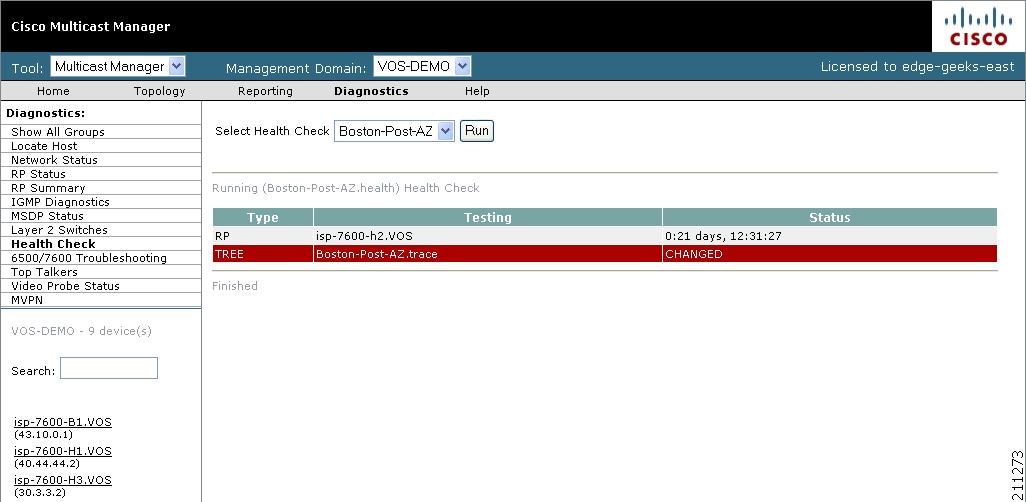
The color of the displayed text on the Health Check display indicates the status of the monitored condition:
•White = normal
•Red = error condition
Monitoring PPS/BPS Thresholds
When a PPS/BPS threshold is exceeded or fails to reach a minimum value, an event is generated and the event is displayed in Cisco Info Center, in the TBSM/Webtop. From the TBSM/Webtop event list, you can launch CMM to view enhanced monitoring information about the threshold event.
Monitoring PPS/BPS Thresholds in Cisco Info Center TBSM/Webtop
To view heartbeat events in TBSM/Webtop:
Step 1 From the service tree directory browser at the left of the TBSM display, click on a service.
The service tree for the selected service appears.
Step 2 Click on a specific device address.
The Service Viewer displays the network topology and the Service Details window shows an event list for the service.
Figure 6-26 shows a Webtop/TBSM display with a threshold event indicating that high and low threshold limits have been exceeded.
Figure 6-26 Viewing a Threshold Event in TBSM/Webtop
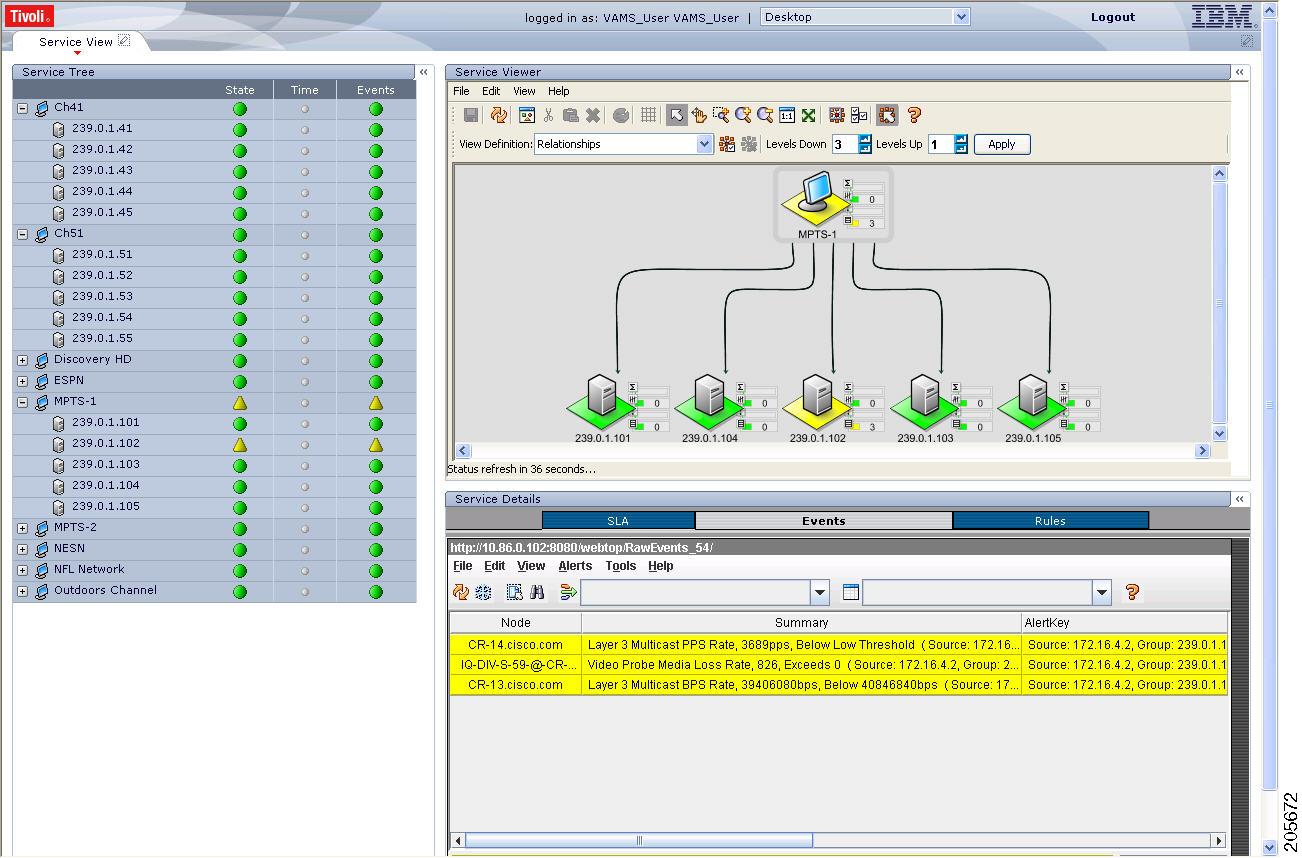
The event summary for threshold events includes the measured value and the configured threshold.
Step 3 To view additional details about the event, double-click on the event in the event list.
Step 4 To launch the CMM application and monitor additional information about the threshold events, highlight an event, and then from the Alerts Menu, choose VAMS Tools > Region Name > Launch CMM.
Step 5 Go to the Monitoring Threshold Events with CMM for information on monitoring threshold events with CMM.
Monitoring Threshold Events with CMM
To view threshold events with CMM:
Step 1 If you are in the TBSM/Cisco Info Center interface, highlight an event, and then from the Alerts Menu, choose VAMS Tools > Region Name > Launch CMM.
The CMM home page shows the Latest Events list, which includes any BPS/PPS threshold events that have come in.
Figure 6-27 shows a Latest Events list with BPS/PPS threshold events.
Figure 6-27 Viewing BPS/PPS Threshold Events in CMM
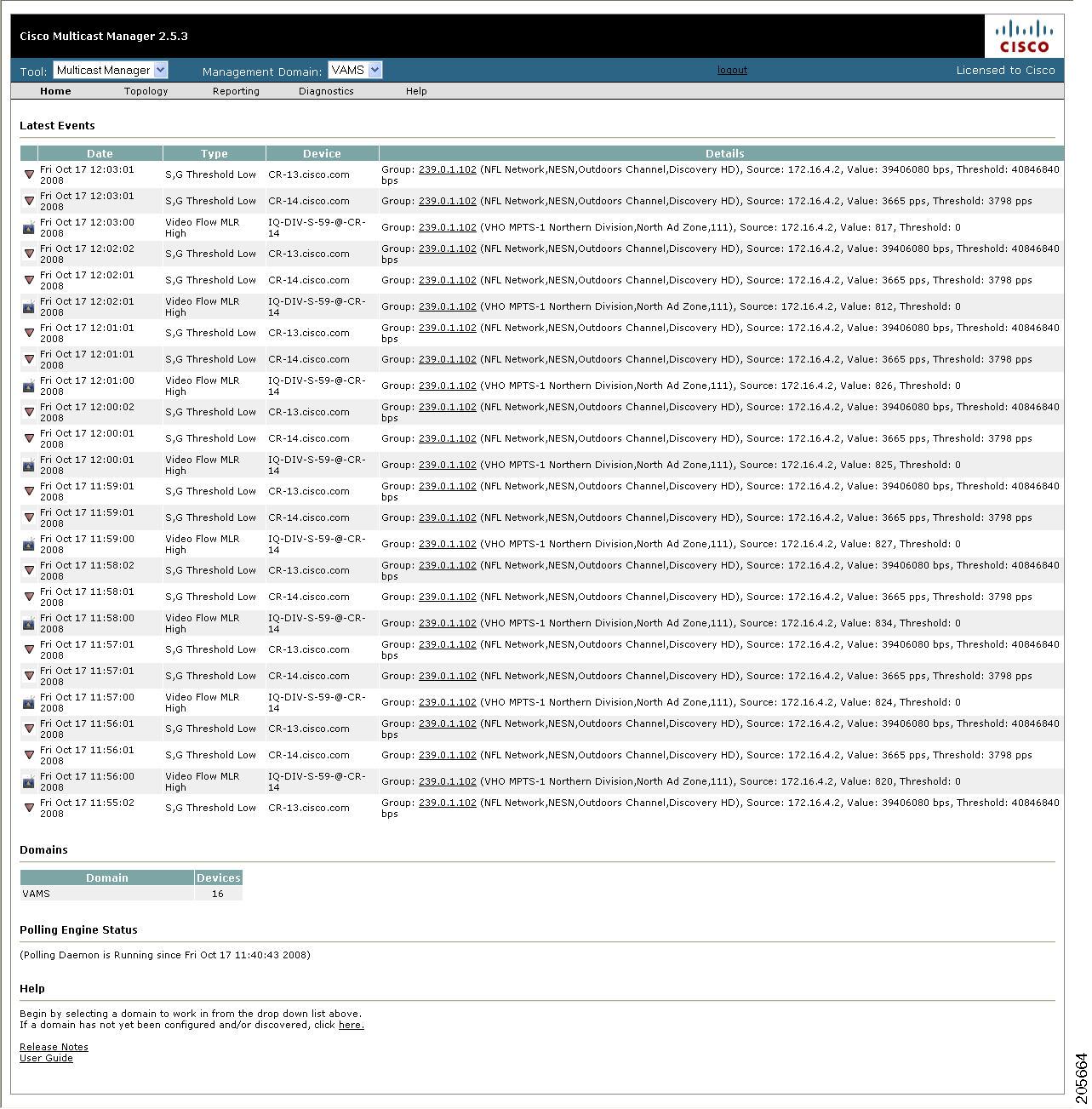
The Details column for BPS/PPS threshold events includes the measured value and the configured threshold.
Note CMM 2.5.4 does not reflect the BPS/PPS flow status on CMM flow traces, as it does for video probe status. Therefore, you will have to manually correlate the devices reporting BPS/PPS events from either Cisco Info Center/TBSM or the CMM Latest Events page, to the CMM flow trace, to isolate where in the distribution tree the problem is occurring.
Running Threshold Reports
CMM provides two threshold reports that you can use to monitor threshold events:
•S, G Threshold Report—Shows threshold events for a specified source and group.
•Layer 2 PPS Threshold Report—Shows threshold events for a specified port on a specified switch.
To run an S, G Threshold report:
Step 1 In the CMM Multicast Manager tool, click Reporting.
Step 2 Select S, G Threshold Report.
A list of groups appears.
Step 3 Select a group from the list and then click Report.
CMM displays an S,G Threshold Report listing any events that have occurred in the last 24 hours.
To run a Layer 2 PPS Threshold report:
Step 1 In the CMM Multicast Manager tool, click Reporting.
Step 2 Select Layer 2 PPS Threshold Report.
A list of groups appears.
Step 3 Select a group from the list and then click Report.
CMM displays a Layer 2 PPS Threshold Report listing any events that have occurred in the last 24 hours.
Monitoring and Troubleshooting in the Wireline Network
The Cisco Wireline Video/IPTV Solution Design and Implementation Guide, Release 1.1, provides an introduction to monitoring and troubleshooting the Cisco Ethernet switches in the Cisco wireline-based IPTV solution. Troubleshooting areas include:
•Network Time Protocol (NTP)
•Syslog
•Quality of Service (QoS)
•Multicast
Monitoring and troubleshooting information is viewable online at:
Monitoring and Troubleshooting in the Cable Network
The Cisco Gigabit-Ethernet Optimized Video Networking Solution for Cable Design and Implementation Guide, Release 3.0, provides an introduction to monitoring and troubleshooting the Cisco Ethernet switches in the Cisco cable-based IPTV solution. Troubleshooting areas include:
•Troubleshooting multicast.
•Show commands.
•Debug commands.
•Viewing hardware rate limiter (HWRL) counters.
Monitoring and troubleshooting information is viewable online at:
Troubleshooting with Cisco ANA
Troubleshooting with Cisco ANA requires an understanding of the Cisco ANA fault-management system. You should also understand how to use ANA NetworkVision and ANA EventVision.
This section contains:
Fault Management
Table 6-2 highlights important aspects of the fault management system in Cisco ANA.
ANA NetworkVision
Network administrators use Cisco ANA NetworkVision to manage, fulfill, plan, and assure the integrity of network resources. Table 6-3 lists important aspects of using Cisco ANA NetworkVision for troubleshooting.
ANA EventVision
You use Cisco ANA EventVision to view, filter, and display the properties of specific events. Table 6-4 lists important aspects of using Cisco ANA EventVision for troubleshooting.
 Feedback