Monitor Service Health

This chapter covers the following topics:

Start Service Health Monitoring

Before you begin

The following procedure assumes that you have already provisioned L2VPN/L3VPN services. To create and provision services, refer to the Orchestrated Service Provisioning chapter in the Cisco Crosswork Network Controller 7.0 Solution Workflow Guide.

To start health monitoring for a service:

Procedure


Step 1

From the main menu, choose Services & Traffic Engineering > VPN Services. The map opens on the left side of the page and the table opens on the right side.

Step 2

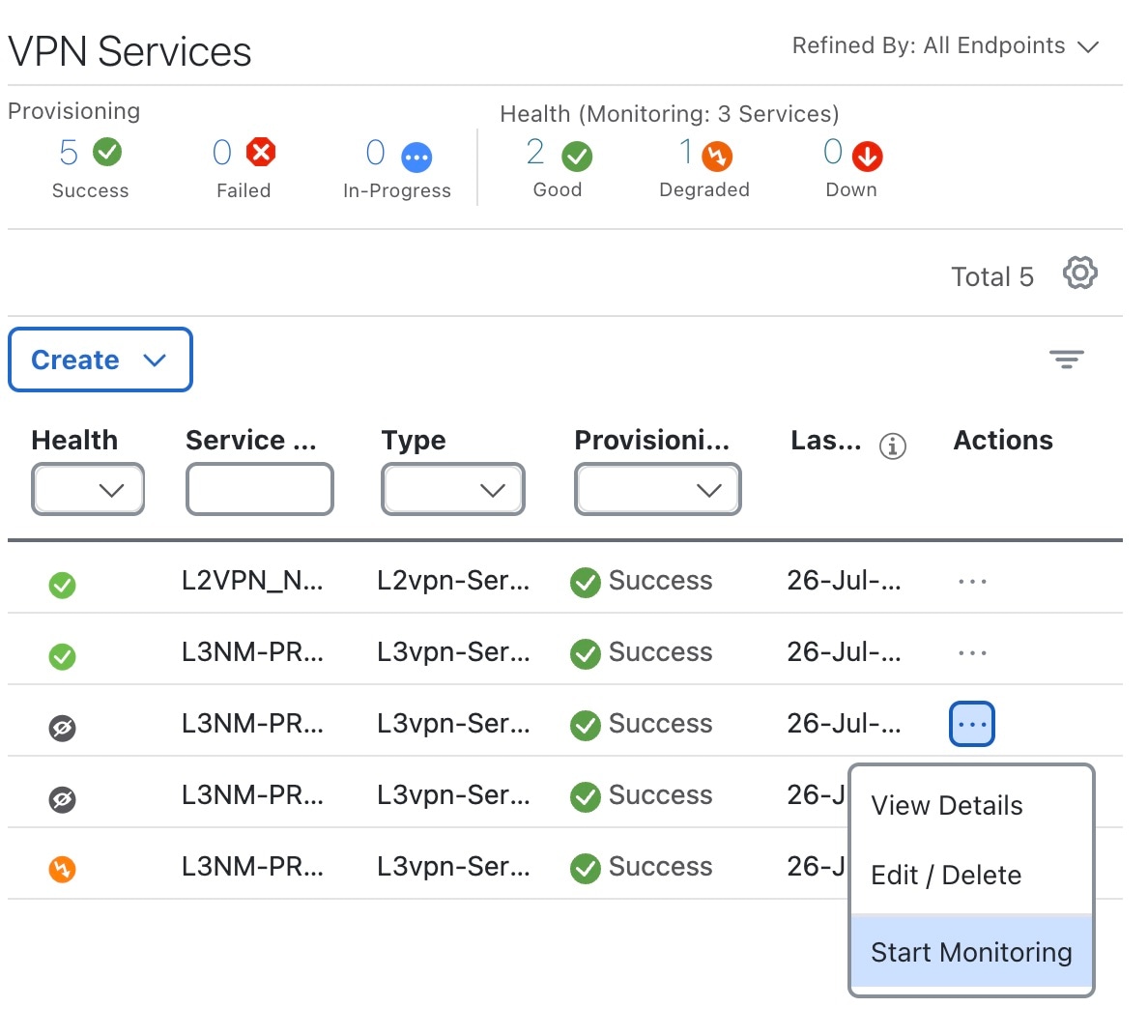
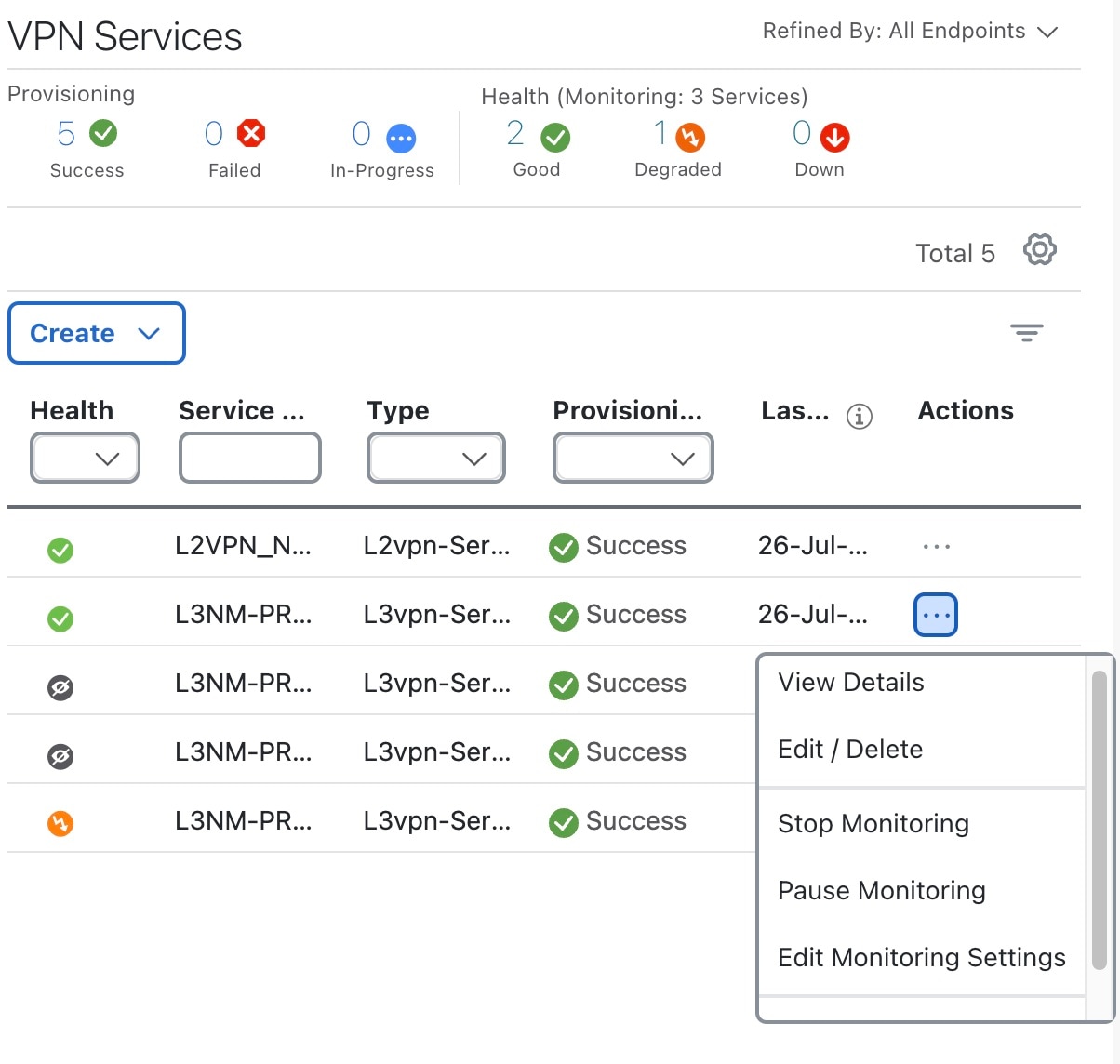
For a service not currently being monitored as indicated by a gray icon in the Health column for which you wish to enable monitoring, click in the Actions.

Step 3

Click Start Monitoring.

Step 4

In the Monitor Service window that appears: .
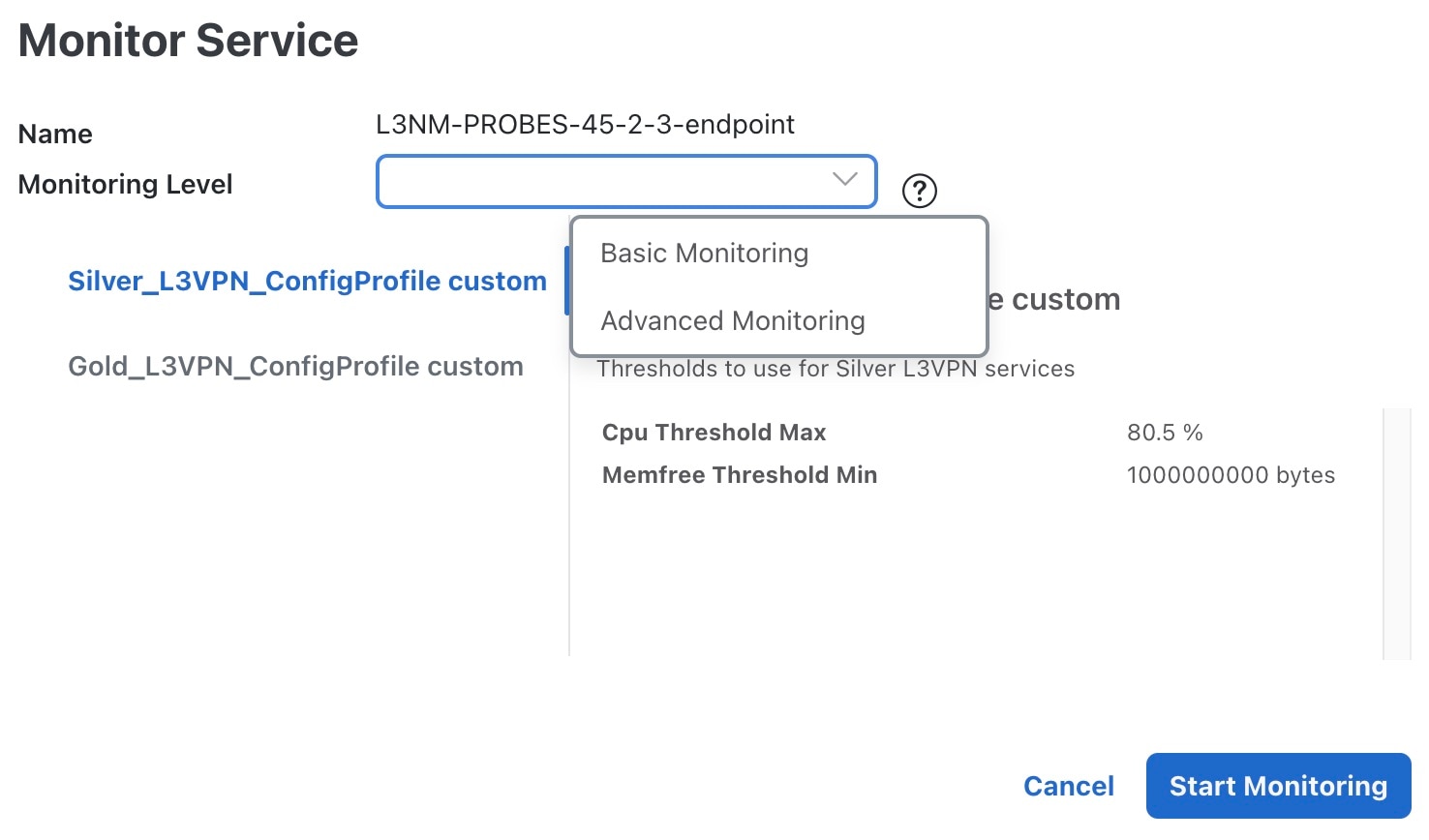
  1. Select the Monitoring Level as Basic Monitoring or Advanced Monitoring.

  2. Click a Configuration Profile from the list of profiles that is displayed to select and apply it to monitor the service.

Step 5

Click Start Monitoring. The Health column of the service gets updated to reflected the health of the service.
Note


Once you have started monitoring the health of the service, in the Actions column, click to view additional options: Stop Monitoring, Pause Monitoring, Edit Monitoring Settings, and Assurance Graph.


What to do next

If the health of the service is Degraded, identify the root cause for service degradation and take measures to correct the issue. See Analyze Service Health for more information.
Adjust Monitoring Settings

The following topics explain the various monitoring settings you can use to adjust the service health monitoring.

Edit Existing Monitoring Settings

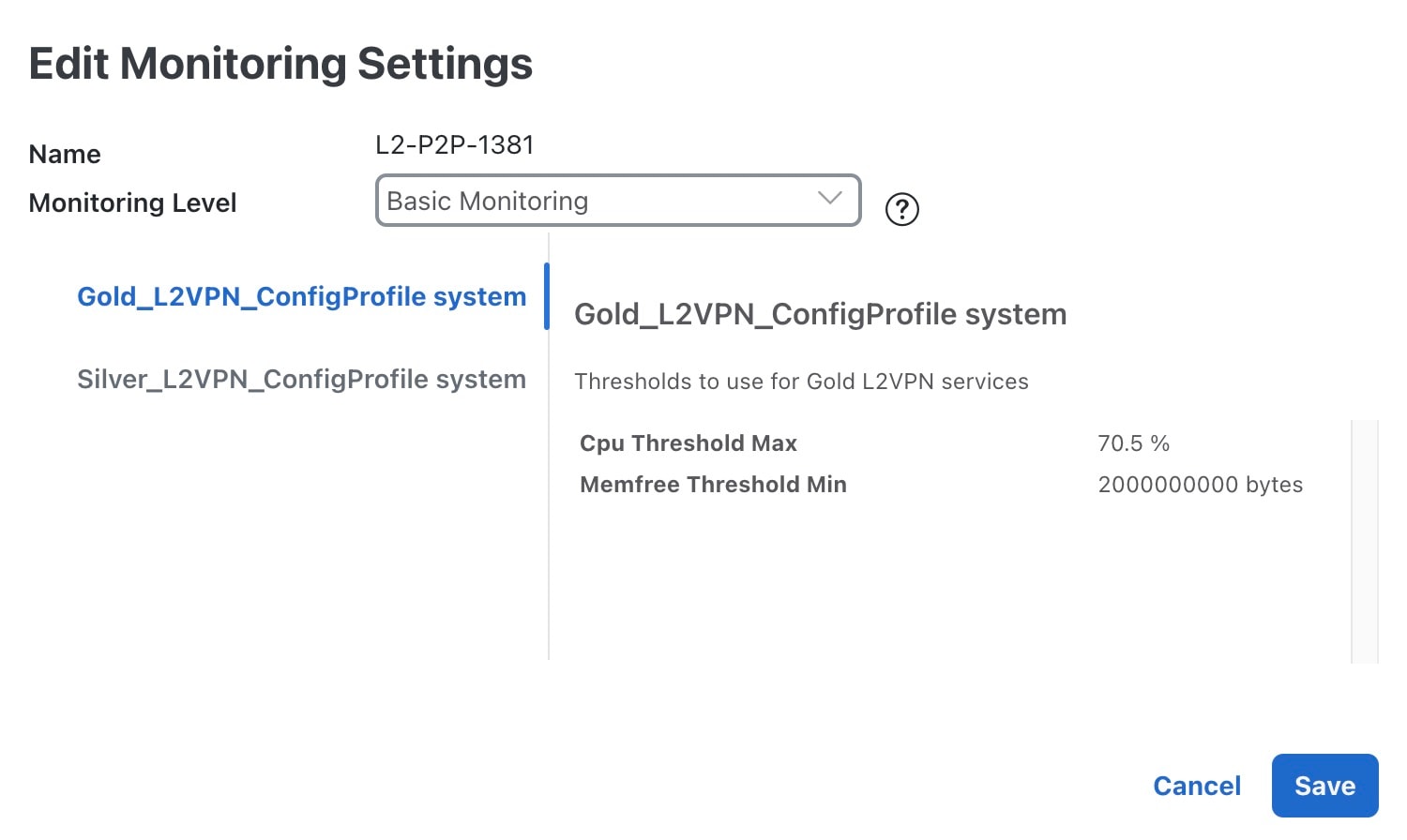
You can adjust the monitoring settings any time after the service health monitoring is enabled. You can update the Monitoring Level for the service from Basic Monitoring to Advanced Monitoring, or from Advanced Monitoring to Basic Monitoring. You can also update the Configuration Profile (from Gold profile to Silver profile or from Silver profile to Gold profile). See About Heuristic Packages for information about Configuration profiles.

To edit the existing monitoring settings:

Procedure


Step 1

From the main menu, choose Services & Traffic Engineering > VPN Services. The map opens on the left side of the page and the table opens on the right side.

Step 2

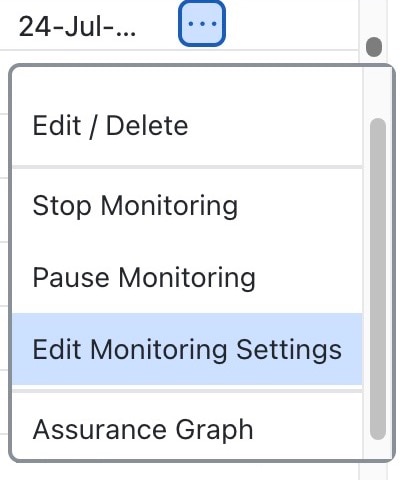
In the Actions column, click for the service for which you want to edit the monitoring settings.

Step 3

Choose Edit Monitoring Settings from the menu.

The Edit Monitoring Settings dialog box appears.

Step 4

Choose the Monitoring Level or the Configuration Profile, as required.

Note


When you switch between Advanced and Basic Monitoring, it can take over 15 minutes for subservice health and active symptoms to become visible.

Step 5

Click Save.

A confirmation dialog box appears.

Step 6

Click Start monitoring-type Monitoring.

Crosswork Network Controller starts monitoring the service health using the updated values.


What to do next

If Crosswork Network Controller reports the health as Degraded for the service, identify the root cause for service degradation and take measures to correct the issue. See Analyze Service Health for more information.
Pause and Resume Service Health Monitoring

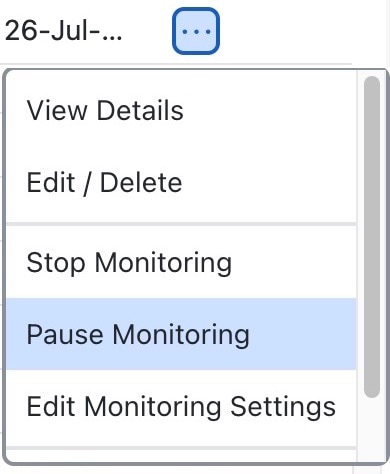
With this option, you can temporarily pause monitoring the health of services. This is useful when a service is down due to a reported outage or scheduled maintenance, and you don't want to receive notifications about the degradation. If you pause and then resume monitoring, it will continue using the same Basic or Advanced monitoring rules and profile options as before the pause. Additionally, historical data and Events of Significance (EOS) are preserved in the service's history. However, since no data is collected while monitoring is paused, there will be gaps in the historical data for the periods when monitoring was paused.

To pause and resume monitoring the health of the services, do the following:

Procedure


Step 1

From the main menu, choose Services & Traffic Engineering > VPN Services. The map opens on the left side of the page and the table opens on the right side.

Step 2

In the Actions column, click for the service that you want to pause the monitoring.

Step 3

Choose Pause Monitoring from the menu.

A confirmation dialog box appears. Click Pause Monitoring.

Note


When monitoring is paused, you can still view the Assurance Graph which will show only the top level service with state of paused icon badge and with no child subservices underneath.

Step 4

In the Actions column, if you now click for the service that you paused, you will see the Resume Monitoring option. Click this option to resume monitoring the service health.

A confirmation dialog box appears. Click Resume Monitoring.

When the Crosswork Network Controller resumes monitoring a service after a pause, it utilizes the same monitoring rules and profile options that were in place before the pause.


Stop Service Health Monitoring

When you choose to stop monitoring a service, the system will prompt you to confirm whether you wish to retain the historical monitoring data. The following options are available:

  • Retain Historical Data: If you choose to retain the historical data, all monitoring information collected prior to the stoppage will remain accessible. This data will be preserved and available for analysis when monitoring is resumed. The monitoring settings will also be retained, ensuring a seamless transition back to active monitoring with historical context.

  • Do Not Retain Historical Data: If you decide not to retain the historical data, all monitoring settings and historical data will be purged from the database. This action will also delete the Assurance Graph for the stopped service. Subsequent monitoring of the service will start anew, without any reference to previous data.

To stop monitoring the health of a service, do the following:

Procedure


Step 1

From the main menu, choose Services & Traffic Engineering > VPN Services. The map opens on the left side of the page and the table opens on the right side.

Step 2

In the Actions column, click for the service you want to stop monitoring.

Step 3

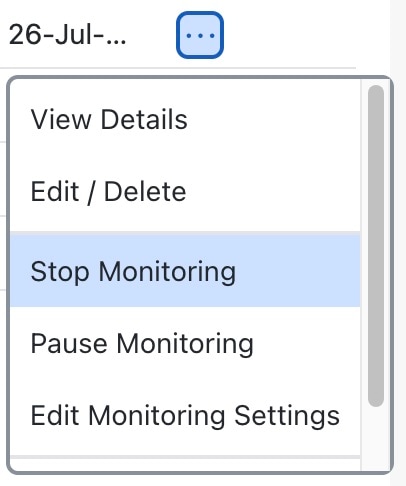
Choose Stop Monitoring from the menu.

Step 4

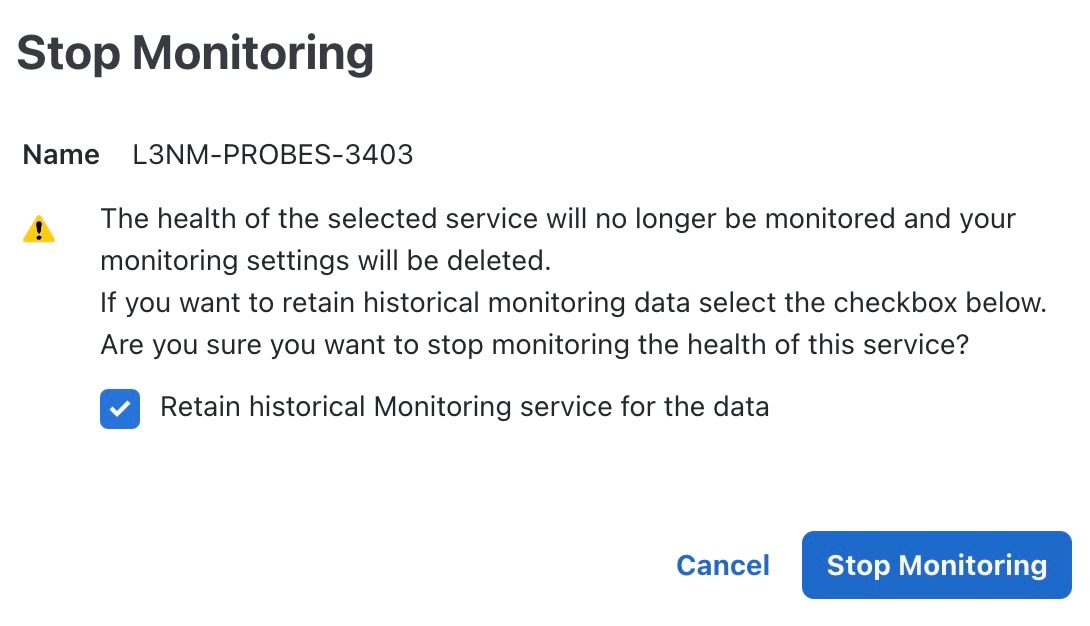
The Stop Monitoring dialog box appears. To retain the historical service data for that service, select the Retain historical Monitoring service for the data check box.

Step 5

Click Stop Monitoring.

Step 6

If you stopped monitoring a service and selected the Retain historical Monitoring service for the data check box, you can start monitoring that same service with historical data still available at a later time. From the Actions column of the service, click and select Start Monitoring.


Enable SR-PM Monitoring for Links and TE Policies

To measure the performance metrics of links and TE policies (SR-MPLS, RSVP-TE), Service Health leverages the Segment Routing Performance Measurement (SR-PM) feature. This feature ennhances the capabilities for troubleshooting and health analysis by providing detailed, historical, and consolidated views of links in the network and transport path metrics. This enables network and service operators to proactively manage, troubleshoot and optimize network infrastructure.

Enable SR-PM Metrics Collection

To enable SR-PM metrics collection:

Procedure


Step 1

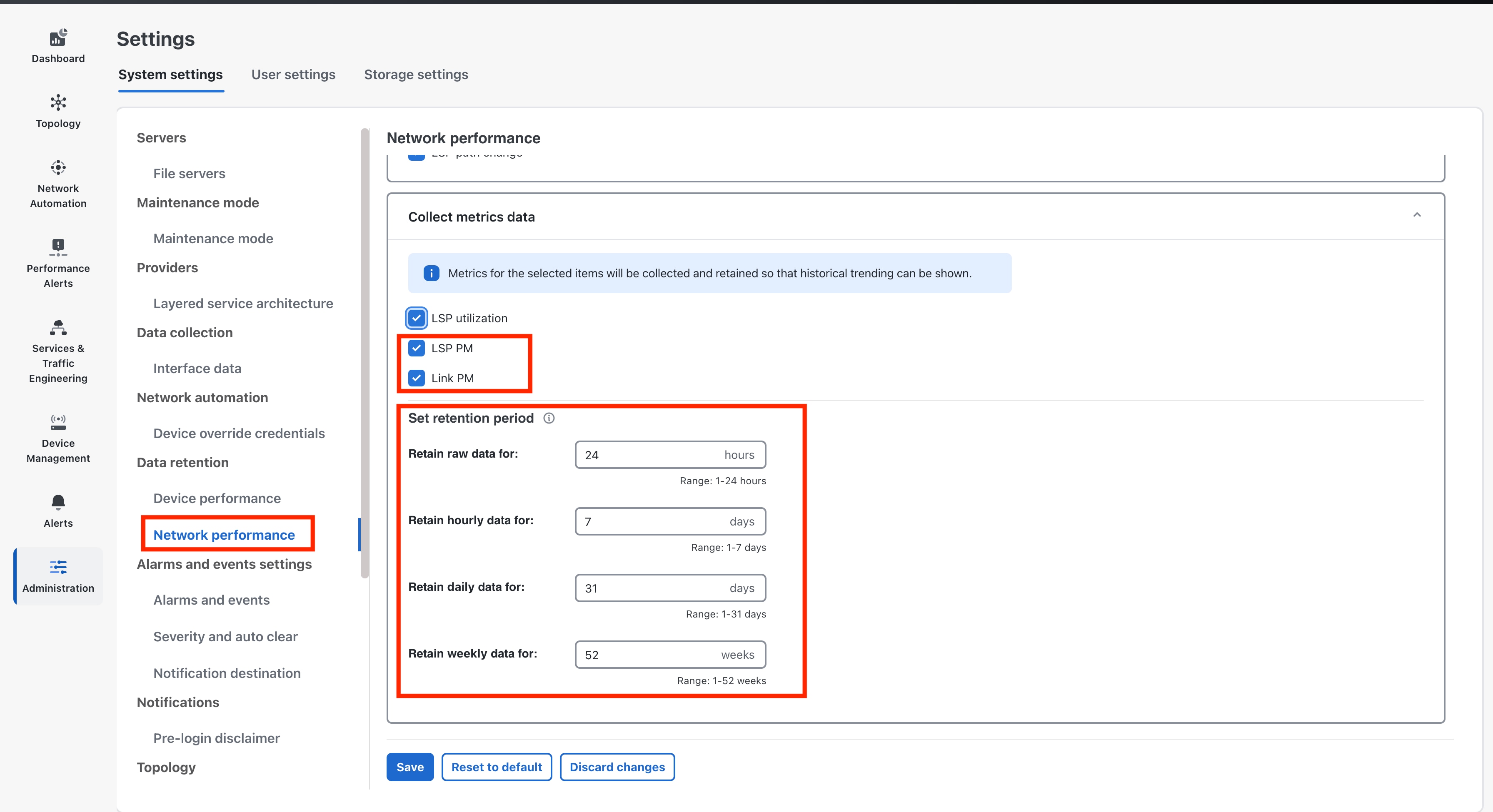
From the main menu choose Administration > Settings > Data retention > Network Performance. The Network performance pane opens on the right.

Step 2

Under Collect metrics data, select:

  • LSP PM - to enable metrics collection for SR policies

  • Link PM - to enable metrics collection for links

Step 3

(optional) To retain historical data and view trends of these metrics, select the duration for which data should be collected and retained.

Note


Metric data is collected and retained only for the options for which you have enabled SR PM metric collection.


View Performance Metrics of TE Policies

SR-PM data collection is supported for SR-MPLS, SR-CS and RSVP-TE policies. The metric data is used to assess the policy health and indicate if the any of the metrics violated SLAs (which are defined in the Heuristic package). You can view the KPI metrics, as well as the operational and administration status of the service, on the policy tab in the Service Details page. If you have enabled data retention, the historical data and trends are available in the History tab.

The following metrics are collected for TE policies when SR-PM collection is enabled:

  • Delay - available only for SR-MPLS and RSVP-TE policies

  • Delay Variance (jitter) - available only for SR-MPLS and RSVP-TE policies

This procedure lists the steps for viewing KPI metrics for a TE policy.

Before you begin

Ensure that you have taken care of the following to view metrics from SR-PM collection:

  • Added devices, TE policies and created device groups.

  • Enabled SR-PM collection in Crosswork Network Controller and have optionally also enabled data retention to view the historical data and trends.

  • Enabled SR-PM metric collection on devices.


    Note


    Refer to the device-specific documentation for details. These details are beyond the scope of this guide.

d

Procedure


Step 1

Navigate to the Traffic Engineering topology map. From the main menu, choose Services & Traffic Engineering > Traffic Engineering.

Step 2

Click the policy tab that you are interested in.

For example, to view policy performance metrics for SR-MPLS policies, click the SR-MPLS tab.

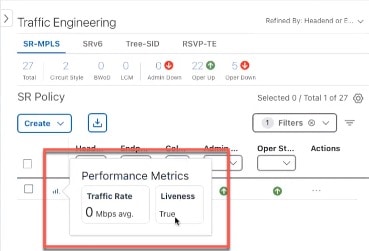
Figure 1. SR-MPLS Policy Performance Metrics in the Traffic Engineering Table

Step 3

Hover your mouse over the graph icon to view the KPI metrics in a carousel view. Alternatively, locate the policy that you are interested in from the TE table. In the Actions column, click > View Details. The Service Details page opens and displays the KPI metrics for the policy in the Performance Metrics section.

Step 4

To view historical data, click the History tab. A chart showing the trends is displayed for each metric here. Click on a time frame in the chart to view the trend of the policy in the selected time.


View Performance Metrics of Links

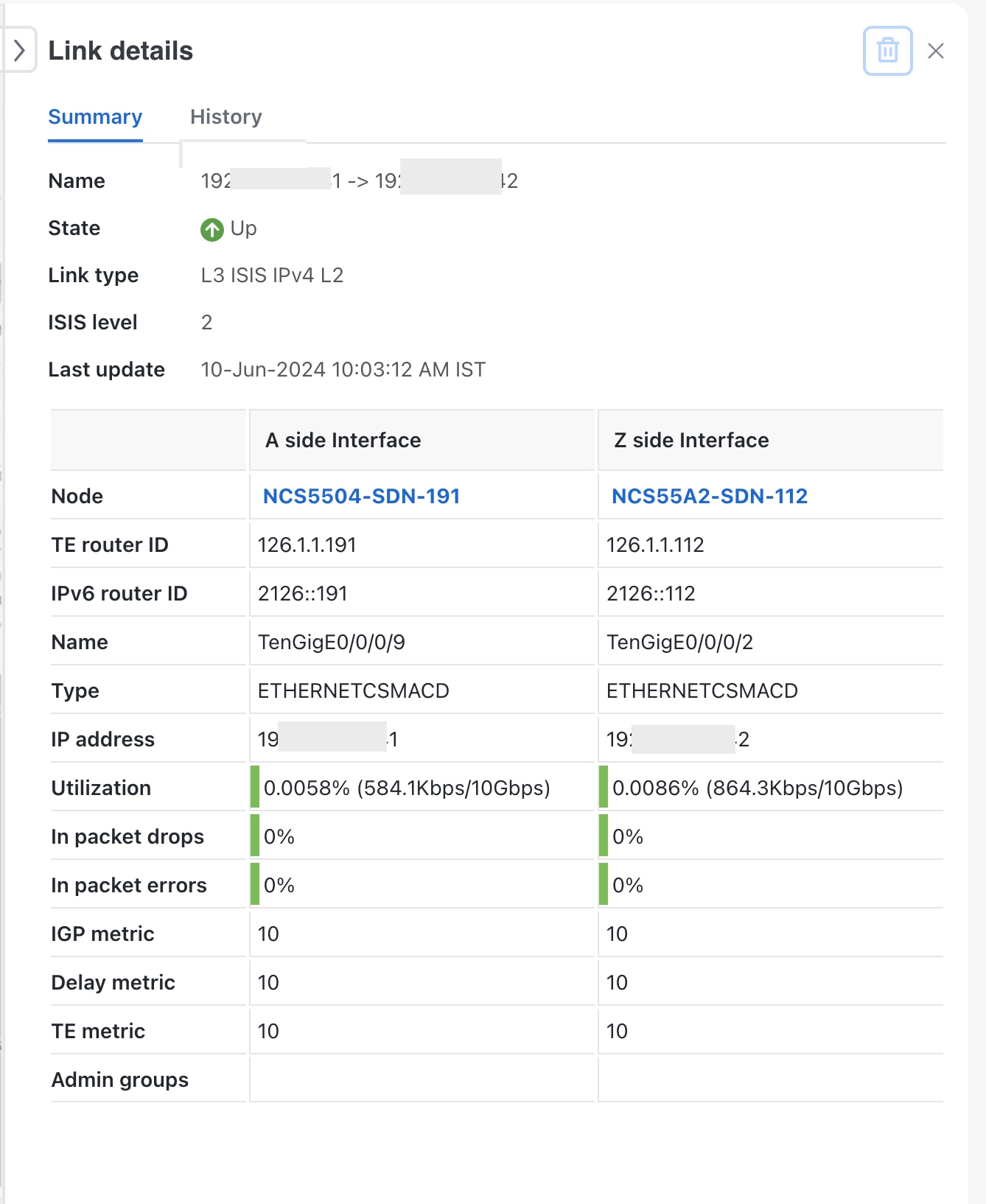
Link interface metrics are a set of indicators that measure the performance and quality of the communication between two or more network devices. They include parameters such as bandwidth, delay, jitter, packet loss. Link interface metrics can help network administrators to monitor and troubleshoot network issues, optimize network resources, and plan for future network expansion or upgrade.

This procedure lists the steps for viewing link metrics.

Before you begin

Ensure that you have onboarded devices created the required device groups.

Procedure


Step 1

From the main menu choose Topology.

Step 2

Select a link to view its details in any of the following ways:

  1. By clicking a link on the topology map

  2. By clicking a link from the Links tab in the topology map

  3. By clicking a link from the Links tab in the Device Details page.

The History tab provides useful insights into the performance and trends of the network. You can select the time interval to analyze the data.


Monitor Health of Services using CS-SR Policies

Crossowork Network Controller's support monitoring the health of L2VPN point-to-point services (only IETF:L2VPN:EVPN VPWS) using Circuit-Style Segment Routing (CS-SR) policies.

When the L2VPN service is configured to use circuit-style transport, Crosswork Network Controller automatically initiates monitoring of the service in both directions (A to Z and Z to A) using the subservice.cssr.policy.health subservice.

The subservice monitors and reports the Admin Status, Operational Status, and any flip-flops in the operational status. The operational state of the CS-SR policy is measured using the Liveness metric. This measures if the path is live and capable of carrying traffic, providing a simpler yet effective way to ensure the path's health.

Monitor Service Health using Cisco Provider Connectivity Assurance (formerly Accedian Skylight)

Crosswork Network Controller can leverage external probing, provided by Cisco Provider Connectivity Assurance (formerly Accedian Skylight), to measure metrics of the L3VPN services in the network. The metrics are compared with the contracted SLA (defined in the Heuristic package), and the results are made available on the UI for further analysis.


Note


Monitoring L3VPN services using Cisco Provider Connectivity Assurance is only possible with Advanced monitoring and requires a Skylight Essentials license. See Skylight Licensing Tiers for more information. Sign up and create an account with the self sign-up tool to access the Provider Connectivity Assurance.


High-level Flow

  1. When you provision a L3VPN service with probe intent and enable service monitoring, Provider Connectivity Assurance's Orchestrator component learns the probe intent and probe topology from provisioned service.

    The following probe intents are supported:

    • Agent configurations: ne-id, VLAN, IP, sub-interface.

    • Topology: point-to-point, hub-spoke, full-mesh.

  2. Probe sessions with Provider Connectivity Assurance are set up automatically to monitor the service by invoking the relevant RESTConf APIs. The list of RESTConf APIs that are invoked to provision probes sessions are - endpoint, session, service, session activation. The maximum number of probe sessions per service are capped at 200 (for all connection types).

  3. Provider Connectivity Assurance's gateway streams the probe metrics to Crosswork Data Gateway, which collects this data using parameterized collection job for Service Health over gNMI. The following probe metrics are collected:

    • Forward and Reverse Delay.

    • Forward and Reverse Variance.

    • Forward and Reverse Packet Loss.

  4. The metrics collected during the probe sessions are analyzed and symptoms are raised accordingly, which are then displayed on the Crosswork Network Controller UI.

Add Accedian Skylight as a Provider

Before you begin

Ensure that you have taken care of the following prerequisites before onboarding Accedian Skylight as a provider:

  1. Installed the Accedian Skylight software. Refer to the Accedian Skylight documentation for information on installing Accedian Skylight and deploying it with Crosswork Network Controller.


    Note


    You need an account with Accedian Skylight to access the documentation. Sign up and create an account with the self sign-up tool.


  2. Have the following certificates from Accedian Skylight downloaded on your local system or on a folder that can be accessed by Crosswork Network Controller:

    • CA certificate

    • Client certificate

    • Client key

Procedure


Step 1

Create a credential profile.

  1. Navigate to Administration > Device Management > Credential Profiles and click + to create a new profile.

  2. Enter a name, add the following credential protocols: HTTPS and gNMI. Add the username and password for both connections.

  3. Click Save.

Step 2

Create a certificate profile.

  1. Navigate to Administration > Certificate Management and click +.

  2. Enter a name and select the Certificate Role as Accedian Provider Mutual Auth

  3. Upload the certificates (ca_cert.pem, client_cert.pem, and client_key.key).

  4. (Optional) Enter the passphrase for the certificate chain.

  5. Click Save.

Step 3

Add Accedian Skylight as a provider in Crosswork Network Controller.

  1. Navigate to Administration > Manage Provider Access.

  2. Click + and enter details in the fields as follows:

    • Provider Name: Enter a name.

    • Credential profile: Select the credential profile that you created for Accedian Skylight.

    • Family: Select ACCEDIAN_PROXY.

    • Certificate profile : Select the Accedian Skylight certificate profile.

      Note


      This field is displayed after you select the Family as ACCEDIAN_PROXY.

    • Connection types: Supported protocols are automatically updated from the Accedian credential profile.

    • IP addresses: Enter the IP address or the Fully Qualified Domain Name (FQDN).

      Important


      If the server certificates present in Accedian Skylight are generated using a Fully Qualified Domain Name (FQDN), enter the FQDN only in this field. Do not enter an IP address. Entering an IP address when the server certificates are generated with FQDN will cause issues in Accedian provider authentication and reachability.

    • Ports: Enter 443 for HTTPS and a port value for GNMI.

    • Encoding Type: Select PROTO.

      Note


      Only encoding of type PROTO is supported.

  3. Click Save.


What to do next

Confirm that the Accedian Skylight provider is reachable from Crosswork Network Controller. See Check Accedian Skylight Reachability.

Check Accedian Skylight Reachability

To check reachability of Accedian Skylight Provider:

  1. Navigate to Administration > Manage Provider Access from the main menu.

  2. Ensure the Accedian Skylight provider shows a green reachability status without errors.


    Note


    If there are certificate errors, the provider will be displayed as Degraded and not reachable.


  3. The Accedian Skylight provider might still be displayed as reachable on the Crosswork Network Controller Providers list page in spite of the following issues:

    • Invalid HTTPS credentials.

    • Incorrect ports, IP addresses, or credentials for the gNMI protocol (since reachability checks for gNMI are not performed).

  4. After resolving any certificate or HTTPS credential issues, delete and onboard the Accedian Skylight provider in Crosswork Network Controller again.

View Probe Session Details

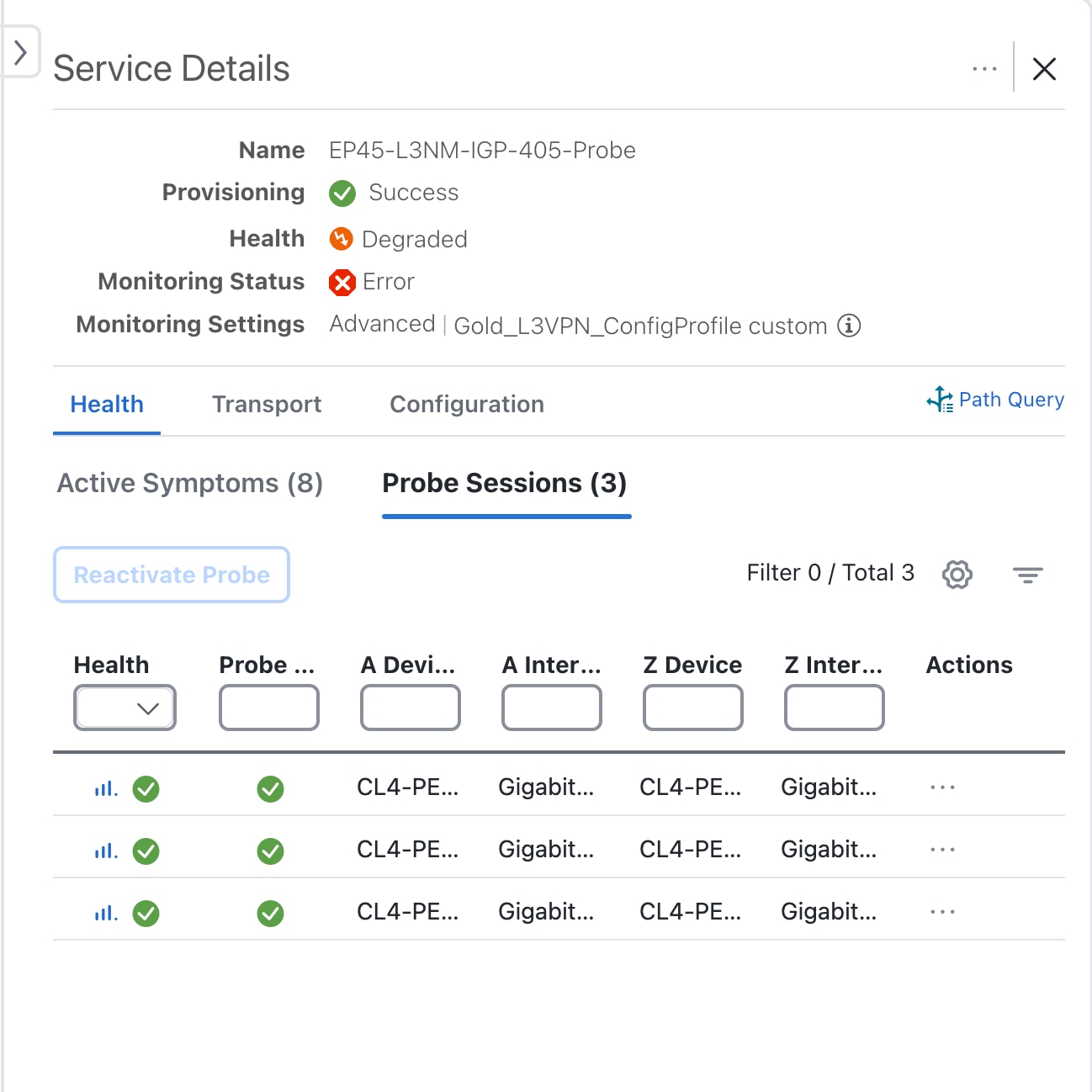
Details from Provider Connectivity Assurance probe sessions for L3VPN services and Y1731 probe sessions for L2VPN services are displayed separately in the Probe Sessions tab of the service.

To view the metrics from a probe session:

Procedure


Step 1

Go to Services & Traffic Engineering > VPN Services. The map opens on the left side of the screen and the table opens on the right side of the screen.

Step 2

For the service you are interested in, in the Actions column, click View Details.

Step 3

In the Service Details page that is displayed, click the Probe Sessions tab.

Step 4

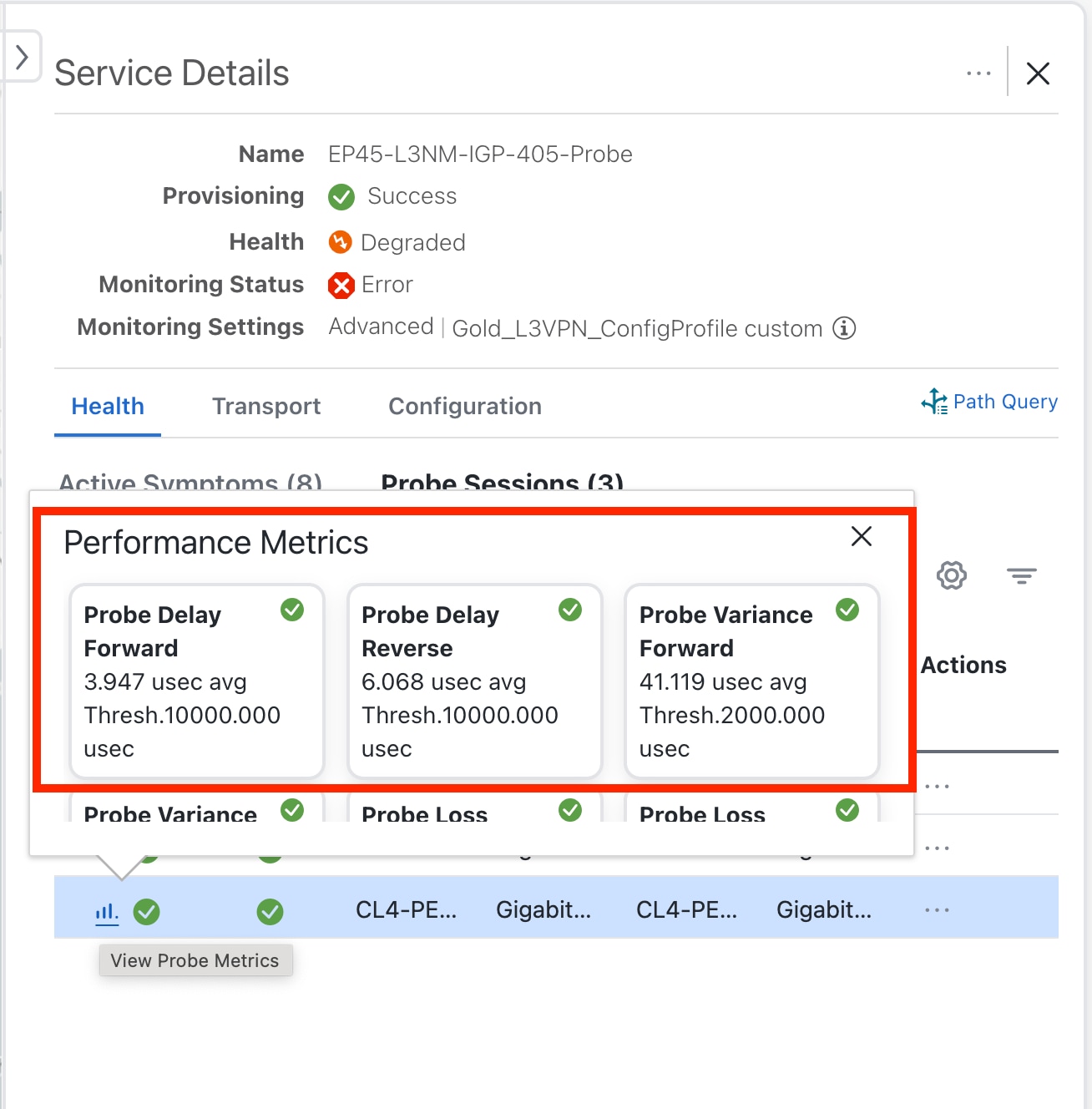
Click the graph icon next to a probe session for a detailed view of the performance metrics.

If a metric has crossed the defined threshold, a red icon is displayed in the corresponding performance metrics dashlet.

Step 5

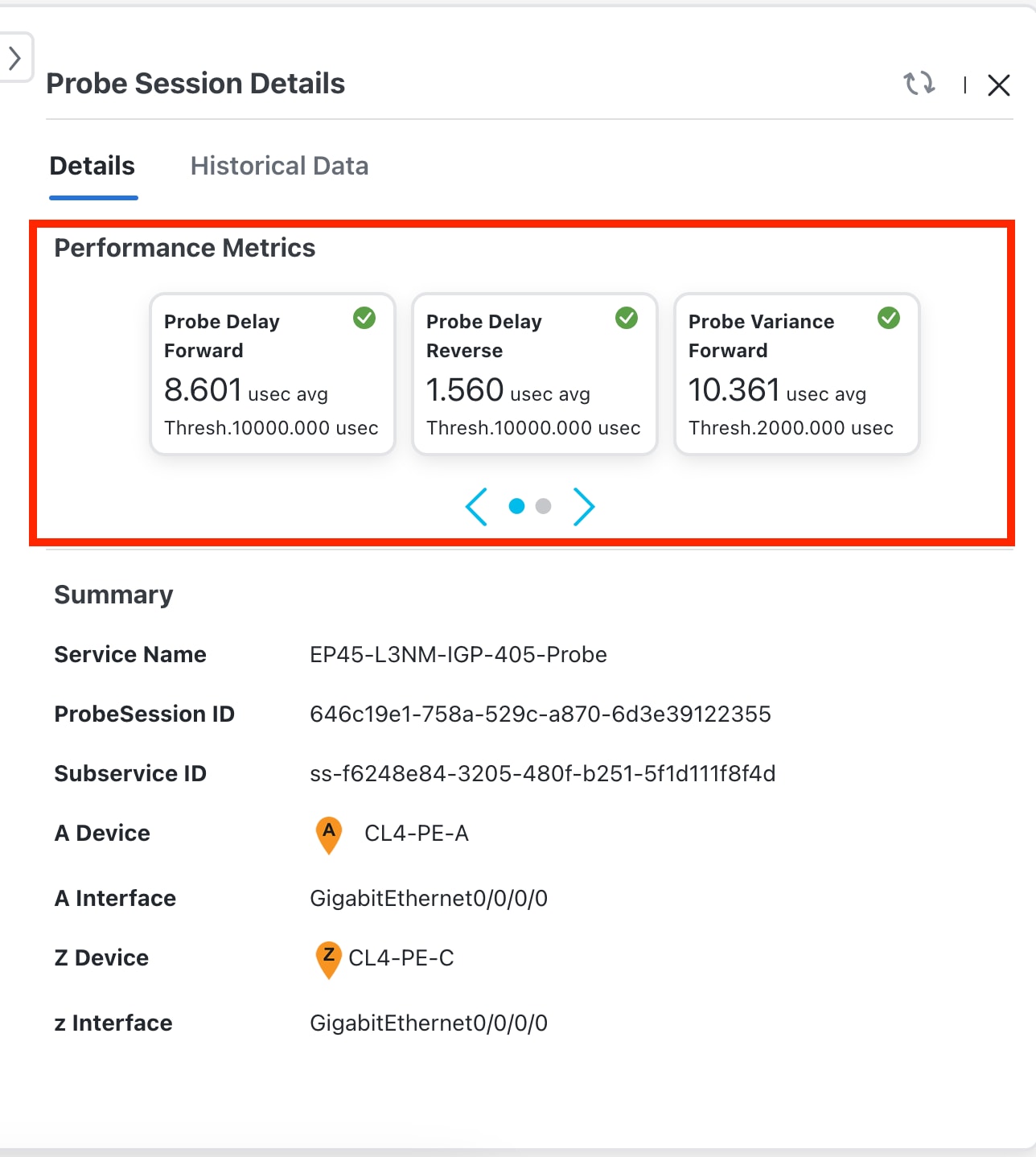
To view the Performance Metrics for a service in a carousel view, click the icon in the Actions column.

The Probe Session Details window opens displaying the metrics in a carousel view.

Note

 
If there are any probe provisioning errors, the monitoring status of the service is Monitoring Error. Click the Reactivate Probe to restart the probe session for the service. If the probe session reactivates successfully, the Probe Sessions page automatically updates with the new metrics.

The History Data tab provides probe metrics data ranging from the past 90 days up to the most recent 24 hours. See View Historical Data from Probe Sessions for more information.


What to do next

  • If you find that a service is degraded, analyze the root cause of the degradation to troubleshoot the health of a degraded service. See Analyze Service Health for more information.
View Historical Data from Probe Sessions

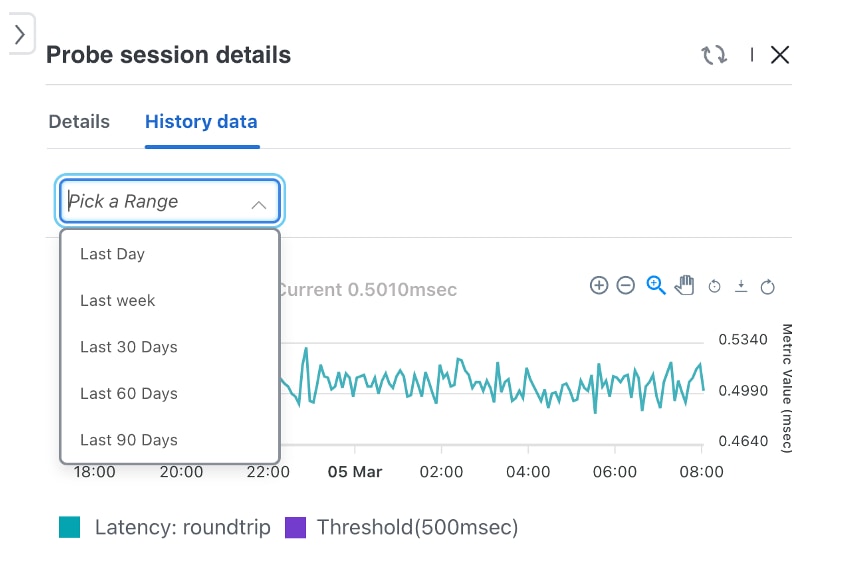
To view historical data from a probe session, click the History data tab in the Probe session details page. This tab displays data from the time monitoring was enabled for the service.


Note


If monitoring was stopped and started again later, the History data tab will display data only from the time monitoring was restarted. If you chose to retain historical data while monitoring was stopped, that data is preserved and appears in the Show History tab of the Assurance Graph of the service and not in this tab.


Charts displaying aggregated average metric data along with their timestamps are shown. To view data from a specific range, select the desired range from the dropdown menu.


Note


There may be a difference in the first timestamp displayed in the historical chart metric data. This is because, the timestamp displayed is in the operational time zone, while the aggregated timestamp is in UTC format with 00 hours.


Historical Probe Metrics Period Interval Aggregate interval
1 week (7 days) 2 hours 2 hours
1 month (30 days) 1 day 1 day (00 hours, start of the day in UTC)
2 months (60 days) 3 days 1 day (00 hours, start of the day in UTC)
3 months (90 days) 1 week (7 days) 1 day (00 hours, start of the day in UTC)

Known Issues and Limitations with Provider Connectivity Assurance

The following is a list of known issues and limitations when Cisco Provider Connectivity Assurance(formerly Accedian Skylight) is deployed for probing service health:

  1. Entering an IP address instead of the FQDN when server certificates are generated with FQDN will cause issues with provider authentication and reachability. In this case, the Accedian provider is shown as Degraded in the Crosswork Network Controller Providers list page (Administration > Manage Provider Access).

  2. The Accedian Skylight provider is shown as reachable always in the Crosswork Network Controller Providers list page in spite of the following issues in the Accedian Skylight provider credentials:

    • Invalid HTTPS credentials

    • Incorrect ports or IP addresses or credentials for gNMI since there are no reachability checks for gNMI

    In these cases, services monitored by Accedian Skylight probes will have the health as Degraded with the symptom as 'Accedian provider does not exist in DLM'. The symptoms are not cleared until you add the Accedian Skylight provider again, pause and resume the service monitoring.

  3. When monitoring is enabled for a service with probe intent but the Accedian Skylight provider is not added in Crosswork Network Controller, an error about the provider not being available is displayed for each of the probe metrics associated with the subservice.

  4. You cannot delete the Accedian Skylight provider when a probe session is active.

  5. The Active Symptoms tab displays the observed value of the metric at the time the symptom occurred, while the Probe Sessions tab is constantly updated with the live values of the metrics. Therefore, check the Probe Sessions tab for the real-time values of the performance metrics.