Orchestrated Service Provisioning

This section explains the following topics:

Overview

By using the scenario workflows described in this section, we are providing examples of how to configure the system to deliver the operator’s intended configuration. These scenarios do not fully demonstrate all of the capabilities of Crosswork Network Controller. They are intended to demonstrate the flexibility of the platform. Additional customization is possible either by leveraging the resources available on Cisco DevNet or through engagement with Cisco Customer Experience.

Objective

Provision a set of VPN services with underlay transport policies that will meet and maintain service-level agreements (SLAs) between the service provider and the customer. An SLA defines the service-delivery expectations agreed upon between the service provider and the customer. The SLA details the products or services that the provider is to deliver to the customer, the provider's point of contact to which the customer will bring service issues, and the metrics the provider and customer both use to monitor compliance with the SLA.

Challenge

The service-provider network state changes continuously and so quickly that it is difficult to track and react to network problems fast enough to avoid congestion and maintain SLA compliance. In a typical lifecycle, there is a feedback loop that traditionally requires manual monitoring and intervention, which is time- and resource-intensive.

Solution

With network automation, the objective is to automate the feedback loop to enable quicker reaction to and remediation of network events. With Crosswork Network Controller, network operators can orchestrate L2VPN and L3VPN services across the transport network, via a programmable interface, in a very quick and efficient manner. Segment routing traffic engineering (SR-TE) polices can be configured to continuously track network changes and automatically react to optimize the network. These SR-TE polices can serve as the underlay configuration for the VPN services to automatically maintain the SLAs.

The services required for this solution can be created and managed using the Crosswork Network Controller UI. L2/L3 VPN Yang model-based service intents are implemented using the Cisco Network Services Orchestrator sample function packs, which provide sample service models that can be extended and fine-tuned to meet customer needs. Optionally, Service Health monitoring can be enabled to see which services are working as provisioned, if issues have been flagged, and what symptoms are detailed so to quickly address and fix.


Note


The Network Services Orchestrator sample function packs are provided as a starting point for VPN service provisioning functionality in Crosswork Network Controller. While the samples can be used “as is” in some limited network configurations, they are intended to demonstrate the extensible design of Crosswork Network Controller. Answers to common questions can be found on Cisco Devnet and Cisco Customer Experience can provide answers to general questions about the samples. Support for customization of the samples for your specific use cases can be arranged through your Cisco account team.

How Does it Work?

  1. User creates an SR-TE policy/On-Demand Next Hop (ODN) template with intent (e.g., bandwidth, latency) using the Cisco Crosswork Network Controller UI or APIs.

  2. User creates a VPN service using the UI or APIs and specifies the following:

    • The endpoints participating in the VPN

    • Other required VPN parameters

    • The SR-TE policy/ODN template that is to be associated with the VPN service

  3. During the provisioning process for the above steps, Cisco Network Services Orchestrator configures the SR-TE policy and the VPN service on the specified endpoints.

  4. When the service is active, the network interacts with the SR-PCE to dynamically program the path that meets the intent in the configured SR-TE policy/ODN template. The headend device requests a path from the SR-PCE via PCEP (for dynamic SR-TE policies). If the request specifies bandwidth, the SR-PCE gets the path from Cisco Crosswork Optimization Engine.

  5. The SR-PCE sends the path to the headend device via PCEP and updates the headend if path changes are required.

Usage Scenarios

We will walk you through the following usage scenarios that illustrate the execution of the orchestrated service provisioning use case using the Cisco Crosswork Network Controller UI:

Additional Resources

  • For information about segment routing and segment routing policies, click here to see the Crosswork Optimization Engine 5.0 User Guide.

  • Cisco Network Services Orchestrator documentation is included in the latest Network Services Orchestrator image here.

Scenario 1 – Implement and Maintain SLA for an L3VPN Service for SR-MPLS (using ODN)

This scenario walks you through the procedure for provisioning an L3VPN service with a specific SLA objective: all traffic for this service must take the lowest-latency path. The customer requires this low-latency path for this service, as all of this service's traffic is high priority. The customer also wants to use disjoint paths; that is, two unique paths that steer traffic from the same source but to two unique destinations, avoiding common links so that there is no single point of failure.

We'll achieve this using Segment Routing (SR) On-Demand Next Hop (ODN). SR ODN allows a service headend router to automatically instantiate an SR-TE policy to a BGP next-hop when required (on-demand). We configure the headend with an ODN template with a specific color that identifies the SLA. Crosswork will optimize the traffic path when it receives a prefix with that SLA-specific color. We define prefixes in a route policy that is associated with the L3VPN.

Crosswork Network Controller continues to monitor the network and will automatically optimize the network based on the defined SLA, in a closed loop.

Within this workflow, we also have the option to enable Crosswork's Service Health monitoring, and to use Flex-Algo as a constraint on how paths are computed and visualized. With Service Health monitoring, operators can gather quick insights into degraded and down services and then use these insights to visualize, inspect, and troubleshoot for improved network optimization.

With Flex-Algo, we can customize IGP shortest-path computations using algorithms we define. IGP will compute paths based on a user-defined combination of metric types and constraints, and present a filtered topology view based on our specific Flex-Algo definitions.

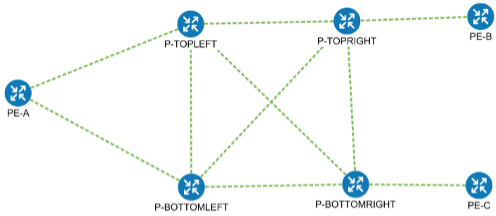
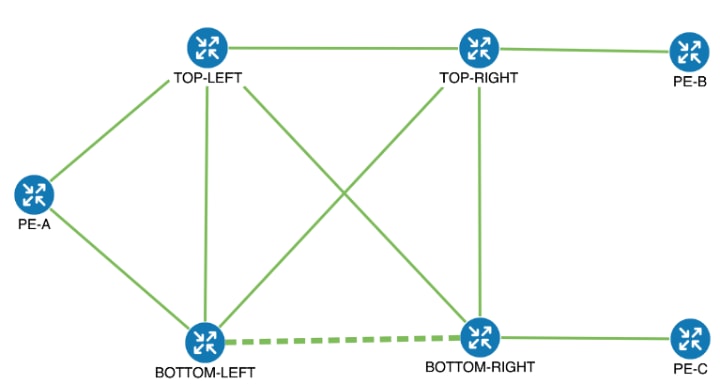
The following topology provides the base for this scenario:

In this scenario, we will:

  • Create a segment routing ODN template with a specific color on the endpoints to ensure that traffic is transported within an LSP (underlay) and that a best-path tunnel is created dynamically when a prefix with the specified color is received. The ODN template defines the SLA on which you want to optimize the path. In this case, we will optimize on latency.

  • Specify that the computed paths be disjoint: they will not share the same link.

  • Create a route policy on each endpoint to be used to bind the L3VPN to the ODN template. This route policy adds a color attribute to the customer prefixes and advertises via BGP to other endpoints. This color attribute is used to indicate the SLA required for these prefixes.

  • Create an L3VPN service with 3 endpoints and enable Service Health monitoring.

  • Visualize how this overlay/underlay configuration optimizes the traffic path and automatically maintains the SLA while monitoring your service’s health.

Assumptions and Prerequisites

  • To use ODN, BGP peering for the prefixes must be configured between the endpoints or PEs. Usually for L3VPN, this is the VPNv4 and VPNv6 address family peering.

  • For Service Health enablement, Service Health must be installed. See the Crosswork Network Controller Installation Guide chapter, Install Crosswork Applications.

  • Before using Service Health’s Assurance Graph, ensure that topology map nodes have been fully configured and created with a profile associated to the service. If not, Subservice Details metrics will show that no value has yet to be reported.

  • L3VPN service monitoring supports XR devices and does not support XD devices. Thus, after an L3VPN service is created and Service Health monitoring is enabled, if a provider and devices are removed, and then added back, service monitoring remains in a degraded state with a METRIC_SCHEDULER error. To recover, service monitoring must be stopped and restarted.

  • (Optional) Flexible Algorithms, and the IDs that are used, must be configured in your network.


Note


Screen captures, showing services and data, are for example purposes only and may not always reflect the devices or data described in the workflow content.


Step 1 Create an ODN template to map color to an SLA objective and constraints

Disjointness constraints work by associating a disjoint group ID with the ODN template, and all tunnels with the same disjoint group ID will be disjoint, i.e., they will use different links, nodes and shared risk link groups depending on how the disjoint groups are configured.

We will create the following ODN templates:

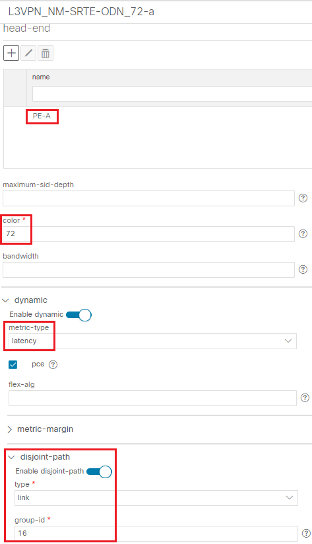
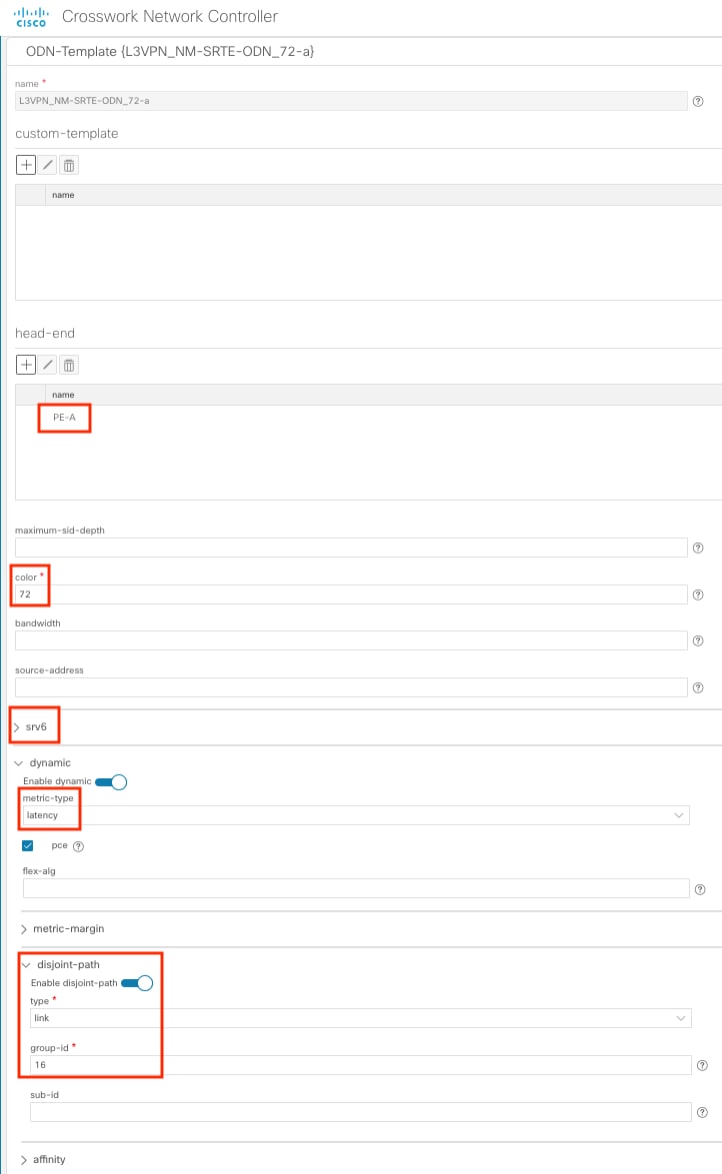
  • Headend PE-A, color 72, latency, disjoint path (link), group ID 16 - L3VPN_NM-SRTE-ODN_72-a

  • Headend PE-A, color 71, latency, disjoint path (link), group ID 16 - L3VPN_NM-SRTE-ODN_71-a

  • Headend PE-B and PE-C, color 70, latency - L3VPN_NM-SRTE-ODN_70

  • Headend PE-B, color 72, latency - L3VPN_NM-SRTE-ODN_72-b

  • Headend PE-C, color 71, latency - L3VPN_NM-SRTE-ODN_71-c

For example purposes, we will show how to create the first ODN template - L3VPN_NM-SRTE-ODN_72-a. The other ODN templates can be created using the same procedure.

Before you begin

In this step, we will create an ODN template on each endpoint. The ODN template specifies the color and the intent; in this case, latency and disjointness. This ODN template will be used to dynamically create tunnels (on-demand) when prefixes with matching colors are received via BGP. Traffic to these prefixes will be automatically steered into the newly created tunnels, thereby meeting the SLA objective and constraints intended for these prefixes and signaled using colors in the BGP routes.

Procedure


Step 1

Go to Services & Traffic Engineering > Provisioning (NSO) > SR-TE > ODN-Template.

Step 2

Click + to create a new template and give it a unique name. In this case, the name is L3VPN_NM-SRTE-ODN_72-a. Click Continue.

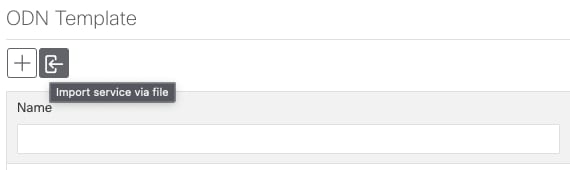
You may also browse for an existing template on your system so to import the file. The information from the imported file is populated into the form.

Step 3

Choose the head-end device, PE-A, and specify the color 72.

Step 4

Under dynamic, select “latency” as the metric-type. This is the SLA objective on which we are optimizing.

Step 5

Select the pce check box to specify that the path should be computed by the SR-PCE, not by the Path Computation Client (PCC).

Step 6

Define the required constraints. In this case, we want the computed paths to be disjoint in that they must not share a link.

Under disjoint-path, choose link as the type, and specify a numeric group ID, in this case, 16, as the group-id.

Note


You may choose the group ID. All paths requested with the same group-id will be disjoint from each other.

Note


Optionally, you may configure Flex-Algo as a constraint.

Step 7

Commit your changes or click Dry Run to check what will be configured on the devices before you commit.

Step 8

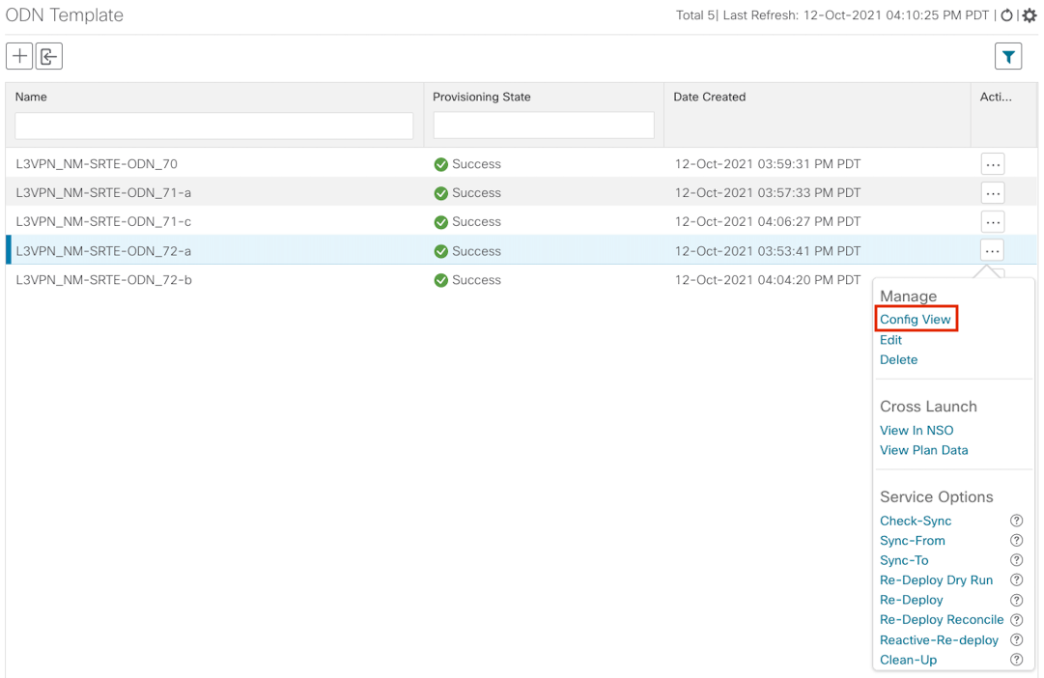
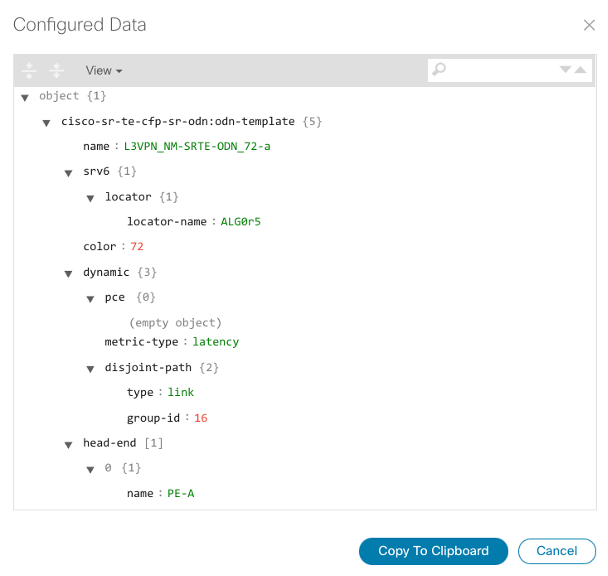
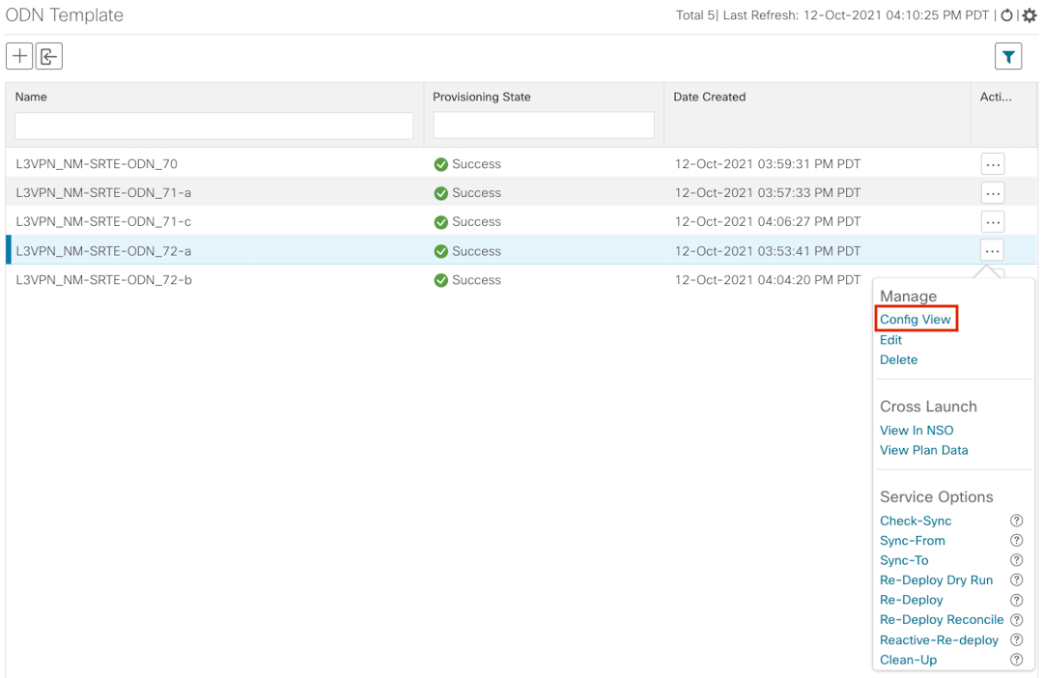
Check that the new ODN template appears in the table and its provisioning state is Success. Click in the Actions column and choose Config View to see the Yang model-based service intent data that details the ODN template you created.
Step 9

Create the other ODN templates listed above in the same manner.


Step 2 Create an L3VPN Route Policy

In this step, we will create a route policy for each endpoint, and we will specify the same color as defined in the ODN template for that endpoint. The route policy defines the prefixes to which the SLA applies. When traffic from the specified network with a matching color is received, paths are computed based on the SLA defined in the ODN template. We will create the following route policies:
  • Color 70, IPv4 prefix 70.70.70.0/30 - L3VPN_NM-SRTE-RP-PE-A-7

  • Color 71, IPv4 prefix 70.70.71.0/30 - L3VPN_NM-SRTE-RP-PE-B-7

  • Color 72, IPv4 prefix 70.70.72.0/30 - L3VPN_NM-SRTE-RP-PE-C-7

First, we will create the routing policy tag and routing policy destination prefix. The routing policy prefixes should match with the subnet prefix configured on the PE devices in the service.

Procedure


Step 1

Go to Services & Traffic Engineering > Provisioning (NSO) > L3VPN > Routing Policy Tag.

Step 2

Click + to create a new routing policy tag and type the name of the tag set: COLOR_70. Click Continue.

This is used as a label to reference the set in actions and conditions.

Step 3

Under tag-value, click + and type the Tag-value: 70.

The tag value may be a number between 1 – 4294967295 and should match to a color value.

Step 4

Click Continue. The new routing policy tag name with the new tag value is visible. Click Commit changes.

Create the other two routing policy tags (COLOR_71 and COLOR_72) and tag values (71 and 72) by following the same steps above.

Now create the routing policy destination prefixes.

Step 5

Go to Services & Traffic Engineering > Provisioning (NSO) > L3VPN > Routing Policy Destination Prefix.

Step 6

Click + to create a new routing policy destination prefix and type the name: DEST_PREFIX_SET_70.

The name of the prefix set will reference the set in match conditions.

Step 7

For Mode, select ipv4.

Step 8

Expand prefixes and click + to add the ip-prefix to the prefix-list.

Step 9

or Ip-prefix, type 70.70.70.0/30 and click Continue.

Create the other two routing policy destination prefixes (DEST_PREFIX_SET_71 and DEST_PREFIX_SET_72) by following the same steps.

Now we are ready to create the first route policy - L3VPN_NM-SRTE-RP-PE-A-7. The other route policies can be created using the same procedure.

Step 10

Go to Services & Traffic Engineering > Provisioning (NSO) > L3vpn > Routing Policy.

Step 11

Click + to create a new route policy and type a unique name for the top-level policy definition: L3VPN_NM-SRTE-RP-PE-A-7. Click Continue. The statements section appears.

Note

 
The Route Policy statement defines the condition and action taken by the system.

Step 12

Expand statements and click + to add the name of the policy statement (such as stmt1) and click Continue. The statement{stmt1} panel appears showing conditions and actions sections.

Step 13

Expand conditions and then expand match-dest-prefix-set before selecting the Prefix-set list and select DEST_PREFIX_SET_70. This is what references a defined prefix set.

Note

 
Once selected, the Enable match-dest-prefix-set toggle, which will match a referenced prefix-set according to the logic defined in the match-set-options list, switches on.

Step 14

Expand actions and then expand bgp-actions.

Step 15

For bgp-actions, slide the Enable bgp-actions toggle to the on position. By toggling bgp-actions on, it defines the top-level container for BGP-specific actions.

Step 16

Now expand set-ext-community. Slide the Enable-set-ext-community toggle to the on position. By toggling set-ext-community on, it sets the extended community attributes.

Step 17

For Method and reference, select the Ext-community-set-ref list and select COLOR_70. The Ext-community-set-ref references a defined extended community set by name.

Note

 
Creating routing-policy tag-set is mandatory and needs to be mapped here.

Step 18

Click X in the top-right corner to close the statement{stmnt1} panel and click Commit changes.

Step 19

Create the other route policies (L3VPN_NM-SRTE-RP-PE-B-7 and L3VPN_NM-SRTE-RP-PE-C-7) in the same manner prior to creating the L3VPN service.


After creating the L3VPN route policies, create the VPN profile for each route policy and then create and provision the L3VPN service. The VPN profile will be referenced from the L3VPN service. This will bind the route policy to the L3VPN service.

Step 3 Create and provision the L3VPN service

In this step, we will create the L3VPN service with three endpoints: PE-A, PE-B, and PE-C. Each endpoint will be associated with a vpn-instance-profile, which in turn points to a VPN profile that contains the route policy with the same color as specified in the ODN template. In this way, traffic that matches the specified prefixes and color will be treated according to the SLA specifications.

First, we will create the VPN profiles. The newly created VPN profiles will have the same names as the L3VPN routing policy names.

Procedure


Step 1

Go to Services & Traffic Engineering > Provisioning (NSO) > L3VPN > VPN Profiles.

Step 2

Click + to create a valid VPN profile to be referenced in the VPN service.

Step 3

Select the Id list and select L3VPN_NM-SRTE-RP-PE-A-7.

Now create and provision the L3VPN service.

Step 4

Go to Services & Traffic Engineering > Provisioning (NSO) > L3vpn > L3vpn-Service.

Step 5

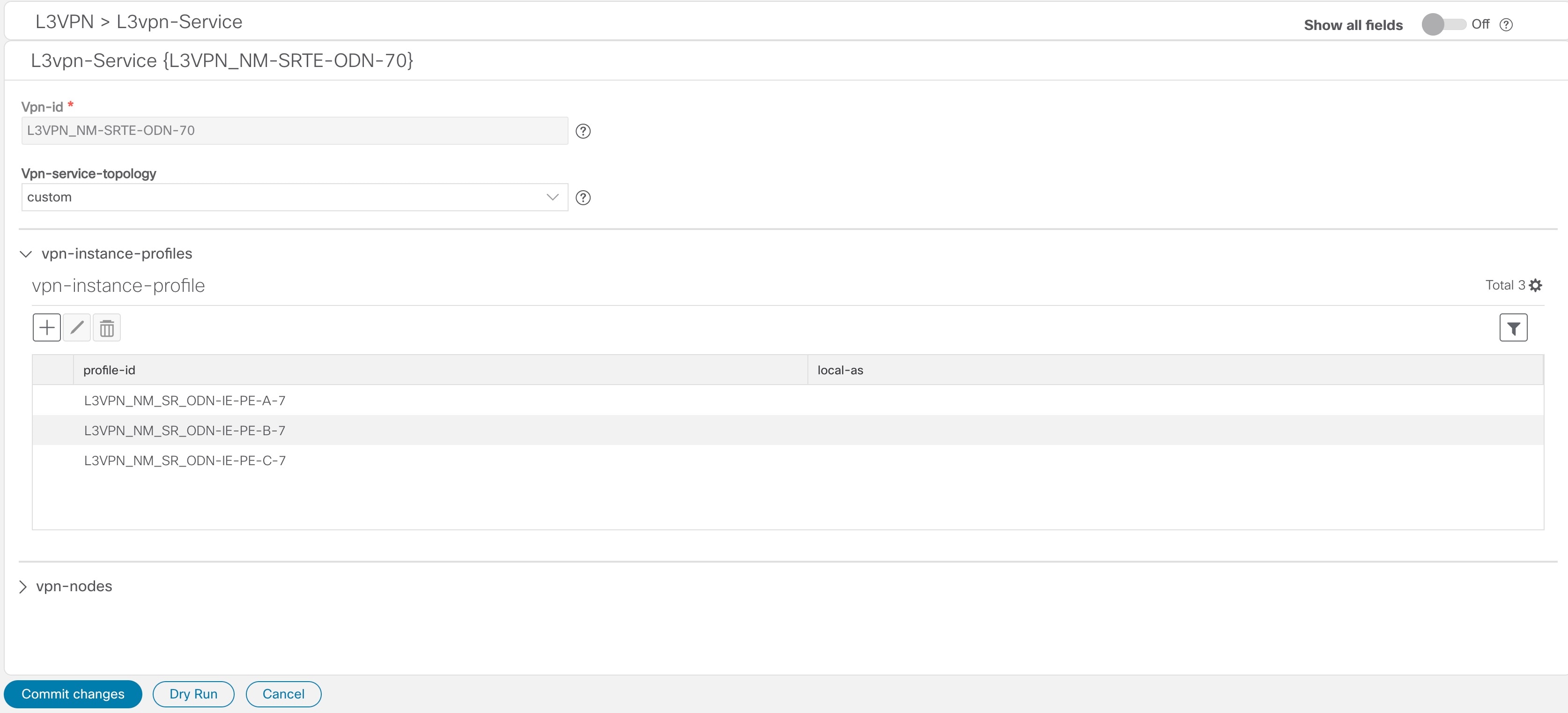
Click + to create a new service and type a new Vpn-id: L3VPN_NM-SRTE-ODN-70.

A VPN identifier uniquely identifies a VPN and has a local meaning (for example, within a service provider network).

Step 6

Click Continue.

Step 7

Create vpn-instance-profiles, which is a container that defines the route distinguisher (RD), route targets, and the export/import route policy. We will create vpn-instance-profiles for each endpoint, as follows:

  • L3VPN_NM_SR_ODN-IE-PE-A-7 with route distinguisher 0:70:70

  • L3VPN_NM_SR_ODN-IE-PE-B-7 with route distinguisher 0:70:71

  • L3VPN_NM_SR_ODN-IE-PE-C-7 with route distinguisher 0:70:72

    1. Expand vpn-instance-profiles and click + to create a new vpn-instance-profile profile-id: L3VPN_NM_SR_ODN-I-PE-A-7. Click Continue.

    2. Enter the route distinguisher (Rd) that will differentiate the IP prefixes and make them unique: 0:70:70.

    3. For address-family, click + and select ipv4 from the list. Click Continue.

    4. Define the required VPN targets, including route targets and route target types (import/export/both).

    5. Under vpn-policies, in the Export-policy list, choose the relevant VPN profile (which contains the route policy: L3VPN_NM-SRTE-RP-PE-A-7). This forms the association between the VPN and the ODN template that defines the SLA.

    6. Click X in the top-right corner when you are done.

    7. Similarly, create the other vpn-instance-profiles.

Step 8

Define each VPN endpoint individually: PE-A, PE-B, and PE-C.

  1. Expand vpn-nodes and click + to select the relevant device from the list: PE-A. Click Continue.

  2. Enter the Local-as number for network identification: 200.

  3. Expand active-vpn-instance-profiles and click + to select the Profile-id you created in the previously: L3VPN_NM-SRTE-RP-PE-A-7. Click Continue.

  4. Define the network access parameters for communication from the PE towards the CE:

    • Under vpn-network-accesses, click + to create a new set of VPN access parameters and provide a unique ID. Click Continue.

    • In the Interface-id field, type Loopback70. This is the identifier for the physical or logical interface. The identification of the sub-interface is provided at the connection level and/or the IP connection level.

    • Expand ip-connection > ipv4 and enter a Local-address (70.70.70.1) and the Prefix-length (30).

    • For routing-protocols, define BGP routing protocol parameters, including the Peer-as number (70), Address-family (ipv4) IP address of the BGP neighbor (70.70.70.2), and Multihop number (for example, 11) that indicates the number of hops allowed between the BGP neighbor and the PE device.

    • Click X in the top-right corner until you are back on the Create L3VPN screen.

    • Similarly, create the other VPN nodes: PE-B and PE-C.

Step 9

Commit your changes or click Dry Run to check what will be configured on the devices before you commit.

Step 10

Check that the new L3VPN service appears in the table and its provisioning state is Success.


Step 4 Enable Service Health monitoring

Procedure


Step 1

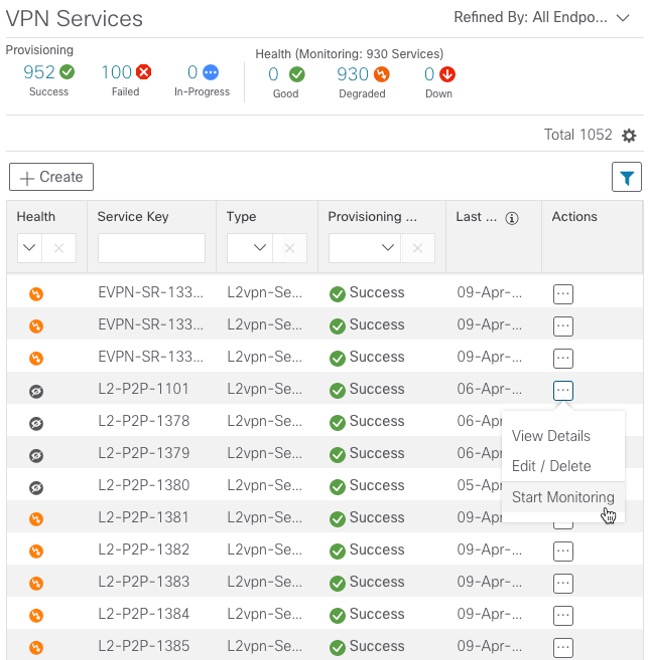
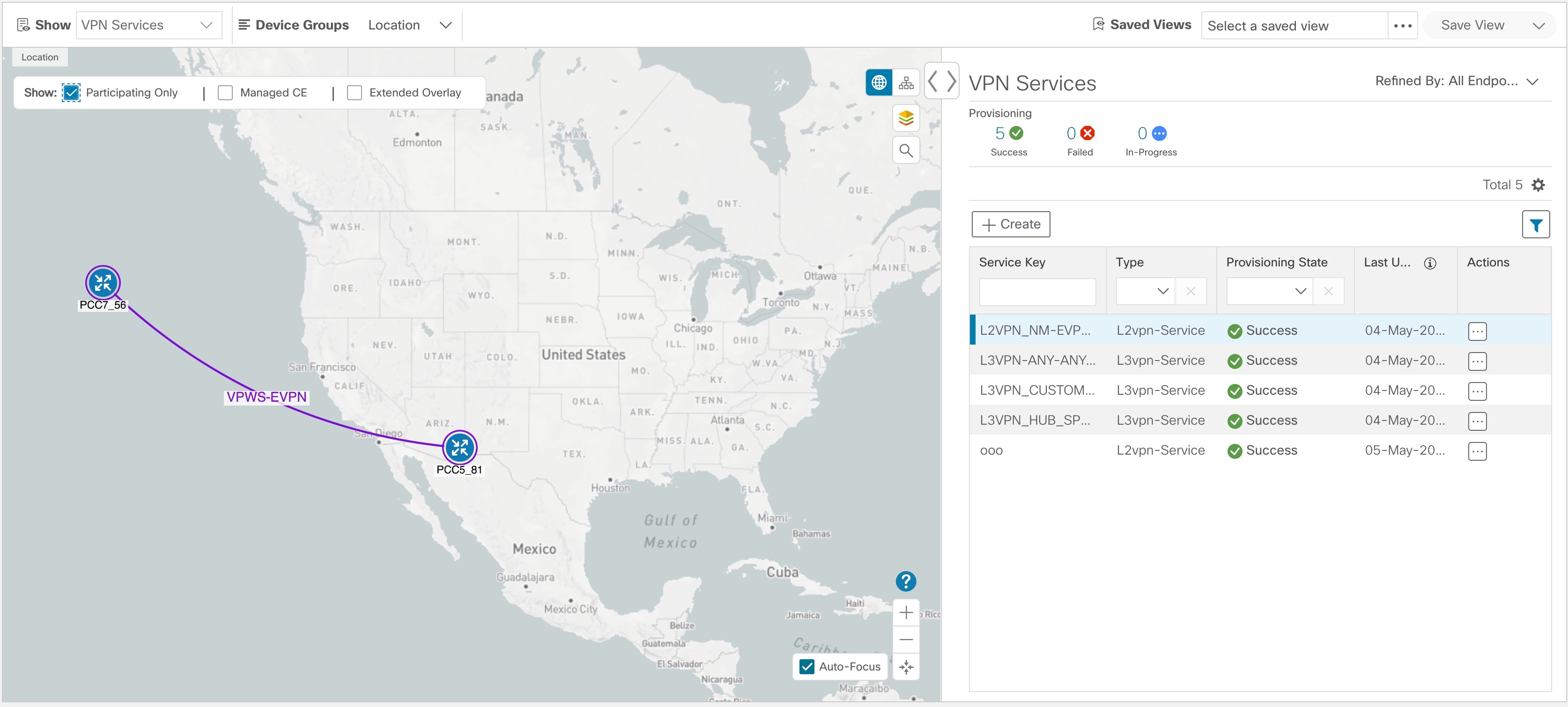
Go to Services & Traffic Engineering > VPN Services. The map opens on the left side of the screen and the table opens on the right side of the screen.

Step 2

In the Actions column, click for the new service you want to start monitoring health.

Step 3

Click Start Monitoring.

Note

 
The Health column color coding indicates the health of the service:
  • Blue = Initiated

  • Green = Good

  • Orange = Degraded

  • Red = Down

  • Gray = Not Monitoring

Step 4

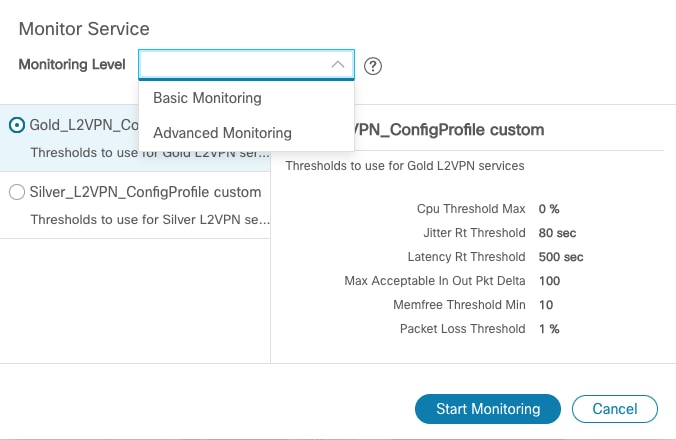
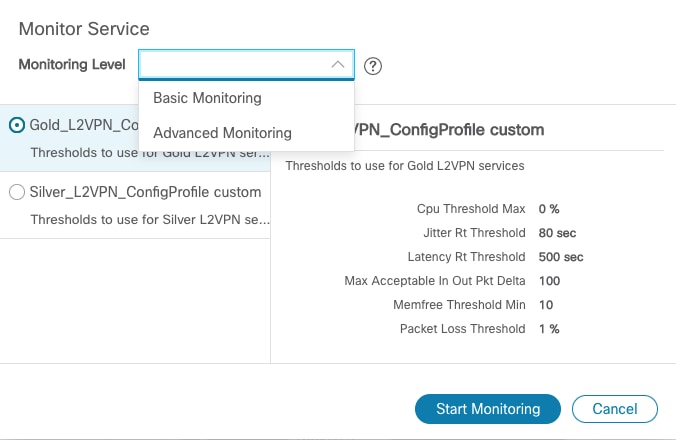
In the Monitor Service pop-up, select the Monitoring Level. For help selecting the appropriate monitoring level for your needs, see the section Basic and Advanced Monitoring Rules.

Note

 
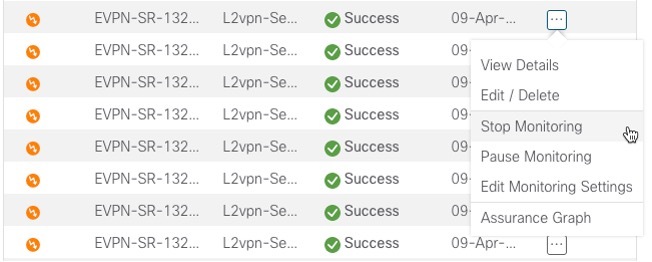
Once you have started monitoring the health of this service, if you select the Actions column and click to view additional Service Health options, you will see: Stop Monitoring, Pause Monitoring, Edit Monitoring Settings, Assurance Graph.

Note

 
If you select Edit Monitoring Settings, you may update the Monitoring Level setting from Basic Monitoring to Advanced Monitoring, or from Advanced Monitoring to Basic Monitoring, at any time. You may also update to a different Configuration Profile (from Gold profile to Silver profile or from Silver profile to Gold profile).

Note

 
If you later decide to Stop Monitoring a service that has already been started, you have the option to retain the historical service data for that stopped service. See Stopping Service Health Monitoring in the Appendix for additional steps and details.

Step 5

Click Start Monitoring.

Step 6

Repeat this step for each service you wish to start health monitoring.

Step 7

Click X in the top-right corner when you are done.


Step 5 Visualize the New VPN Service on the Map to See the Traffic Path

Procedure


Step 1

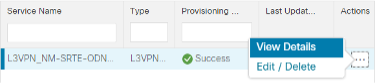
In the L3VPN Service table, click on the service name or click in the Actions column and choose View Details from the menu.

The map opens and the service details are shown to the right of the map.

or

Go to Services & Traffic Engineering > VPN Services.

The map opens and a table of VPN services is displayed to the right of the map.

Click on the VPN in the Services table. If there are many services in the table, you can filter by name, type, or provisioning state to help locate the VPN.

In the map, you will see the VPN as an overlay on the topology. It shows a representation of the three endpoints and a dashed line that indicates that it is a virtual path.

Select the Show Participating Only check box if you do not want to see the devices that are not involved in the selected VPN.

Step 2

In the Actions column, click to drill down to a detailed view of the VPN service, including the device configurations and the computed transport paths.

Step 3

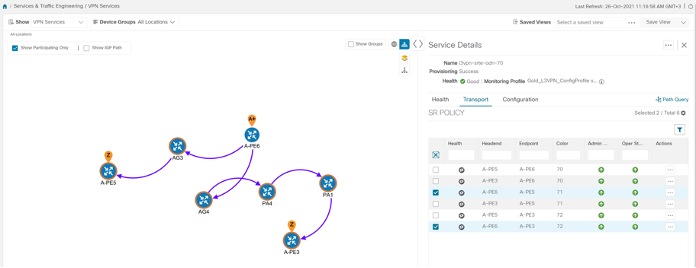
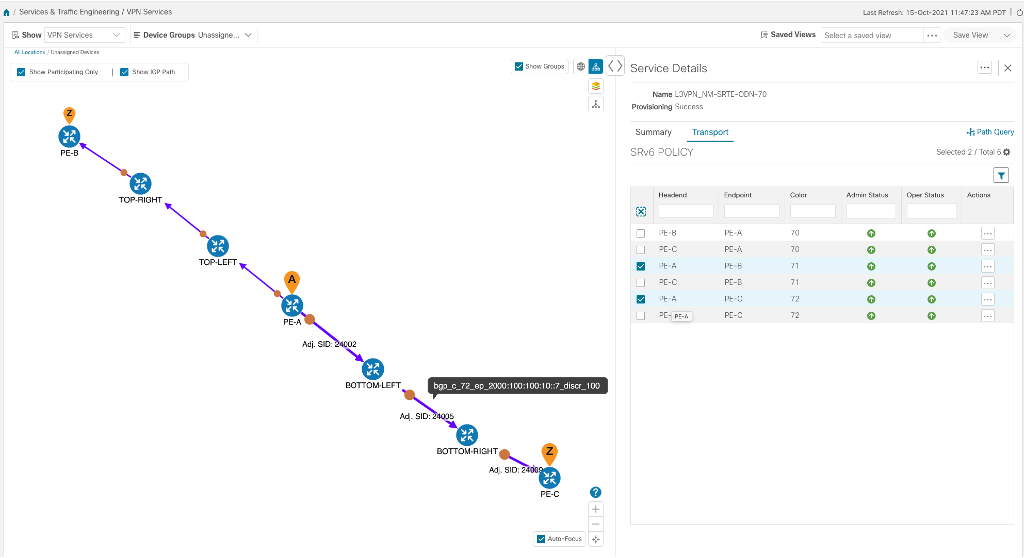
To see the computed paths for this VPN, click on the Transport tab in the Service Details pane. All the dynamically created SR-TE policies are listed in the Transport tab. Select one or more SR-TE policies to see the path from endpoint to endpoint on the map.

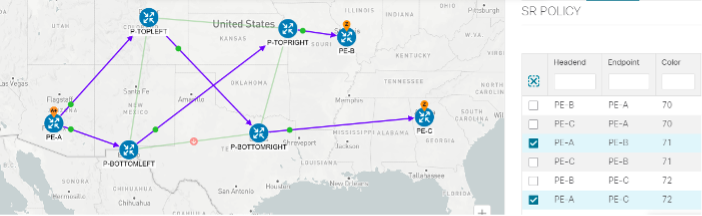
In this example, we are looking at the disjoint paths computed from PE-A to PE-B and from PE-A to PE-C.

Step 4

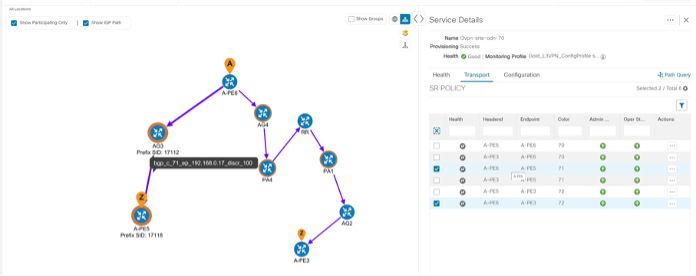
To see the physical path between the endpoints, select the Show IGP Path check box in the top-left corner of the map. Hover with your mouse over a selected policy in the table to highlight the path in the map and show prefix SID and routing information.

Step 5

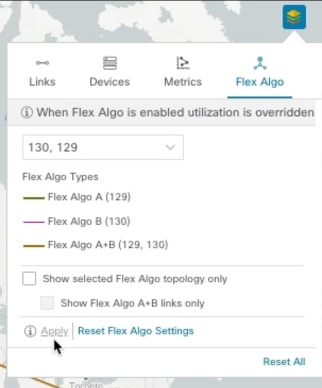
To filter the topology to a specific Flex-Algo constraint and visualize nodes and links you have configured manually in your network, click the button at the top right of the map and do the following:

  1. Click the Flex Algo tab.

  2. From the drop-down list, choose up to 2 Flex-Algo IDs.

  3. View the Flex-Algo Types and confirm that the selection is correct. Also, note the color assignments for each Flex-Algo ID.

  4. (Optional) Check the Show selected Flex Algo topology only check box to isolate the Flex-Algo IDs on the topology map. When this option is enabled, SR policy selection is disabled.

  5. Check the Show Flex Algo A+B links only to show only those links and nodes that participate in both Flex-Algos.

    If a selected Flexible Algorithm is defined with criteria but there are no links and node combinations that match it (for example, a defined affinity to include all nodes or links with the color blue), then the topology map will be blank. If a selected Flexible Algorithm is not configured on a node or link, then the default blue link or node color appears.

  6. Click Apply. You must click Apply for any additional changes to your Flex-Algo selections to see the update on the topology map.

  7. (Optional) Click Save View to save the topology view and Flexible Algorithm selections.


Step 6 Observe automatic network optimization

Procedure


Observe automatic network optimization

The SR-PCE constantly monitors the network and automatically optimizes the traffic path based on the defined SLA. For illustration purposes, let’s look at what happens when one of the links goes down, in this case, the link between P-BOTTOMLEFT and P-BOTTOMRIGHT. This means that the previous path from PE-A to PE-C is no longer viable. Therefore, the SR-PCE computes an alternative path, both from PE-A to PE-C and from PE-A to PE-B, to compensate for the link that is down and to maintain the disjoint paths.

Recomputed paths:

Source and Destination Old path New path
PE-A > PE-C PE-A > P-BOTTOMLEFT > P‑BOTTOMRIGHT > PE-C PE-A > P-TOPLEFT > P‑BOTTOMRIGHT > PE-C
PE-A > PE-B PE-A > P-TOPLEFT > P‑TOPRIGHT > PE‑B PE-A > P-BOTTOMLEFT > P‑TOPRIGHT > PE-B

Step 7 Inspect a degraded service using Service Health to determine active symptoms

In this step, we will monitor the VPN services using Assurance Graph capabilities and inspect any services or related nodes that are degraded. By inspecting the root causes that lead to reported active symptoms and impacted services, you can determine what issues must be addressed first to maintain a healthy setup and what requires further inspection and troubleshooting.

Procedure


Step 1

Click X in the top-right corner to return to the VPN Services list.

Step 2

Click on the name of a service that shows as being degraded. The map will update to highlight the service you selected.

Degraded services show an orange icon in the Health column. You can filter by health state (Down, Degraded, Good) by clicking in the space at the top of the column and selecting the appropriate filter. To clear the filter, click the X next to the designated filter appearing in the space at the top of the column and it will remove all filtering and default to showing all VPN Services in the list.

Note

 
If a service is not yet being monitored, the icon in the Health column will show as the color grey. To enable monitoring for such a service, click and select Start Monitoring.

Step 3

In the Actions column, click and click View Details. The Service Details screen appears on the right side.

Step 4

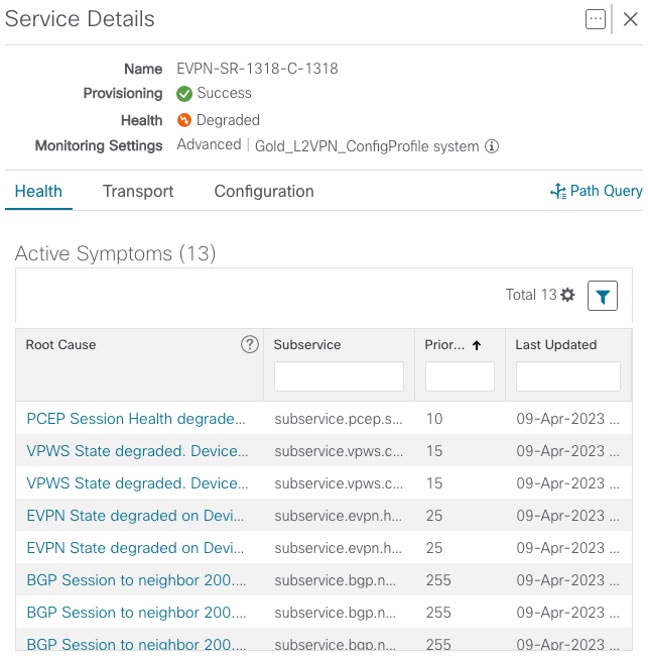
With the Health tab selected, review Active Symptoms for the degraded service (including the Root Cause, Subservice, Priority, and Last Updated details) present in the Health tab if the service is currently being monitored.

Step 5

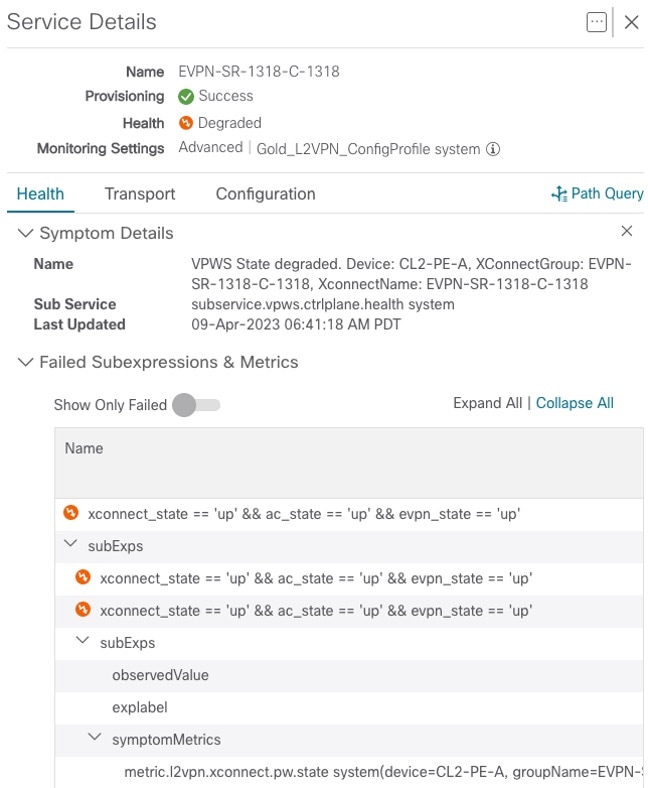
Click on a Root Cause and view both the Symptom Details and the Failed Sub expressions & Metrics information. As needed, you can expand or collapse all of the symptoms listed in the tree. In addition, use the Show Only Failed toggle to focus on only failed expression values.

Step 6

Select the Transport and Configuration tabs and review the details provided.

Step 7

To further isolate the degraded service details, click X in the top-right corner to return to the VPN Services list.

Step 8

Again, click on the name of the degraded service in the list. The Service Details panel appears and the map updates, isolating the corresponding devices participating with that service.

Step 9

Within the map, view further service health details doing the following:

  1. At the top-left of the map, select the Show Participating Only check box so the map only shows the participating services.

  2. In the map, hover your mouse over one of the devices and smaller badges that indicate health status and review the pop-up information relating to its Reachability State, Host Name, Node IP, and Type.

Step 10

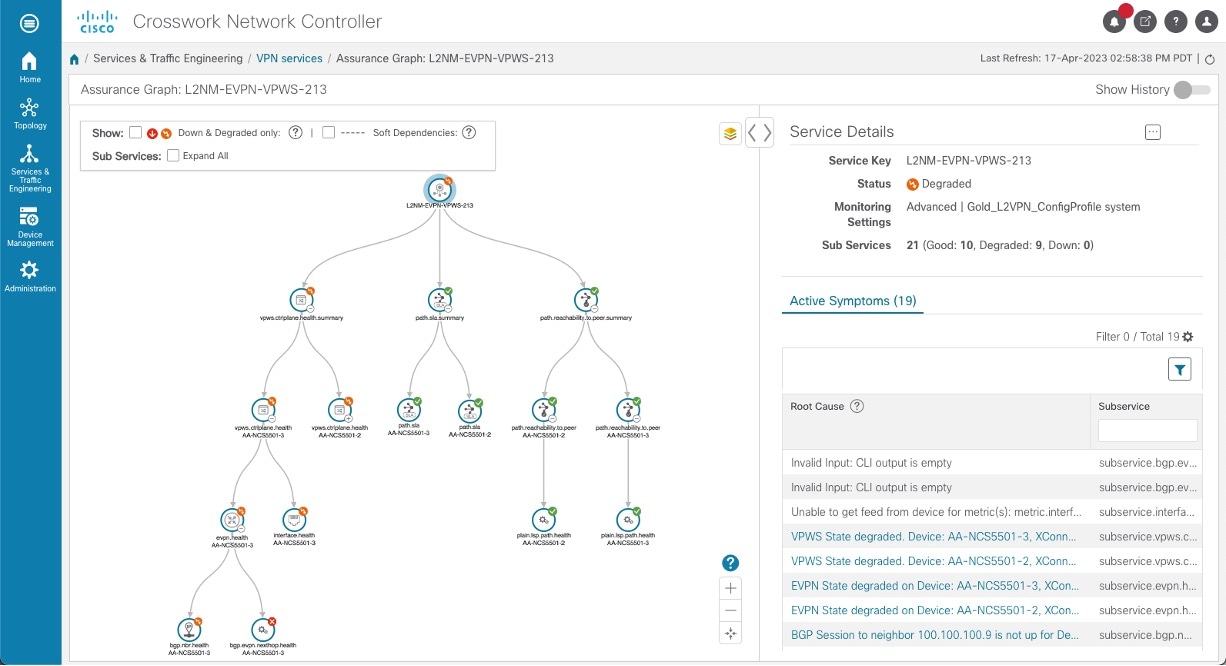
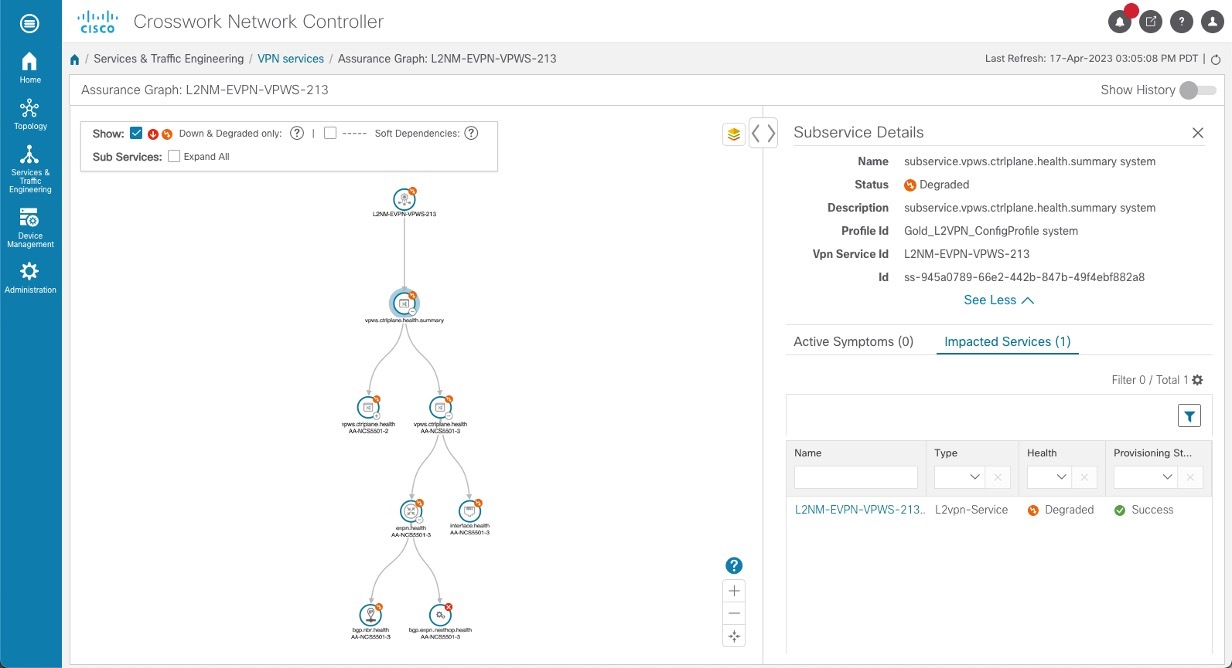
In the Actions column, click for the degraded service in the list and click Assurance Graph. The topology map of services and subservices appear with the Service Details panel showing Service Key, Status, Sub Services, and Active Symptoms details.

Note

 
This will take time to update after a service has been enabled for monitoring, and may take up to 5-10 minutes.

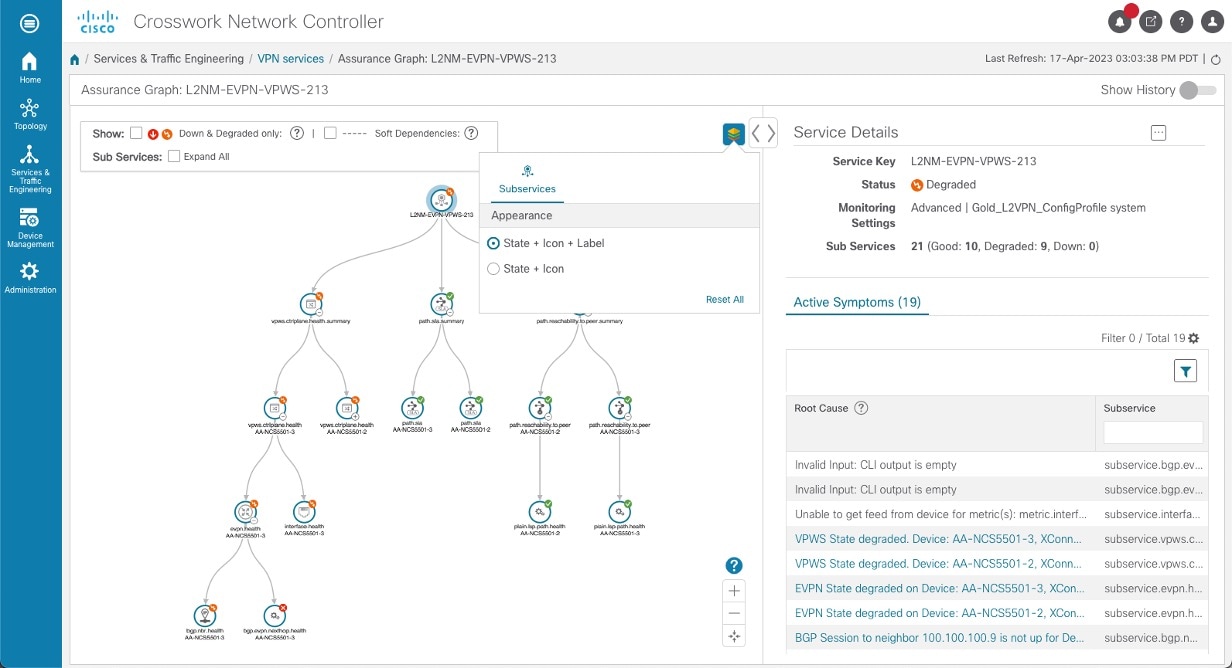
At the top-right of the map, select the stack icon to select the appearance option for the Subservices: State + Icon + Label or State + Icon. In addition, in the middle section of the Service Details panel, KPI metrics details are displayed such as jitter, latency, and packet loss (information collected using Y.1731 probes). For example:

Step 11

In the topology map, select a degraded subservice. The Subservice Details panel appears with subservice metrics, as well as subservice specific Active Symptoms and Impacted Services details.

  • Active Symptoms: Provides symptom details for nodes actively being monitored.

  • Impacted Services: Provides information for services that are impacted by issues based on historical monitoring of health status.

Note

 
Use your mouse to on subservices in the map for details on the degraded health. At the top left of the map, select Down & Degraded Only or Soft Dependencies to further isolate subservices.

Note

 
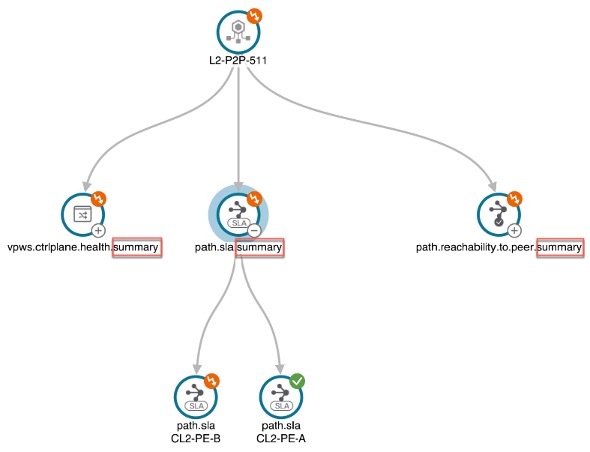
In some cases, the Summary node feature is available and summarizes the aggregated health status of child subservices and reports one consolidated health status to a service node. The Summary node feature is available in both L2VPN multipoint Basic and Advanced monitoring models.
  • Basic monitoring subservices:

    • Device – Summarizes the health status of all underlying Devices participating in the given L2VPN service.

    • Bridge Domain – Summarizes the L2VPN Service’s Bridge Domain health status across all participating devices.

  • Advanced monitoring subservices (in addition to what is also available with Basic monitoring)

    • EVPN – Summarizes the health status of all underlying subservices – BGP Neighbor Health & MacLearning Health across all participating PE endpoints and provides a consolidated overall EVPN health summary status.

    • Transport – Summarizes the health status of all underlying subservices – SR-ODN (dynamic), SR Policy (statically configured) and RSVP TE Tunnel, across all participating PE endpoints and provides a consolidated overall Transport health summary status.

    • SR-PCEP – Summarizes the health status of all the underlying subservices that are monitoring the PCEP sessions. Each underlying subservice monitors the PCEP session health on a particular device participating in the given VPN service.

Step 12

Inspect the Active Symptoms and Impacted Services information and the root causes associated with the degraded service so to determine what issues may need to be addressed to maintain a healthy setup.

To further troubleshoot a service health issue (such as a device that is degraded due to not properly fetching data), continue with the following steps to examine if the issue is associated with a collection job.

Step 13

Select Administration > Collection Jobs.

The Collection Jobs screen appears.

Step 14

Select the Parameterized Jobs tab.

Step 15

Review the Parameterized Jobs list to pinpoint devices that may have service health degradation issues. By reviewing Parameterized Jobs, you can identify and focus on GMNI, SNMP, and CLI-based jobs by their Context ID (protocol) for further troubleshooting purposes.

Step 16

In the Job Details panel, select the collection job you want to export and click the export button to download the status of collection jobs for further examination. The information provided is collected at the time the export is initiated in a .csv file.

The Export Collection Status pop up appears.

Note

 
When exporting the collection status, you must fill in the information each time an export is executed. In addition, make sure to review the Steps to Decrypt Exported File content available on the Export Collection Status pop up to ensure you can access and view the exported information.

Step 17

Click Export.

Step 18

To check the status of the exported collection job data, click View Export Status at the top right of the Job Details panel. The Export Status Jobs panel appears providing the status of the export request.

Step 19

Review the exported .csv file for collection job details and the possible cause of the degraded device.


Summary and Conclusion

As we observed in this example, operators can use Cisco Crosswork Network Controller to orchestrate L3VPNs with SLAs and to maintain these SLAs using SR-TE policies that continuously track network conditions and automatically react to optimize the network. This automation increases efficiency and reduces human error that is generally unavoidable with manual tasks. Enabling Service Health to monitor provisioned services allows for more detailed symptoms, metrics, and analyzation of each service.

Scenario 2 – Implement and Maintain SLA for an L3VPN Service for SRv6 (using ODN)

This scenario walks you through the procedure for provisioning an L3VPN service that requires a specific SLA objective. In this example, the lowest latency path is the SLA objective. The customer requires a low latency path for high priority traffic. The customer wants to use disjoint paths, i.e., two unique paths that steer traffic from the same source and to the same destination, avoiding common links so that there is no single point of failure. The customer also wants to enable SRv6, which utilizes the IPv6 protocol to handle packets with more efficiency, increase security and performance, allowing for a significantly larger number of possible addresses.

This is achieved using Segment Routing (SR) On-Demand Next Hop (ODN). ODN allows a service head-end router to automatically instantiate an SR-TE policy to a BGP next-hop when required (on-demand). The headend is configured with an ODN template with a specific color that defines the SLA upon which the traffic path will be optimized when a prefix with the specified color is received. Prefixes are defined in a route policy that is associated with the L3VPN.

Cisco Crosswork Network Controller continues to monitor the network and will automatically optimize the network based on the defined SLA, in a closed loop.

The following topology provides the base for this scenario:

In this scenario, we will:

  • Create a segment routing ODN template with a specific color on the endpoints to ensure that traffic is transported within an LSP (underlay) and that a best-path tunnel is created dynamically when a prefix with the specified color is received. Enable SRv6 (IPv6) for service and link details. The ODN template defines the SLA on which you want to optimize the path. In this case, we will optimize on latency.

  • Specify that the computed paths be disjoint: they will not share the same link.

  • Create a route policy on each endpoint to be used to bind the L3VPN to the ODN template. This route policy adds a color attribute to the customer prefixes and advertises via BGP to other endpoints. This color attribute is used to indicate the SLA required for these prefixes.

  • Create an L3VPN service with 3 endpoints: PE-A, PE-B, and PE-C. This is the overlay configuration.

  • Visualize how this overlay/underlay configuration optimizes the traffic path and automatically maintains the SLA.

Assumptions and Prerequisites

  • To use ODN with SRv6, BGP peering for the prefixes must be configured between the endpoints/PEs. Usually for L3VPN, this is the VPNv4 and VPNv6 address family peering, and this BGP peering is required to be over IPv6.

Procedure to Implement and Maintain SLA for an L3VPN Service for SRv6 Using ODN is detailed in this section.

Step 1 Create an ODN template to map color to an SLA objective and constraints

We will create the following ODN templates:

  • Headend PE-A, color 72, latency, disjoint path (link), group ID 16 - L3VPN_NM-SRTE-ODN_72-a

  • Headend PE-A, color 71, latency, disjoint path (link), group ID 16 - L3VPN_NM-SRTE-ODN_71-a

  • Headend PE-B and PE-C, color 70, latency - L3VPN_NM-SRTE-ODN_70

    • With multiple headends in the SRv6 enabled ODN template, the same locator name should be configured on the headend routers. Otherwise, different ODN templates should be created for each headend.

  • Headend PE-B, color 72, latency - L3VPN_NM-SRTE-ODN_72-b

  • Headend PE-C, color 71, latency - L3VPN_NM-SRTE-ODN_71-c

For example purposes, we will show how to create the first ODN template - L3VPN_NM-SRTE-ODN_72-a. The other ODN templates can be created using the same procedure.

Before you begin

In this step, we will create an ODN template on each endpoint. The ODN template specifies the color and the intent; in this case, latency and disjointness. This ODN template will be used to dynamically create tunnels (on-demand) when prefixes with matching colors are received via BGP. Traffic to these prefixes will be automatically steered into the newly created tunnels, thereby meeting the SLA objective and constraints intended for these prefixes and signaled using colors in the BGP routes.

Disjointness constraints work by associating a disjoint group ID with the ODN template, and all tunnels with the same disjoint group ID will be disjoint, i.e., they will use different links, nodes and shared risk link groups depending on how the disjoint groups are configured.

Procedure


Step 1

Go to Services & Traffic Engineering > Provisioning (NSO) > SR-TE > ODN-Template.

Step 2

Click + to create a new template and give it a unique name.

In this case, the name is L3VPN_NM-SRTE-ODN_72-a.

Step 3

Choose the headend device, PE-A, and specify the color 72.

Step 4

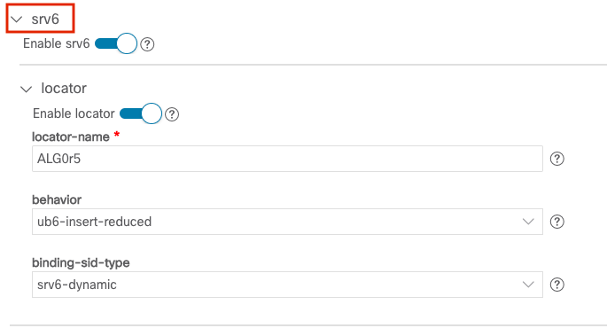
Under srv6, select the Enable srv6 toggle.

Step 5

Under locator, enter the required SRv6 locator-name.

The locator name should match what is configured on the router.

Step 6

Under dynamic, select “latency” as the metric type. This is the SLA objective on which we are optimizing.

Step 7

Select the pce check box to specify that the path should be computed by the SR-PCE, not by the Path Computation Client (PCC).

Step 8

Define the required constraints. In this case, we want the computed paths to be disjoint in that they must not share a link.

Under disjoint-path, choose link as the type, and specify a numeric group ID, in this case, 16.

Commit your changes or click Dry Run to check what will be configured on the devices before you commit.

Step 9

Check that the new ODN template appears in the table and its provisioning state is Success. Click in the Actions column and choose Config View to see the Yang model-based service intent data that details the ODN template you created.
Step 10

Create the other ODN templates listed above in the same manner.


Step 2 Create an L3VPN Route Policy

In this step, we will create a route policy for each endpoint, and we will specify the same color as defined in the ODN template for that endpoint. The route policy defines the prefixes to which the SLA applies. When traffic from the specified network with a matching color is received, paths are computed based on the SLA defined in the ODN template. We will create the following route policies:

  • Color 70, IPv6 prefix 70:70:70::0/64 - L3VPN_NM-SRTE-RP-PE-A-7

  • Color 71, IPv6 prefix 70:70:71::0/64 - L3VPN_NM-SRTE-RP-PE-B-7

  • Color 72, IPv6 prefix 70:70:72::0/64 - L3VPN_NM-SRTE-RP-PE-C-7

For example purposes, we will show how to create the first route policy - L3VPN_NM-SRTE-RP-PE-A-7. The other route policies can be created using the same procedure.

First, we will create the routing policy tag and routing policy destination prefix. The routing policy prefixes should match with the subnet prefix configured on the PE devices in the service.

Procedure


Step 1

Go to Services & Traffic Engineering > Provisioning (NSO) > L3VPN > Routing Policy Tag.

Step 2

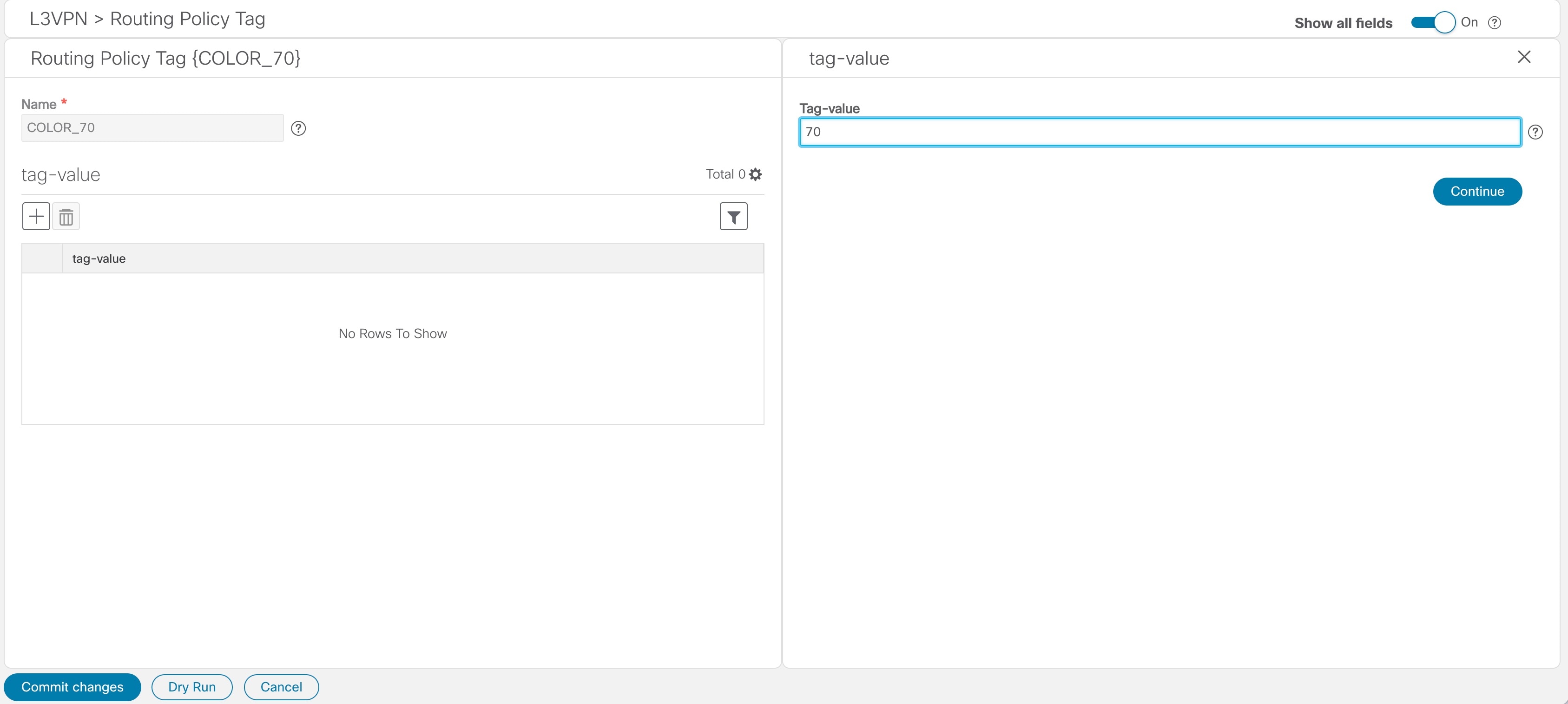
Click + to create a new routing policy tag and type the name of the tag set: COLOR_70. Click Continue.

This is used as a label to reference the set in actions and conditions.

Step 3

Under tag-value, click + and type the Tag-value: 70.

The tag value may be a number between 1 – 4294967295 and should match to a color value.

Step 4

Click Continue. The new routing policy tag name with the new tag value is visible. Click Commit changes.

Create the other two routing policy tags (COLOR_71 and COLOR_72) and tag values (71 and 72) by following the same steps above.

Now create the routing policy destination prefixes.

Step 5

Go to Services & Traffic Engineering > Provisioning (NSO) > L3VPN > Routing Policy Destination Prefix.

Step 6

Click + to create a new routing policy destination prefix and type the name: DEST_PREFIX_SET_70.

The name of the prefix set will reference the set in match conditions.

Step 7

For Mode, select ipv6.

Step 8

Expand prefixes and click + to add the ip-prefix to the prefix-list.

Step 9

For Ip-prefix, type 70:70:70::0/64 and click Continue.

Create the other two routing policy destination prefixes (DEST_PREFIX_SET_71 and DEST_PREFIX_SET_72) by following the same steps.

Now we are ready to create the first route policy L3VPN_NM-SRTE-RP-PE-A-7. The other route policies can be created using the same procedure.

Step 10

Go to Services & Traffic Engineering > Provisioning (NSO) > L3VPN > Routing Policy.

Step 11

Click + to create a new route policy and type a unique name for the top-level policy definition: L3VPN_NM-SRTE-RP-PE-A-7. Click Continue. The statements section appears.

Note

 
The Route Policy statement defines the condition and action taken by the system.

Step 12

Expand statements and click + to add the name of the policy statement (such as stmt1) and click Continue. The statement{stmt1} panel appears showing conditions and actions sections.

Step 13

Expand conditions and then expand match-dest-prefix-set before selecting the Prefix-set list and select DEST_PREFIX_SET_70. This is what references a defined prefix set.

Note

 
Once selected, the Enable match-dest-prefix-set toggle, which will match a referenced prefix-set according to the logic defined in the match-set-options list, switches on.

Step 14

Expand actions and then expand bgp-actions.

Step 15

For bgp-actions, slide the Enable bgp-actions toggle to the on position. By toggling bgp-actions on, it defines the top-level container for BGP-specific actions.

Step 16

Now expand set-ext-community. Slide the Enable-set-ext-community toggle to the on position. By toggling set-ext-community on, it sets the extended community attributes.

Step 17

For Method and reference, select the Ext-community-set-ref list and select COLOR_70. The Ext-community-set-ref references a defined extended community set by name.

Note

 
Creating routing-policy tag-set is mandatory and needs to be mapped here.

Step 18

Click X in the top-right corner to close the statement{stmnt1} panel and click Commit changes.

Step 19

Create the other route policies (L3VPN_NM-SRTE-RP-PE-B-7 and L3VPN_NM-SRTE-RP-PE-C-7) in the same manner.


After creating the L3VPN route policies, create the VPN profile for each route policy and then create and provision the L3VPN service. The VPN profile will be referenced from the L3VPN service. This will bind the route policy to the L3VPN service.

Step 3 Create and provision the L3VPN service

In this step, we will create the L3VPN service with three endpoints: PE-A, PE-B, and PE-C. Each endpoint will be associated with a vpn-instance-profile, which in turn points to a VPN profile that contains the route policy with the same color as specified in the ODN template. In this way, traffic that matches the specified prefixes and color will be treated according to the SLA specifications.

First, we will create the VPN profiles. The newly created VPN profiles will have the same names as the L3VPN routing policy names.

Procedure


Step 1

Go to Services & Traffic Engineering > Provisioning (NSO) > L3VPN > VPN Profiles.

Step 2

Click + to create a valid VPN profile to be referenced in the VPN service.

Step 3

Select the Id list and select L3VPN_NM-SRTE-RP-PE-A-7.

Now create and provision the L3VPN service.

Step 4

Go to Services & Traffic Engineering > Provisioning (NSO) > L3vpn > L3vpn-Service..

Step 5

Click + to create a new service and type a new Vpn-id: L3VPN_NM-SRTE-ODN-70.

A VPN identifier uniquely identifies a VPN and has a local meaning (for example, within a service provider network).

Step 6

Click Continue.

Step 7

Create vpn-instance-profiles, which is a container that defines the route distinguisher (RD), route targets, and the export/import route policy. We will create vpn-instance-profiles for each endpoint, as follows:

  • L3VPN_NM_SR_ODN-IE-PE-A-7 with route distinguisher 0:70:70

  • L3VPN_NM_SR_ODN-IE-PE-B-7 with route distinguisher 0:70:71

  • L3VPN_NM_SR_ODN-IE-PE-C-7 with route distinguisher 0:70:72

    1. Expand vpn-instance-profiles and click + to create a new vpn-instance-profile profile-id: L3VPN_NM_SR_ODN-I-PE-A-7. Click Continue.

    2. Enter the route distinguisher (Rd) that will differentiate the IP prefixes and make them unique: 0:70:70.

    3. For address-family, click + and select ipv6 from the list. Click Continue.

    4. Define the required VPN targets, including route targets and route target types (import/export/both).

    5. Under vpn-policies, in the Export-policy list, choose the relevant VPN profile (which contains the route policy: L3VPN_NM-SRTE-RP-PE-A-7). This forms the association between the VPN and the ODN template that defines the SLA.

    6. Click X in the top-right corner when you are done.

    7. Expand srv6 and slide the Enable srv6 toggle to the on position and then click + under address-family.

    8. Select ipv6 from address family list and click Continue.

    9. For Locator-name, type ALG0r5. The SRv6 locator name should match locators configured at a node-global level on each router. Click X in the top-right corner until you are back on the Create L3VPN screen.

    10. Similarly, create the other vpn-instance-profiles.

Step 8

Define each VPN endpoint individually: PE-A, PE-B, and PE-C.

  1. Expand vpn-nodes and click + to select the relevant device from the list: PE-A. Click Continue.

  2. Enter the local autonomous system number for network identification: 200.

  3. Expand active-vpn-instance-profiles and click + to select the Profile-id you created in the previously: L3VPN_NM-SRTE-RP-PE-A-7. Click Continue.

  4. Define the network access parameters for communication from the PE towards the CE:

    • Under vpn-network-accesses, click + to create a new set of VPN access parameters and provide a unique ID. Click Continue.

    • In the Interface-id field, type Loopback70. This is the identifier for the physical or logical interface. The identification of the sub-interface is provided at the connection level and/or the IP connection level.

    • Expand ip-connection > ipv6 and enter a Local-address (70:70:70::1) and the Prefix-length (64).

    • Expand routing-protocols and click + before typing a unique identifier for the routing protocol: EBGP. Click Continue.

    • From the routing protocol Type list, select bgp-routing.

    • Expand bgp and for Peer-as, type 70. This information indicates the customer’s ASN when the customer requests BGP routing.

    • From the Address-family list, select ipv6.

    • Under neighbor, click + to create a neighbor IP address and type 70:70:70::2. Click Continue.

    • Type the Multihop number: 11. This describes the number of IP hops allowed between a given BGP neighbor and the PE.

    • For redistribute-connected, click + and select ipv6 from the Address-family list. Click Continue.

    • Click X in the top-right corner until you are back on the Create L3VPN screen.

    • Similarly, create the other VPN nodes: PE-B and PE-C.

Step 9

Commit your changes or click Dry Run to check what will be configured on the devices before you commit.

Step 10

Check that the new L3VPN service appears in the table and its provisioning state is Success.


Step 4 Visualize the New VPN Service on the Map to See the Traffic Path

Procedure


Step 1

In the L3VPN Service table, click on the service name or click in the Actions column and choose View Details from the menu.

The map opens and the service details are shown to the right of the map.

or
  1. Go to Services & Traffic Engineering > VPN Services.

    The map opens and a table of VPN services is displayed to the right of the map.

  2. Click on the VPN in the Services table. If there are many services in the table, you can filter by name, type, or provisioning state to help locate the VPN.

    In the map, you will see the VPN as an overlay on the topology. It shows a representation of the three endpoints and a dashed line that indicates that it is a virtual path.

    Select the Show Participating Only check box if you do not want to see the devices that are not involved in the selected VPN.

    Note

     
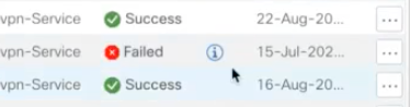
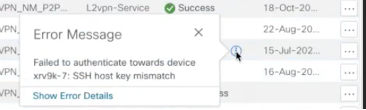
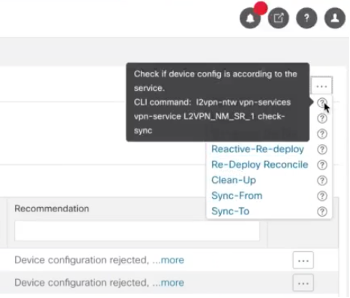
    When a Provision State shows a Failed state, an information icon appears. This is true whether you are on the VPN Services, Service Details, and many of the Provisioning screens that show a table of services and their Provisioning status. If you select the icon, Error Message details appear describing the failure. You can also click the Show Error Details link to view the Component Errors screen and take action to fix the error. Each failed source provides further error message details and recommendations. For example, in the Action column for the failed source on the component Errors screen, you may click for different options (such as, Check-Sync, Sync-To, Sync-From, Compare-Config, View Job Status) that will assist in fixing the error. Service level actions are also available for additional options (such as, Re-Deploy, Reactive-Re-deploy, Re-Deploy Reconcile, Clean-up, etc.) that will assist in fixing the service level error. Use the information icons that appear next to these options, as well, for further fix details.

Step 2

In the Actions column, click to drill down to a detailed view of the VPN service, including the device configurations and the computed transport paths.

Step 3

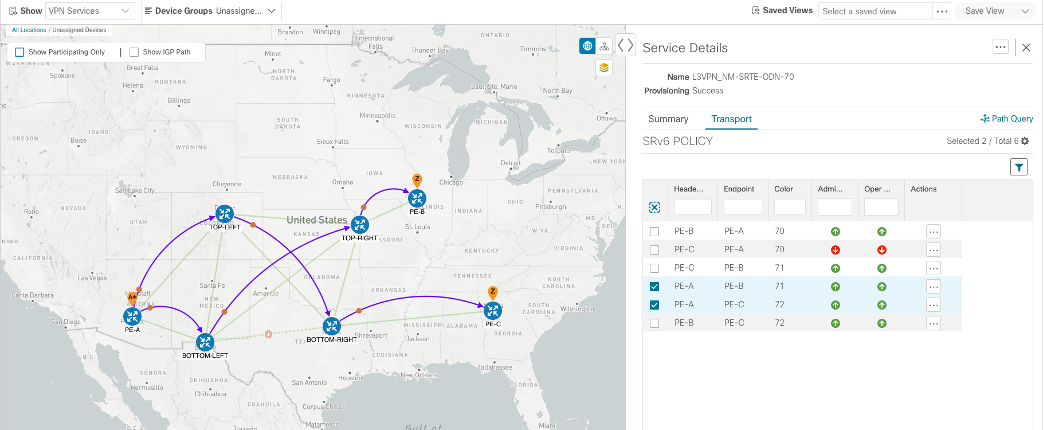
To see the computed paths for this VPN, click on the Transport tab in the Service Details pane. All the dynamically created SR-TE policies are listed in the Transport tab. Select one or more SR-TE policies to see the path from endpoint to endpoint on the map.

In this example, we are looking at the disjoint paths computed from PE-A to PE-B and from PE-A to PE-C.

Step 4

To see the physical path between the endpoints, select the Show IGP Path check box in the top-left corner of the map. Hover with your mouse over a selected policy in the table to highlight the path in the map and show prefix SID and routing information.


Step 5 Observe automatic network optimization

Procedure


The SR-PCE constantly monitors the network and automatically optimizes the traffic path based on the defined SLA. For illustration purposes, let’s take a look at what happens when one of the links goes down, in this case, the link between P-BOTTOMLEFT and P-BOTTOMRIGHT. This means that the previous path from PE-A to PE-C is no longer viable. Therefore, the SR-PCE computes an alternative path, both from PE-A to PE-C and from PE-A to PE-B, in order to compensate for the link that is down and to maintain the disjoint paths.

Recomputed paths:

Source and Destination Old path New path
PE-A > PE-C PE-A > BOTTOM-LEFT > BOTTOM-RIGHT > PE-C PE-A > TOP-LEFT > BOTTOM-RIGHT > PE-C
PE-A > PE-B PE-A > TOP-LEFT > TOP-RIGHT > PE‑B PE-A > BOTTOM-LEFT > TOP-RIGHT > PE-B

Summary and Conclusion

As we observed in this example, operators can use Cisco Crosswork Network Controller to orchestrate L3VPNs for SRv6 with SLAs and to maintain these SLAs using SR-TE policies that continuously track network conditions and automatically react to optimize the network. This automation increases efficiency and reduces human error that is generally unavoidable with manual tasks.

Scenario 3 – Mandate a Static Path for an EVPN-VPWS Service using an Explicit MPLS SR-TE Policy

To ensure that mission-critical traffic within a VPN traverses the higher capacity interfaces, rather than the lower capacity interfaces, we will create a point-to-point EVPN-VPWS service and associate a preferred path (explicit) MPLS SR-TE policy on both endpoints for service instantiation. In this way, we will mandate a static path for the mission-critical traffic.

In this scenario, we will see how quick and easy it is to create SR-TE policies and VPN services by uploading a file containing all the required configurations. We will download sample files (templates) from the provisioning UI, fill in the required data, and then import the file via the UI. Lastly, we will use the Service Health functionality to review the health of the services and view the Assurance Graph and Last 24Hr Metrics to better analyze our service’s health details.


Note


In this scenario, reference to SR-TE specifically means SR-TE over MPLS.

In this scenario, we will:

  • Create a SID list - a list of prefix or adjacency Segment IDs, each representing a device or link along the path.

  • Provision an explicit SR-TE policy, which will reference the SID list, thus creating a predefined path into which the EVPN prefix will be routed.

  • Provision a point-to-point EVPN-VPWS service from PE-A to PE-C and attach the explicit SR-TE policy.

  • Visualize the path of the service and review the health of the services.

Assumptions and Prerequisites

  • For transport mapping to L2VPN service, devices must be configured with the l2vpn all command.

  • For Service Health enablement, Service Health must be installed. See the Crosswork Network Controller Installation Guide chapter, Install Crosswork Applications.

  • (Optional) Service Health provides Internal Storage of monitoring data up to a maximum limit of 50 GB. This data is stored on your system. If you exceed the limit of the internal storage, historical data will be lost. If you choose to extend Service Health storage capacity, you can configure External Storage in the cloud using an Amazon Web Services (AWS) cloud account. By leveraging External Storage, all existing internal storage data will be automatically moved to the external cloud storage (see Configuring Service Health External Storage Settings appendix for more details) and your internal storage will act locally as cache storage. Configuring External Storage for Service Health ensures you will not lose historical data for services that continue to monitor a service’s health, and will retain service health data for any service you choose to stop monitoring when you select the option to retain historical monitoring service for the data. For more information on Internal and External Storage, and how to retain historical monitoring service data when stopped, see the Appendix sections Configuring Service Health External Storage Settings and Stopping Service Health monitoring.

  • Before using Service Health’s Assurance Graph, ensure that topology map nodes have been fully configured and created with a profile associated to the service. If not, Subservice Details metrics will show that no value has yet to be reported.

  • For Service Health, you must configure 2 buckets on the Y1731 profile associated with the device. If you have fewer than 2 buckets configured, Service Health cannot report the Y1731 probes/KPIs on the service details page.

Step 1 Prepare for Creating a SID List

Before you begin

The SID list consists of a series of prefix or adjacency SIDs, each representing a node or link along on the path. Each segment is an end-to-end path from the source to the destination, and it instructs the routers in the network to follow the specified path instead of the shortest path calculated by the IGP.

To build the SID list, you will need the MPLS labels of the desired traversing path. You can get these labels from the devices themselves or you can invoke the northbound Cisco Crosswork Optimization Engine API to retrieve this information.

Refer to Cisco Crosswork Network Automation API Documentation on Cisco Devnet for more information about the API.

Procedure


Step 1

Prepare the input required to produce the SID list for the path from endpoint to endpoint. You will need the router ID of each endpoint, as follows:

{
  "input": {
    "head-end": "100.100.100.7",
    "end-point": "100.100.100.5",
    "sr-policy-path": {
      "path-optimization-objective": "igp-metric"
    }
  }
}'

Step 2

Invoke the API on the Cisco Crosswork Network Controller server by using the input prepared in the previous step. For example:

curl --location --request POST 
'https://10.194.63.198:30603/crosswork/nbi/optima/v1/restconf/operations/cisco-crosswork-
optimization-engine-sr-policy-operations:sr-policy-dryrun' \
--header 'Content-Type: application/yang-data+json' \
--header 'Accept: application/yang-data+json' \
--header 'Authorization: Bearer 
eyJhbGciOiJIUzUxMiJ9.eyJzdWIiOiJhZG1pbiIsImlzRnJvbU5ld0xvZ2luIjoidHJ1ZSIsInBvbGljeV9pZCI6ImFkb
WluIiwiYXV0aGVudGljYXRpb25EYXRlIjoiMjAyMS0wMy0yMlQxNjozODozNy43NDY2MTZaW0dNVF0iLCJzdWNjZXNzZnV
sQXV0aGVudGljYXRpb25IYW5kbGVycyI6IlF1ZXJ5RGF0YWJhc2VBdXRoZW50aWNhdGlvbkhhbmRsZXIiLCJpc3MiOiJod
HRwOlwvXC9sb2NhbGhvc3Q6NTQ4OVwvU1NPIiwibGFzdF9uYW1lIjoic21pdGgiLCJjcmVkZW50aWFsVHlwZSI6IlVzZXJ
uYW1lUGFzc3dvcmRDcmVkZW50aWFsIiwiYXVkIjoiaHR0cHM6XC9cLzEwLjE5NC42My4xOTg6MzA2MDNcL2FwcC1kYXNoY
m9hcmQiLCJhdXRoZW50aWNhdGlvbk1ldGhvZCI6IlF1ZXJ5RGF0YWJhc2VBdXRoZW50aWNhdGlvbkhhbmRsZXIiLCJsb25
nVGVybUF1dGhlbnRpY2F0aW9uUmVxdWVzdFRva2VuVXNlZCI6ImZhbHNlIiwiY2hhbmdlX3B3ZCI6ImZhbHNlIiwiZXhwI
joxNjE2NDU5OTIwLCJpYXQiOjE2MTY0MzExMjAsImZpcnN0X25hbWUiOiJqb2huIiwianRpIjoiU1QtODQtOFVlWXMybEt
3R2d1Z3RIYjl4MzVmTFlNTGVVRlp6OURyNGpoeFcxakhsV01VYXdXSWgxbUdTd01aRC1tOEk1S2Z0amI2ZmlWTUhlYnBYY
jBMMFZqRFc2WVppUFVUbHRpNFVpZnNUeG9aQ284WWpPWEc2VlFjS0Mwb29lWjJhc3BWanMzYnA3bHo5VkhySlBCTzl5TDN
GcFRIWXRPeWJtVi1jYXMtMSJ9.Vi4k0w8KsOv5M_O8zBqWochT3k9V9Pn2NjSn5ES9c5Pf-
4ds0o4kk6xuZx5_cggauiEICuUMnzmRzneST-oAuA' \
--data-raw '{
  "input": {
    "head-end": "100.100.100.5",
    "end-point": "100.100.100.7",
    "sr-policy-path": {
      "path-optimization-objective": "igp-metric" 
    }
  }
}'

Step 3

Note the SID list ID in the API response. You will use this when creating the SID list in the next step. For example:

{
  "cisco-crosswork-optimization-engine-sr-policy-operations:output": {
    "segment-list-hops": [
      {
        "step": 0,
        "sid": 23002,
        "ip-address": "100.100.100.7",
        "type": "node-ipv4"
      }
    ],
    "igp-route": [
      {
        "node": "PE-A",
        "interface": "GigabitEthernet0/0/0/0"
      },
      {
        "node": "P-TOPLEFT",
        "interface": "GigabitEthernet0/0/0/2"
      },
      {
        "node": "P-BOTTOMRIGHT",
        "interface": "GigabitEthernet0/0/0/3"
      }
    ],
    "state": "success",
    "message": ""
  }
}

Step 2 Create the SID List in the Provisioning UI

In this scenario, we will create a SID list for traffic from PE-C to PE-A and another SID list for traffic in the opposite direction.

Procedure


Step 1

Go to Services & Traffic Engineering > Provisioning (NSO) > SR-TE > SID-List.

Step 2

Click + to create a new SID list and give it a unique name. For this example, the SID list name is L2VPN_NM-P2P-SRTE-PE-C-240. Click Continue.

Step 3

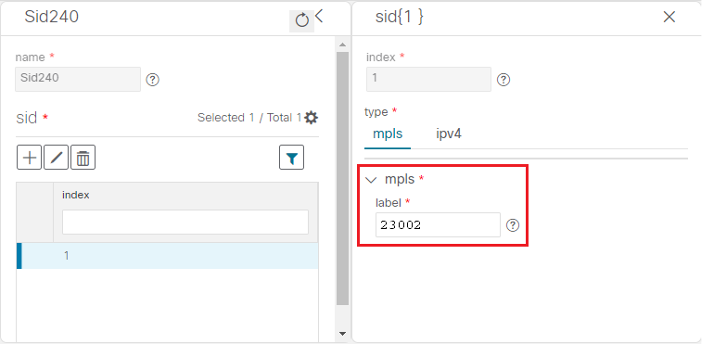
Under sid, click + to create a new SID index and give it a numeric value. Click Continue.

Step 4

Under mpls, enter the SID ID that was received in the API response in Step 1.

Step 5

Click X in the top-right corner to return to the SID list. Your new SID appears in the index table.

Step 6

Repeat these steps to create additional SID indexes, as required.

Step 7

Commit your changes.

Step 8

Check that the new SID list appears in the table.

Step 9

Create another SID list for the traffic from PE-A to PE-C. For this example, the SID list name is L2VPN_NM-P2P-SRTE-PE-A-240.


Step 3 Create an explicit SR-TE policy for each VPN endpoint by importing a file

In this step, we will provision two explicit SR-TE policies which will reference the SID lists created in Step 1.

The first SR-TE policy specifies PE-C as the headend and provides the IP address of PE-A as the tail end. The second SR-TE policy specifies PE-A as the headend and provides the IP address of PE-C as the tail end.

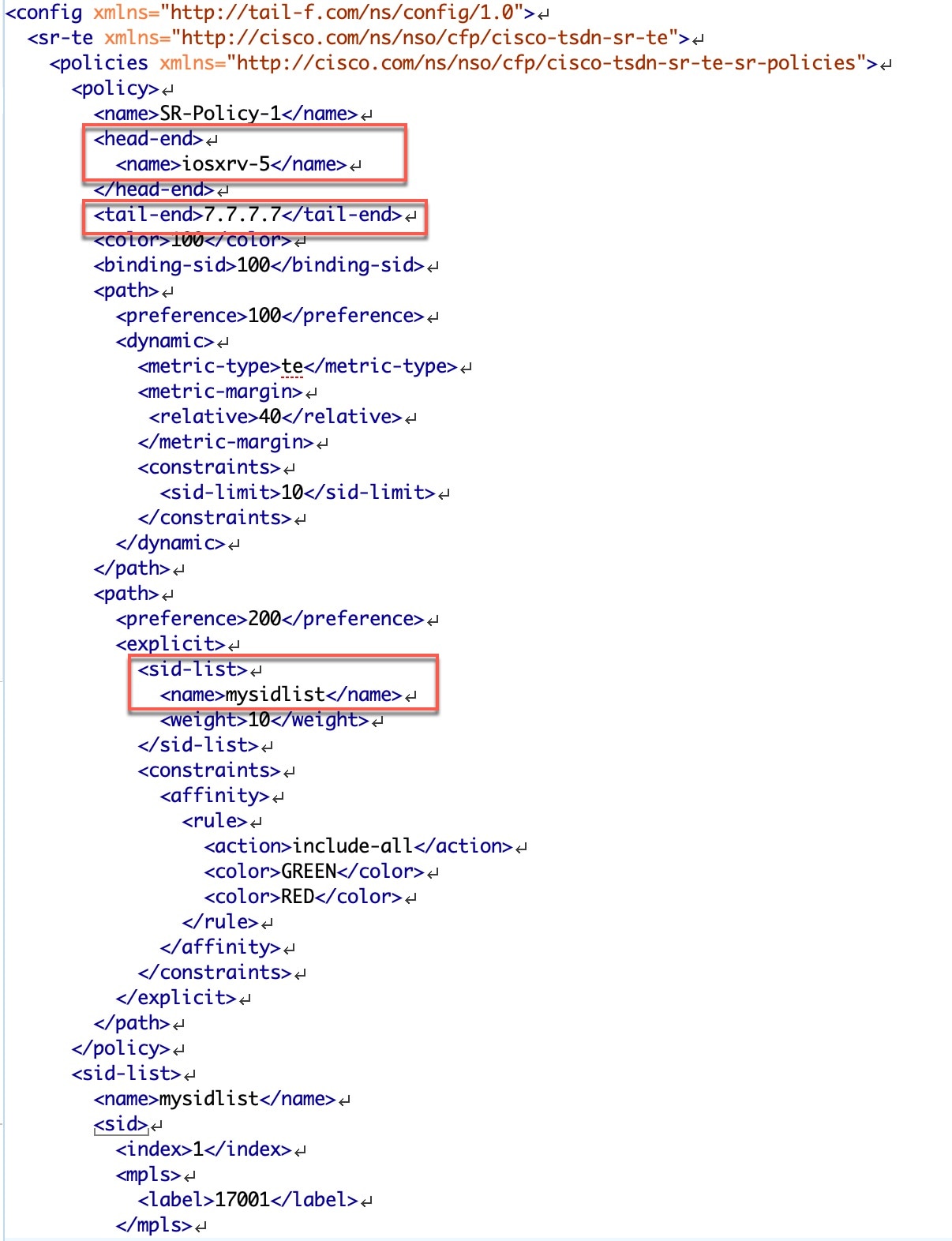
Instead of manually filling in each field in the provisioning UI, we will import an xml file containing all the configurations required to create the SR-TE policy.

Procedure


Step 1

Go to Services & Traffic Engineering > Provisioning (NSO) > SR-TE > Policy.

Step 2

Click Import button above the table .

Step 3

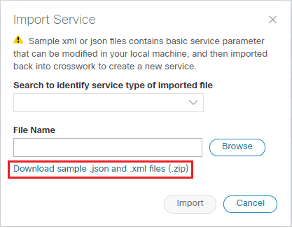
Download the sample .json or .xml file which will serve as a template for the required configuration. In the Import Service dialog, click the Download sample .json and .xml files (.zip) link

Step 4

Unzip the downloaded file and open sr-Policy.xml in an XML editor.

Step 5

Edit the xml file as required. Provide a name for the SR-TE policy, and specify the SID list to be associated with this policy. Save the xml file.

Step 6

In the Import Service dialog, select Policy as the type of file to import, browse to the edited xml file, and click Import. If there are any errors in the file, you will be notified. If there are no errors, the file will be imported. The policy will be created and the devices will be configured accordingly.

Step 7

Check whether the new SR-TE policy appears in the Policy table and its Provisioning State is Success.

Step 8

Click in the Actions column and choose Config View to see to see the Yang model-based service intent data that details the SR-TE policy you created. You can also check the devices themselves to make sure that they were provisioned correctly.


Step 4 Create and provision the L2VPN service

In this step, we will create and provision a P2P VPN service with PE-A and PE-C as the endpoints. The VPN service will reference the SR-TE policies we created in the previous step to ensure that the traffic traversing the VPN will follow the path defined in the SID lists.

As we did with the SR-TE policy, we will create the VPN service by importing an xml file containing all the required configurations. Once we have provisioned the VPN service, we will edit it in the provisioning UI in order to associate the SR-TE policies.

Procedure


Step 1

Go to Services & Traffic Engineering > Provisioning (NSO) > L2vpn > L2vpn-Service.

Step 2

Click Import button above the table.

Step 3

If you did not download the sample .json or .xml files in Step 3, do so now.

Step 4

Open l2nm.xml in an XML editor.

Step 5

Edit the xml file as required. Provide a name for the L2VPN, configure each endpoint, and define the VPN parameters.

This is the configuration for PE-A in our example:

Step 6

Save the xml file.

Step 7

In the Import Service dialog, select l2vpn service as the type of file to import, browse to the edited xml file, and click Import. If there are any errors in the file, you will be notified. If there are no errors, the file will be imported. The service will be created and the devices will be configured accordingly.

Step 8

Check that the new L2VPN service appears in the L2VPN Service table and its Provisioning State is Success.

Step 9

Click in the Actions column and choose Config View to see the Yang model-based service intent data that details the VPN service you created. You can also check the devices themselves to make sure that they were provisioned correctly.

Step 5 Attach the SR-TE policies to the L2VPN Service

At this stage, the provisioned L2VPN service you created does not have associated SR-TE policies that define the transport path. In this step, we will edit the L2VPN service in the provisioning GUI, attach the relevant SR-TE policies to each endpoint, and re-provision it.

Procedure


Step 1

Locate the L2VPN in the VPN Service table.

Step 2

Click in the Actions column and choose Edit.

Step 3

Under vpn-nodes, select PE-A and click the Edit button above the table.

Step 4

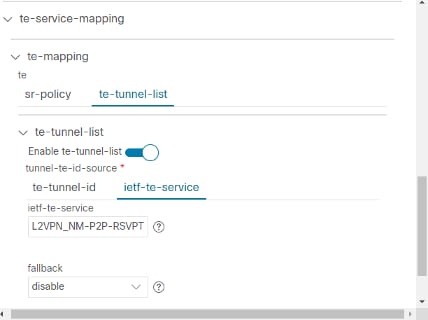
In the pane that opens on the right, open the te-service-mapping > te-mapping section.

Step 5

In the sr-policy tab, in the policy field, enter the name of the SR-TE policy created for PE-A:L2VPN_NM-P2P-SRTE-PE-A-240.

Step 6

Click X in the top-right corner to close the PE-A pane.

Step 7

Repeat the above steps for PE-C and attach the SR-TE policy: L2VPN_NM-P2P-SRTE-PE-C-240.

Step 8

Click Commit Changes.


Step 6 Enable Service Health monitoring

Procedure


Step 1

Go to Services & Traffic Engineering > VPN Services. The map opens and a table of VPN Services is displayed to the right of the map.

Step 2

In the Actions column, click for the new service you want to start monitoring health.

Step 3

Click Start Monitoring.

Note

 
The Health column color coding indicates the health of the service:
  • Blue = Initiated

  • Green = Good

  • Orange = Degraded

  • Red = Down

  • Gray = Not Monitoring

Step 4

In the Monitor Service pop-up, select the Monitoring Level. For help selecting the appropriate monitoring level option for your needs, see the section Basic and Advanced Monitoring Rules.

Once you have started monitoring the health of this service, if you select the Actions column and click to view additional Service Health options, you will see: Stop Monitoring, Pause Monitoring, Edit Monitoring Settings, Assurance Graph.

Note

 
If you select Edit Monitoring Settings, you may update the Monitoring Level setting from Basic Monitoring to Advanced Monitoring, or from Advanced Monitoring to Basic Monitoring, at any time.

Note

 
If you later decide to Stop Monitoring a service that has already been started, you have the option to retain the historical service data for that stopped service. See Stopping Service Health Monitoring in the Appendix for additional steps and details.

Step 5

Click Start Monitoring.

Step 6

Repeat this step for each service you wish to start health monitoring.

Step 7

Click X in the top-right corner when you are done.


Step 7 Visualize the L2VPN on the Map

In this step we will take a look at the representation of the L2VPN on the map, and we’ll see the paths the traffic will take from PE-A to PE-C and vice versa, based on the explicit SR-TE policies we created.
Procedure


Step 1

In the L2VPN Service table, in the Actions column for the new VPN, click and choose ViewDetails from the menu. The map opens and the service details are shown to the right of the map.

or

Go to Services & Traffic Engineering > VPN Services.

The map opens and a table of VPN services is displayed to the right of the map.

  1. Click on the VPN in the Services table. If there are many services in the table, you can filter by name, type, or provisioning state to help locate the VPN.

  2. In the map, you will see the VPN as an overlay on the topology. It shows a representation of the endpoints and a solid line that indicates that it is a virtual path.

  3. Select the Show Participating Only check box if you do not want to see the devices that are not involved in the selected VPN.

Step 2

Under the Actions column, click and choose View Details to drill down to a detailed view of the VPN service, including the device configurations, the computed transport paths, and the health status for transport paths.

Step 3

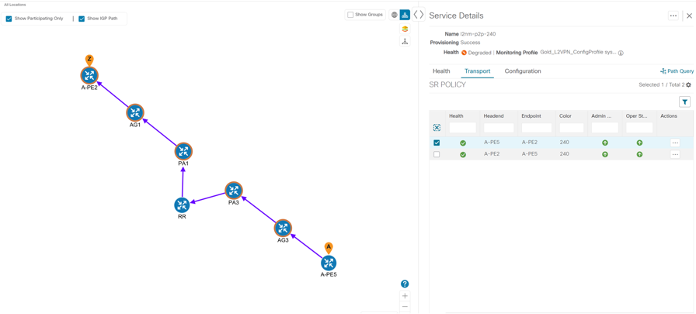
In the Transport tab, select one or more SR-TE policies to see the path from endpoint to endpoint on the map. The image below shows the path for PE-C to PE-A. The Show IGP Path check box in the top left corner of the map is selected so the physical path is shown. The dashed line indicates that this link is being used to transport multiple services.


Step 8 Inspect a degraded service using Service Health and Last 24Hr Metrics to identify issues

In this step, we will review the Service Health assurance graph and utilize the Last 24Hr Metrics to identify issues within a specific time range. By isolating the issues within a specific time range, you can drill down on the details that may have caused the degraded (or down) service that can lead to troubleshooting the service or the node to address detailed symptoms. For this example, we will inspect a degraded service.

Procedure


Step 1

Click X in the top-right corner to return to the VPN Services list.

Step 2

Click on the name of a service that shows as being degraded. The map will update to highlight the service you selected.

Degraded services show an orange icon in the Health column. You can filter by health state (Down, Degraded, Good) by clicking in the space at the top of the column and selecting the appropriate filter. To clear the filter, click the X next to the designated filter appearing in the space at the top of the column and it will remove all filtering and default to showing all VPN Services in the list.

Note


If a service is not yet being monitored, the icon in the Health column will show as the color grey. To enable monitoring for such a service, click and select Start Monitoring.

Step 3

In the Actions column, click and click View Details. The Service Details panel appears on the right side where you can review Active Symptoms for the service (including the Root Cause, Subservice, Priority, and Last Updated details) present in the Health tab if the service is being currently monitored. Review the details provided.

Step 4

Click on a Root Cause and view both the Symptom Details and the Failed Subexpressions & Metrics information.

Step 5

To further isolate the degraded service details, click X in the top-right corner to return to the VPN Services list.

Step 6

Again, click on the name of the degraded service in the list. The Service Details panel appears and the map updates, isolating the corresponding devices participating with that service.

Step 7

In the Actions column, click for the degraded service in the list and click Assurance Graph. The topology map of services and subservices appear with the Service Details panel showing Service Key, Status, and Sub Services details. Metrics also appear, such as Jitter-RT (Jitter Round Trip), Latency-RT (Latency Round Trip), PktLoss-DS (Packet Loss from Destination to Source), and PktLoss-SD (Packet Loss from Source to Destination). Additionally, a table of Active Symptoms listing Root Cause, Subservice, Priority, and Last Updated details is populated.

Note

 
This will take time to update after a service has been enabled for monitoring, and may take up to 5-10 minutes.

Step 8

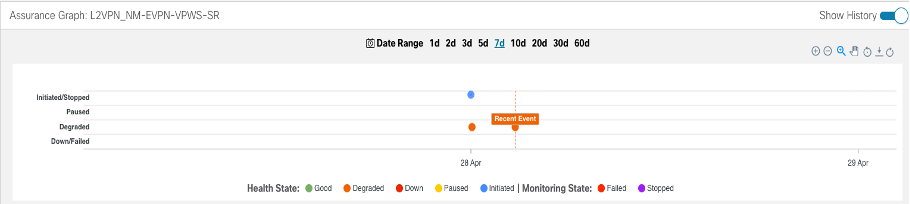
At the top-right of the screen, select the Show History mode toggle. The historical Date Range graph appears. This graph shows different ranges of historical health service monitoring details from one day (1d) up to sixty days (60d). You can select the (+) icon at the top-right to zoom in on the event or use your mouse to draw a rectangle over events to further zoom. Events that are consecutive may appear as a line of white space.

Note

 
When you select an event on the Date Range graph, a tool tip with information about that event appears (such as date and time of the event, and severity level and number of symptoms). Click anywhere within the chart to hide the tool tip.

Step 9

Review the Root Cause information by either hovering your mouse over a particular row or click the arrow to expand the Service Details panel to full screen mode. Columns can be resized using your mouse or you can select the gear icon to deselect or select columns you want to appear.

Note


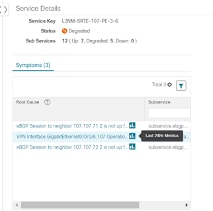
Once you enable Show History mode, Root Cause information in the Active Symptoms table will start to show the blue Last 24Hr Metrics icon. Data from the device will be initially delayed, however, and may take some time before Last

24Hr Metrics begins to populate with data. Until then, the value of zero is reported.

Step 10

You can also use the map and click on the degraded node to bring up Service Details information on both Active Symptoms and Impacted Services.

  • Active Symptoms: Provides symptom details for nodes actively being monitored.

  • Impacted Services: Provides information for services that are impacted by issues based on historical monitoring of health status.

Note

 
If you view the Subservice Details panel, each subservice metric (Jitter-RT, Latency-RT, PktLoss-DS, PktLoss-SD) will initially report a value of zero. Based on a device’s configuration, it may take up to 10 minutes for the metric values to begin reporting.

Step 11

Use the active and impacted information toinspect the degraded service details to determine the issues that led to the degraded service

Step 12

To further isolate the possible issues and to utilize the Last24Hr Metrics, perform the following steps:

  1. In the Date Range graph, use your mouse to select the range of historical health service monitoring details from one day (1d) up to sixty days (60d).

    Note

     
    At the top-right of the Date Range graph, select the appropriate icons to either zoom in or out, horizontally scroll through the date ranges, or refresh the graph to go back to the most recent event, for example. You can also use your mouse to draw a rectangle over events to further zoom in on degraded devices. Events that are consecutive may appear as a line of white space.
  2. Click on a degraded service in the graph. The Service Details panel reloads, showing any active symptoms and the root causes to be inspected. Expand the table and information as necessary for further details.

Step 13

Next, select the Show: Down & Degraded Only check box in the top-left corner of the map so only Subservices which are degraded, along with other dependent but healthy subservices, appear. Inspect the Service Details panel showing the active symptoms and their root cause.

Step 14

Deselect the Show: Down & Degraded Only check box and select the Soft Dependencies check box in the top-left corner of the map. Soft Dependencies implies that a child subservice’s health has a weak correlation to its parent’s health. As a result, the degraded health of the child will not result in the parent’s health degradation. Use the + or symbols in the bottom-right corner of the map to zoom in or out on services mapped. Select the ? to view the Link Color Legend that explains all of the icons, symbols, badges, and colors and their definitions

Note

 
You can also select the Subservices icon in the top-right corner of the map to show service appearance options.

Step 15

Select the degraded service in the map to show the subservice details .

Step 16

Select the Active Symptoms tab to show any root causes for the service health details that are displayed and then select the Impacted Services tab to show services where their health is degraded.

Step 17

Click X in the top-right corner to return to the VPN Services list and in the Actions column, click for the degraded service in the list and click Assurance Graph to show the Service Details panel.

Step 18

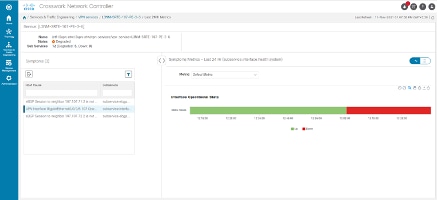
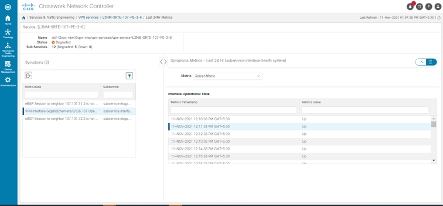
Again, select the Show History toggle in the top-right corner of the Service Details panel before selecting the blue metrics icon in one of the Root Cause rows. The Symptoms Metrics – Last 24 Hr bar chart appears. This chart provides details of the metric patterns for different sessions states (such as active, idle, failed) for individual root cause symptoms with Status, Session, Start Time, and Duration information to assist in troubleshooting prevailing issues. Use your mouse to hover over the chart to view the different details.

Continue to troubleshoot a service health issue using Parameterized Jobs

To further troubleshoot a service health issue (such as a device that is degraded due to not properly fetching data), continue with the following steps to examine if the issue is associated with a collection job.

Step 19

Select Administration > Collection Jobs.The Collection Jobs screen appears.

Step 20

Select the Parameterized Jobs tab.

Step 21

Review the Parameterized Jobs list to pinpoint devices that may have service health degradation issues. By reviewing Parameterized Jobs, you can identify and focus on GMNI, SNMP, and CLI-based jobs by their Context ID (protocol) for further troubleshooting purposes.

Step 22

In the Job Details panel, select the collection job you want to export and click the export button to download the status of collection jobs for further examination. The information provided is collected at the time the export is initiated in a .csv file. The Export Collection Status pop up appears.

Note

 
When exporting the collection status, you must fill in the information each time an export is executed. In addition, make sure to review the Steps to Decrypt Exported File content available on the Export Collection Status pop up to ensure you can access and view the exported information.

Step 23

Click Export.

Step 24

To check the status of the exported collection job data, click View Export Status at the top right of the Job Details panel. The Export Status Jobs panel appears providing the status of the export request.

Step 25

Review the exported .csv file for collection job details and the possible cause of the degraded device.


Summary and Conclusion

In this scenario, we observed how simple it is to create explicit SR-TE policies and attach them to a L2VPN service in order mandate a static path for the mission-critical traffic. We saw how editing a pre-defined template and then importing it into the system enables quick and easy provisioning of services and SR-TE policies. We were then able to visualize the actual traffic paths on the map. Lastly, we used Service Health to monitor the health of the new service using the Assurance Graph, Last 24hr Metrics, and SubExpressions metrics to view when service may have been up, degraded, or down, and what the root causes were identified.

Scenario 4 – Provision an L2VPN service over an RSVP-TE tunnel with reserved bandwidth

For the continuous stream transmission required for rich data media types, such as video and audio, bandwidth reservation is often required to provide higher quality of service. Cisco Crosswork Network Controller supports the creation and management of RSVP-TE tunnels to reserve guaranteed bandwidth for an individual flow. RSVP is a per-flow protocol that requests a bandwidth reservation from every node in the path of the flow. The endpoints, or other network devices on behalf of the endpoints, send unicast signaling messages to establish the reservation before the flow is allowed. If the total bandwidth reservation exceeds the available bandwidth for a particular LSP segment, the LSP is rerouted through another LSR. If no segments can support the bandwidth reservation, LSP setup fails and the RSVP session is not established.

In this scenario we will:

  • Create RSVP-TE tunnels with reserved bandwidth.

  • Enable Bandwidth on Demand functionality.

  • Provision a VPN service from PE-A to PE-B and attach the RSVP-TE tunnels as underlay configuration.

  • Visualize the path of the traffic when link utilization is below the bandwidth threshold. This path would change if the bandwidth utilization on the link crossed the specified threshold.

Assumptions and Prerequisites

Scenario 4 to provision an L2VPN service over an RSVP TE Tunnel with reserved bandwidth the following are the assumptions and prerequisites.

  • For transport mapping to L2VPN service, devices must be configured with the l2vpn all command.

  • For Service Health enablement and usage to monitor a services health, Service Health must be installed.

  • For steps to enable Service Health during this scenario, see Scenario 3, Step 6 Enable Service Health. For additional Service Health related details, see Scenario 1, Scenario 3, and the Appendix.

  • (Optional) Service Health provides Internal Storage of monitoring data up to a maximum limit of 50 GB. This data is stored on your system. If you exceed the limit of the internal storage, the least recently used historical data will be lost. If you choose to extend Service Health storage capacity, you can configure External Storage in the cloud using an Amazon Web Services (AWS) cloud account. By leveraging External Storage, all existing internal storage data will be automatically moved to the external cloud storage (see Configuring Service Health External Storage Settings appendix for more details) and your internal storage will act locally as cache storage. Configuring External Storage for Service Health ensures you will not lose historical data for services that continue to monitor a service’s health, and will retain service health data for any service you choose to stop monitoring when you select the option to retain historical monitoring service for the data. For more information on Internal and External Storage, and how to retain historical monitoring service data when stopped, see the Appendix sections Configuring Service Health External Storage Settings and Stopping Service Health monitoring.

  • (Optional) For initializing a Heuristic Package to monitor health of a services, see the Appendix section, Initializing Heuristic Packages to monitor the health of a service, for detailed steps to be performed prior to starting monitoring.

Step 1 Create an RSVP-TE tunnel for both directions of the L2VPN

In this step, we will create an RSVP-TE tunnel from PE-A to PE-B and from PE-B to PE-A, and we’ll reserve bandwidth of 1200 on the link.

Procedure


Step 1

Go to Services & Traffic Engineering > Provisioning(NSO) > RSVP-TE > Tunnel.

Step 2

Click + to create a new RSVP-TE tunnel and give it a unique name. Click Continue.

Step 3

In the Identifier field, enter a numeric identifier for the tunnel. You will use this identifier later when you associate this RSVP-TE tunnel with the L2VPN service. For this example, the identifier is 2220.

Step 4

In the source and destination fields, enter the loopback0 IP address of the source (PE-A) and the destination (PE-B) devices. This is the TE router ID. To find the TE router ID, go to Topology and click on a device in the map or in the list of devices. The Device Details pane opens and the TE router ID is shown under the Routing section.

Step 5

Define the endpoints:

  1. Under head-end, select the headend device from the dropdown list.

  2. Under tail-end, select the tailend device from the dropdown list.

Step 6

Reserve bandwidth on the link. Under te-bandwidth > generic, enter the bandwidth threshold for the link.

Step 7

Define the path of the RSVP-TE tunnel.

You have the option to define an explicit path or to have the path locally computed by the participating devices. Alternatively, you can have the SR-PCE compute a path dynamically. For this scenario we will have the path locally computed.

  1. Under p2p-primary-paths, click + to create a new path.

  2. In the pane that opens on the right, give the path a name.

  3. Select the path computation method – path-locally-computed.

  4. Specify a numeric preference for the path. The lower the number, the higher the preference.

  5. Define the optimization metric, in this case, igp.

Step 8

Click Commit Changes.

Step 9

Verify that the RSVP-TE tunnel appears in the list of tunnels and its Provisioning State is Success.

Step 10

Click on the tunnel name to visualize the tunnel on the map and to see the tunnel details.


Step 2 Create the L2VPN service and attach the RSVP tunnel to the service

In this step, we will create a P2P L2VPN service using the provisioning GUI. If you want to create the service by importing a template, refer to Scenario 3—Mandate a static path for an EVPN-VPWS service using an explicit SR-TE policy

Procedure


Step 1

Go to Services & Traffic Engineering > Provisioning (NSO) > L2VPN > L2vpn Service.

Step 2

Click + to create a new service and give it a unique name. Click Continue.

Step 3

Choose vpn-common:t-ldp in the vpn-svc-type field.

Step 4

Define each VPN endpoint individually – PE-A and PE-B.

  1. Under vpn-nodes, click +.

  2. Select the relevant device from the vpn-node-id and ned-id dropdown lists and click Continue.

Step 5

Define the LDP signaling options by creating one or more pseudowires. In this case, specify the TE router ID of the peer device (PE-B), and provide a unique numeric label to identify the pseudowire.

Step 6

Attach the RSVP tunnel to the service:

  1. Under te-service-mapping > te-mapping, click the te-tunnel-list tab.

  2. Click the ietf-te-service tab.

  3. Enter the name of the RSVP-TE tunnel you want to attach to this L2VPN service. The tunnel ID will be extracted from the tunnel configuration.

    Note

     
    If you have an RSVP-TE tunnel on the device that was configured externally to Crosswork Network Controller, you can provide the tunnel ID under the te-tunnel-id tab.

Step 7

Define the VPN network access. In this case, we are using dot1q encapsulation and we have specified the physical interface (GigabitEthernet0/0/0/2) and the VLAN ID (2220).

Step 8

Follow the above steps for PE-B as well.

Step 9

Click Commit Changes. Verify that the L2VPN appears in the list of VPN services and that its Provisioning state is Success.


Step 3 Visualize the L2VPN service on the map

In this step we’ll take a look at the representation of the L2VPN on the map and we’ll see the paths the traffic will take from PE-A to PE-B and vice versa, based on the RSVP-TE tunnels we created.

Procedure


Step 1

In the L2VPN Service table, click on the service name. The map opens and the service details are shown to the right of the map.

or

  1. Go to Services & Traffic Engineering > VPN Services.
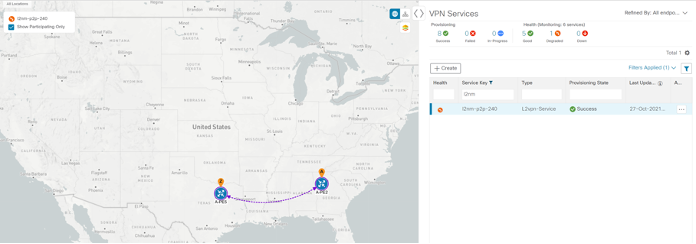
    The map opens and a table of VPN services is displayed to the right of the map.

  2. Click on the VPN in the Services table. When there are many services in the table, you can filter by name, type, or provisioning state to help locate the VPN.

    In the map, you will see the VPN as an overlay on the topology. It shows a representation of the three endpoints and a dashed line that indicates that it is a virtual path.

    Note

     
    The image below shows the VPN overlay in the geographical map. Use the buttons at the top right of the map to toggle between the logical and geographical maps.

Step 2

To see the hops in the route between PCC7_56 and PCC5_81, click the Transport tab and select one or more of the underlying TE tunnels to see the path from endpoint to endpoint on the map. The image below shows both RSVP-TE tunnels selected in the Transport tab and the route from PCC7_56 to PCC5_81 as shown on the logical map.

Step 3

As the RSVP-TE tunnels are configured with a reserved bandwidth, if the bandwidth utilization across the link exceeds the specified bandwidth, the path would be rerouted.


Summary and Conclusion

This scenario illustrated how to create RSVP-TE tunnels with reserved bandwidth and attach them to an L2VPN service to meet the high quality of service requirements for continuous streaming of rich data media. We observed the path on the map. This path would be recomputed if the bandwidth utilization on the link crossed the bandwidth reservation threshold.

Scenario 5 – Provision a Soft Bandwidth Guarantee with Optimization Constraints

Service providers must be able to provide fast connections with the lowest latency possible to meet the needs of customers’ peak traffic utilization times and to dynamically optimize services based on the customers’ changing priorities throughout the day. For this purpose, the operator might need to reserve bandwidth on specific links to ensure a dedicated path that can handle a set amount of traffic with a specific optimization intent. The Bandwidth on Demand (BWoD) feature within Crosswork Network Controller enables this functionality. Paths with the requested bandwidth are computed when available. If a path that guarantees the requested bandwidth cannot be found, an attempt will be made to find a best effort path.

In this scenario, we will use BWoD to calculate the lowest TE metric path with a specified amount of available bandwidth between two endpoints.

This scenario uses the following topology as a base:

The goal is to create a path from F2.cisco.com to F7.cisco.com that can accommodate 250 Mbps of traffic while keeping the utilization at 80%. BWoD will initially try to find a single path to accommodate the requested bandwidth without exceeding the utilization threshold. If a single path cannot be found, BWoD may recommend splitting the path.

In this scenario we will:

  • Orchestrate a new SR-TE policy with bandwidth and TE constraints.

  • Configure and enable BWoD.

  • Verify the state of the SR-TE policy and view the path on the map.

Step 1 Create a BWoD SR-TE Policy with the Requested Bandwidth and Optimization Intent

To create a BWoD SR-TE Policy with the Requested Bandwidth and Optimization Intent

Procedure


Step 1

Go to Services & Traffic Engineering > Provisioning (NSO) > SR-TE > Policy.

Step 2

Click + to create a new SR-TE policy and give it a unique name. Click Continue.

Step 3

Define the endpoints:

  1. Under head-end, click + and select the headend device from the dropdown list and click Continue. Click X to close the Headend pane.

  2. Enter the IP address of the tail-end device.

  3. Enter a color to identify the traffic.

Step 4

Define the parameters on which the path will be computed:

  1. Under path, click +.

  2. Enter a path preference and click Continue.

  3. In the dynamic-path tab, select te in the metric-type dropdown list as the optimization objective.

  4. Select the pce check box to have the SR-PCE compute the paths for this policy.

  5. Click X to close the path pane.

Step 5

In the Bandwidth field enter the requested bandwidth in Kbps. In this case, we are requesting 250 Mbps or 250,000 Kbps.

Step 6

Click Commit Changes. The new policy is created and appears in the list of SR-TE policies. The provisioning state should be Success.

Step 7

Verify the new policy by viewing its details and its representation on the map:

  1. Click in the Actions column and choose View.

  2. The map opens with the SR-TE policy details displayed to the right of the map.

    Note

     
    The operational state of the policy is down because the SR-PCE alone is not able to address bandwidth computations before the BWoD functionality within Crosswork Network Controller is enabled.

Step 2 Enable and Configure BWoD

Procedure to enable and configure BWoD

Procedure


Step 1

Go to Services & Traffic Engineering > Bandwidth on Demand.

Step 2

Toggle the Enable switch to True, and enter 80 to set the utilization threshold percentage. To find descriptions of other options, hover the mouse over.

Step 3

Click Commit Changes.


Step 3 Verify that the policy’s operational state is now Up and view the path on the map

Procedure to verify that the policy’s operational state is now Up and view the path on the map

Procedure


Step 1

Go to Services & Traffic Engineering > Provisioning.

Step 2

In the Policy table, locate and select the path computed for the endpoints.

Step 3

The path is shown as an overlay on the map. Check the Show IGP Path check box to see the physical path between the endpoints.


Summary and Conclusion

Operators can set and maintain bandwidth requirements based on optimization intent using the BWoD functionality provided in Cisco Crosswork Network Controller. This scenario illustrated how to provision an SR-TE policy with a specific bandwidth request. We saw how to enable BWoD functionality so that traffic is rerouted automatically to maintain bandwidth requirements. This automation alleviates the task of manually tracking and configuring paths to accommodate bandwidth requirements set by SLAs.