Appendix

This section explains the following topics:

Initializing Heuristic Packages to Monitor the Health of a Service

Objective

Enabling Service Health and using system designed Heuristic Packages to monitor the newly created service, or exporting them to your system to make adjustments before importing them back in Cisco Crosswork Network Controller, allows for customization of ongoing, detailed monitoring of your service’s health.


Note


Three additional Rules have been added to assist in Basic monitoring level rules (Rule-L2VPN-NM- Basic, Rule-L2VPN-NM-P2P-Basic, Rule-L3VPN-NM-Basic ) where a rule to generate Assurance Graph information, for example Basic L2VPN NM P2P, services can be used along with two sub services. Heuristic Package Metrics now has the capability for CLI based metrics and GMNI filtering customizations of packages.

Workflow

Select either a system or custom Heuristic Package for ongoing, specialized Service Health monitoring of your new VPN service.

Initialize a Heuristic Package to monitor health of the new service.

  1. Go to Administration > Heuristic Packages. The Heuristic Packages screen opens with System and Custom tabs. By default, a system defined Heuristic Package is used.

  2. From the System tab, you can preview the package detail Rules, Configuration Profiles, Sub-Services, and Metrics by expanding each section for more information and hover your mouse over the information “I” icon for finer details.

  3. You can click Export to download a System defined package to your system to make changes to the .json files before importing them to Cisco Crosswork Network Controller as a customized package.

  4. If you exported a system file for customization, or you have custom packages on your system you want to import, click Import.

  5. The Import Heuristic Packages screen opens and click Browse to find the name of your custom package on your system.
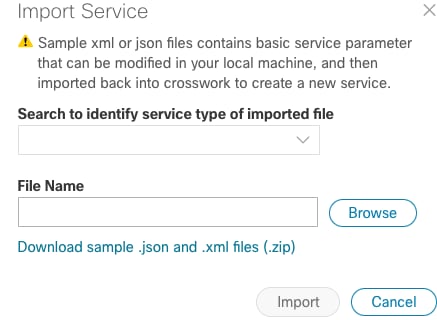
  6. Select your custom package and click Import.


    Note


    Your system performance might be impacted during heuristic package import due to high server resource consumption.
  7. From the Import Heuristic Packages screen, click Preview to review the details of the package to be imported. Further information on the package’s Rules, Configuration Profiles, Sub-Services, and Metrics appears.

  8. Select each option to preview the details of the custom package. Cisco Crosswork Network Controller will provide information on the details and if any details need to be updated before Cisco Crosswork Network Controller will accept the new custom package and allowing it to be imported.

  9. After importing the custom package, select it so the new rules and configuration details begin to monitor the ongoing health of your designated services.
Basic and Advanced Monitoring Rules

Service Health monitoring offers two options:

  • Basic Monitoring: Monitoring using these rules results in fewer compute resources consumed, but more services are monitored in less detail. This monitoring level provides the option of adding up to 52,000 services and results in lower overall CPU consumption, limited sub-service metrics, and smaller map graphic renderings.

  • Advanced Monitoring: Advanced rules consume more resources, but monitor fewer services in greater detail. This monitoring level lets you add up to 2,000 services and results in higher overall CPU consumption, a greater number of sub-service metrics, and larger map graphic renderings.


    Note


    If you select Edit Monitoring Settings, you may update the Monitoring Level setting from Basic Monitoring to Advanced Monitoring, or from Advanced Monitoring to Basic Monitoring, at any time.

    Note


    In addition to the Service Health monitoring levels of Basic and Advanced, there are two profile options within the system package: Silver and Gold. When you begin monitoring, select either profile. By selecting the Gold profile, more custom configuration options are available compared to Silver. Monitoring profiles may be changed as needed.

For precise details on the services monitored and the thresholds used to generate alerts, view the Heuristic Package Rules and Configuration Profiles you have installed: Select Administration > Heuristic Packages, then click on the Rules or Configuration Profiles drop downs.

The following table details the monitoring functions and service metrics applied by each of the Basic and Advanced monitoring rules available with Cisco Network Controller Heuristic Packages.

Rule Name (type) Monitoring Functionality Metrics & Subservices
Rule-L2VPN-NM -Basic
  • Checks the health of the VPWS xconnect state

  • Monitors the health of the device: CPU and memory utilization

metric.l2vpn.xconnect.state metric.l2vpn.xconnect.ac.state metric.l2vpn.xconnect.pw.state

subservice.device.health

subservice.vpws.ctrlplane.health

Rule-L2VPN-NM (Advanced)
  • Checks the health of the VPWS or EVPN xconnect state

  • Monitors the health of the device: CPU and memory utilization

  • Monitors the delta between received and transmitted packets between VPN interfaces and Pseudo-wire

  • Monitors Y.1731 probe stats for jitter, loss and delay metrics and compares against SLA thresholds

  • Monitors the health status of RSVP tunnel. Subservice health will be marked as ‘degraded’ in either of the below scenarios:

    • FRR is configured but backup is not ready

    • FRR backup is active (primary failed and traffic is flowing over FRR backup)

  • Health check for interface metrics: Oper status, interface in/out error packets, interface in/out packet discard

  • Checks BGP Neighbor session health

  • Checks whether all BGP EVPN next hops for a given L2VPN service are reachable over LSP

  • Monitors PCEP session state to all the peers configured on this device.

  • Checks Path Reachability between two endpoints.

  • SR Policy (PCC initiated) health status. Admin should be up. Oper should be up. Oper should have stayed up since last polling.

  • Checks whether LSP path exists (in default VRF) towards the given destination device.

metric.bgp.router.id

metric.cef.route.labeled.lsp

metric.l2vpn.xconnect.ac.state

metric.l2vpn.xconnect.pw.state

metric.l2vpn.xconnect.state

metric.device.xconnect.ac.in.packets

metric.device.xconnect.pw.out.packet

metric.l2vpn.y1731.connect.cross.check.status

metric.interface.oper

metric.interface.in.errors

metric.device.cpu.load

metric.device.memory.free

subservice.bgp.nbr.health

subservice.bgp.evpn.nexthop.health

subservice.device.health

subservice.evpn.health (one for each endpoint)

subservice.fallback.path.health

subservice.interface.health (one for each interface)

subservice.l2vpn.y1731.health

subservice.path.reachability.to.peer (local to remote and remote to local)

subservice.path.sla

subservice.pcep.session.health (one for each endpoint device)

subservice.plain.lsp.path.health

subservice.sr.policy.pce.health (one for each endpoint)

subservice.vpws.ctrlplane.health (local, remote)

subservice.path.reachability.to.peer

subservice.fallback.path.health

subservice.mpls.rsvpte.tunnel.pm.health

subservice.l2vpn.y1731.health

subservice.vpws.ctrlplane.health

subservice.interface.health

subservice.device.health

subservice.interface.health.summary

subservice.path.sla.summary

Rule-L2VPN-NM -P2P-Basic
  • Checks the health of the VPWS xconnect state

  • Monitors the health of the device: CPU and memory utilization

subservice.device.health

subservice.vpws.ctrlplane.health

Rule-L2VPN -NM-P2P (Advanced)

  • Checks the health of the VPWS xconnect state

  • Monitors the health of the device: CPU and memory utilization

  • Health check for interface metrics: Oper status, interface in/out error packets, interface in/out packet discard

  • Monitors Y.1731 probe stats for jitter, loss and delay metrics and compares against SLA thresholds

  • Monitors the LSP path to the peer VPN node

  • Monitors path reachability between two endpoints

  • Monitors LSP path (in default VRF) towards the given destination IP address

  • Monitors PCEP session state to all the peers configured on this device

  • SR Policy (PCC initiated) health status. Admin should be up. Oper should be up. Oper should have stayed up since last polling.

metric.cef.route.labeled.lsp

metric.l2vpn.xconnect.ac.state

metric.l2vpn.xconnect.pw.state

metric.l2vpn.xconnect.state

subservice.device.health

subservice.interface.health (one for each interface)

subservice.l2vpn.y1731.health

subservice.p2p.fallback.path.health

subservice.p2p.path.reachability.to.peer (path reachability between endpoints)

subservice.p2p.plain.lsp.path.health

subservice.path.sla

subservice.pcep.session.health (one for each endpoint device)

subservice.sr.policy.pcc.health

subservice.sr.policy.pce.health (one for each endpoint)

subservice.vpws.ctrlplane.health (local, remote)

Rule-L2VPN-MP-Basic

For all .summary subservices: Groups together all the device subservices as an aggregator node. It does not have its own health/metric. Its health depends on its child subservice health.

Monitors the health of the device

Monitors bridge domain state on a given endpoint

subservice.device.summary

subservice.bridge.domain.summary

subservice.device.health

subservice.bridge.domain.state

Rule-L2VPN-MP (Advanced)

For all .summary subservices: Groups together all the device subservices as an aggregator node. It does not have its own health/metric. Its health depends on its child subservice health.

Monitors the health of the device

Groups together all the PCEP session health subservices

Monitors PCEP session state to all the peers configured on this device

Groups together all the device subservices

BGP Neighbor health

Monitors whether any routes are present for the given Bridge Domain

Groups together all the bridge domain subservices

Monitors bridge domain state on a given endpoint

Subservice to reflect interface health

Groups together all the transport subservices

SR Policy health status reflecting SR-PM SLA (if configured). Admin & Oper should be up. Oper should have stayed up since last polling. Delay & Variance should meet SLA if SR-PM is configured to measure delay. Liveness should be up if SR-PM is configured for Liveness.

SR Policy health status that include SR-PM. Admin & Oper should be up. And Oper should have stayed up since last polling. Delay & Variance should meet SLA if SR-PM is configured to measure delay. Liveness should be up if SR-PM is configured for Liveness.

Monitors MPLS RSVP TE Tunnel Health. Admin, Oper should both be up and if fast reroute is configured, then backup path should be ready to pickup traffic when primary fails. If failover already happened to backup then health will be shown as degraded as there is no more redundancy in play. 
Delay should be considered if SR PM is enabled. If delay is enabled, then variance will be considered.

Monitors the policies deployed by the ODN

metric.device.memory.free (supports XR only)

metric.device.cpu.load (supports XR only)

metric.sr.te.pcc.peer.state (supports XR only)

metric.sr.te.pcc.peer.addrs (supports XR only)

metric.bgp.session.state (supports XR only)

metric.bgp.neighbors.ipaddr.list (supports XR only)

metric.mac.learning.nexthops (supports XR only)

metric.l2vpn.bridge.ac.state (supports XR only)

metric.l2vpn.bridge.ac.list (supports XR only)

metric.l2vpn.bridge.domain.state (supports XR only)

metric.interface.oper (supports both XR and XE)

metric.interface.in.errors (supports both XR and XE)

metric.interface.out.errors (supports both XR and XE)

metric.interface.in.discards (supports both XR and XE)

metric.interface.out.discards (supports both XR and XE)

metric.sr.policy.pcc.admin.state (supports XR only)

metric.sr.policy.pcc.oper.state (supports XR only)

metric.sr.policy.pcc.oper.up.time (supports XR only)

metric.sr.policy.pm.delay.measurement (supports XR only)

metric.sr.pm.delay (supports XR only)

metric.sr.pm.variance (supports XR only)

metric.sr.policy.pm.liveness.detection (supports XR only)

metric.sr.pm.liveness.state (supports XR only)

metric.sr.policy.pce.admin.state (supports XR only)

metric.sr.policy.pce.oper.state (supports XR only)

metric.sr.policy.pce.oper.up.time (supports XR only)

metric.sr.policy.pce.ietf.policy.name (supports XR only)

metric.sr.policy.pm.delay.measurement (supports XR only)

metric.sr.pm.delay (supports XR only)

metric.sr.pm.variance (supports XR only)

metric.sr.policy.pm.liveness.detection (supports XR only)

metric.sr.pm.liveness.state (supports XR only)

metric.mpls.rsvpte.tunnel.oper.state (supports XR only)

metric.mpls.rsvpte.tunnel.admin.state (supports XR only)

metric.mpls.rsvpte.tunnel.frr.configured (supports XR only)

metric.mpls.rsvpte.tunnel.frr.status (supports XR only)

metric.mpls.te.pm.delay.measurement (supports XR only)

metric.mpls.rsvp.te.delay (supports XR only)

metric.mpls.rsvp.te.variance (supports XR only)

metric.l2vpn.odn.sr.policies.list (supports XR only)

metric.bgp.router.id (supports both XR and XE)

subservice.device.summary

subservice.device.health

subservice.pcep.session.health.summary

subservice.pcep.session.health

subservice.evpn.summary

subservice.bgp.nbr.health

subservice.mac.learning

subservice.bridge.domain.summary

subservice.bridge.domain.state

subservice.interface.health

subservice.transport.summary

subservice.sr.policy.pcc.pm.health

subservice.sr.policy.pce.pm.health

subservice.mpls.rsvpte.tunnel.pm.health

subservice.l2vpn.sr.odn.policy.dynamic

Rule-L3VPN- NM-Basic
  • Reports the overall route connectivity health between the current PE device and its connecting CE device

  • Monitors the health of the device: CPU and memory utilization

subservice.ce.pe.route.health

subservice.device.health

Rule-L3VPN-NM (Advanced)

  • For all .summary subservices: Groups together all the device subservices as an aggregator node. It does not have its own health/metric. Its health depends on its child subservice health.

  • Subservice, together with child subservices in L3VPN Rule, report the overall route health between current PE device and its connecting CE device

  • eBGP Session health

  • Subservice to reflect interface health

  • Monitors the health of the device

  • L3VPN Aggregator Subservice that reflects path reachability from given device, for a given vrf, to peer VPN sites

  • Monitors both static and dynamically initiated policy

  • Checks whether plain lsp route exists within given VRF towards given vpn ip-addresses

  • Monitors PCEP session state to all the peers configured on this device

  • BGP Neighbor health

metric.route.vrf.connected (supports XR and XR IPv6)

metric.route.vrf.local (supports XR and XR IPv6)

metric.bgp.vrf.session.state (supports XR only)

metric.interface.oper (supports both XR and XE)

metric.interface.in.errors (supports both XR and XE)

metric.interface.out.errors (supports both XR and XE)

metric.interface.in.discards (supports both XR and XE)

metric.interface.out.discards (supports both XR and XE)

metric.device.memory.free (supports XR only)

metric.device.cpu.load (supports XR only)

metric.l3vpn.sr.policies.list (supports XR and XR IPv6)

metric.cef.vrf.route.prefix (supports XR and XR IPv6)

metric.sr.te.pcc.peer.state (supports XR only)

metric.sr.te.pcc.peer.addrs (supports XR only)

metric.bgp.session.state (supports XR only)

metric.bgp.neighbors.ipaddr.list (supports XR only)

metric.bgp.route.l2vpn.evpn.nexthops

metric.bgp.router.id

metric.cef.route.labeled.lsp

metric.bgp.session.state

metric.bgp.neighbors.ipaddr.list

metric.route.vrf.connected

metric.route.vrf.local

metric.device.memory.free

metric.device.cpu.load

metric.bgp.vrf.session.state

metric.l2vpn.xconnect.pw.state

metric.cef.route.labeled.lsp

metric.bgp.router.id

metric.interface.oper

metric.interface.in.errors

metric.interface.out.errors

metric.interface.in.discards

metric.interface.out.discards

metric.l2vpn.y1731.connect.cross.check.status

metric.l2vpn.y1731.connect.peer.mep.status

metric.l2vpn.y1731.latency.rt

metric.l2vpn.y1731.jitter.rt

metric.l2vpn.y1731.pktloss.1way.sd

metric.l2vpn.y1731.pktloss.1way.ds

metric.cef.route.labeled.lsp

metric.cef.route.labeled.lsp

metric.device.xconnect.ac.in.packets

metric.device.xconnect.pw.out.packets

metric.device.xconnect.pw.in.packets

metric.device.xconnect.ac.out.packets

metric.sr.te.pcc.ipv4.peer.state

metric.sr.te.pcc.ipv4.peer.addrs

metric.cef.route.labeled.lsp

metric.bgp.router.id

metric.sr.policy.pcc.oper.state

metric.sr.policy.pcc.oper.up.time

metric.sr.policy.pcc.admin.state

metric.sr.policy.pm.delay.measurement

metric.sr.pm.delay

metric.sr.pm.variance

metric.sr.policy.pm.liveness.detection

metric.sr.pm.liveness.state

metric.sr.policy.pce.oper.up.time

metric.sr.policy.pce.oper.state

metric.sr.policy.pce.admin.state

metric.l2vpn.xconnect.state

metric.l2vpn.xconnect.ac.state

metric.l2vpn.xconnect.pw.state

metric.cef.vrf.route.prefix

metric.l3vpn.odn.sr.policies.dynamic.list

metric.l2vpn.odn.sr.policies.list

metric.bgp.router.id

metric.mac.learning.nexthops

metric.mpls.rsvpte.tunnel.oper.state

metric.mpls.rsvpte.tunnel.admin.state

metric.mpls.rsvpte.tunnel.frr.configured

metric.mpls.rsvpte.tunnel.frr.status

metric.mpls.te.pm.delay.measurement

metric.mpls.rsvp.te.delay

metric.l2vpn.bridge.ac.state

metric.l2vpn.bridge.ac.list

metric.l2vpn.bridge.domain.state

subservice.ce.pe.route.health.summary

subservice.ce.pe.route.health

subservice.ebgp.nbr.health

subservice.interface.health.summary

subservice.interface.health

subservice.device.summary

subservice.device.health

subservice.vrf.path.reachability.to.peer.summary

subservice.vrf.path.reachability.to.peers

subservice.transport.summary

subservice.dynamic.l3vpn.sr.policy

subservice.vrf.plain.lsp.reachability

subservice.pcep.session.health.summary

subservice.pcep.session.health

subservice.bgp.nbr.health.summary

subservice.bgp.nbr.health

subservice.bgp.evpn.nexthop.health

subservice.bgp.nbr.health

subservice.ce.pe.route.health

subservice.device.health

subservice.ebgp.nbr.health

subservice.evpn.health

subservice.fallback.path.health

subservice.interface.health

subservice.l2vpn.y1731.health

subservice.p2p.fallback.path.health

subservice.p2p.path.reachability.to.peer

subservice.p2p.plain.lsp.path.health

subservice.path.reachability.to.peer

subservice.path.sla

subservice.pcep.session.health

subservice.plain.lsp.path.health

subservice.sr.policy.pcc.health

subservice.sr.policy.pce.health

subservice.vpws.ctrlplane.health

subservice.vrf.path.reachability.to.peers

subservice.vrf.plain.lsp.reachability

subservice.bridge.domain.summary

subservice.l3vpn.sr.odn.policy.dynamic

subservice.l2vpn.sr.odn.policy.dynamic

subservice.mac.learning

subservice.mpls.rsvpte.tunnel.pm.health

subservice.vrf.path.reachability.to.peer.summary

subservice.path.sla.summary

subservice.pcep.session.health.summary

subservice.transport.summary

subservice.interface.health.summary

subservice.vpws.ctrlplane.health.summary

subservice.bridge.domain.state

Service Health Supported Subservices

The following tables provide details of supported Service Health L2VPN/L2VPN flavors and associated subservices (for IOS XE and XR devices). The subservices listed are available out of the box from Crosswork Automated Assurance.

Supported VPN services with associated subservices (for IOS XE devices):

Supported VPN Services Associated Subservices Details
L2VPN Point to Point with SR underlay

Path Reachability

Y.1731 Health

VPN Interface Health

Device Health

Summary (aggregator) nodes

XE does not support SNMP/gNMI collection type for this subservice (CEF route; PCEP Session State; SRPolicy State; XConnect).
L2VPN Point to Point over MPLS LDP

Path Reachability

Y.1731 Health

VPWS Control Plane health

VPN Interface Health

Device Health

Summary (aggregator) nodes

XE does not support SNMP/gNMI collection type for this subservice (CEF route; XConnect).
L2VPN P2P Plain

Path Reachability

Y.1731 Health

VPN Interface Health

Device Health

Summary (aggregator) nodes

XE does not support SNMP/gNMI collection type for this subservice (CEF route; XConnect).

Note: The reference to ‘Plain’ implies that L2VPN/L3VPN traffic takes the IGP path and does not use any transports, like SR.

L3VPN SR

Path Reachability

CE-PE Route Health

eBGP Neighbor Health

VPN Interface Health

BGP Neighbor Health (DynExp)

Summary (aggregator) nodes

XE does not support SNMP/gNMI collection type for this subservice (CEF route; PCEP Session State). SR-ODN is also not supported.

Supported VPN services with associated subservices (for IOS XR devices):

Supported VPN Services Associated Subservices
L2VPN EVPN SR

Path Reachability

Fallback Enabled/Disabled (DynExp)

SR Policy – PCC

Path SLA

Y.1731 Health

VPWS Control Plane Health

VPN Interface Health

Device Health

EVPN Health

BGP Neighbor Health (DynExp)

BGP Nexthop Health (DynExp)

PCEP Session Health (DynExp)

SR Policy – PCE

Summary (aggregator) nodes

L2VPN EVPN Plain

Path Reachability

Path SLA

Plain LSP Path Health (DynExp)

VPWS Control Plane health

VPN Interface Health

Device Health

EVPN Health

BGP Neighbor Health (DynExp)

BGP Nexthop Health (DynExp)

Summary (aggregator) nodes

Note: The reference to ‘Plain’ implies that L2VPN/L3VPN traffic takes the IGP path and does not use any transports, like SR.

L2VPN Point to Point over RSVP

Path Reachability

Fallback Enabled/Disabled

RSVP-TE Health

Path SLA

Y.1731 Health

VPWS Control Plane Health/Xconnect Health

VPN Interface Health

Device Health

L2VPN Point to Point with SR underlay

Path Reachability

Fallback Enabled/Disabled

SR Policy – PCC

Path SLA

Y.1731 Health

VPWS Control Plane Health

VPN Interface Health

Device Health

PCEP Session Health (DynExp)

SR Policy – PCE

Summary (aggregator) nodes

L2VPN Point to Point over MPLS LDP

Path Reachability

Fallback Enabled/Disabled

Path SLA

Y.1731 Health

VPWS Control Plane Health

VPN Interface Health

Device Health

Summary (aggregator) nodes

L2VPN P2P Plain

Path Reachability

Plain LSP Path Health

Path SLA

Y.1731 Health

VPWS Control Plane Health

VPN Interface Health

Device Health

Summary (aggregator) nodes

Note: The reference to ‘Plain’ implies that L2VPN/L3VPN traffic takes the IGP path and does not use any transports, like SR.

L3VPN SR

CE-PE Route Health

eBGP Neighbor Health

VPN Interface Health

Device Health

Path Reachability

Vrf Plain LSP Path Health

PCEP Session Health (DynExp)

BGP Neighbor Health (DynExp)

Summary (aggregator) nodes

SR and SRv6 polices

Configuring Service Health External Storage Settings

Objective

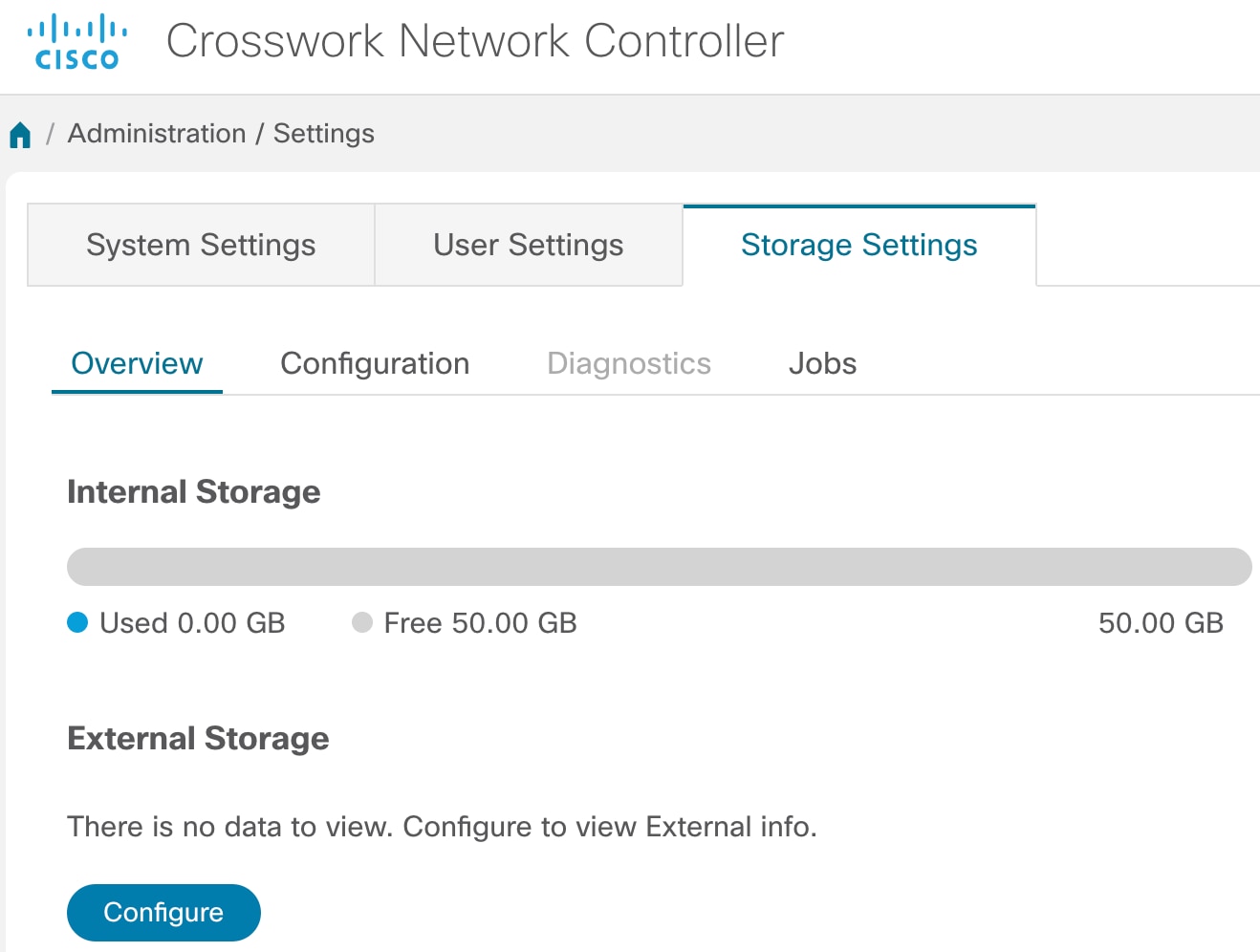
Service Health provides Internal Storage of monitoring data up to a maximum limit of 50 GB. This data is stored on your system. If you exceed the limit of the internal storage, historical data will be lost.


Note


If you anticipate monitoring a large amount of Service Health services, Cisco recommends you configure External Storage after you install Service Health and before you begin monitoring services so to avoid exceeding the Internal Storage and losing historical data.

If you choose to extend Service Health storage capacity, you can configure External Storage in the cloud using an Amazon Web Services (AWS) cloud account. By leveraging External Storage, all existing internal storage data will be automatically moved to the external cloud storage and your internal storage will act locally as cache storage. Configuring External Storage for Service Health ensures you will not lose historical data for services that continue to monitor a service’s health, and will retain service health data for any service you choose to stop monitoring when you select the option to retain historical monitoring service for the data.

Workflow

To expand storage capacity beyond Internal Storage, configure External Storage using your AWS account to ensure you will not lose historical data for services that continue to monitor a service’s health, and will retain service health data for any service you choose to stop monitoring when you select the option to retain historical monitoring service for the data.

To configure External Storage, do the following:

  1. Go to Administration > Settings and select the Storage Settings tab. The Overview screen appears.

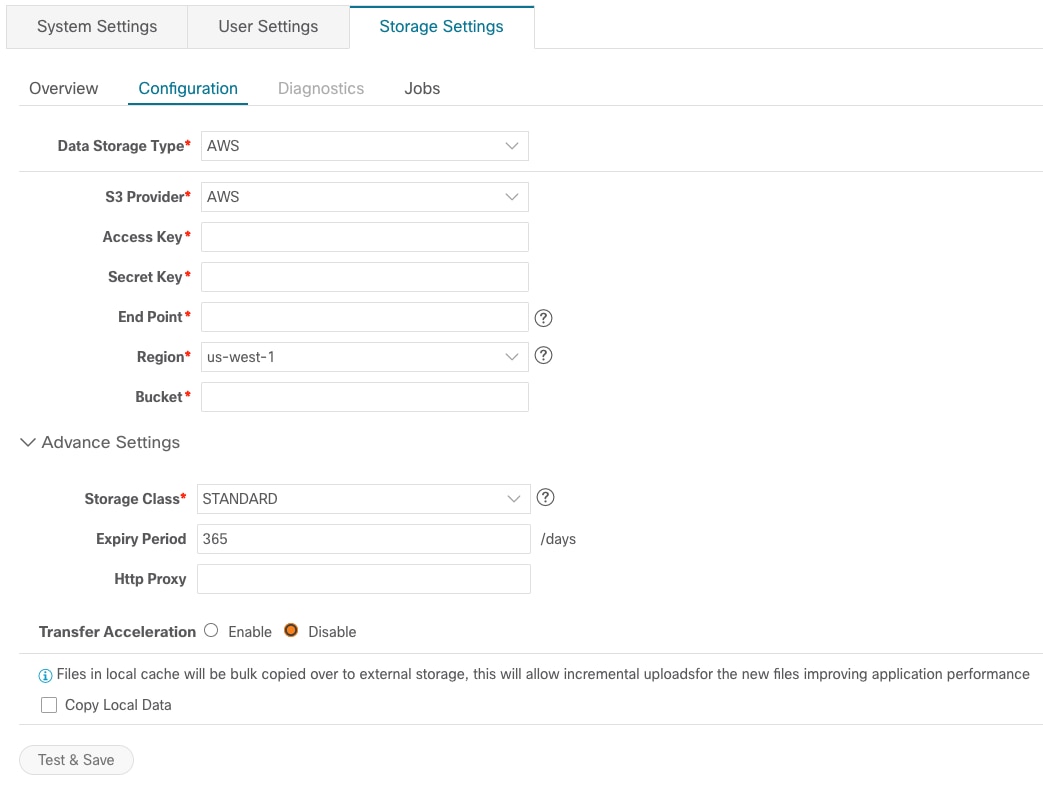
  2. Under External Storage, click Configure. The Configuration screen appears with the Data Storage Type and S3 Provider fields pre-populated with Amazon Web Services (AWS).


    Note


    You must have an AWS cloud account set up so to configure the external storage settings. Refer to the AWS site for more information.
  3. Provide your AWS authentication information for all of the required fields (such as Access Key, Secret Key, End Point, etc).

  4. Select the Copy Local Data check box if you want all files, previously stored in the local cache, to be bulk copied to the external storage. This action will allow for incremental upload of the new files.


    Note


    This option is a one-time action when moving from only maintaining local storage and moving to external storage. This action will also help improve application performance.

    Note


    ‘Expiry Period’ is the number of days of life for historical data files. If ‘Expiry Period’ is set to 1, the historical data files will be deleted two days later and the deletion will take place at midnight of the second day.
  5. Click Test & Save.

  6. To check on the health of your storage setup, select the Diagnostics tab and click Run Test.

    By running a test, you can review external storage diagnostics such as bandwidth, latency, and multiple Access test details to help identify possible storage performance issues.

Stopping Service Health Monitoring

Objective

Service Health provides specific options when you stop monitoring a service. When you stop monitoring a service, Service Health asks if you want to retain the historical monitoring service data. If you retain the historical data, and you later restart monitoring the service, the data collected, when the service was previously monitoring, will be available. If you choose to stop monitoring the service without retaining the historical service data, the monitoring settings are deleted and the historical service data will expire or be purged if you later choose to start monitoring the service later. In addition, the Assurance Graph for that stopped service will no longer be available.

Workflow

To stop monitoring a Service Health service and retain historical monitoring service data, do the following:

  1. Click in the Actions column for that service and select Stop Monitoring from the menu.

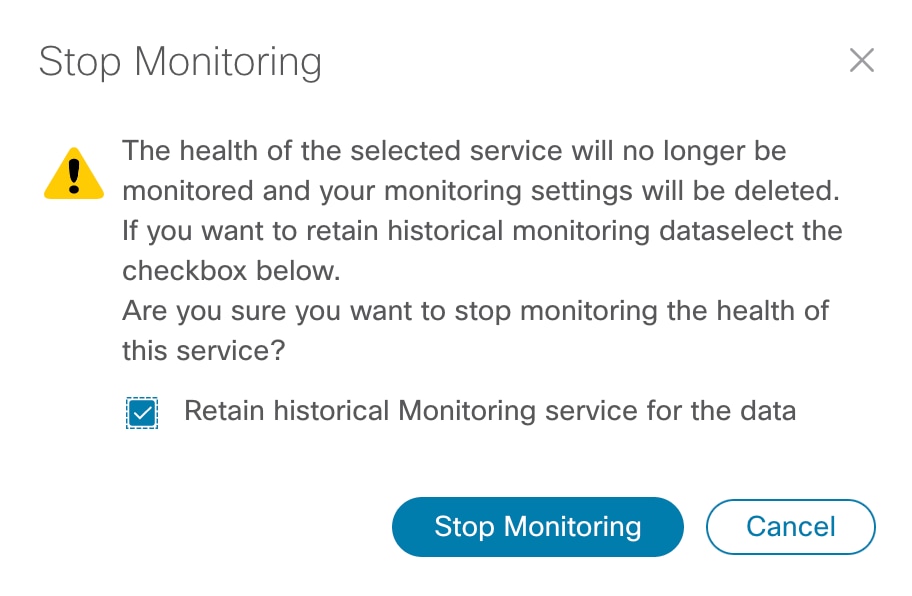
  2. The Stop Monitoring service pop up appears. To retain the historical service data for that service, select the Retain historical Monitoring service for the data check box.

  3. Click Stop Monitoring.

    The service’s historical monitoring data is preserved.


    Note


    If you stop monitoring a service and do not select the Retain historical Monitoring service for the data check box, the Assurance Graph option will no longer be available because the monitoring settings will have been deleted and the historical service data will have expired or been purged. You may again start to monitor the health of that service and begin service data collection anew.

    Note


    As an alternative to stopping Service Health monitoring is to use the Pause and Resume option. If you pause, and the resume, monitoring a service, it will resume monitoring using the same Basic or Advanced monitoring rule and profile options that were used before the pause action. In addition, historical data and Events of Significance (EOS) will be preserved in the history of the service. However, when the service is paused, previous, and new active symptoms, will not appear or be collected.
  4. To view the stopped service in the Assurance Graph, click in the Actions column for that service and select Assurance Graph from the menu.

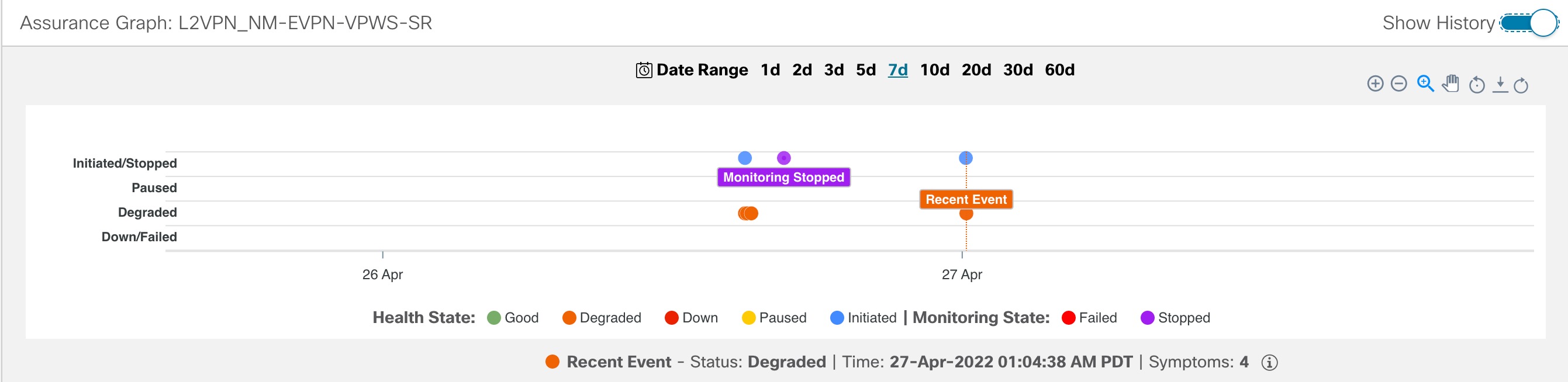
  5. Click the Show History toggle.

    Each dot on the history chart represents one Event Of Significance (EOS) for a service. For each EOS, you can view the Assurance Graph and symptoms with 24 hours metrics collected based on the time of the EOS.

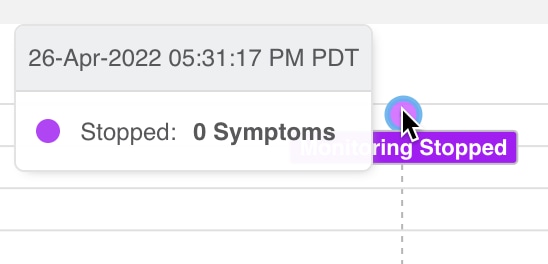
  6. In the graph, the service that was stopped will appear indicating Monitoring Stopped.

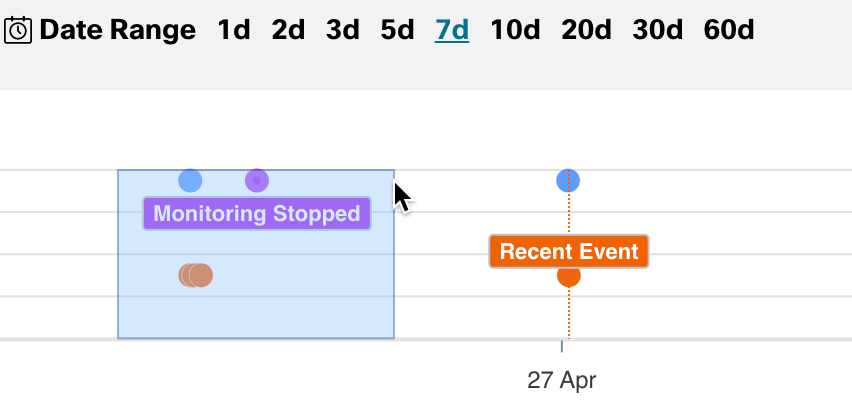
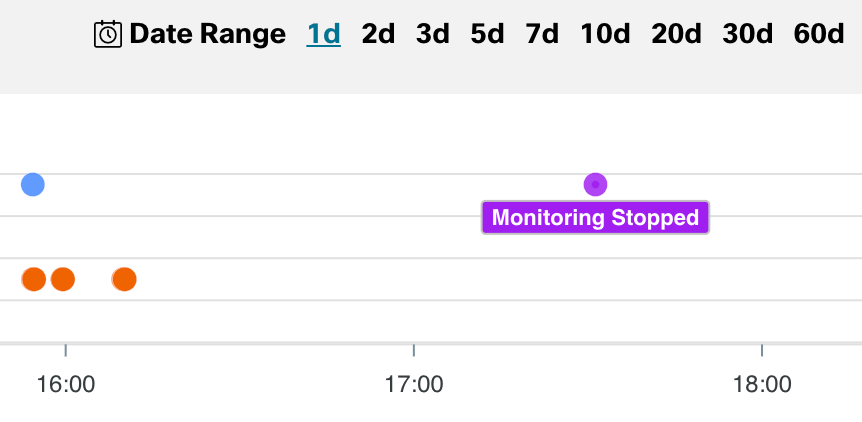
  7. Using your mouse, click and drag over a selected range over the Monitoring Stopped service to zoom in on the time range.

  8. Hover your mouse over the Monitoring Stopped service to view the date stamp when the service was stopped and if there were any symptoms associated with the stopped service.

  9. If you stopped monitoring a service and selected the Retain historical Monitoring service for the data check box, you can later start monitoring that same service with historical data still available. Click in the Actions column for that service and select Start Monitoring from the menu.


    Note


    If External Storage has been configured, and you are monitoring a large amount of services, you can ensure that the historical data of the stopped, and restarted, service is preserved for continued monitoring and inspection. See the Configuring Service Health Storage Settings section for details.