Automation of Onboarding and Provisioning of IOS-XR Devices Using ZTP

This section explains the following topics:

Overview

Objective

Allow users to quickly, easily, and automatically onboard new devices and provision them using a Cisco-certified software image and a day-zero software configuration.

Challenge

Deploying and configuring network devices is a tedious task. It requires extensive hands-on provisioning and configuration by knowledgeable personnel, which is time-consuming, expensive, and error-prone.

Solution

Automate onboarding of new devices using Crosswork Zero Touch Provisioning (Cisco Crosswork ZTP). Cisco Crosswork ZTP allows users to provision networking devices remotely, without a trained specialist on site. After establishing an entry for the device in the DHCP server and the ZTP application, all the operator needs to do is connect the device to the network, power on and press reset to activate the devices. A certified image and configuration are downloaded and automatically applied to the device. After it is provisioned in this way, the new device is onboarded to the Crosswork device inventory where it can be monitored and managed like other devices.

How Does it Work?

  • Classic ZTP: The DHCP server verifies the device's identity based on the device's serial number, then offers downloads of the boot file and image. After the device is imaged, it downloads the configuration file and executes it.

  • Secure ZTP: The device and the Cisco Crosswork ZTP bootstrap server authenticate each other using the device's Secure Unique Device Identifier (SUDI) and Crosswork server certificates over TLS/HTTPS. After a secure HTTPS channel is established, the Crosswork bootstrap server allows the device to request to download and apply a set of signed image and configuration artifacts adhering to the RFC 8572 YANG schema. After the image (if any) is downloaded and installed, and the device reloads with the new image, the device downloads configuration scripts and executes them.

  • Plug and Play (PnP) ZTP: The Cisco PnP agent on the IOS-XE device and the Cisco Crosswork PnP Server authenticate each other over HTTP using a PnP profile supplied on a TFTP server. They then establish a secure connection over HTTPS and the PnP agent downloads and installs image (optional) and configuration artifacts.

Additional Resources

Detailed information is available in the ZTP chapter in the Cisco Crosswork Network Controller Infrastructure 5.0 and Applications Administration Guide.
Scenario 10 - Automatically onboard and provision new devices in the network

Scenario Context

With the exponential growth of service provider networks and their rapid expansion into new customer sites and new locations, there is a need to connect an ever-increasing number of edge devices. At the same time, functional sophistication is increasing, requiring more time to configure those devices and activate new services. Manual processes limit a service provider’s ability to rapidly scale networks and roll out new services in a cost-efficient way.

In this scenario, we will onboard the new IOS-XR devices required to set up a new customer site in a remote location and go live, without the need to send skilled technicians on time-consuming and costly on-site visits to complete the provisioning.

We will leverage the configuration of devices at existing customer sites that are already set up and operating to ensure that the Day0 configuration of the new devices includes whatever is necessary to get the devices up and running quickly and efficiently.

Assumptions and Prerequisites

  • Crosswork ZTP must be installed in your Cisco Crosswork Network Controller setup.

  • For Classic ZTP, Crosswork and the devices must be deployed in a secure network domain. Secure ZTP does not have this requirement; it is secure across networks.

  • The Crosswork server must be reachable from the devices, via an out-of-band management network or an in-band data network.

  • If you want to onboard devices to Cisco NSO also, Cisco NSO must be configured as a Crosswork provider. When configuring the NSO provider, be sure to set the provider property key to forward and the property value to true.

Workflow

This is a high-level workflow for onboarding IOS-XR devices using Cisco Crosswork Classic or Secure ZTP.

To onboard IOS-XE devices, or for more detailed information on these options, see the ZTP chapter in the Cisco Crosswork Network Controller Infrastructure 5.0 and Applications Administration Guide.

  • Step 1. Assemble and upload ZTP assets

  • Step 2. Create a ZTP profile combining an image file and configuration file

  • Step 3. Prepare ZTP device entries for the devices to be onboarded

  • Step 4. Set up DHCP for Crosswork ZTP

  • Step 5. Initiate ZTP processing to onboard the devices

  • Step 6. Monitor the ZTP processing status

  • Step 7. Verify your onboarded devices

Workflow

Procedure


Step 1

Assemble and upload ZTP assets

  1. Assemble the following assets before you begin:

    • (Optional) Software images. For Classic ZTP, you can use Cisco IOS-XR versions 6.6.3, 7.0.1, 7.0.2, 7.0.12, and 7.3.1 or later. For Secure ZTP, use Cisco IOS-XR 7.3.1 or later (except 7.3.2 and 7.4.1).

    • Configuration Files: SH, PY, or TXT files. You can specify up to three different configuration files for Secure ZTP.

    • Credentials of the devices to be onboarded

    • Serial numbers of the devices to be onboarded

    For Secure ZTP only, also assemble:

    • Owner certificates - your organization's CA-signed end-entity certificates, installed on your devices and binding a public key to your organization.

    • Pinned domain certificate - your organization's CA- or self-signed domain certificate, with its public key pinned to your organization's DNS network domain. The PDC helps your devices verify that images and configurations downloaded and applied during ZTP processing come from within your organization.

    • Ownership vouchers - Nonceless audit vouchers that verify that devices being onboarded with ZTP are bootstrapping into a domain owned by your organization. Cisco supplies OVs when a request is submitted with your organization's PDC and device serial numbers.

  2. If applying software images: Upload the software images. Go to Device Management > Software Images.

  3. Upload the configuration files. Go to Device Management > ZTP Configuration Files.

  4. Upload device serial numbers. Go to Device Management > Serial Number and Voucher and click Add Serial Number.

  5. For Secure ZTP, upload your pinned domain certificate and owner certificates. Go to Administration > Certificate Management and add your certificates.

  6. For Secure ZTP, upload ownership vouchers. Go to Device Manager > Serial Number and Voucher.

Step 2

Create a ZTP profile combining an image file and configuration file

Crosswork uses ZTP profiles to automate imaging and configuration processes. While optional, creating ZTP profiles is recommended as the best way to combine a single image file and configuration file based on a product or device family, such as the Cisco ASR 9000 or Cisco NCS5500. We recommend that you create only one day-zero ZTP profile for each device family, use case or role the devices serve in the network.

To create ZTP profiles, go to Device Management > ZTP Profiles.

Step 3

Prepare ZTP device entries for the devices to be onboarded

Depending on how many devices you are onboarding, you can either prepare and import a CSV file or you can create device entries individually.

  1. Go to Device Management > Devices.

  2. Click the Zero Touch Devices tab. Then:

    • To create a device entry file for many devices, click the Import icon and download the CSV template. Edit the template and add entries for each device you want to onboard. See the ZTP chapter for details on the file entries. Then click the Import icon again to import your device entry file.

    • To create device entries one at a time, click the Add icon.

Step 4

Set up DHCP for Crosswork ZTP

Before triggering ZTP processing, you must update your organization's DHCP server configuration file with the IDs for your ZTP device entries and the paths to the image and configuration files stored in the ZTP repository. This allows Crosswork and DHCP to identify these ZTP devices and to respond correctly to each device's requests for connection to the network, and to download image and configuration files. For sample DHCP entries, see the ZTP chapter.

Step 5

Initiate ZTP processing to onboard the devices

Initiate ZTP processing by rebooting each of the devices to be provisioned: Power-cycle it, or press the chassis reset button.

Step 6

Monitor the ZTP processing status

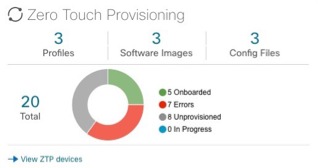
You can monitor the progress of ZTP processing in the dashboard.

  1. Click Home in the main menu and take a look at the Zero Touch Provisioning dashlet.

  2. Click on the View ZTP devices link to view the status of individual devices.

Step 7

Verify your onboarded devices

Go to Device Management > Devices. Click the Zero Touch Devices tab. All of your onboard devices should be listed.

You may need to edit the information for some devices. Some of the information needed for a complete device record either is not needed in order to onboard the device, or not directly available through automation. For example, geographical location data defined using a set of GPS coordinates.

ZTP devices, after being onboarded, are automatically part of the shared Crosswork device inventory. You can edit them like any other device.