Troubleshoot Wireless Speed Issues
Available Languages
Introduction
This document describes multiple use cases and configurations on Wireless Local Area Network (LAN) Controllers (WLCs).
Prerequisites
Requirements
Cisco recommends that you have knowledge of WLCs along with basic knowledge of Routing and Switching.
Components Used
This document is not restricted to specific software and hardware versions.
The information in this document was created from the devices in a specific lab environment. All of the devices used in this document started with a cleared (default) configuration. If your network is live, ensure that you understand the potential impact of any command.
Speed Issues in Wireless Network
Wireless Local-Area Network (WLAN) speed issues can be caused by a variety of factors, both on the wireless network and on client devices. Troubleshooting these issues requires examining both the network and devices. When working with WLCs, there are several configuration checks you must perform to ensure your wireless network is optimized for speed and performance. These are some checks that can be completed on both the WLC and the client side.
Checks on Client Devices
The most important thing to check on the client machine is signal strength.
- Signal Strength: Check the Wi-Fi signal strength on the client device. If the signal is weak, the device can have trouble connecting or can experience slow speeds. Move closer to the wireless access point (AP) or Wi-Fi router to see if the signal improves.
- Signal Strength and SSID check on Windows Machine: Start by checking the client devices experiencing slow network performance. Verify clients who are connected to the correct wireless network and they have a strong signal.
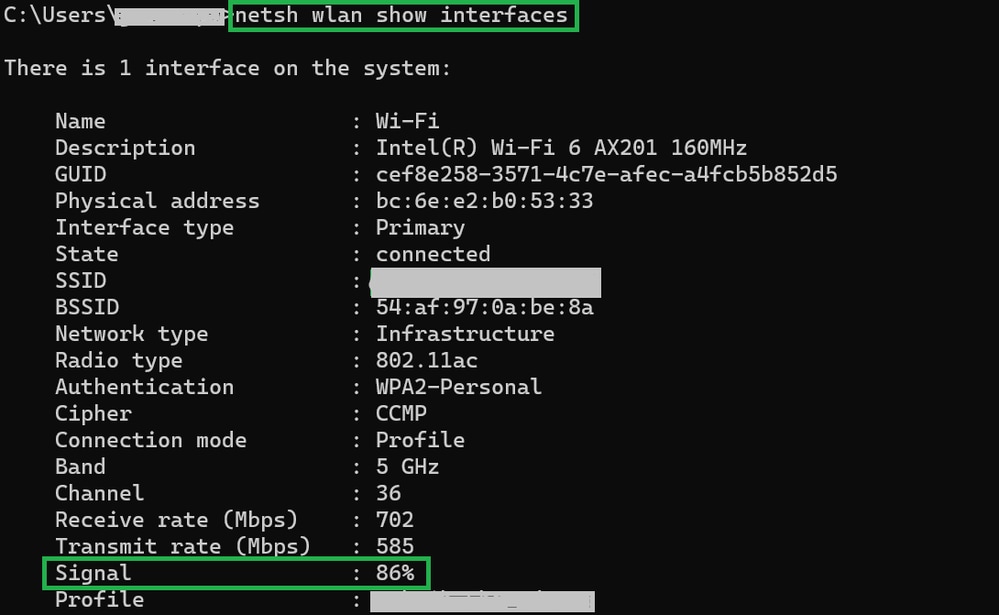 Command to Verify the Signal Strength on a Windows PC
3. Signal strength and SSID check on MacBooks: On Macs, checking the Wi-Fi signal strength is a one-click operation. Press and hold the option key while clicking the Wi-Fi icon in the menu bar at the top. You can see the Wi-Fi signal strength (RSSI value in dBm) alongside a host of other network-related info in a drop-down menu.
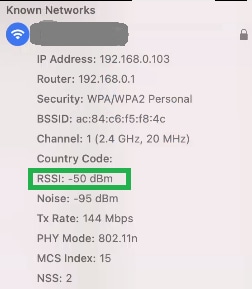 Signal Strength for MAC
Configuration Checks on WLC
Here are a few use cases related to slowness issues due to configuration issues on WLCs:
Use Case 1 - Data Rates
Data rates refer to the transmission speeds that wireless devices can communicate with the network. These data rates are typically measured in megabits per second (Mbps) and vary based on the wireless standards and technologies supported by the WLC. One of the major reasons for slowness is due to lower data rate statuses set to mandatory and the supported states.
Cisco recommends disabling low data rates on wireless networks to improve performance and efficiency. This is because client devices can connect at higher data rates, which results in faster speeds and better performance.

Note: It is crucial to thoroughly assess the impact and compatibility of this change with your client devices.
1. Default data rate configuration:
- By default, lower data rates are set to mandatory and supported states.
- To view the parameters set for a particular radio on a wireless controller, navigate to the GUI of the controller, select the WIRELESS tab, and then select the desired radio.
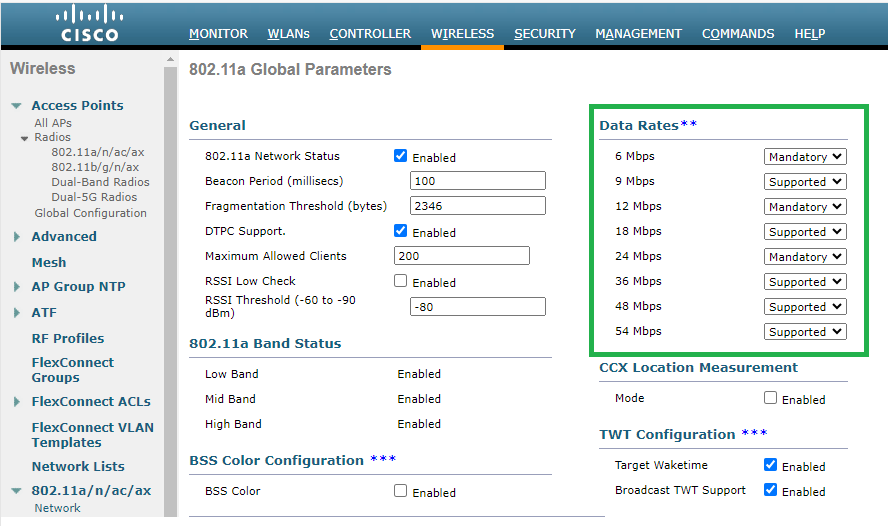 Default Data Rates in 5 GHz Radio
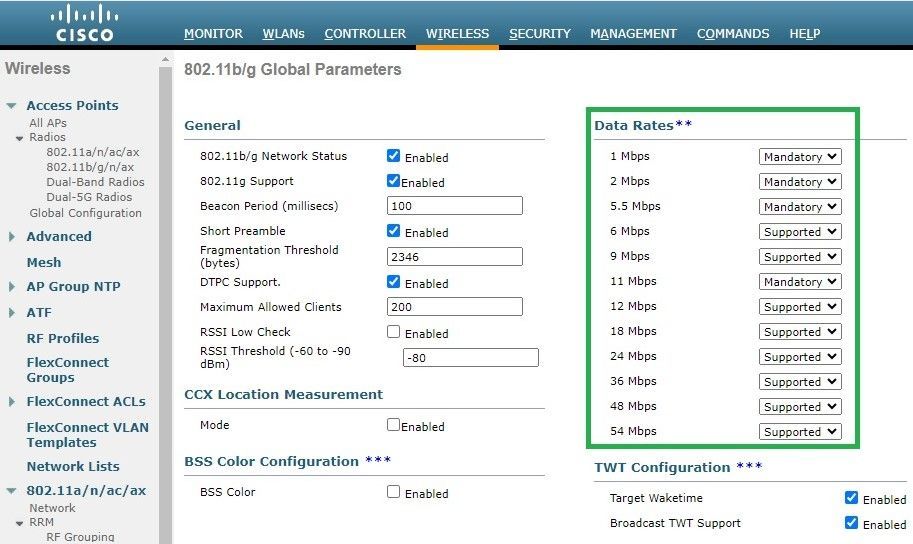 Default Data Rates in 2.4 GHz Radio
Fix:
You can disable and enable the required data rates either by using CLI or GUI:
1. Steps to perform through CLI for radio 802.11b:
config 802.11b disable network

config 802.11b 11gSupport enable

config 802.11b 11nSupport enable

config 802.11b rate disabled 1

config 802.11b rate disabled 2

config 802.11b rate disabled 5.5

config 802.11b rate disabled 11

config 802.11b rate disabled 6

config 802.11b rate disabled 9

config 802.11b rate mandatory 12

config 802.11b rate supported 18

config 802.11b rate supported 24

config 802.11b rate supported 36

config 802.11b rate supported 48

config 802.11b rate supported 54

config 802.11b enable network
2. Disable/Enable through GUI:
- To change the data rates for a wireless network on a wireless controller, navigate to the GUI of the controller, select the Wireless tab, then select 802.11b/g/n/ax, then select the Network tab, and finally select the desired option for Data rates (Disabled, Supported, or Mandatory.)
3. Steps to complete for CLI for radio 802.11a:
config 802.11a disable network

config 802.11a 11nSupport enable

config 802.11a 11acSupport enable

config 802.11a rate disabled 6

config 802.11a rate disabled 9

config 802.11a rate disabled 12

config 802.11a rate disabled 18

config 802.11a rate mandatory 24

config 802.11a rate supported 36

config 802.11a rate supported 48

config 802.11a rate supported 54

config 802.11a enable network
4. Disable/Enable through GUI:
- To change the data rates for a wireless network on a wireless controller, navigate to the GUI of the controller, select the Wireless tab. Then select 802.11a/n/ac/ax and select the Network tab. Select the desired option for Data rates (Disabled, Supported, or Mandatory.)
5. Post verification check:
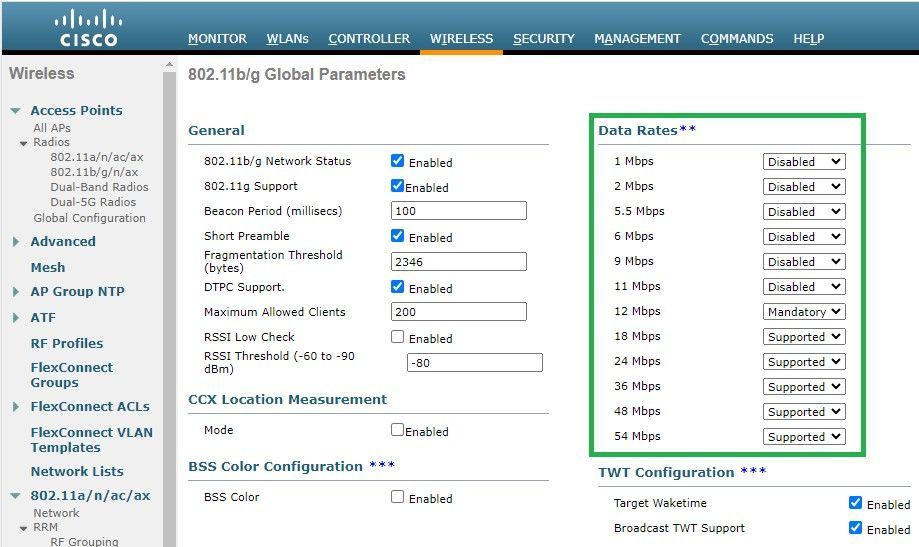 Recommended Data Rates on Radio 802.11 b
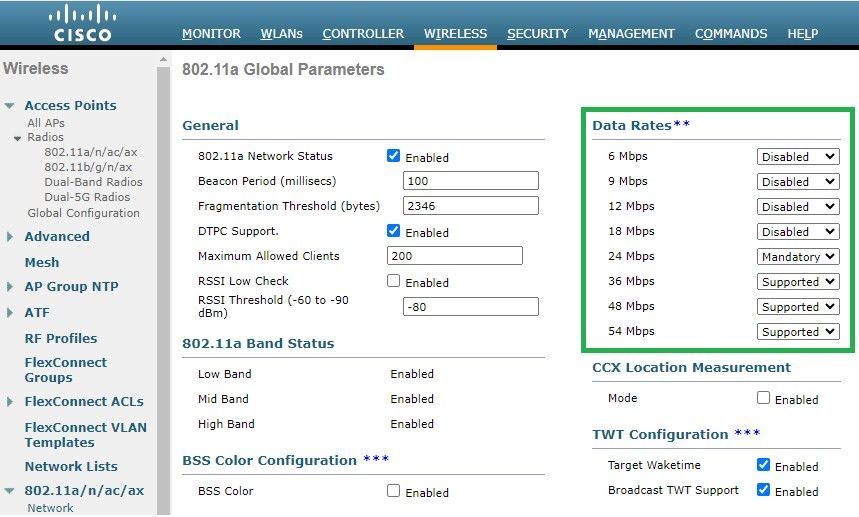 Recommended Data Rates on Radio 802.11 a
Use Case 2 - Regulatory Domain
Each country has its own regulatory body that governs the usage of wireless spectrum to avoid interference and ensure efficient wireless communications. However, there are countries with the same regulatory domain that often share similar rules and regulations related to wireless communication, including frequency bands, power levels, and other parameters. This harmonization allows devices that are compliant with the regulations of one country to operate seamlessly in another country within the same regulatory domain.
When a regulatory domain is not supported, it means a specific wireless device or technology is not compliant with the rules and regulations set by the regulatory authority of a particular country or region.
In this scenario, it is essential to ensure the controller is correctly configured to handle access points in different regulatory domains. When access points from China are incorrectly mapped with the country code for India, it can lead to non-compliance issues and Radio slot 1 displays with a "not supported" regulatory domain status.
You can detect this type of issue when you observe users at the site solely connected to 802.11b (2.4 GHz), and the operational status of Radio 1 (802.11a) is inoperative.
These are the steps for identifying and resolving issues caused by incorrect country code mapping:
1. Verify the status of radio slots by accessing the Status section and navigate to Wireless > AP > <desired AP> > Interfaces. Check for the Regulatory Domain: Not Supported.
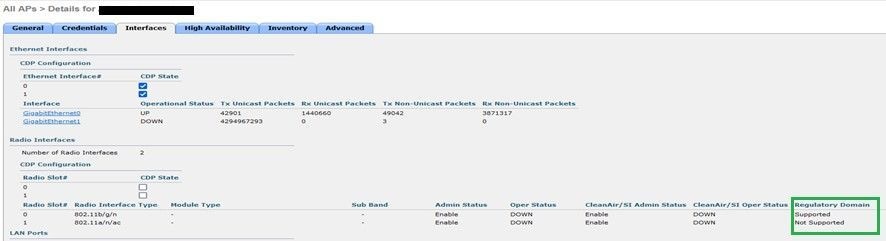 802.11 a Radio Down Due to Regulatory Domain Support Issue in the Access Point Operation Country
2. Ensure the Admins status is in the Enable state:
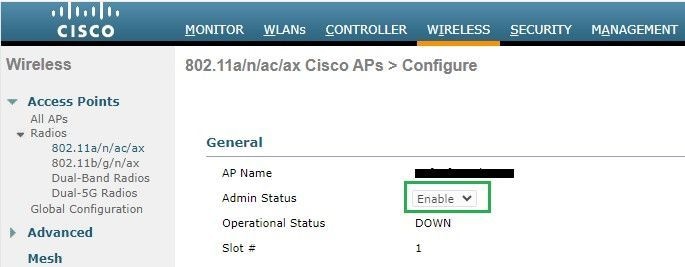 Admin Status of the Access Point on Radio 802.11 a
3. Ensure the Country code of the APs resided location is Enabled under Wireless > Country:
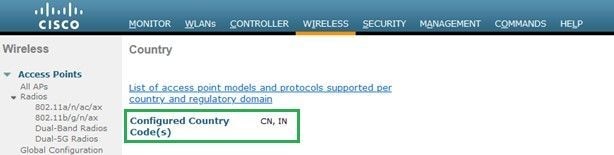 List of Country Codes Enabled on the Controller
Fix:
1. Map the desired country code on the APs to bring Radio 1 (802.11 a) up:
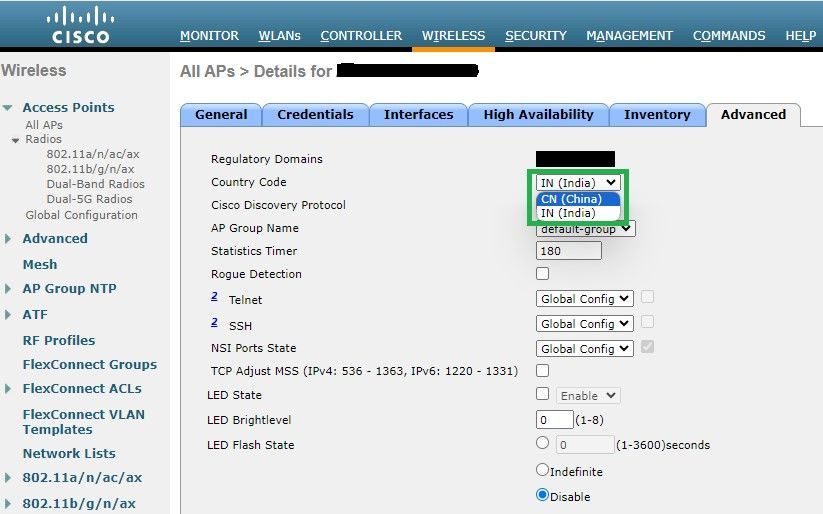 Select the Country that Access Point is Operated In
2. Ensure both are up and users are connected to 5 GHz:
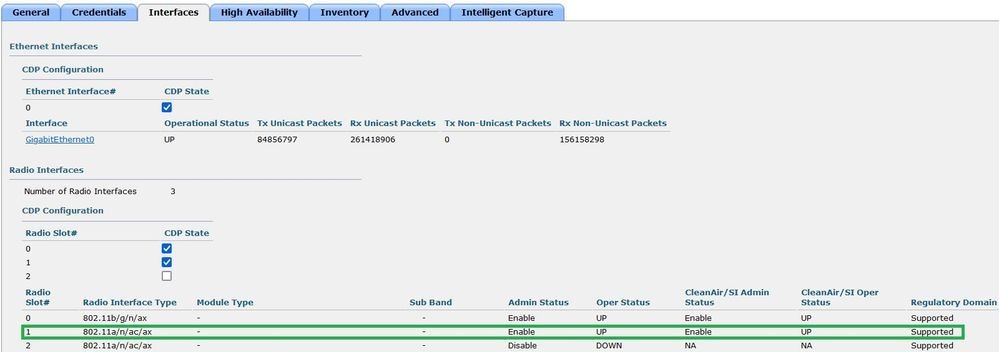 Ensure the AP Admin State is Up and Regulatory Domain is Supported
Use Case 3 - Band Select
Band direction enables clients who are capable of dual-band (2.4 and 5 GHz) operation to move to a less congested 5 GHz AP. It allows 5 GHz channels more attractive to clients by delaying probe responses on 2.4 GHz channels and clients can choose to connect on 5 GHz.
Recommendation: Although this feature is designed to help 802.11n capable dual-band clients select the 5GHz band, it must be used with caution on voice-enabled WLANs (with time-sensitive voice clients) as it can cause roaming delays or dropped calls.
Note: Ensure you test thoroughly in your environment with dual-band clients before enabling.
Steps to enable band selection on WLAN:
- GUI: Navigate to WLAN > Advanced > Client Band Select and enable Band Select > Apply:
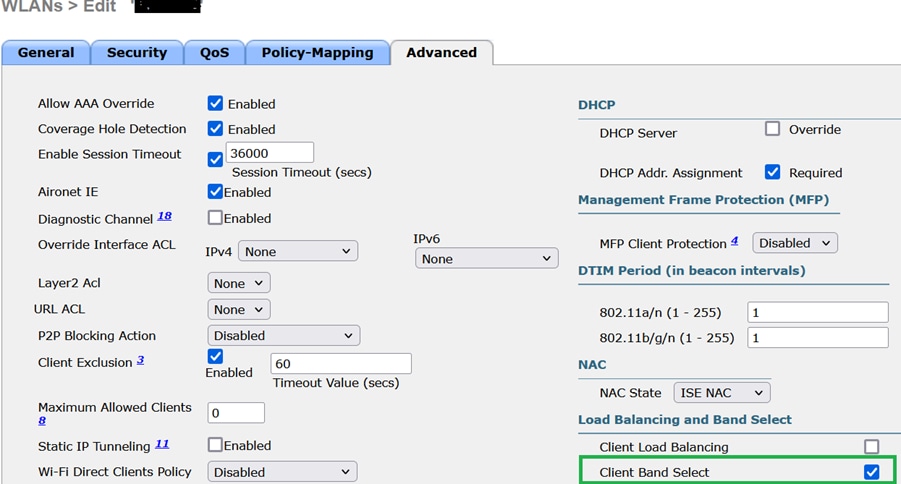 Band Select Option under WLAN
CLI:
(WLC) >config wlan band-select allow enable Use Case 4 - 802.11K
802.11k: 802.11k or the Neighbor list feature provides a list of all neighbor APs to the client. The client can check all options available with their RSSI value and can decide whether to roam. The client receives better signals on the selected AP via the neighbor list and has better wireless performance and speed. This option works for clients who are 802.11k capable.
Steps to enable Neighbor List:
- GUI: Navigate to WLAN > Advanced > Neighbor List and enable Apply:
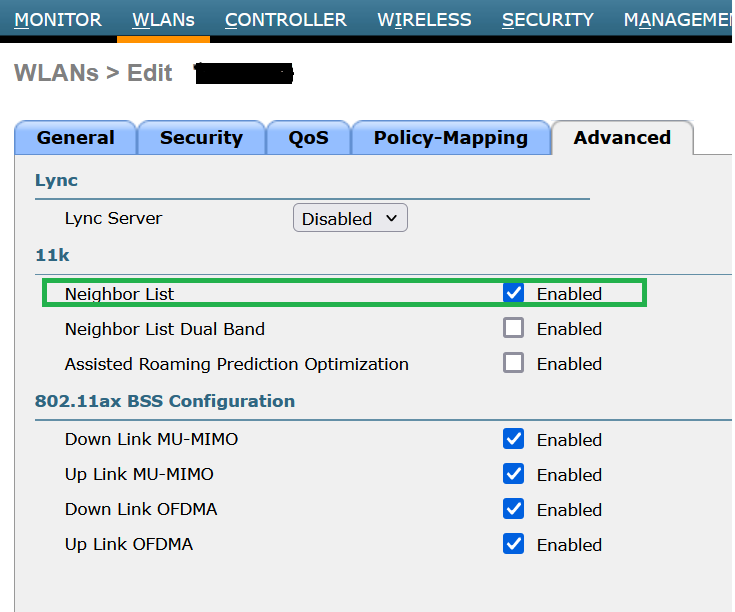 Enabled Neighborlist
CLI:
config wlan assisted-roaming neighbor-list {enable | disable} wlan-id
Use Case 5 - Channel Width
Channel width is a feature you can club two, four, or more channels in one to increase the throughput. For example, if you merge two channels in one, this allows the client to pass more data and provides better speed.
This feature is designed for the 5 GHz band as there are better non-overlapping channels in 5 GHz that can be combined to provide enhanced speed on wireless. By default, the channel width is 20 MHz and you can increase to 40 MHz, 80 MHz, or 160 MHz. If you merge two channels, the overall non-overlapping channels decrease. As a result, you must be cautious while using this feature if there are a large number of APs on the floor.
Steps to enable channel width to 40 MHz:
- GUI: Navigate to Wireless > 802.11a/n/ac/ax > DCA > Channel Width > 40 MHz > Accept Prompt > Apply:
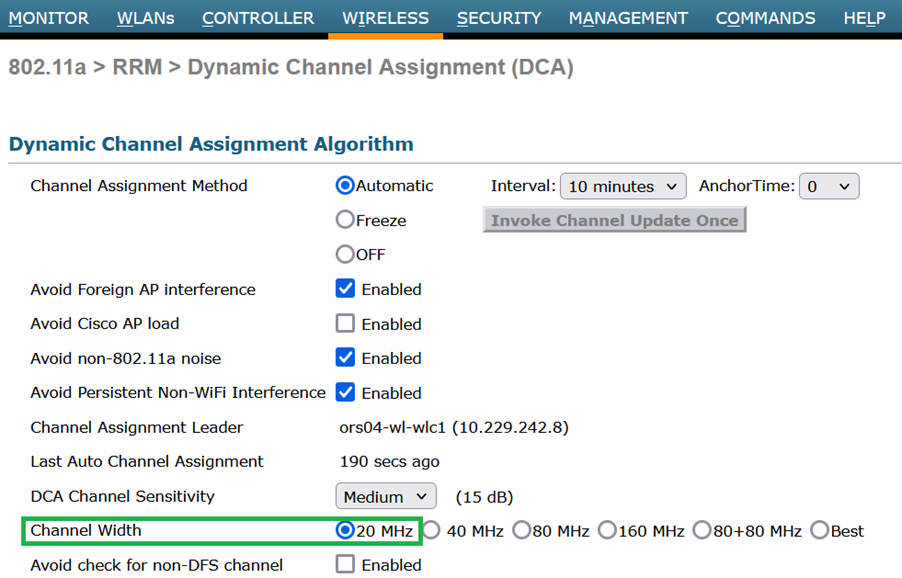 Default Channel Width Set to 20 MHz
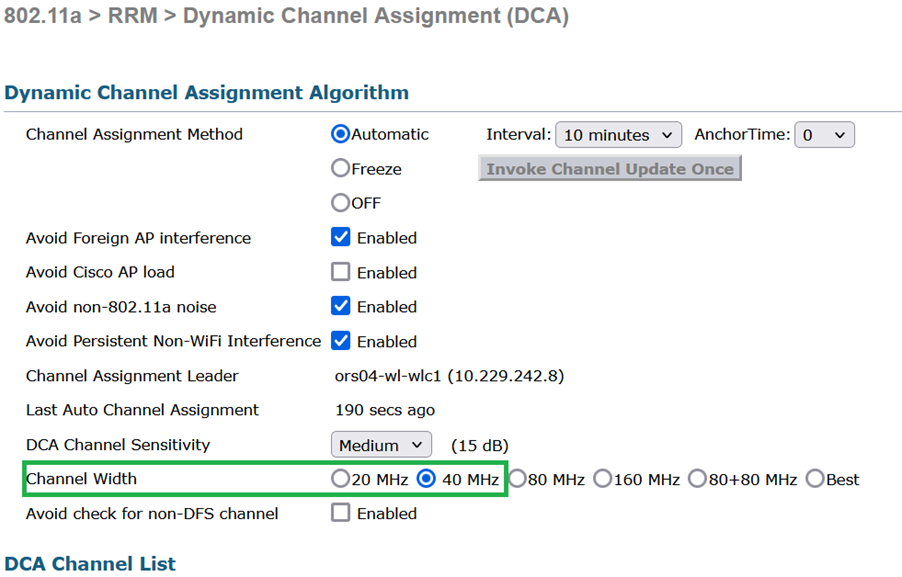 Channel_width set to 40Mhz
CLI:
(WLC) >config 802.11a disable network
y
(WLC) >config advanced 802.11a channel dca chan-width-11n 40
(WLC) >config 802.11a enable network
Use Case 6 - QoS
QoS or Quality of Service can be used to prioritize traffic per the WLAN requirement. You can configure the voice traffic WLAN to use Platinum QoS by assigning the low-bandwidth WLAN to use Bronze QoS and assign all other traffic between the remaining QoS levels.
Steps to configure Platinum Qos on WLAN:
- GUI: Navigate to WLANs, select WLAN ID > QoS and set the Quality of Service (QoS) to Platinum (voice):
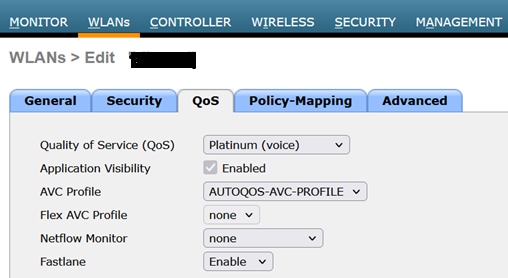 QOS Value Set to Platinum
CLI:
(WLC)> config wlan qos wlan_id platinum Revision History
| Revision | Publish Date | Comments |
|---|---|---|
3.0 |
14-Aug-2026
|
Updated Introduction, spelling, gramar, inserted horizontal lines to separate sections for readability, alt text, fixed CCW errors. |
2.0 |
04-Aug-2025
|
Updated Introduction, Titles on Image Captions, and Formatting. |
1.0 |
13-Sep-2023
|
Initial Release |

 Feedback
Contact Cisco
- Open a Support Case

- (Requires a Cisco Service Contract)