Troubleshoot Inaccurate/Unexpected Noise Levels Reported on COS APs
Available Languages
Introduction
This document describes the troubleshooting procedure for scenarios where Access Points report inaccurate noise levels.
Prerequisites
Requirements
Cisco recommends that you have knowledge of WLCs along with basic knowledge of Cisco Wave2 and/or 11AX APs.
Components Used
This document is not restricted to specific software and hardware versions.
The information in this document was created from the devices in a specific lab environment. All of the devices used in this document started with a cleared (default) configuration. If your network is live, ensure that you understand the potential impact of any command.
Background Information
This same approach can be applied to debug issues related to interference or noise profile violations.
Initial Assessment and Monitoring
- Utilize Spectrum Analysis Tools
Enable spectrum analysis mode on supported Access Points (APs) to effectively identify interference sources and monitor real-time channel activity. - Monitor Radio Utilization and Noise Floor
Leverage Cisco DNA Assurance or Catalyst Center to gain visibility into real-time noise levels ,interference sources,radio utilizations and frame error rates. - Conduct a site survey and Physical Inspection
Perform a site survey under standard operating conditions with all equipment in place to accurately assess RF behaviour . - Evaluate Physical Environment
Consider the impact of physical obstructions and construction material that can absorb or reflect RF energy .
Noise Issue in WiFi Environment
Noise issue can limit signal quality for your devices and APs. Increased noise reduces cell size and degrades user experience. By optimizing channels to avoid noise sources, the device helps you maintain coverage and system capacity. If a channel is unusable due to excessive noise, that channel can be avoided.
-
Signal to Noise Ratio (SNR) Impact
Noise level is a key factor in calculating the SNR, which is the difference between the received wireless signal and the noise floor. An inaccurate noise level reading can lead to incorrect SNR values. Since SNR is critical for determining wireless link quality, wrong noise levels can cause the network to misjudge the quality of connections, potentially leading to poor client performance or dropped connections. For example, a recommended SNR for voice applications is at least 25 dB, and for data applications, at least 20 dB. If noise levels are reported incorrectly, the AP cannot optimize for these thresholds properly, affecting voice and video quality or data reliability. - Interference and Performance Issues
Noise is often caused by interference from various sources such as microwaves, security cameras, or rogue APs. If noise levels are inaccurately reported, it can be difficult to identify and mitigate interference sources effectively. This can lead to wireless instability, security vulnerabilities, and degraded throughput.
- Troubleshooting
Incorrect noise readings can mislead network administrators during troubleshooting, causing them to overlook real interference or noise issues or to misinterpret the health of the wireless environment. This can delay resolution and impact user experience .
-
Impact on Mesh Networks
In summary, inconsistent or wrong noise level reporting can degrade wireless network performance by causing inaccurate SNR calculations, complicating interference detection and mitigation, and impairing troubleshooting efforts, ultimately leading to reduced reliability and user experience .
In mesh deployments, noise levels affect the signal quality between AP hops. Wrong noise level reports can cause poor mesh link performance, leading to increased latency or dropped mesh connections .
When encountering incorrect noise and interference levels on Cisco APs ,it is essential to systematically identify and resolve the root causes to maintain optimal wireless network performances. Using this approach helps in isolating if the issue is on WLC or AP level .
-
Determine the current noise floor levels on the Access Point (AP).
-
Validate the accuracy of the reported noise levels by performing debug analysis on the AP.
-
Analyze the noise levels recorded on the WLC by reviewing relevant traces and show commands outputs.
Troubleshooting Steps
1. Identify AP reporting high levels of noise.
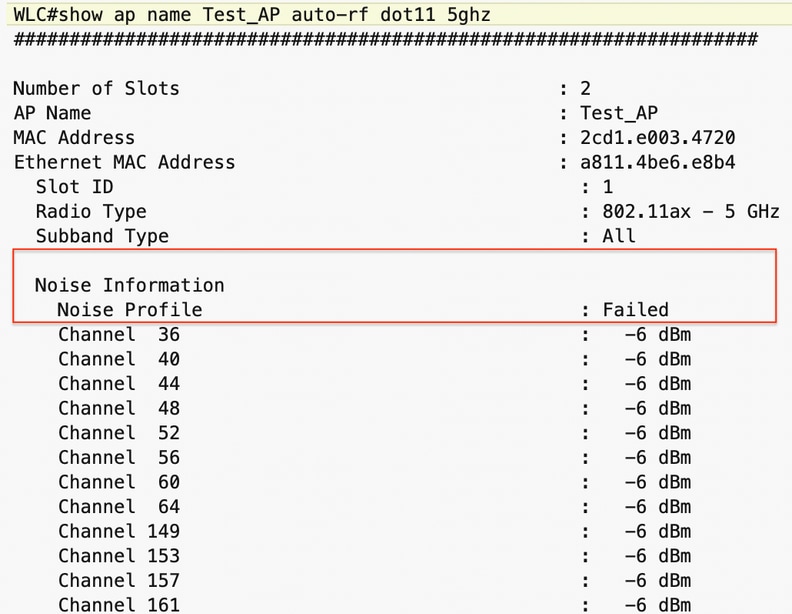
2. Check on Noise profile values in auto-rf output on WLC for working and Non-working APs.
sh ap name <Working_AP_name> auto-rf dot11 5ghz
sh ap name <Non_Working_AP_name> auto-rf dot11 5ghz
Non-Working AP
:
Working AP 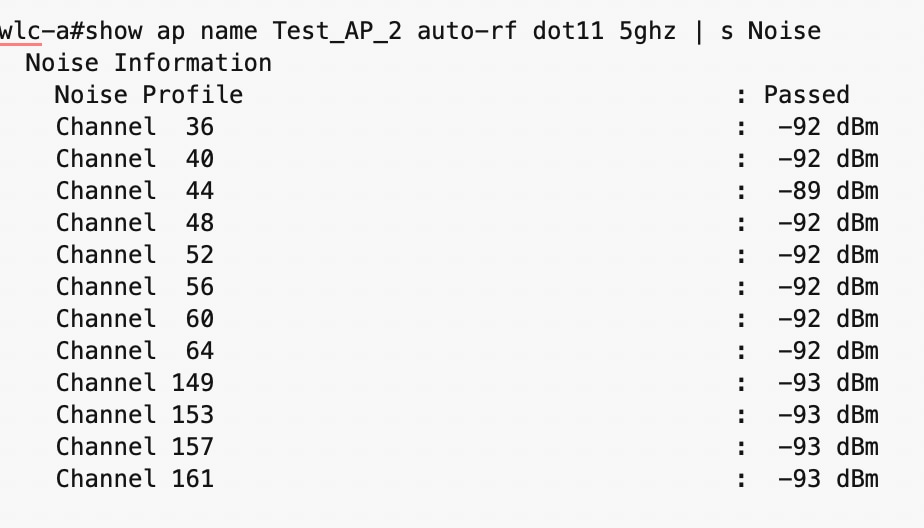
3. Identify AP reporting high levels of noise. On AP, check on noise stats for both slots. Check the noise values reported on the AP level
show rrm receive statistics (refer to Noise section).
Non-Working AP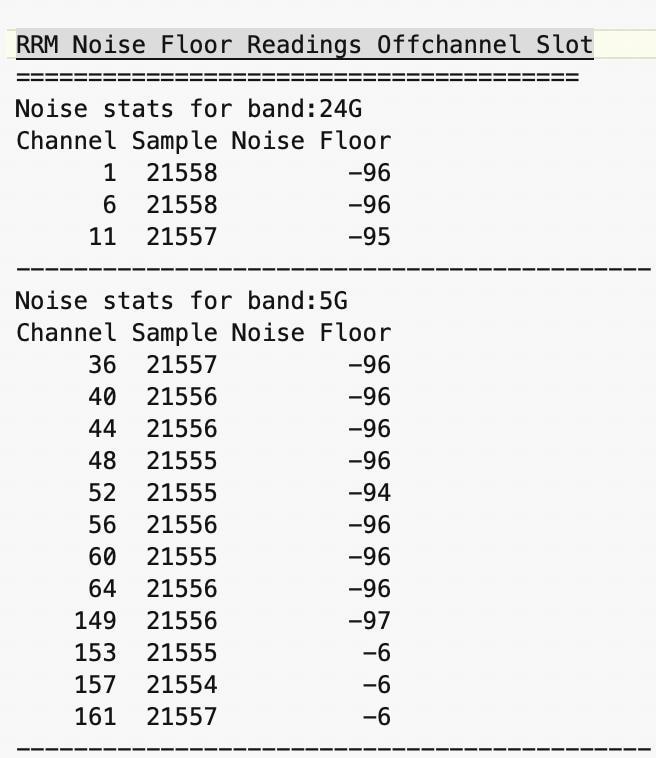
Working AP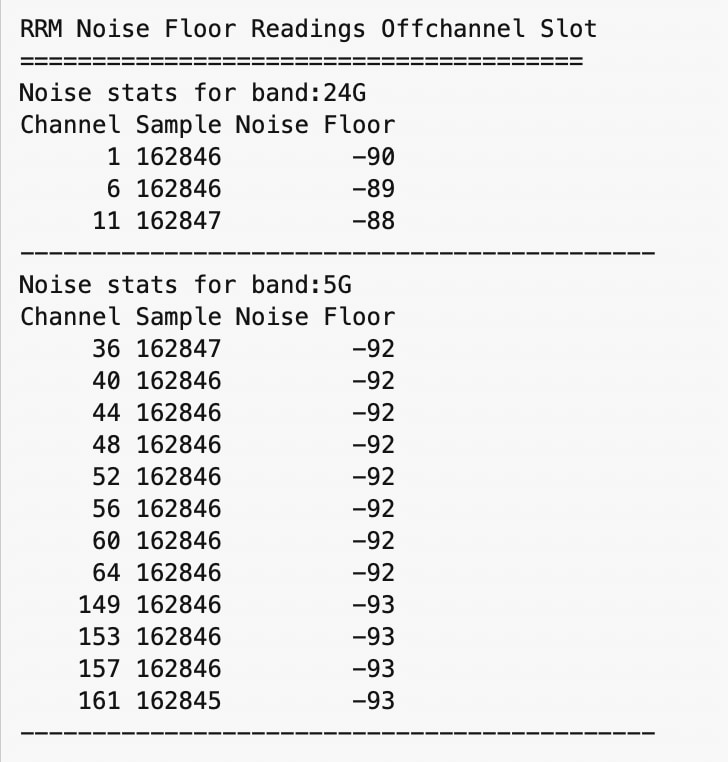
Clearly, noise floor values seen on AP do not match with WLC level (in non-working case).
4. Enable debugs on AP to check noise calculations done on AP for each channel (refer action plan).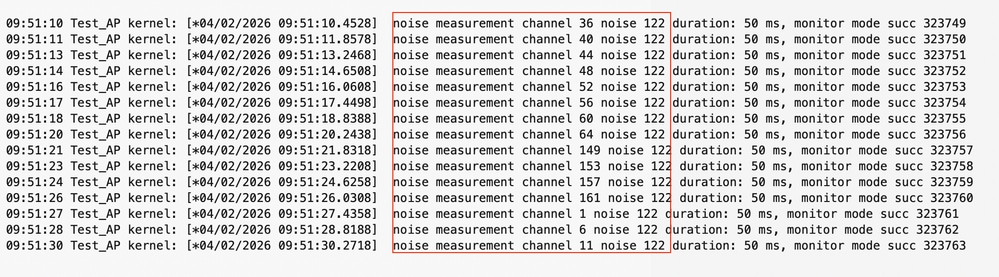
5. Following the noise calculation, the AP transmits the noise metrics to WLC within the payload. WLC updates the noise floor for each channel every ~180 second intervals and assesses the noise profile status as either Passed or Failed based on the measurements.
Using traces on WLC, it can be verified if noise payload has been received along with specific noise floor values reported for each channel .
set platform software trace wncd <wncd> chassis active r0 rrm-client verbose (let it run for sometime ).
Check Noise level for each channel in traces: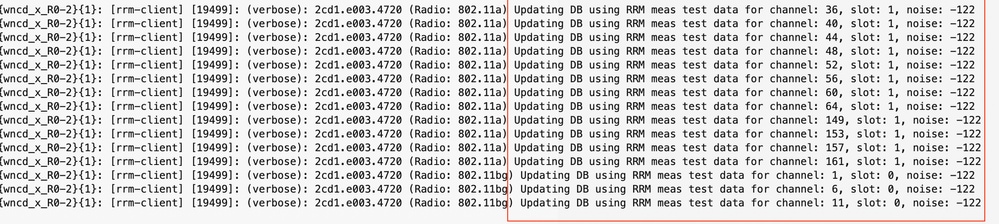

Check if noise data is getting successfully updated or not for each slot.
Conclusion
The troubleshooting steps outlined here can help to accurately isolate the issue .This same methodology can be applied to troubleshoot interference, load profile, and noise profile violations
Action Plan
1. Identify wncd instance to make sure right AP is being targeted.
show wireless loadbalance ap affinity mac <eth_mac >
2. Check Noise.
sh ap name <Working_AP_Name> auto-rf dot11 <slot>
sh ap name <Non_working_AP_Name> auto-rf dot11 <slot>
3. Set traces on WLC.

Note: Before enabling traces, please check on platform cpu / memory and then enable traces. Set platform software trace wncd chassis active r0 rrm-client verbose (let it run for sometime).
Use these traces only if the issue you suspect issue is on WLC side.
set platform software trace wncd 0 chassis active R0 rrm-client-rf-msg verbose
set platform software trace wncd 0 chassis active R0 rrm-client-dca verbose
set platform software trace rrm-mgrd chassis active R0 rrm-mgr-rf-msg verbose
set platform software trace rrm-mgrd chassis active r0 rrm-common-rf-msg verbose
set platform software trace wncd 0 chassis active R0 rrm-common-dca verbose
set platform software trace rrm-mgrd chassis active R0 rrm-mgr-dca verbose
set platform software trace rrm-mgrd chassis active R0 rrm-common-dca verbose
Check this output every 3 minutes if you want to check on live logs.
show logging process wncd internal start last3 minutes Level verbose filter mac <Radio_mac_of_AP>| i Noise
4, On AP side, collect show logs and enable suggested debugs.
Show commands
-----------------
- show clock
- exec-timeout 0 0
- term len 0
- show tech
- show flash cores (if recent core post reloads ,please retrieve )
- show flash crash (if recent crash post reloads ,please retrieve )
- show rrm receive statistics (collect periodically to check on stats)
- show rrm receive config
- show rrm off statistics (collect periodically to check on stats)
- show dot11 generic wl apr1v0/apr0v0 chanim_stats
- show logging
Debugs
- debug rrm reports
- debug rrm neighbor details
- debug rrm band-filter <5/24 Ghz> (Slot 1 : 5Ghz ; For slot 0 : 2.4 Ghz)
- debug rrm config
- debug rrm driver requests
- debug rrm driver cleanair
- debug rrm error
- debug rrm off channel dbg
- debug rrm off channel defer
- debug rrm off-channel schedule
- term mon
4. Collect traces:
show logging process wncd internal start last <N> minutes level verbose filter mac <Working_AP_Radio_Mac> to-file bootflash:<name.txt>
show logging process wncd internal start last <N> minutes level verbose filter mac <Non_Working_AP_Radio_Mac> to-file bootflash:<name.txt>
5. Revert traces to notice:
set platform software trace wncd <wncd> chassis active r0 rrm-client notice
set platform software trace wncd 0 chassis active R0 rrm-client-rf-msg notice
set platform software trace wncd 0 chassis active R0 rrm-client-dca notice
set platform software trace rrm-mgrd chassis active R0 rrm-mgr-rf-msg notice
set platform software trace rrm-mgrd chassis active r0 rrm-common-rf-msg notice
set platform software trace wncd 0 chassis active R0 rrm-common-dca notice
set platform software trace rrm-mgrd chassis active R0 rrm-mgr-dca notice
set platform software trace rrm-mgrd chassis active R0 rrm-common-dca notice
Logs to be Collected
- 9800 session logs
- 9800-show tech-wireless support
- 9800 Traces (Working /Non-working AP )
- AP side debugs /show log
Note: Disclaimer - This article was articulated solely on AP/WLC logs and has not been validated against AI-RRM.
Revision History
| Revision | Publish Date | Comments |
|---|---|---|
1.0 |
14-Jul-2026
|
Initial Release |

 Feedback
Contact Cisco
- Open a Support Case

- (Requires a Cisco Service Contract)