Troubleshoot CWA with WLC 9800 and ISE
Available Languages
Contents
Introduction
This document describes how to troubleshoot Central Web Authentication (CWA) with Wireless LAN Controller (WLC) 9800 and Identity Services Engine (ISE).
Background Information
Network administrators looking to secure wireless access for personal devices often opt for wireless networks that use CWA. This document focuses on the flow chart of CWA, which helps in the troubleshooting of common issues. It covers common issues in the process, how to collect logs related to CWA, how to analyze these logs, and how to collect an Embedded Packet Capture (EPC) on the WLC to confirm traffic flow.
CWA is the most common setup for companies that allow users to connect to the company network using their personal devices, also known as Bring Your Own Device (BYOD). This information provides troubleshooting steps to perform prior to opening a TAC case.
Here is the CWA packet flow:
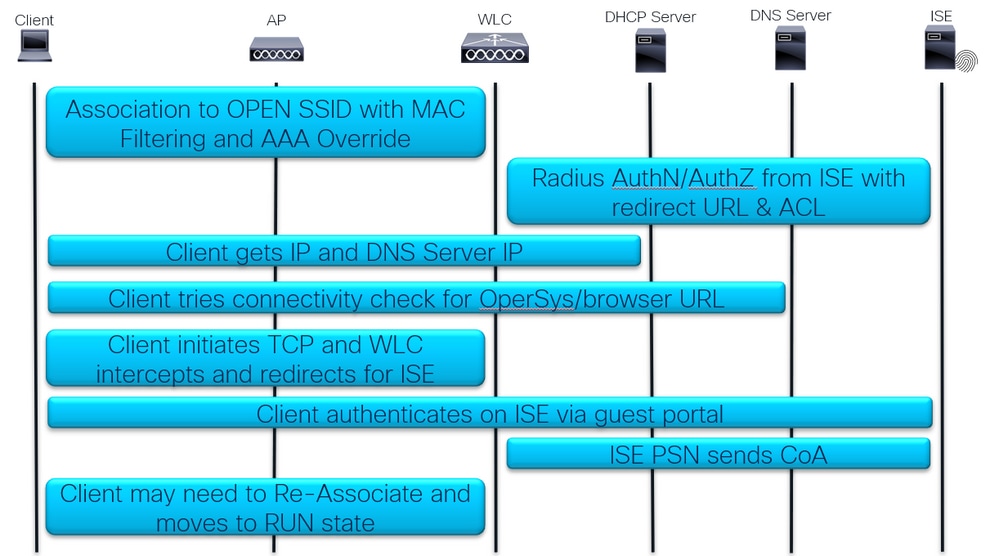 CWA Packet Flow
Detailed Flow
First Association and RADIUS Authentication:
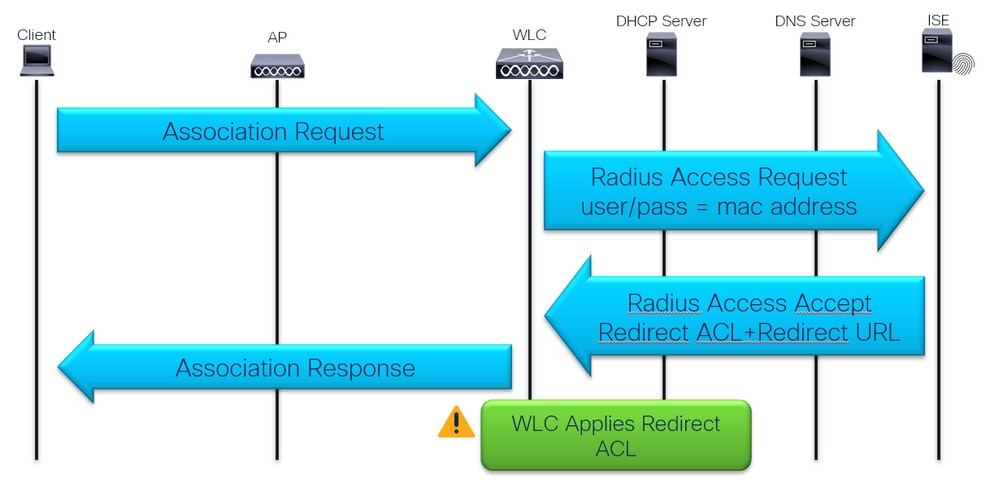 First Assocition and RADIUS Authentication
DHCP, DNS and Connectivity Check:
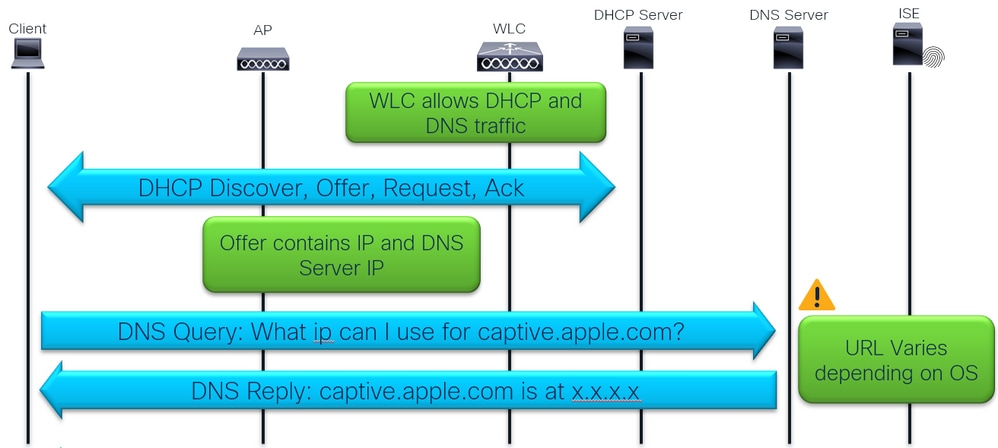 DHCP, DNS and Connectivity Check
The connectivity check is done using captive portal detection by the client device operating system (OS) or browser.
Device operating systems are pre-programmed to perform an HTTP GET towards specific domains:
- Apple = captive.apple.com
- Android = connectivitycheck.gstatic.com
- Windows = msftconnectest.com
Browsers also perform this check when opened:
- Chrome = clients3.google.com
- Firefox = detectportal.firefox.com
Traffic interception and redirection:
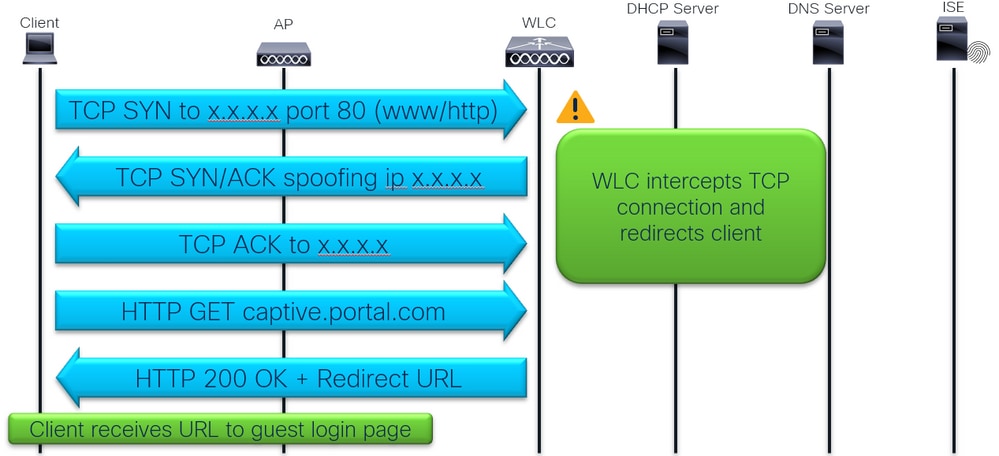 Traffic interception and redirection
Client login into ISE guest login portal:
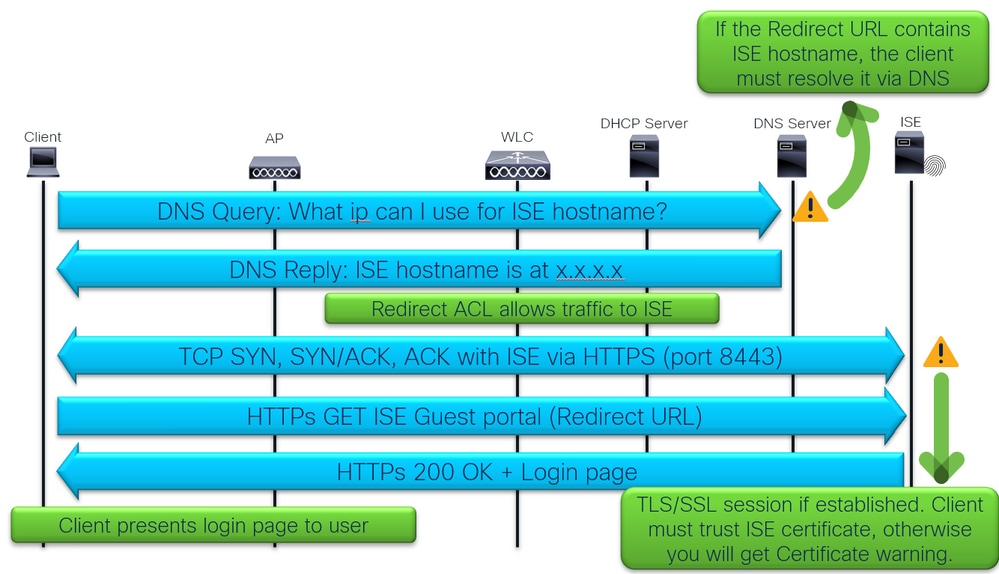 Client login into ISE guest login portal
Client login and CoA:
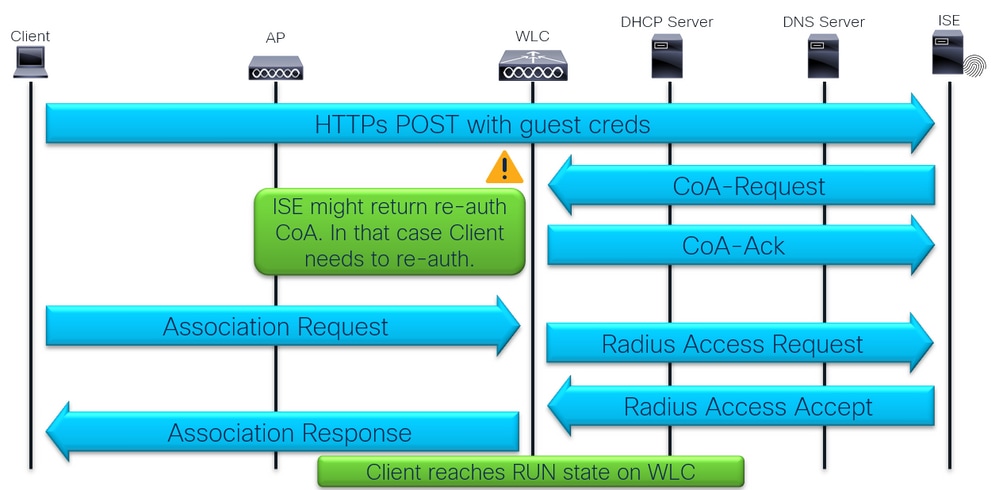 Client login and CoA
Troubleshoot
Common Symptom of a User not Being Redirected to Login Page
Let us start with the first part of the flow:
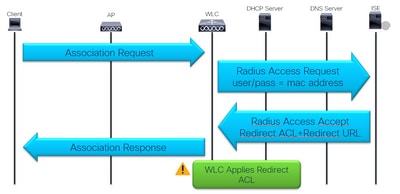 First Assocition and RADIUS Authentication
Is the First RADIUS Authentication Successful?
Check the MAC filtering authentication result:
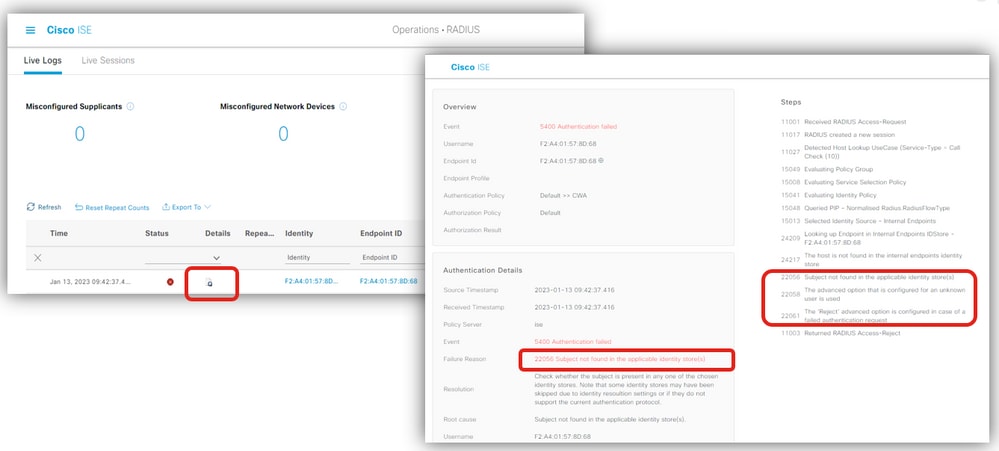 ISE Live logs showing mac filtering authentication result
Ensure that the advanced option for the authentication is set to Continue if the user is not found:
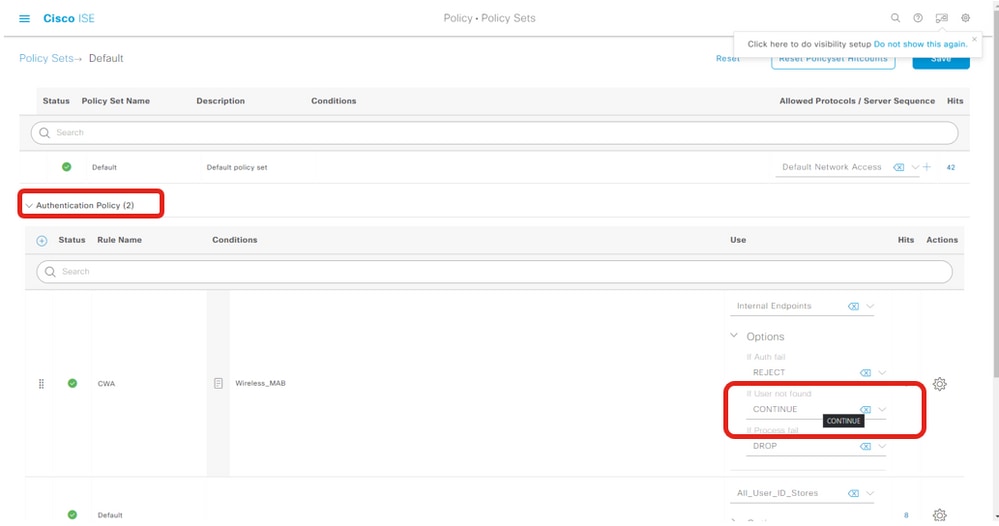 User not found advanced option
Does the WLC Receive the Redirect URL and ACL?
Check ISE live logs and WLC client security information under Monitoring Verify that the ISE sends Redirect URL and ACL in the Access Accept and it is received by WLC and applied to the client in the client details:
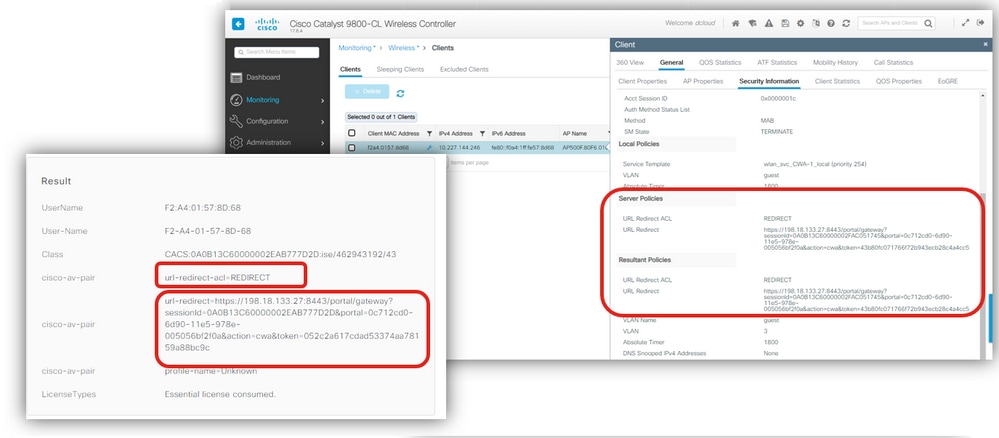 Redirect ACL and URL
Is the Redirect ACL Correct?
Check ACL name for any typo. Ensure it is exactly like it is sent by the ISE:
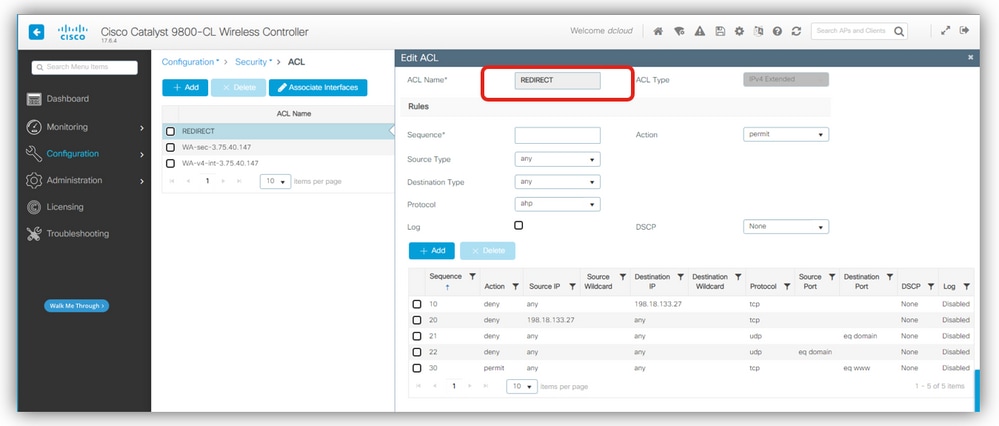 Redirect ACL verification
Is the Client Moved to Web-Auth Pending?
Check client details for Web Auth Pending state. If its not in that state, then verify if AAA override and RADIUS NAC are enabled in policy profile:
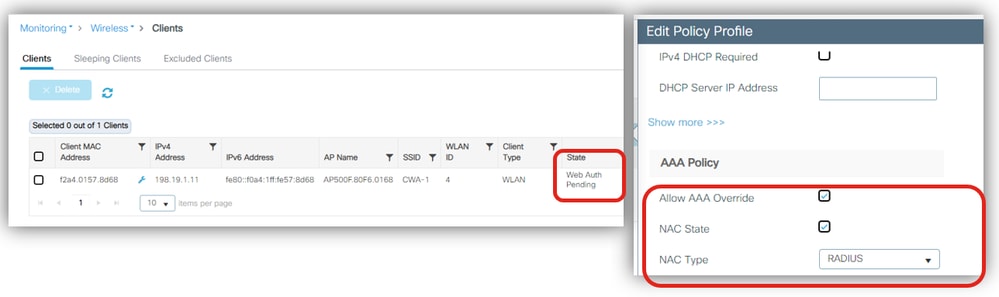 Client details, aaa override and RADIUS NAC
If the issue persists, revisit the flow:
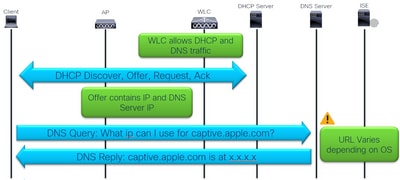 DHCP, DNS and Connectivity Check
Does WLC Allow DHCP and DNS Traffic?
Verify the redirect ACL contents in the WLC:
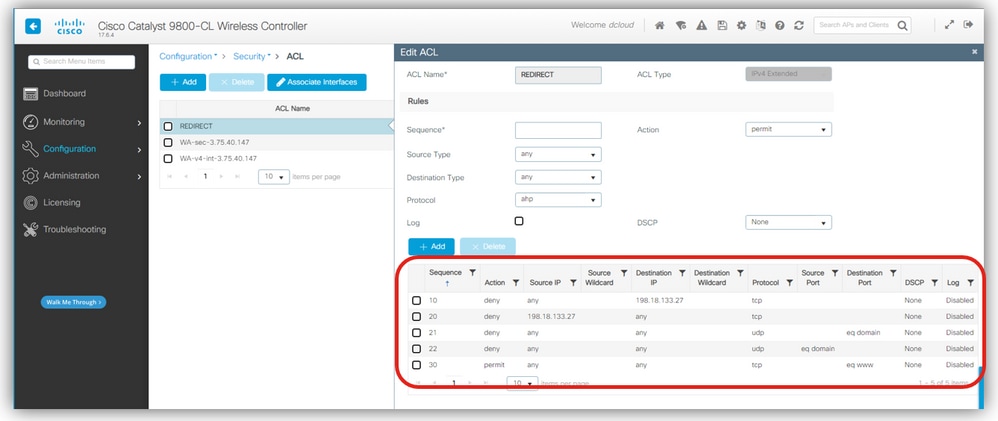 Redirect ACL contents in the WLC
The Redirect ACL defines which traffic is intercepted and redirected by the permit statement and which traffic is ignored from interception and redirection with a deny statement.
In this example, DNS and traffic to/from the ISE IP address are allowed to flow, and any TCP traffic on port 80 (WWW) is intercepted.
Does DHCP Server Receive DHCP Discover/Request?
Check with EPC if DHCP exchange happens. EPC can be used with Inner Filters like DHCP protocol and/or Inner Filter MAC where you can use the client device MAC address and obtain in the EPC only DHCP packets sent by or sent to the client device MAC address.
In this example, note the DHCP Discover packets sent as broadcast on VLAN 3:
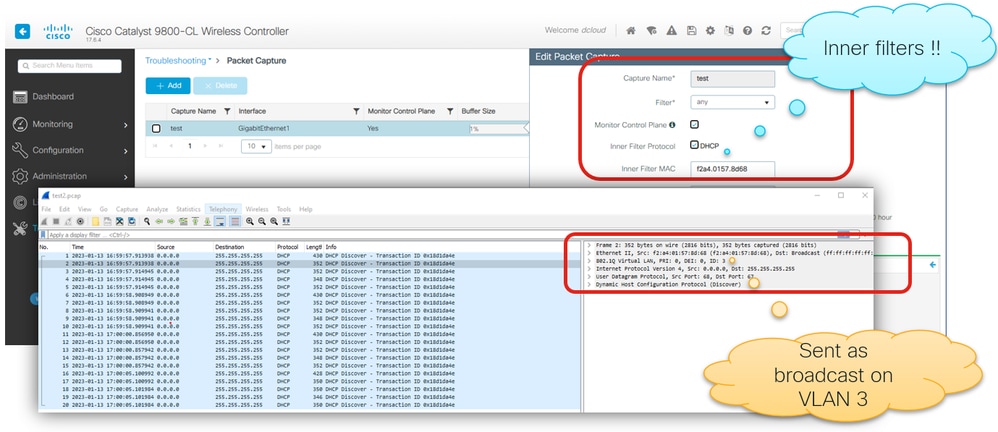 WLC EPC to verify DHCP
Confirm the expected client VLAN in the policy profile:
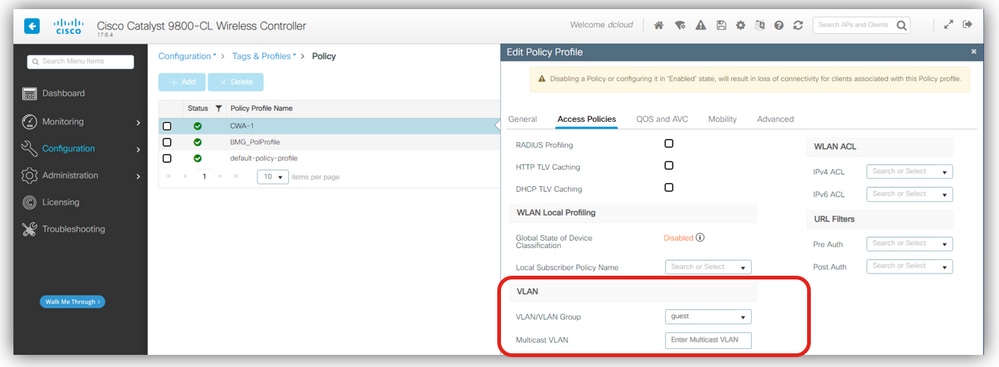 VLAN in the policy profile
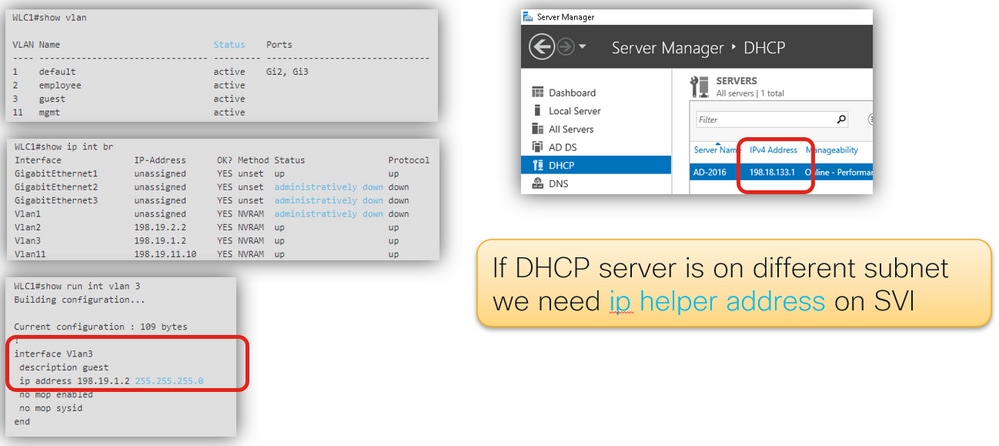
Verify the WLC VLAN, switchport Trunk configuration, and DHCP subnet:
 VLAN, switchport and DHCP subnet
VLAN 3 exists in the WLC and it also has a Switch Virtual Interface (SVI) for VLAN 3. However, when verifying the DHCP server IP address, it is on a different subnet; therefore, an ip helper-address is needed on the SVI.
Best practices dictate that SVIs for client subnets be configured in the wired infrastructure, avoiding them at the WLC.
In any case, the ip helper-address command must be added to the SVI regardless of where it resides.
An alternative is to configure the DHCP server IP address at the Policy profile:
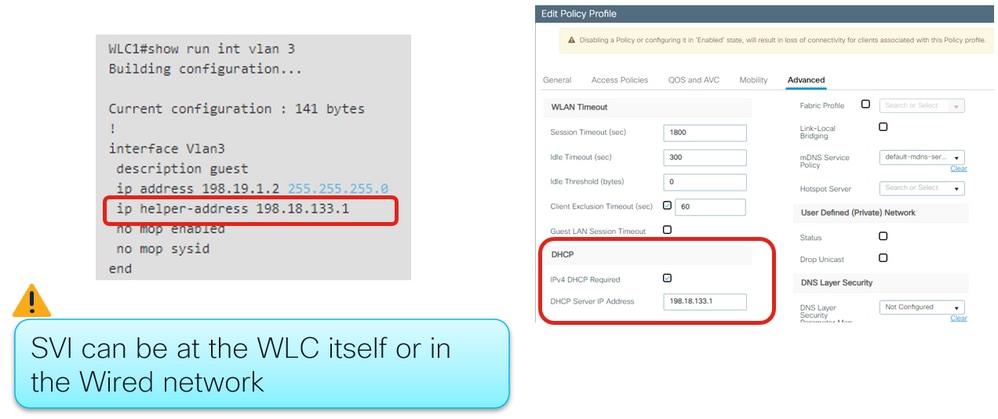 Ip helper-address at SVI or Policy Profile
You can then verify with EPC if the DHCP exchange is successful and if the DHCP server offers DNS server IP(s):
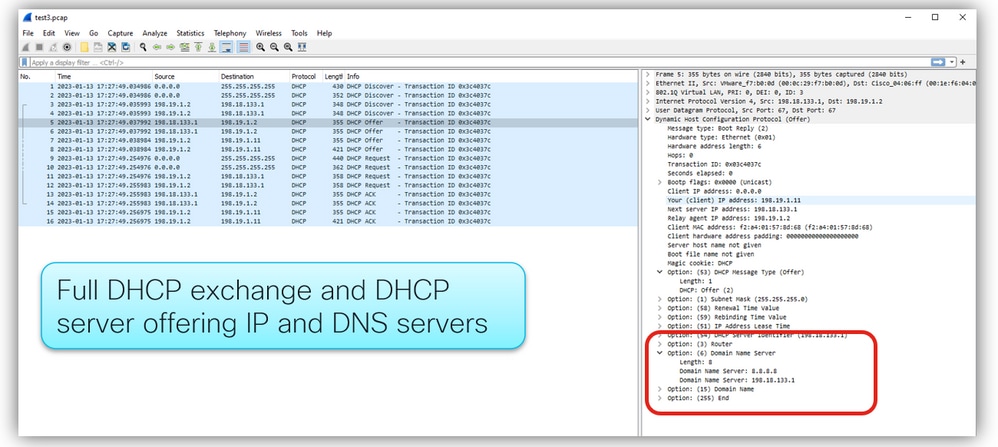 DHCP Offer detail of DNS server ip
Does the Automatic Redirect Happen?
Verify with WLC EPC if the DNS server replies to queries:
 DNS query and responses
- If the redirection is not automatic, open a browser and try a random IP address. For example 10.0.0.1.
- If redirection then works, it is possible that you have a DNS resolution problem.
If the issue persists, revisit the flow:
 Traffic interception and redirection
Does the Browser not Show the Login Page?
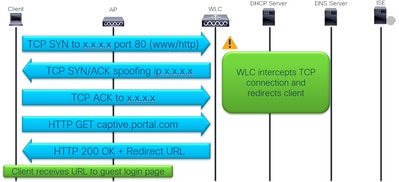
Verify if the client sends the TCP SYN to port 80 and the WLC intercepts it:
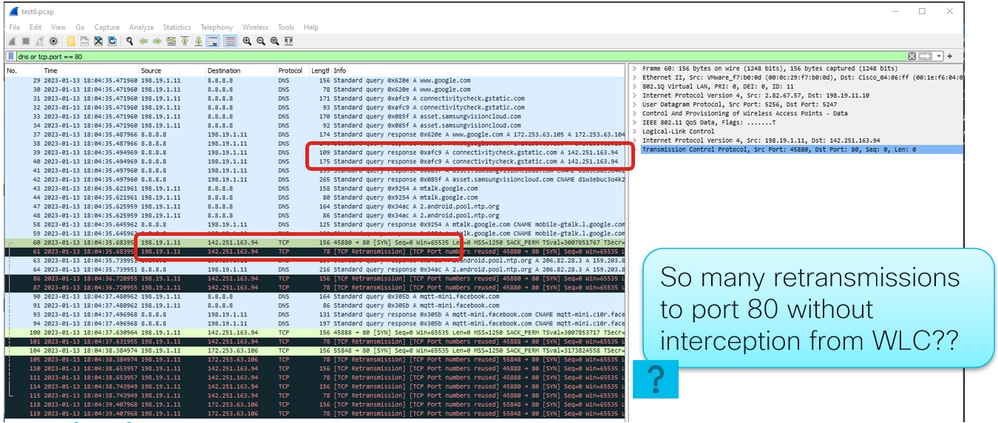 TCP retransmissions to port 80
In this example, the client sends TCP SYN packets to port 80 but does not get any reply and performs TCP retransmissions.
Ensure you have the ip http server command in the global configuration or webauth-http-enable in the parameter-map global:
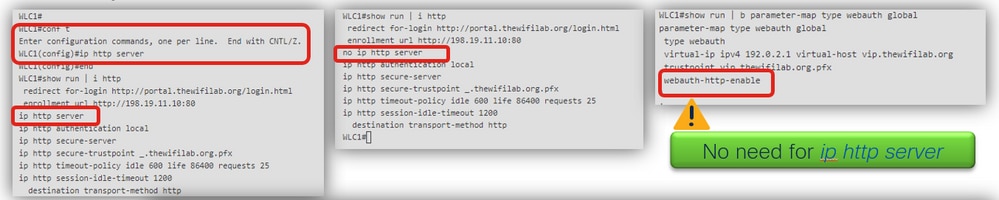 http interception commands
After the command is applied, the WLC intercepts the TCP traffic and spoofs the destination IP address to reply to the client and redirect.
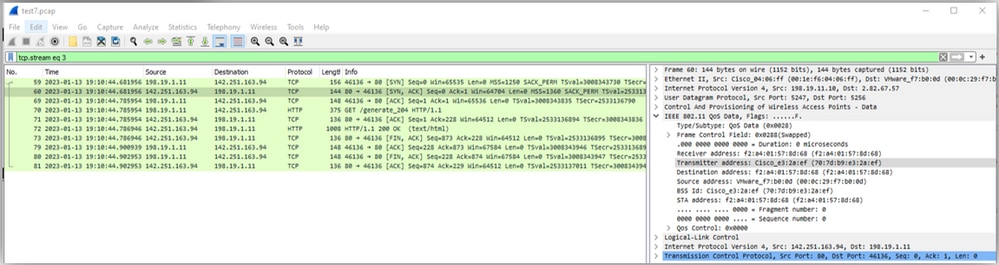 TCP interception by WLC
If the issue persists, continue with the flow:
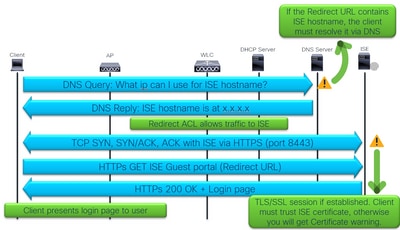 Client login into ISE guest login portal
Can the Client Resolve the ISE Hostname?
Verify if the redirect URL uses an IP address or hostname, and if the client resolves the ISE hostname:
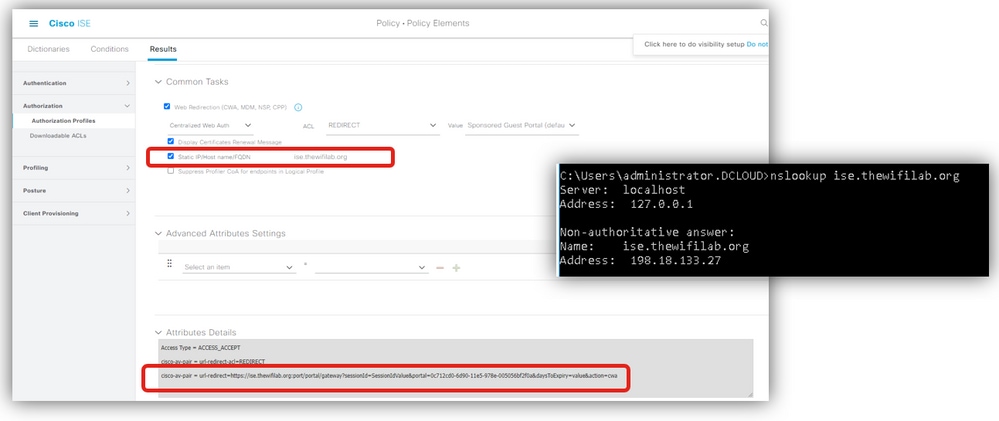 ISE Hostname resolution
A common issue occurs when the redirect URL contains the ISE hostname, but the client device is unable to resolve that hostname to the ISE IP address. If a hostname is used, ensure that it is resolvable via DNS.
Does the Login Page still not Load?
Verify with WLC EPC and ISE TCPdump if client traffic reaches the ISE Policy Services Node (PSN). Configure and initiate the captures on the WLC and ISE:
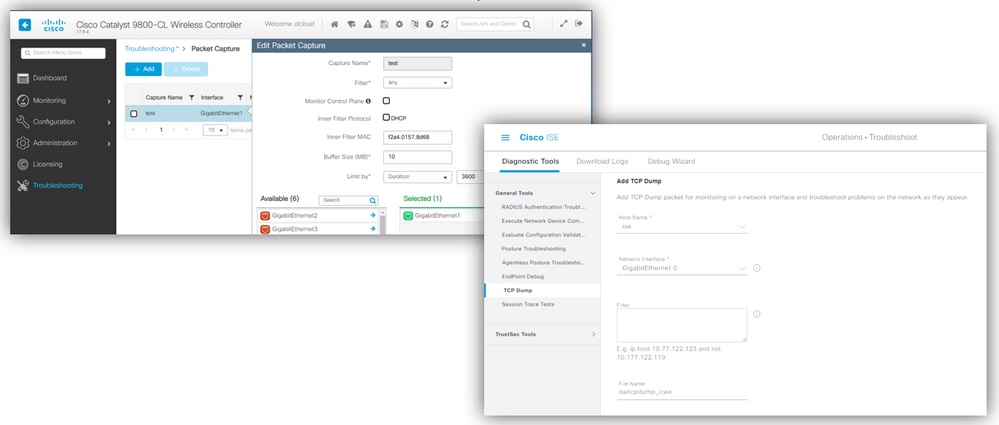 WLC EPC and ISE TCPDump
After issue reproduction, collect captures and correlate traffic. In this example, the ISE hostname is resolved, followed by communication between the client and ISE on port 8443:
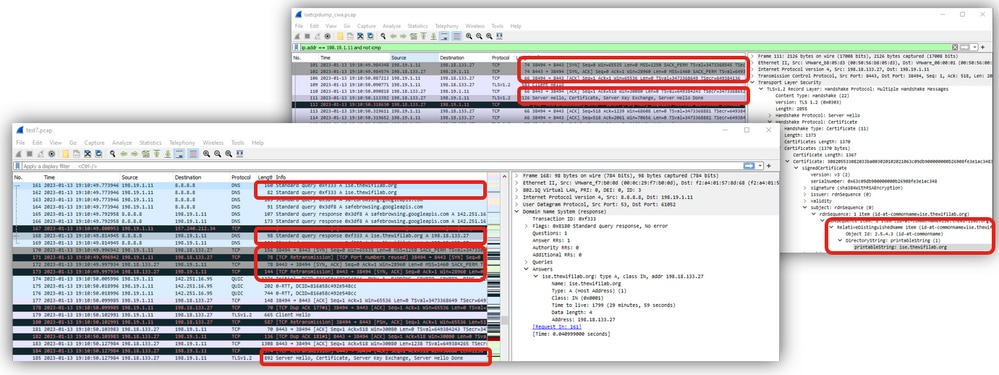 WLC and ISE traffic
Why is There a Security Violation due to the Certificate?
- If you use a self-signed certificate on ISE, it is expected that the client throws a security warning when it attempts to present the ISE portal login page.
On the WLC EPC or ISE TCPdump, you can verify if the ISE certificate is trusted.
In this example, the connection closes from the client with an Alert (Level: Fatal, Description: Certificate Unknown), which means the ISE certificate is not known (trusted
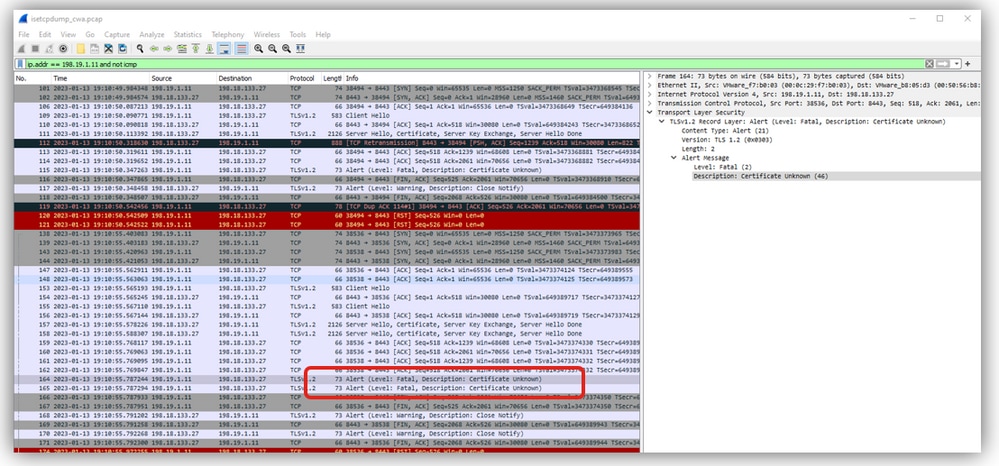 ISE untrusted certificate
If checked on the client side, you see these example outputs:
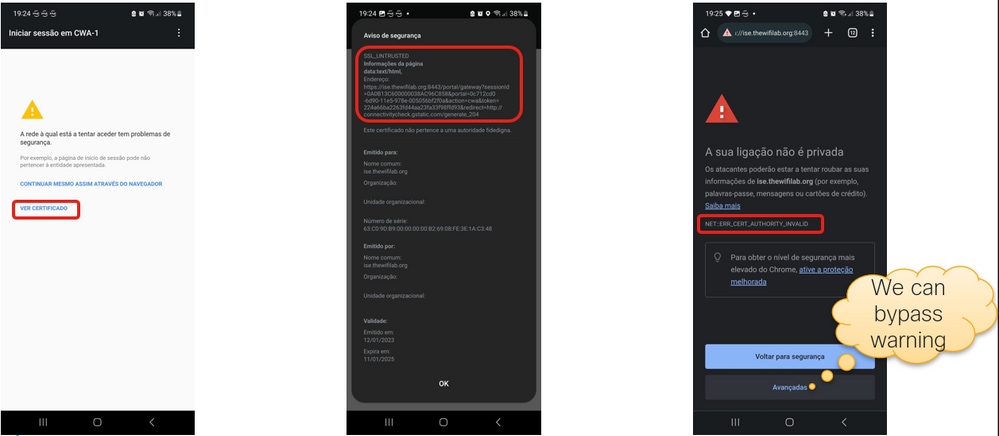 Client device that does not trust ISE certificate
If redirection works but login fails, check the final part of the flow:
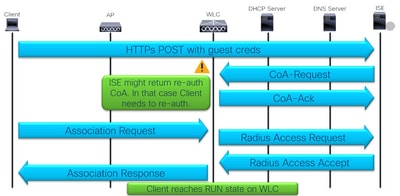 Client login and CoA
Does the Guest Login fail?
Check ISE logs for failed authentication. Ensure credentials are correct.
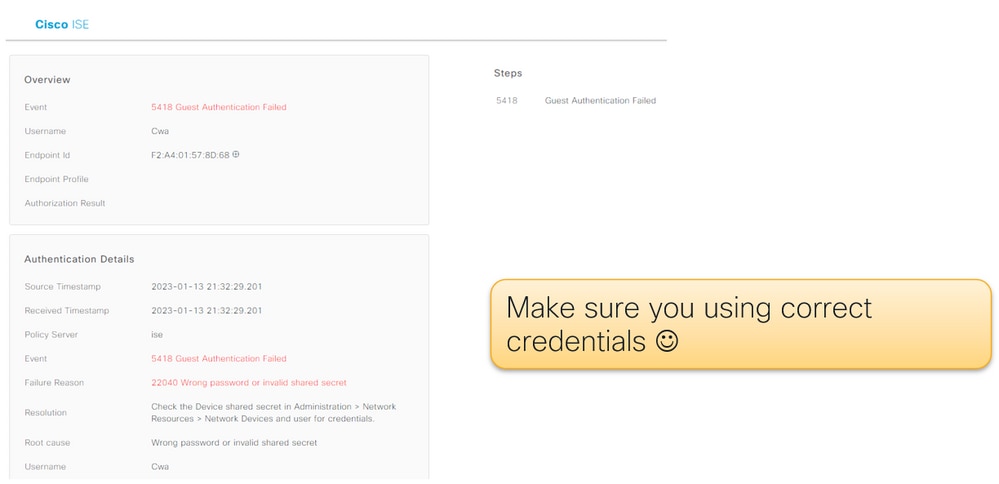 Guest authentication fails due to wrong credentials
Does the Login Succeed but the Client does not Move to RUN Sttate?
Check ISE logs for authentication details and results:
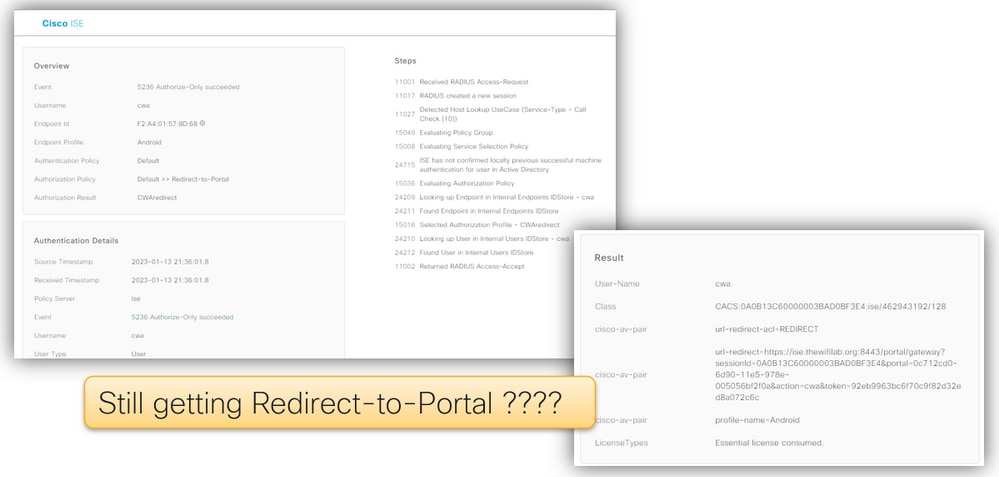 Redirection loop
In this example, the client receives the authorization profile again that contains the Redirect URL and Redirect ACL. This results in a redirection loop.
Check the Policy set. The rule checking Guest_Flow must be placed before the Redirection rule:
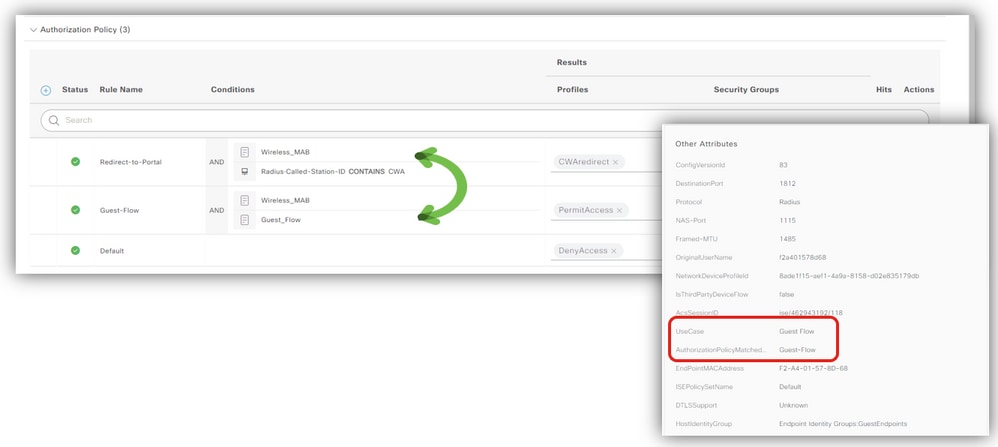 Guest_Flow rule
Is COA Failing?
With EPC and ISE TCPDump, you can verify CoA traffic. Verify if the CoA port (1700) is open between the WLC and ISE. Ensure the shared secret matches.
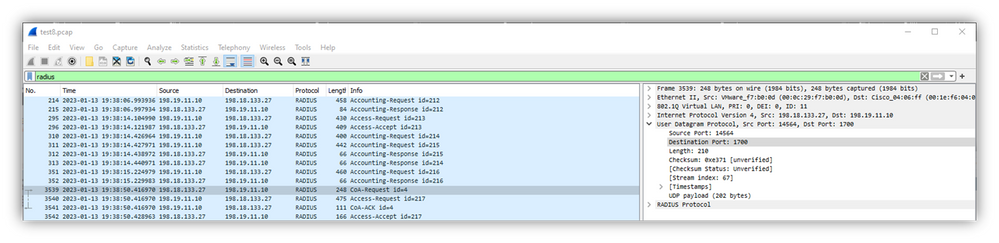 CoA traffic

Note: On version 17.4.X and later, ensure to also configure the CoA server key when you configure the RADIUS server. Use the same key as the shared secret (they are the same by default on ISE). The purpose is to optionally configure a different key for CoA than the shared secret if that is what your RADIUS server configured. In Cisco IOS® XE 17.3, the web UI simply used the same shared secret as CoA key.
As from version 17.6.1, RADIUS (including CoA) is supported through this port. If you want to use the Service Port for RADIUS then you need this configuration:
aaa server radius dynamic-author
 client 10.48.39.28 vrf Mgmt-intf server-key cisco123

interface GigabitEthernet0
 vrf forwarding Mgmt-intf
 ip address x.x.x.x x.x.x.x

!if using aaa group server:
aaa group server radius group-name
 server name nicoISE
 ip vrf forwarding Mgmt-intf
 ip radius source-interface GigabitEthernet0
Summary
This is the summarized CWA checklist:
- Ensure the client sits on the correct VLAN and gets an IP address and DNS.
- Get client details at the WLC and run packet captures to see the DHCP exchange.
- Verify that the client can resolve hostnames via DNS.
- Ping the hostname from the command prompt.
- The WLC must be listening on port 80.
- Verify the global command ip http server or global parameter map command webauth-http-enable.
- To remove the certificate warning, install a trusted certificate on ISE.
- There is no need to install a trusted certificate on the WLC in CWA.
- Set the Authentication Policy at ISE Advanced option to Continue if the user is not found.
- Allow sponsored Guest users to connect and get the URL Redirect and ACL.
Main tools used in the troubleshoot:
-
- WLC EPC
- : Inner filters: DHCP protocol, MAC address.
- WLC Monitor
- : Check client security details.
- WLC RA tracing
- : Debugs with detailed info at the WLC side.
- ISE Live Logs
- : Authentication details.
- ISE TCPDump
- : Collect packet captures at the ISE PSN interface.
Resource Information
Revision History
| Revision | Publish Date | Comments |
|---|---|---|
2.0 |
26-Aug-2026
|
Major overhaul, grammar, formatting |
1.0 |
25-Aug-2023
|
Initial Release |

 Feedback
Contact Cisco
- Open a Support Case

- (Requires a Cisco Service Contract)