Configure AP in Sniffer Mode on Catalyst 9800 WC
Available Languages
Contents
Introduction
This document describes how to configure an Access Point (AP) in Sniffer Mode on a Catalyst 9800 Series Wireless Controller (9800 WLC).
Prerequisites
Requirements
Cisco recommends that you have knowledge of these topics:
- 9800 WLC configuration
- Basic knowledge in the 802.11 standard
Components Used
The information in this document is based on these software and hardware versions:
- AP2802, C9130AXI APs
- Wireshark 3.4.4 or higher
- 9800 WLC Cisco IOS® XE Versions 17.3.2a and 26.1.1
The information in this document was created from the devices in a specific lab environment. All of the devices used in this document started with a cleared (default) configuration. If your network is live, ensure that you understand the potential impact of any command.
Background Information
A sniffer mode AP is an access point joined to a Catalyst 9800 controller, whose radio is dedicated to receiving all 802.11 packets on a given channel, and transmitting those packets with an AiroPeek header, in CAPWAP, to the 9800. The 9800 forwards those sniffed packets in UDP (source port 5555, destination port 5000) to an IPv4 sniffer destination device, such as a computer running Wireshark in promiscuous mode. Those packets can then be analyzed offline.
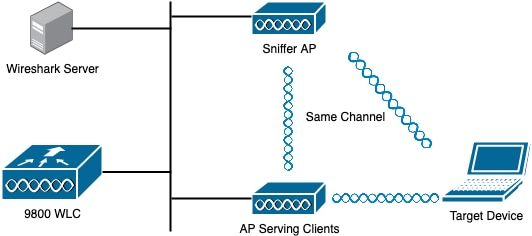
The Access Point in Sniffer Mode can be configured through the Graphic User Interface (GUI) or Command Line Interface (CLI). This document also covers how to collect a Packet Capture (PCAP) Over the Air (OTA) with the sniffer AP to troubleshoot and analyze wireless behaviors.
Caveats
Do not use the Sniffer Mode AP feature if the Catalyst 9800 is connected to Cisco Application Centric Infrastructure (ACI) with default endpoint learning. The 9800 transmits its UDP-encapsulated 802.11 captured packets sourced from the 9800s egress IP address, but with the source MAC address set to the sniffer APs radio's MAC, with low-order nibble set to 0xF. This causes problems as ACI sees the same IP address sourced from multiple MAC addresses; see Cisco bug ID CSCwa45713.
Design Considerations
Things to consider:
- It is recommended to have the sniffer AP close to the target device and the AP where the device is connected. If the sniffer AP is far from the transmitters, it cannot demodulate most data frames.
- The sniffer AP can support the modulation set being used by the transmitting and receiving devices under test. For example, if the devices under test are using 802.11ax, use an 802.11ax or 802.11be AP to sniff, not an 802.11ac AP such as an AP2802.

Note: The AP in sniffer mode is not supported on 9800-CL deployed on a public Cloud.
Configurations
Configure AP in Sniffer Mode via GUI
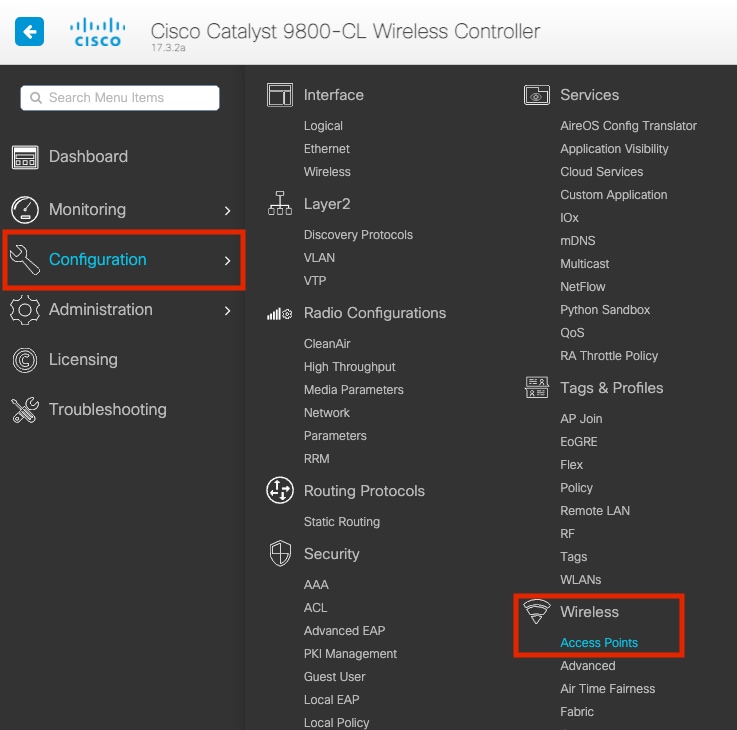
1. On the 9800 WLC GUI, navigate to Configuration > Wireless > Access Points > All Access Points, as shown in the image:
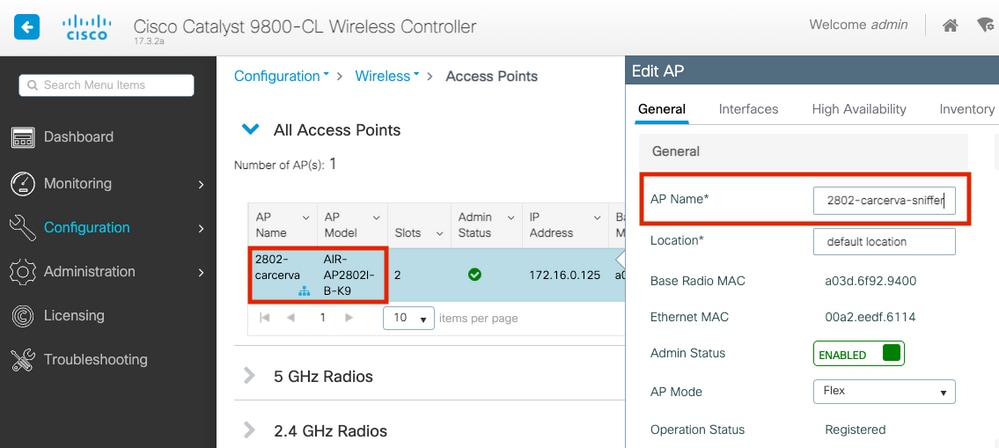
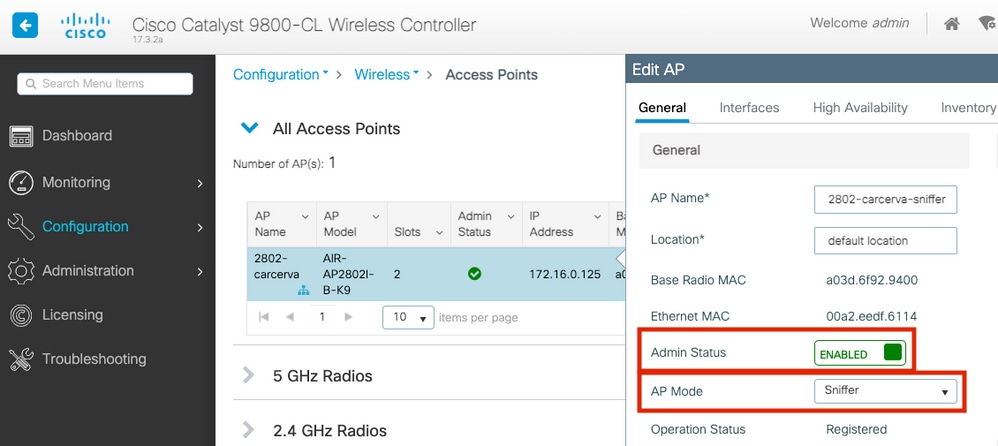
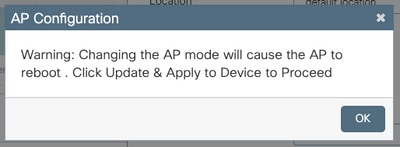
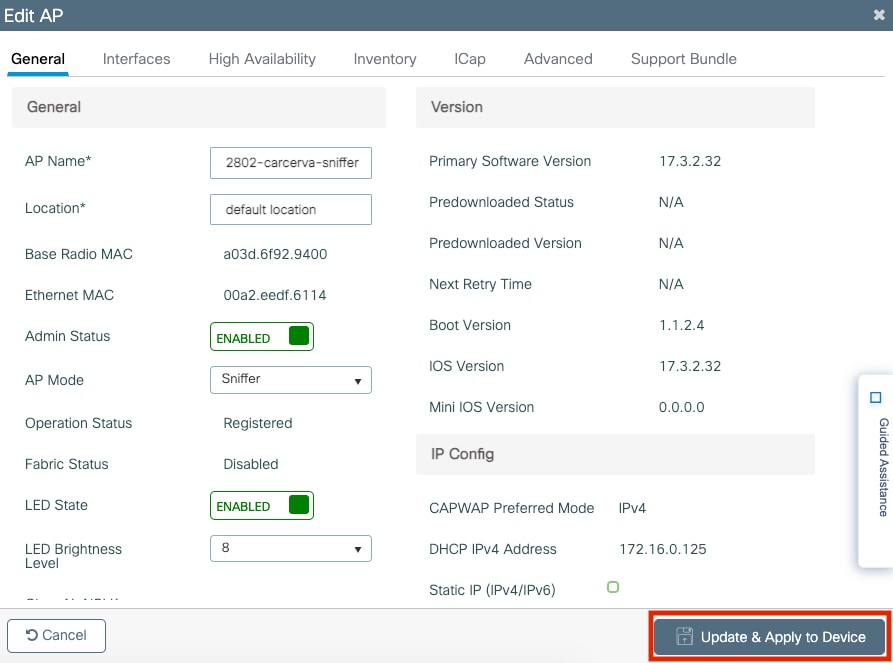
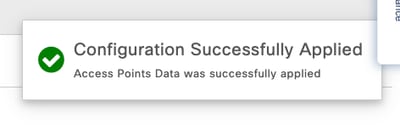
2. Select the AP that you want to be used in sniffer mode. In the General tab, ensure the Admin Status is ENABLED and set the AP Mode to Sniffer. Click OK in the pop-up warning, then Update & Apply to the device.
3. The AP disjoins then rejoins after a few minutes.
Configure AP in Sniffer Mode Via CLI
1. Identify the AP you want be use as Sniffer Mode.
2. Configure the AP in Sniffer mode.
9800-L#ap name C9130AXI mode sniffer
3. The AP disjoins then rejoins after a few minutes.
Configure AP To Scan the Desired Channel Via GUI
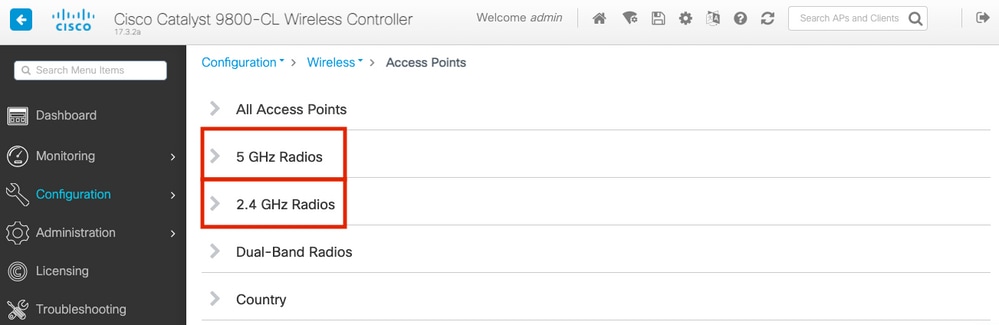
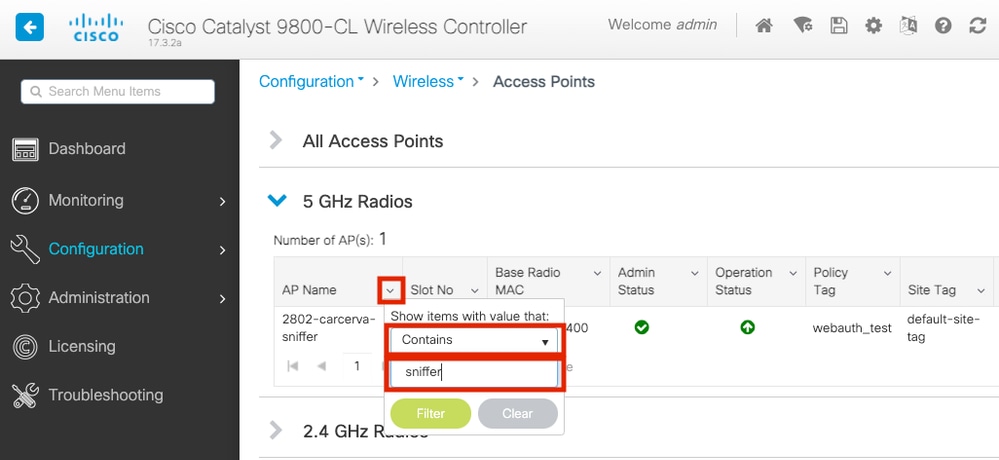
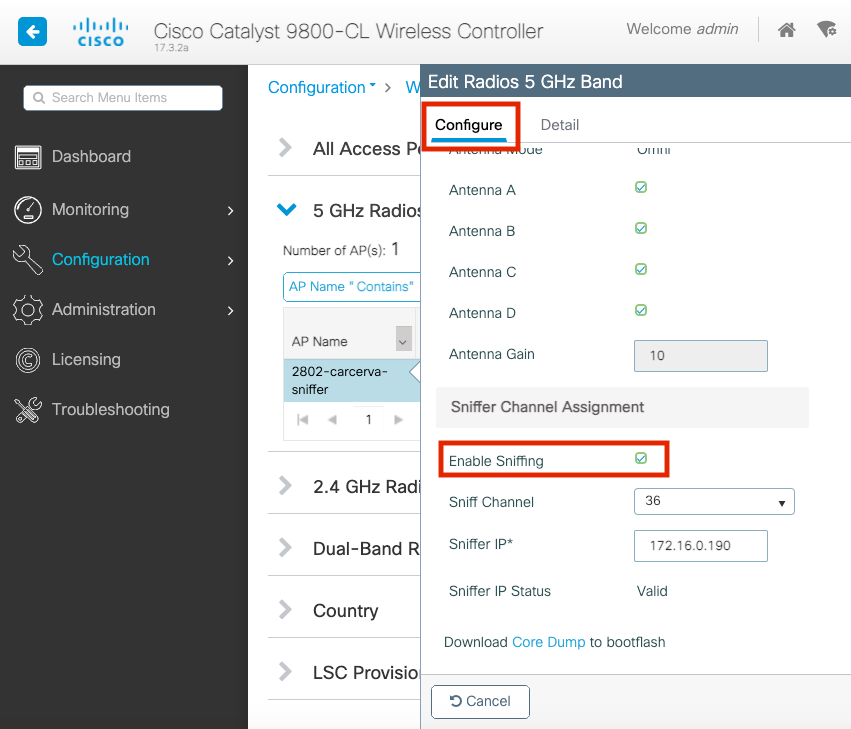
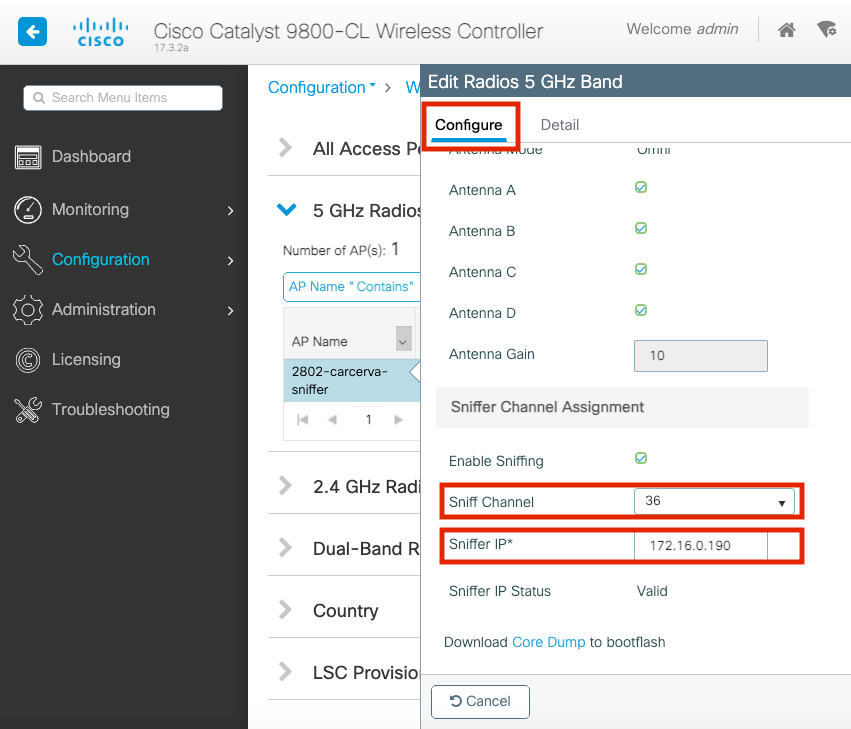
1. In Configuration > Wireless > Access Points (1), scroll down to find the sniffer APs radio in the desired band. In this example, under 5 GHz Radios (2), AP C9130AXI's Slot 1 radio (3). Configure that radio (4) to enable sniffing (5), assigning the desired channel to sniff, and entering the IP address of the sniffing device.
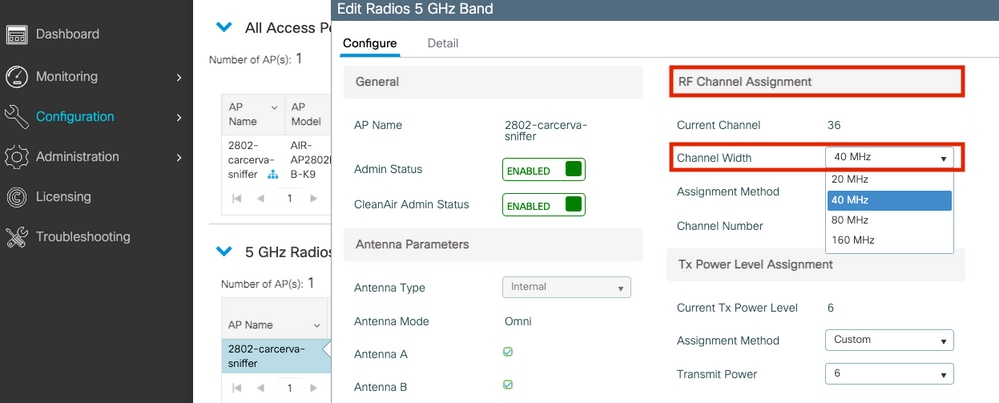
2. Under the RF Channel Assignment (6), set the Assignment Method to Custom, and set the desired channel width in the drop-down. Click Update and Apply to Device (7).
Configure AP to Scan a Channel via CLI
1. Configure the channel to sniff on the AP and tun this command:
9800-L#ap name <ap-name> dot11 sniff {24ghz | 5ghz | 6ghz} slot <slot> <channel> <Sniffer-IP-address>
Example:
9800-L#ap name C9130AXI dot11 5ghz slot 1 sniff 36 192.168.203.102
2. Configure the channel width:
9800-L#ap name <ap-name> dot11 {24ghz | 5ghz | 6ghz} slot <slot> channel width <width in MHz>
Example:
9800-L#ap name C9130AXI dot11 5ghz slot 1 channel width 40
At this point, the sniffer AP is capturing over the air packets and sending them in CAPWAP to the 9800. The 9800 then forwards the sniffed packets to the capture device.
Configure Wireshark to Collect the Packet Capture
1. Launch Wireshark.
2. Select the Capture options menu icon from Wireshark:
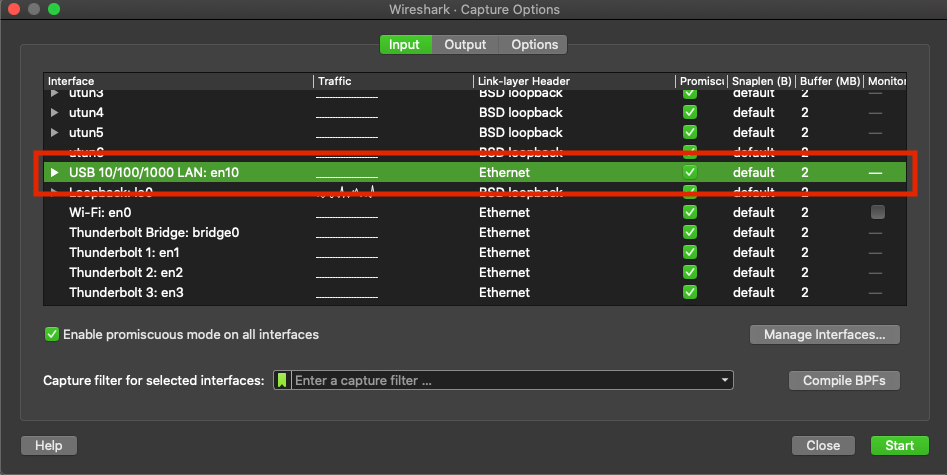
3. This action displays a pop-up window. Select the Wired Interface from the list as the source of the capture. Ensure the Promiscuous option is checked.
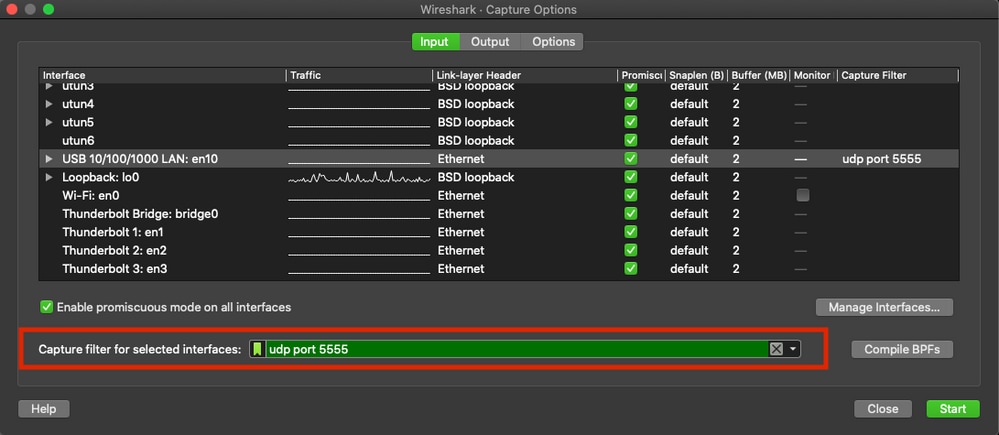
4. Under the Capture filter for selected interfaces field box, type udp port 5555 as shown in the image:
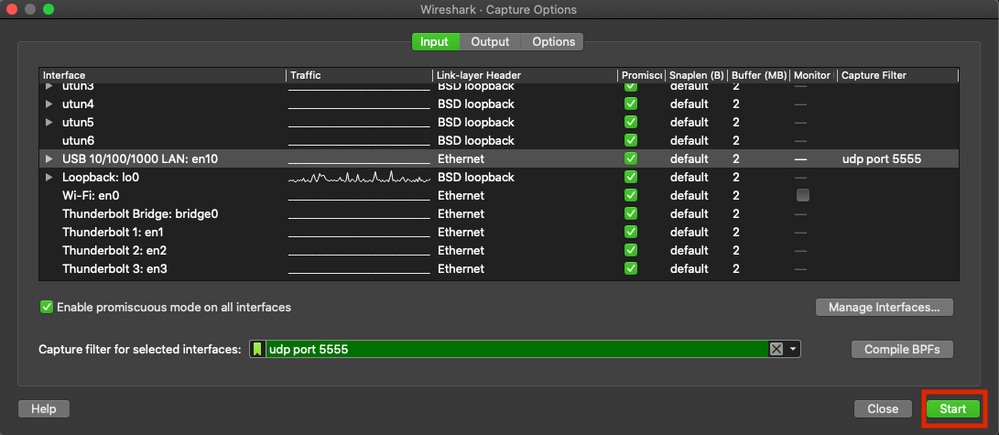
5. Click Start.
6. Wait for Wireshark to collect the information required and select the Stop button from Wireshark.
7. Wireshark does not decode the packets automatically. To decode the packets, select a line from the capture, then right-click to display the options, and select Decode As...
8. A pop-up window appears, select the add button by clicking the + sign and add a new entry. Select these options: UDP port from Field, 5555 from Value, SIGCOMP from Default, and PEEKREMOTE from Current.
9. Click OK. The packets are decoded and ready to start the analysis.
Alternative Tap Point - Sniffer APs Switchport
As an alternative to capturing the sniffed packets sourced from the controller, you can span the Sniffer APs switchport to a wired sniffer. This captures the Airopeek formatted 802.11 packets encapsulated in CAPWAP. If the link CAPWAP link from the AP to 9800 is lossy, this has the benefit of avoiding the loss.
On the 9800, you can run the show ap name <APNAME> cdp neighbors command to find the APs switch name, IP address, and switchport. Cable a LAN sniffer (such as a PC or MacBook with LAN interface) to a free switchport on the APs switch. Run Wireshark and set it into promiscuous mode to capture all packets received from that switchport, as per the instructions above. On the switch, run commands like these, to span the APs:
switch(config)#monitor session 1 source interface Gi0/3
switch(config)#monitor session 1 destination interface Gi0/19
Where Gi0/3 is the sniffer APs switchport, and GI0/19 is the switchport into the LAN sniffer is tapped. To validate on the LAN sniffer, that it is successfully collecting the span from the AP switchport, you can filter the captured packets on cdp:
Alternative Tap Point - EPC in the 9800
Another option is to capture the sniffed packets via Embedded Packet Capture (EPC) in the 9800. This is convenient as it requires no additional sniffer device for capture.
1. In the GUI, navigate to Troubleshooting > Packet Capture.
2. Add a Capture Point by giving it a capture name.
3. Configure an IPv4 filter, matching on UDP with the source the IP address of the AP, and the destination the 9800s WMI address. Uncheck the Monitor Control Plane.
4. Increase the Buffer size to the maximum (100 MB) and select the WMI interface and click Apple to Device.

5. Then, in the Capture Name list, click Start for the capture point just created. When the event of interest is captured, click Stop and then Export.
6. You can export to your desktop, then open the file in Wireshark. As with the AP switchport span method above, the capture contains 802.11 frames in Aeropeek format in UDP (source port 5555) in CAPWAP.
Verify
Use this section to confirm your configuration works properly. To confirm the AP is in Sniffer mode from the 9800 GUI:
1. In the 9800 WLC GUI, navigate to Configuration > Wireless > Access Points > All Access Points.
2. Find the sniffer AP; verify the Admin Status is green and the AP Mode displays Sniffer.
3. Find the sniffer APs radio. Verify sniffing is enabled and the channel assignment is set as desired. Check that the Sniffer IP Status is accurate, which indicates the 9800 has IP connectivity to it.
4. To confirm the AP is in Sniffer mode from the 9800 CLI, run these commands:
9800-L#show ap name C9130AXI config general | include Administrative
Administrative State : Enabled

9800-L#show ap name C9130AXI config general | include Sniff
AP Mode : Sniffer

9800-L#show ap name C9130AXI config dot11 5Ghz | include Sniff
AP Mode : Sniffer
Sniffing : Enabled
Sniff Channel : 165
Sniffer IP : 192.168.203.102
Sniffer IP Status : Valid
Radio Mode : Sniffer
Radio Role : Sniffer
5. To confirm Wireshark is properly decoding the 802.11 frames, and the sniffer AP was positioned close to the devices of interest, filter on 802.11 beacons (wlan.fc.type_subtype ==
Troubleshoot
Problem: Wireshark does not receive any data from the AP.
Solution: The Wireshark server must be reachable from the Wireless Management Interface (WMI). Confirm the reachability between the Wireshark server and the WMI from the WLC.
Related Information
Revision History
| Revision | Publish Date | Comments |
|---|---|---|
4.0 |
20-Aug-2026
|
Updated Title, spelling, grammar, inserted horizontal lines to separate sections for readability, updated alt text, fixed CCW alerts. |
3.0 |
30-Apr-2025
|
Added Alt Text.
Updated Introduction, Style Requirements, Branding Requirements, Machine Translation, and Formatting. |
2.0 |
14-Mar-2024
|
Add caveat re using with ACI. |
1.0 |
16-Apr-2021
|
Initial Release |

 Feedback
Contact Cisco
- Open a Support Case

- (Requires a Cisco Service Contract)
This Document Applies to These Products
- Aironet 1830 Series Access Points
- Aironet 1840 Series Access Points
- Aironet 1850 Series Access Points
- Aironet 2800 Series Access Points
- Aironet 3800 Series Access Points
- Aironet 4800 Access Points
- Catalyst 9105AX Series Access Points
- Catalyst 9115AX Series Access Points
- Catalyst 9117AX Series Access Points
- Catalyst 9120AX Series Access Points
- Catalyst 9130AX Series Access Points
- Catalyst 9136 Series Access Points
- Catalyst 9162 Series Access Points
- Catalyst 9164 Series Access Points
- Catalyst 9166 Series Access Points
- Catalyst 9800 Series Wireless Controllers