Troubleshoot Webex Calling User Licensing and Device Onboarding Workflow Issues
Available Languages
Contents
Issue
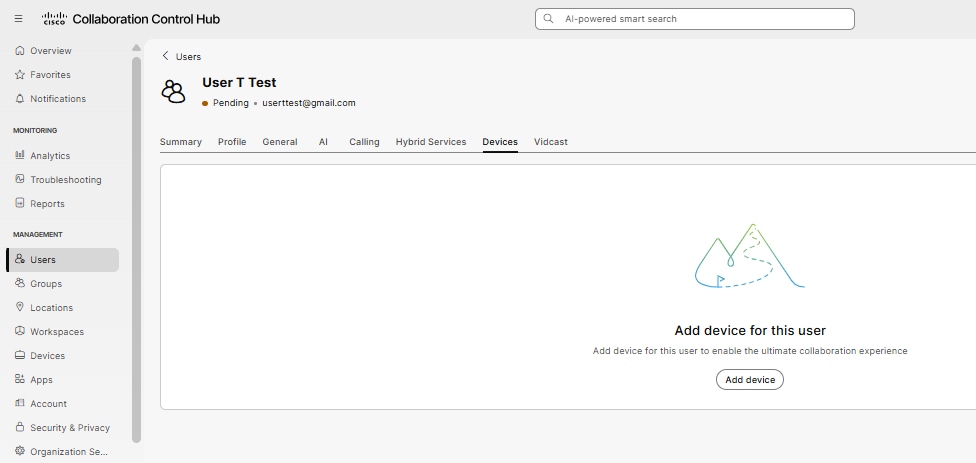
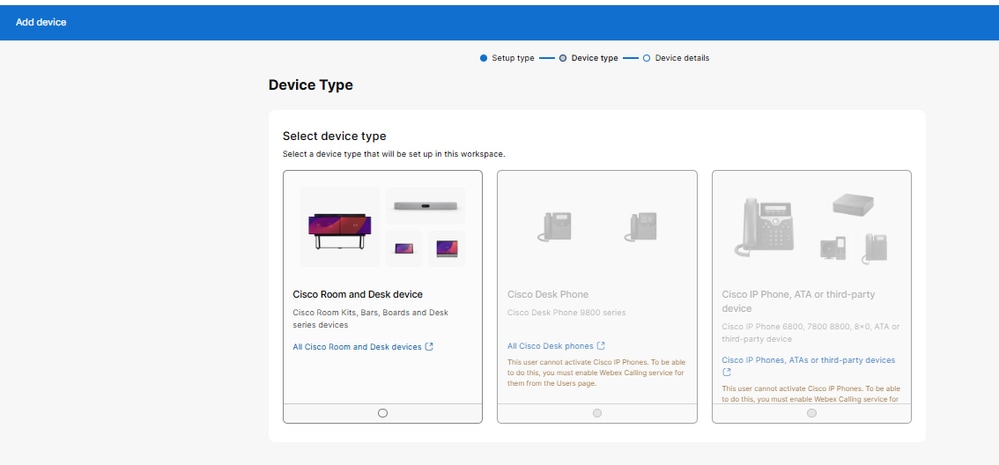
Users are unable to assign phone number or devices (Cisco Desk Phone or Cisco IP Phone) to Webex Calling users in Control Hub. The Add device option for Cisco Desk Phone and Cisco IP Phone appears greyed out when trying to Add device to a User.
Specific symptoms include:
Add Device assignment options for Cisco Desk Phone and Cisco IP Phone unavailable (greyed out) at User > Devices tab for certain users in Control Hub.
Environment
Webex Calling service with Control Hub administration
Cisco 8865 IP phones
Users assigned or not assigned to Webex Calling locations
Resolution
The resolution involves addressing both licensing requirements and proper workflow execution for adding a device and onboarding the device.
Step 1: Verify Lack of Webex Calling License Assignment
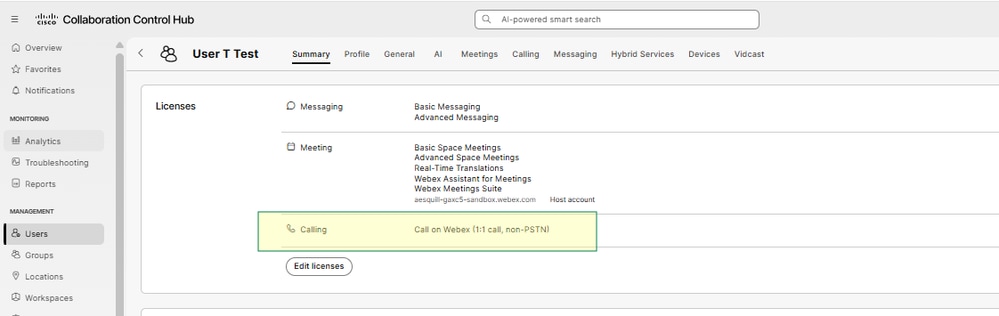
The affected user does not have a Webex Calling license assigned in Control Hub:
Navigate to Control Hub > Management > Users.
Select the affected user account.
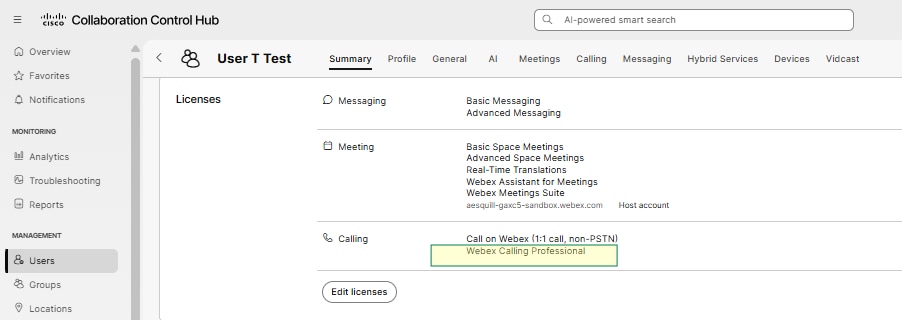
You see no Webex Calling license is assigned to the User at User Summary tab.
You need to assign the Webex Calling Professional license to the User to allow User to Add Device.
Step 2: Assign Webex Calling Professional License and Number Assignment Workflow
Navigate to Control Hub > Management > Users.
Open the target user account.
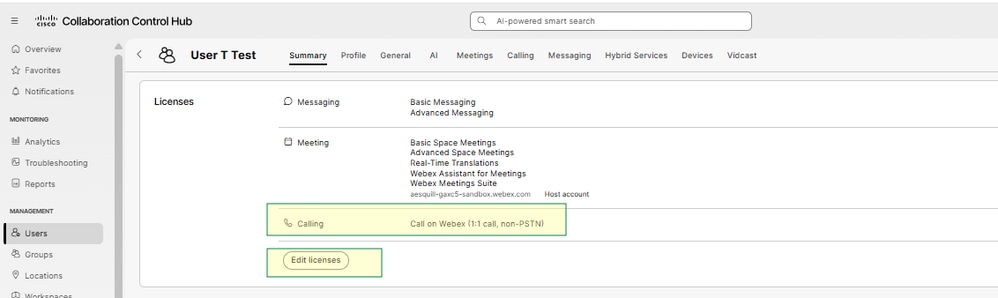
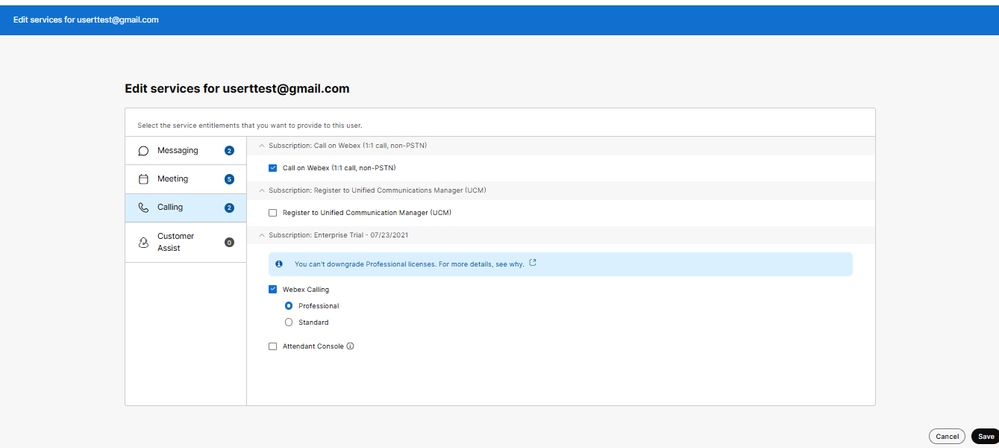
Navigate to Summary > Licensing > Edit Licenses > Edit Licenses > Select Calling > Enable Webex Calling Professional.
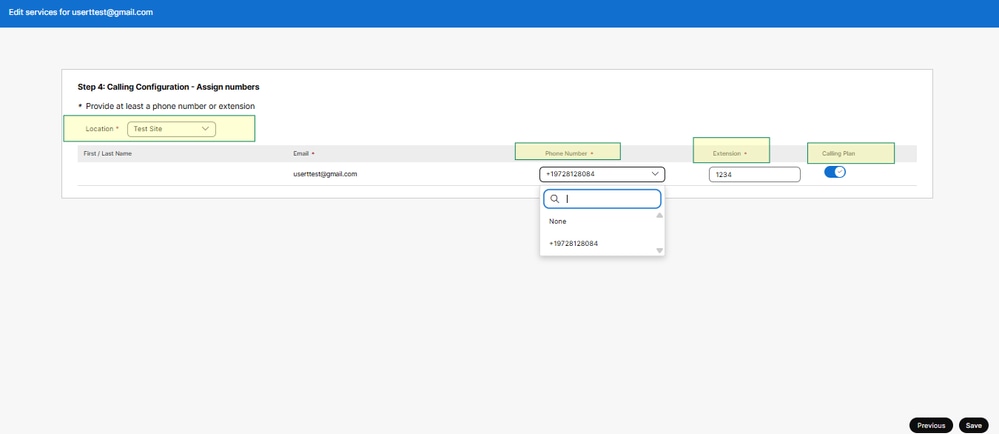
Complete the Webex Calling Professional Wizard by provisioning a Phone Number and/or Extension and enable Calling Plan if the PSTN Carrier is Cisco Calling Plan.
Step 3: Adding Device and Factory Resetting to Onboard Added Device to User
After completing Step 3, you see all 3 device types are available to add to the User; Cisco Room and Desk device, Cisco Desk Phone and Cisco IP Phone, ATA or third-party device.
Navigate to Control Hub > Management > Users.
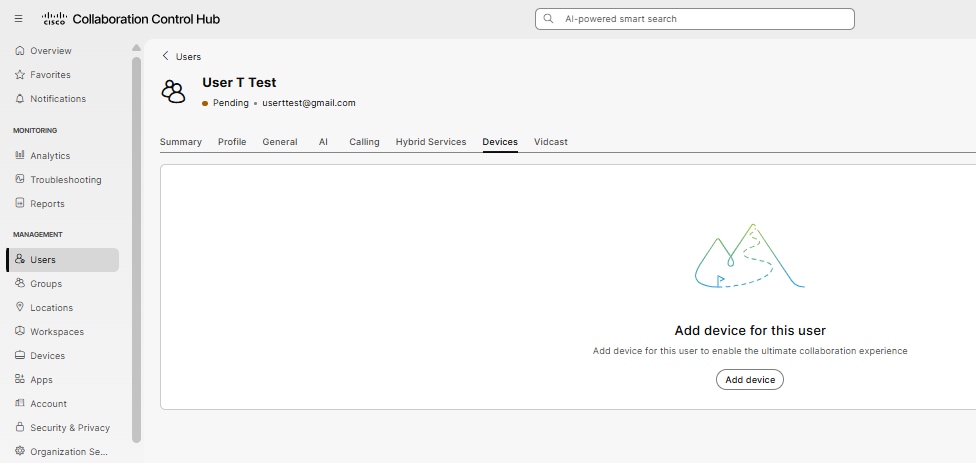
Open the target user account and navigate to Devices tab.
Add the Cisco 8865 as a Cisco IP Phone, ATA or third-party device > Cisco Managed Devices using by MAC address to setup the device.
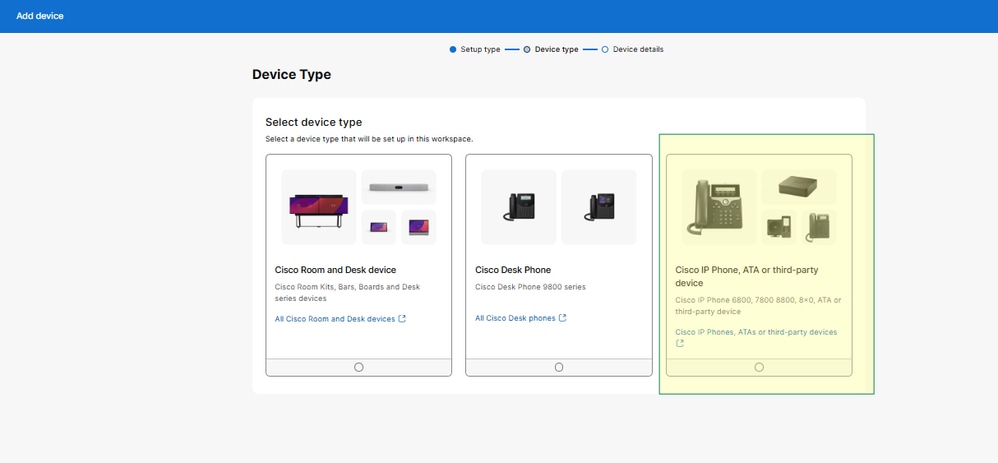
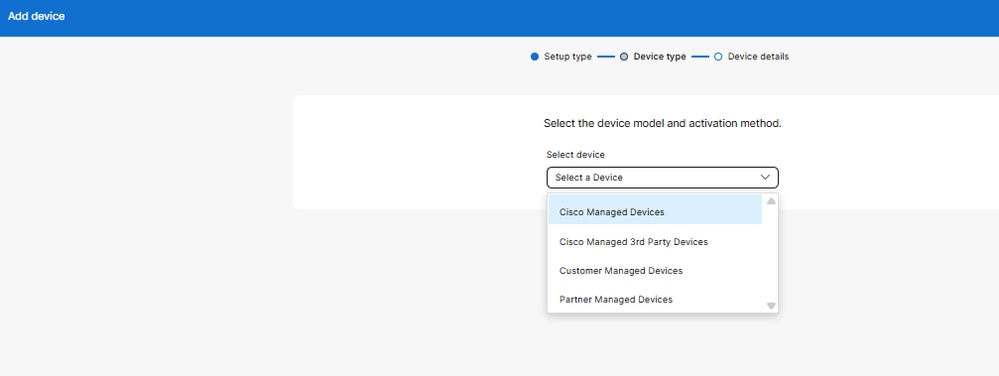
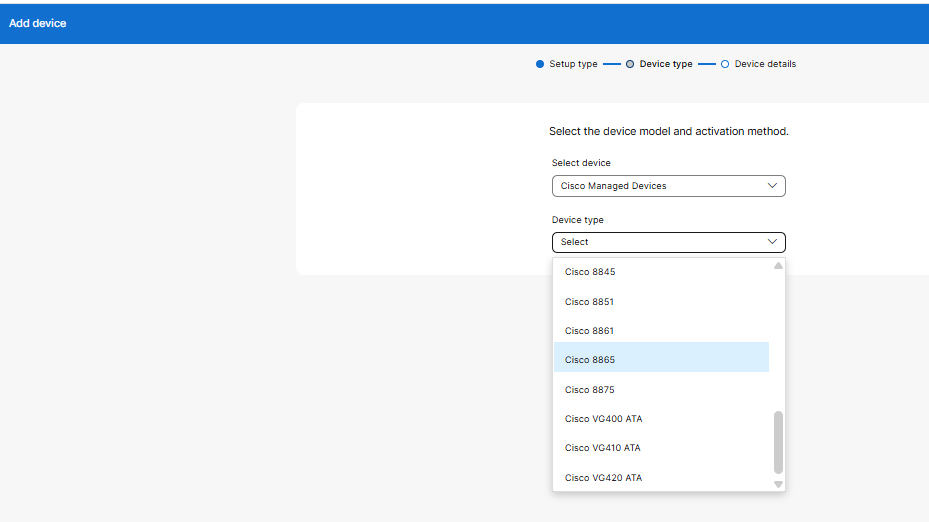
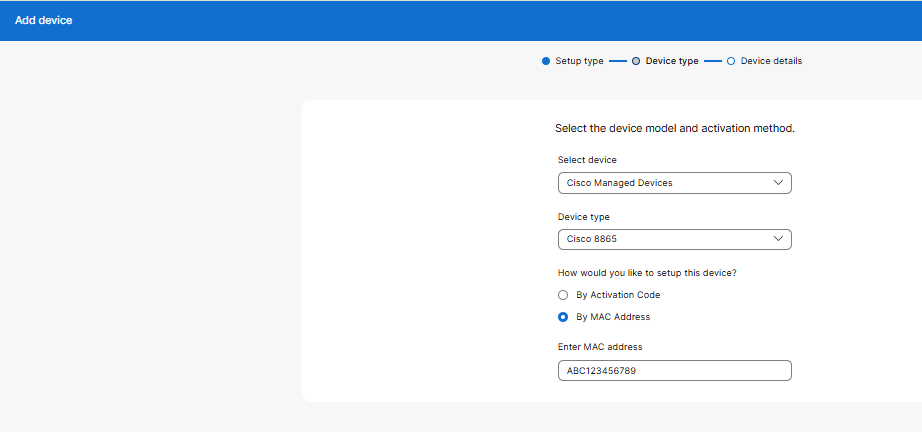
Perform a factory reset on the phone using these steps:
Factory reset procedure for Cisco 8865:
Menu (Gear wheel) > Select 7. Device administration > Select 4. Factory reset > Do you want to perform a factory reset for the system? > Click OK
After the factory reset, the phone reaches out and onboards by MAC address automatically.
Step 4: Validation
Verify successful resolution:
Confirm the Add device assignment options are no longer greyed out.
Verify the phone registers successfully after factory reset.
Test that calls to the assigned number complete successfully.
Ensure no out-of-service messages are returned.
Cause
The issue was caused by multiple factors in the number-assignment and device-onboarding workflow:
Missing Webex Calling License: Users without assigned Webex Calling licenses cannot have devices or phone numbers assigned, causing Control Hub to grey out assignment options.
Device Onboarding State: Cisco 8865 phones can require factory reset to properly onboard and register by MAC address after Add device/provisioning changes.
Related Content
Revision History
| Revision | Publish Date | Comments |
|---|---|---|
1.0 |
09-Nov-2026
|
Initial Release |

 Feedback
Contact Cisco
- Open a Support Case

- (Requires a Cisco Service Contract)