Introduction:
This document describes how to troubleshoot UCS Central backup failures caused by an SSH host key mismatch in UCS Central version 2.0 and later.
Prerequisites
Requirements:
This document assumes that you have knowledge of these topics:
- Cisco UCS Central
- Basic Linux command understanding.
Components Used
- UCS Central version 2.1(1a)
The information in this document was created from the devices in a specific lab environment. All of the devices used in this document started with a cleared (default) configuration. If your network is live, ensure that you understand the potential impact of any command.
Problem Statement:
UCS Central backup operations fail, and the Status tab displays this error message:
“Host key has changed for the remote server. Clear the cached host key and retry.”
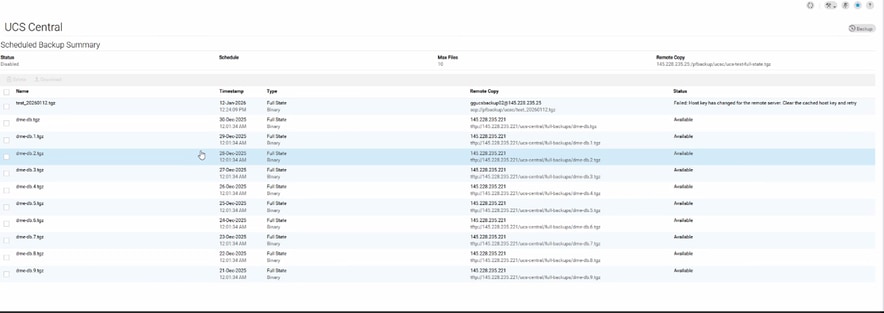
Log Evidence:
# From svc_ops_dme.log:

Jan 6 11:36:47 degtlue2100 svc_ops_dme[1597]: [EVENT][E14194351][79965][transition][internal][] [FSM:STAGE:ASYNC]: uploading data to backup server(FSM-STAGE:sam:dme:MgmtDataExporterExportData:upload)
Jan 6 11:36:47 degtlue2100 svc_ops_dme[1597]: [EVENT][E14194351][79966][transition][internal][] [FSM:STAGE:STALE-FAIL]: uploading data to backup server(FSM-STAGE:sam:dme:MgmtDataExporterExportData:upload)
Jan 6 11:36:47 degtlue2100 svc_ops_dme[1597]: [EVENT][E14194351][79968][transition][internal][] [FSM:STAGE:REMOTE-ERROR]: Result: end-point-failed Code: unspecified Message: Host key has changed for the remote server. Clear the cached host key and retry (sam:dme:MgmtDataExporterExportData:upload)     <<<<<<<
Jan 6 11:36:47 degtlue2100 svc_ops_dme[1597]: [EVENT][E14194351][79970][transition][internal][] [FSM:STAGE:FAILED]: uploading data to backup server(FSM-STAGE:sam:dme:MgmtDataExporterExportData:upload)
Solution :
- Establish an SSH session to the UCS Central system.
2. Verify the installed UCS Central package version.
Central-HTTS1# connect local-mgmt
Cisco UCS Central
TAC support: http://www.cisco.com/tac
Copyright (c) 2011-2025, Cisco Systems, Inc. All rights reserved.
The copyrights to certain works contained in this software are
owned by other third parties and used and distributed under
license. Certain components of this software are licensed under
the GNU General Public License (GPL) version 2.0 or the GNU
Lesser General Public License (LGPL) Version 2.1 or later version. A copy of each
such license is available at
https://opensource.org/license/gpl-2-0 and
https://opensource.org/license/lgpl-2-1
Central-HTTS1(local-mgmt)# show version

Name                Package             Version        GUI
----                -------             -------        ----
core                Base System         2.1(1a)        2.1(1a)
central-mgr         Central Manager     2.1(1a)        2.1(1a)
service-reg         Service Registry    2.1(1a)        2.1(1a)
identifier-mgr      Identifier Manager  2.1(1a)        2.1(1a)
operation-mgr       Operations Manager  2.1(1a)        2.1(1a)
resource-mgr        Resource Manager    2.1(1a)        2.1(1a)
policy-mgr          Policy Manager      2.1(1a)        2.1(1a)
stats-mgr           Statistics Manager  2.1(1a)        2.1(1a)
server-mgr          Server Manager      2.1(1a)        2.1(1a)
gch                 Generic Call Home   2.1(1a)        none
rel-key             Release Key         2.1(1a)        none

Central-HTTS1(local-mgmt)#
3. Get the token from the Central server.

Note: This changes every 10 minutes.
Central-HTTS1(local-mgmt)# show token

0HPPCXXYGVR
* Use the token on the response key generator: https://cspg-releng.cisco.com/UCSPassGen.php
Note: Choose your UCSC version first. (2.0 or 2.1). Otherwise, the password does not work for root user. Make sure to delete the word "token" from the Debug-Token field on the password generation website prior to pasting in the token obtained from UCS Central. The text remains otherwise and generates an invalid password.
4. Initiate a new SSH session to UCS Central using root credentials and the response key as the password.
login as: root
root@ <IP Address> password:
Last login: Tue Jan 13 17:57:20 2026 from <IP Address>
5. Navigate to this path and check the 'known_hosts' file for the affected server’s IP address:
[root@Central-HTTS1 ~]# cd /root/.ssh
[root@Central-HTTS1 .ssh]# cat known_hosts

[root@Central-HTTS1 ~]# cd /root/
anaconda-ks.cfg  .bash_profile    .cshrc           ks-pre.log       .ssh/
.bash_history    .bashrc          ks-post1.log     opt/             .tcshrc
.bash_logout     .config/         ks-post.log      original-ks.cfg  .viminfo

[root@Central-HTTS1 ~]# cd /root/.ssh/
[root@Central-HTTS1 .ssh]# ls
id_rsa  id_rsa.pub  known_hosts

[root@Central-HTTS1 .ssh]# cat known_hosts
If the affected server’s IP address is present in the file, manually remove the corresponding entry using the 'vim' editor.
Navigate to the specific line and delete it by typing 'dd'.
[root@Central-HTTS1 .ssh]# vi known_hosts
[root@Central-HTTS1 .ssh]# vi known_hosts
....
....
....
!wq     (Write and Quit  >> Saving changes and exiting)
After removing the impacted IP address, save the file and exit the editor using :wq.
Once the known_hosts file is updated, retry the backup operation from UCS Central again.
The backup then completes successfully this time.

 Feedback