PDF(1.3 MB) View with Adobe Reader on a variety of devices
Updated:March 13, 2026
Document ID:225595
Bias-Free Language
The documentation set for this product strives to use bias-free language. For the purposes of this documentation set, bias-free is defined as language that does not imply discrimination based on age, disability, gender, racial identity, ethnic identity, sexual orientation, socioeconomic status, and intersectionality. Exceptions may be present in the documentation due to language that is hardcoded in the user interfaces of the product software, language used based on RFP documentation, or language that is used by a referenced third-party product. Learn more about how Cisco is using Inclusive Language.
This document describes the process to perform a firmware upgrade for Cisco Nutanix HCI clusters through Cisco Intersight.
Background Information
While it is recommended to use Life Cycle Manager (LCM) when remediating firmware for ISM/IMM Clusters, specific scenarios such as hitting a bug or Field Notice (FN) can require selecting a specific version for an upgrade or downgrade. In these cases, firmware changes can be applied through Intersight.
Unlike the LCM process, a firmware upgrade through Intersight requires edit and patch firmware manually on a per-host basis. It is recommended to understand the workload and capacity of the cluster before execution of these actions.
The user manually places the host in Maintenance Mode, applies the firmware change via Intersight, and then exits Maintenance Mode. This is repeated for each node in the cluster.
Tip: To know more details about number of simultaneous missing nodes that a cluster can withstand refer to Nutanix documentation Cluster Fault Tolerance.
Note: LCM does not perform server firmware updates for Compute-Only (CO) nodes connected to external storage. Upgrade through Intersight can be applied for these clusters.
Manual Upgrade Steps at a Glance
Edit each of the Firmware Policies with the new firmware version.
Deploy All profiles without immediate reboot to stage the firmware.
Place single node in Maintenance Mode via Prism Element or Prism Central.
Activate the profile for the server in Maintenance Mode to power cycle the server and apply firmware.
Repeat steps 3 and 4 for all nodes in the cluster.
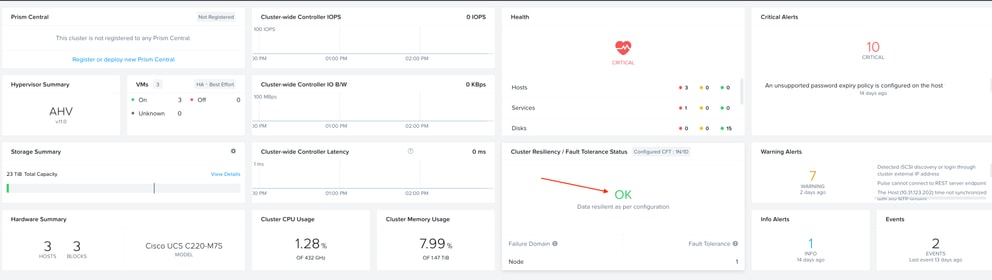
Verify Upgrade is complete and Cluster is Healthy
Modify Firmware Policies
Intersight pushes firmware through a Firmware Policy. Each node has its own policy, and new versions are selected by editing these policies.
The syntax for the firmware policy name is: ntnx_firmware_<Serial Number>_<Deployment UUID>
Locate and Edit Policies
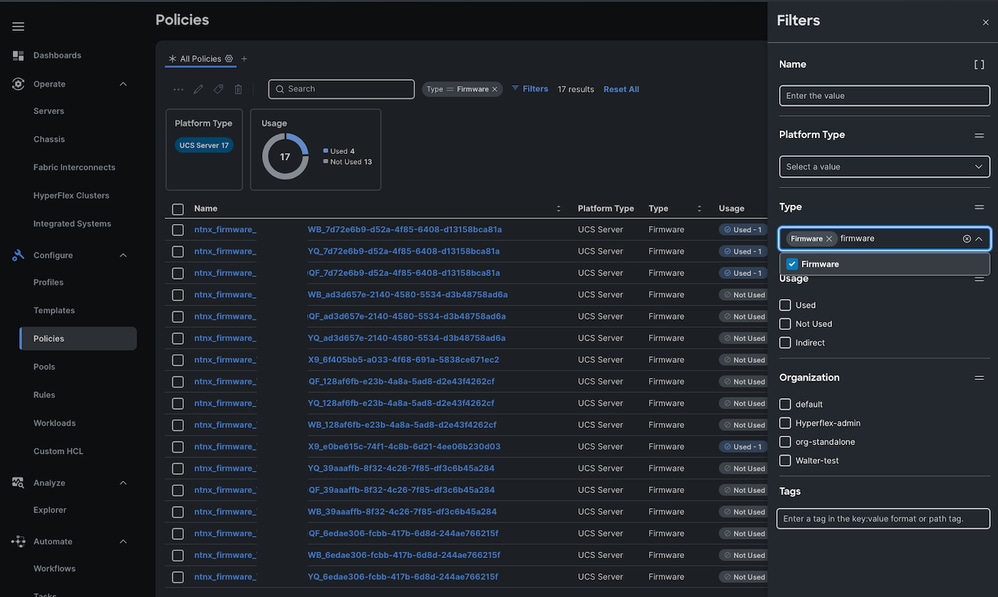
Navigate to Policies > Click Filters > Check Firmware.
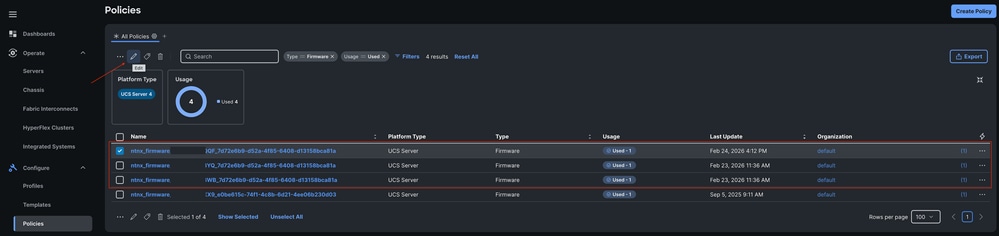
Select the Policy to modify and click edit.
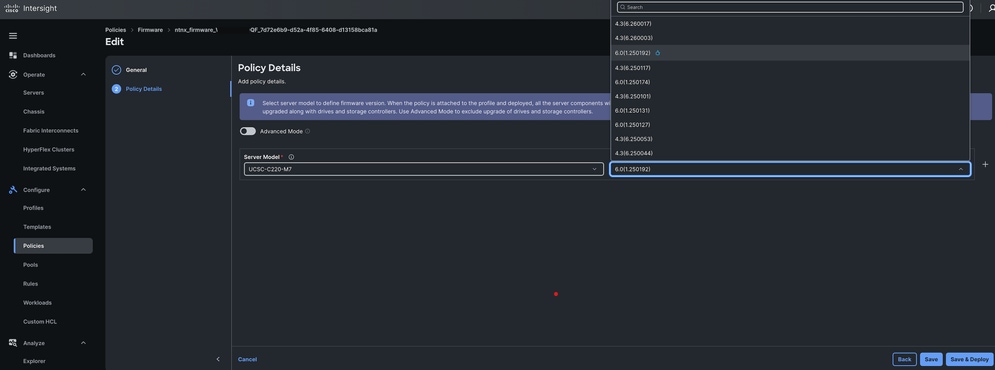
Select the desired firmware version from the drop-down list and then click Save & Deploy.
Stage the Firmware
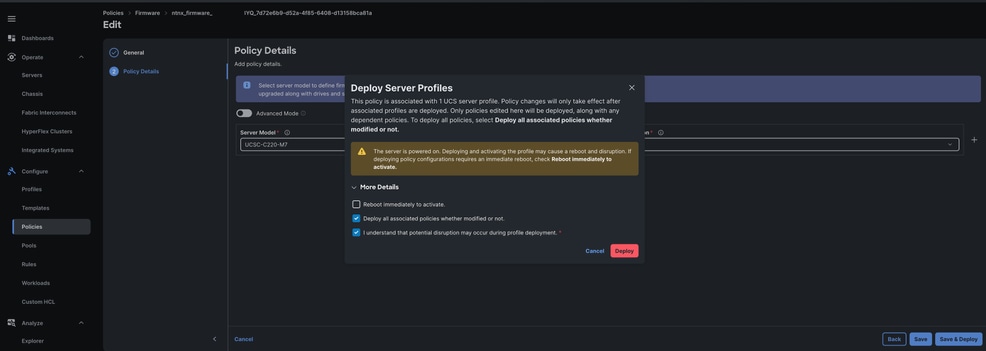
When server profile is re-deployed, ensure the Reboot Immediately option is unchecked. This stages the new firmware on the blade; the change is only executed after the next power cycle.
Once deployment starts:
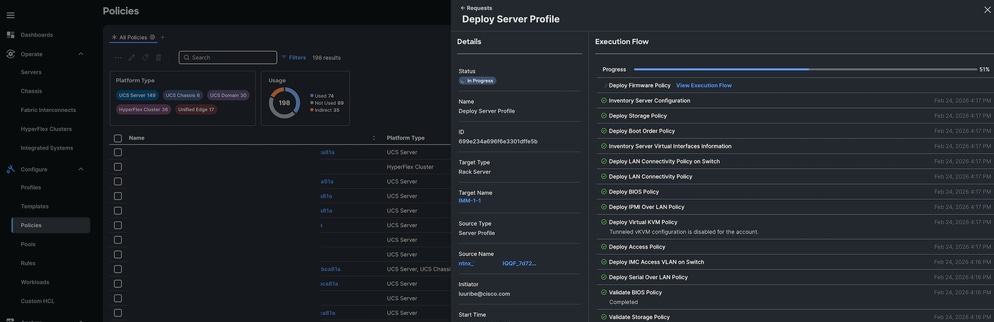
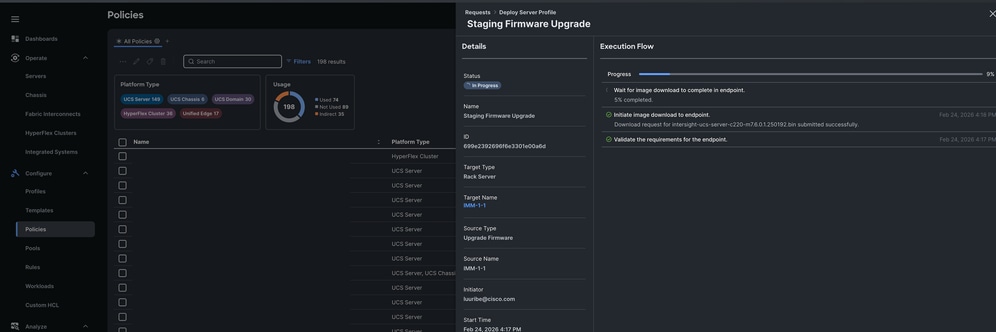
A new workflow appears in the Requests tab.
The firmware download is initiated.
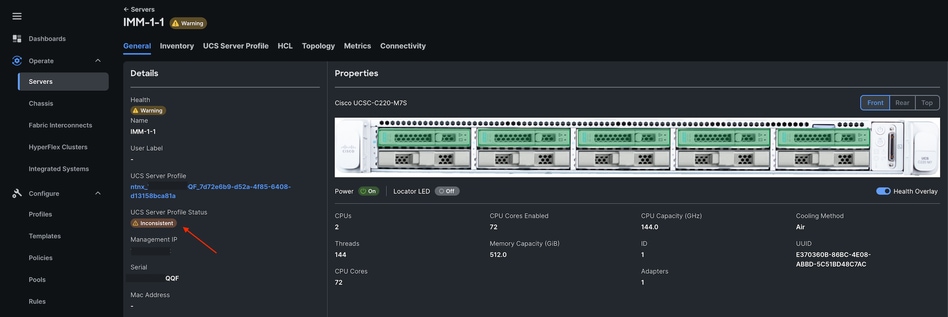
After the server is deployed without an immediate reboot, the Server Profile shows an Inconsistent status. This is expected until the profile is activated.
Continue to edit all the firmware other policies and deploy without Immediate reboot.
Place Servers in Maintenance Mode Through Prism Central or Prism Element
To avoid disruption, servers must be placed into Maintenance Mode to migrate workloads before the reboot.
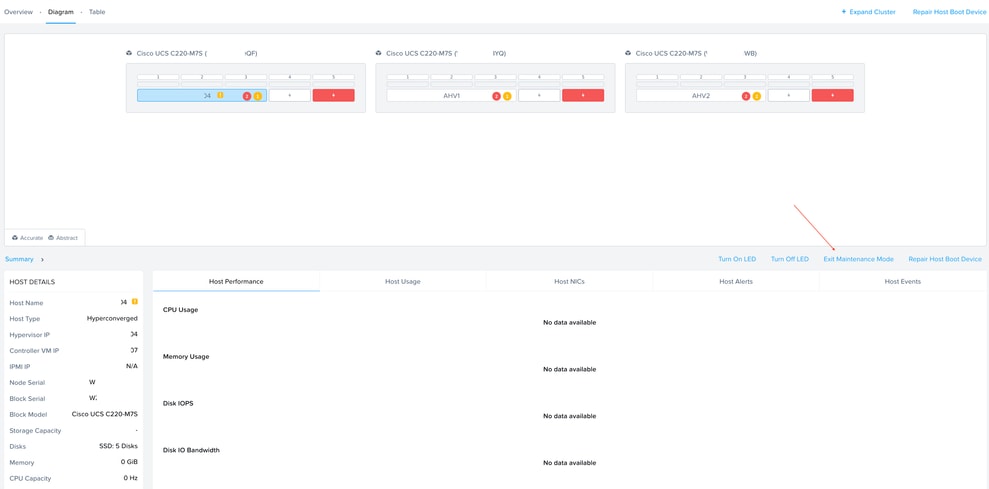
Through Prism Element
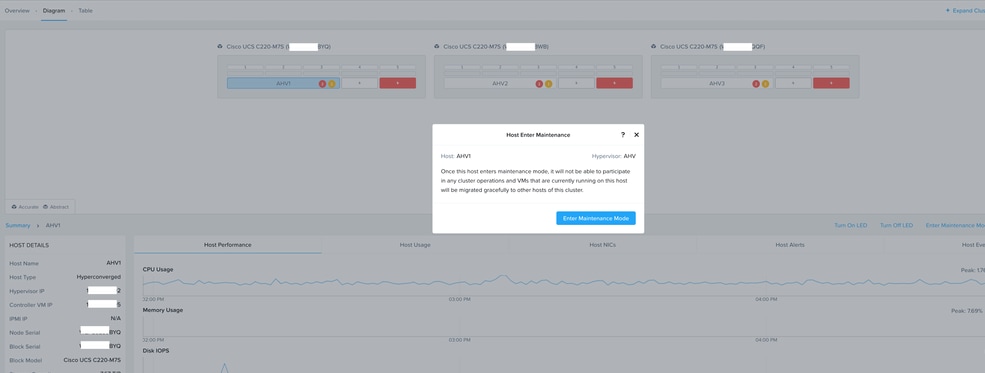
Navigate to Hardware > Diagram.
Select the AHV#.
Select Enter Maintenance Mode.
Through Prism Central
Navigate to Infrastructure > Hardware > Clusters.
Select the Cluster.
Select the specific Node to place it in MaintenanceMode.
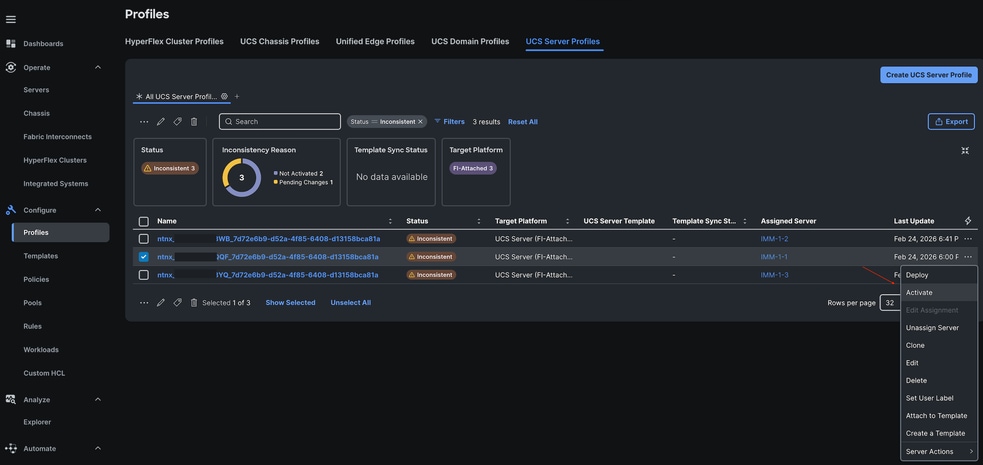
Activate Profiles and Push Firmware
Once the host is in Maintenance Mode firmware can be pushed to the Node
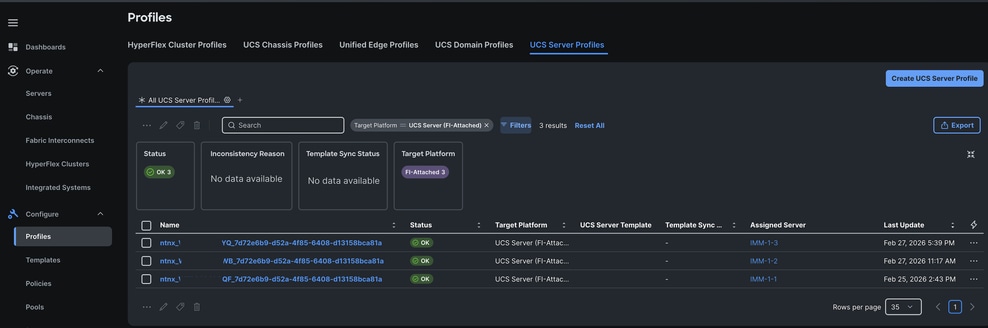
Navigate to the Profiles tab.
Locate the profile of the server in Maintenance Mode by the Serial Number.
Select Actions > Activate.
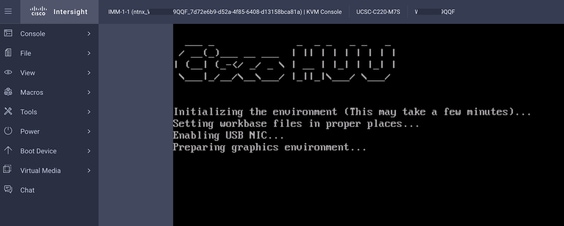
(Optional) Monitor the firmware upgrade progress through the KVM console.
Verify Upgrade and Exit Maintenance Mode
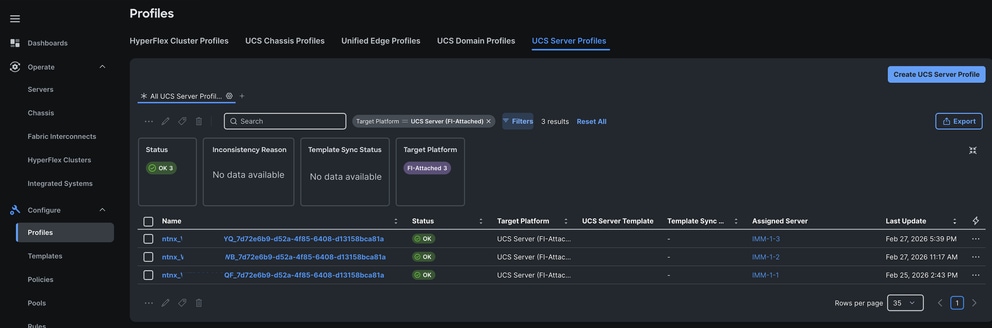
Once the activation is complete the Server Profile status transitions to OK.
The node can now be taken out of Maintenance Mode.
Repeat the process for the remaining nodes until all profiles show an OK Status.
Perform Cisco Nutanix HCI Cluster Offline Upgrade Through Intersight
## Introduction
This document describes the process to manually perform an offline firmware upgrade for Cisco Nutanix HCI clusters using Cisco Intersight when LCM is not used.
## Background Information
While it is recommended to use Life Cycle Manager (LCM) when remediating firmware for ISM/IMM Clusters, specific scenarios—such as hitting a bug or Field Notice (FN)—may require selecting a specific version for an upgrade or downgrade. In these cases, firmware changes can be applied through Intersight.
Unlike the LCM process, an offline upgrade requires editing and patching firmware on a per-host basis. It is mandatory to understand the workload and capacity of the cluster before performing these actions. During this process, the user manually places the host in Maintenance Mode, applies the firmware change via Intersight, and then exits Maintenance Mode. This is repeated for each node in the cluster.
## Manual Upgrade Steps at a Glance
1. Edit the Firmware Policy with the new firmware version.
2. Deploy all profiles without an immediate reboot to stage the firmware.
3. Place the node in Maintenance Mode via Prism Element or Prism Central.
4. Activate the profile for the server in Maintenance Mode to power cycle the server and apply firmware.
5. Repeat steps 3 and 4 for all nodes in the cluster.
## Modify Firmware Policies
Intersight pushes firmware through a Firmware Policy. Each node has its own policy, and new versions are selected by editing these policies.
The syntax for the firmware policy name is: `ntnx_firmware_<Serial Number>_<Deployment UUID>`
### Locate and Edit Policies
1. Navigate to **Policies** > Click **Filters** > **Type** > Check **Firmware**.

2. Select the Policy and click **Edit**.

3. Select the desired firmware version from the drop-down list and click **Save & Deploy**.

### Stage the Firmware
When redeploying the server profile, ensure the **Reboot Immediately** option is **unchecked**. This stages the new firmware on the blade; the change is only executed after the next power cycle. This method saves time by staging firmware across all nodes simultaneously.

Once deployment starts:
* A new workflow appears in the **Requests** tab.

* The firmware download is initiated.

* After the server is deployed without an immediate reboot, the Server Profile will show an **Inconsistent** status. This is expected until the profile is activated.

## Place Servers in Maintenance Mode Through Prism Central or Prism Element
To avoid disruption, servers must be placed into Maintenance Mode to migrate workloads before the reboot.
### Using Prism Element
1. Navigate to **Hardware** > **Diagram**.
2. Select the **AHV#**.
3. Select **Enter Maintenance Mode**.


### Using Prism Central
1. Navigate to **Infrastructure** > **Hardware** > **Clusters**.
2. Select the **Cluster**.
3. Select the specific **Node** to place it in Maintenance Mode.
## Activate Profiles and Push Firmware
Once the host is in Maintenance Mode, you can push the firmware.
1. Navigate to the **Profiles** tab.
2. Locate the profile of the server in Maintenance Mode using its Serial Number.
3. Select **Actions** > **Activate**.


4. (Optional) Monitor the firmware upgrade progress through the KVM console.

## Verify Upgrade and Exit Maintenance Mode
Once the activation is complete:
1. The Server Profile status transitions to **OK**.


2. The node can now be taken out of Maintenance Mode.

3. Repeat the process for the remaining nodes until all profiles show an **OK** status.


The information in this document was created from the devices in a specific lab environment. All of the devices used in this document started with a cleared (default) configuration. If your network is live, ensure that you understand the potential impact of any command.

 Feedback