Configure Range Request for Microsoft Update Traffic in SWA
Available Languages
Contents
Introduction
This document describes the steps to allow Microsoft Updates Traffic to use Range Request in Secure Web Appliance (SWA).
Prerequisites
Requirements
Cisco recommends that you have knowledge of these topics:
- SWA administration.
Cisco recommends that you have these tools installed:
- Physical or Virtual SWA
- Administrative Access to the SWA Graphical User Interface (GUI)
Components Used
This document is not restricted to specific software and hardware versions.
The information in this document was created from the devices in a specific lab environment. All of the devices used in this document started with a cleared (default) configuration. If your network is live, ensure that you understand the potential impact of any command.
Range Request
A range request is a feature of the HTTP protocol that allows a client (like a web browser or download manager) to request only a specific portion of a file from a server, rather than downloading the entire file at once. This is particularly useful for resuming interrupted downloads, streaming media, or accessing large files efficiently. The client specifies the desired byte range in the Range header of the HTTP request, and the server responds with a 206 Partial Content status code if it supports range requests, delivering only the requested segment of the file.
This mechanism enhances performance and user experience in several scenarios. For example, in video streaming, range requests allow players to fetch only the segments needed for playback, reducing bandwidth usage and improving responsiveness. Similarly, download managers use range requests to split a file into chunks and download them in parallel, speeding up the process. Range requests also play a key role in caching and proxy systems, enabling partial updates and reducing redundant data transfers.
Range Request in the Proxy Environment
In a proxy environment, range requests play a crucial role in optimizing bandwidth usage and improving content delivery efficiency. When range requests are enabled, the proxy server can fetch only the required byte segments from the origin server and cache them locally. This allows clients to request partial content such as specific segments of a video or a large file and receive it quickly from the proxy cache if available. It also enables parallel downloads and resume capabilities, which are especially beneficial in environments with limited bandwidth or high latency.
However, when range requests are disabled, the proxy must fetch the entire file from the origin server even if the client only needs a small portion. This leads to unnecessary data transfer, increased load on both the proxy and origin servers, and slower response times for clients. It also prevents efficient caching strategies, as the proxy cannot store or serve partial content. In streaming scenarios, this can result in buffering delays or degraded user experience. Disabling range requests can be done for security or policy reasons, but it often comes at the cost of performance and flexibility.
For example, consider a scenario where 10 users are trying to download 1MB each from a 100MB file through a proxy server.
Range Requests Disabled:
When range requests are disabled, the proxy cannot fetch just the 1MB segment each user needs. Instead, it must download the entire 100MB file from the origin server for each request. This results in:
Total traffic from origin to proxy: 10 × 100MB = 1000MB (1GB)
Only 10MB of that data is actually used by the clients.
The remaining 990MB is wasted, leading to inefficient bandwidth usage and increased load on the proxy and origin servers.
Range Requests Enabled:
With range requests enabled, the proxy fetches only the requested 1MB per user:
Total traffic from origin to proxy: 10 × 1MB = 10MB
The proxy can cache these segments and serve them to other users if needed.
This results in 90 times less traffic, faster response times, and significantly better resource utilization.
Enabling Range Request for Microsoft Updates
Although range requests enhance performance, they hinder security scanning and policy enforcement within SWA environments, as these systems cannot fully inspect partial content. This article limits range request usage exclusively to Microsoft Update traffic.
Steps to Enable Range Request only for Microsoft Updates
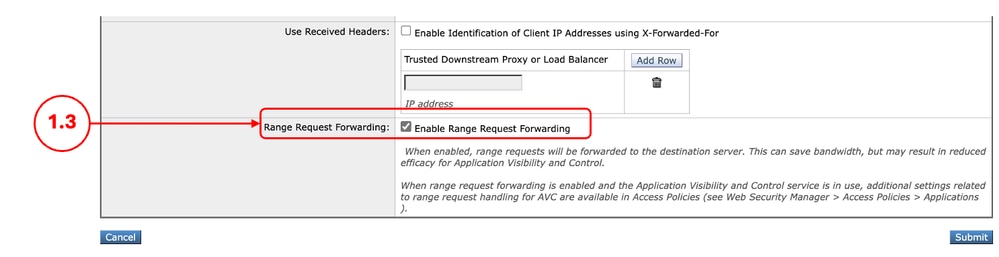
Step 1. Enable the Range Request |
1.1. From GUI, click Security Services and choose Web Proxy. 1.2. Click Edit Settings. 1.3. Select the check box Enable Range Request Forwarding. 1.4. Click Submit.
|
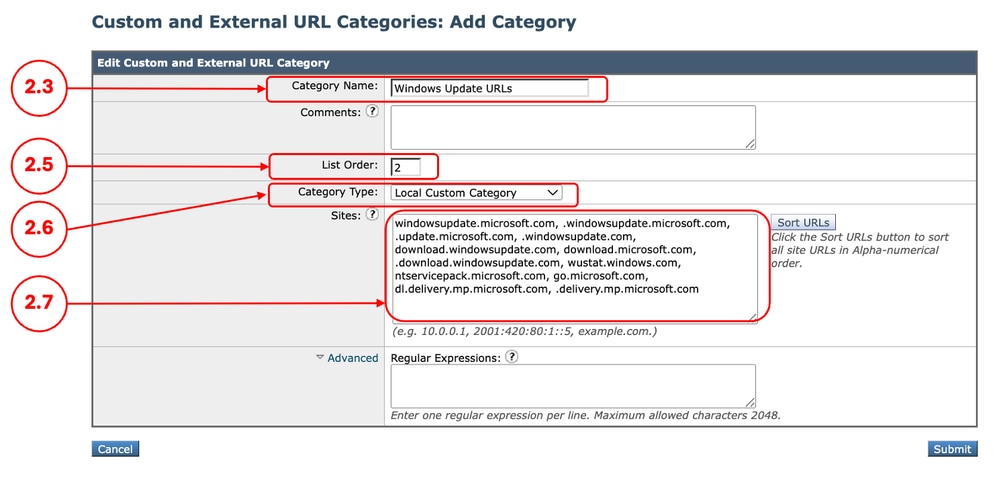
Step 2. Create a Custom URL Category for Microsoft Updates URLs |
2.1.FromGUI, ChooseWeb Security Manager and then click Custom and External URL Categories. 2.5. From List Order, choose the first category to position on top. 2.6. From Category Typedrop-down list, choose Local Custom Category. 2.7. Add Microsoft Updates URLs in the Sites Section. 
Tip: You can check the list of Microsoft updates from this link: Step 2 - Configure WSUS | Microsoft Learn 
Caution: Do not Copy/Paste the URLs as are in the Microsoft Documents; format them properly as SWA format. For more information, please visit: Configure Custom URL Categories in Secure Web Appliance - Cisco Here is an Example: 2.8. Click Submit.
|
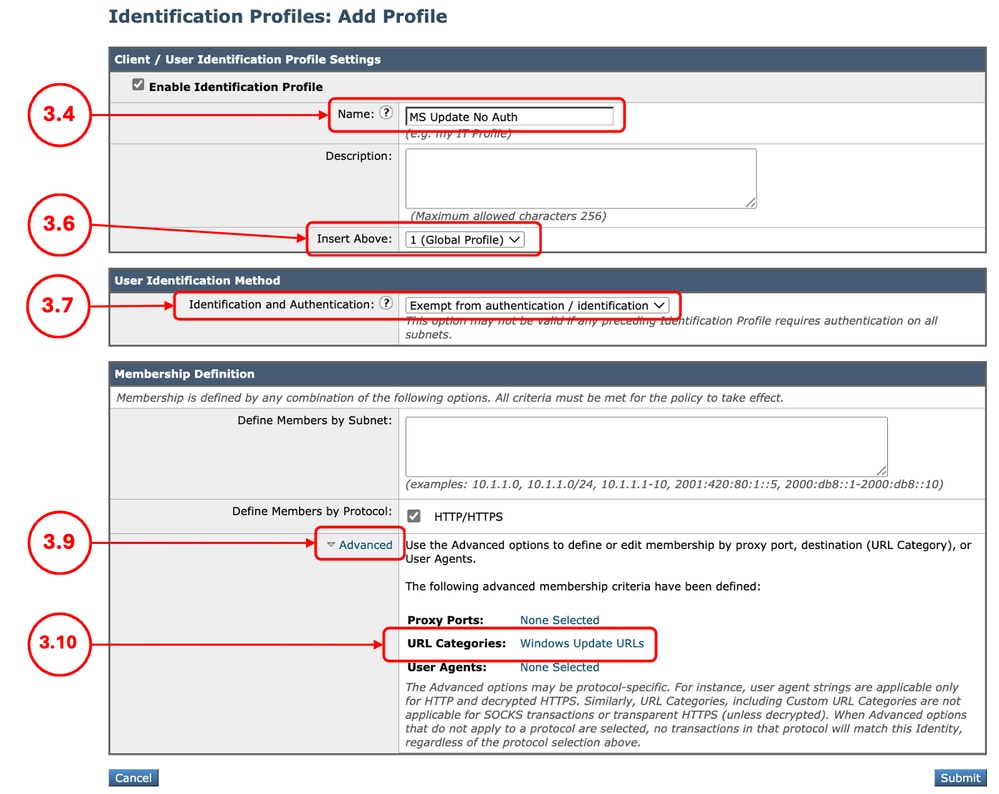
Step 3. (Optional) Create an Identification Profile to exempt Microsoft Updates traffic from Authentication |
3.1.FromGUI, ChooseWeb Security Manager and then click Identification Profiles. Step 3.7. In theUser Identification Methodsection, chooseExempt from authentication/ identification. Step 3.8.In the Define Members by Subnet, If you would like to Pass Through Microsoft traffic for some specific users, enter the IP addresses or Subnets that applies, or else leave this field blank to include all IP address. Step 3.9. From Advanced section, choose Custom URL Categories. Step 3.10. Add the Custom URL Category that was created for Microsoft updates. Step 3.11. Click Done. Step 3.12. Click Submit.
|
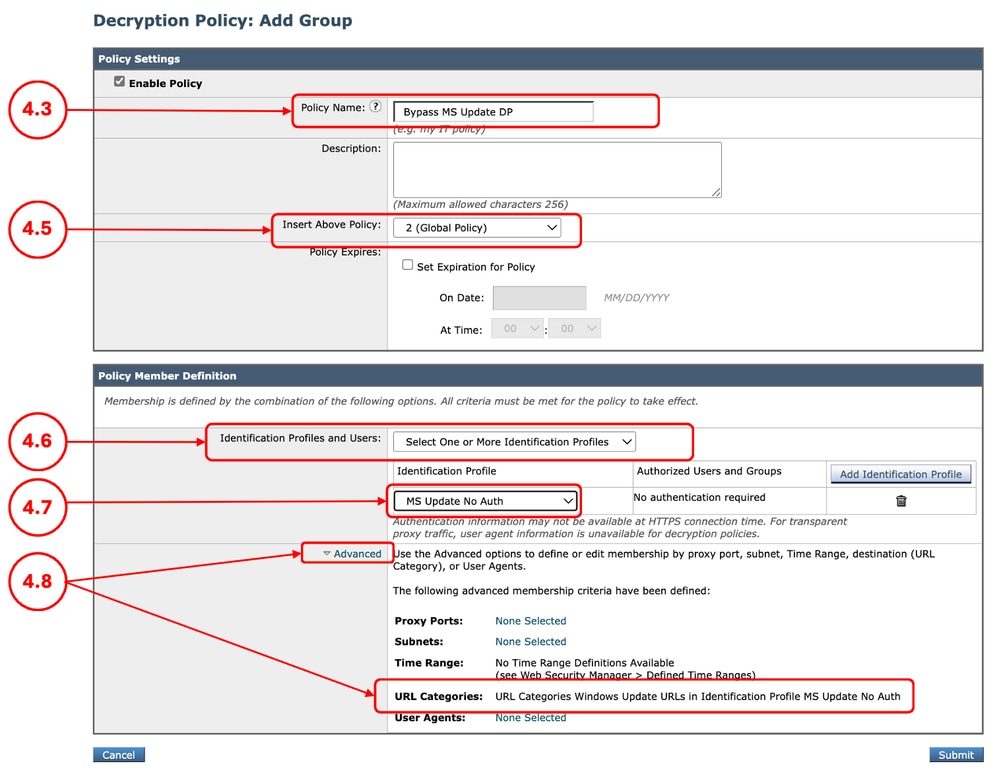
Step 4. (Optional) Create a Decryption Policy To Pass Through Microsoft Updates Traffic |
Step 4.1.FromGUI, ChooseWeb Security Manager and then clickDecryption Policy. Step 4.2. ClickAdd Policyto add a Decryption Policy. Step 4.3.Assign a unique PolicyName. Step 4.6.From theIdentification Profiles and Users, choose Select One or More Identification Profiles. Step 4.7. Select the Identification Profile that you created in Step 3, and skip to Step 4.11. Step 4.8. If you did not created any ID profile for the Windows Updates, from Advanced section, choose Custom URL Categories. Step 4.9. Add the Custom URL Category that was created for Microsoft updates in Step 2. Step 4.10. Click Done. Step 4.11. Click Submit.
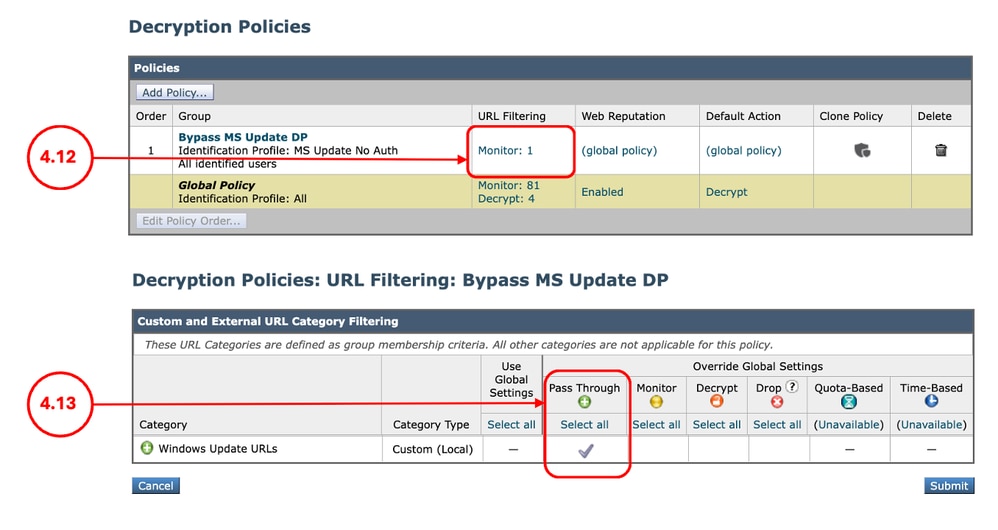
4.12.In theDecryption Policiespage, underURL Filtering, click on the link associated with this new Decryption Policy. 4.13.SelectPass Throughas the action for Microsoft Updates URL category.
4.12. Click Submit. |
Step 5. Create an Access Policy to Allow Range Request for Microsoft Updates Traffic |
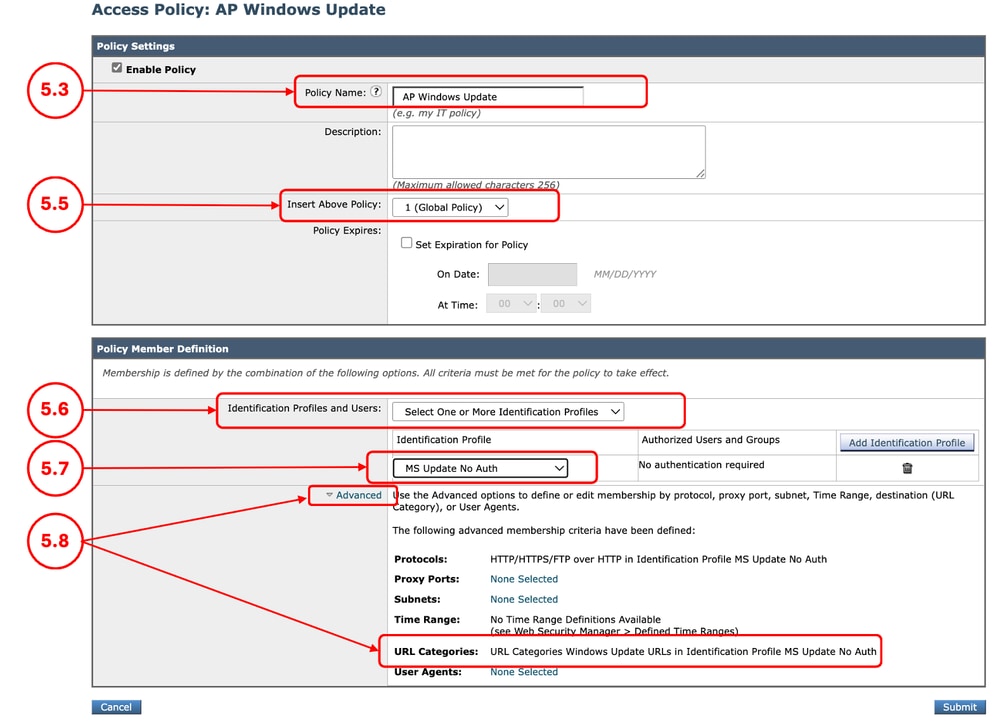
5.1.FromGUI, clickWeb Security Manager and chooseAccess Policy. 5.2. ClickAdd Policyto add an Access Policy. 5.3.Assign a unique PolicyName. 5.6.From theIdentification Profiles and Users, choose Select One or More Identification Profiles. 5.7. Select the Identification Profile that you created in Step 3, and skip to Step 5.11. 5.8. If you did not created any ID profile for the Windows Updates, from Advanced section, choose Custom URL Categories. 5.9. Add the Custom URL Category that was created for Microsoft updates in Step 2. 5.10. Click Done. 5.11. Submit.
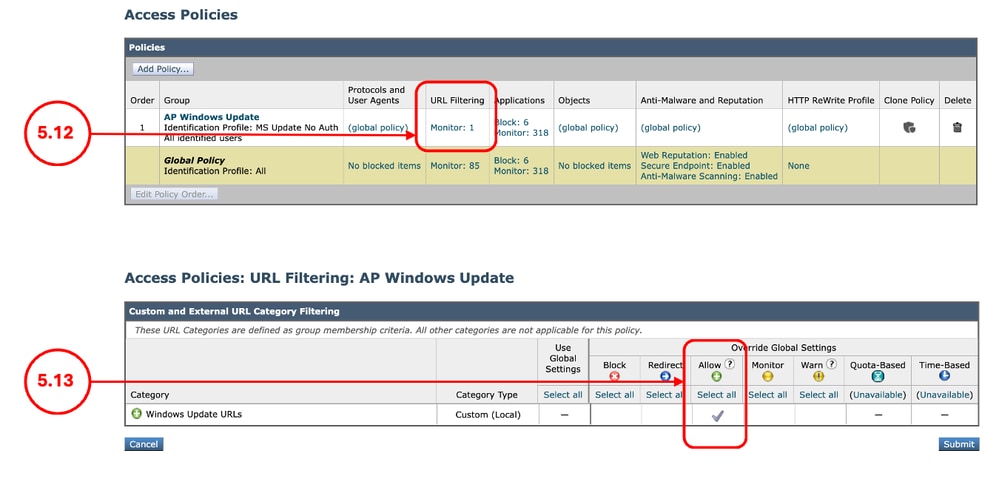
5.12. On the Access Policies page, under URL Filtering, click on the link associated with this new Access Policy 5.13.Select Allow as the action for the Custom URL category created for the Microsoft Updates. 5.14. Click Submit.
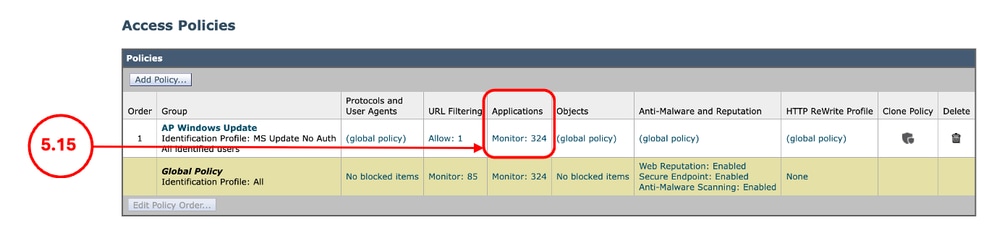
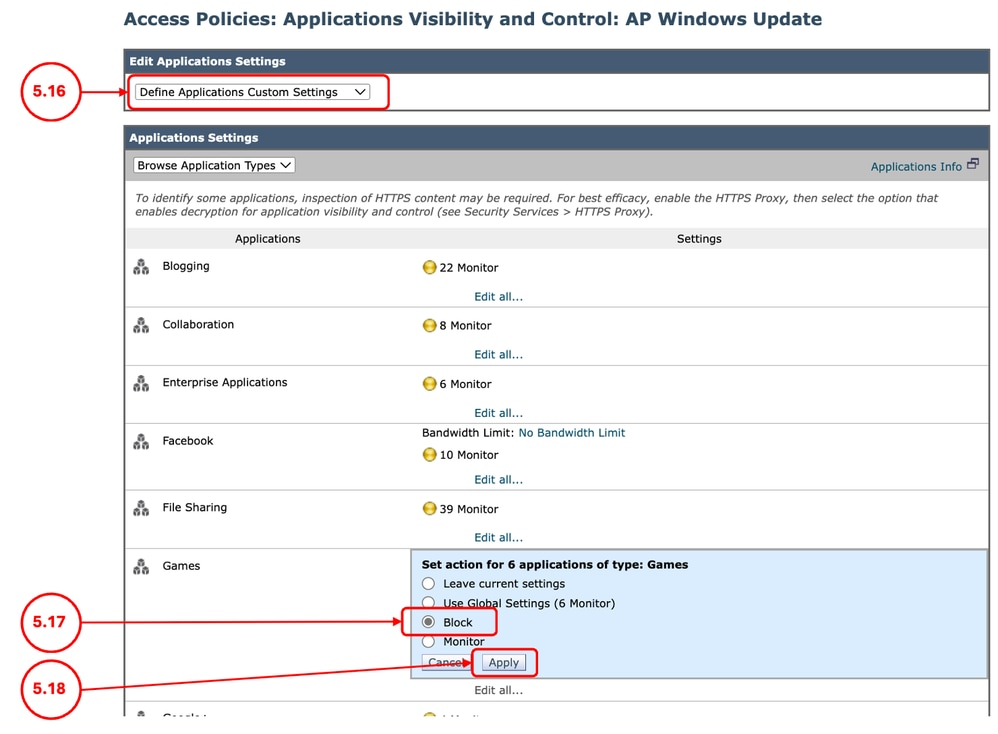
5.15. On the Access Policies page, under Applications click on the link associated with this new Access Policy
5.16. On Edit Applications Settings, section, select Define Applications Custom Settings. 5.17. From the Applications Settings, section, Click on Edit all for Games application, and set the action to Block. 5.18. Click Apply.
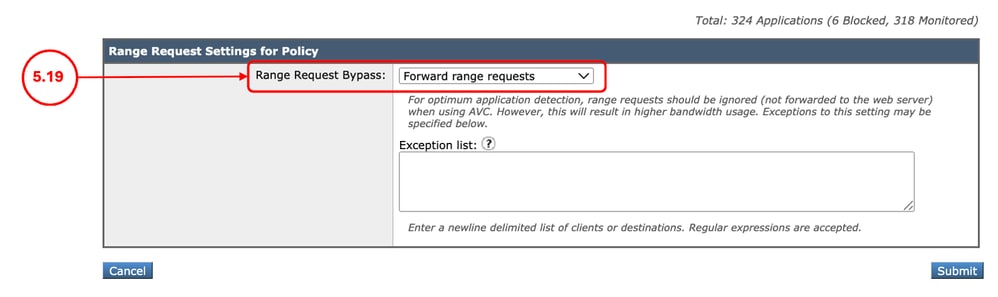
5.19. Scroll down to Range Request Settings for Policy section, make sure Forward range requests is selected,
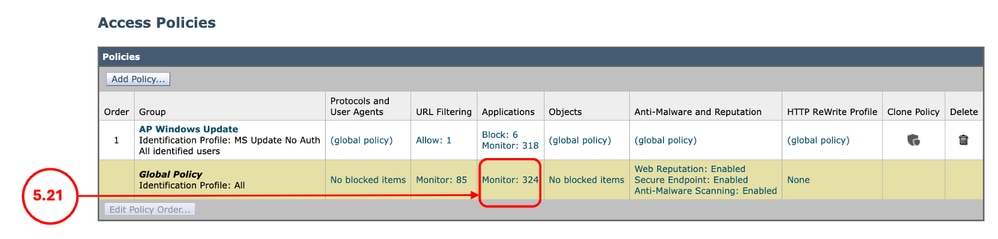
5.20. Submit. 5.21. On the Access Policies page, under Applications click on the link associated with the Global Policy.
5.22. Scroll down to Range Request Settings for Policy section, make sure Do Not Forward range requests is selected, 5.23. Commit Changes. |
Modify Access Logs
To have more visibility on the Range Requests from the Access Logs, you can add these custom fields:
| [Client Range = %<Range:] |
Shows the range, requested by the client (Bytes) |
| [content= %>Content-Length:] |
Shows the downloaded content size (Bytes) |
For more information to add a custom field to the SWA Access Logs, kindly visit this link: Configure Performance Parameter in Access Logs
Verification
Use this CURL command to send a Range Request to the SWA:
curl -vvvk -H "Pragma: no-cache" -x 10.48.48.181:3128 -H 'Range: bytes=0-100' 'http://catalog.sf.dl.delivery.mp.microsoft.com/filestreamingservice/files/f263aa64-f367-42f0-9cad-328f342b93f7/public/windows11.0-kb5043080-arm64_df540a05f9b118e339c5520f4090bb5d450f090b.msu' -o /dev/null -kFrom the output of the CURL, you can see the HTTP response is HTTP/1.1 206:
> GET http://catalog.sf.dl.delivery.mp.microsoft.com/filestreamingservice/files/f263aa64-f367-42f0-9cad-328f342b93f7/public/windows11.0-kb5043080-arm64_df540a05f9b118e339c5520f4090bb5d450f090b.msu HTTP/1.1
> Host: catalog.sf.dl.delivery.mp.microsoft.com
> User-Agent: curl/8.7.1
> Accept: */*
> Proxy-Connection: Keep-Alive
> Pragma: no-cache
> Range: bytes=0-100
>
* Request completely sent off
< HTTP/1.1 206 Partial Content
From the Access Logs you can see the Action is TCP_CLIENT_REFRESH_MISS/206:
1773942471.096 14 10.190.0.206 TCP_CLIENT_REFRESH_MISS/206 860 GET http://catalog.sf.dl.delivery.mp.microsoft.com/filestreamingservice/files/f263aa64-f367-42f0-9cad-328f342b93f7/public/windows11.0-kb5043080-arm64_df540a05f9b118e339c5520f4090bb5d450f090b.msu - DEFAULT_PARENT/proxy.esl.cisco.com application/octet-stream ALLOW_CUSTOMCAT_12-AP_Windows_Update-MS_Update_No_Auth-NONE-NONE-NONE-DefaultGroup-NONE <"C_Wind",-,-,"-",-,-,-,-,"-",-,-,-,"-",-,-,"-","-",-,-,"-",-,"-","-","-","-","-","-","-",491.43,0,-,"-","-",-,"-",-,-,"-","-",-,-,"-",-,-> - - [Client Range = "bytes=0-100"] [content= "101"]Related Information
- User Guide for AsyncOS 15.0 for Cisco Secure Web Appliance - GD(General Deployment) - Classify End-Users for Policy Application [Cisco Secure Web Appliance] - Cisco
- Configure Custom URL Categories in Secure Web Appliance - Cisco
- How To Exempt Office 365 Traffic From Authentication and Decryption on Cisco Web Security Appliance (WSA) - Cisco
- Configure Performance Parameter in Access Logs
- Use Secure Web Appliance Best Practices - Cisco
- Bypass Authentication in Secure Web Appliance - Cisco
Revision History
| Revision | Publish Date | Comments |
|---|---|---|
2.0 |
29-Jul-2026
|
Initial Release |
1.0 |
25-Mar-2026
|
Initial Release |

 Feedback
Contact Cisco
- Open a Support Case

- (Requires a Cisco Service Contract)