Introduction
This document describes how to invite an existing Cisco Umbrella user as an Administrator for your organization.
Invite an Admin to a Cisco Umbrella Dashboard
1. Within Umbrella Dashboard, navigate to Admin > Accounts.
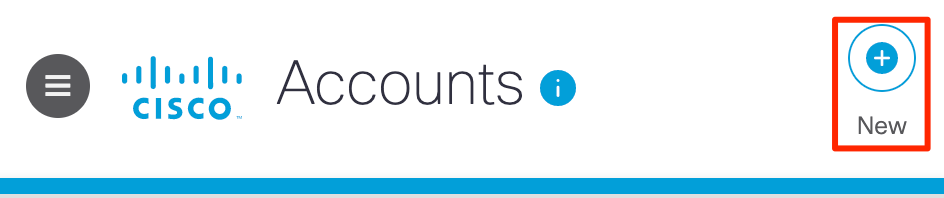
2. On the top right corner, select the New button.
Overview.png
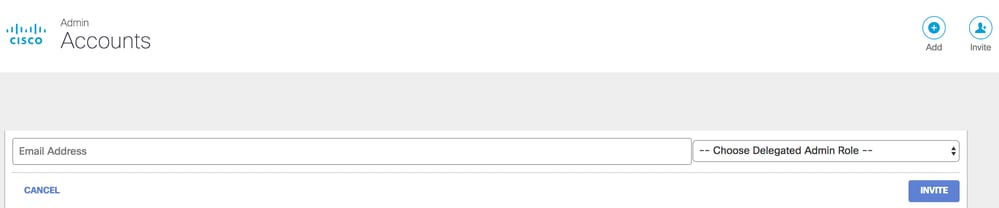
3. Enter the email address of the user that you want to add to the dashboard.
4. Select appropriate user role (Delegated Admin Role).
5. Select Invite.
img2.png
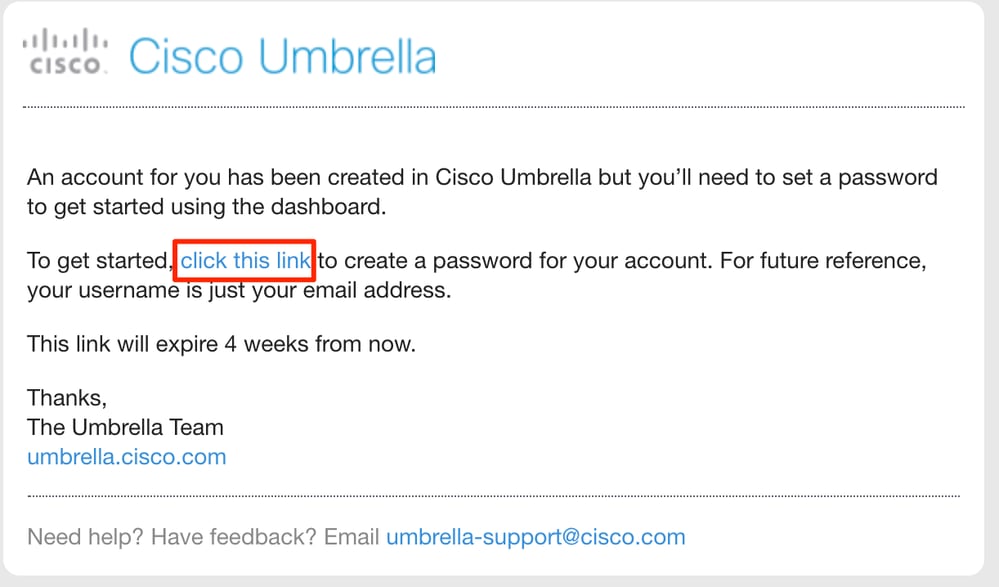
6. After you successfully invited the user, they receive an email in their inbox like the one in this screenshot. Once they click on the link, the user is then prompted to create a new account with Cisco Umbrella.
Email.png
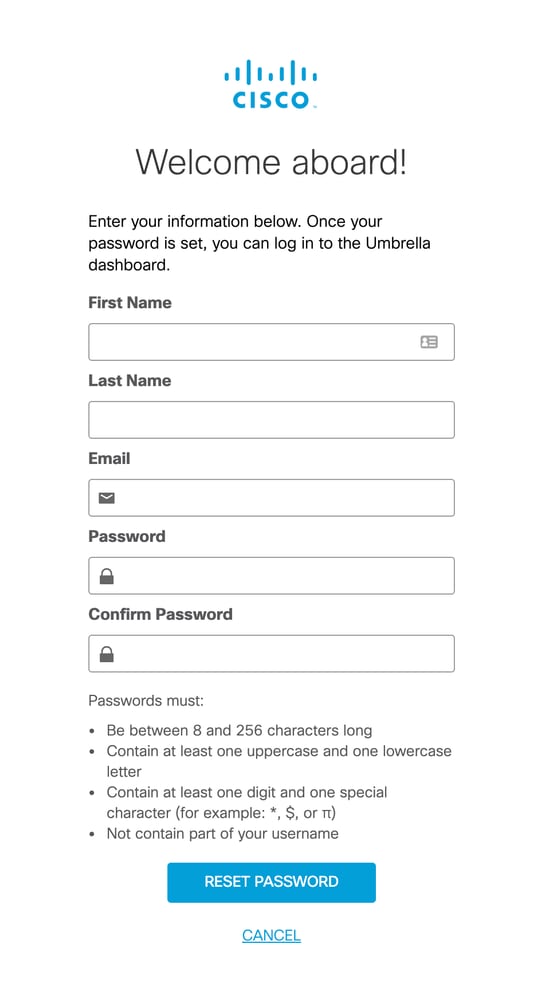
7. Upon clicking the link, the user is then directed to an Umbrella login page. The user must then input their details like in this screenshot:
Umbrella___New_User.png
8.Once the details have been entered, the user can then select the Reset Password button.
The user is now associated with your organization.