Introduction
This document describes how to integrate ThreatConnect with Cisco Umbrella.
Prerequisites
Requirements
Cisco recommends that you have knowledge of these topics:
-
A ThreatConnect dashboard with access to update the URL for integrations
-
Umbrella dashboard administrative rights
-
The Umbrella dashboard must have ThreatConnect integration enabled.
Components Used
The information in this document is based on Cisco Umbrella.
The information in this document was created from the devices in a specific lab environment. All of the devices used in this document started with a cleared (default) configuration. If your network is live, ensure that you understand the potential impact of any command.
ThreatConnect and Cisco Umbrella Integration Overview
By integrating ThreatConnect with Cisco Umbrella, security officers and administrators are now able to extend protection against advanced threats to roaming laptops, tablets, or phones while also providing another layer of enforcement to a distributed corporate network.
This guide outlines how to configure ThreatConnect to communicate with Umbrella so security events from the ThreatConnect TIP are integrated into policies that can be applied to clients protected by your Cisco Umbrella.

Note: The ThreatConnect integration is only included in a certain Cisco Umbrella package. If you do not have a package that includes this integration, please contact your Cisco Umbrella representative to obtain it. If you have the correct package but do not see ThreatConnect as an integration for your dashboard, please contact Cisco Umbrella Support.
The ThreatConnect platform first sends the Cyber Threat Intelligence that it found, such as domains that host malware, command and control for botnet or phishing sites, to Umbrella.
Umbrella then validates the threat to ensure it can be added to a policy. If the information from ThreatConnect is confirmed to be a threat, the domain address is added to the ThreatConnect Destination List as part of a security setting that can be applied to any Umbrella policy. That policy is immediately applied to any requests being made from devices using policies with the ThreatConnect Destination List.
Going forward, Umbrella automatically parses ThreatConnect alerts and adds malicious sites to the ThreatConnect Destination List, extending ThreatConnect protection to all remote users and devices and providing another layer of enforcement to your corporate network.

Tip: While Umbrella tries its best to validate and allow domains that are known to be generally safe (for example, Google and Salesforce), to avoid any unwanted interruptions, Umbrella suggests adding any domains that you do not want to be blocked to the Global Allow List or other destination lists as per your policy. Examples include:
- The home page for your organization. For example, mydomain.com.
- Domains representing services you provide that can have both internal and external records. For example, mail.myservicedomain.com and portal.myotherservicedomain.com.
- Lesser-known cloud applications that you depend on heavily but that Umbrella is not aware of or include in its automatic domain validation. For example, localcloudservice.com.
The Global Allow List is found at Policies > Destination Lists in Umbrella. See the documentation for more information: Manage Destination Lists
Configure the Umbrella Dashboard to Receive Events from ThreatConnect
Begin by finding your unique URL in Umbrella for the ThreatQ appliance to communicate with:
1. Log into your Umbrella dashboard.
2. Navigate to Policies > Integrations.
3. In the table, select ThreatConnect to expand it.
4. Select Enable, and then select Save. This generates a unique, specific URL for your organization within Umbrella.
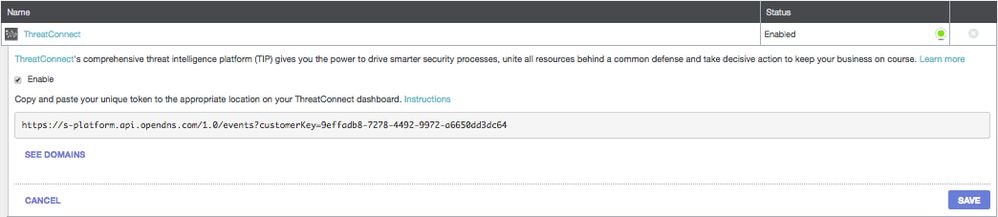
You need the URL later in this article when you are configuring the ThreatConnect to send data to Umbrella.
Configure ThreatConnect to Communicate with Umbrella
In order to begin sending traffic from ThreatConnect to Umbrella, you need to configure ThreatConnect with the URL information generated in the first section of this article:
1. Log into your ThreatConnect dashboard.
2. Add the URL in the appropriate area to connect with Umbrella.
Exact instructions vary, and Umbrella suggests contacting ThreatConnect support if you are uncertain of how or where to configure API integrations within ThreatConnect.
Observing Events Added to the ThreatConnect Security Category in Audit Mode
Over time, events from your ThreatConnect dashboard can begin to populate a specific destination list that can be applied to policies as a ThreatConnect Security Category. By default, the destination list and the security category are in Audit mode, which means that they are not applied to policies and do not result in any change to your existing Umbrella policies.
Note: Audit mode can be enabled for however long is necessary based on your deployment profile and network configuration.
Review Destination List
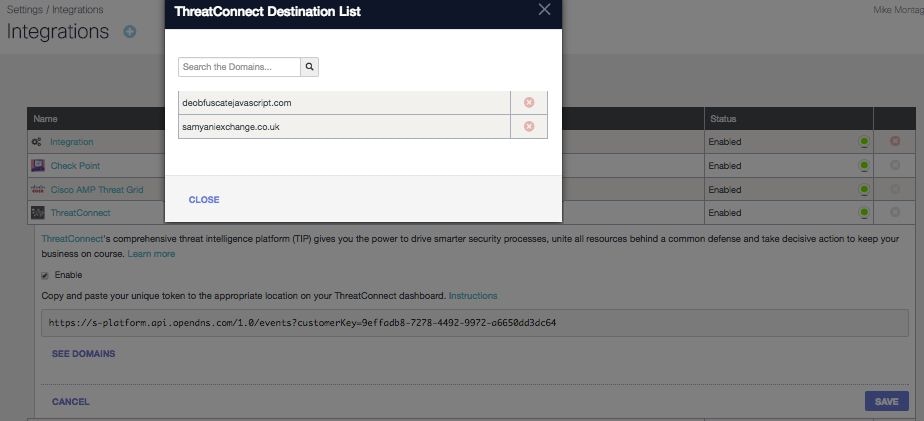
You can review the ThreatConnect Destination List in Umbrella at any time:
1. In the Umbrella dashboard, navigate to Policies > Integrations.
2. In the table, expand ThreatConnect and select See Domains.
Review Security Settings for a Policy
You can review the security setting that can be enabled for a policy at any time:
1. In the Umbrella dashboard, navigate to Policies > Security Settings.
2. Select a security setting in the table to expand it.
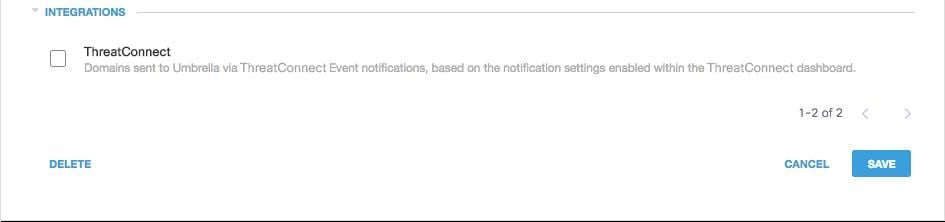
3. Scroll to Integrations to locate the ThreatConnect setting.
 115014036566
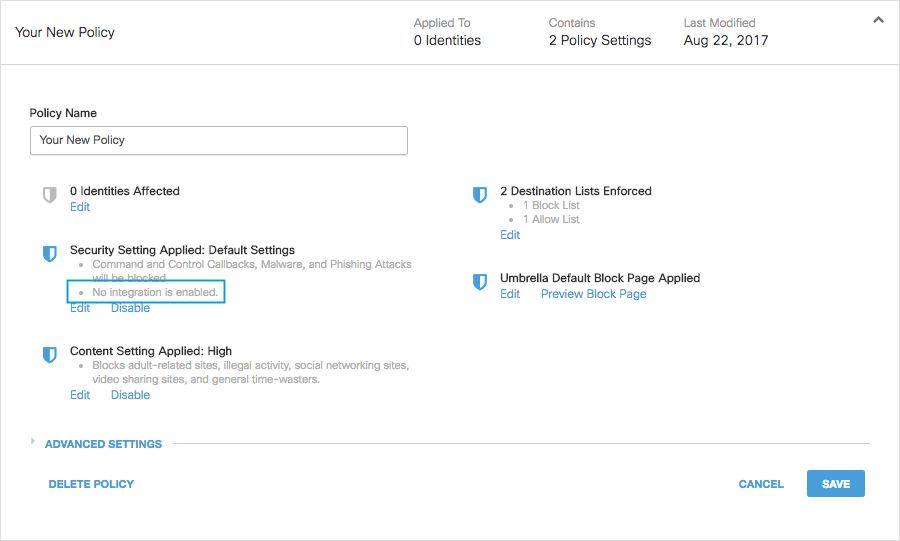
4. You can also review integration information through the Security Settings Summary page.
 25464103885972
Applying the ThreatConnect Security Settings in Block Mode to a Policy for Managed Clients
Once you are ready to have these additional security threats enforced against by clients managed by Umbrella, simply change the security setting on an existing policy, or create a new policy that sits above your default policy to ensure it is enforced first:
1. Navigate to Policies > Security Settings.
2. Under Integrations, select ThreatConnect, and then select Save.
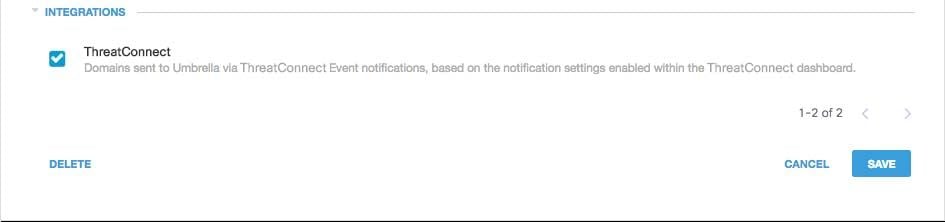 115014203703
Next, in the Policy wizard, add a security setting to the policy you are editing:
1. Navigate to Policies > Policy List.
2. Expand a policy. Under Security Setting Applied, select Edit.
3. In the Security Settings dropdown, select a security setting that includes the ThreatConnect setting.
 25464103908884
The shield icon under Integrations updates to blue.
 115014037666
4. Select Set & Return.
ThreatConnect domains contained within the security setting for ThreatConnect are then blocked for identities using the policy.
Reporting in Umbrella for ThreatConnect Events
Reporting on ThreatConnect Security Events
The ThreatConnect Destination List is one of the security categories lists you can report on. Most or all of the reports use the Security Categories as a filter. For instance, you can filter security categories to only show ThreatConnect related activity:
1. Navigate to Reporting > Activity Search.
2. Under Security Categories, select ThreatConnect to filter the report to only show the security category for ThreatConnect.
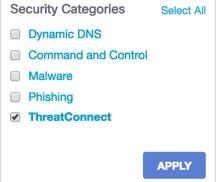 115014206603
Note: If ThreatConnect integration is disabled, it does not appear in the Security Categories filter.
3. Select Apply.
Reporting when Domains were Added to the ThreatConnect Destination List
The Admin Audit log includes events from the ThreatConnect dashboard as it adds domains to the destination list. A user named “ThreatConnect Account,” which is also branded with the ThreatConnect logo, generates the events. These events include the domain that was added and the time at which it was added.
You can filter to only include ThreatConnect changes by applying a filter for the “ThreatConnect Account” user.
Handling Unwanted Detections or False Positives
Allow Lists
Although unlikely, it is possible that domains added automatically by ThreatConnect can trigger an unwanted block that would prevent users from accessing particular websites. In a situation like this, Umbrella recommends adding the domain(s) to an allow list, which takes precedence over all other types of block lists, including security settings.
There are two reasons why this approach is preferable:
- First, in case the ThreatConnect dashboard re-added the domain after it was removed, the allow list safeguards against that causing further issues.
- Additionally, the allow list shows a historical record of problematic domains that can be used for forensics or audit reports.
By default, there is a Global Allow List that is applied to all policies. Adding a domain to the Global Allow List results in the domain being allowed in all policies.
If the ThreatConnect security setting in block mode is only applied to a subset of your managed Umbrella identities (for instance, it is only applied to roaming computers and mobile devices), you can create a specific allow list for those identities or policies.
To create an allow list:
1. Navigate to Policies > Destination Lists and select the Add (+) icon.
2. Select Allow and add your domain to the list.
3. Select Save.
Once the destination list has been saved, you can add it to an existing policy covering those clients that have been affected by the unwanted block.
Deleting Domains from the ThreatConnect Destination List
There is a Delete icon next to each domain name in the ThreatConnect Destination List. Deleting domains lets you clean up the ThreatConnect Destination List in the event of an unwanted detection. However, the delete is not permanent if the ThreatConnect dashboard resends the domain to Umbrella.
To delete a domain:
1. Navigate to Policies > Integrations.
2. Select ThreatConnect to expand it.
3. Select See Domains.
4. Search for the domain name that you want to delete.
5. Select the Delete icon.

6. Select Close, then select Save.
In the instance of an unwanted detection or false positive, Umbrella recommends creating an allow list in Umbrella immediately and then remediating the false positive within the ThreatConnect dashboard. Later, you can remove the domain from the ThreatConnect Destination List.

 Feedback