User Behavior Analytics - /var/vcap directory is getting filled up
Available Languages
Applicability
User Behavior Analytics 5.4.0Description
The /var/vcap directory is filling up due to PostgreSQL Write-Ahead Log (WAL) files accumulating, as they are not being copied to the /backup directory. This issue arises because the PostgreSQL cleanup scripts fail due to incorrect backup mount point names. Additionally, PostgreSQL log files are accumulating in the pg_log directory, further contributing to the /var/vcap directory reaching full capacity.
As a result, system performance may degrade, critical processes may fail due to insufficient disk space, and new data may not be written properly, potentially leading to data loss or service disruptions. Furthermore, the UBA UI will become inaccessible since the /var/vcap directory is crucial for various Splunk UBA services. This directory contains several important subdirectories, including:
-
/var/vcap/packages– Stores Spark and its configuration files. -
/var/vcap/sys/run– Contains files used by some Splunk UBA processes during startup. -
/var/vcap/sys/log– Stores Splunk UBA log files. -
/var/vcap/sys/tmp– Holds temporary files for certain Splunk UBA processes. -
/var/vcap/store– Houses metadata storage for key Splunk UBA services such as Kafka, PostgreSQL, Hadoop, InfluxDB, and Redis.
Investigation
How to Identify the Issue
-
Check disk usage:
If the directory is approaching full capacity, it indicates a potential issue with WAL file or log accumulation.df -h /var/vcap
For Example:
-
Verify PostgreSQL WAL file accumulation:
ls -lh /var/vcap/store/pgsql/15/data/pg_wal/If there are numerous WAL files, they may not be getting archived properly.
For Example: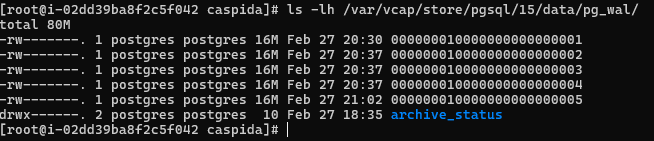
-
Check the PostgreSQL logs:
tail -n 50 /var/vcap/sys/log/postgresql/postgresql.logLook for errors related to WAL archiving or missing directories.
For Example:archive command failed with exit code 1
Command: `test ! -f /ubabackup/wal_archive/00000001000000180000003C && cp pg_wal/00000001000000180000003C /ubabackup/wal_archive/00000001000000180000003C -
Validate backup directory configuration:
grep backup.filesystem.directory.restore /etc/caspida/local/conf/uba-site.propertiesIf the configured backup directory does not match the expected path, it may cause cleanup script failures.
-
Review cleanup scripts:
cat /opt/caspida/etc/cron.monthly/remove_pg_walarchivesEnsure the script references the correct backup directory (e.g.,
/ubabackupinstead of/backup).cat /opt/caspida/etc/cron.monthly/remove_pg_logsVerify that the script is targeting the correct log path for proper cleanup.
Resolution
Steps to Resolve the Issue
-
Run the command below to check the backup disk name:
grep backup.filesystem.directory.restore /etc/caspida/local/conf/uba-site.propertiesPossible outputs:
-
- Default:
backup.filesystem.directory.restore=/backup
- Custom Path:
backup.filesystem.directory.restore=/ubabackup
- Default:
-
Key Check: Ensure the disk name aligns with the configuration in the scripts. A mismatch with
/backupmight indicate the root cause.
-
-
Edit
/opt/caspida/etc/cron.monthly/remove_pg_walarchivesand update line 8:
Change to:WAL_ARCHIVE_DIR="/backup/wal_archive"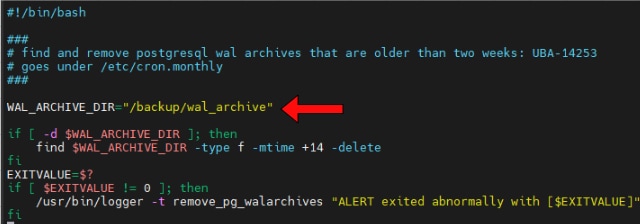
WAL_ARCHIVE_DIR="/ubabackup/wal_archive"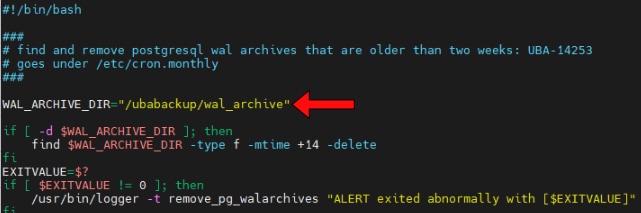
- Edit
/opt/caspida/etc/cron.monthly/remove_pg_logsand update line 8:find /var/lib/postgresql/10/main/pg_log -type f -mtime +14 -delete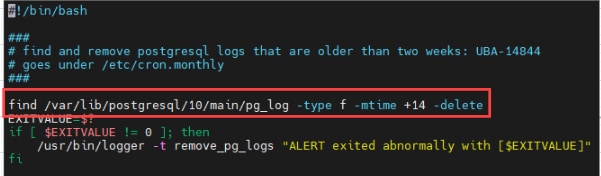
find /var/log/postgresql/ -type f -mtime +14 -delete
-
Locate and edit the file based on the OS:
- RHEL/OEL:
/var/vcap/store/pgsql/15/data/conf.d/archiving.conf - Ubuntu:
/etc/postgresql/15/main/conf.d/archiving.conf
Update line 6:
archive_command = "test ! -f /backup/wal_archive/%f && cp %p /backup/wal_archive/%f"
Change to:
archive_command = "test ! -f /ubabackup/wal_archive/%f && cp %p /ubabackup/wal_archive/%f"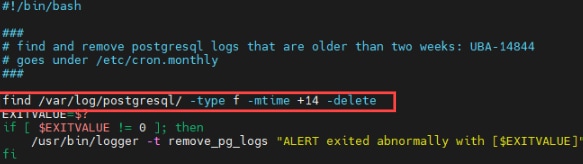
- RHEL/OEL:
-
Apply the changes across the cluster:
/opt/caspida/bin/Caspida sync-cluster /opt/caspida/etc/ -
Manually run the cleanup scripts to verify functionality:
/opt/caspida/etc/cron.monthly/remove_pg_walarchives
/opt/caspida/etc/cron.monthly/remove_pg_logs
Check system logs
/var/vcap/sys/log/postgresqland disk usage to confirm the issue is resolved.
Related Links
Reference: SplunkDocumentation
Revision History
| Revision | Publish Date | Comments |
|---|---|---|
1.0 |
29-Sep-2026
|
Initial Release |
 Feedback
