Splunk SOAR Cloud data is not forwarding to Splunk Cloud when required ports are not open
Available Languages
Applicability
Splunk SOAR Cloud Splunk Cloud Platform Splunk Enterprise Security when integrated with Splunk SOAR CloudDescription
Splunk SOAR Cloud has been configured under:
Administration → Administration Settings → Forwarder Settings
A forwarder group is configured and enabled, the Splunk Cloud Universal Forwarder Credentials Package is installed, and SOAR data types are selected for forwarding. However, the expected SOAR data does not appear in Splunk Cloud.
The Forwarder Settings page may show the forwarder as Enabled, while searches against the corresponding phantom_* indexes return no events.
For example Search in Splunk:
index="phantom_container"may return no results even though SOAR activity exists.
In the reported environment, the customer confirmed that the forwarder group was configured and enabled, the credentials package was installed, all SOAR data types were selected, and the expected SOAR indexes existed.
Investigation
1. Verify the SOAR Cloud forwarder configuration
Navigate to:
Administration → Administration Settings → Forwarder Settings
Confirm:
- A forwarder group exists.
- The forwarder group is Enabled.
- The correct Splunk Cloud Universal Forwarder Credentials Package is installed.
- The appropriate SOAR data types are selected for forwarding.
- There are no credential-expiration warnings or other errors requiring attention.
In the reported case, the Forwarder Settings page showed the group enabled and configured for the customer's Splunk Cloud stack. A credential expiration warning was also displayed.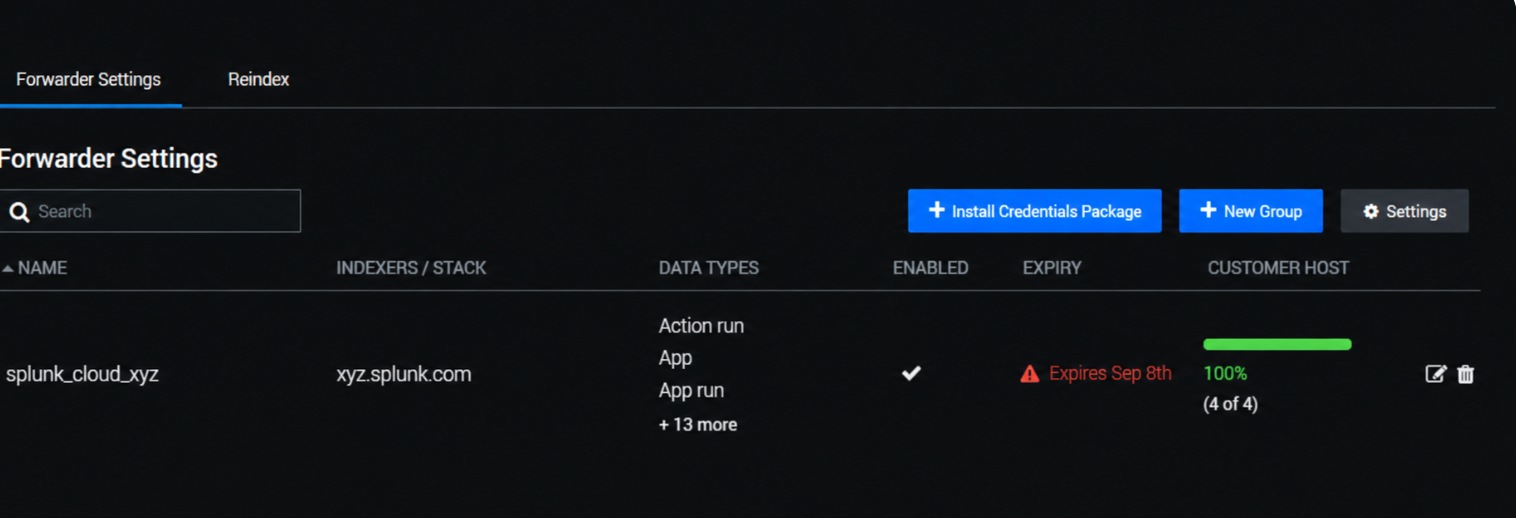
2. Verify the SOAR indexes in Splunk Cloud
Confirm that the required SOAR indexes exist before troubleshooting event forwarding.
Examples include:
phantom_action_run
phantom_app
phantom_app_run
phantom_artifact
phantom_asset
phantom_container
phantom_container_attachment
phantom_container_comment
phantom_container_note
phantom_custom_function
phantom_decided_list
phantom_note
phantom_playbook
phantom_workflow_note
The supplied screenshot shows the phantom_* indexes as Active, but with 0 B current size and an event count of 0, indicating that the indexes exist but had not received data at the time of capture.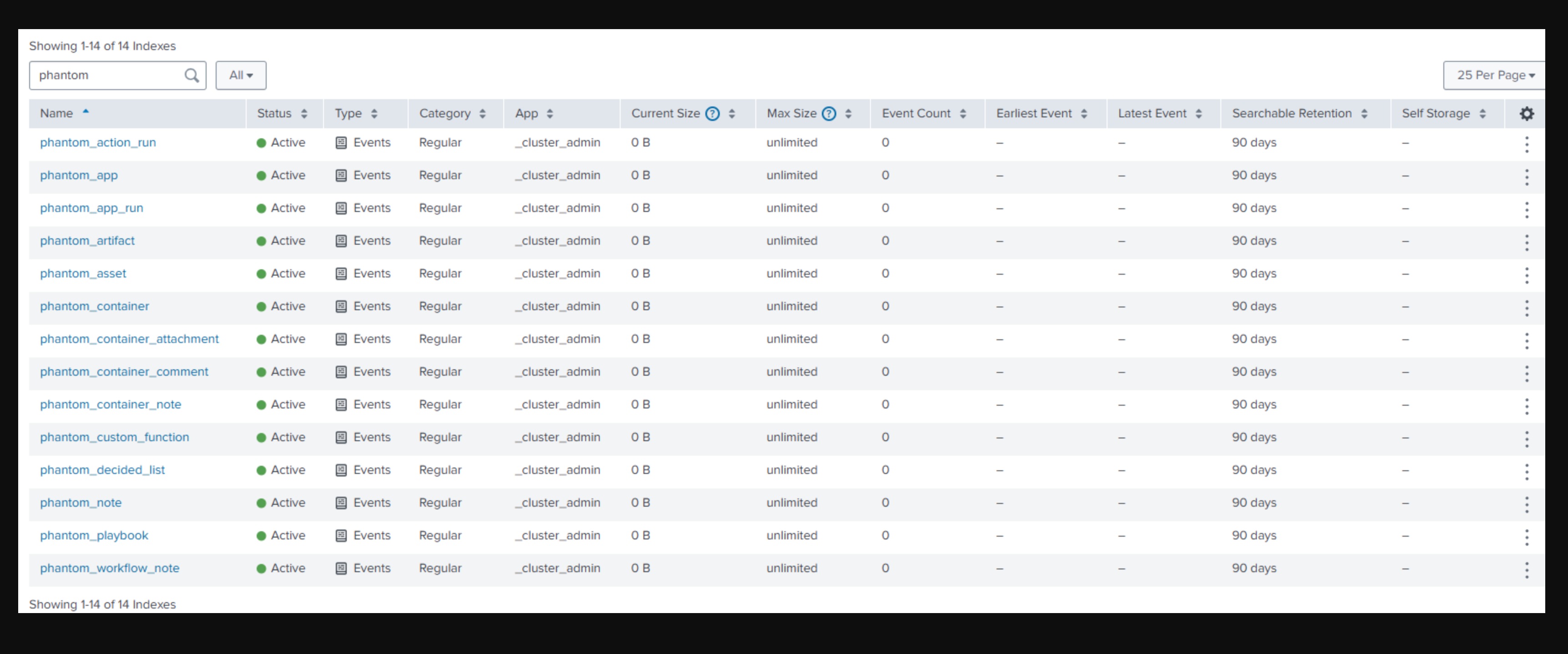
3. Test whether data is reaching Splunk Cloud
Run a search using a sufficiently broad time range:
index="phantom_container"If the index exists but no events are returned despite recent SOAR activity, continue with network connectivity validation.
4. Verify TCP port 9997
For the SOAR data-forwarding path in this case, TCP port 9997 needed to be open.
During troubleshooting, port 9997 was identified as necessary for the expected communication/log forwarding. After the customer opened port 9997, they reported that data was present in the logs.
5. Verify port 8089 when pairing ES with SOAR
If Splunk Enterprise Security is being paired with Splunk SOAR Cloud, also verify connectivity over TCP port 8089.
In this case, after port 9997 was opened and data began appearing, the customer attempted to pair ES with SOAR and found that 8089 also needed to be opened.
Resolution
Ensure that the required network connectivity exists between the applicable Splunk components.
For the environment investigated:
SOAR data forwarding
TCP 9997was required to allow the expected SOAR data/log forwarding.
ES and SOAR pairing
TCP 8089was additionally required for the ES-to-SOAR integration/pairing workflow observed in this case.
After opening 9997, the customer confirmed that data was visible in the logs. If ES/SOAR pairing is also required, ensure 8089 is permitted as appropriate for the deployment.
After making the network change, validate again with a search such as:
index="phantom_container"and confirm that the relevant phantom_* indexes begin receiving events.
Related Links
https://help.splunk.com/en/splunk-soar/soar-cloud/administer-soar-cloud/configure-administration-settings-in-splunk-soar-cloud/configure-forwarders-to-send-soar-data-to-your-splunk-deployment#id_86b27505_3f20_4f34_ad97_8a2cff606039--en__Configure_forwarders_to_send_SOAR_data_to_your_Splunk_deploymentRevision History
| Revision | Publish Date | Comments |
|---|---|---|
1.0 |
02-Oct-2026
|
Initial Release |
 Feedback
Contact Cisco
- Open a Support Case

- (Requires a Cisco Service Contract)