SAML SSO login failure for SOAR with error "SAML2 Authentication Error User is not authorized to use this application"
Available Languages
Applicability
Splunk SOAR On-Prem/CloudDescription
The following error occurs when the user login to SOAR using SAML authentication.
SAML2 Authentication Error
User is not authorized to use this application.
Investigation
The problem was caused by a mismatch between the values configured in SOAR and the values received from the SAML response. The error indicates that the user has successfully logged in, but no appropriate role has been assigned to them.
This could be due to any of the following reasons:
- The group key in the SAML response does not match to the value specified in SOAR.
- The group name in the SAML response does not match to the value specified in SOAR
For reference, here is an example of an incorrect SAML response: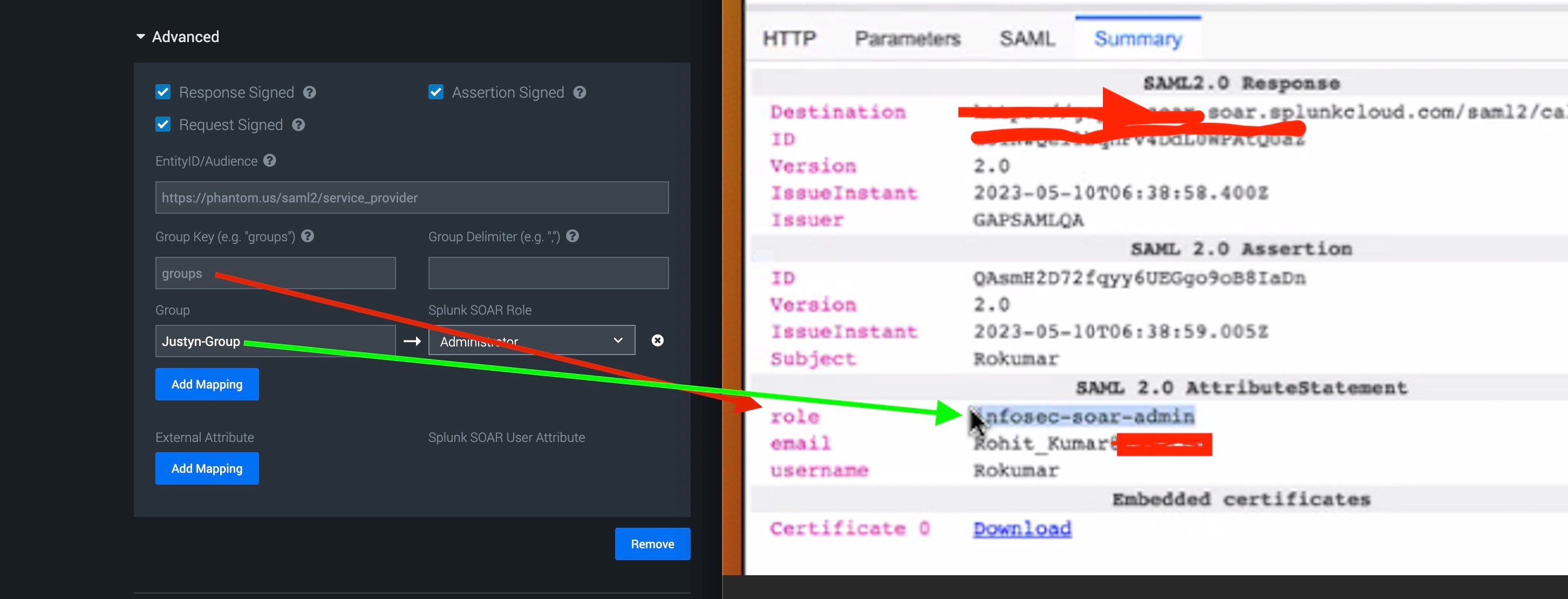
The SOAR group key is defined as ‘groups’, but the value in the SAML response is ‘role’. The group name in SOAR is ‘Justyn-Group’, but the value in the SAML response is ‘infosec-soar-admin’.
Resolution
To resolve the issue, follow these steps:
- Compare the values configured in SOAR to the SAML response received from the IDP. You can use SAML-Tracker to read the SAML response.
- Identify and correct any mismatch between the values. You can either change the SAML response or the configuration at the SOAR end to align them.
- Log in again and verify that no errors occur.
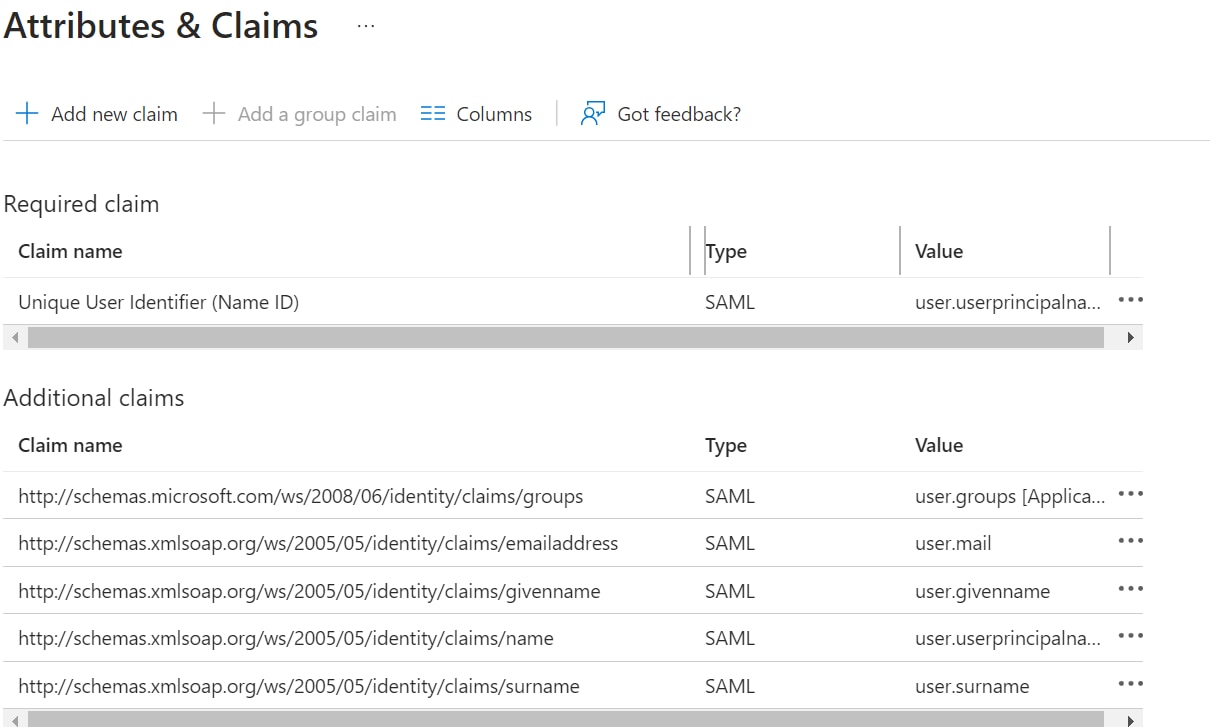
An example for Microsoft Azure. This is defined in Attributes & Claims of Azure SAML Enterprise Application. The Claim name for user.groups "http://schemas.microsoft.com/ws/2008/06/identity/claims/groups" should be entered as Group Key in SOAR.

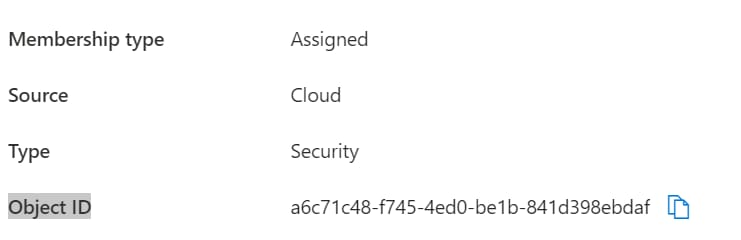
The Object ID of any group configured under User and groups of SAML Enterprise Application should be entered under Group in SOAR.

Another example is Active Directory Federation Services (ADFS), a software component developed by Microsoft that runs on Windows Server operating systems. It provides Single Sign-On (SSO) capabilities. When configuring SAML2 integration with ADFS, if login user is in multiple groups, ADFS typically produce multiple <saml:AttributeValue> elements for multiple groups. SOAR is not able to parse the group value.
<Attribute Name="http://schemas.xmlsoap.org/claims/Group"><AttributeValue>Domain Users</AttributeValue><AttributeValue>SecurityShare</AttributeValue><AttributeValue>GroupA</AttributeValue><AttributeValue>GroupB</AttributeValue><AttributeValue>GroupC</AttributeValue>...<AttributeValue>LastGroup</AttributeValue></Attribute>This requires creating a custom claim rule on ADFS for example:
Rule Template: Send Claims Using a Custom Rule
c:[Type == "http://schemas.xmlsoap.org/claims/Group", Value == "GroupA"]
=> issue(Type = "soar_admin_groups", Value = "GroupA");
Doing it this way results in the SAML response issuing a "soar_admin_groups" attribute name with only one attribute value. SOAR is able to extract the correct group value and map it to correct SOAR role.
Related Links
https://docs.splunk.com/Documentation/SOARonprem/latest/Admin/Authentication
Integrating SOAR with Azure AD SAML - Splunk Lantern
Revision History
| Revision | Publish Date | Comments |
|---|---|---|
1.0 |
30-Sep-2026
|
Initial Release |
 Feedback
