Troubleshooting Splunk ES and SOAR Pairing Issues
Available Languages
Applicability
Splunk SOAR Enterprise Security v8.2+ Cloud, On-Prem and HybridDescription
Pairing failures between Splunk ES and Splunk SOAR prevent the execution of playbooks and automation actions. Common symptoms include:
- Connectivity failures due to SSL handshake errors or network allowlist restrictions.
- Error messages in the UI pairing interface or an "Already Paired" status when it's not.
- The UI displays a persistent "spinning" icon, or buttons aren't functional during pairing.
- Pairing status or Role Mapping drops unexpectedly.
Investigation
Always confirm the deployment type first: (Cloud-to-Cloud, Hybrid, or On-Prem to On-Prem).
Ensure Splunk Search Heads and SOAR are not overburdened when performing the pairing between ES and SOAR. Overload can cause pairing to fail or behave unreliably.
Review the pairing log for specific error codes or timeout messages using the following SPL:
index=_internal source=*mc_es_soar_pairing.log level=ERROR
Verify the status of the required modular inputs on the ES Search Head.
Related Errors:
- Initiate pairing failed: [HTTP 404] Soar AuthN JWK not found
- 504 Server Error: Gateway Time-out
In ES v8.2+, do not disable modular inputs during a pairing reset. Unlike previous versions, modular inputs are decoupled from the pairing state and will not automatically enable upon re-pairing. The following modular inputs are required to be in an enabled state.
create_ingest_soar_tokens = "Create and Ingest Splunk tokens required by SOAR as credentials"
create_soar_jwk_key_pair = "Create and Store SOAR JWK key pair"
Modular Inputs Status (SPL Search from the ES SH):
| rest splunk_server=local /services/data/inputs/all
| search eai:acl.app="missioncontrol" eai:type="create*"
| table title, eai:type, disabled, eai:acl.app
Confirm network connectivity between the instances on ports 443 and 8089.
Related Errors:
SOAR could not connect to ES: ConnectTimeoutError Port 8089
Cloud:
Confirm the Splunk SOAR IP address is already included in the Splunk Cloud Platform IP allow list in each of these sections:
- Search head API access (8089): for all stacks
- IDM API (8089): only for FedRamp, HIPAA or PCI compliance stacks
- Search head UI access (443): only for FedRamp, HIPAA or PCI compliance stacks
On-Prem/Hybrid:
Splunk SOAR (On-Prem) defaults to TCP 8443 for the web interface and REST API.
Verify that any Firewall and Load Balancer endpoint IPs are permitted on ports 8443 and 8089 to avoid connectivity blocks.
Confirm the certificate type:
Cloud-to-Cloud deployments include compatible certificates by default.
Hybrid pairing requires a valid Public CA SSL certificate.
For On-Prem, verify the existence and validity of the SOAR certificate in the soar_cert_bundle.pem file located at:
$SPLUNK_HOME/etc/apps/missioncontrol/certificates/soar_cert_bundle.pem
Check SOAR logs at /var/log/phantom/wsgi.log for SSL handshake failures or unauthorized access attempts from the Search Head IP address.
Resolution
1) Enable Required Modular Inputs:
Navigate to Settings > Data Inputs on the ES Search Head.
Data inputs » Create and Ingest Splunk tokens required by SOAR as credentials
Data inputs » Create and Store SOAR JWK key pair
Locate create_ingest_soar_tokens and create_soar_jwk_key_pair.
Ensure all are set to Enabled. This prevents pairing from dropping after the initial token expiration.
The create_ingest_soar_tokens input handles the Authentication Handshake and session management.
Function: It is responsible for the actual exchange of credentials to obtain the authentication tokens (JWTs) that allow the ES Search Head to communicate with the SOAR API. It manages the "pairing" state and ensures that the ES user has a valid, active session with SOAR. This is the "active" part of the pairing. It performs the background API calls to SOAR to verify that the pairing is still valid. If this input fails, the integration cannot refresh its session, leading to "Pairing request to SOAR is unauthorized" errors.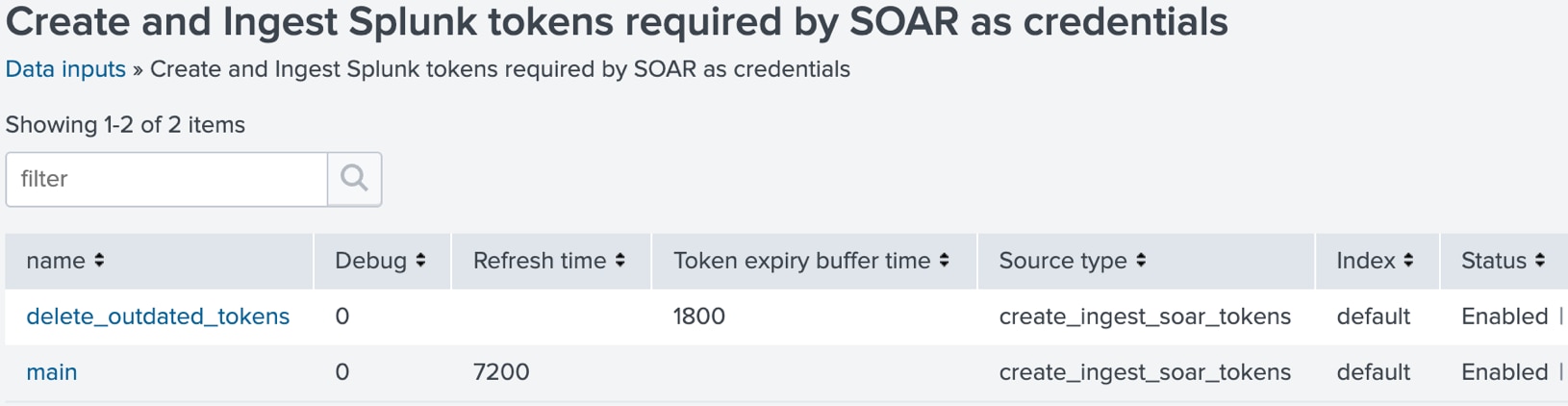
The create_soar_jwk_key_pair input handles the Cryptographic Identity of the Splunk ES Search Head.
Function: It generates a public/private key pair (JSON Web Key - JWK) used to sign the JWTs (JSON Web Tokens) that Splunk ES sends to SOAR. When SOAR receives a request from ES, it uses the public key generated by this input to verify that the request is authentic. If this input is broken or the key is stale, SOAR will reject all requests as "Unauthorized" because it cannot verify the signature.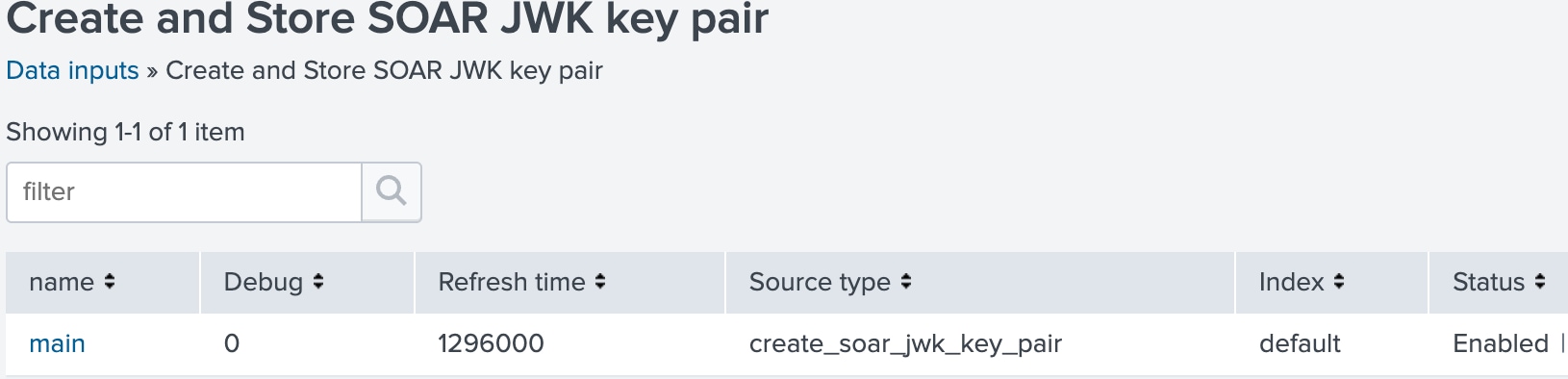
As a troubleshooting step for role mappings or authentication tokens failing to refresh, you can force a background configuration reload by disabling and re-enabling the "Create and Ingest Splunk tokens required by SOAR as credentials" and/or the "Create and Store SOAR JWK key pair" data inputs as needed.
How to Refresh Pairing Inputs
2) Update Allowlists and Firewalls:
- [Port 443 or Port 8443] : (HTTPS Bidirectional Handshake ES <-> SOAR).
Verify that the IP address(es) of the Enterprise Security (ES) Search Head are added to the SOAR allowlist on Port 443 (Cloud) or Port 8443 (On-Premises), or that the required port is open to all traffic (0.0.0.0/0). Conversely, confirm that the Port 443 allowlist on the Splunk Search Head(s) is either open to all traffic or explicitly contains the SOAR IP address/CIDR range. - [Port 8089]: (REST API callback SOAR -> ES).
SOAR must be able to reach/servicesNS/-/missioncontrol/v1/keys. - In Splunk Cloud environments, port 8089 on the Search Heads are restricted until an Allow List is provided. The Splunk Cloud Search Head API access Security Group needs to reflect either 0.0.0.0/0 (which allows all traffic), or it needs to have the SOAR public IP address included/added.
- In Splunk Cloud Azure environment, ES search heads sit behind an Azure Application Gateway (a Layer 7 load balancer) and don't expose individual public IPs the way AWS/GCP stacks do. For the ES <-> SOAR bidirectional handshake to work, the ES stack's Application Gateway frontend IP (not just individual search head IPs) must be added to the SOAR Cloud instance's API allowlist, alongside your own source IP for SOAR UI access. Note: adding any entry to a previously-empty SOAR allowlist changes it from allow-all to restrictive, include all required IPs in the same change. Ensure that the egress LB IP(s) are added to SOAR Cloud allow list.
- In FedRAMP, HIPAA, PCI, or other cloud-restricted environments, it's also required to add the SOAR public IP address to the Search Head UI Port 443 Security Group. And in reverse, if the SOAR instance is cloud-hosted, add the ES Search Head IP addresses to the SOAR Cloud Port 443 Security Group, as these environments typically enforce an allowlist by default.
- IL5/NIPERNet: Add the on-prem SOAR IPs to the Cloud Bidirectional Connectivity static route.
3) Reset Stuck Pairing State:
The Splunk ES-SOAR integration relies on a synchronized trust relationship and token exchange between the two platforms. Due to the sensitive nature of these security configurations, the pairing state can occasionally become inconsistent due to configuration drift, role mapping updates, or token synchronization issues. A manual reset maybe needed if the UI is "spinning", the "Pairing in Progress" status is persistent, or the Unpairing button is unresponsive.
Related Errors:
- Unpair error: SOAR returned an error: No Splunk credentials were available in SOAR
If the role-mapping section in the ES Pairing UI appears blank, even when standard roles with the soar_user capability are verified to exist, a manual unpair/re-pairing maybe required.
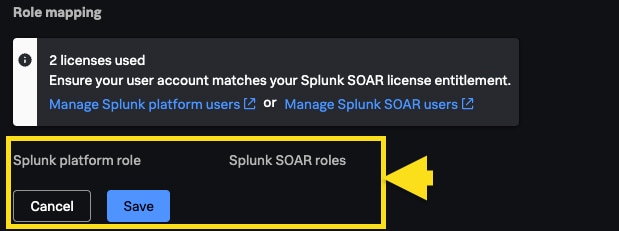
a. Your SOAR instance is already paired with an ES system.
Cloud/Hybrid/On-Prem SOAR:
Execute the following command against the SOAR instance to clear the pairing state:
(Ensure the false flags are used in the unpairing CURL command to prevent accidental deletion of Splunk users.)
curl --location 'https://<soar_stack>/rest/enterprise_security/unpairing' \
--header 'Content-Type: application/json' \
--data '{"delete_all_splunk_users": false,"delete_non_converted_splunk_users":false}' \
-u soar_local_admin
b. Clear the SOAR pairing state first and re-attempt pairing; if necessary proceed with the configuration cleanup on the ES SH.
On-Prem ES:
On the Enterprise Security v8.2+ Search Head, access the /apps/missioncontrol/local/essoar.conf file, clear or reset the following attributes, and then reload/restart Splunk:
[pairing_state]
pairing_attempt_id =
pairing_id =
pairing_status = Unpaired
[pairing]
pairing_completed_time =
soar_url =
Hybrid/Cloud ES:
- For assistance resetting pairing on a Splunk Cloud platform instance, please contact Splunk Support.
4) SSL Handshake and Certificate Issues:
On-Prem:
Ensure the environment is configured to use TLS 1.2 or higher.
- When utilizing the default self-signed certificate, copy the contents of the SOAR server's
[$PHANTOM_HOME]/etc/ssl/certs/httpd_cert.crt
(For load balancers, located in/etc/haproxy/certificates)
into the ES Search Head's:$SPLUNK_HOME/etc/apps/missioncontrol/certificates/soar_cert_bundle.pem. - Note: Because this is a self-signed identity, once the original SOAR server certificate is regenerated or expires, the pairing will break until the new
httpd_cert.crtis manually copied to the ES Search Head again. - If the deployment is a Search Head Cluster (SHC), use the deployer to distribute the certificate to all cluster members.
Hybrid/Cloud:
For Hybrid pairing (SOAR On-Prem to ES Cloud), the On-Prem SOAR instance must utilize a valid SSL certificate signed by a Certificate Authority (CA). Self-signed SSL certs are not supported in Splunk Cloud Hybrid deployments.
- Public CA deployments: SSL certificates issued by a Public CA are generally trusted automatically (RFC5280). If your SOAR instance is behind an App Gateway or Load Balancer, you may need to update the Nginx configuration (
set_real_ip_from) and Django security settings (settings_local.py) to ensure proper origin trust and header handling. - Private CA deployments: Feature under development. Public CA currently required.
- If authentication fails despite valid certificates, ensure the ES hostname is configured with the correct naming convention.
(esp. FedRamp): https://es.<stackname>.splunkcloud.com
5) Role Mapping and Role Visibility:
· To see the pairing page, you should have the sc_admin role (for Splunk Cloud) or the admin role (for Splunk On-Prem).
· Regardless of deployment type or role, the user performing the pairing must have a specific set of three capabilities: admin_all_objects, es_soar_settings_admin, and soar_user.
· The pairing interface does not display every role existing on the ES SH. It only populates the dropdown with roles that possess the soar_user capability. If roles are missing from the mapping dropdown, ensure the relevant Splunk roles possess the soar_user capability.
· For SOAR, use soar_local_admin to GET /rest/idps/splunk/current/role-mapping. If this endpoint returns an empty role mapping, this is evidence that the role mapping was cleared.
Related Links
Knowledge Articles
- Firewall Changes: IP Allow Lists in Splunk Cloud
- SOAR - ES pairing failed with SSLV3_ALERT_HANDSHAKE_FAILURE
Splunk Docs
- Pair Splunk Enterprise Security with Splunk SOAR Documentation
- Splunk ES/SOAR Compatibility Matrix
- Splunk SOAR (On-premises) certificate store overview
Revision History
| Revision | Publish Date | Comments |
|---|---|---|
1.0 |
01-Oct-2026
|
Initial Release |
 Feedback