Enabled correlation searches not scheduling and the "Next Scheduled Time" field in Content Management page is empty
Available Languages
Applicability
Splunk Enterprise SecurityDescription
In Splunk Enterprise Security, correlation searches may appear enabled but do not execute as expected and the "Next Scheduled Time" field in the Content Management page is empty.
Investigation
- In Splunk ES, navigate to Configure > Content Management, look for the correlation search which is enabled but has "Next Scheduled Time" is empty and copy the search name.
- Go to Settings > Searches, Reports, and Alerts, set App = All and Owner = All, search for the copied correlation search name, and check the Owner column.
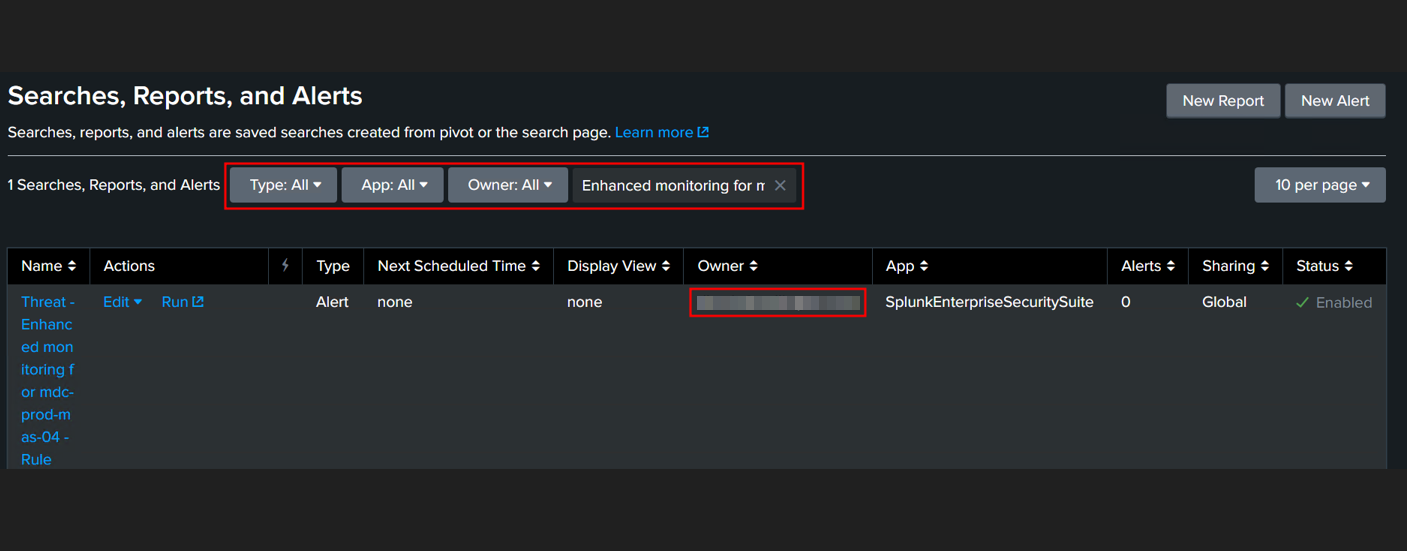
- Go to Settings > Users, search for the owner, and verify that the user exists.
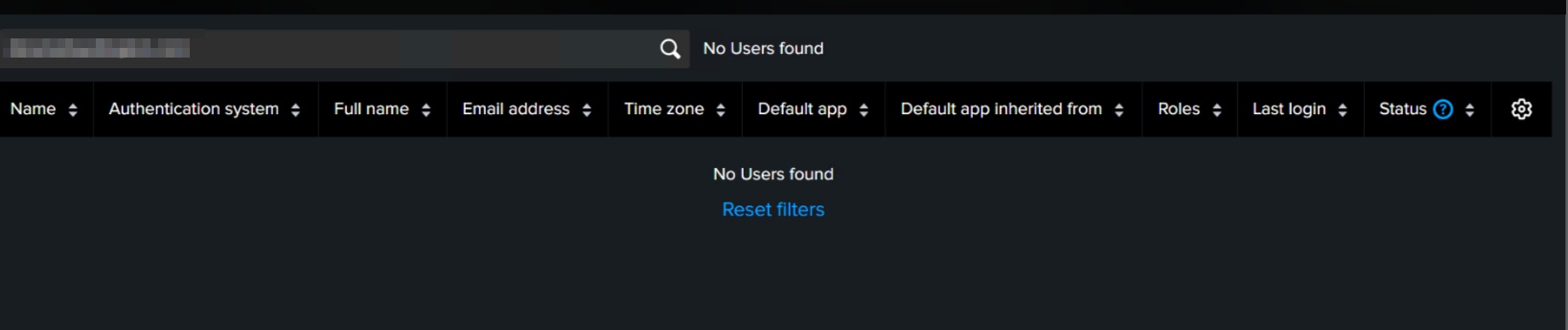
- Identified that the owner of the correlation search does not exist.
Resolution
- Navigate to Settings > All configurations > Reassign knowledge objects and select the orphaned filter to find all searches owned by the inactive user.

- Click Reassign, choose a new active owner and save the changes.
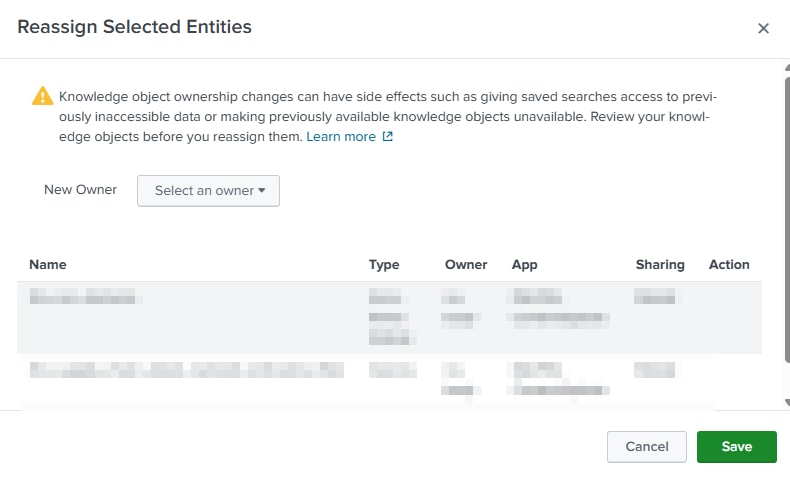
- Once reassigned, verify that the correlation searches now have a valid owner and check if the Next Scheduled Time is populated.
- Monitor the searches in Settings > Searches, reports and alerts to ensure they are running as expected.
- If the searches still do not run, manually disable and re-enable them trigger scheduling.
Related Links
Splunk Document: Resolve Orphan Searches
Revision History
| Revision | Publish Date | Comments |
|---|---|---|
1.0 |
30-Sep-2026
|
Initial Release |
 Feedback