Block Google AI Mode in the Secure Web Appliance
Available Languages
Introduction
This document describes the necessary steps to perform so the Secure Web Appliance is configured to block the HTTPS requests to the Google AI Mode.
Prerequisites
Requirements
Cisco recommends that you have knowledge of these topics:
- SWA administration
- Basic Networking and Proxy protocols
- Decryption process of the SWA
- Regular Expressions
Cisco recommends that you have these tools installed:
- Physical or Virtual SWA
- Administrative Access to the SWA Graphical User Interface (GUI)
Components Used
This document is not restricted to specific software and hardware versions.
The information in this document was created from the devices in a specific lab environment. All of the devices used in this document started with a cleared (default) configuration. If your network is live, ensure that you understand the potential impact of any command.
Configurations Steps
| Step 1. Create a Custom URL Category for the Google website. |
Step 1.1. From the GUI, navigate to Web Security Manager and choose Custom and External URL Categories. Step 1.2. Click Add Category to create a new Custom URL Category. Step 1.3. Enter Name for the new category. Step 1.4. Define this URLs in the Sites section: Step 1.5. Submit the changes. 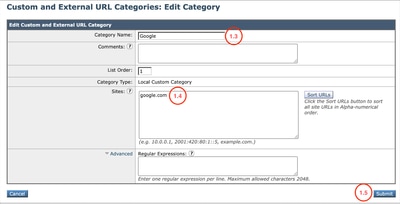 |
| Step 2.Create a Custom URL Category for the Google AI Mode. |
Step 2.1. From the GUI, navigate to Web Security Manager and choose Custom and External URL Categories. Step 2.2. Click Add Category to create a new Custom URL Category. Step 2.3. Enter Name for the new category. Step 2.4. Define this URLs in the Regular Expressions section: Step 2.5. Submit the changes. 
Tip: For more information about how to configure Custom URL Categories, visit: Configure Custom URL Categories in Secure Web Appliance - Cisco 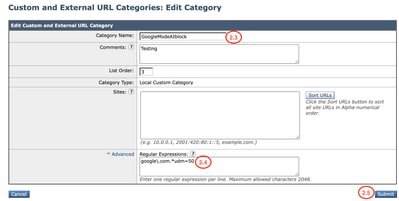 |
| Step 3. Decrypt the traffic for Google. |
Step 3.1. From the GUI, navigate to Web Security Manager and choose Decryption Policies Step 3.2. Click Add Policy. Step 3.3. Enter Name for the new policy. 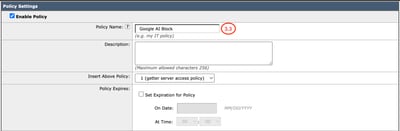 Step 3.4. (Optional) Select the Identification Profile that you need this policy to apply to. Step 3.5. From Policy Member Definition section, click URL Categories links to add the Custom URL Category. Step 3.6. Select the URL Category that was created in Step 1. Step 3.7. Click Submit.  Step 3.8. In Decryption Policies page, click the link from URL Filtering for the new policy. Step 3.9. Choose Decrypt as the action for Custom URL Category. Step 3.10. Click Submit. 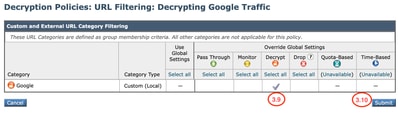 |
| Step 4. Block the Google AI Mode Traffic. |
Step 4.1. From the GUI, navigate to Web Security Manager and choose Access Policies. Step 4.2. Click Add Policy. Step 4.3. Enter Name for the new policy. 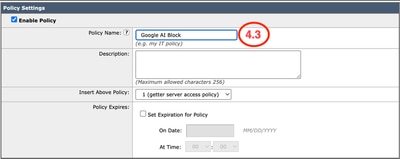 Step 4.4. (Optional) Select the Identification Profile that you need this policy to apply to. Step 4.5. From Policy Member Definition section, click URL Categories links to add the Custom URL Category. Step 4.6. Select the URL Category that was created in Step 2. Step 4.7. Click Submit. 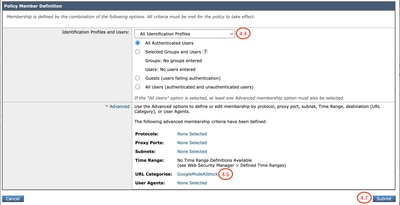 Step 4.8. In Access Policies page, click the link from URL Filtering for the new policy. Step 4.9. Choose Block as the action for Custom URL Category. Step 4.10. Click Submit.   Step 4.11. Commit changes. |
Verify
When the configuration settings are completed, Google AI traffic is processed on the access logs as Block as it is detected by the Custom Category we created for Google AI Block.
1779219170.427 101 10.184.103.26 TCP_DENIED_SSL/403 0 GET https://www.google.com:443/search?q=cisco+live+&sca_esv=afc85aa92f7b31d4&source=hp&ei=2roMatavIouw5NoP7cHb-A8&iflsig=AFdpzrgAAAAAagzI6nbzKZ47bItKwjlwP7Pu3XSM_6rJ&aep=22&udm=50&ved=0ahUKEwjWhKbxi8aUAxULGFkFHe3gFv8QteYPCA8&oq=Cisco+Live+&gs_lp=Egdnd3Mtd2l6IgtDaXNjbyBMaXZlIDIFEAAYgAQyBRAAGIAEMgUQABiABDIFEAAYgAQyBRAAGIAEMgUQABiABDIFEAAYgAQyBRAAGIAEMgUQABiABDIFEAAYgARIviZQpQtYtBdwAXgAkAEBmAHQA6ABhiOqAQUzLTYuNbgBAcgBAPgBAZgCCqAC_x-oAgDCAgsQLhiABBjHARjRA8ICBRAuahdjkhaidgadapduads_kgcFMy01LjWgB9JNsgcFMy01LjW4B_8fwgcFMC43LjPIBxmACAE&sclient=gws-wiz - NONE/- - BLOCK_CUSTOMCAT_12-Google_AI_Block-ciscotest-NONE-NONE-NONE-NONE-NONE <"C_Goo0",4.7,-,"-",-,-,-,-,"-",-,-,-,"-",-,-,"-","-",-,-,"IW_srch",-,"-","Search Engines and Portals","-","Unknown","Unknown","-","-",0.00,0,-,"-","-",-,"-",-,-,"-","-",-,-,"-",-,-> - - [Server: -; Port: 62277; Auth: NONE
A request for a search query through the Google AI mode is blocked and display this End User Notification.
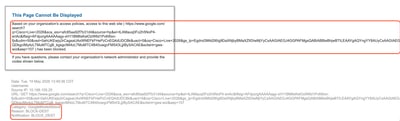
All other Google traffic continues to be allowed.
Related Information
Define Custom URL Categories in WSA
User Guide for AsyncOS 15.2 for Cisco Secure Web Appliance
Configure Decryption Certificate in Secure Web Appliance
Revision History
| Revision | Publish Date | Comments |
|---|---|---|
1.0 |
23-Jun-2026
|
Initial Release |

 Feedback
Contact Cisco
- Open a Support Case

- (Requires a Cisco Service Contract)