Configure Kerberos Single-Sign-On Authentication in SWA
Available Languages
Introduction
This document describes the steps to configure proxy users to have Single-Sign-On (SSO) authentication via Kerberos in Secure Web Appliance (SWA).
Prerequisites
Requirements
Cisco recommends that you have knowledge of these topics:
- SWA administration.
- Basic Active Directory administration.
Cisco recommends that you have these tools installed:
- Physical or Virtual SWA.
- Administrative Access to the SWA Graphical User Interface (GUI).
- Administrative Access to the Active Directory.
Components Used
This document is not restricted to specific software and hardware versions.
The information in this document was created from the devices in a specific lab environment. All of the devices used in this document started with a cleared (default) configuration. If your network is live, ensure that you understand the potential impact of any command.
Before You Begin
If the proxy client tries to access a website and is prompted to enter the credentials manually use these steps to troubleshoot.
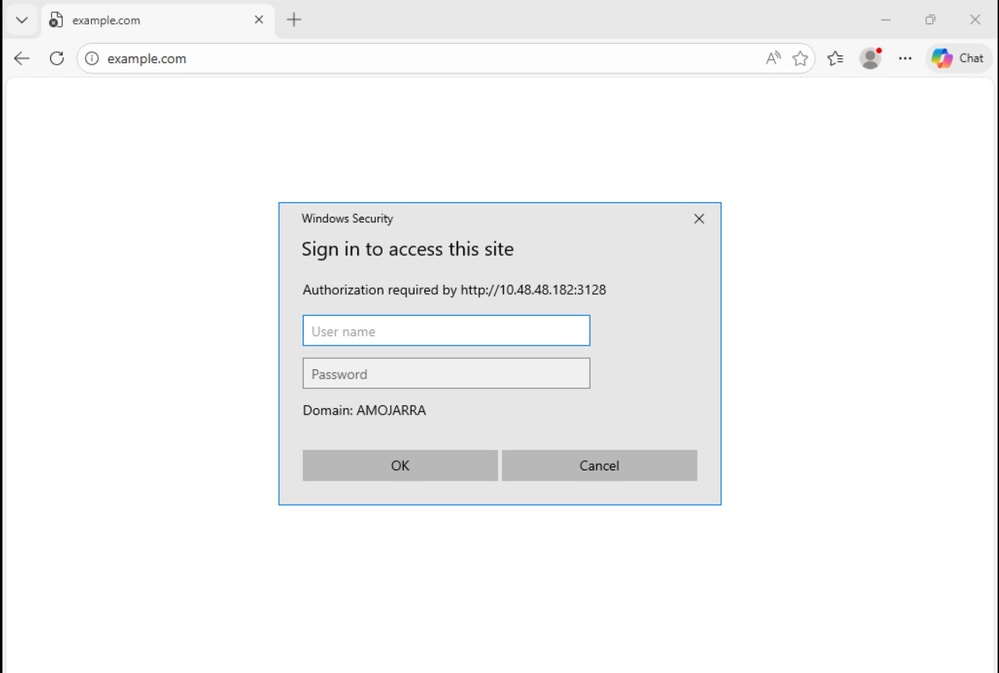 Image - User Authentication Prompt
Step 1. Check the Acesslogs related to the client.
Step 1.1. Log in to the CLI.
Step 1.2. Run grep.
Step 1.3. Select the number associated with the. accesslogs.
Step 1.4. In the Enter the regular expression to grep type the client IP address.
Step 1.5. Press Enter until you see Do you want to tail the logs, Type "Y" and press enter until you see the Accesslogs.
Step 1.6. Re produce the issue by trying to access any website form the Client PC.
Step 1.7. confirm the Identification Profile that the traffic is hitting.
In this Example, the Identification Profile is Auth_ID:
1776248928.353 0 10.48.48.195 TCP_DENIED/407 0 GET http://cisco.com/ - NONE/- - OTHER-NONE-Auth_ID-NONE-NONE-NONE-NONE-NONE <"-",-,-,"-",-,-,-,-,"-",-,-,-,"-",-,-,"-","-",-,-,"-",-,"-","-","-","-","-","-","-",0.00,0,-,"-","-",-,"-",-,-,"-","-",-,-,"-",-,-> - -Step 2. Check the Identification Profile.
Step 2.1. Log in to GUI of the SWA.
Step 2.2. From the Web Security Manager, select Identification Profiles.
Step 2.3. Click on the name of the Identification Profile that the traffic was hitting.
Step 2.4. Confirm that that Authentication Scheme is not set to Basic.
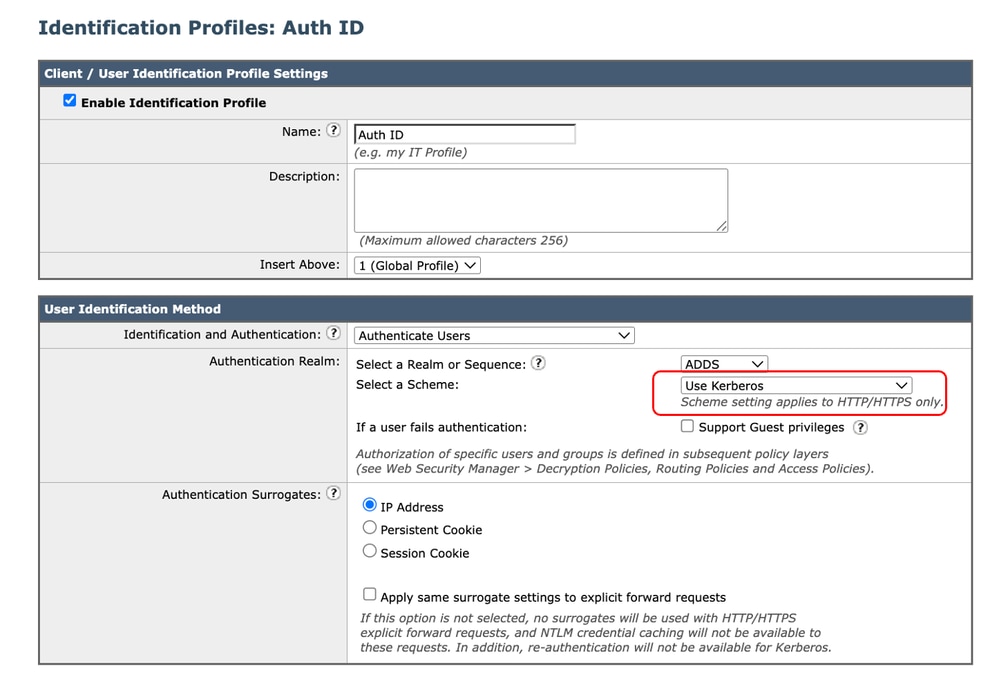 Image - Authentication Schema
Step 3. Test SWA and Active Directory Connectivity.
Step 3.1. From the SWA GUI navigate to Network and select Authentication.
Step 3.2. Click on the Authentication Realm Name.
Step 3.3. Click Start Test to review the SWA and Active directory connectivity status.
If no errors are found, verify the client PC configuration as described in this article.
Configure the Client PC
Use these steps to verify the Client PC configuration:
| Steps |
Details |
Step 1. Local Intranet Sites |
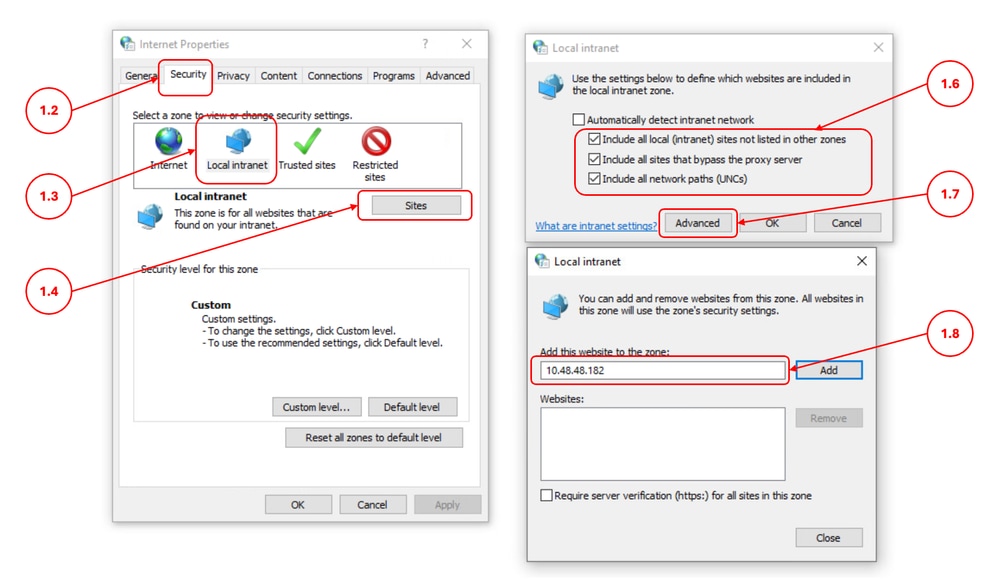
Step 1.1. In the start menu, type Internet Option, and press Enter. Step 1.2. In the Internet Properties window, click on Security tab. Step 1.3. Select Local Intranet. Step 1.4. Click on the Sites. Step 1.5. Make sure the Automatically detect intranet network checkbox is not selected. Step 1.6. Select all these three options:
Step 1.7. Click Advanced. Step 1.8. Enter the FQDN or IP address of your SWA and Add to the list. Step 1.9. (Optional) Depends on your internal security policies, you can disable Require Server Verification.
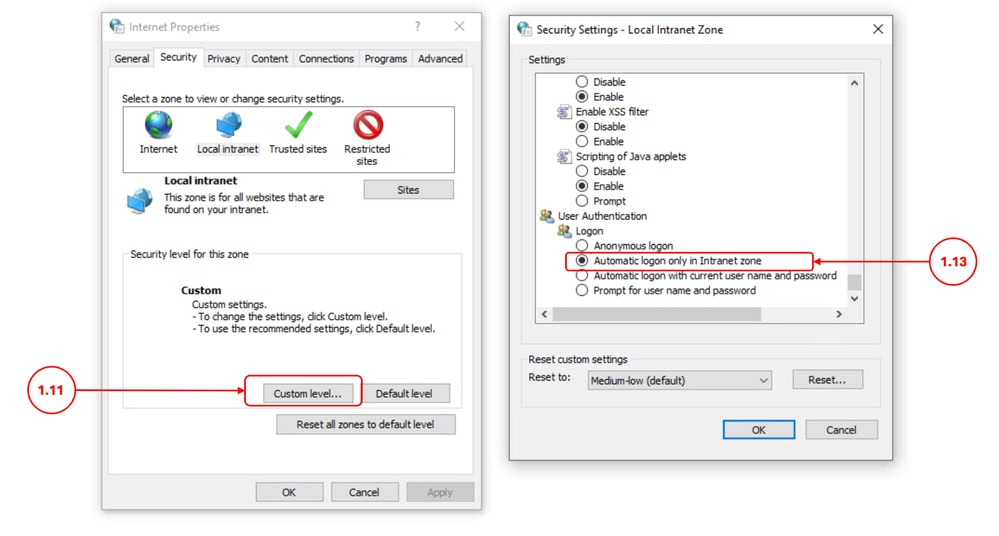
Step 1.10. Click Close and OK. Step 1.11. In the Security tab, click Custom level. Step 1.12. Scroll to User Authentication. Step 1.13. Make sure the Automatic logon only in Intranet zone is selected.
|
Step 2. Collect the Logs |
If the Step 1, did not fixed the SSO authentication via Kerberos: Step 2.1. Change the SWA Auth logs to Trace and review the logs. Step 2.2. Add [Auth-Method = %m ] as a custom field to the accesslogs. for more information kindly visit: Configure Performance Parameter in Access Logs. Step 2.3. Run a Packet capture filter for client IP and Active Directory IP address and confirm the Client PC is sending the Kerberos service ticket to the SWA. |
Related Information
- User Guide for AsyncOS 15.0 for Cisco Secure Web Appliance
- Configure Firewall for Secure Web Appliance
- Configure Packet Capture on Content Security Appliance
- Configure Performance Parameter in Access Logs
- Access Secure Web Appliance Logs
- Use Secure Web Appliance Best Practices - Cisco
- Bypass Authentication in Secure Web Appliance - Cisco
Revision History
| Revision | Publish Date | Comments |
|---|---|---|
1.0 |
28-Apr-2026
|
Initial Release |

 Feedback
Contact Cisco
- Open a Support Case

- (Requires a Cisco Service Contract)