

Introduction
This document describes how to configure the Secure Web Appliance (SWA/WSA) bypass policies to ensure proper Cisco Webex application functionality in special deployment conditions.
Prerequisites
Requirements
Cisco recommends that you have knowledge of these topics:
- Async OS for Secure Web Appliance 14.x or higher.
- Administration user access to the Secure Web Appliance Graphic User Interface (GUI).
- Administration user access to the Secure Web Appliance Command Line interface (CLI).
Components Used
This document is not restricted to specific software and hardware versions.
The information in this document was created from the devices in a specific lab environment. All of the devices used in this document started with a cleared (default) configuration. If your network is live, ensure that you understand the potential impact of any command.
Problem
Based on the Webex public documentation for Network Requirements for Webex Services, proxy server must be configured to allow Webex signaling traffic to access the domains/ URLs listed in the document. The Secure Web Appliance meets the requirements for most environments by enabling the Webex Application Bypass checkbox in bypass settings, however, some additional configurations may be required on Secure Web Appliance to avoid service disruption in the Webex Application. The next steps are recommended for such case scenarios:
Webex Application Scanning Bypass
The Cisco Webex: Bypass Scanning feature is the first step to enable Webex Application traffic to pass unfiltered through the Secure Web Appliance. It should be enabled in all environments and deployment scenarios where users of the Webex desktop or mobile applications have web traffic proxied through the Secure Web Appliance.
Steps to enable Webex Application Scanning Bypass:
- In the WSA GUI, browse to Web Security Manager > Bypass Settings > Edit Application Bypass Settings.
- Check the box for "Cisco WebEx".
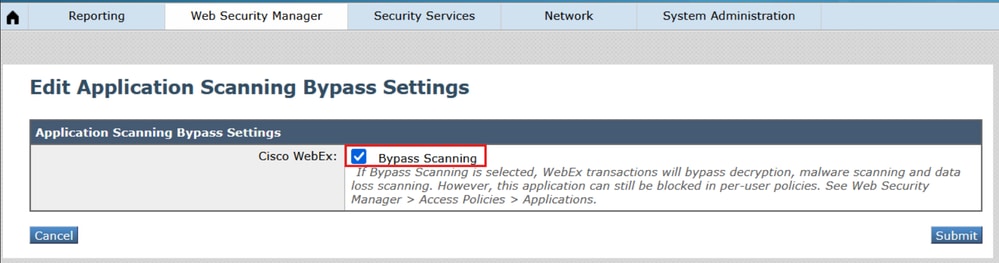 1_wsa_bypass_scanning_settings
 - Submit and Commit changes
When this setting is enabled, it does not bypass transparent traffic as would be expected once the FQDNs is added to the bypass list on the Secure Web Appliance. Rather, the Webex application traffic is still proxied through the Secure Web Appliance, but it will be passed through on decryption with the decision tag "PASSTHRU_AVC". Below is an example of how this might display in the access logs:
1761695285.658 55398 192.168.100.100 TCP_MISS/200 4046848 TCP_CONNECT 3.161.225.70:443 - DIRECT/binaries.webex.com - PASSTHRU_AVC_7-DefaultGroup-DefaultGroup-NONE-NONE-NONE-DefaultGroup-NONE <"IW_meet",9.0,-,"-",-,-,-,-,"-",-,-,-,"-",-,-,"-","-",-,-,"IW_meet",-,"-","Online Meetings","-","WebEx","Presentation / Conferencing","Unknown","-",584.40,0,-,"-","-",-,"-",-,-,"-","-",-,-,"-",-,-> - -
Considerations for Unique Environments
There are a few scenarios where additional configurations are required for the Webex app to work when the traffic is proxied through the Secure Web Appliance.
Scenario 1: Webex domains need to be exempted from authentication
This is especially apparent in environments where IP surrogates are not enabled in the Identification Profile, and transparent redirection is used. Based on the existing documentation, the Webex app is capable of NTLMSSP authentication on domain-joined workstations where the proxy is explicitly defined. Otherwise, it is a best practice to configure a custom category for the Webex domains and exempt them from authentication.
Steps to exempt Webex domains from authentication:
- In the WSA GUI, navigate to Web Security Manager > Custom and External URL Categories > Add Category.
- Give the new category a name, and place the following domains in the Sites section:
.webex.com, .ciscospark.com, .wbx2.com, .webexcontent.com
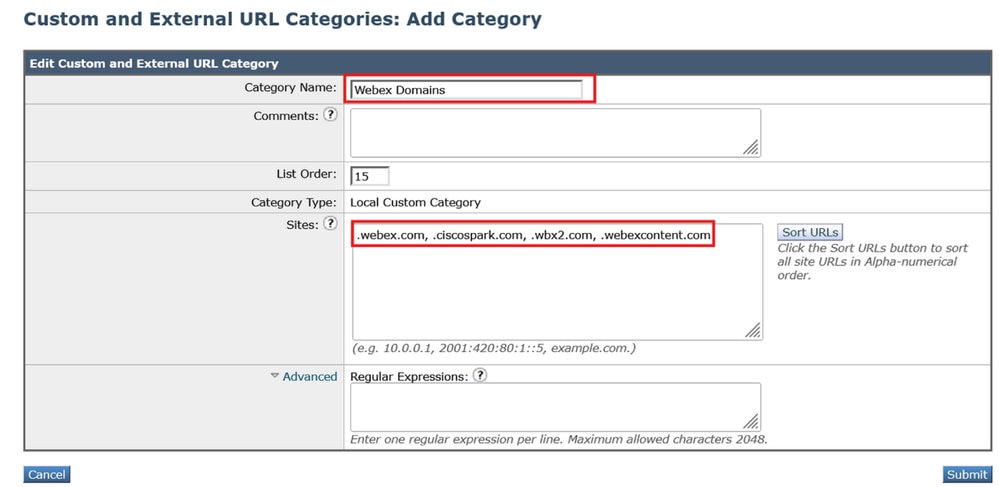 2_wsa_custom_url_category
 - Click Submit. Then navigate to Web Security Manager > Identification Profiles > Add Identification Profile
- Give the new profile a name, and in the Advanced section for URL Categories, select the new category that was created in step #2
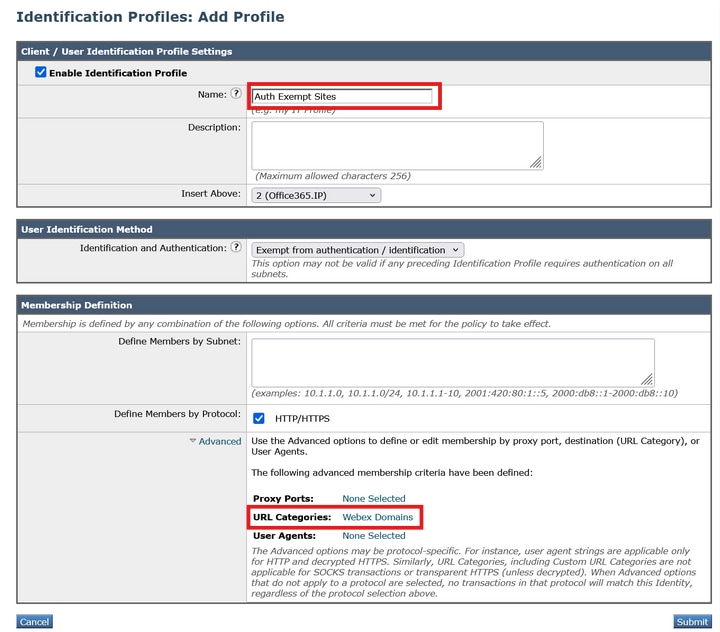 3_wsa_id_profile
 - Ensure the Identification and Authentication in the new profile is set to Exempt from authentication / identification
- Submit and Commit changes.
Scenario 2: Webex Content domains are not fully honored for decryption bypass.
There are a few subdomains related to webexcontent.com that do not automatically pass through on decryption when Webex Application Scanning Bypass is enabled. The content served from these domains is trusted by the Webex app when it is decrypted so long as the Secure Web Appliance's decryption certificate is already added to the device's trusted root certificates store, or otherwise signed by an internal certificate authority that is already trusted by the device running the Webex app. However, if the device is unmanaged and the Secure Web Appliance's decryption certificate is not trusted, these domains should be configured to passthrough on decryption.
When transparent redirection deploymeny is in place and there is more than one SWA along client IP spoofing beingused for redirection groups, traffic can be configured to redirect to the Secure Web Appliance based on the destination IP, and similarly the return traffic from the webservers is configured to redirect back through the Secure Web Appliance based on source address. When the Secure Web Appliance is configured to make connections to the webserver using the IP it resolves using DNS lookup, the return traffic may be inadvertently redirected to a different Secure Web Appliance and subsequently dropped. This problem affects not only Webex, but other video streaming applications as well, due to the use of rotating IP addresses on the webservers.
Steps to configure passthrough on decryption for all Webex domains:
- Ensure Webex Application Scanning Bypass is enabled as per instructions above.
- In the WSA GUI, navigate to Web Security Manager > Custom and External URL Categories > Add Category.
- Give the new category a name, and place the next domain in the Sites section:
.webexcontent.com
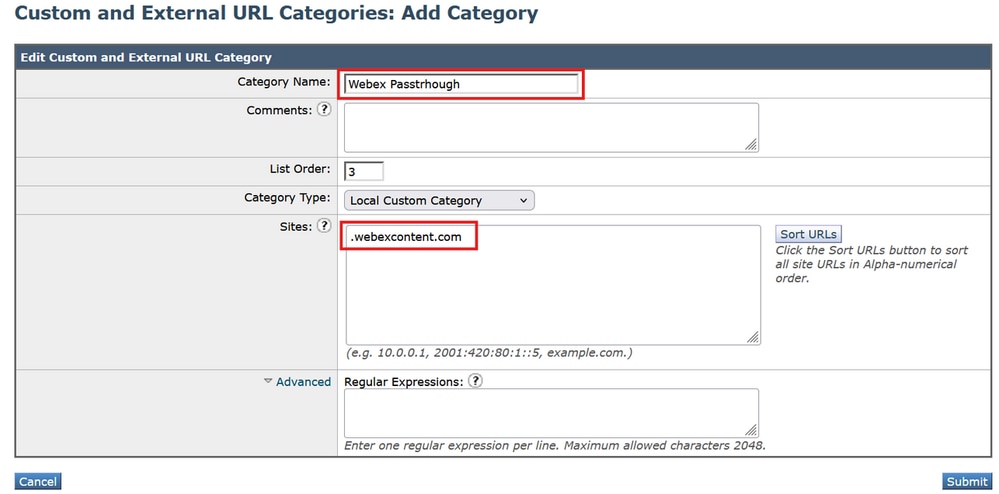 4_wsa_url_caegory
- Click Submit. Now, navigate to Web Security Manager > Decryption Policies > Add Policy
- Name the new policy, set Identification Profiles and Users to "All Users", and in the Advanced section for URL Categories, select the new category that was created in step #3
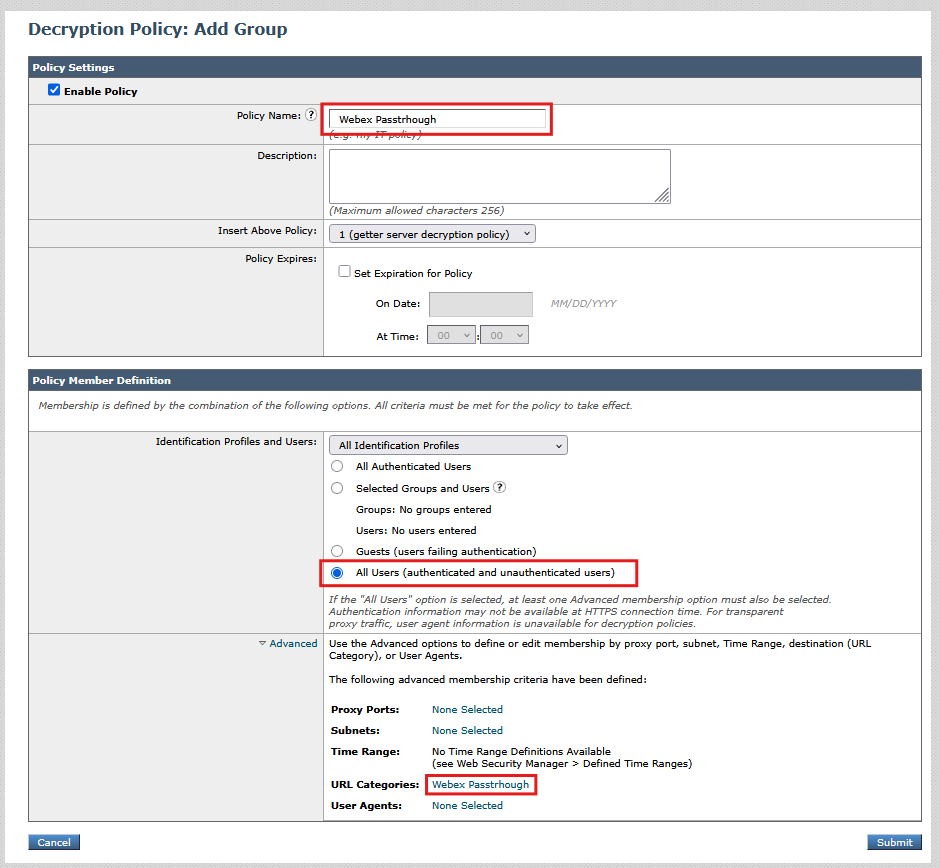 5_wsa_decryption_policy
 - Click Submit. Then, click on the URL Filtering section and set the custom category that was created in step #3 to "Pass Through".
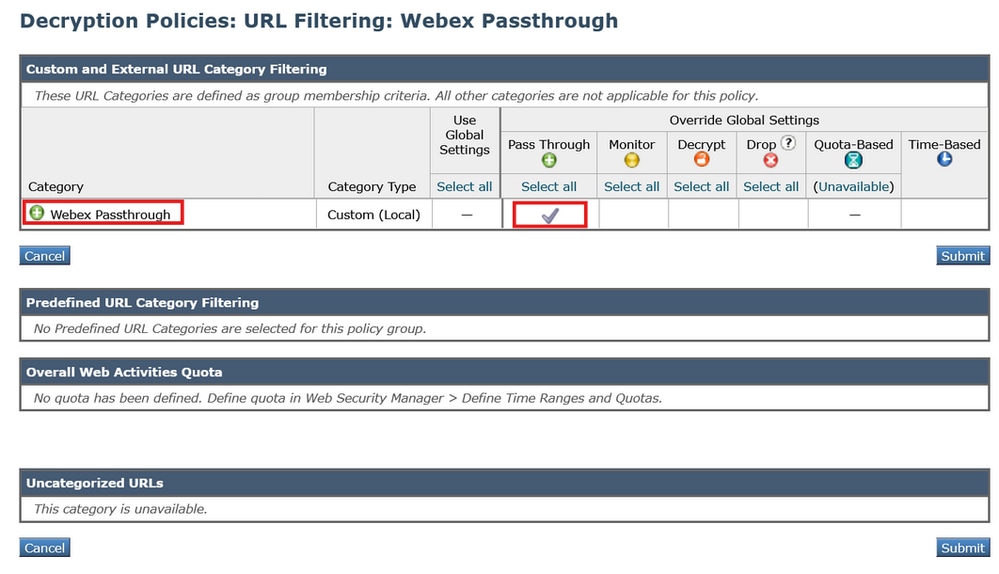 6_wsa_url_filtering
 - Submit and Commit the changes.
If multiple Secure Web Appliances are deployed for transparent redirection and client IP spoofing is enabled, there are two solutions to this:
- Set the outgoing and return WCCP services to load balance based on client address rather than server address.
- In the WSA CLI, set advancedproxyconfig > DNS > "Find web server by" to always use the client-supplied IP address on connections to the webserver (options 2 and 3). More information about this setting can be found in the DNS section of the Use Secure Web Appliance Best Practices guide.
Verification
When the passthrough settings complete, Webex traffic will be processed on the access logs as Pass through as per policies:
1763752739.797 457 192.168.100.100 TCP_MISS/200 6939 TCP_CONNECT 135.84.171.165:443 - DIRECT/da3-wxt08-us.bcld.webex.com - PASSTHRU_CUSTOMCAT_7-Webex_Passthrough-Webex_Passthrough-NONE-NONE-NONE-DefaultGroup-NONE <"C_Web0",-,-,"-",-,-,-,-,"-",-,-,-,"-",-,-,"-","-",-,-,"-",-,"-","-","-","-","-","-","-",121.47,0,-,"-","-",-,"-",-,-,"-","-",-,-,"-",-,-> - - [Server: 135.84.171.165; Port: 40767; Auth: NONE]
1763752853.942 109739 192.168.100.100 TCP_MISS/200 7709 TCP_CONNECT 170.72.245.220:443 - DIRECT/avatar-a.wbx2.com - PASSTHRU_CUSTOMCAT_7-Webex_Passthrough-Webex_Passthrough-NONE-NONE-NONE-DefaultGroup-NONE <"C_Web0",-,-,"-",-,-,-,-,"-",-,-,-,"-",-,-,"-","-",-,-,"-",-,"-","-","-","-","-","-","-",0.56,0,-,"-","-",-,"-",-,-,"-","-",-,-,"-",-,-> - - [Server: 170.72.245.220; Port: 40845; Auth: NONE]
1763752862.299 109943 192.168.100.100 TCP_MISS/200 8757 TCP_CONNECT 18.225.2.59:443 - DIRECT/highlights.us-east-2.intelligence.webex.com - PASSTHRU_CUSTOMCAT_7-Webex_Passthrough-Webex_Passthrough-NONE-NONE-NONE-DefaultGroup-NONE <"C_Web0",-,-,"-",-,-,-,-,"-",-,-,-,"-",-,-,"-","-",-,-,"-",-,"-","-","-","-","-","-","-",0.64,0,-,"-","-",-,"-",-,-,"-","-",-,-,"-",-,-> - - [Server: 18.119.170.197; Port: 40855; Auth: NONE]
1763752870.293 109949 192.168.100.100 TCP_MISS/200 8392 TCP_CONNECT 170.72.245.190:443 - DIRECT/retention-a.wbx2.com - PASSTHRU_CUSTOMCAT_7-Webex_Passthrough-Webex_Passthrough-NONE-NONE-NONE-DefaultGroup-NONE <"C_Web0",-,-,"-",-,-,-,-,"-",-,-,-,"-",-,-,"-","-",-,-,"-",-,"-","-","-","-","-","-","-",0.61,0,-,"-","-",-,"-",-,-,"-","-",-,-,"-",-,-> - - [Server: 170.72.245.190; Port: 40862; Auth: NONE]
Review and monitor the webex application, if any slowness or service disruption is reported, review the access logs one more time and validate all webex-side traffic is processed correctly.
Related Information
Revision History
| Revision | Publish Date | Comments |
|---|---|---|
1.0 |
December 04, 2025
|
Initial Release |
Bias-Free Language
The documentation set for this product strives to use bias-free language. For the purposes of this documentation set, bias-free is defined as language that does not imply discrimination based on age, disability, gender, racial identity, ethnic identity, sexual orientation, socioeconomic status, and intersectionality. Exceptions may be present in the documentation due to language that is hardcoded in the user interfaces of the product software, language used based on RFP documentation, or language that is used by a referenced third-party product. Learn more about how Cisco is using Inclusive Language.
Need help?
- Open a Support Case
- (Requires a Cisco Service Contract)