Troubleshoot and Verify URL Category in CSF
Available Languages
Contents
Introduction
This document describes how to verify URL category assignments on Secure Firewall and FMC to ensure the device are using the same URL classification.
Prerequisites
You must have the URL Filtering license enabled for the device, the Cloud Services integration in a healthy state, and an access control policy that includes URL filtering and has been deployed after the URL condition is configured.
Requirements
Cisco recommends that you have knowledge of these topics:
- Firepower Management Center (FMC) URL filtering and category lookups
- Cisco Secure Firewall (CSF) traffic inspection and policy evaluation
- URL categorization and reputation behavior, which is based on Talos beginning with CSF version 6.5
Components Used
This document describes functionality available in Cisco Secure Firewall and FMC versions 6.5 and later. The examples in this guide use version 7.6.5.
The information in this document was created from the devices in a specific lab environment. All of the devices used in this document started with a cleared (default) configuration. If your network is live, ensure that you understand the potential impact of any command.
Related Products
This document can also be used with these products and versions:
- Secure Firewall Management Center (FMC)
- Cisco Secure Firewall (CSF)
- URL Filtering and Cloud Services integrations
Background Information
URL filtering relies on a category database that is evaluated during traffic inspection. The FMC stores the URL category information for a destination, and the device performs a runtime lookup when traffic is inspected. When there is a mismatch between the FMC, the device, or the cloud database, policy results can appear inconsistent even when the access control policy is configured correctly.
An important part of verification is confirming that the URL category assignment is consistent across the FMC and the device. The URL category lookup is influenced by the Cloud Services integration settings and the device cache. If the cache refresh setting is disabled or the entry lifetime is too long, stale category data can remain in use after Talos updates the classification.
Architecture
When URL filtering is enabled, the device first checks the local URL cache. If the category is not already present in the cache, the device can query the local database or the Cisco Cloud. The device uses its local URL database and lookup cache during inspection, and beakerd communicates with Talos to download and update URL-filtering data. On FMC-managed devices, beakerd runs on the FMC and is in a waiting state on the CSF. If the CSF is locally managed, the process runs on the device itself.
Talos sends full database packages in multiple sizes, which are stored under /var/sf/cloud_download/cisco.
Here are some examples of what the database files from Talos can look like:
- cisco_uridb_large_1541554243 (500 MB)
- cisco_uridb_medium_1541553645 (125 MB)
- cisco_uridb_small_1541553061 (33 MB)

Note: The database files start with cisco_uridb then the size is listed (small, medium or large). Sizes can vary depending on the hardware being used.
Step 1: Look Up the URL Category in FMC
The FMC maintains a local URL database that maps URL destinations to their assigned categories. This is the recommended first step when validating how a URL is being classified.
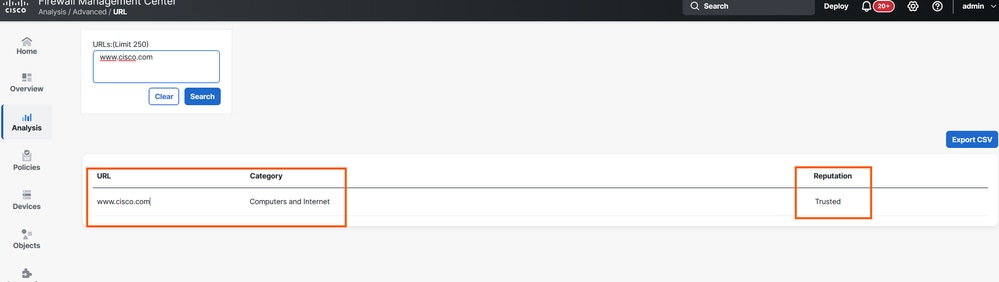
Navigate to the location Analysis > Advanced > URL in the FMC.
Enter the URL you want to investigate and review its assigned category.
In the example shown below, www.cisco.com is listed under the category Computers and Internet.
Step 2: Review URL Filtering Integration Settings
The URL Filtering integration settings determine where the FMC and the CSF device source their URL category database. Each device maintains its own local database for URL lookup and can query the Cisco Cloud for additional or updated URL intelligence.
Navigate to the Integration > Other Integrations > Cloud Services in the FMC to review these settings.
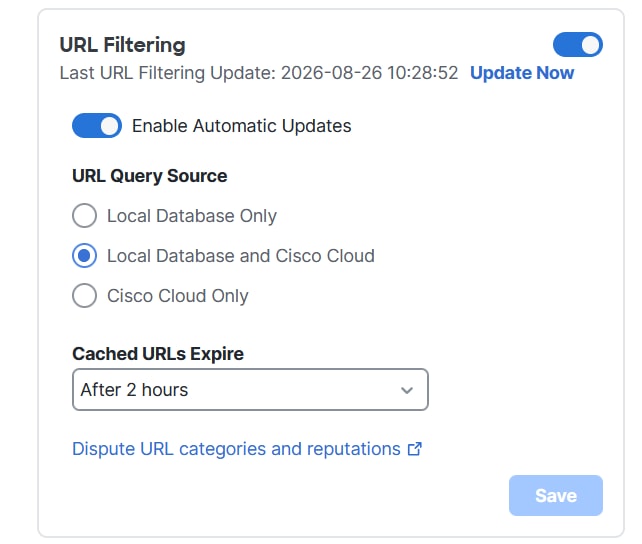
Verify that the integration is healthy and that the URL lookup cache is configured to refresh according to your expected policy timing.

Caution: The URL lookup cache can retain previously retrieved category and reputation results. If cache expiration is disabled or configured with a long lifetime, the device can continue using cached information after Talos updates the classification, which can cause the device result to differ temporarily from the current FMC or Talos lookup.
Step 3: Confirm the URL Category on the Device by Using System Support Trace
To verify that the CSF device categorizes the URL the same way as the FMC, run a system support trace from the device CLI. This shows how the Snort inspection engine evaluates the traffic and which URL category is returned when the connection is inspected.
At the FTD CLI, enter the system support trace command and respond to the interactive prompts:
> system support trace

Enable firewall-engine-debug too? [n]: y
Please specify an IP protocol: tcp
Please specify a client IP address: 192.168.0.11
Please specify a client port:
Please specify a server IP address: 173.37.145.84
Please specify a server port: 443
Note: In this example, 173.37.145.84 is the IP address for www.cisco.com. Use the destination IP address that corresponds to the URL you are investigating.
Example output:
192.168.0.11 41328 -> 173.37.145.84 443 6 AS=0 ID=0 GR=1-1: returned from url lookup, url_info is 90 2003 0 0 0 0 0 0 0 0

192.168.0.11 41328 -> 173.37.145.84 443 6 AS=0 ID=0 GR=1-1 URL lookup for www.cisco.com/ found rep 90, cat 2003, 0, 0, 0, 0, 0, 0
In this output, the URL returns a category ID of 2003. The next step explains how to resolve that numeric value to the corresponding category name.
Step 4: Resolve the Category Number to a Category Name
URL category lookup on the device returns a numeric category ID. To map that number to a human-readable category name, open the aup_categories.json file on the device.
Navigate to the /var/sf/cloud_download/ directory on the CSF in expert mode. Ensure you are in root user mode.
Open the category definitions file:
root@firepower:/var/sf/cloud_download# less aup_categories.json
Search for the category ID returned in the trace output. Example entry for category 2003:
{
"id": 2003,
"uuid": "abba9b63-bb10-4729-b901-2e2aa0f02003",
"mnemonic": "comp",
"name": "Computers and Internet",
"type": "aup_cats",
"state": "active"
}
Note: Category ID numbers are consistent across all CSF devices. The same numeric ID maps to the same category name on every CSF device.
Verify
Use the output from Steps 1 through 4 to confirm that the URL category assignment is consistent between the FMC database and the Snort engine on the device.
In this example:
- The FMC database lists www.cisco.com as Computers and Internet.
- The device CLI returns category ID 2003, which maps to Computers and Internet.
Both sources agree, which confirms that URL filtering policy being applied is consistent for this URL.
Dispute Button
If you believe that a URL has been classified into an incorrect category, you can submit a dispute to Talos.
Navigate to Analysis > Advanced > URL in the FMC:
Type in the URL, click Search, then hover over the URL entry and select Dispute.
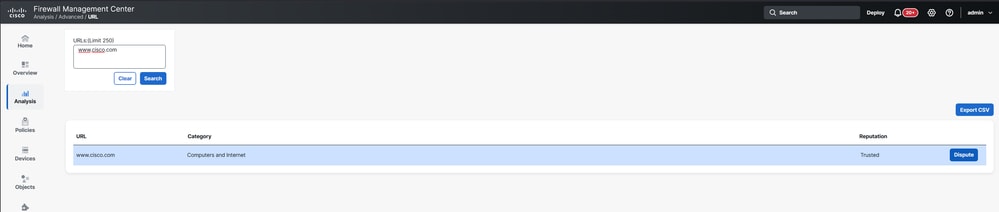
This opens the Talos dispute page so that the classification can be reviewed and corrected by the appropriate source.
Troubleshoot
If the classification does not match expectations, review these areas:
- Confirm that the URL Filtering license is enabled and assigned to the device.
- Verify the health of Cloud Services and the connection to Talos.
- Inspect the device cache and cache refresh settings to confirm that stale entries are not being reused.
- Check whether the beakerd process is running on the FMC for FMC-managed devices.
For FMC-managed devices, run this command in the FMC expert mode to confirm that the process is active:
pmtool status | grep beakerd
Note: If you run this command in a Secure Firewall that is managed by FMC, the process can be seen in a waiting state. If the Secure Firewall is locally managed, the process is seen in a running state.
Revision History
| Revision | Publish Date | Comments |
|---|---|---|
1.0 |
24-Sep-2026
|
Initial Release |

 Feedback
Contact Cisco
- Open a Support Case

- (Requires a Cisco Service Contract)