Configure Certificate Enrollment with ACME Protocol on Secure Firewall Threat Defense Managed by FMC
Available Languages
Introduction
This document describes the process to enroll a Transport Layer Security (TLS) certificate through the Automated Certificate Management Environment (ACME) protocol on the Secure Firewall Firepower Threat Defense (FTD) platform.
Prerequisites
Requirements
Cisco recommends that you have knowledge on these topics:
- Manual certificate enrollment processes and the fundamentals of Secure Sockets Layer (SSL).
- Basic authentication concepts for remote access VPNs.
- Experience with Certificate Authorities (CAs).
Components Used
- Cisco FTDv version 10.0.0-35.
- Cisco FMC version 10.0.0-35.
- Certificate Authority (CA) server that supports the ACME protocol.
The information in this document was created from the devices in a specific lab environment. All of the devices used in this document started with a cleared (default) configuration. If your network is live, ensure that you understand the potential impact of any command.
Requirements and Limitations
The current prerequisites and constraints for ACME enrollment on Secure Firewall FTD include:
- Supported on FTD and FMC versions 10.0.0 and later.
- ACME does not allow the issuance of wildcard certificates; each certificate request must specify a precise domain name.
- Each trustpoint enrolled through ACME is restricted to a single interface, so certificates obtained via ACME cannot be shared across multiple interfaces.
- Keypairs are generated automatically and are unique to each certificate enrolled via ACME, preventing key reuse and enhancing security.
Downgrade Considerations
When downgrading to a Secure Firewall FTD version that does not support ACME enrollment (version 7.7 or earlier):
- All ACME-related trustpoint configurations introduced in version 10.0.0 or later are lost.
-
Certificates enrolled via ACME are still accessible; however, their private keys become disassociated after the first save and reboot after the downgrade.
If a downgrade is necessary, use the recommended workaround:
- Before downgrading, export the ACME certificates in PKCS12 format.
- Before downgrading, remove the ACME trustpoint configuration.
- After downgrading, import the PKCS12 certificate. The imported trustpoint remains valid until the ACME-issued certificate expires.
Background Information
The ACME protocol is intended to simplify the management of TLS certificates for network administrators. Through ACME, administrators can automate the tasks involved in acquiring and renewing TLS certificates. This automation is especially useful when working with certificate authorities (CAs) such as Let's Encrypt, which provide free, automated, and publicly accessible certificates via the ACME protocol.ACME facilitates the issuance of Domain Validation (DV) certificates. These certificates verify that the certificate requester has control over the specified domains. The validation typically occurs through an HTTP-based challenge process, where the applicant places a designated file on their web server. The Certificate Authority (CA) then accesses this file via the domain's HTTP server to confirm domain control. Successfully passing this challenge enables the CA to issue the DV certificate.
The enrollment process involves these steps:
- Initiate Certificate Request: The client submits a certificate request to the ACME server, specifying the domain(s) for which the certificate is needed.
- Receive HTTP-01 Challenge: The ACME server responds with an HTTP-01 challenge containing a unique token that the client must use to prove domain ownership.
- Prepare Challenge Response:
- The client generates a key authorization by combining the token from the ACME server with its account key.
- The client configures its web server to serve this key authorization at a specific URL path.
- ACME Server Retrieves Challenge: The ACME server performs an HTTP GET request to the provided URL to obtain the key authorization.
- ACME Server Verifies Ownership: The server compares the retrieved key authorization against the expected value to verify the client's control over the domain.
- Issue Certificate: Upon successful validation, the ACME server issues the SSL/TLS certificate to the client.
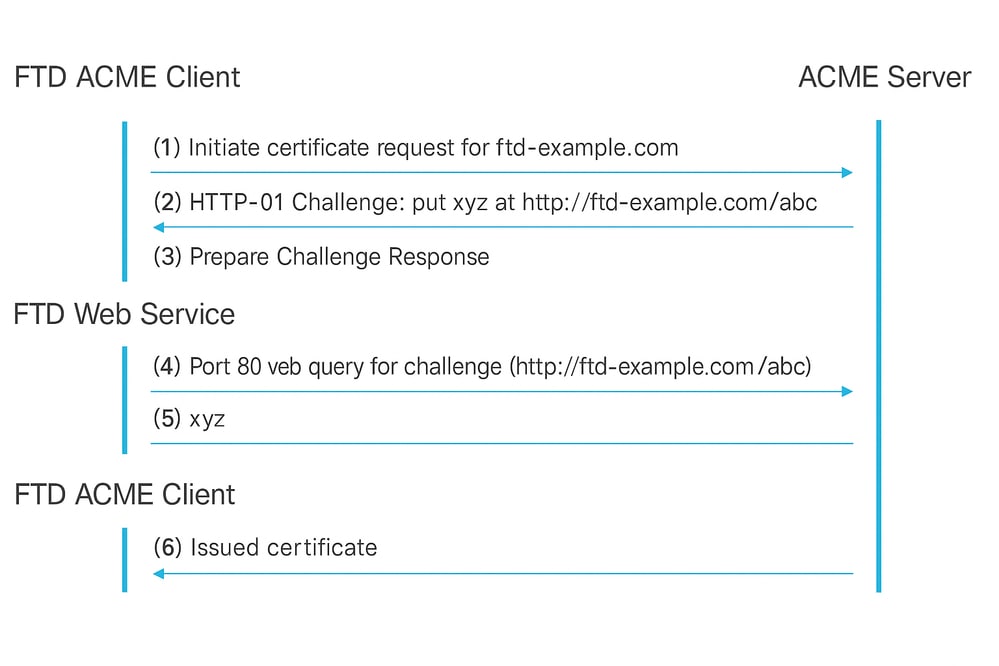
ACME Enrollment HTTP-01 Authentication Flow.
The key benefits of using the ACME protocol for enrolling TLS certificates on Secure Firewall FTD include:
- Automation of Certificate Management: ACME streamlines the process of obtaining and maintaining TLS domain certificates for Secure Firewall FTD TLS interfaces, significantly reducing manual administrative tasks.
- Automatic Certificate Renewal: With ACME-enabled trustpoints, certificates are automatically renewed as they approach expiration, minimizing the need for ongoing administrative intervention.
- Continuous Security Assurance: This automation ensures that certificates remain valid without interruption, preventing unexpected certificate expirations and maintaining secure communications.
These advantages collectively enhance operational efficiency and security for Secure Firewall FTD deployments.
Configure
Prerequisites Configuration
Before initiating the ACME enrollment process, ensure the next conditions are met:
- Resolvable Domain Name:The domain name for which you request a certificate must be resolvable by the ACME server. This ensures that the server can verify domain ownership.
- Secure Firewall Access to ACME Server:The Secure Firewall must have the capability to access the ACME server through one of its interfaces. This access does not need to be via the interface for which the certificate is requested.
- TCP Port 80 Availability: Allow TCP port 80 from the ACME CA server to the interface that corresponds to the domain name. This is required during the ACME exchange process to complete the HTTP-01 challenge.
ACME Certificate Enrollment Object Creation
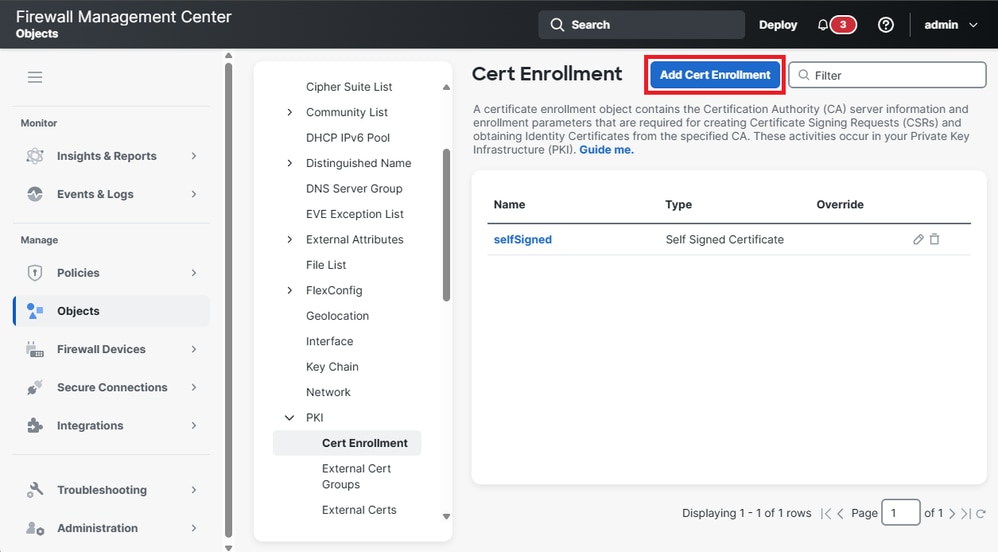
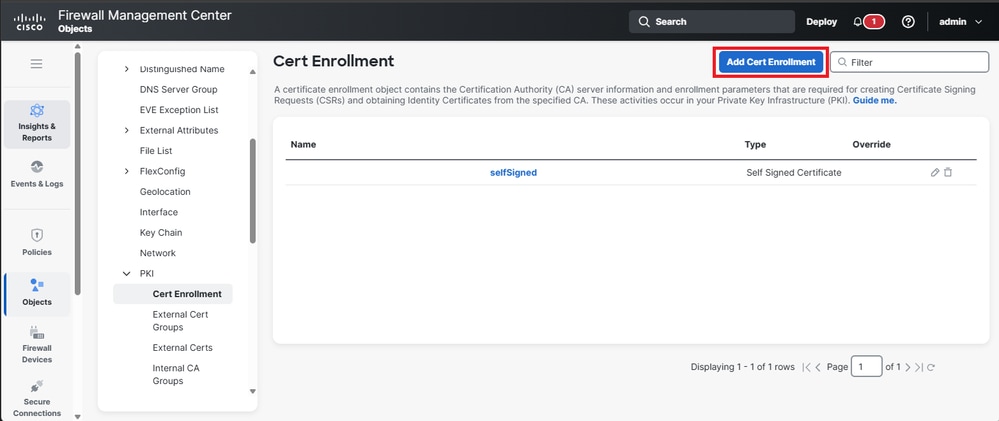
1. Navigate to Objects > PKI > Cert Enrollment and click Add Cert Enrollment to begin the configuration process.
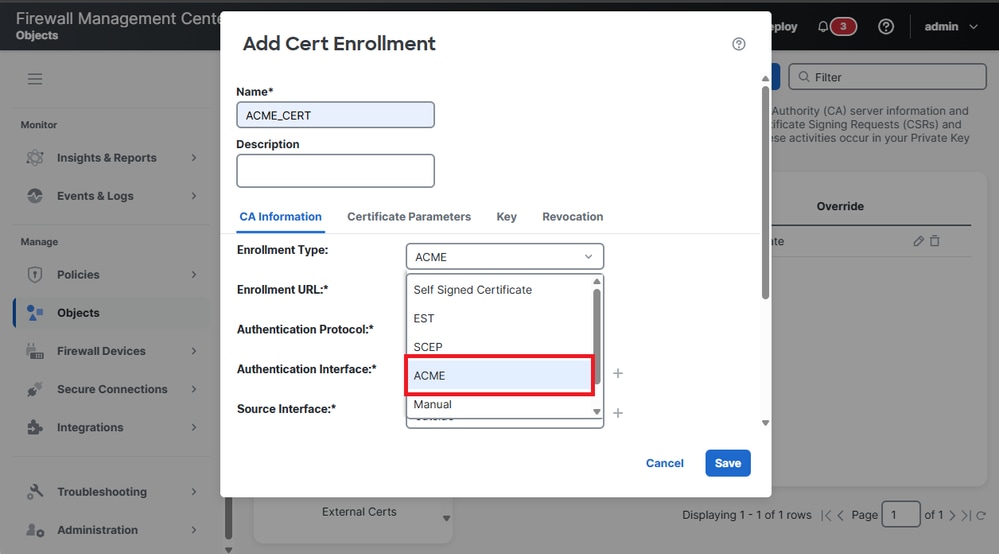
2. The ACME enrollment option is listed in the drop-down menu together with other enrollment methods. Select ACME from the Enrollment Type dropdown to continue.
3. The options for configuring certificate parameters are displayed, complete the fields with the appropriate information.
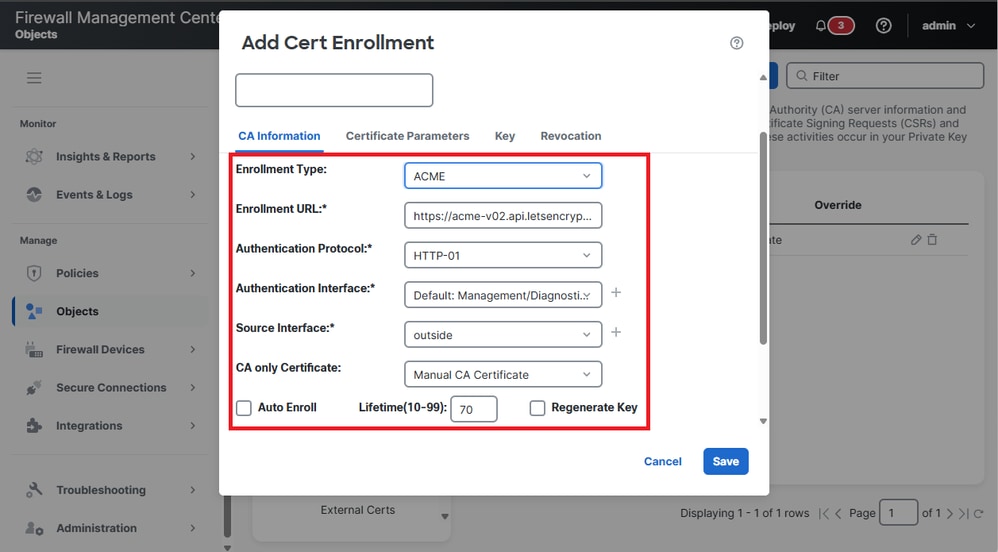
- Enrollment URL: This is the address of the ACME server (such as Let’s Encrypt) used to request and retrieve certificates.
- Authentication Protocol: This specifies the method employed to verify domain ownership. The supported protocol for ACME challenges is HTTP-01.
- Authentication Interface: The network interface on the FTD device that receives the HTTP-01 challenge from the ACME server.
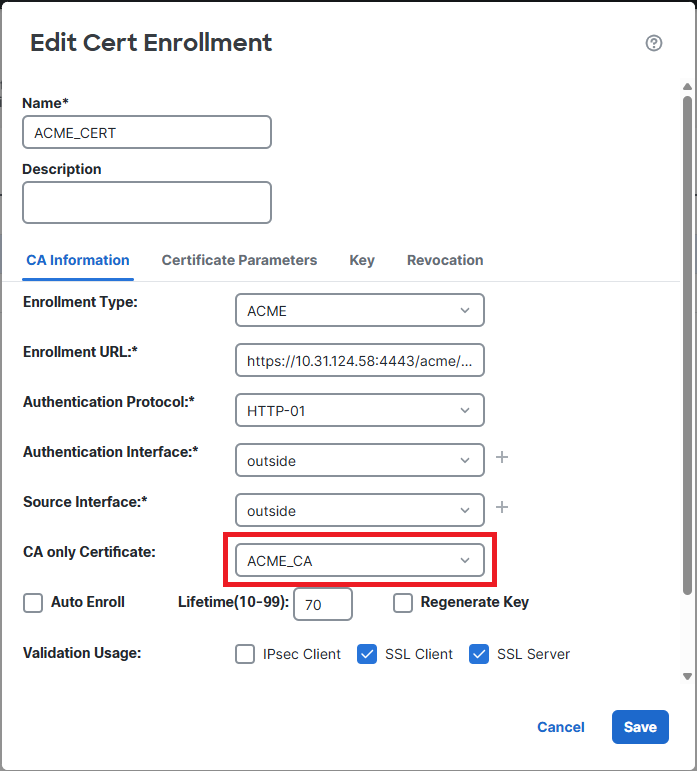
- CA Only Certificate: A certificate from a Certificate Authority (CA) to trust the ACME server must be choosen.
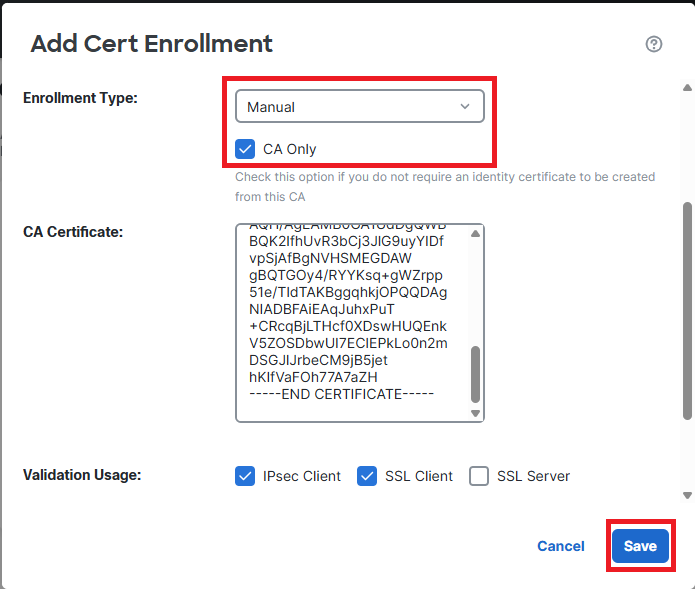
4. If you are using an ACME server that is not well known, you need to add the ACME server’s CA Certificate. Navigate to Objects > Cert Enrollment and click the Add Cert Enrollment button.
- Name the trustpoint and select the Enrollment Type as Manual. Then, check the option CA Only. Finally, paste the ACME server’s CA certificate and click Save.
- Finally, select the trustpoint of the ACME CA server in the CA Only Certificate section.
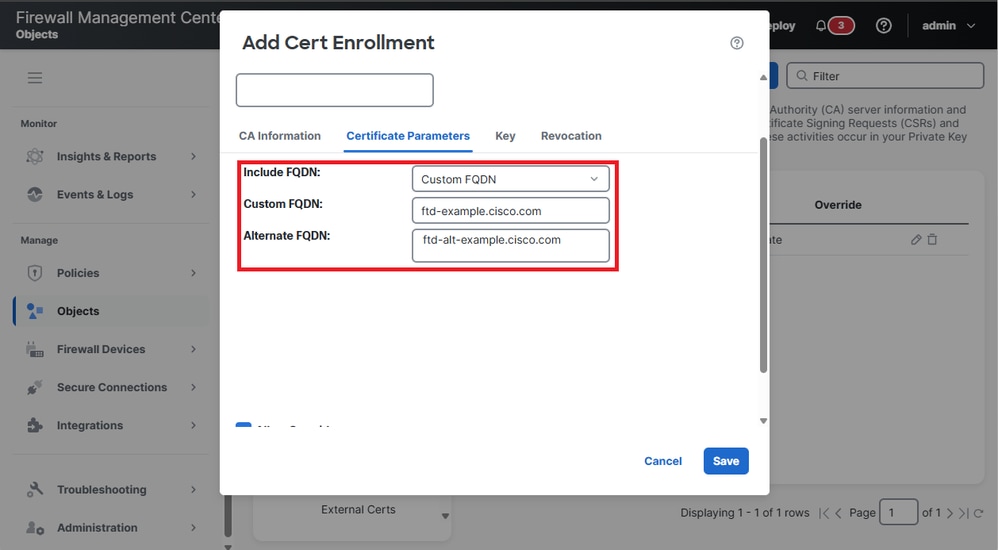
5. Navigate to Certificate Parameters, select the Custom FQDN option in the Include FQDN box, and fill in the Custom FQDN and Alternate FQDN fields with the primary FQDN and any alternative domain names to be included in the certificate.
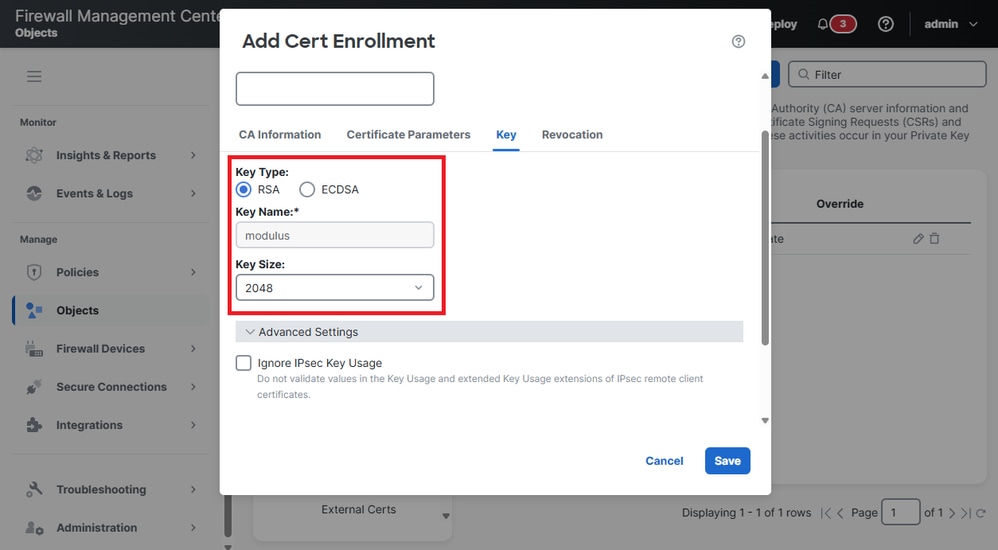
6. Navigate to Key to modify the Key Type and Key Size settings.
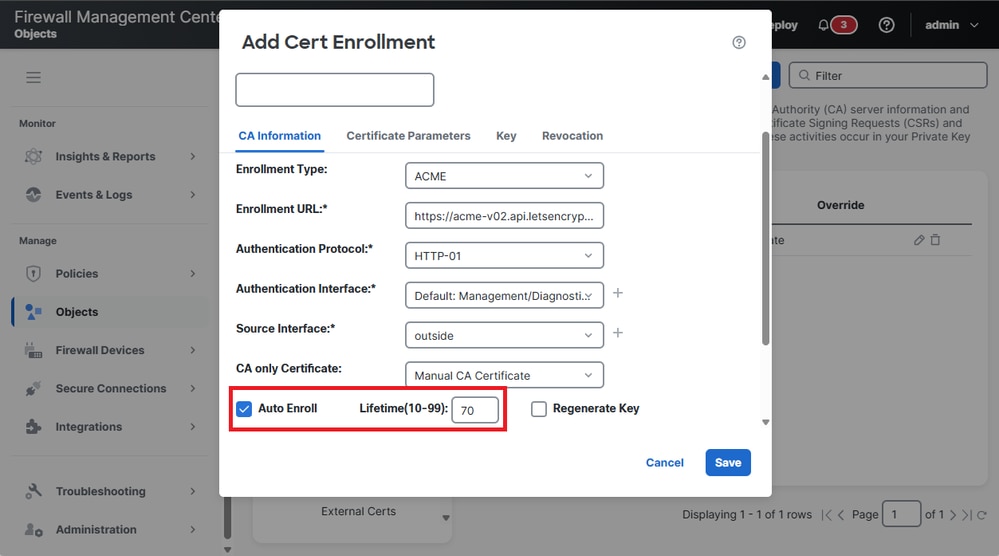
7. (Optional) Enable Auto Enroll for the Identity Certificate.
Check theAuto Enrollcheckbox and specify the percentage for theAuto Enroll Lifetime.
This feature ensures that the certificate is renewed automatically before it expires. The percentage determines how far in advance of the expiration of the certificate the renewal process begins. For example, if set to 80%, the renewal process starts when the certificate has reached 80% of its validity period.
8. Click on Save.
ACME Certificate Enrollment on the Device
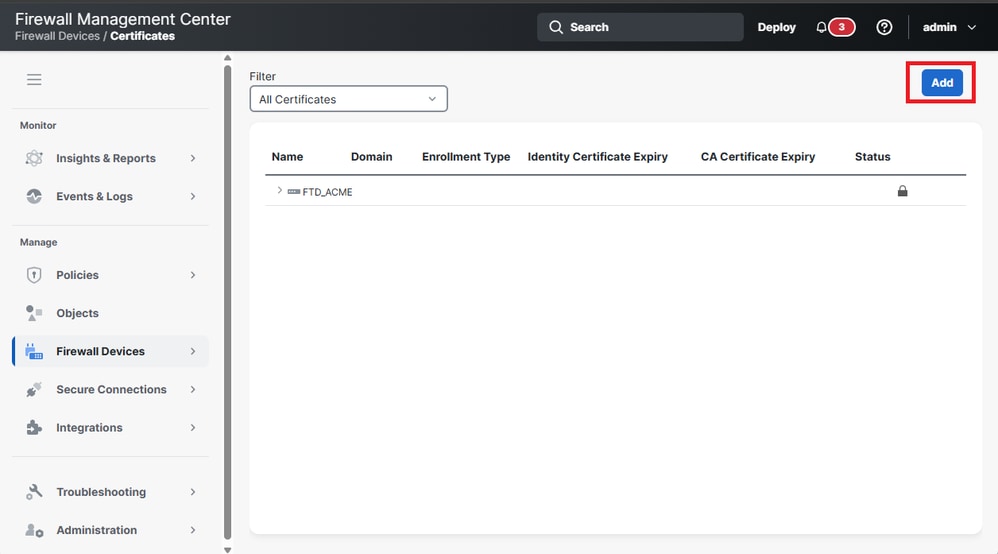
1.Navigate to Firewall Devices > Certificates and click the Add button to enroll a new certificate.
2. Select the FTD device from the Device drop-down list and the certificate object previously created in Cert Enrollment.
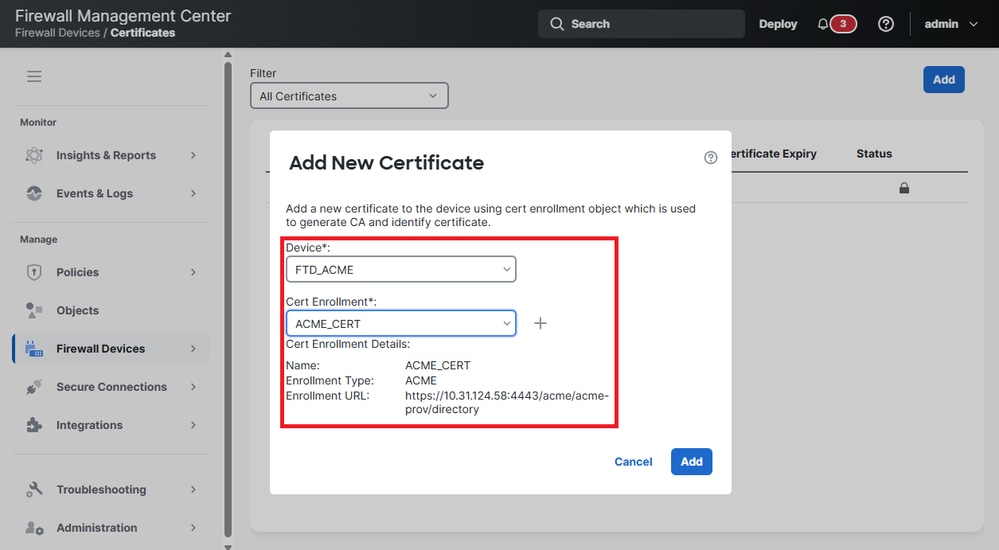
3. Click on Add.
4. Once the deployment is completed, the status column displays the ID certificate button.
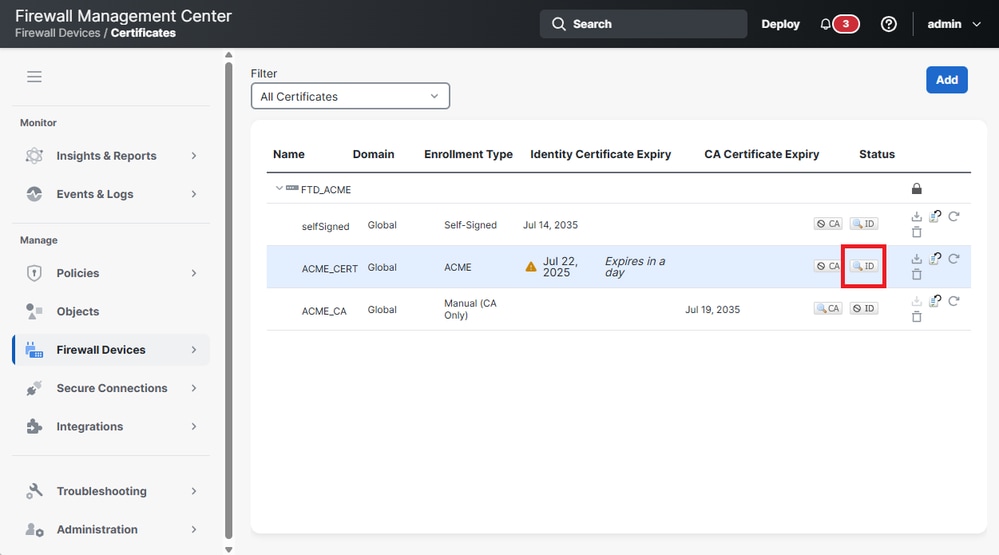
5. Validate the ID certificate information by clicking the ID button.
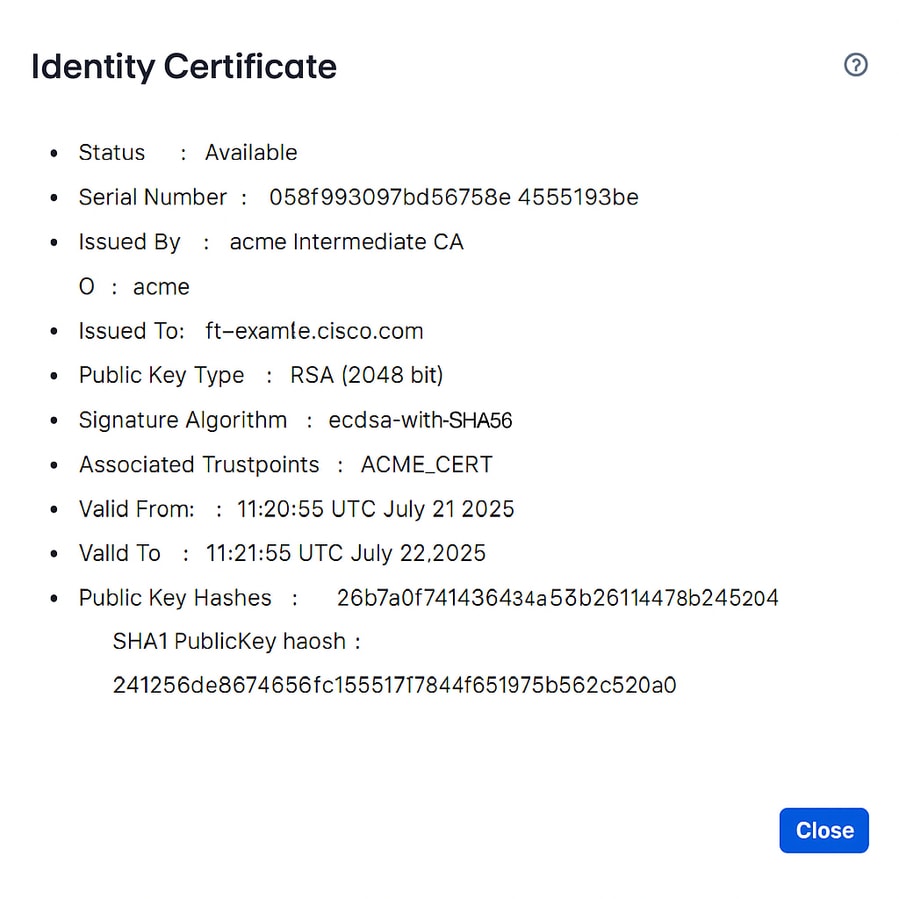
Verify
View Installed Certificate in FTD
Confirm the certificate is enrolled with the command.show crypto ca certificates <Trust Point Name>.
firepower# show crypto ca certificatesACME_CERT
Certificate
Status: Available
Certificate Serial Number: 058f993097bd56758e44554194a953be
Certificate Usage: General Purpose
Public Key Type: RSA (2048 bits)
Signature Algorithm: ecdsa-with-SHA256
Issuer Name:
CN=acme Intermediate CA
O=acme
Subject Name:
CN=ftd-example.cisco.com
Validity Date:
start date: 11:20:55 UTC Jul 21 2025
end date: 11:21:55 UTC Jul 22 2025
Storage: immediate
Associated Trustpoints: ACME_CERT
Public Key Hashes:
SHA1 PublicKey hash: 26b7a0f7414364a45b246114478bb74f432520c4
SHA1 PublicKeyInfo hash: 24125d6e8674566c1551784f651975b562c520a
Syslog events
There are new syslogs in the Secure Firewall FTD to capture events related to the certificate enrollment using ACME protocol:
- 717067: Provides information of when ACME certificate enrollment starts.
%FTD-5-717067: Starting ACME certificate enrollment for the trustpoint <private_acme> with CA <ca-acme.example.com>. Mode <manual>
- 717068: Provides information of when ACME certificate enrollment is successful.
%FTD-5-717068: ACME Certificate enrollment succeeded for trustpoint <private_acme> with CA <ca-acme.example.com>. Received a new certificate with Subject Name <CN=fj-asav.example.com> Issuer Name <CN=ca-acme Intermediate CA,O=ca-acme> Serial Number <truncated>
- 717069: Provides information of when ACME enrollment fails.
%FTD-3-717069: ACME Certificate enrollment failed for trustpoint <private_acme>
- 717070: Provides Information related the keypair for certificate enrollment or certificate renewal.
%FTD-5-717070: Keypair <Auto.private_acme> in the trustpoint <private_acme> is regenerated for <manual> ACME certificate enrollment
Troubleshoot
If an ACME certificate enrollment fails, consider the next steps to identify and resolve the issue:
- Check connectivity to the server:Confirm that the Secure Firewall has network connectivity to the ACME server. Verify that there are no network issues or firewall rules blocking communication.
- Ensure the Secure Firewall Domain Name is resolvable:Make sure the domain name configured on the Secure Firewall FTD is resolvable by the ACME server. This verification is crucial for the server to validate the request.
- Confirm Domain Ownership:Verify that all domain names specified in the trustpoint are owned by the Secure Firewall FTD. This ensures that the ACME server can validate domain ownership.
Troubleshoot commands
For additional information, collect the output of the next debug commands:
- debug crypto ca acme <1-255>
- debug crypto ca <1-14>
Revision History
| Revision | Publish Date | Comments |
|---|---|---|
1.0 |
06-Apr-2026
|
Initial Release |

 Feedback
Contact Cisco
- Open a Support Case

- (Requires a Cisco Service Contract)