Upgrade FTD HA Managed by FMC
Available Languages
Introduction
This document describes the upgrade process for a Cisco Secure Firewall Threat Defense in High Availability managed by a Firewall Management Center.
Prerequisites
Requirements
Cisco recommends you have knowledge of these topics:
- High Availability (HA) Concepts and Configuration
- Secure Firewall Management Center (FMC) Configuration
- Cisco Secure Firewall Threat Defense (FTD) Configuration
Components Used
The information in this document is based on:
- Virtual Cisco Firewall Threat Defense (FTD), Version 7.7.0
- Virtual Firewall Management Center (FMC), Version 10.0.0
The information in this document was created from the devices in a specific lab environment. All of the devices used in this document started with a cleared (default) configuration. If your network is live, ensure that you understand the potential impact of any command.
Overview
FMC upgrades one peer at a time. First Standby, then the Active and completing an automatic failover before the active upgrade is completed.
Background Information
Upgrade packagea must be downloaded from Cisco before the upgrade.
On CLI clish, run the show high-availability config command in the Active FTD to check the status of the High Availability:
> show high-availability config
Failover On
Failover unit Primary
Failover LAN Interface: Failover GigabitEthernet0/2 (up)
Reconnect timeout 0:00:00
Unit Poll frequency 1 seconds, holdtime 15 seconds
Interface Poll frequency 5 seconds, holdtime 25 seconds
Interface Policy 1
Monitored Interfaces 3 of 311 maximum
MAC Address Move Notification Interval not set
failover replication http
Version: Ours 9.23(1), Mate 9.23(1)
Serial Number: Ours 9AMGH3EJNUB, Mate 9AT2W4PTJSU
Last Failover at: 22:36:55 UTC Oct 14 2026
        This host: Primary - Active
                Active time: 3505 (sec)
                slot 0: ASAv hw/sw rev (/9.23(1)) status (Up Sys)
                  Interface inside (192.168.0.1): Normal (Waiting)
                  Interface outside (10.0.0.1): Normal (Waiting)
                  Interface management (209.165.201.1): Normal (Monitored)
                slot 1: snort rev (1.0)  status (up)
                slot 2: diskstatus rev (1.0)  status (up)
        Other host: Secondary - Standby Ready
                Active time: 0 (sec)
                  Interface inside (192.168.0.2): Normal (Waiting)
                  Interface outside (10.0.0.2): Normal (Waiting)
                  Interface management (209.165.201.2): Normal (Monitored)
                slot 1: snort rev (1.0)  status (up)
                slot 2: diskstatus rev (1.0)  status (up)

Stateful Failover Logical Update Statistics
        Link : Failover GigabitEthernet0/2 (up)
        Stateful Obj    xmit       xerr       rcv        rerr
        General         3501       0          462        0
        sys cmd         462        0          462        0
        up time         0          0          0          0
        RPC services    0          0          0          0
        TCP conn        606        0          0          0
        UDP conn        0          0          0          0
        ARP tbl         2421       0          0          0
        Xlate_Timeout   0          0          0          0
        IPv6 ND tbl     0          0          0          0
        VPN IKEv1 SA    0          0          0          0
        VPN IKEv1 P2    0          0          0          0
        VPN IKEv2 SA    0          0          0          0
        VPN IKEv2 P2    0          0          0          0
        VPN CTCP upd    0          0          0          0
        VPN SDI upd     0          0          0          0
        VPN DHCP upd    0          0          0          0
        SIP Session     0          0          0          0
        SIP Tx  0          0          0          0
        SIP Pinhole     0          0          0          0
        Route Session   0          0          0          0
        Router ID       0          0          0          0
        CTS SGTNAME     0          0          0          0
        CTS PAC         0          0          0          0
        TrustSec-SXP    0          0          0          0
        IPv6 Route      0          0          0          0
        STS Table       0          0          0          0
        Umbrella Device-ID      0          0          0          0
        Rule DB B-Sync  1          0          0          0
        Rule DB P-Sync  11         0          0          0
        Rule DB Delete  0          0          0          0

        Logical Update Queue Information
                        Cur     Max     Total
        Recv Q:         0       10      462
        Xmit Q:         0       12      5391
If no errors are visible, then proceed with the upgrade.
Upgrade
Upload Upgrade Package
There are two ways of receiving the upgrade package on the FMC:
1. Download it from the FMC GUI, Administration > Product Upgrades > Option Click to retrieve list of available packages > Select desired version.

Warning: Ensure the FMC version is higher or equal to the new FTD version to upgrade.
Administration > Product Upgrades
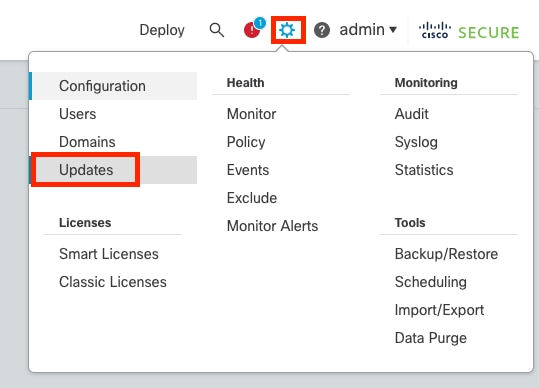 Administration, Product Upgrades
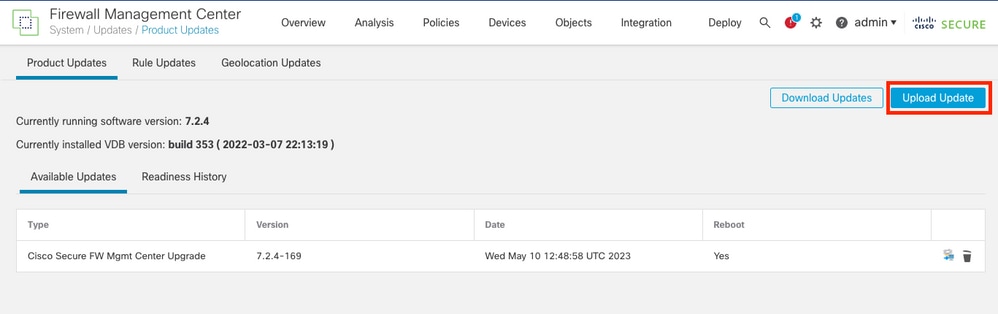 Retrieve Available Packages
2. Upload the FTD upgrade package to the FMC using the Graphical User Interface (GUI). This must be previously downloaded from the Cisco Software site based on the FTD model and version.
3. Navigate to Administration > Product Upgrades > Add Upgrade Package.
- Select Upload Update package.
- Browse for the previously downloaded image, then select Upload.
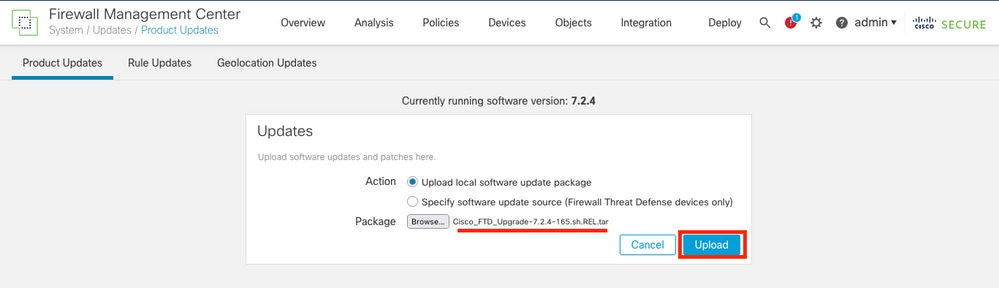 Add Upgrade Package
Start the Upgrade Process
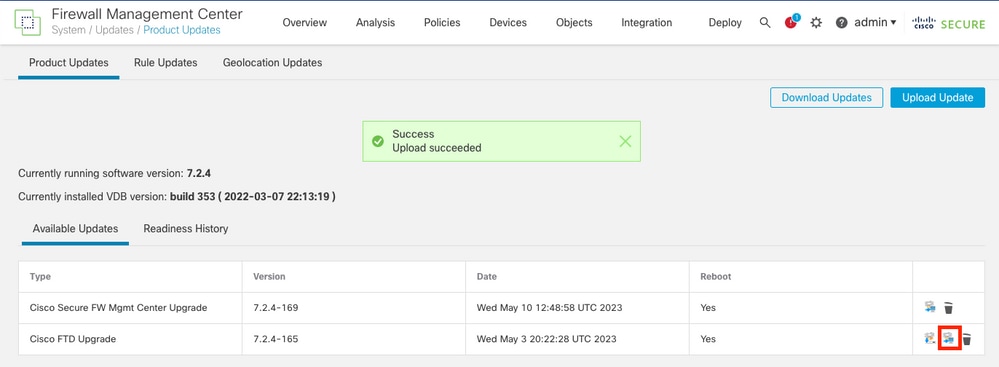 Available Upgrade Packages
1. Select the correct upgrade package, then click Upgrade. In the system overview section, the Upgrade shows as active.
 Active upgrade
2. Select Resume to continue.
 Select Devices
3. There is another option, which is starting the upgrade from the Devices list. Navigate to Devices > Device Management > select HA Pair > Select Action > Upgrade Threat Defense Software.
 Action Upgrade
 Prepare for Upgrade
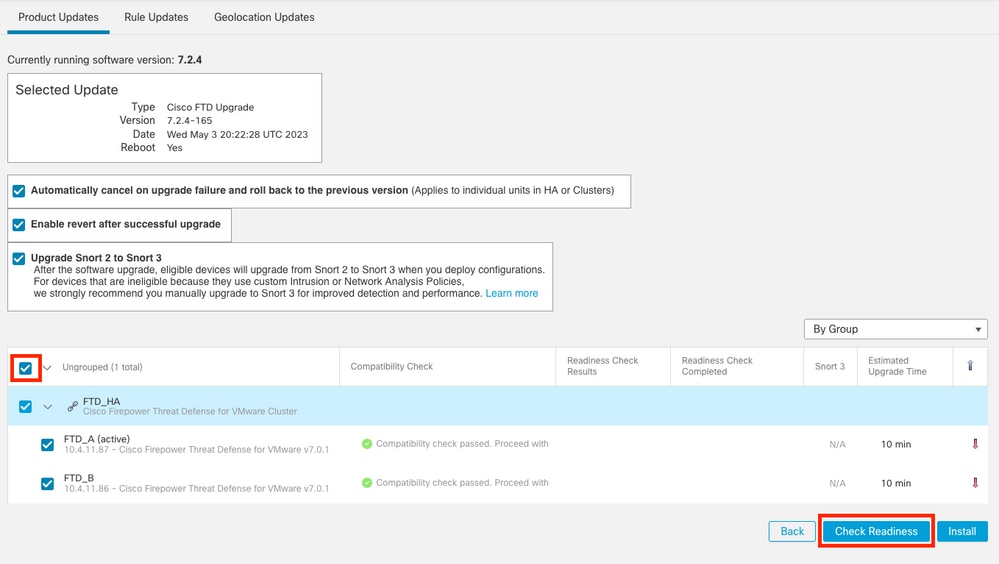
4. On both options, the HA pair must be selected, then Prepare for upgrade.
Check Readiness
Readiness checks confirm if appliances are ready to proceed with an upgrade:
What the Readiness Check Verifies
-
Disk Space: Confirms the device has enough free storage space on all required system partitions to unpack and install the upgrade image.
-
NTP Synchronization: Verifies the system clock is synchronized via Network Time Protocol (NTP) to maintain valid timestamps and secure communication.
-
FMC / FTD Version Compatibility: Ensures the management center (FMC) is running a software version that is equal to or higher than the target version of the FTD device.
-
FXOS and Platform Compatibility: Checks hardware-level and FXOS requirements (such as on the Firepower 4100/9300 series chassis) to ensure the chassis firmware matches or supports the target FTD code.
-
High Availability (HA) and Cluster Health: Validates the HA sync state, roles, and inter-device communications are healthy before any changes begin.
-
Pending Configurations / Deployment State: Checks if there are un-deployed configuration changes that need to be pushed or cleaned up.
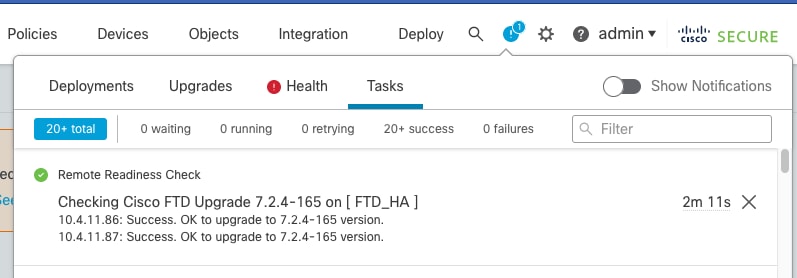
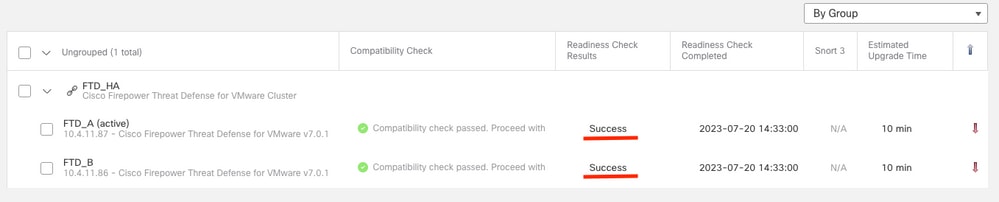
 Readiness Check
 Readiness Check Complete
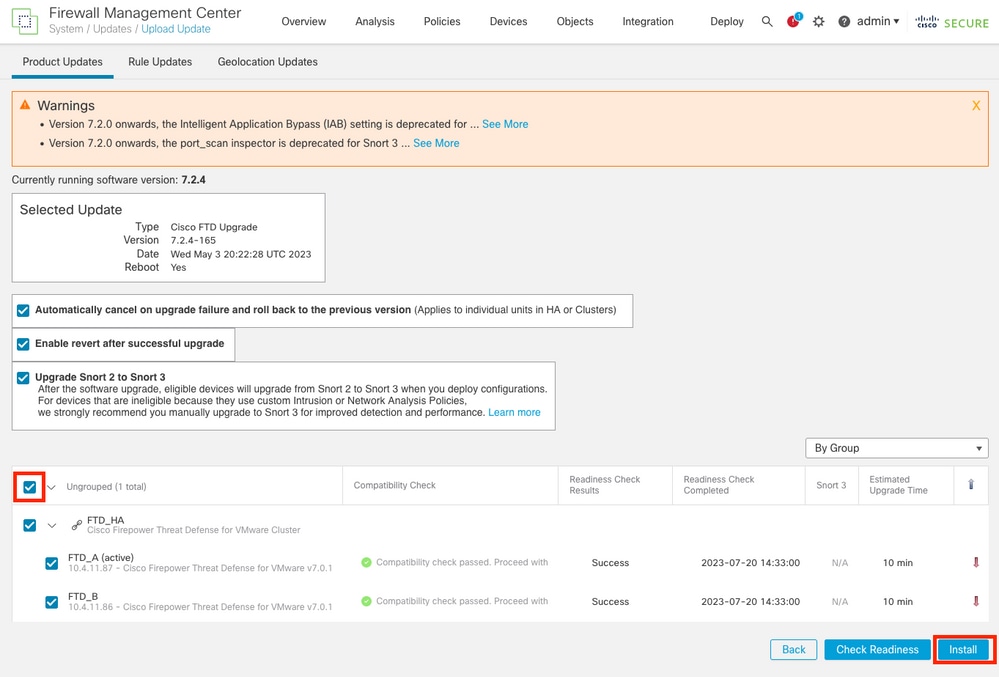
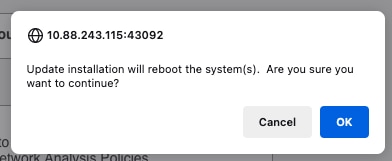
5. Select Start Upgrade to continue.
Upgrade FTD in High Availability
 Start upgrade
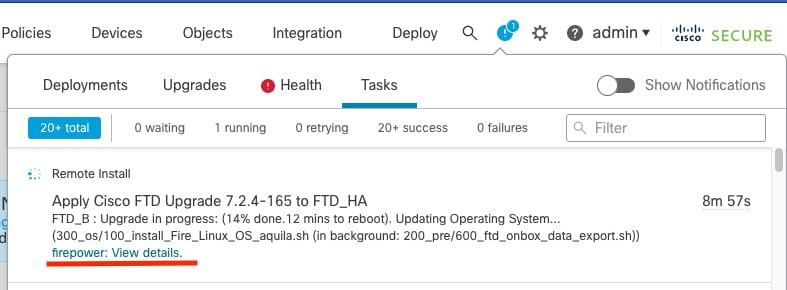
1. Upgrade progress displaus the percentage:
 Upgrade in Progress
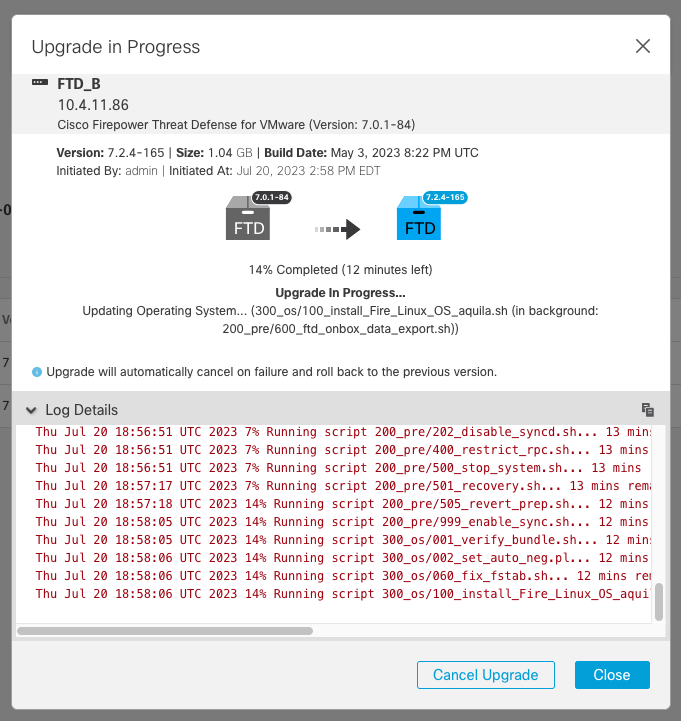
2. The Detailed status shows the progress in a graphical way and the logs of the status.log:
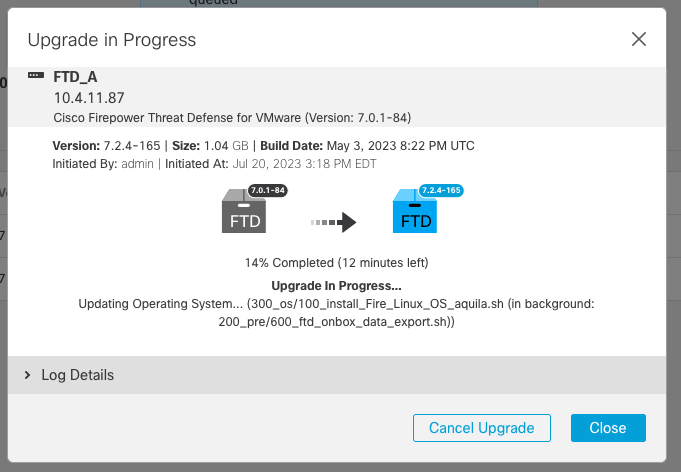 Detailed status
3. The progress can be observed in Notifications > Tasks.
 Tasks Notifications

Note: The upgrade can take around 20 mins. per FTD.
4. On the console CLI, the progress can be checked in the upgrade folder /ngfw/var/log/sf; move to expert mode and enter root access.
5. Move to the upgrade package: cd Cisco_FTD_Upgrade-10.0.0 and tail on the status.log file: tail -f status.log.
> expert
admin@ftd-secundario:~$ sudo su
Password:
root@ftd-secundario:/home/admin# cd /ngfw/var/log/sf
root@ftd-secundario:/ngfw/var/log/sf# cd Cisco_FTD_Upgrade-10.0.0
root@ftd-secundario:/ngfw/var/log/sf/Cisco_FTD_Upgrade-10.0.0# tail -f status.log
ui: Upgrade in progress: (64% done. 5 mins to reboot). Finishing the upgrade... (999_finish/999_nofailover_fdm_ha.pl)
ui: Upgrade in progress: (64% done. 5 mins to reboot). Finishing the upgrade... (999_finish/999_rm_old_var.sh)
ui: Upgrade in progress: (64% done. 5 mins to reboot). Finishing the upgrade... (999_finish/999_z_must_remain_last_finalize_boot.sh)
ui: Upgrade in progress: (64% done. 5 mins to reboot). Finishing the upgrade... (999_finish/999_zz_install_bundle.sh)
ui: Upgrade in progress: (64% done. 5 mins to reboot). Finishing the upgrade... (999_finish/999_zzz_complete_upgrade_message.sh)
ui: Upgrade complete
ui: The system will now reboot.
ui: Upgrade completed successfully. (99% done).. Applications are starting.
ui: Upgrade completed with (100% done).. and FTD started successfully
state:finished

The system is going down for reboot NOW!Warning: A failover occurs automatically as part of the upgrade. Before the secondary FTD reboots and completes the upgrade.
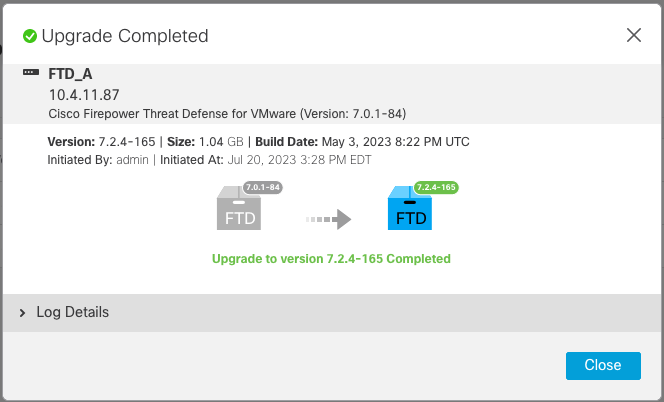
6. After the upgrade is completed in the secondary device, it starts in the Primary device.
 Primary Device Upgrade
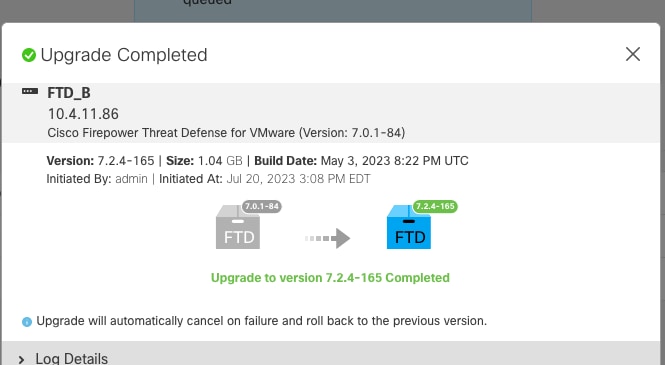
7. Confirm in Devices > Device Management the new version is next to the name of the devices, under the Version column.
Deploy
1. Deploy a policy to devices under Deploy > Deploy to this Device > Select HA Pair.
 Deployment
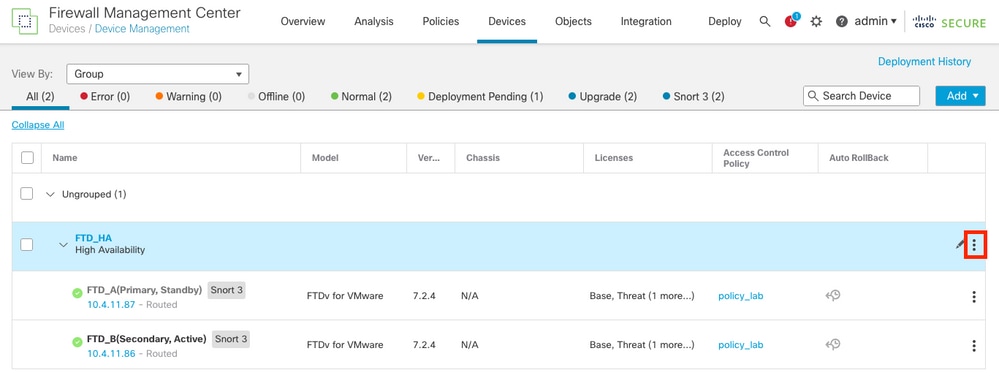
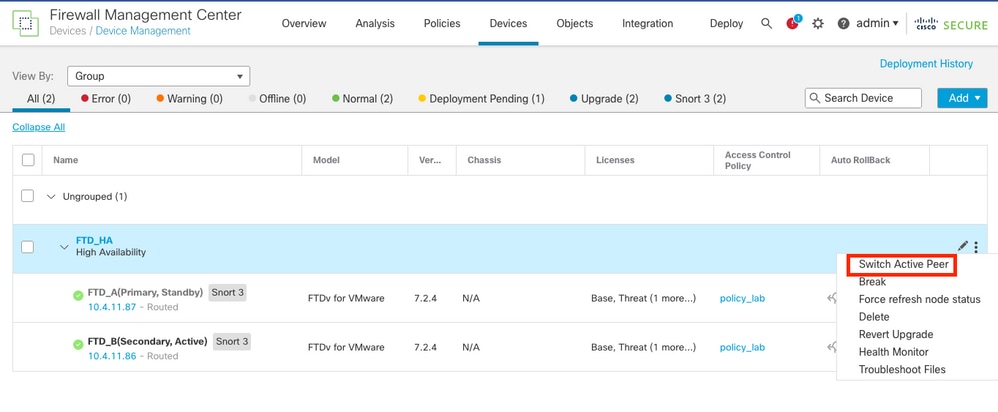
Switch Active Peer (Optional)
Note: As a best practice to help track any failover that can occur, set the Primary device as Active and the secondary as Standby.
A manual failover can be used to set the Primary back to Active.
2. Navigate to the three dots next to the pencil icon (edit), select Switch Active Peer.
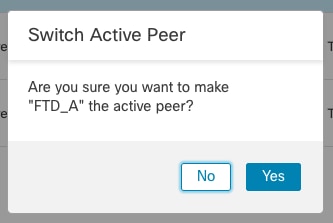 Switch Active Peer
Validate
To validate the High Availability status and ensure your upgrade is complete, you must verify these statuses:
- Primary: Active
- Secondary: Standby Ready
- Both are under the version that is the recently changed one (10.0.0 in this example).
1. In the FMC GUI, navigate to Devices > Device Management.
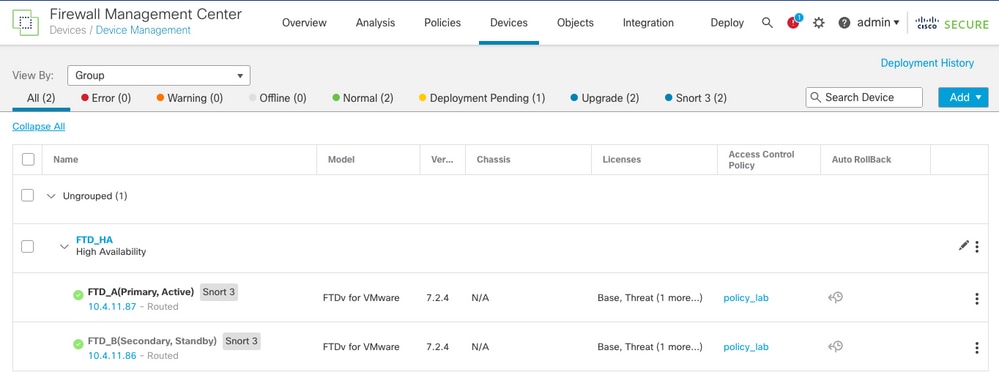 Validate Version
2. Over CLI clish, check the failover state by running the show failover state and show failover command for more detailed information:
Cisco Firepower Extensible Operating System (FX-OS) v2.18.0 (build 520)
Cisco Secure Firewall Threat Defense for VMware v10.0.0 (build 140)

> show failover state

               State          Last Failure Reason      Date/Time
This host  -   Primary
               Active         None
Other host -   Secondary
               Standby Ready  None

====Configuration State===
        Sync Skipped
====Communication State===
        Mac set

> show failover
Failover On
Failover unit Primary
Failover LAN Interface: Failover GigabitEthernet0/2 (up)
Reconnect timeout 0:00:00
Unit Poll frequency 1 seconds, holdtime 15 seconds
Interface Poll frequency 5 seconds, holdtime 25 seconds
Interface Policy 1
Monitored Interfaces 3 of 311 maximum
MAC Address Move Notification Interval not set
failover replication http
Version: Ours 9.24(1), Mate 9.24(1)
Serial Number: Ours 9AMGH3EJNUB, Mate 9AT2W4PTJSU
Last Failover at: 19:50:06 UTC Oct 15 2026
        This host: Primary - Active
                Active time: 1699 (sec)
                slot 0: ASAv hw/sw rev (/9.24(1)) status (Up Sys)
                  Interface inside (192.168.0.1): Normal (Waiting)
                  Interface outside (10.0.0.1): Normal (Waiting)
                  Interface management (209.165.201.1): Normal (Monitored)
                slot 1: snort rev (1.0)  status (up)
                slot 2: diskstatus rev (1.0)  status (up)
        Other host: Secondary - Standby Ready
                Active time: 1888 (sec)
                  Interface inside (192.168.0.2): Normal (Waiting)
                  Interface outside (10.0.0.2): Normal (Waiting)
                  Interface management (209.165.201.2): Normal (Monitored)
                slot 1: snort rev (1.0)  status (up)
                slot 2: diskstatus rev (1.0)  status (up)

Stateful Failover Logical Update Statistics
        Link : Failover GigabitEthernet0/2 (up)
        Stateful Obj    xmit       xerr       rcv        rerr
        General         1876       0          1525       0
        sys cmd         419        0          419        0
        up time         0          0          0          0
        RPC services    0          0          0          0
        TCP conn        166        0          2          0
        UDP conn        0          0          0          0
        ARP tbl         1286       0          1099       0
        Xlate_Timeout   0          0          0          0
        IPv6 ND tbl     0          0          0          0
        VPN IKEv1 SA    0          0          0          0
        VPN IKEv1 P2    0          0          0          0
        VPN IKEv2 SA    0          0          0          0
        VPN IKEv2 P2    0          0          0          0
        VPN CTCP upd    0          0          0          0
        VPN SDI upd     0          0          0          0
        VPN DHCP upd    0          0          0          0
        SIP Session     0          0          0          0
        SIP Tx  0          0          0          0
        SIP Pinhole     0          0          0          0
        Route Session   0          0          0          0
        Router ID       0          0          0          0
        CTS SGTNAME     0          0          0          0
        CTS PAC         0          0          0          0
        TrustSec-SXP    0          0          0          0
        IPv6 Route      0          0          0          0
        STS Table       0          0          0          0
        Umbrella Device-ID      0          0          0          0
        Rule DB B-Sync  0          0          1          0
        Rule DB P-Sync  5          0          4          0
        Rule DB Delete  0          0          0          0

        Logical Update Queue Information
                        Cur     Max     Total
        Recv Q:         0       11      2301
        Xmit Q:         0       1       2812
>
3. If both FTDs are on the same version and the high availability status is healthy, then the upgrade is complete.
Revision History
| Revision | Publish Date | Comments |
|---|---|---|
4.0 |
27-Oct-2026
|
Updated spelling, grammar, spacing, inserted horizontal lines to separate sections for readability, fixed CCW alerts, and alt text. |
3.0 |
08-Apr-2024
|
Updated Alt Text, Spelling and Formatting. |
2.0 |
02-Aug-2023
|
Initial Release |
1.0 |
28-Jul-2023
|
Initial Release |

 Feedback
Contact Cisco
- Open a Support Case

- (Requires a Cisco Service Contract)