Troubleshoot FMC Host Limit License Error: "You have 0 out of xxxxxx FireSIGHT host licenses remaining"
Available Languages
Contents
Issue
A Firewall Management Center (FMC) displays a health alert indicating that the host license limit has been reached. The specific error message shows:
FireSIGHT Host Limit – [FMC hostname]
You have 0 out of xxxxxx FireSIGHT host licenses remaining
Examples:
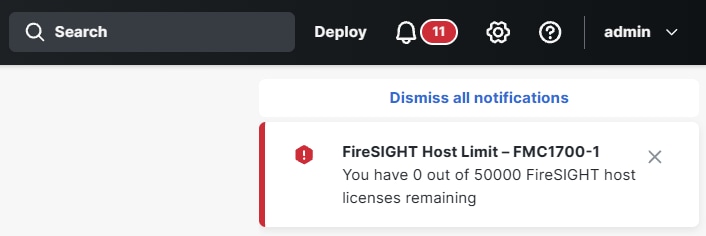
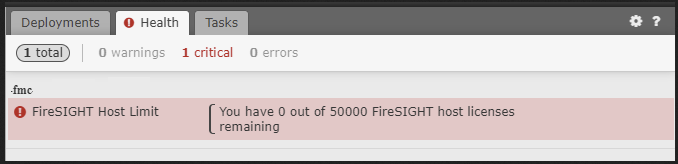

Note: The total number of host licenses depends on the FMC platform.
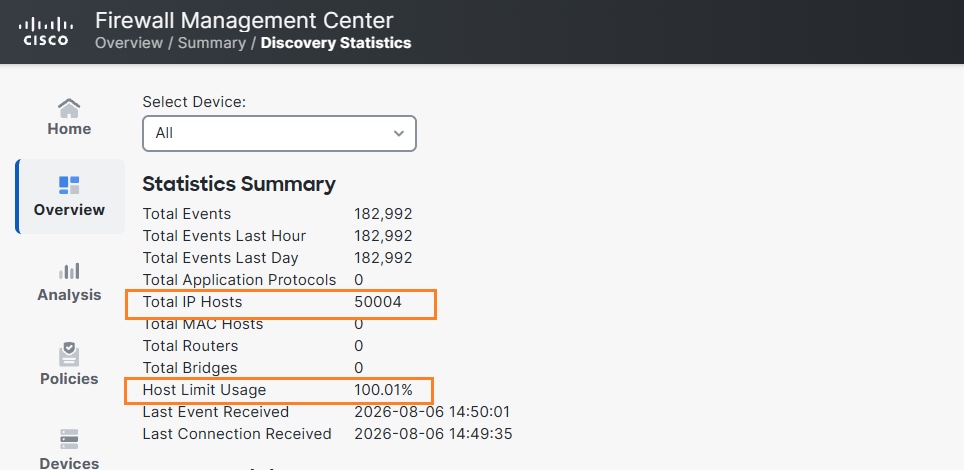
Additionally, in the Overview > Summary > Discovery Statistics page it shows 100% usage:
Environment
FMC 7.7.10. Other software versions can be also affected.
Network discovery configured with host tracking enabled.
Resolution
The FMC host limit alert does not cause firewall traffic outage. Access control and inspection continue to function normally. The primary impact is on host visibility and context tracking in the FMC.
This notification appears when the FMC has reached its maximum capacity for tracking hosts in the network map and host database.
Review Network Discovery Scope:
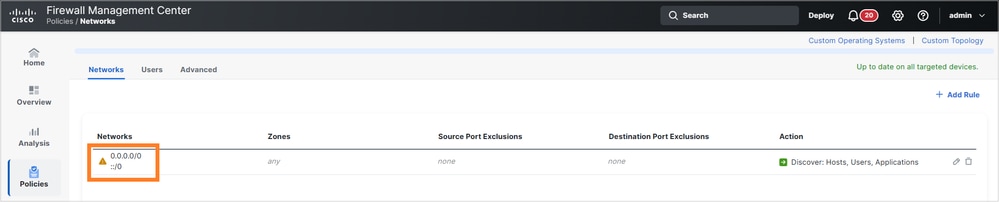
Ensure discovery is limited to required internal networks only. Avoid discovering unnecessary public, NAT, guest, load-balancer, or transient address ranges unless needed for security visibility.
In this case, you need to change the network discovery configuration and specify only the internal networks that you want to monitor. Otherwise, external (Internet) hosts can fill-up your discovery database:
Current Configuration Analysis
Check the current host limit by reviewing the network discovery settings in Policies > Network Discovery > Advanced > Network Discovery Data Storage Settings:
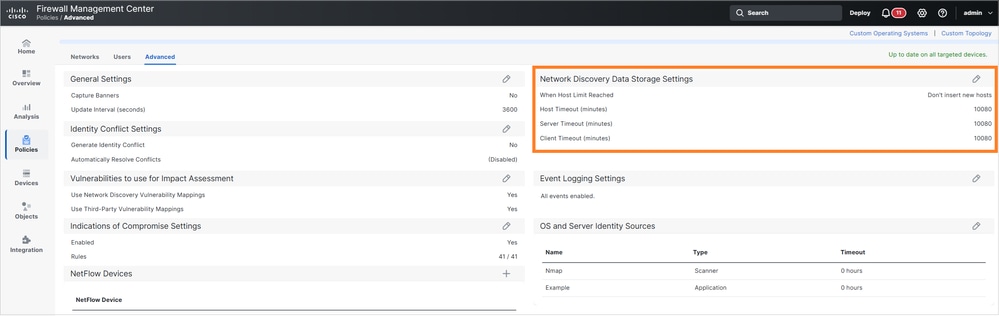
The configuration typically shows:
When Host Limit Reached: Don't insert new hosts
Host Timeout: 10080 minutes / 7 days
Server Timeout: 10080 minutes / 7 days
Client Timeout: 10080 minutes / 7 days
With the current setting "Don't insert new hosts" and the host database full, FMC does not add newly discovered hosts until the host count drops below the limit, causing incomplete host visibility.
Optional Configuration Change
You can change the host limit behavior to allow continuous tracking of active hosts:
Step 1: Navigate to Policies > Network Discovery.
Step 2: Click on the Advanced tab.
Step 3: Under the Network Discovery Data Storage Settings, click Edit.
Step 4: Change When Host Limit Reached from "Don't insert new hosts" to Drop hosts.
Step 5: Save the changes.
Step 6: Deploy the configuration to apply the changes.
Expected Impact and Behavior
With the "Drop hosts" setting enabled:
No firewall traffic outage expected.
Access control and inspection continue normally.
FMC removes the longest-inactive host from the network map when adding newly discovered hosts.
Continuous tracking of currently active hosts is maintained.
Historical host context for dropped hosts can no longer be visible until those hosts are active again.
Host Timeout Review:
The default timeout values of 10080 minutes (7 days) are typically appropriate. Consider adjusting only if inactive hosts are being retained too long.
Manual Host Cleanup (if needed):
If immediate host count reduction is required, stale hosts can be deleted from Analysis > Hosts > Table View of Hosts. Note that this is only a cleanup action - if discovery scope remains too broad, FMC will rediscover the same hosts.
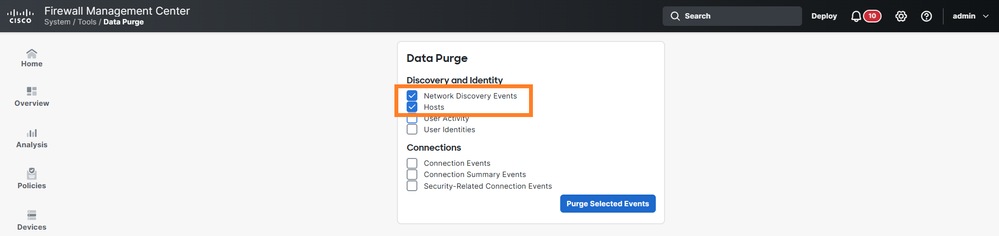
Alternatively, you can purge all the hosts from the discovery database from System > Tools > Data Purge:
Cause
The FireSIGHT host license limit is reached when the FMC has discovered and is tracking the maximum number of hosts in its network map and host database. Common contributing factors include:
Network discovery scope configured too broadly, including unnecessary external or public address ranges.
Discovery of NAT, load-balancer, or transient addresses that consume host licenses.
Host timeout settings that retain inactive hosts for extended periods.
Natural network growth reaches the FMC host capacity limit.
Related Content
Revision History
| Revision | Publish Date | Comments |
|---|---|---|
1.0 |
06-Aug-2026
|
Initial Release |

 Feedback
Contact Cisco
- Open a Support Case

- (Requires a Cisco Service Contract)