Configure and Troubleshoot AI Assistant on FMC Devices
Available Languages
Introduction
This document describes how to configure and troubleshoot the AI Assistant on Cisco Secure Firewall Management Center (FMC) devices.
Prerequisites
A valid subscription of the supported Cisco Security products:
- Security Cloud Control (SCC)
- On-Prem Firewall Management Center (FMC) (v7.6 or later)
- The FMC requires outbound internet access to reach Cisco cloud services
- AI Assistant is available only to FMC users with the Administrator role
- When running FMC in high availability mode, AI Assistant is not available on the standby unit
- Firewall Management Center must be integrated with Cisco Security Cloud
Requirements
Cisco recommends that you have knowledge of these topics:
- Cisco Secure Firewall Management Center
- Cisco Secure Firewall Threat Defense (FTD)
Components Used
Firewall Management Center integrated with Cisco Security Cloud on version 7.6.
The information in this document was created from the devices in a specific lab environment. All of the devices used in this document started with a cleared (default) configuration. If your network is live, ensure that you understand the potential impact of any command.
Background Information
Cisco AI Assistant within FMC streamlines network security management by leveraging advanced AI to simplify complex tasks. By providing proactive insights, contextual guidance, and accelerated troubleshooting, it helps teams optimize security policies and reduce operational overhead.
This tool facilitate administrators to make faster, data-driven decisions, significantly enhancing the overall security posture of the infrastructure. Designed for efficiency, Cisco AI Assistant transforms how you manage firewalls, ensuring robust protection against evolving threats while maintaining clear visibility and control across your digital environment.
Configure AI Assistant
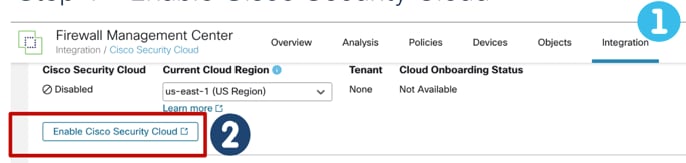
Step 1. You need to integrate the Firewall Management Center with the Cisco Security Cloud. You can integrate the FMC by navigating to Integration > Cisco Security Cloud > Enable Cisco Security Cloud.
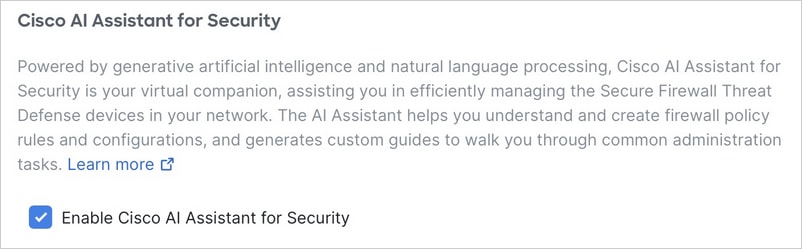
Step 2. Check the Enable Cisco AI Assistant for Security box and save your changes.
Step 3. Once enabled, a new icon appears in the menu bar for AI Assistant.


Note: The AI Assistant requires 24 hours to synchronize with the policy database. As a result, responses to policy-related inquiries can reflect data that is up to one day old. This synchronization process does not affect other functionalities, and you can continue to use the AI Assistant without interruption.
Step 4. Click the widget to launch the AI Assistant. Upon your first access to the AI Assistant, an introductory carousel appears. This guide explains how the system maintains your data privacy and provides helpful tips to optimize your experience.
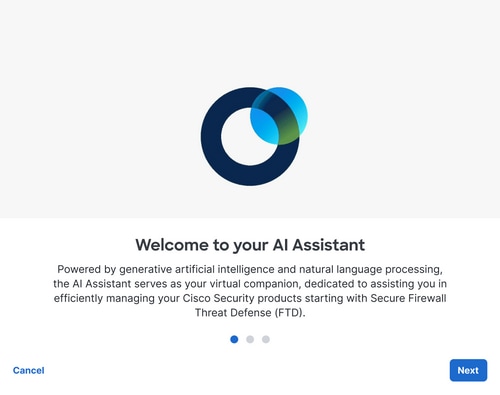
Within the introductory carousel, click Next to review how the AI Assistant processes your information.
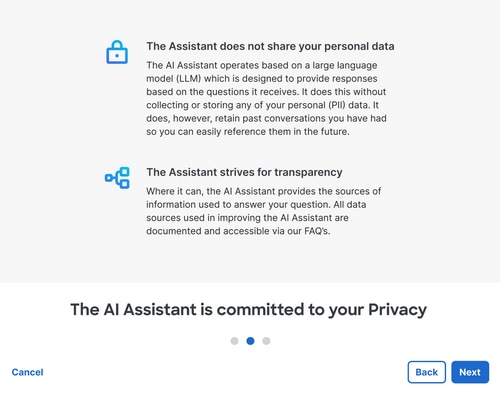
Step 5. Click Launch AI Assistant to open the AI Assistant in a dialog box window.
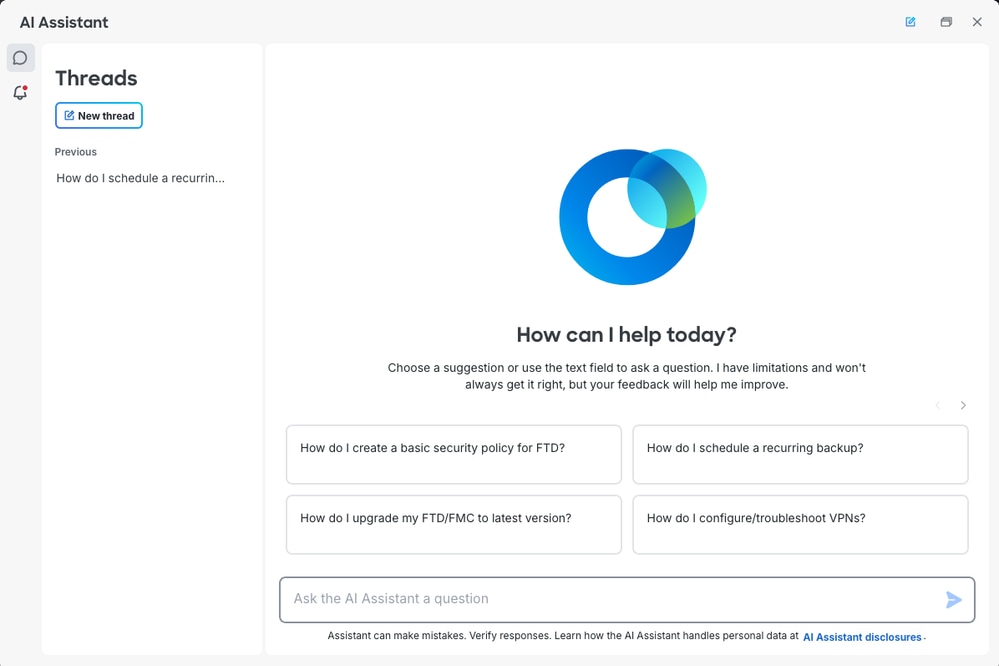
Note: Feedback: The AI Assistant has an option to provide feedback for its responses. Click thumbs up to show appreciation or thumbs down to let the assistant know that it can do better.
Best Practices for Using the AI Assistant
The AI Assistant is a powerful tool designed to streamline policy management, accelerate troubleshooting, and optimize your overall security posture. To ensure you receive the most accurate and actionable insights, consider the best practices:
- Be Precise: Avoid overly broad queries. Provide specific details regarding the objects, rules, or incidents you are currently investigating.
- Provide Context: When troubleshooting connectivity issues, include relevant environmental details, such as the specific devices, zones, or interfaces involved.
- Iterate for Depth: If the initial response does not fully address your needs, use further questions to refine the AI output.
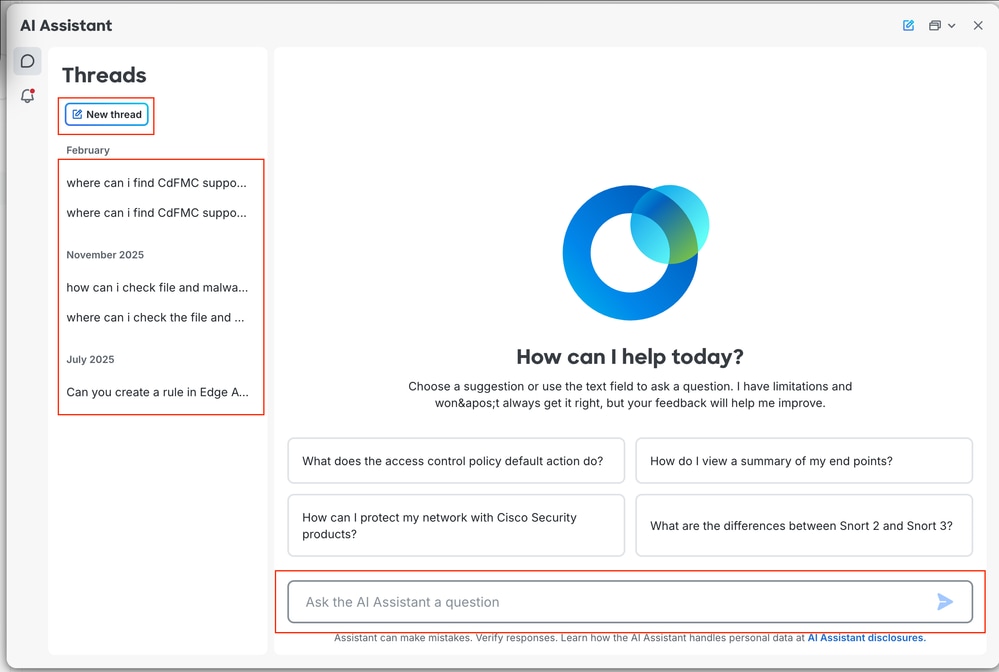
Once you submit a query, the AI Assistant generates a response, often including links to relevant documentation for further reading. To start a new conversation, simply click the New Thread button or enter your next question in the text box at the bottom of the screen. You can review your interaction history at any time by clicking the Threads section in the left-hand navigation menu.
Automate Policy Rule Creation
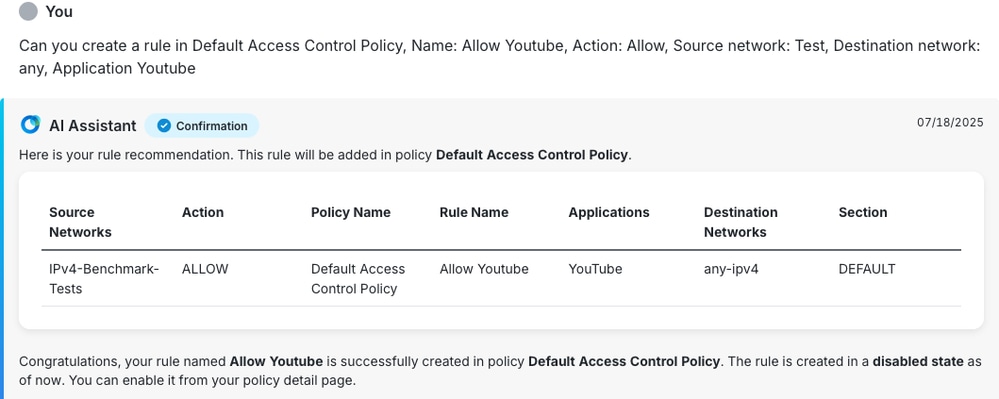
The image demonstrates the AI Assistant’s ability to streamline policy configuration. By simply stating the desired parameters as the policy name, source network, and application user triggers the AI to generate a structured summary of the proposed rule. This interface provides administrator validation step, where the system presents the configuration in a clear table for review. Finally, the AI confirms the action and provides a status notification, informing the user that the rule has been created in a disabled state, ensuring that the administrator maintains full control over the final deployment of the policy.
Troubleshoot
If you encounter issues while accessing or using the AI Assistant, please perform these diagnostic steps:
Connectivity and Access Issues
- Cloud Connectivity Verification: The AI Assistant relies on a stable connection to Cisco cloud services. Navigate to Integration > Cisco Security Cloud and ensure the status is set to Enabled and that port 8989 is open and not being blocked by your firewall, and check that the Cisco security cloud region/tenant is correct.
- Proxy Configuration: If your environment utilizes a proxy server, verify that the FMC is correctly configured to route traffic through it.
- Missing Icon: If the AI Assistant icon is not visible, ensure the FMC has been successfully onboarded to SSC and that port 8989 is open and not being blocked by your firewall.
- "Something went wrong" Error: This typically points to a connectivity issue between the FMC and SSC. Confirm that the onboarding process was completed successfully and that port 8989 is open and not being blocked by your firewall.
- Outdated Information: The AI Assistant can take up to 24 hours to synchronize with your current policy database. If you have recently made critical configuration changes, please allow for this sync period before expecting the assistant to reflect those updates.
- Error on SCC (HA Environments): If your FMC is part of a HA pair, a failover from Standby to Active can interrupt the cloud connection. In this scenario, you need to disable and re-enable the cloud integration on the newly active device to restore functionality.
For additional troubleshooting, collect browser console logs to identify potential errors:
To access Developer Tools:
- Chrome, Edge: Press F12 or Ctrl+Shift+I (Cmd+Option+I on macOS).
- Firefox: Press F12 or Ctrl+Shift+K (Cmd+Option+K on macOS).
Once the Console is open, refresh the page. Any errors appear in red text. Right-click the console area to save the log as a file if you need to share it for further investigation.
Automated Ticket Creation
The AI Assistant streamlines the support process by recommending a ticket when automated solutions are insufficient, while also allowing administrators to initiate a manual support request at any time.
Once a case is created in the Support Case Manager, the assistant provides you with all relevant details for tracking and case management.
Manage your support requests quickly and efficiently by performing these steps:
- Launch: Open the AI Assistant by clicking the icon in the top-right corner of your dashboard.
- Query: Enter your technical question or issue into the chat box to begin the session.
- Analyze: Review the troubleshooting steps or solutions provided by the assistant.
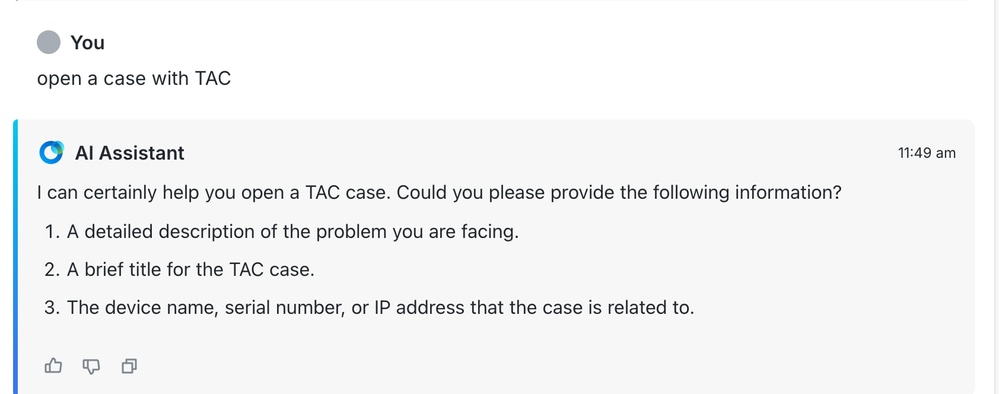
- Escalate: If the automated suggestions do not resolve your issue, use the prompt to open a case with TAC.
- Manual Trigger: You can manually initiate a support request at any time by typing the prompt: Open a Case with TAC
Related information
Prompt Guide for Cisco AI Assistant
Revision History
| Revision | Publish Date | Comments |
|---|---|---|
1.0 |
23-Jun-2026
|
Initial Release |

 Feedback
Contact Cisco
- Open a Support Case

- (Requires a Cisco Service Contract)