Configure Maximum Failed Log in Attempts for Local Admin on FTD
Available Languages
Issue
The objective is to configure the maximum number of failed log in attempts for local administrator accounts on Cisco Secure Firewall Threat Defense (FTD).
The request includes guidance for setting this limit via both the graphical user interface (GUI) and the command-line interface (CLI).
Ensure administrative accounts are protected against brute-force log in attempts.
Environment
Product: Cisco Secure Firewall
Software version: Any
Configuration assistance required for setting failed log in attempt limits
Resolution
There are two different cases depending on how the Secure Firewall is managed.
Default Behavior
Firewall Managed by FDM
By default, you cannot configure maxfailedlogins for the local admin account on the secure firewall managed by Firewall Device Manager (FDM):
> configure user maxfailedlogins admin 5
Unable to modify admin account.
Firewall Managed by FMC
By default, you cannot configure maxfailedlogins for the local admin account managed by Cisco Firewall Management Center (FMC):
> configure user maxfailedlogins admin 5
Unable to modify admin account.
The Solution
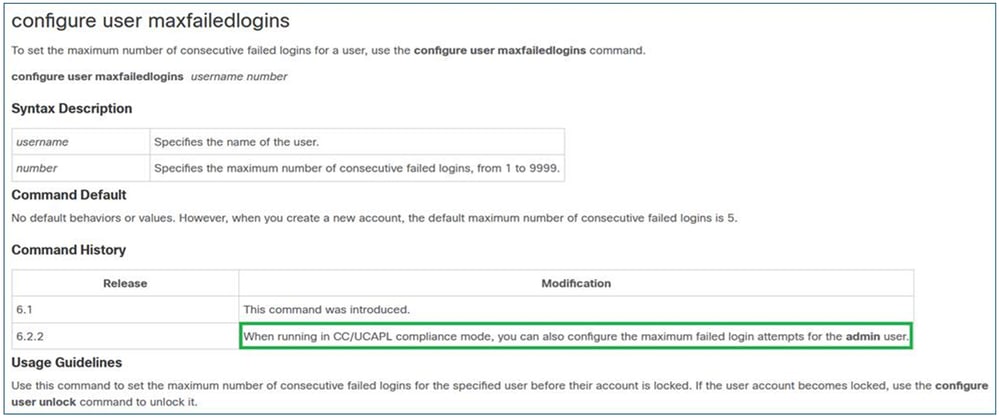
To overcome this restriction on an FMC-managed firewall, you must enable compliance mode on the firewall. This is documented in the Cisco FTD command reference:
 inline_image_0.png
CC and UCAPL Compliance
They are security compliance standards that specify requirements for hardening security products.
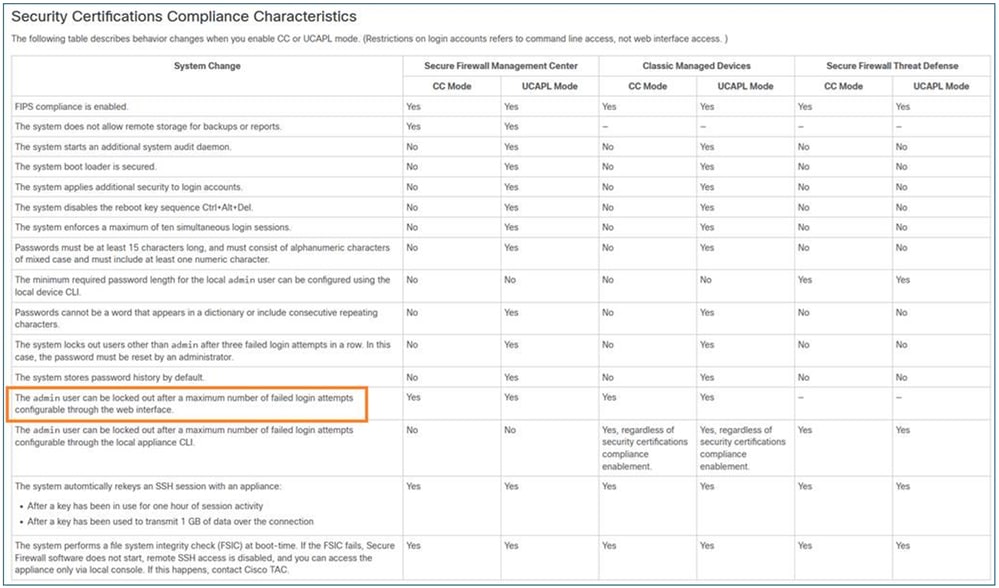
In the case of maxfailedlogins, the related information is in Security Certifications Compliance.
Important Notes
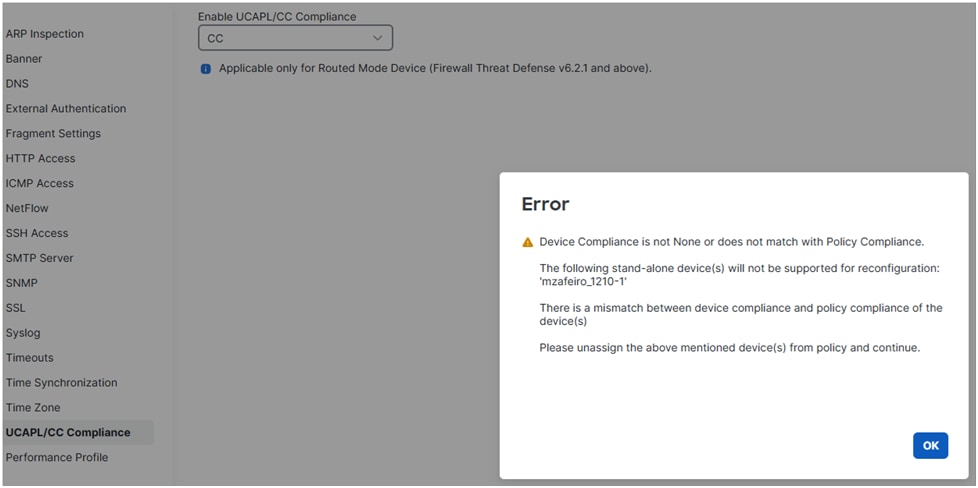
First, remember that once you enable CC or UCAPL compliance on FTD, you cannot revert the change. If you try to revert, you get:
 inline_image_0.png
Once you enable a compliance mode and deploy the policy, the FTD reboots.
When it comes to maxfailedlogins, with CC you can configure up to 9999 failed attempts, while with UCAPL up to 3.
Enable CC or UCAPL Compliance on FTD
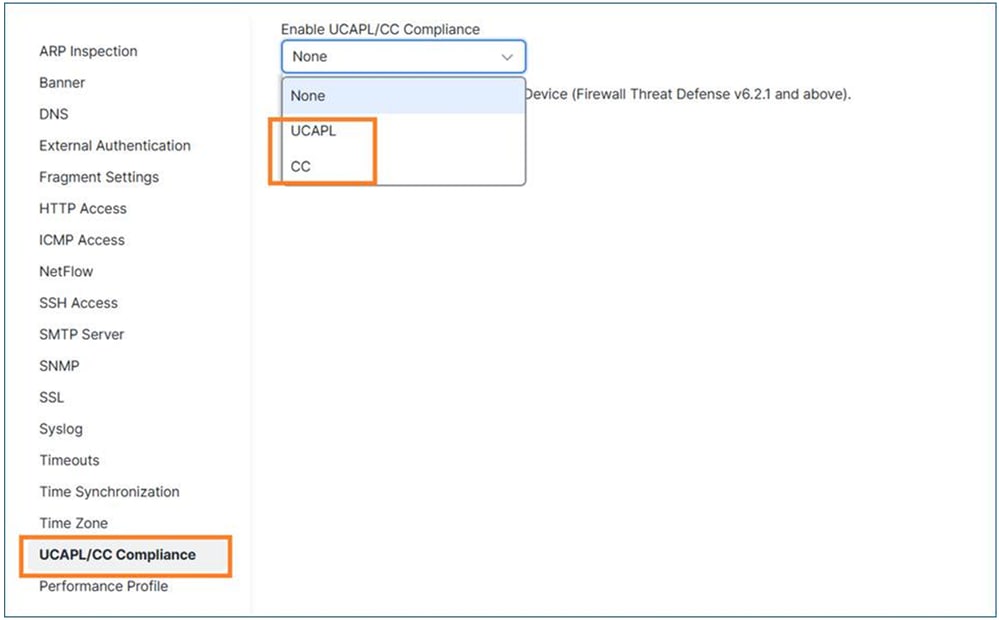
Step 1: On FMC, you navigate to the Devices / Platform Settings.
Step 2: Enable one of the two compliance modes (UCAP or CC). Since the change cannot be reversed, it is highly recommended to read carefully the Security Certifications Compliance guide.
 inline_image_0.png
Step 3: Once this is done, you have to assign the Platform Settings policy to the FTD (if it is not already) and Deploy.
Once the deployment is done, the FTD device reboots automatically:
Broadcast message from root@secure_fw (Tue Jan 13 10:10:49 2026):

A reboot has been scheduled to occur 10 seconds from now.

Jan 13 2026 10:11:01 INIT: Running /etc/rc6.d/K00all_ports_down.sh stop...
Tue Jan 13 10:11:01 UTC 2026 : Checking for running portmgr process...
Terminating DME and all AGs bfore bring down all ports...
Tue Jan 13 10:11:01 UTC 2026 : Sending IPC message to portmgr to bring down all ports...
2026-01-13 10:11:02.112 PMLOG:PM IPC UTILITY: Shutting down all ports
Jan 13 2026 10:11:02 INIT: Completed /etc/rc6.d/K00all_ports_down.sh stop...
Jan 13 2026 10:11:02 INIT: Running /etc/rc6.d/K00ftd.sh stop...

Threat Defense System: CMD=-stop, CSP-ID=cisco-ftd.7.6.1.291__ftd_001_FOL2751Z03FLKF25W1, FLAG=''
Cisco Firewall Threat Defense stopping ...
Step 4: Once the firewall is up again, you can configure the maxfailedlogins setting. In case you chose UCAPL, you can configure up to 3 failed log in attempts:
> configure user maxfailedlogins admin 5
Unable to set limit, must be 3 or less for UCAPL mode

>
In case of CC, you can set up to 9999:
> configure user maxfailedlogins admin 9999

>
Step 5: Verify the configuration using the show user command:
> show user
Login              UID   Auth Access  Enabled Reset   Exp     Warn    Grace MinL Str Lock Max
admin              101  Local Config  Enabled    No Never Disabled Disabled    5 Dis   No   5

Tip: Ensure you have another user with config privileges available in case the admin user gets locked!
Unlock a Locked Admin User
Assuming you set maxfailedlogins 3, after 3 failed attempts the admin account gets locked:
> show user
Login              UID   Auth Access  Enabled Reset   Exp     Warn    Grace MinL Str Lock Max
admin              101  Local Config  Enabled    No Never Disabled Disabled    5 Dis  Yes   3
In that case you have to log in with another user and unlock the admin user manually:
> configure user unlock admin

> show user
Login              UID   Auth Access  Enabled Reset   Exp     Warn    Grace MinL Str Lock Max
admin              101  Local Config  Enabled    No Never Disabled Disabled    5 Dis   No   3
Firewall Managed by Device Manager (FDM)
FDM does not currently support CC or UCAPL compliance modes.
Related enhancement: CSCws76567 ENH: Add CC/UCAPL support on Firepower Device Manager
If this functionality is critical, it is advised to discuss the prioritization of the related enhancement request, referenced as CSCws76567, with your Account Manager.
Set the Maximum Number of Failed Login Attempts for Web GUI Access
Similar to the CLI log in, this functionality is only available when CC or UCAPL compliance mode is enabled:
 inline_image_0.png
Reference
Since CC or UCAPL modes cannot be used on FDM-managed devices, you cannot set the maximum number of failed log in attempts for web GUI access (see enhancement CSCws76567).
Cause
- For FMC-managed devices, the option is only available when CC or UCAPL compliance mode is enabled.
- For FDM-managed devices, an enhancement request (CSCws76567) has been filed to address this feature gap and to add support for Common Criteria (CC) and UCAPL compliance in Firewall Device Manager.
Related Content
Revision History
| Revision | Publish Date | Comments |
|---|---|---|
2.0 |
21-Apr-2026
|
Some formatting changes. |
1.0 |
14-Apr-2026
|
Initial Release |

 Feedback
Contact Cisco
- Open a Support Case

- (Requires a Cisco Service Contract)