Download Files on FTD Devices from the FMC GUI
Available Languages
Introduction
This document describes the process to download any file from FTD and FMC devices to the FMC GUI.
Prerequisites
Requirements
Cisco recommends that you have knowledge of these products:
- Secure Firewall Management Center (FMC)
- Firepower Threat Defense (FTD)
Components Used
The information in this document is based on these software and hardware versions:
- Firepower Threat Defense for VMware version 7.0.4
- Secure Firewall Management Center for VMware version 7.2.2
The information in this document was created from the devices in a specific lab environment. All of the devices used in this document started with a cleared (default) configuration. If your network is live, ensure that you understand the potential impact of any command.
Background Information
Troubleshooting FTD or FMC often requires downloading files, such as packet captures, for external analysis or for submission to Cisco TAC. Once the file is downloaded, there are two additional steps. First, move the files to the correct location and download the files from the FMC GUI.
Procedure
Move Files to the Correct Folder
FMC
In this example, you must download a Core file from the FMC GUI that TAC requests for additional troubleshooting and root cause analysis.
Move File to /var/common Folder
Now that the Core file is in the /var/common folder, you can move the file with the cp or mv commands to copy or move it.
expert
sudo su
{cp | mv} /<file_path>/<file_name> /var/common/

FTD
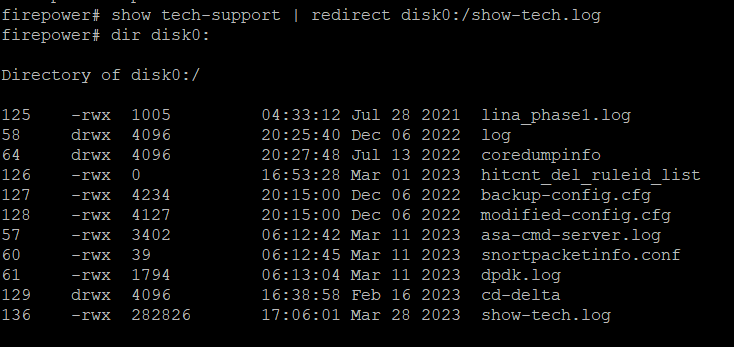
- Next, generate and download show tech-support from FTD and download it from the FMC GUI.
- Run the show tech-support command and redirect it, as shown in the image.
show tech-support | redirect disk0:/show-tech.log
Move File to /ngfw/var/common Folder
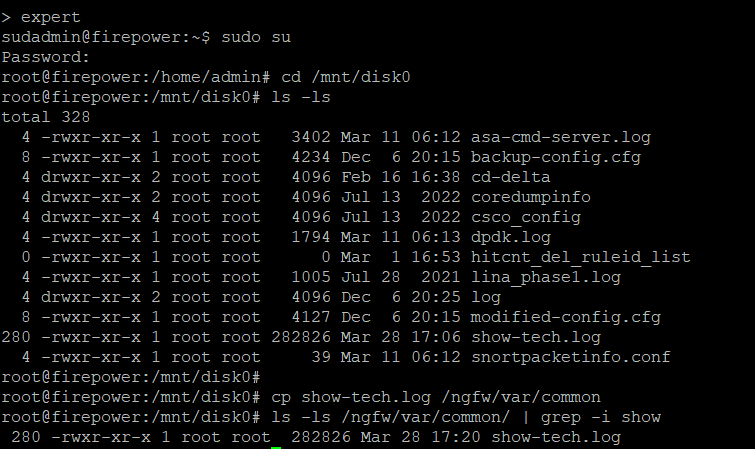
Since you saved the file on disk0, you must move it from /mnt/disk0 to /ngfw/var/common.
expert
sudo su
cd /mnt/disk0
{cp | mv} /<file path>/<file_name> /ngfw/var/common/
Download the File from the FMC GUI
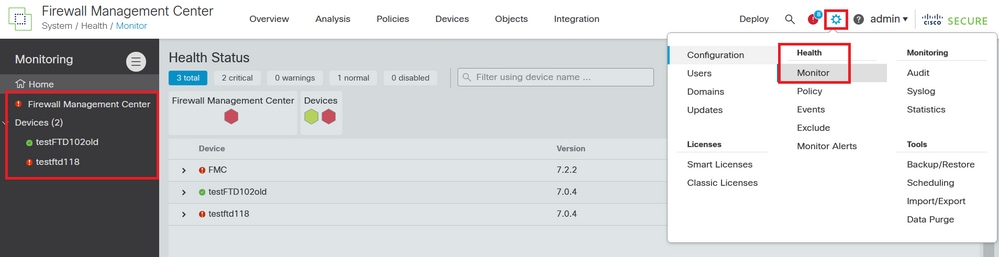
1. On the FMC GUI, navigate to System > Health > Monitor and choose the device to download the file from.
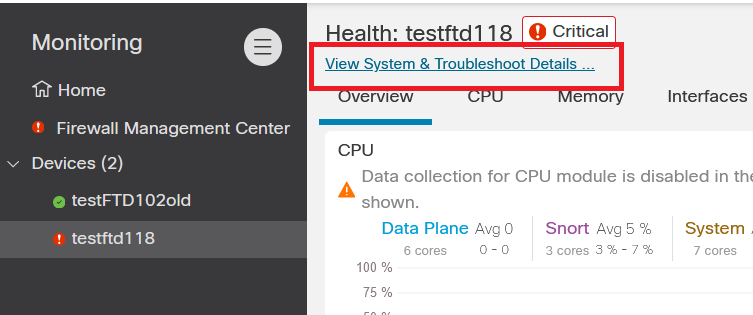
2. Choose the View System and Troubleshoot Details...
3. Click the Advanced Troubleshooting option.

4. The File Download tab displays, enter the name of the file to download and choose Download.
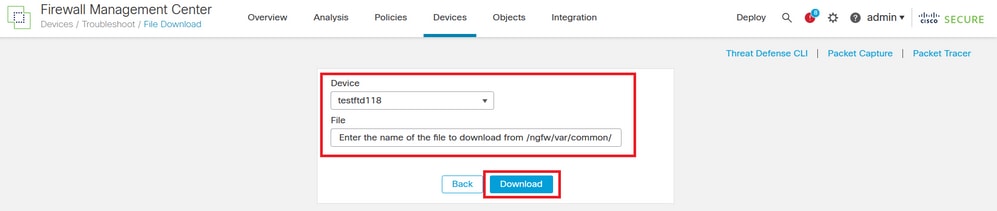
5. The file begins to download from the FMC GUI.
Revision History
| Revision | Publish Date | Comments |
|---|---|---|
3.0 |
05-Jun-2026
|
Updated spelling, grammar, numbering, and spacing. |
1.0 |
03-Apr-2023
|
Initial Release |

 Feedback
Contact Cisco
- Open a Support Case

- (Requires a Cisco Service Contract)