How to configure an Email DLP policy in Cisco Secure Access (SA) and Cisco Email Threat Defense (ETD)
Available Languages
Contents
Introduction
Email remains one of the most common channels for unintentional or unauthorized data exposure. To help organizations protect sensitive information shared over email, Cisco provides Email Data Loss Prevention (DLP) capabilities through the integration of Cisco Secure Access (SA) and Cisco Email Threat Defense (ETD).
In this architecture, all Email DLP policy creation, configuration, and enforcement actions are performed in Cisco Secure Access. Cisco Email Threat Defense provides email visibility and message tracking, while Cisco Secure Access serves as the policy engine for defining DLP rules and enforcement behavior.
This article explains how to create an Email DLP policy in Cisco Secure Access, using either a pre-defined DLP template or a custom DLP template.
Prerequisites
Before beginning the configuration process, ensure the following requirements are met:
- Administrative Access:You must have "Full Administrator" privileges for both the Cisco Email Threat Defense Inline console and the Cisco Secure Access console.
- Active Subscriptions:Ensure that both your Email Threat Defense and Secure Access tenants are active and provisioned.
- Connectivity:The API integration between Email Threat Defense and Secure Access must be successfully established.
- Mail Flow Configuration: Email Threat Defense must be correctly deployed inInline Modeto ensure it is actively inspecting email traffic.
Important: Although this solution uses both Cisco Secure Access and Cisco Email Threat Defense, all Email DLP rule configuration steps described in this article are performed only in Cisco Secure Access.
Requirements and Components Used
To successfully implement an Email DLP policy, the following components are utilized:
- Cisco Email Threat Defense (ETD):Acts as the email inspection point. It captures the outbound email traffic and facilitates the communication flow required for the DLP engine to perform its analysis.
- Cisco Secure Access (SA) - The DLP Engine:This is the primary component where all DLP configurations reside. You will utilize the Secure Access console to define:
- Data Identifiers:The specific patterns or sensitive data types (e.g., PII, credit card numbers, or internal project codes) that the system should monitor.
- DLP Policies:The rules that dictate how the system should react when sensitive data is detected (e.g., block, encrypt, or notify).
- Policy Actions:The automated responses triggered by the DLP engine, such as preventing the email from being sent or applying mandatory encryption.
- Integration Framework:The backend connectivity that allows ETD to hand off email metadata to the Secure Access DLP engine for policy evaluation and subsequent enforcement.
Email DLP Policy Capabilities
When creating an Email DLP policy in Cisco Secure Access, you can configure:
- Rule name and description
- Severity level
- Data classifications
- Inspection scope, including:
- Email Subject
- Message Body
- Attachment Name
- Attachment Content
- File controls, including:
- MIP labels
- Titus labels
- Sender conditions
- Recipient conditions
- Policy actions:
- Monitor
- Block
- Optional user notifications
Network Diagram
Find below the network diagram that illustrates Cisco Secure Email threat defense integration with Cisco Secure Access along with the traffic flow chart.
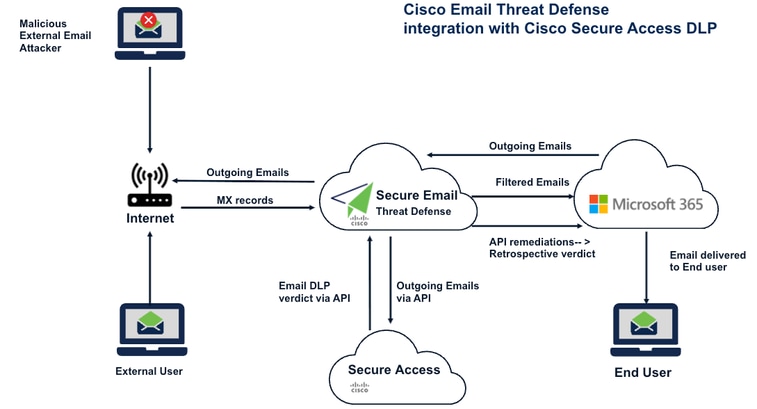
NOTE: In the above picture the exhange server is O365, but this DLP configuration can be done on any exchange server that supports SMTP.
NOTE: Please refer to article "Steps to integrate Cisco Email Threat defense(ETD) with Cisco Secure Access:" to integrate Cisco Email threat Defense and Cisco Secure Access through API.
Configure
Configure an Email DLP Policy in Cisco Secure Access
Step 1: Log in to Cisco Secure Access
Sign in to the Cisco Secure Access (SA) console using an administrator account with the required permissions.
Step 2: Navigate to Email DLP Rule Creation
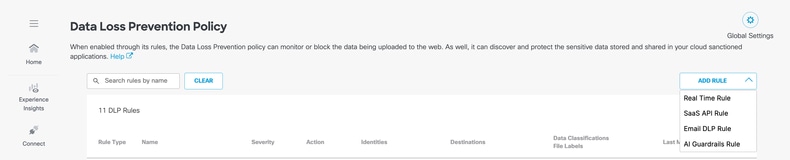
From the Secure Access dashboard, navigate to:
Secure > Policy > Data Loss Prevention Policy > Add Rule > Email DLP Rule
This opens the Add New Email Rule page.
Cisco Secure Access provides two methods to create an Email DLP rule:
- Create an Email DLP rule using a pre-defined DLP template
- Create an Email DLP rule using a custom DLP template
Figure 1. Navigate to Email DLP Rule creation
Option 1: Create an Email DLP Rule Using a Pre-defined DLP Template
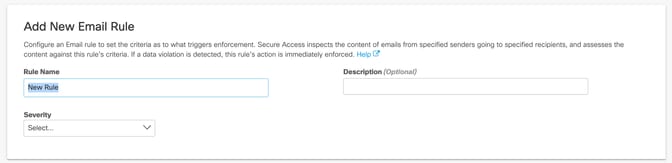
Step 3: Configure Basic Rule Information
Navigate to ADD RULE > Email DLP Rule window,
In the Add New Email Rule window, enter the following details:
-
Rule Name
Enter a descriptive name for the Email DLP rule. -
Description
Provide a brief summary of the purpose of the rule. -
Severity
Select the appropriate severity level for the policy:- Low
- Medium
- High
- Critical
These fields help categorize the rule for administration, reporting, and operational visibility.
Step 4: Select Data Classifications
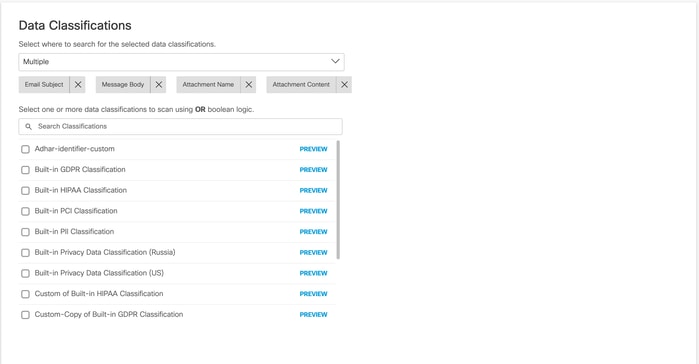
Under Data Classifications, select the pre-defined DLP template that will be used to inspect email content for potential DLP violations.
Next, choose where the selected classifications should be matched. Supported inspection locations include:
- Email Subject
- Message Body
- Attachment Name
- Attachment Content
This allows the policy to inspect both message content and attachments for sensitive information.
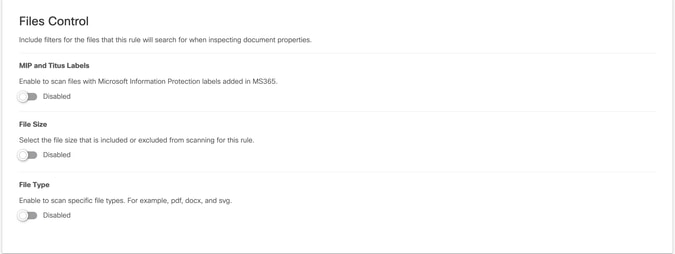
Step 5: Configure File Controls
Under Files Control, configure the file-based inspection criteria for the rule.
This includes support for:
- MIP labels
- Titus labels
These settings are useful when DLP enforcement must consider sensitivity labels or metadata associated with attached files.
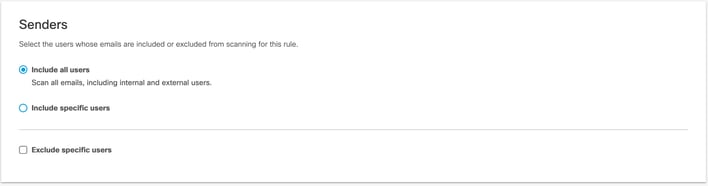
Step 6: Define Sender Scope
In the Senders section, specify which senders the policy applies to.
Available options include:
- All senders
- Specific senders
- Exclude specific senders
This enables you to apply the rule broadly or restrict it to selected users or groups.
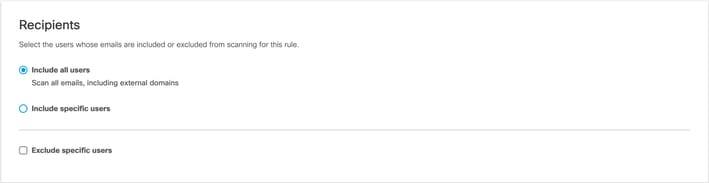
Step 7: Define Recipient Scope
In the Recipients section, choose the users or groups that should be included or excluded from policy evaluation.
Available options include:
- Include all users
- Include specific users
- Exclude specific users
This helps tailor policy enforcement based on intended recipients.
Step 8: Select the Policy Action
In the Action section, choose how Cisco Secure Access should handle emails that are positively identified as violating the DLP rule.
Available actions are:
-
Monitor
The email is allowed, and the event is logged for visibility and reporting. -
Block
The email is dropped to prevent the transmission of sensitive data.
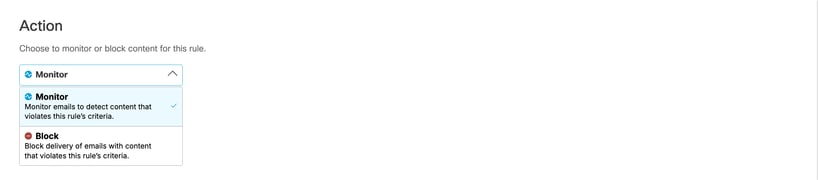
Note: At present, positively identified emails can either be allowed through the Monitor action or dropped through the Block action.
Important: Email DLP actions are configured only in Cisco Secure Access. If an email is blocked by Secure Access, the event is also visible in Cisco ETD message tracking.
Step 9: Configure User Notifications
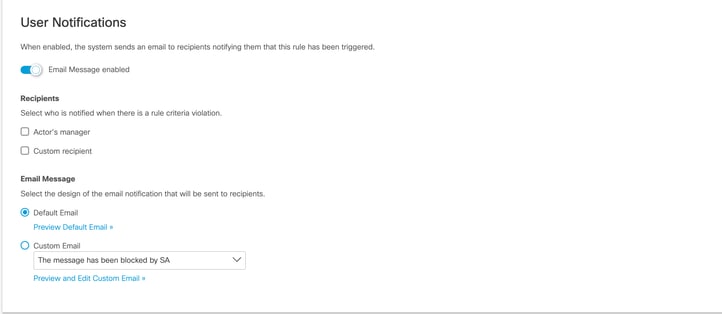
The notification option is just available for the Recipinets.
Under User Notifications, configure whether users should be notified when an email matches the DLP policy.
There is an option to notify "Actor's Manager" or a "Custom Recipient". A "Custom Recipient" can be anyone.
Configure Email message template from Default to Custom notification as per your need.
If enabled, notifications can help improve user awareness and reduce repeated policy violations. Configure this setting according to your organization’s operational and compliance requirements.
Step 9: Configure User Notifications
User notifications are a powerful tool for promoting security awareness and ensuring compliance. By alerting users or administrators when an email triggers a DLP policy, you can provide immediate feedback and context regarding the violation.
Note: Notification settings are primarily intended for the email recipients and designated stakeholders.
To configure notifications:
- Define Notification Recipients: Under theUser Notificationssection, specify who should receive the alert. You have two primary options:
- Actor's Manager: Sends the notification directly to the manager of the user who triggered the policy violation.
- Custom Recipient: Allows you to specify any email address (e.g., a security operations center or a specific department head).
- Select Message Template: You can choose between theDefaultnotification template or aCustomnotification.
- Recommendation: If your organization has specific compliance messaging or internal branding requirements, use theCustomoption to tailor the email body to provide clear, actionable instructions to the recipient.
- Review and Save: Once configured, ensure the settings align with your organization’s operational and compliance policies.
Best Practice: Enabling these notifications is an effective way to reduce repeat policy violations by educating users in real-time about sensitive data handling procedures.
Note: Notification options may vary based on tenant configuration and policy settings.
Step 10: Review and Save the Rule
After completing the rule configuration:
- Review all configured settings.
- Verify that the selected data classifications, inspection scope, sender and recipient conditions, and action match your intended policy behavior.
- ClickSaveto create the Email DLP rule.
The Email DLP policy is now active in Cisco Secure Access.
Option 2: Create an Email DLP Rule Using a Custom DLP Template
Creating a custom DLP template involves two primary phases: defining a Custom Identifier and configuring the Data Classification.
Note: The Data Classification engine is highly flexible, allowing you to build policies using a single Custom Identifier or a combination of Custom and Pre-defined Identifiers linked by AND/OR boolean operators.
Step 11: Create a Custom Identifier
To define a new data pattern for detection, follow these steps:
- Log in to theSecure Accessdashboard.
- Navigate toSecure > Data Classification.
- ClickAdd Custom Identifier.
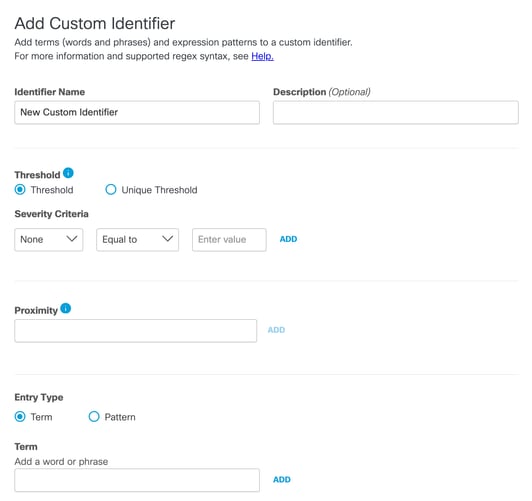
- Configure the following parameters in theAdd Custom Identifierwindow:
- Name and Description: Provide a unique name and a brief description of the data type you intend to detect.
- Threshold:
- Threshold: Monitors the total frequency of the detected data.
- Unique Threshold: Monitors only the number ofuniqueoccurrences of the data, ignoring duplicates.
- Severity Criteria: Assign severity levels (Very Low, Low, Medium, High) based on the frequency of detection. You can define these using comparison operators such asEqual to, Greater Than, Less Than,orRange.
- Proximity: Set the proximity threshold. This applies to all terms and patterns defined within this identifier collectively, rather than per individual term.
- Entry Type: Define how the system identifies the data:
- Term: A specific word or phrase.
- Pattern: A Regular Expression (regex) used to detect specific data formats (e.g., credit card numbers or internal project codes).
Step 12: Configure Data Classification
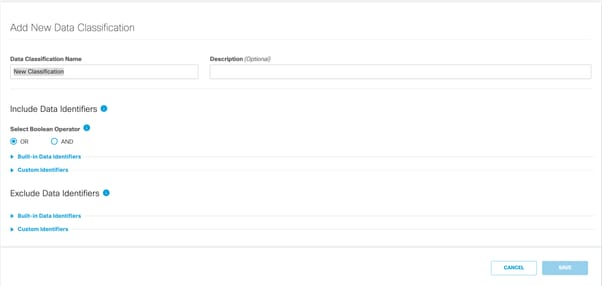
Once your Custom Identifier is saved, you can integrate it into a Data Classification object:
- Navigate toSecure > Data Classification > Add (use the botton on top right corner)
- Select your newly createdCustom Identifierfrom the available list.
- (Optional) Combine your Custom Identifier withPre-defined Identifiersusing theAND/ORlogic to refine the detection scope.
- Save the configuration to make it available for use in your Email DLP policies.
- Refer to below screenshot for more information.
- Now follow the same steps from Step 4 to Step 10 to create a policy using custom Data classification.
This configuration ensures that your organization can detect sensitive information tailored specifically to your internal data structures and compliance requirements.
Troubleshoot
If the Email DLP rule does not behave as expected, review the following:
Rule is not matching emails
- Confirm that the correctdata classification templateis selected.
- Verify that the relevant inspection locations are enabled:
- Email Subject
- Message Body
- Attachment Name
- Attachment Content
- Ensure sender and recipient filters do not unintentionally exclude the test email.
Emails are not blocked
- Verify that the rule action is set toBlockand notMonitor.
- Confirm that the rule is saved and enabled.
- Ensure the email content positively matches the configured DLP criteria.
DLP events are not visible in ETD
- Confirm that Cisco ETD and Cisco Secure Access are properly integrated.
- Verify that ETD is actively processing the relevant email traffic.
- Check whether the policy event is present first in Cisco Secure Access.
Attachment-based matches are not detected
- Confirm thatAttachment Nameand/orAttachment Contentare selected in the inspection scope.
- Verify file control settings if labels such asMIPorTitusare part of the rule logic.
Best Practices
Consider the following best practices when deploying Email DLP policies:
- Start withMonitormode to validate policy behavior before enforcingBlock.
- Use clear and descriptive rule names for easier administration.
- Scope sender and recipient conditions carefully to reduce unintended matches.
- Test with representative data before broad deployment.
- Review ETD message tracking regularly to validate blocked or monitored email activity.
- Use custom templates where business-specific data identifiers are required.
Summary
Cisco Secure Access is the central platform for configuring Email DLP policies in an integrated Cisco Secure Access and Cisco Email Threat Defense deployment. While ETD provides visibility and message tracking, all DLP rule creation, classification selection, enforcement action, and notifications are configured in Secure Access.
By using either pre-defined or custom DLP templates, administrators can inspect email content and attachments, define sender and recipient scope, and apply Monitor or Block actions to help prevent sensitive data loss through email.
Revision History
| Revision | Publish Date | Comments |
|---|---|---|
1.0 |
22-Jun-2026
|
Initial Release |
 Feedback
Contact Cisco
- Open a Support Case

- (Requires a Cisco Service Contract)