Configure ESA Dictionary Using Python and AsyncOS REST API
Available Languages
Introduction
This document describes how to use Python script to add new dictionary to a Cisco Email Security Appliance (ESA) by using the AsyncOS API (REST API).
Prerequisites
Review these prerequisites:
- Python programming language
- Python
requestsmodule - JSON
- Cisco Email Security Appliance (ESA)
Requirements
Use the following software and access to run the script:
- Cisco Email Security Appliance (ESA) running AsyncOS 14.x or later
- Python 3
- Python
requestsmodule - ESA administrator credentials with permission to use the AsyncOS API (REST API)
- Access to the ESA management interface over HTTPS on port
6443(recommended)
Components Used
These components were used to complete this lab:
1) Cisco ESA - 15.0.0-104
2) Sublime Text Editor
The information in this document was created from the devices in a specific lab environment. All of the devices used in this document started with a cleared (default) configuration. If your network is live, ensure that you understand the potential impact of any command.
Transport and Authentication
- Transport: Use HTTPS on port
6443for the AsyncOS API when available. Use HTTP/6080 only in non-production or lab environments. - Authentication: This example uses HTTP Basic authentication. Provide the header
Authorization: Basic <base64(username:password)>. Do not paste real credentials into the script.
Background Information
For this document:
Goal: Add a dictionary to the ESA by using a Python script and the AsyncOS API (REST API).
Expected outcome: The API returns a successful response and the new dictionary appears in the ESA configuration.
Configure
Enable the AsyncOS API (REST API) service on the ESA management interface before running the script.
- In the Graphical User Interface (GUI), navigate to the network or interface page that contains the AsyncOS API HTTP and AsyncOS API HTTPS settings.
- Enable AsyncOS API HTTPS and verify port
6443. - (Optional) Enable AsyncOS API HTTP and verify port
6080for lab use. - Click Save.

Image 1: Verify that AsyncOS API HTTPS (port 6443) is Enabled on the Management interface.
Configure API logging to troubleshoot AsyncOS API requests.
- In the Graphical User Interface (GUI), navigate to System Administration > Log Subscriptions.
- Click Add Log Subscription.
- From the Log Type drop-down list, select API Logs.
- Enter the remaining required fields, such as the log name and file name, and then click Submit.
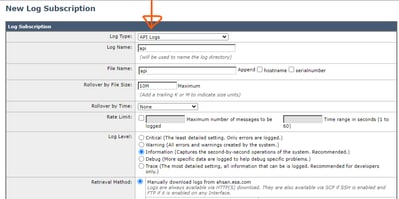
Select API Logs from the Log Type drop-down list and enter the remaining required details.

Note: Logs can be configured from the GUI.
Script
Use the HTTP POST method from the Python requests module to create a dictionary.
Use these parameters for the POST request:
| Parameter | Location | Required | Notes |
|---|---|---|---|
device_type |
URL query string | Yes | Set to esa. |
ignorecase |
JSON payload | Yes | 0 = case-sensitive, 1 = case-insensitive. |
wholewords |
JSON payload | Yes | 0 = substring match, 1 = whole-word match. |
encoding |
JSON payload | Yes | Use utf-8 unless a different encoding is required. |
words |
JSON payload | Yes | Array of entries. Use ["term"] for a literal term. For smart identifiers, use a tuple format such as ["*credit", 2, "prefix"] as supported by the ESA. |
mode |
URL query string | No | Required only for clustered/group deployments (for example, mode=cluster). |
import base64
import requests

# ESA management IP address or FQDN
host = "<ESA_IP>"

# Dictionary name to create
dictionary_name = "<DICT_NAME>"

# AsyncOS API endpoint (HTTPS recommended)
url = f"https://{host}:6443/esa/api/v2.0/config/dictionaries/{dictionary_name}?device_type=esa"

payload = {
    "data": {
        "ignorecase": 0,
        "wholewords": 1,
        "words": [
            ["*credit", 2, "prefix"],
            ["*aba"],
            ["Example Term"]
        ],
        "encoding": "utf-8"
    }
}

# Basic authentication header
username = "<USERNAME>"
password = "<PASSWORD>"
creds = base64.b64encode(f"{username}:{password}".encode()).decode()

headers = {
    "Content-Type": "application/json",
    "Authorization": f"Basic {creds}"
}

response = requests.post(url, headers=headers, json=payload, timeout=30, verify=False)
print(f"Status code: {response.status_code}")
try:
    print(response.json())
except ValueError:
    print(response.text)

if response.status_code != 201:
    raise SystemExit("Dictionary creation failed.")
In the script, the dictionary name (<DICT_NAME>) is included in the request URL path.
Include the required parameters (ignorecase, wholewords, words, and encoding) in the JSON payload. Add device_type to the URL query string.
The mode parameter is required only when the ESAs are in a cluster or group. In that case, append mode=cluster to the URL query string in the same way as device_type.
*credit and *aba are added to the payload to enable the smart identifiers for credit card numbers and ABA routing numbers, as shown in the screenshot:
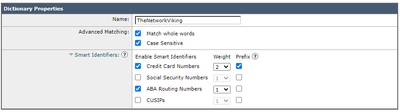
The term Example Term is added to the payload as a dictionary item to match.
Verify
When the POST request succeeds, the API log contains an entry similar to this:
API log example
Thu October 5 12:58:19 2023 Info: 198.51.100.10 - - 05/Oct/2023 12:58:19 +0000 POST /esa/api/v2.0/config/dictionaries/ExampleDictionary?device_type=esa HTTP/1.1 201 -
Expected response:
{"data": {"message": "Added Successfully"}}
If the dictionary already exists and the POST request runs again, the API log contains an entry similar to this:
API log example
Thu October 5 13:00:31 2023 Info: 198.51.100.10 - - 05/Oct/2023 13:00:31 +0000 POST /esa/api/v2.0/config/dictionaries/ExampleDictionary?device_type=esa HTTP/1.1 409 -
Expected response:
{"error": {"message": "Dictionary already exists.", "code": "409", "explanation": "409 = Request conflict."}}
Related Information
Use the following external resources for additional background (the procedure in this document is self-contained):
Adding Dictionaries using REST API + Python
This document includes the required authentication method and the minimum procedure. Use HTTP Basic authentication with the header Authorization: Basic <base64(username:password)> and prefer HTTPS on port 6443.
Additionally, the Python code used in this procedure can be extracted from Postman. Review this video tutorial if needed:
Postman - How to Generate a Python Script
Revision History
| Revision | Publish Date | Comments |
|---|---|---|
1.0 |
26-Aug-2026
|
Initial Release |

 Feedback
Contact Cisco
- Open a Support Case

- (Requires a Cisco Service Contract)