Configure and Troubleshoot SWA, ESA and SMA Local Upgrade
Available Languages
Introduction
This document describes how to upgrade and troubleshoot local upgrades for Cisco Secure Web Appliance (SWA) and Email Security Appliance (ESA).
Background Information
Due to version restrictions or internal policy which leads to limited access to Internet for Secure Email and Web Management Appliance (SMA), Cisco provides alternate solution to download the upgrade image and locally upgrade the appliance.
Prerequisites
Cisco recommends that you have knowledge of these topics:
- Admin access to SWA, ESA, SMA.
- Basic knowledge of web server configuration.
-
Web Server accessible from SWA.
Components Used
This document is not restricted to specific software and hardware versions.
The information in this document was created from the devices in a specific lab environment. All of the devices used in this document started with a cleared (default) configuration. If your network is live, ensure that you understand the potential impact of any command.
Local Upgrade
Step 1. Download the desired version upgrade package file.
Step 1.1. Navigate to Fetch a Local Upgrade Image
Step 1.2. Enter the associated serial number(s) for physical devices or Virtual License Number (VLN) and Model for virtual appliances.

Note: You can separate the serial numbers with commas if there is more than one.
Step 1.3. In the Base Release Tag, enter the current version of the appliance field in this format:
For SWA: coeus-x-x-x-xxx (Example: coeus-15.0.0-355).
For ESA: phoebe-x-x-x-xxx (Example: phoebe-15-0-0-104).
For SMA: zeus-x-x-x-xxx (Example: zeus-15-0-0-334).
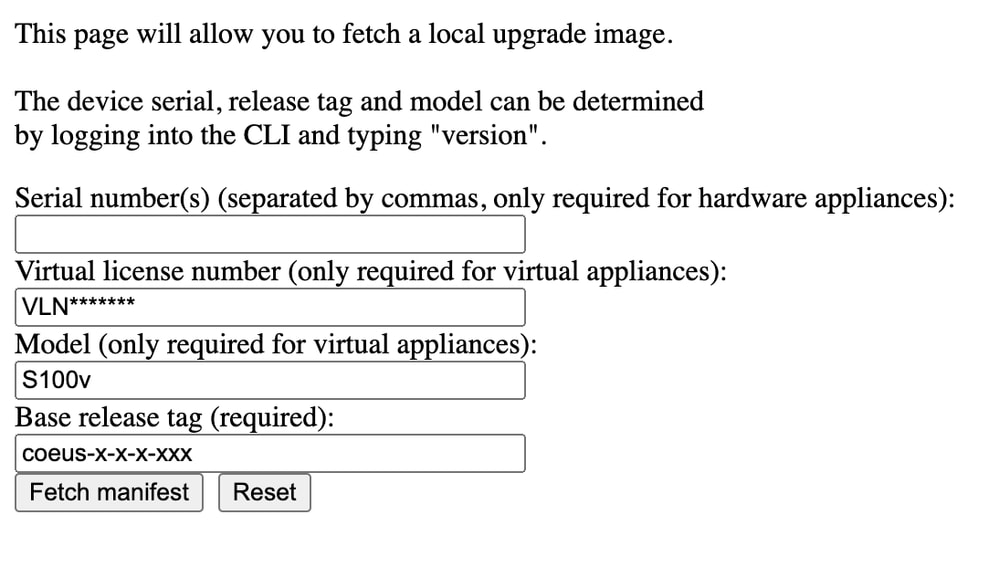 Image- Enter the Current Appliance Details

Tip: To find the VLN of virtual appliances, you can use showlicense command from Command Line Interface (CLI).
Step 1.4. Click Fetch manifest to view the list of available upgrades.
Step 1.5. Download the desired version.
Step 2. Extract the downloaded file and copy to your Web server.
Step 3. Verify that the coeus-x-x-x-xxx.xml file and directory structure is accessible from your SWA appliance.
asyncos/coeus-x-x-x-xxx.xml/app/default/1
asyncos/coeus-x-x-x-xxx.xml/distroot/default/1
asyncos/coeus-x-x-x-xxx.xml/hints/default/1
asyncos/coeus-x-x-x-xxx.xml/scannerroot/default/1
asyncos/coeus-x-x-x-xxx.xml/upgrade.sh/default/1
Step 4. Navigate to System Administration >Upgrade and Update Settings and choose Edit Update Settings.
Step 5. Select Local Update Servers, and enter the full URL for the manifest file.
Note: Manifest file is .xml file located in asyncos folder.
Step 6. In Update Servers (images) configuration, choose Local Update Servers. Change the Base URL (IronPort AsyncOS upgrades) settings to your local upgrade server and appropriate port number.
Note: If your web server is configured for authentication, you can set the credentials in Authentication section.
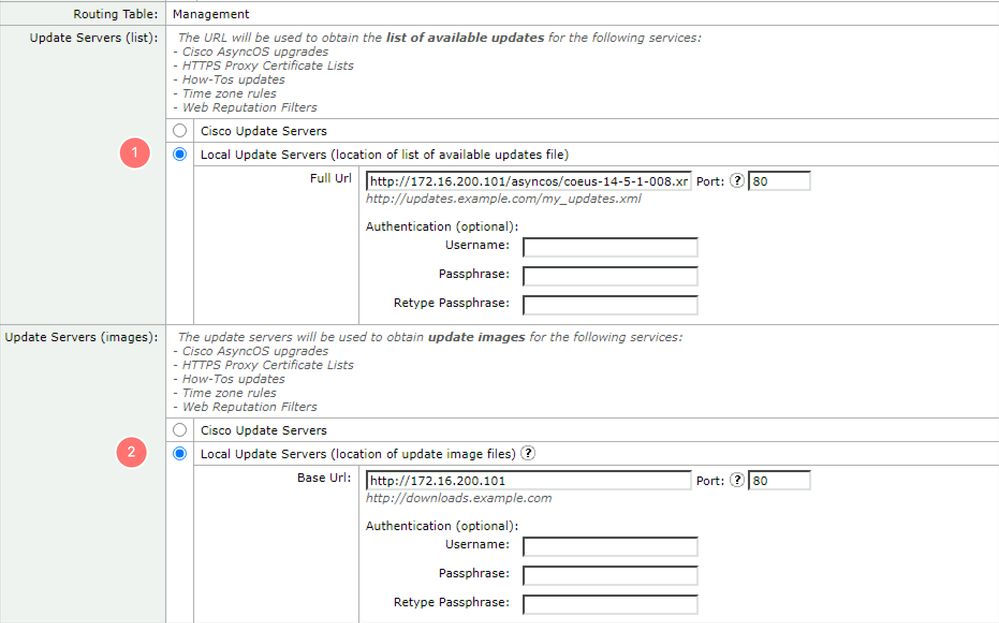 Image - Configure the Manifest URL
Step 7. Submit and Commit changes.
Step 8. Click Upgrade Options to view the list of available versions.
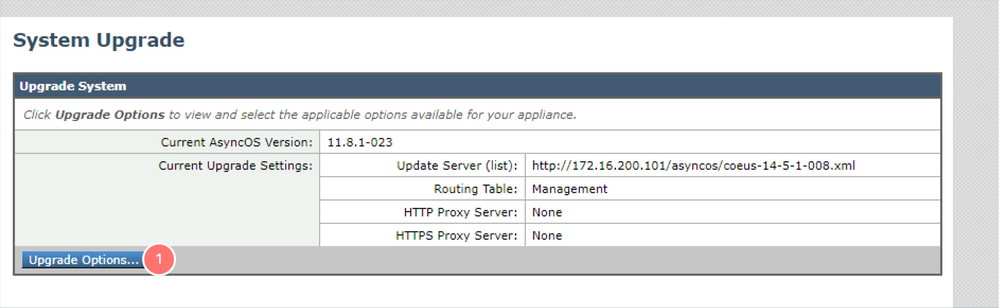 Image - System Upgrade Page
Step 9. Choose the desired version and click Proceed:
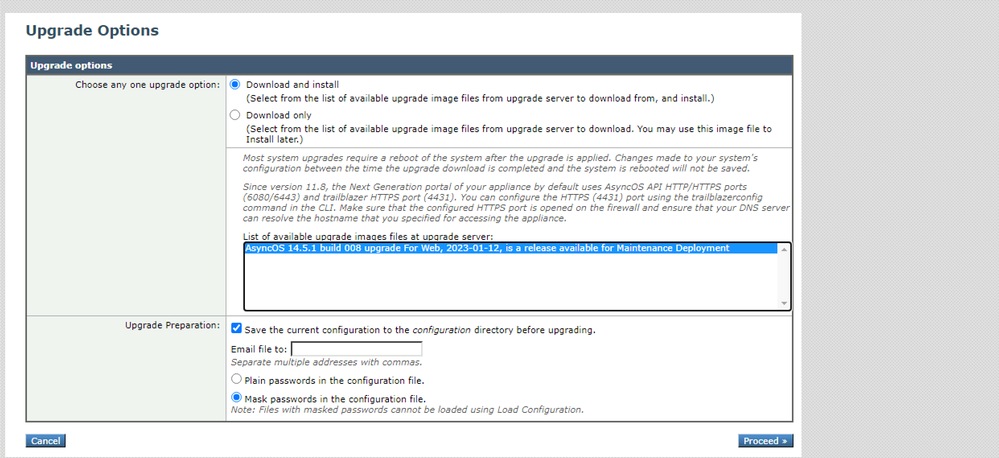 Image - Upgrade List
Step 10. Check for the instructions on the System Upgrade page.
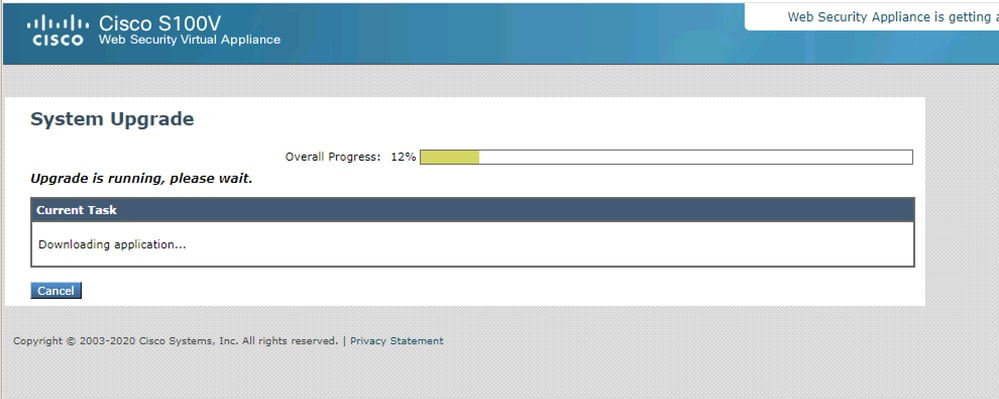 Image - Upgrade Process
Troubleshoot
You can view the upgrade logs from CLI > grep > choose the number associated with Upgrade Logs.
Here is a sample log of successful upgrade:
Wed Feb  18 04:08:12 2024 Info: Begin Logfile
Wed Feb  18 04:08:12 2024 Info: Version: 11.8.1-023 SN: 420D8120350A5CB03F1E-EEE6300DA0C4
Wed Feb  18 04:08:12 2024 Info: Time offset from UTC: 3600 seconds
Wed Feb  18 05:18:10 2024 Info: The SHA of the file hints is 5a9987847797c9193f8d0ba1c7ad6270587bcf82f1c1f783c0e36034781a026b239c8f3fe8d8ddb8e5480100bedfa41a
Wed Feb  18 05:18:10 2024 Info: Download and installation of AsyncOS 14.5.1 build 008 upgrade For Web, 2023-01-12, is a release available for Maintenance Deployment started
Wed Feb  18 05:18:10 2024 Info: The SHA of the file upgrade.sh is 41da10da137bb9a7633a5cede9636de239907f39eeb28e5bd049da6b365b589264f67f9a242ff9b8b46da5d83367acde
Could not download manifest
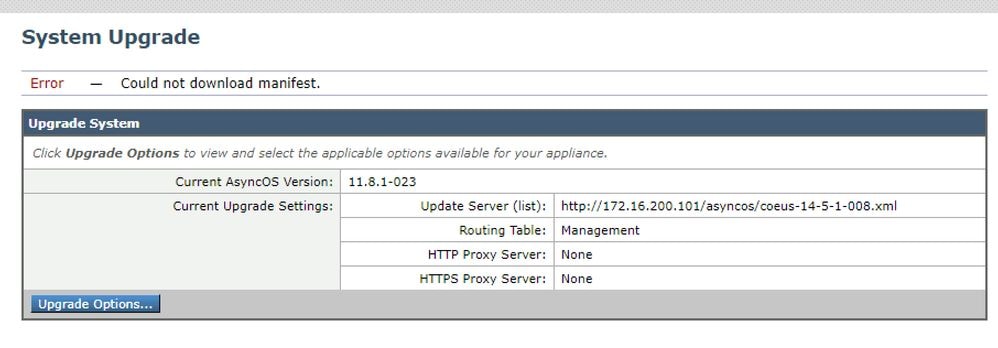 Image - Could not download manifest
You need to make sure the appliance can access the files on the web server, to check the connectivity, run the curl command from the CLI.
Note: When you choose Direct, SWA tests the connectivity from operating system and not the proxy service.
SWA_CLI> curl


Choose the operation you want to perform:
- DIRECT - URL access going direct
- APPLIANCE - URL access through the Appliance
[]> direct

Do you wish to choose particular interface of appliance?
[N]>

Enter URL to make request to
[]> http://172.16.200.101/asyncos/coeus-14-5-1-008.xml
Failure of Downloading Upgrade List
 Image - Failure downloading upgrade list
First, verify the connectivity between SWA and upgrade server you can use the curl command as mentioned.
If the connectivity was fine, check the VLN or Serial number of the manifest file to make sure they are same as the device. you can open the .xml file and look for <keys> tag.
Download Error, Upgrade Exited without Success
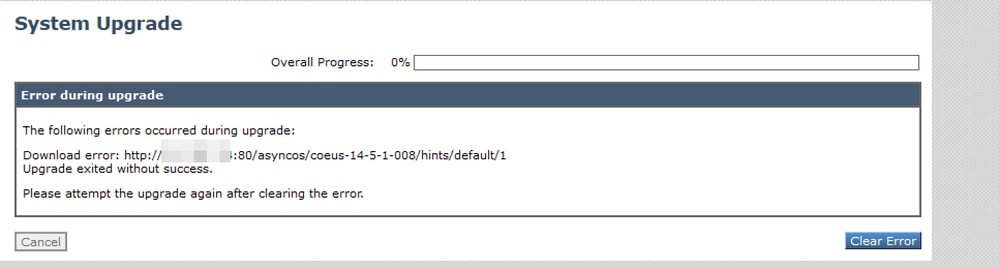 Image -Download error, Upgrade exited without success
Ensure the web server permissions are configured correctly.
Related Content
- When attempting to upgrade, why do I get the error Failure downloading upgrade list. "Error performing upgrade: I/O error"? - Cisco
- Upgrade Process for Secure Web Appliance - Cisco
- Upgrade Email Security Appliance (ESA) with GUI or CLI - Cisco
Revision History
| Revision | Publish Date | Comments |
|---|---|---|
2.0 |
20-Oct-2026
|
Modernization |
1.0 |
01-Mar-2024
|
Initial Release |

 Feedback
Contact Cisco
- Open a Support Case

- (Requires a Cisco Service Contract)