Collect DART Bundle for Secure Client
Available Languages
Introduction
This document describes DART, a tool for gathering Cisco Secure Client troubleshooting data for Cisco TAC analysis.
Background Information
The DART wizard runs on a device with Cisco Secure Client installed and can be launched either from within the Secure Client or independently.
Prerequisites
Requirements
Cisco recommends you have knowledge of these topics:
- Cisco Secure Client 5.x
- Adaptive Security Appliance (ASA)
- Firepower Threat Defense (FTD)
Components Used
The information in this document is based on these operating systems:
- Windows
- MacOS
- Linux
The information in this document was created from the devices in a specific lab environment. All of the devices used in this document started with a cleared (default) configuration. If your network is live, ensure that you understand the potential impact of any command.
Procedure
Installation
There are two ways to install DART on endpoints. You can install it using predeploy packages manually on the targeted PC or it can be deployed from ASA/FTD by configuring it under assigned "group-policy".
Predeploy Packages
Step 1. Download the Secure Client predeploy package per your operating system from the Cisco Software website.
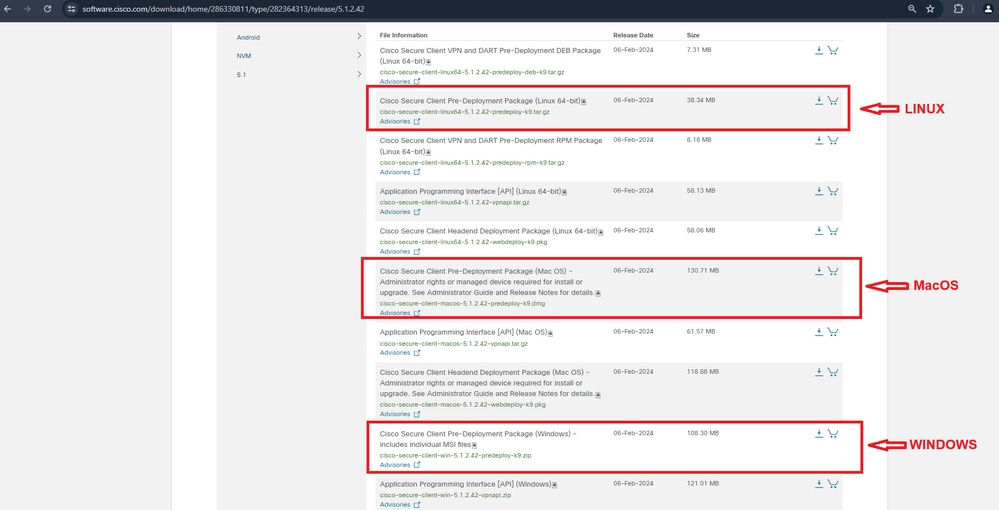 Download Secure Client package
Step 2. Installing it manually on different operating systems.
DART for Windows
1. Extract the predeploy package.
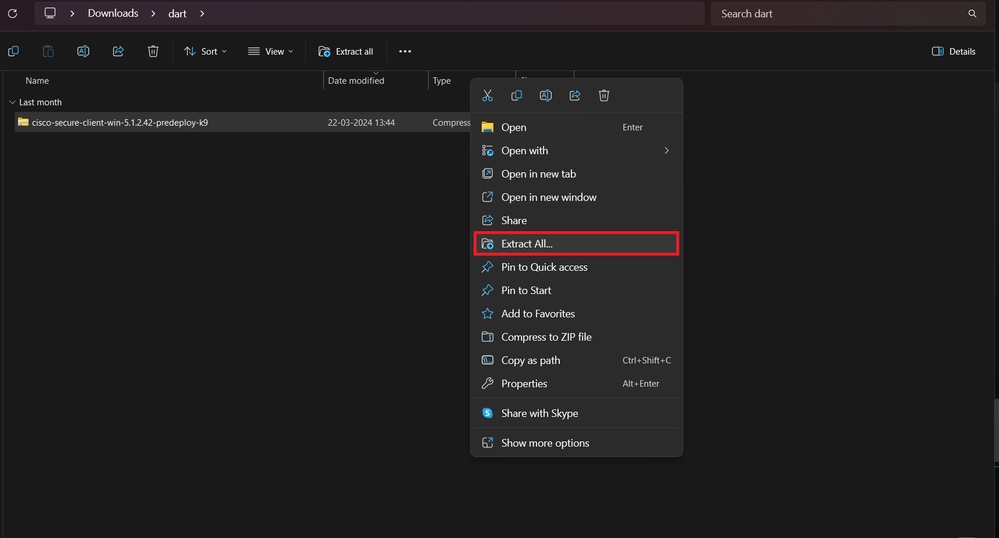 Extract pre-deploy pkg
2. Click on the DART MSI installer.
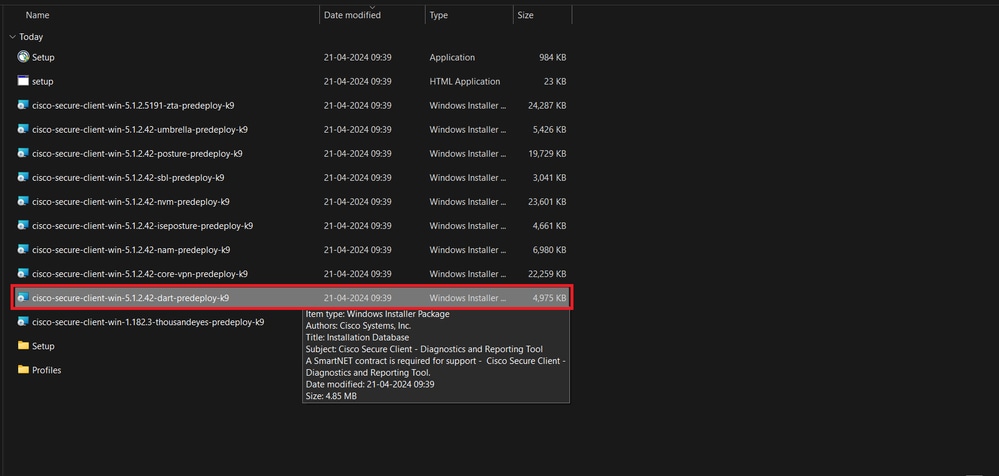 MSI installer
3. Comply with the on-screen instructions for the installation of DART.
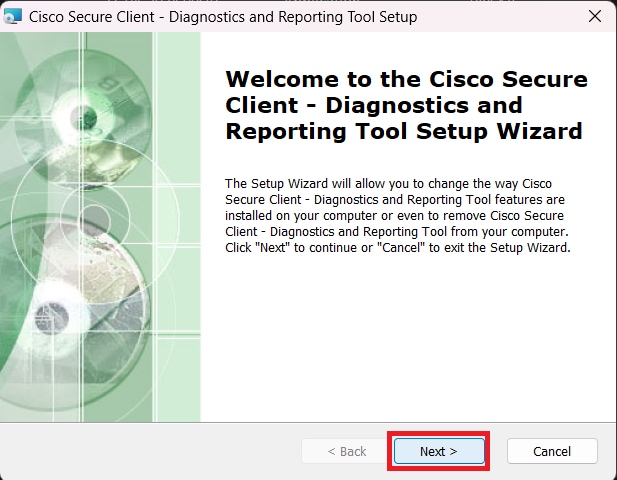 Next to proceed
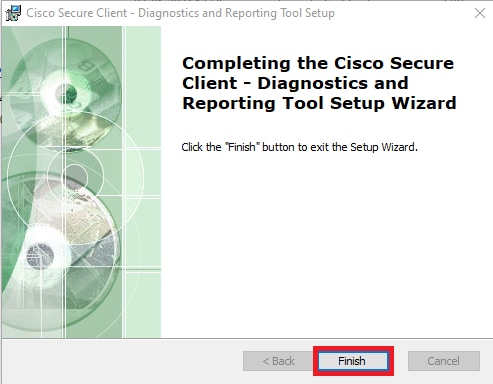 Installation Completed
DART for MacOS
1. Double click on DMG installer file and then click on the Cisco Secure Client.pkg.
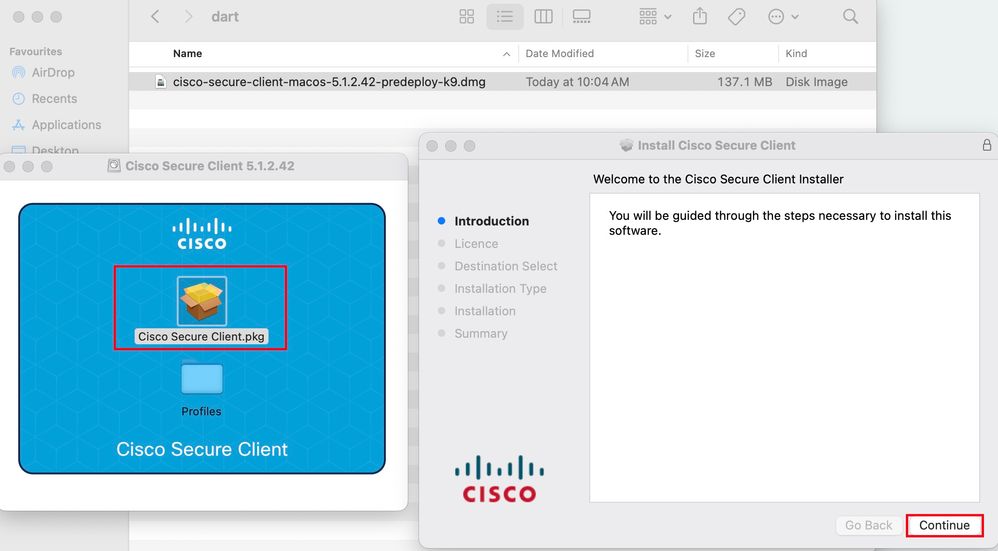 Install Secure Client pkg
2. Read the license and continue accordingly.
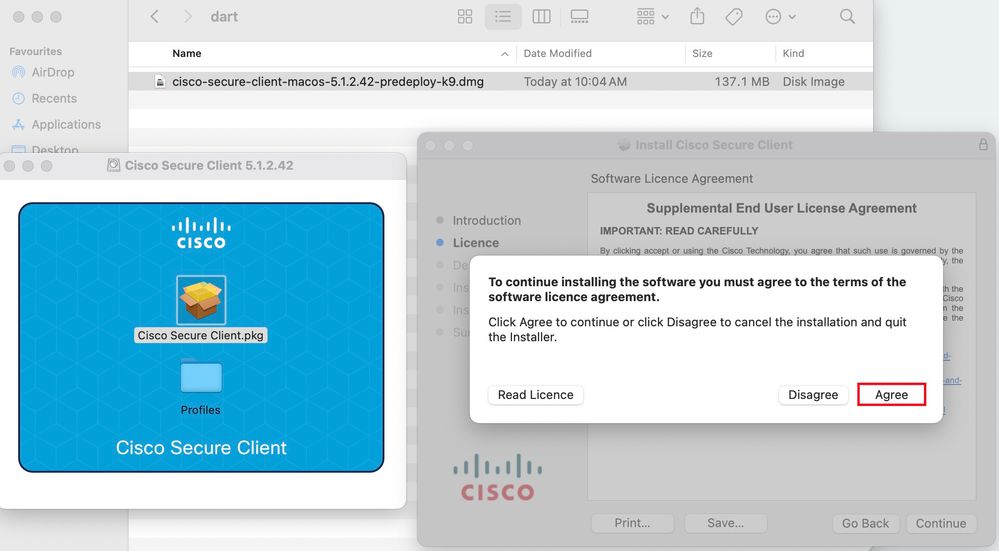 Agree to continue
3. Check the Diagnostic and Reporting Tool and click Continue.
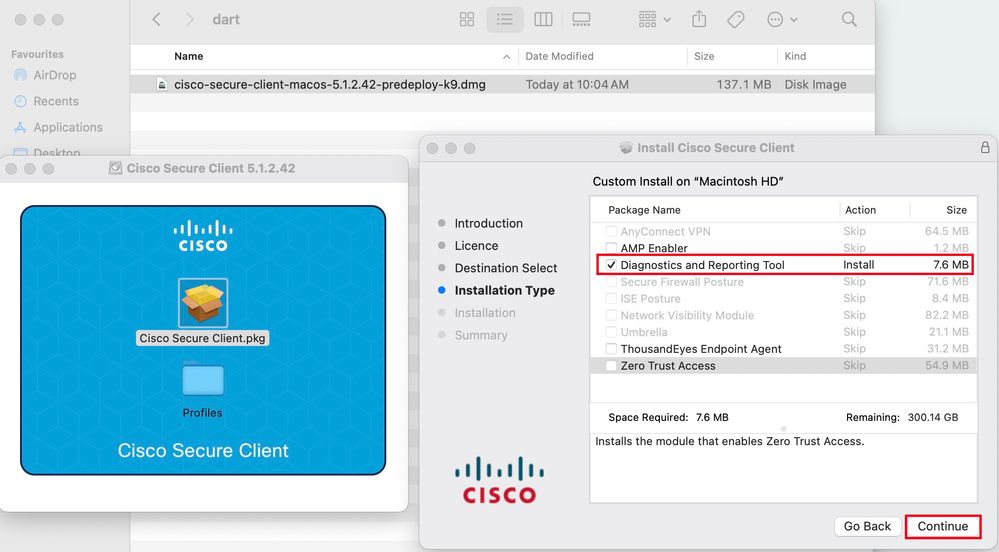 Install DART
4. Comply with the on-screen instructions for the installation of DART.
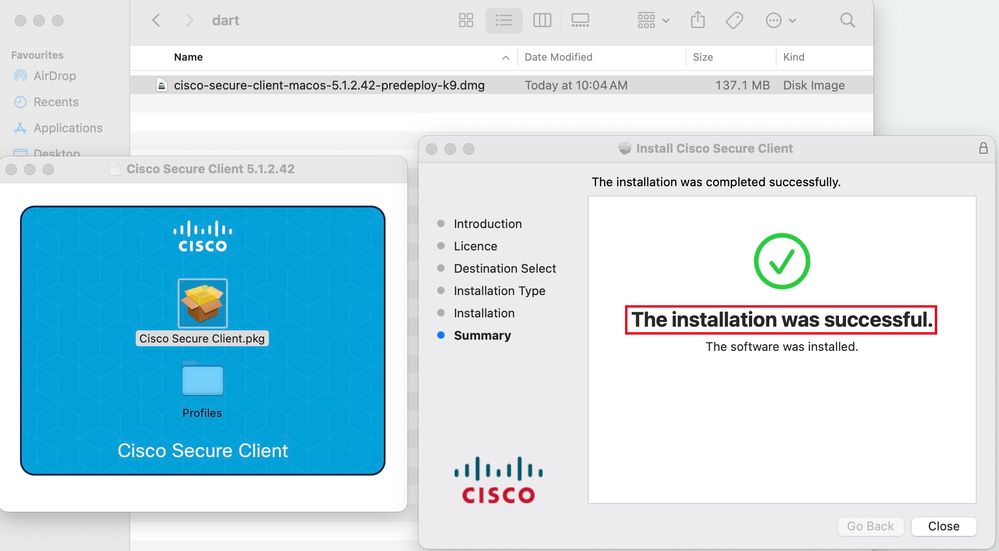 Installation Completed
DART for Linux
1. Untar the Linux predeploy package using command:
tar xvzf cisco-secure-client-linux64-5.1.2.42-predeploy-k9.tar.gz
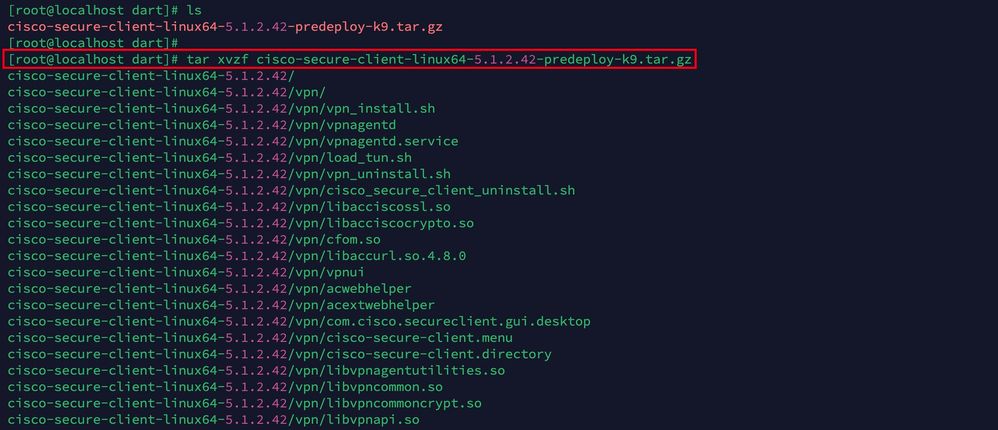 Untar linux pkg
2. Navigate to /cisco-secure-client-linux64-5.x/dart and execute dart_install.sh.
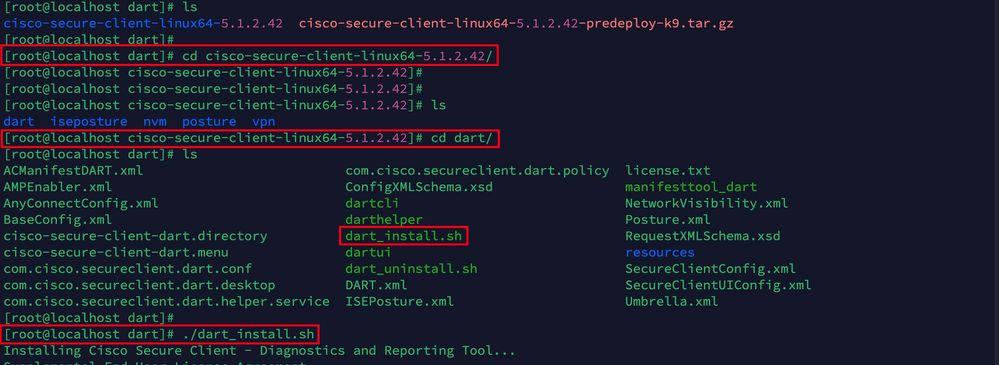 Install DART
3. Accept the terms and license agreement to install DART.
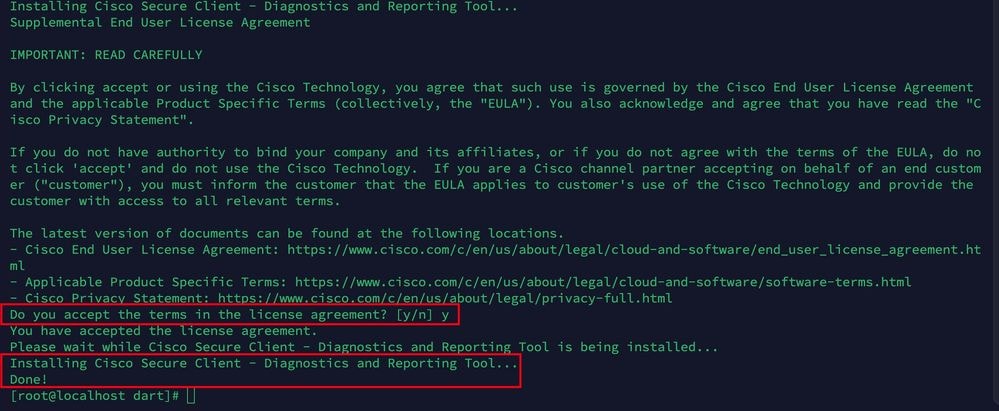 Accept agreement
4. After the installation, DART and the Secure Client can be accessed from:
Application>Internet>Cisco Secure ClientApplication > Internet > Cisco Secure Client - DART
Deploy from ASA/FTD
Headends like ASA and FTD support deploying various AnyConnect modules—including DART, VPNGINA, and AMP Enabler—to endpoints when users connect remotely to access VPN.
FTD
If you're managing FTD from FMC or FDM, review the DART guide for deployment and other module instructions on using the group-policy.
ASA
Configure the dart module AnyConnect values in the targeted webvpn section of the group-policy:
group-policy NAME_OF_GROUP_POLICY internal
group-policy NAME_OF_GROUP_POLICY attributes
 dns-server value 8.8.8.8
 vpn-tunnel-protocol ssl-client
 split-tunnel-policy tunnelspecified
 split-tunnel-network-list value split-acl
 webvpn
  anyconnect modules value dart
anyconnect profiles value Asa type user- Establish a successful connection to the ASA/FTD.
- Navigate to
Settings>VPN>Message Historyto view the details on the modules that were downloaded.
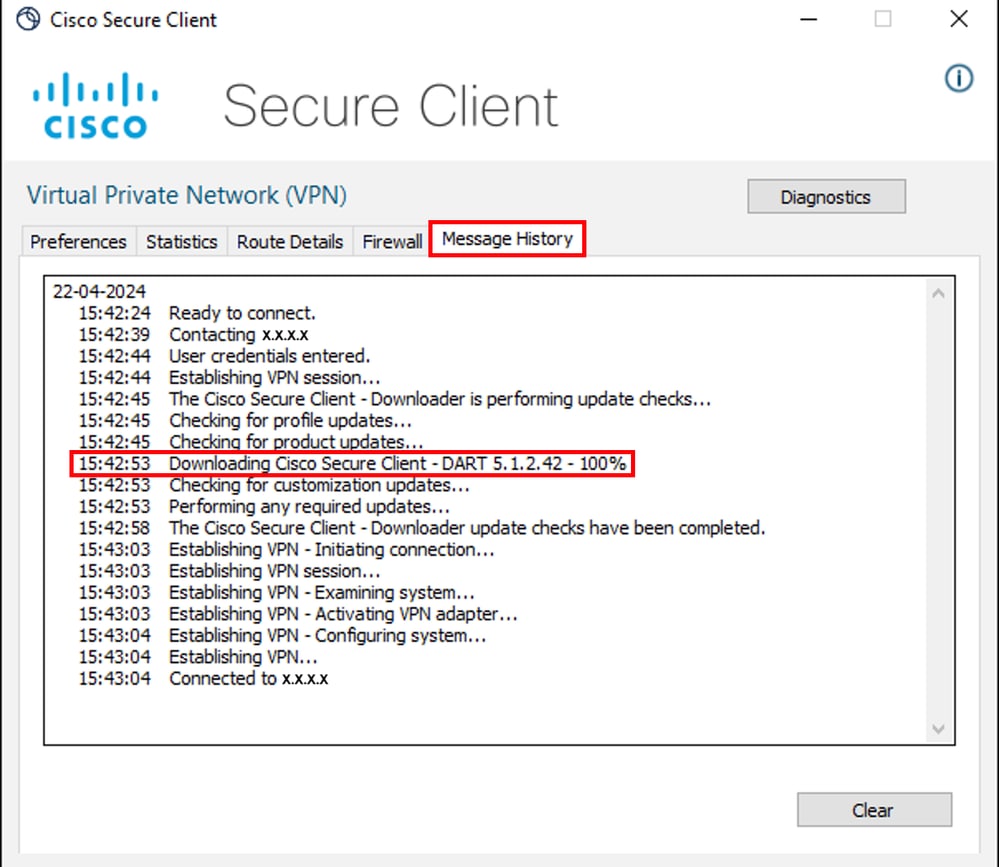 Download module
Collecting DART Bundle
Windows
Step 1. Launch DART from either the Start Menu or the Cisco Secure Client.
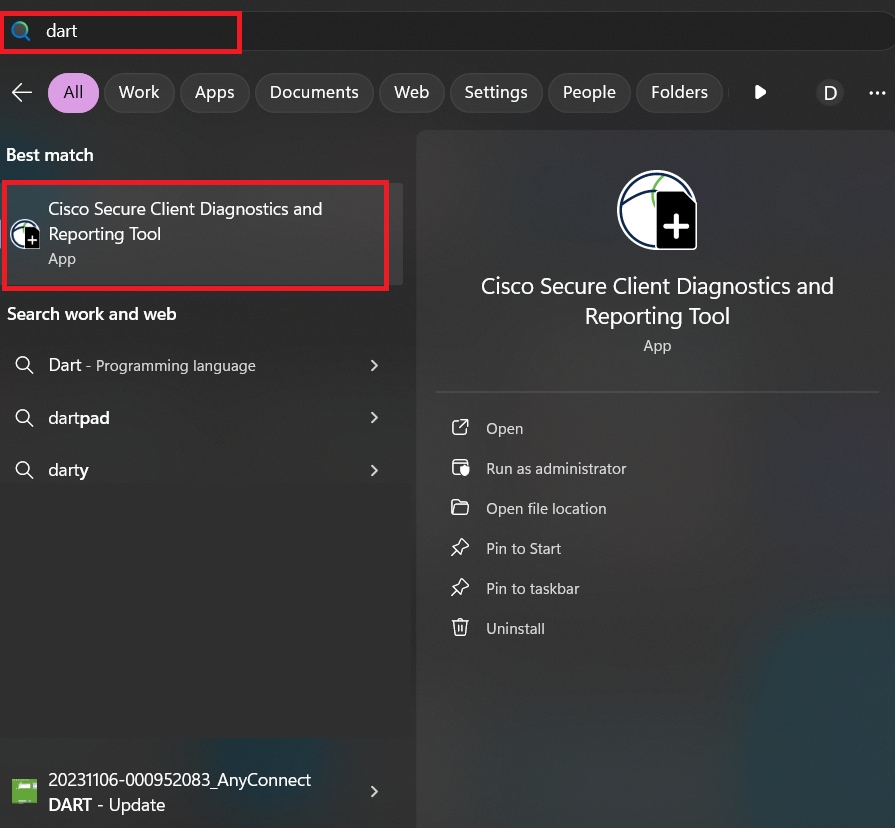 Start menu
Or
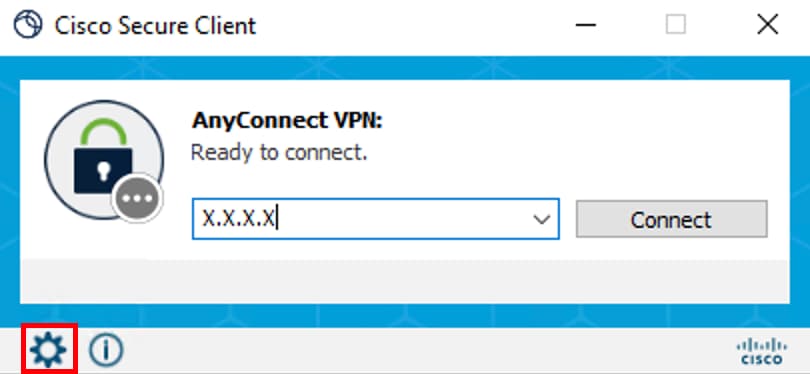 Cisco Secure Client
Step 2. Click on the Diagnostics to collect the DART logs.
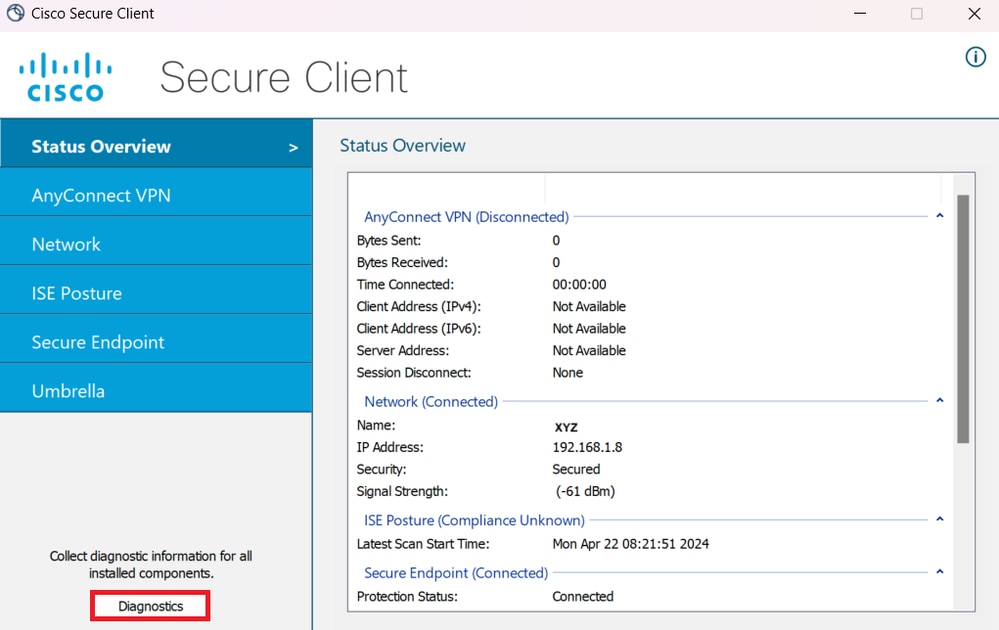 Launch Diagnostics
Step 3. Comply with the on-screen instructions to collect the DART bundle.
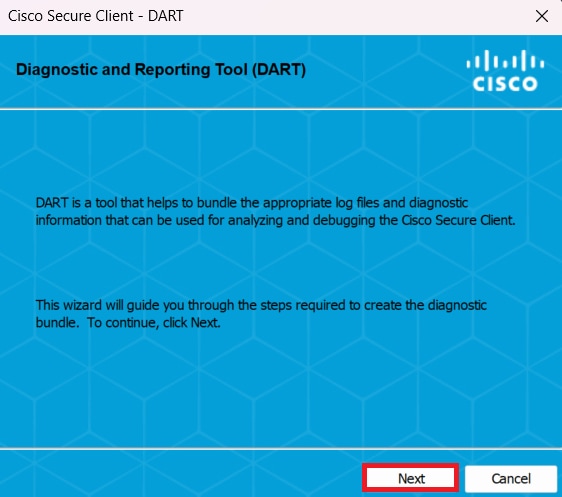 DART - Next
Step 4. Select the Default option to save the DART bundle on the Desktop and click Next.
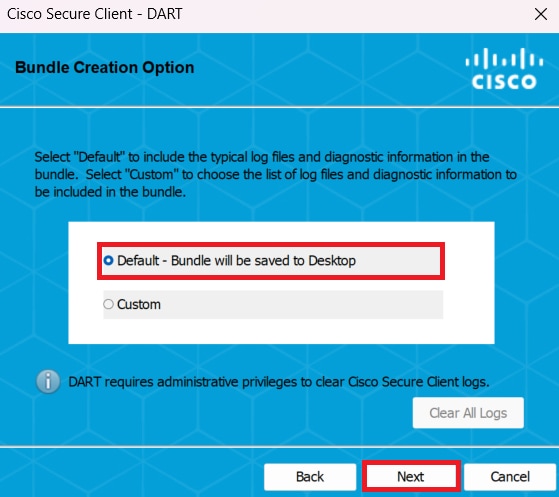 Bundle creation options
Step 5. Windows starts processing and collecting the logs.
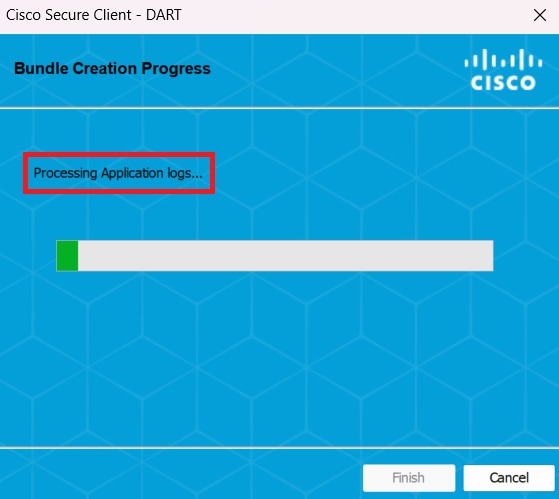 Processing logs
Step 6. After processing, the DART bundle is saved on the Desktop by default.
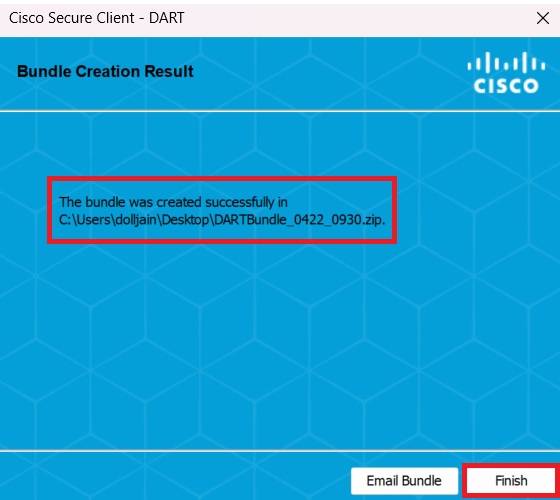 Dart created
MacOS
Step 1. Launch DART from either the Mac Launchpad or the Cisco Secure Client by clicking on the Generating Diagnostics Report.
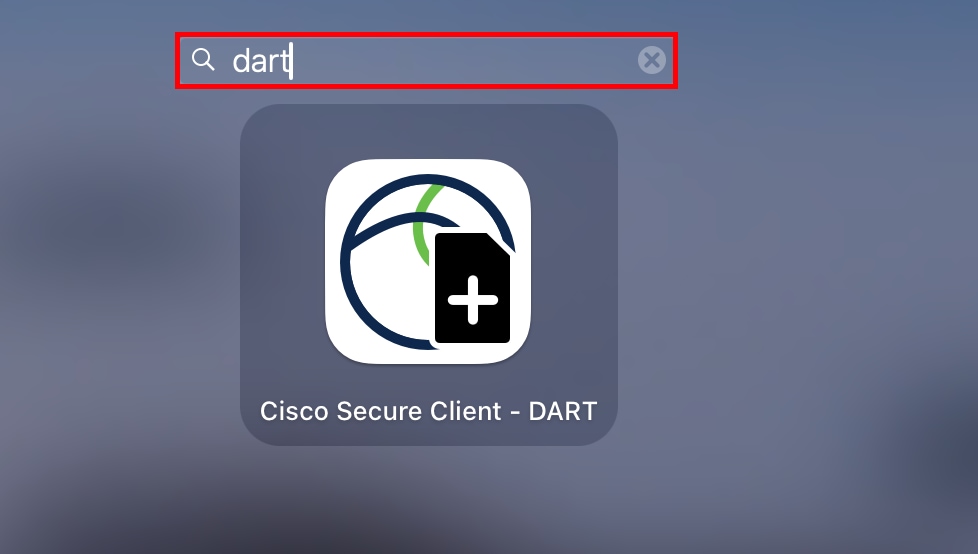 Mac Launchpad
Or
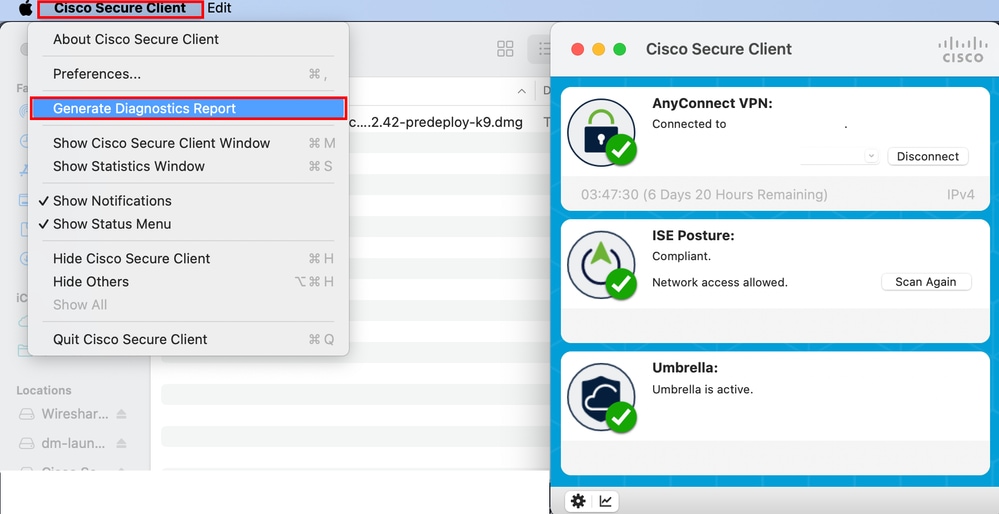 Cisco Secure Client
Step 2. Select the additional log options to include the legacy and system logs per the requirements and click on Run.
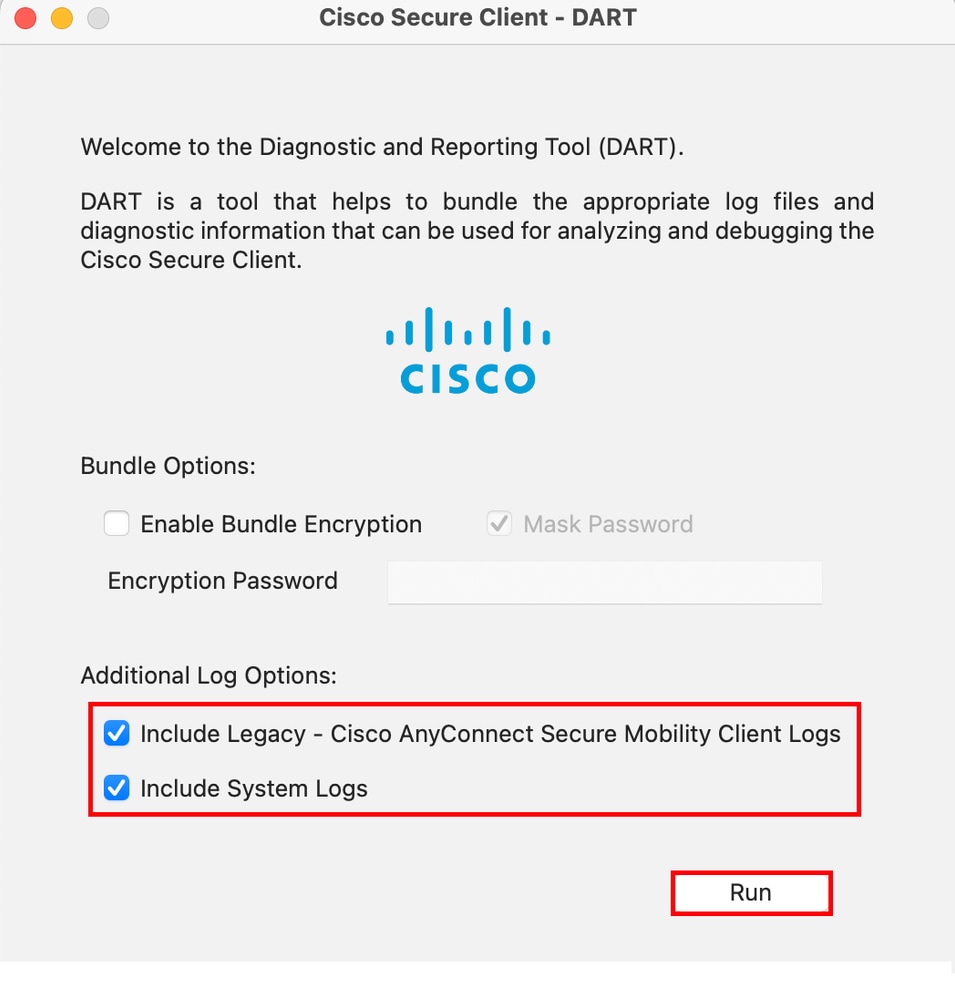 Additional Log Options
Step 3. MacOS starts processing and collecting the logs.
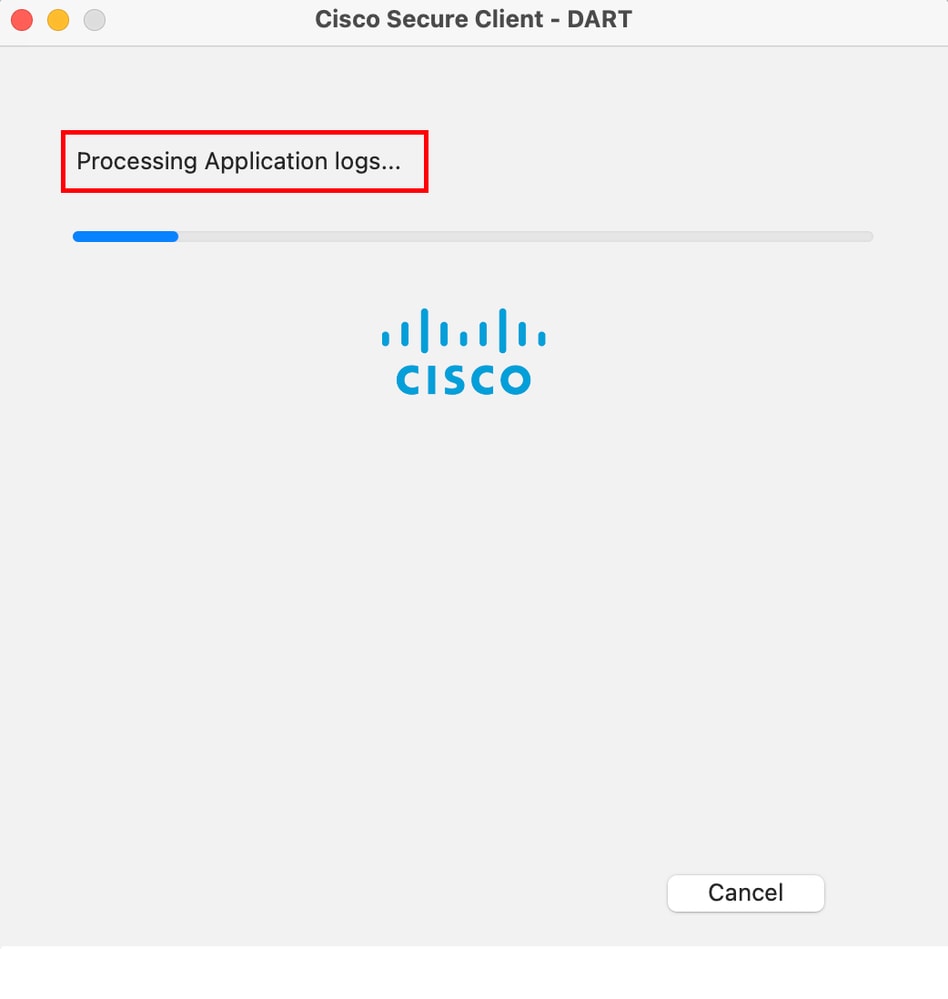 Processing Logs
Step 4. After processing, the DART bundle is saved on the Desktop by default.
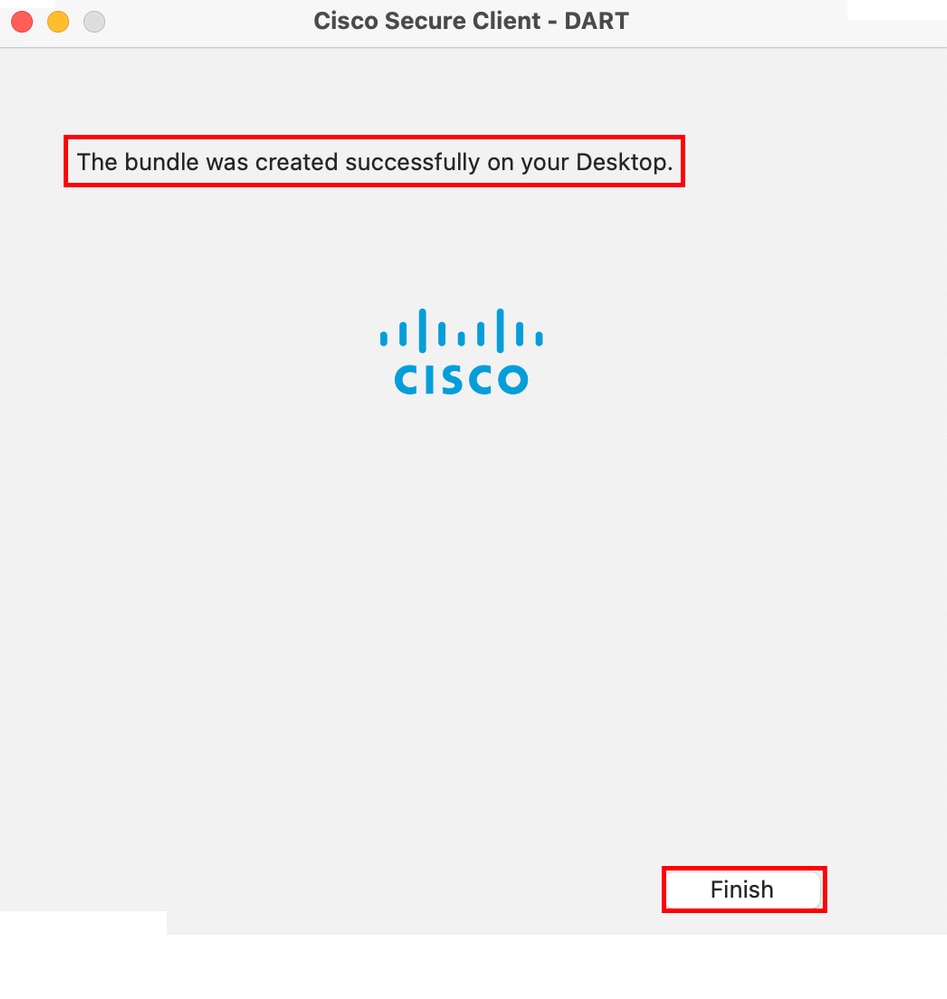 DART bundle created
Linux
Step 1. Navigate to /opt/cisco/secureclient/dart/ and execute dartui. The GUI for DART opens on-screen; click Next.
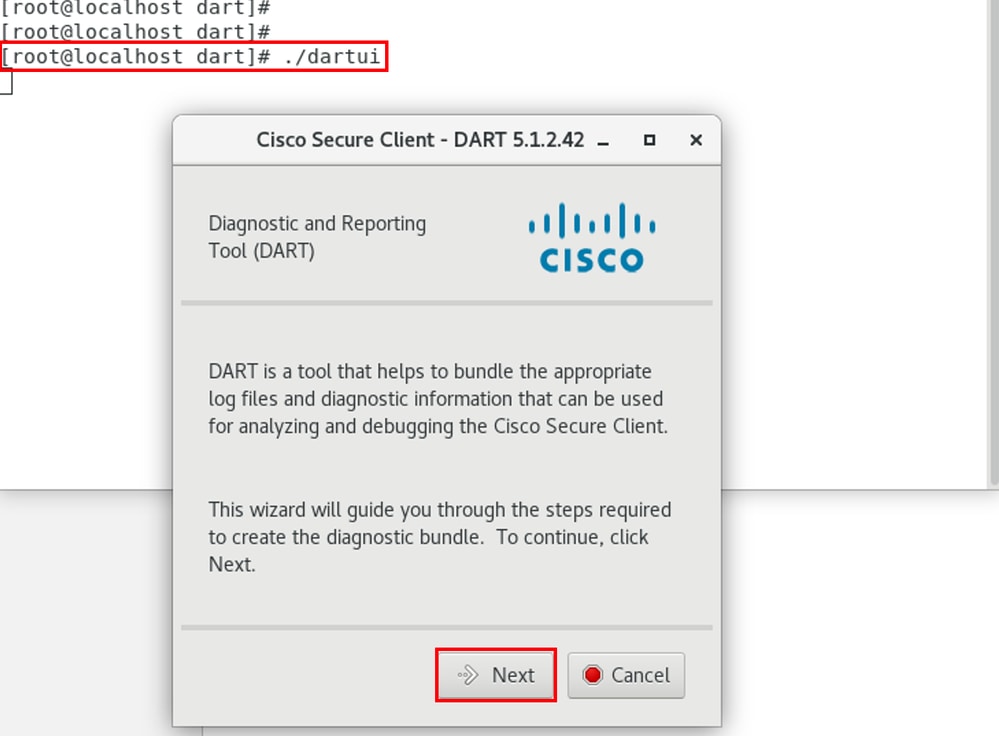 DART launching
Step 2. Select the Typical bundle option for collecting the logs and diagnostic information and click Next.
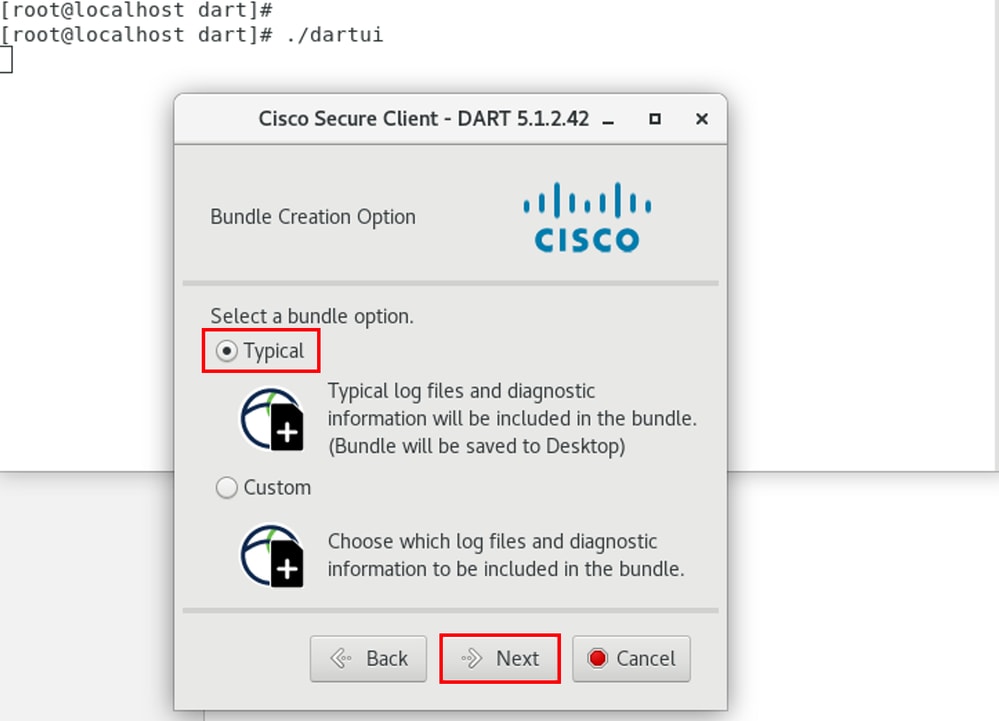 Bundle Option
Step 3. Click Finish and the DART bundle is saved on the Desktop by default.
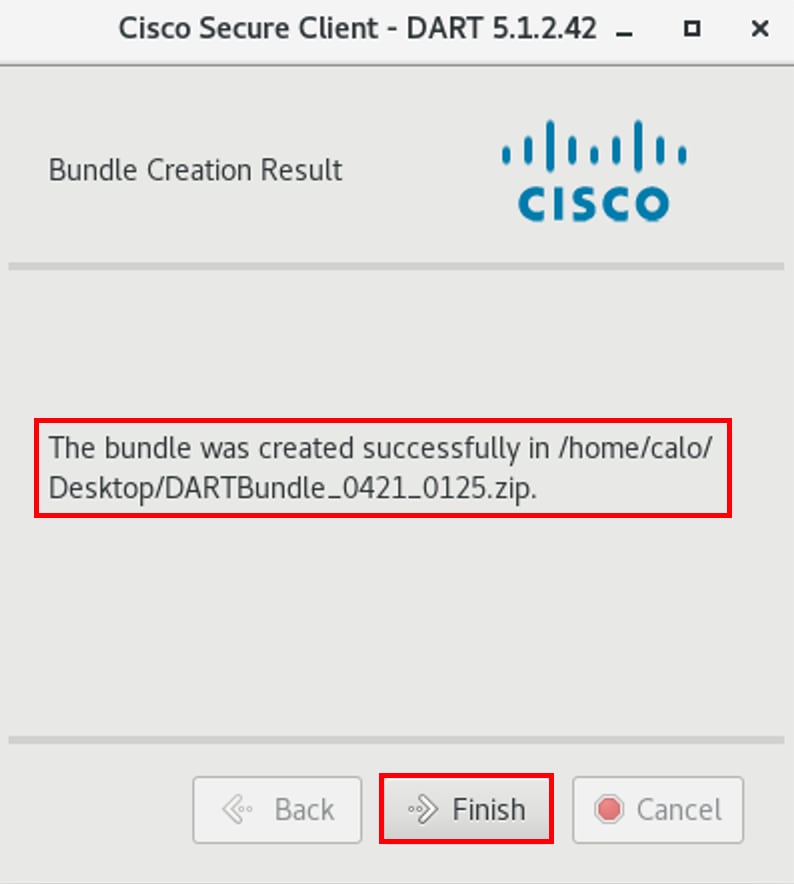 DART bundle created
Troubleshoot
This section provides information to troubleshoot your configuration.
Use the guide to correlate and identify logs from DART for resolving Secure Client related issues.
Revision History
| Revision | Publish Date | Comments |
|---|---|---|
2.0 |
01-Jun-2026
|
Updated spelling, reworded sentence(s), spacing, and updated alt text. |
1.0 |
22-Apr-2024
|
Initial Release |

 Feedback
Contact Cisco
- Open a Support Case

- (Requires a Cisco Service Contract)