Experience Insights UI Page Load Errors and Thousand Eyes Module Download Failures
Available Languages
Contents
Issue
Users are encountering page load errors within the Experience Insights UI interface and experiencing failures when attempting to download the ThousandEyes module (TE json file). These errors prevent access to Experience Insights data and block the creation of an Intune package needed for endpoint deployment. The specific symptoms include UI pages that fail to load properly and download failures when trying to retrieve the ThousandEyes integration module from the Experience Insights interface.
Environment
Secure Access - Experience Insights (Performance metrics, Endpoint agents)
Resolution
The resolution involves reattempting the Thousand Eyes integration with the Secure Access organization.The following steps should be performed:
Before you begin
An active Cisco Thousand Eyes account with the Organization Admin role. For more information, see Role-Based Access Control and Built-in Roles and Permissions in Thousand Eyes documentation.
The administrator who received email notification of Secure Access activation will also receive email notification of Thousand Eyes activation. Follow Thousand Eyes provisioning instructions within 72 hours of receiving the activation email. If the activation email is expired, visit the Thousand Eyes login page and click Forgot password?
The Thousand Eyes login account group is correct for integration with Experience Insights.
The Login Account Group determines Thousand Eyes test and agent visibility to Secure Access Experience Insights. For more information, see What is an Account Group? in Thousand Eyes documentation.
The Thousand Eyes User Profile for the integration account must have a Login Account Group intended for integration with Secure Access. For more information, see Role-Based Access Control: Login Account Group and Role-Based Access Control: Account Groups Screen in Thousand Eyes documentation.
Integration
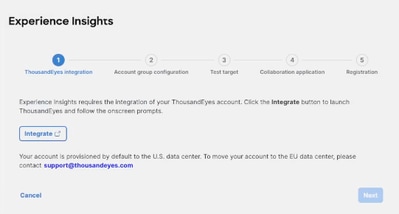
Experience Insights requires the integration of your Thousand Eyes account.
Navigate to Experience Insights > Insights Management > Management, then click Begin on boarding.
Click the Integrate button to launch Thousand Eyes.
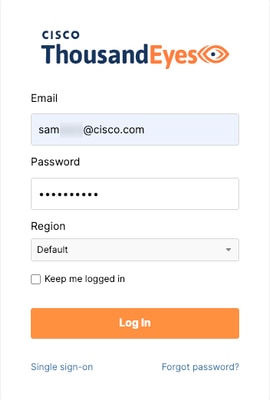
Log into Thousand Eyes using an account with the Organization Admin role.
Confirm that you authorize the following Secure Access permissions in Thousand Eyes:
Read organization - Allows the reading of the organization credentials, account groups, users, user events, roles, permissions, usage and quotas.
Manage endpoint agents - Allows the end user to manage their endpoint agents.
Manage endpoint tests - Allows the end user to manage their endpoint tests.
Manage tags - Allows the end user to manage their tags and labels.
Read tests - Allows the end user to read their tests and the respective results.
OAuth 2.0 with Thousand Eyes
Thousand Eyes uses the OAuth 2.0 protocol to grant Secure Access limited access to your Thousand Eyes data. For more information, see OAuth 2.0 with ThousandEyes.
After confirming, wait for the Experience Insights on boarding wizard to reload and display the Integration successful message, then click Next.
Account group configuration
Choose your Thousand Eyes account groups integration: Default account group integration or Multiple account groups integration. After the integration you can change the integration method by navigating in Secure Access to Account Management > Account group integration.
Default account group integration: By selecting this integration, two default tests are only created in the default account group. If you need to edit these tests after the completion of on boarding, navigate to Account Management. For more information, see Edit Default Test Target.
Multiple account groups integration: By selecting Multiple account groups, you will see all the ThousandEyes account groups and tests associated with the Thousand Eyes user who did the initial integration with Secure Access
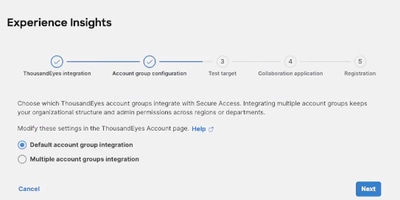
Default test target
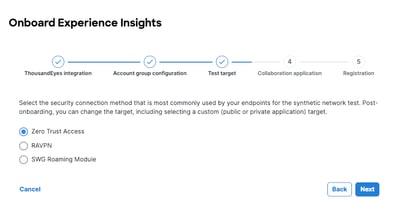
For the synthetic network test, select the security connection method most commonly used by your endpoints. Test target options include Zero Trust Access, RAVPN, and SWG Roaming Module.
Synthetic tests identify performance issues in user journeys to their destinations. After on boarding, you can modify the test target to include custom public or private applications.
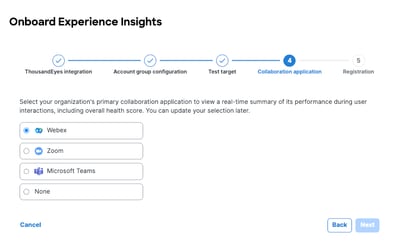
Unified collaboration application
Select your organization's primary collaboration application (Webex, Zoom, Microsoft Teams, or None) to view a real-time summary of its performance during user interactions, including overall health score. You can update your selection later
Thousand Eyes agent
Endpoints must be registered to your Secure Access organization to be monitored for performance.
When you deployed Cisco Secure Client to your endpoints, the Thousand Eyes Endpoint Agent was installed.
The Thousand Eyes Endpoint Agent will register to your Secure Access organization automatically once your endpoints have connected to VPN, ZTA, or Roaming Module
Manually register the Thousand Eyes Endpoint Agent for endpoints that are not using VPN, ZTA, or the Roaming Module for their security connection.
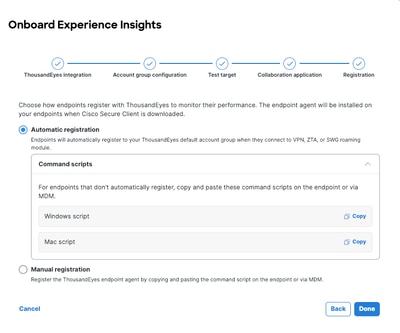
This process involves copying and pasting a command script onto the specific endpoints. The registration script includes a Thousand Eyes connection string that is unique to your organization. Your organization's connection string is the parameter following the
--registerargument.
Windows
"C:\Program Files (x86)\Cisco\Cisco Secure Client\ThousandEyes Endpoint Agent\csc_te_agent" --register <connection string>
Mac
sudo /Applications/Cisco/Cisco\ Secure\ Client\ -\ ThousandEyes\ Endpoint\ Agent.app/Contents/MacOS/csc_te_agent --register <connection string>
Navigate to Experience Insights > Configure Account to find your organization's registration scripts.You can access these scripts at any time after onboarding is completed.
Copy the appropriate command script for your endpoint's operating system.
On the target endpoints, paste and execute the copied script.
What to do next
Once you complete the Experience Insights onboarding wizard and the registration of one or more endpoints, data reported by the ThousandEyes endpoint agent will appear in your Experience Insights dashboard.
Navigate to Experience Insights > Endpoints to confirm that your endpoint is reporting data.
For more information, see the following resources:
Cisco Secure Client ThousandEyes Endpoint Agent Module
Get Started with Cisco Secure Client on Windows and macOS Devices
Deploy Cisco ThousandEyes Module via Microsoft Intune (for an MDM example)
Cause
Issue was identified by looking at web developer tools showing invalid access token.
Related Content
Revision History
| Revision | Publish Date | Comments |
|---|---|---|
1.0 |
28-May-2026
|
Initial Release |

 Feedback
Contact Cisco
- Open a Support Case

- (Requires a Cisco Service Contract)