Troubleshoot Secure Access VPN Connection Error
Available Languages
Introduction
This document describes how to resolve VPN connection errors for Cisco Secure Access.
Problem
When a user tries to connect with RA-VPN (Remote Access VPN) to the Secure Access headend, these error are printed in the Cisco Secure Client notification popup:
- VPN establishment capability for a remote user is disabled. A VPN connection will not be established.
- Cisco Secure Client was not able to establish a connection to the specified secure gateway. Please try connecting again.
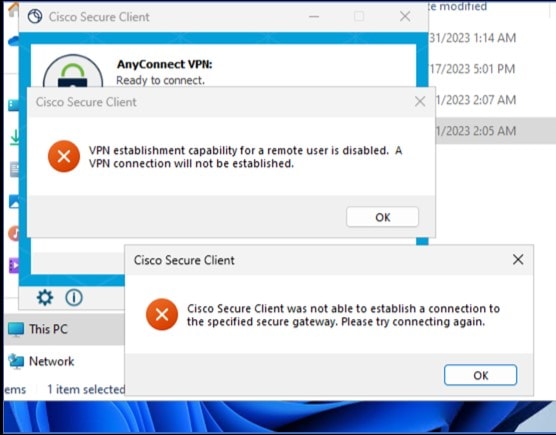 Cisco Secure Client - Problem connecting to Cisco Secure Access
The mentioned error is generated, when the user is connected via the RDP to the Windows PC, tries to connect to RA-VPN from the given PC, and Windows VPN Establishment is set to Local Users Only (default option).
Windows VPN Establishment determines the behavior of the Cisco Secure Client when a user who is remotely logged on to the client PC establishes a VPN connection.
The possible values are:
- Local users only: Prevents a remotely logged-on (RDP) user from establishing a VPN connection.
- Allow remote users: Allows remote users to establish a VPN connection. However, if the configured VPN connection routing causes the remote user to become disconnected, the VPN connection terminates to allow the remote user to regain access to the clients PC. Remote users must wait 90 seconds after VPN establishment if they want to disconnect their remote login session without causing the VPN connection to be terminated.
Solution
Navigate to Cisco Secure Access Dashboard.
- Click Connect > End User Connectivity.
- Click Virtual Private Network.
- Choose the profile that you want to modify and click Edit:
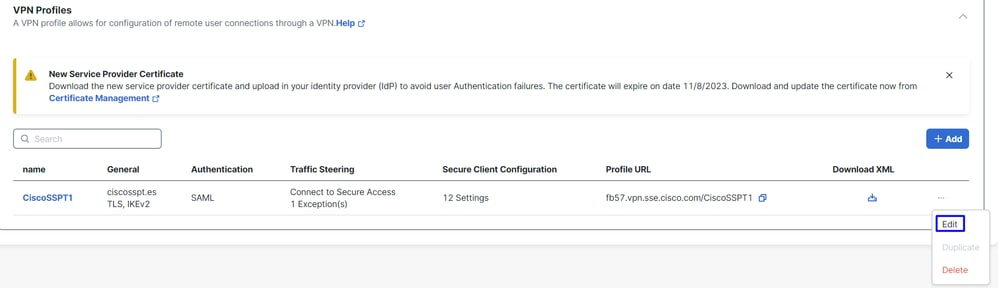 Cisco Secure Access - RA-VPN
Click Cisco Secure Client Configuration > Client Settings > Edit:
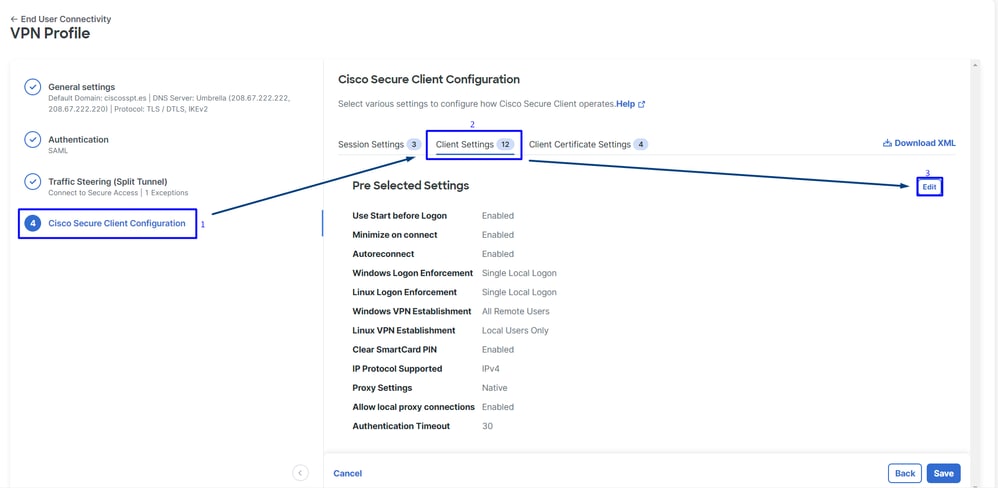 Cisco Secure Access - RA-PVN Client Configuration
Click Administrator Settings and modify Windows VPN Establishment from Local User Only to All Remote Users:
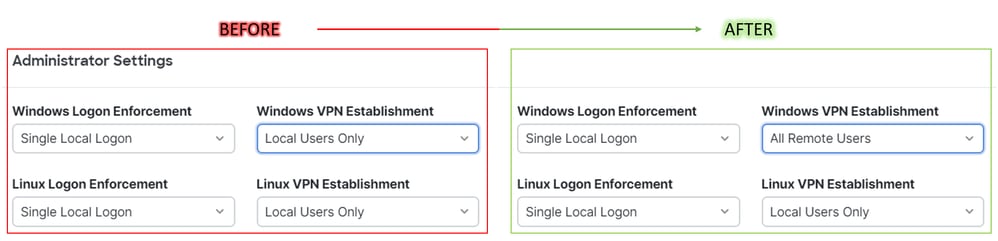 Cisco Secure Access - Windows Windows VPN Establishment
Click Save:
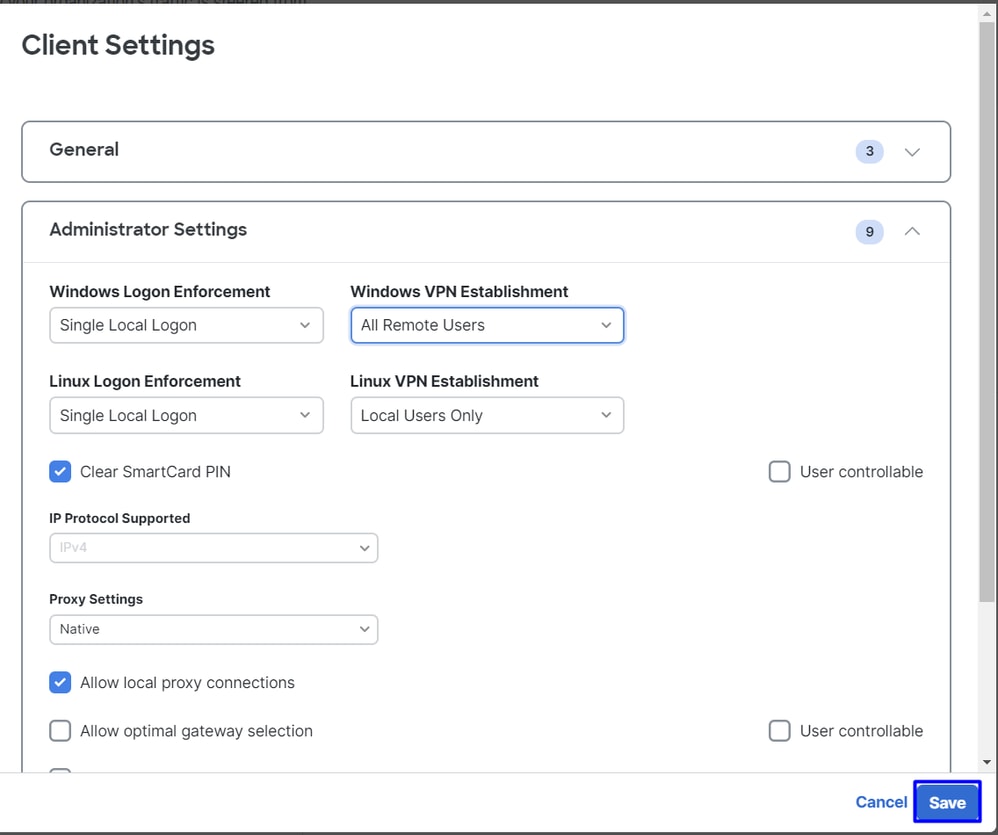 Cisco Secure Access - Windows Windows VPN Establishment 2
When you establish the RA-VPN session from the remote Windows PC, you must configure the Tunnel Mode as Bypass Secure Access. Otherwise, you risk losing access to the remote Windows PC.
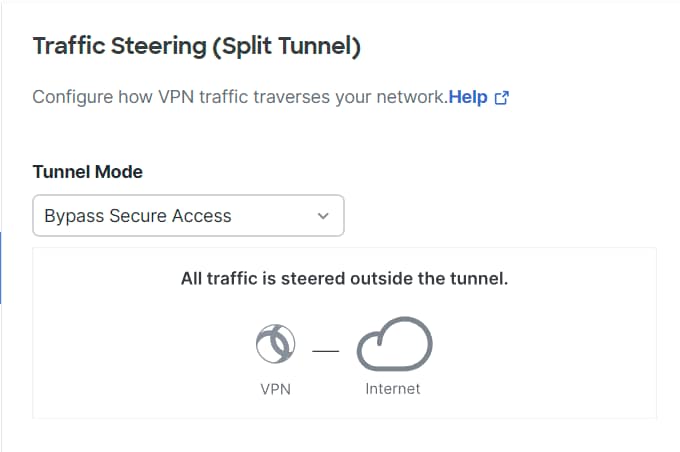 Cisco Secure Access - Tunnel Mode
For more information about Tunnel Mode check the next article item number 6 refer to: Add VPN Profiles Step 1 – General Settings.
Related Information
Revision History
| Revision | Publish Date | Comments |
|---|---|---|
2.0 |
13-May-2026
|
Formatting, links. |
1.0 |
03-Nov-2023
|
Initial Release |

 Feedback
Contact Cisco
- Open a Support Case

- (Requires a Cisco Service Contract)